> ## Documentation Index
> Fetch the complete documentation index at: https://notes.kodekloud.com/llms.txt
> Use this file to discover all available pages before exploring further.
# Demo Hands on with AWS Eventbridge schedulers
> Learn to use AWS EventBridge for scheduling AWS Lambda function invocations with practical examples and monitoring techniques.
In this guide, you’ll learn how to use **AWS EventBridge** to schedule **AWS Lambda** function invocations. We’ll walk through creating a simple “Hello World” Lambda, setting up a recurring schedule in EventBridge, monitoring invocations, and exploring real-world scenarios.
Scheduling functions with EventBridge may incur additional charges. Check the [EventBridge pricing](https://aws.amazon.com/eventbridge/pricing/) before you begin.
## Prerequisites
* An AWS account with permissions for Lambda and EventBridge
* Basic familiarity with the AWS Management Console
***
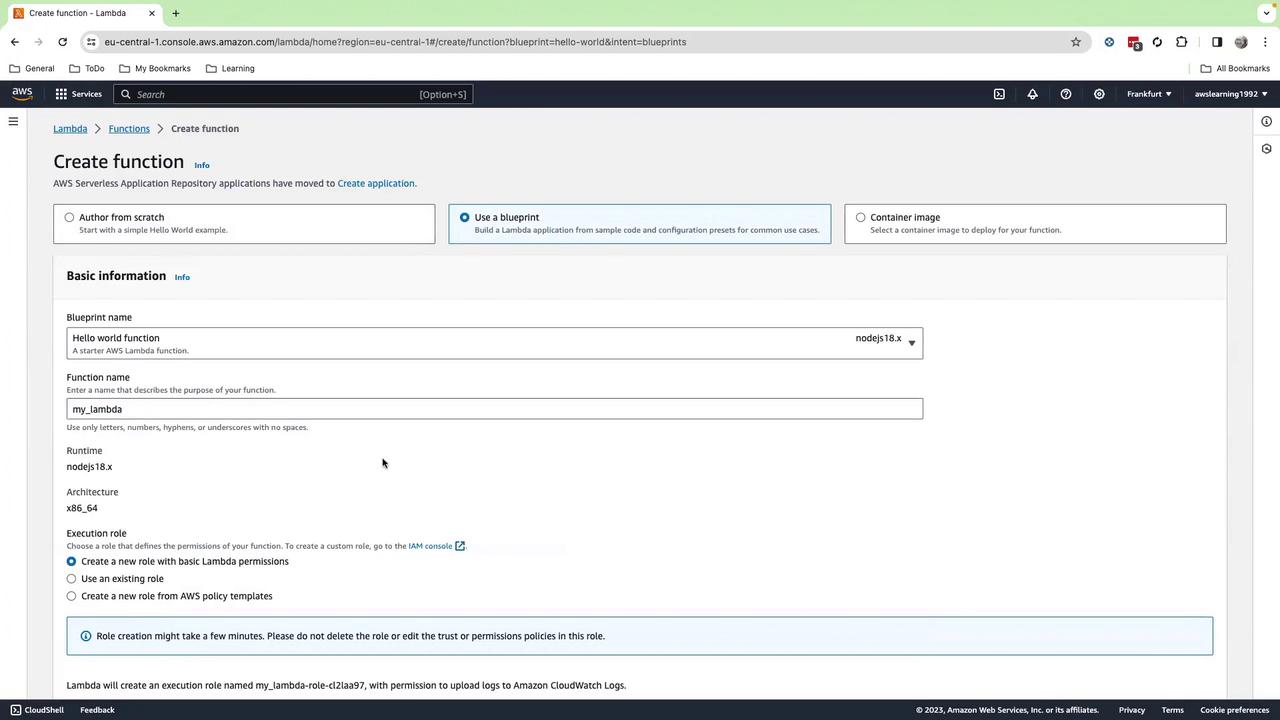
## Step 1: Create a Lambda Function
1. Sign in to the **AWS Management Console**.
2. Navigate to **AWS Lambda** > **Functions** > **Create function**.
3. Choose **Blueprint**, search for “Hello World,” and select it.
4. Enter a name, e.g., `my_lambda`.
5. Select **Node.js 18.x** (or **Python 3.x** if you prefer).
6. Keep all other settings as default and click **Create function**.
***
## Step 2: Add the Function Code
1. In the inline editor, replace the default handler with the following Python code:
```python theme={null}
import json
def lambda_handler(event, context):
print("loading function")
return json.dumps(event, indent=2)
```
2. Click **Deploy**.
By default, there is no trigger attached. Next, we’ll configure EventBridge.
***
## Step 3: Create an EventBridge Schedule
1. Open the **Amazon EventBridge** console.
2. In the left pane, choose **Schedules** > **Create schedule**.
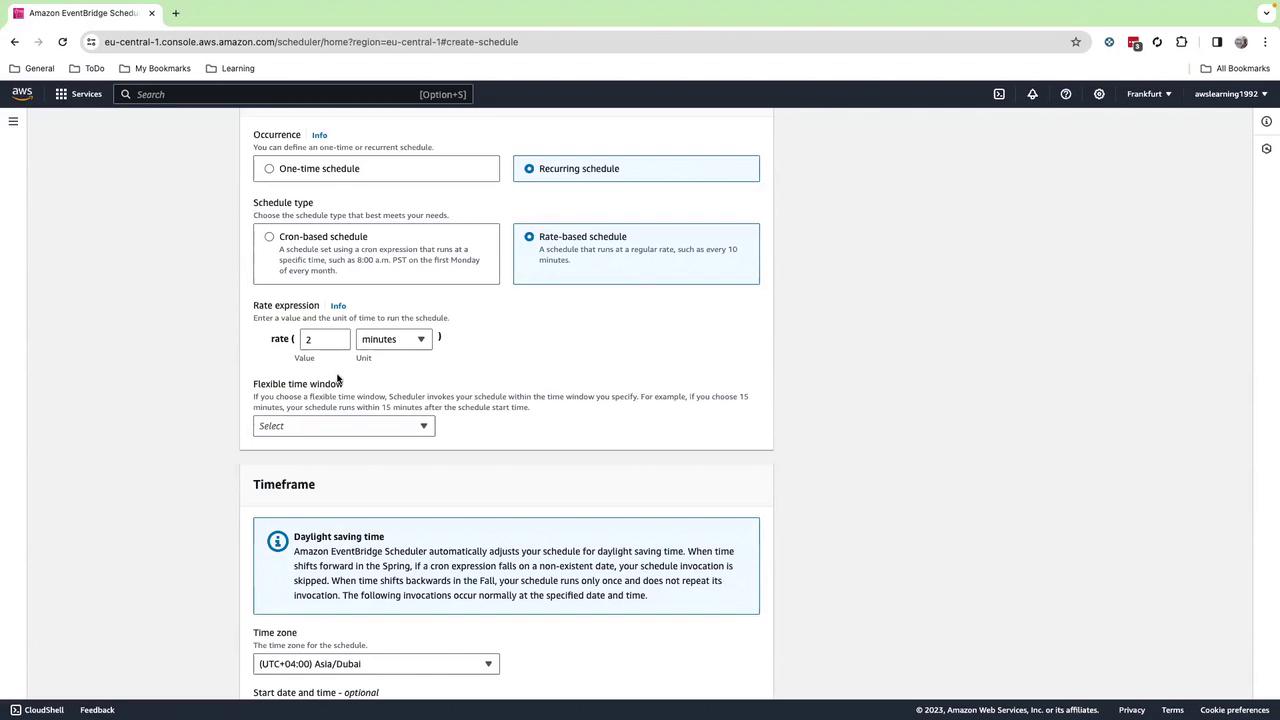
3. Enter a name (e.g., `every-2-minutes`) and select **Recurring schedule**.
4. Under **Schedule type**, pick **Rate-based** and set it to **Every 2 minutes**.
* You can also use a cron expression under **Cron-based** if needed.
5. Click **Next**, disable **Enabled**, and click **Next** again.
***
## Step 4: Configure the Schedule Target
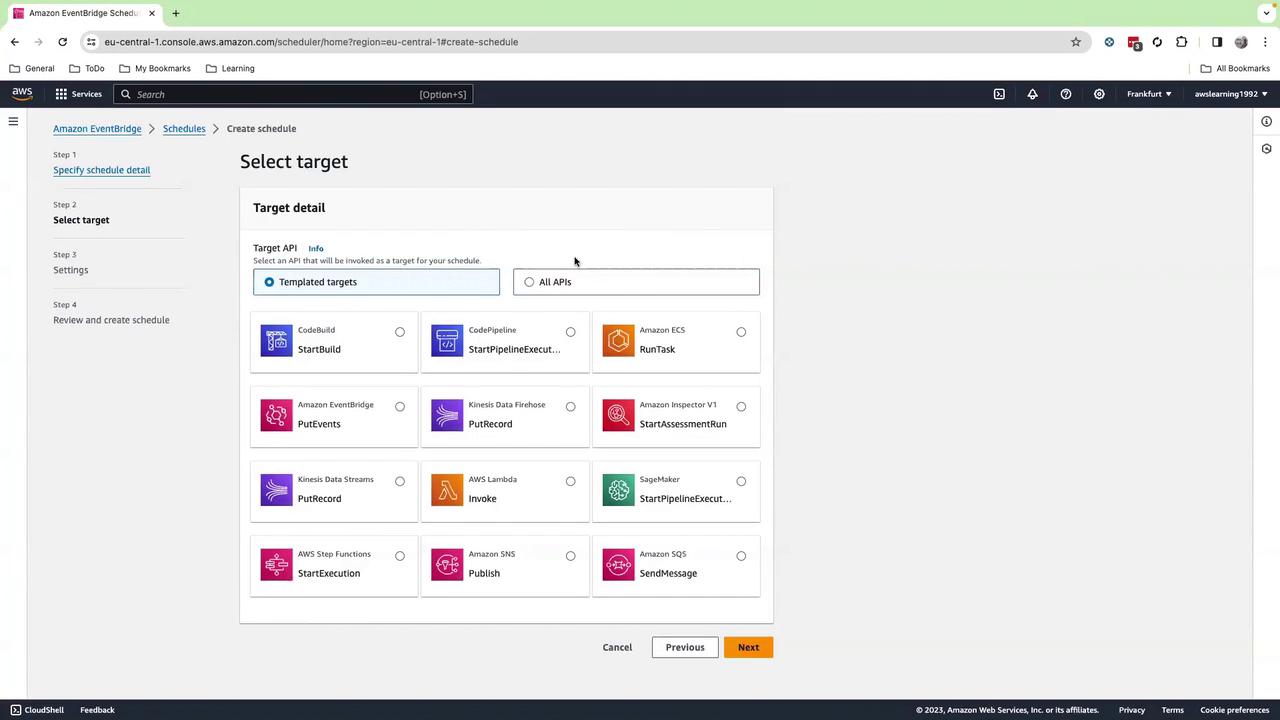
1. For **Target**, choose **AWS service** > **Lambda function**.
2. Select your `my_lambda` function from the dropdown (hit the refresh icon if it doesn’t appear).
3. (Optional) Add a custom JSON payload in the **Input** section.
4. Click **Next**, then **Create schedule**.
5. Finally, enable the schedule to start invoking your function every 2 minutes.

***
## Step 5: Monitor Invocations
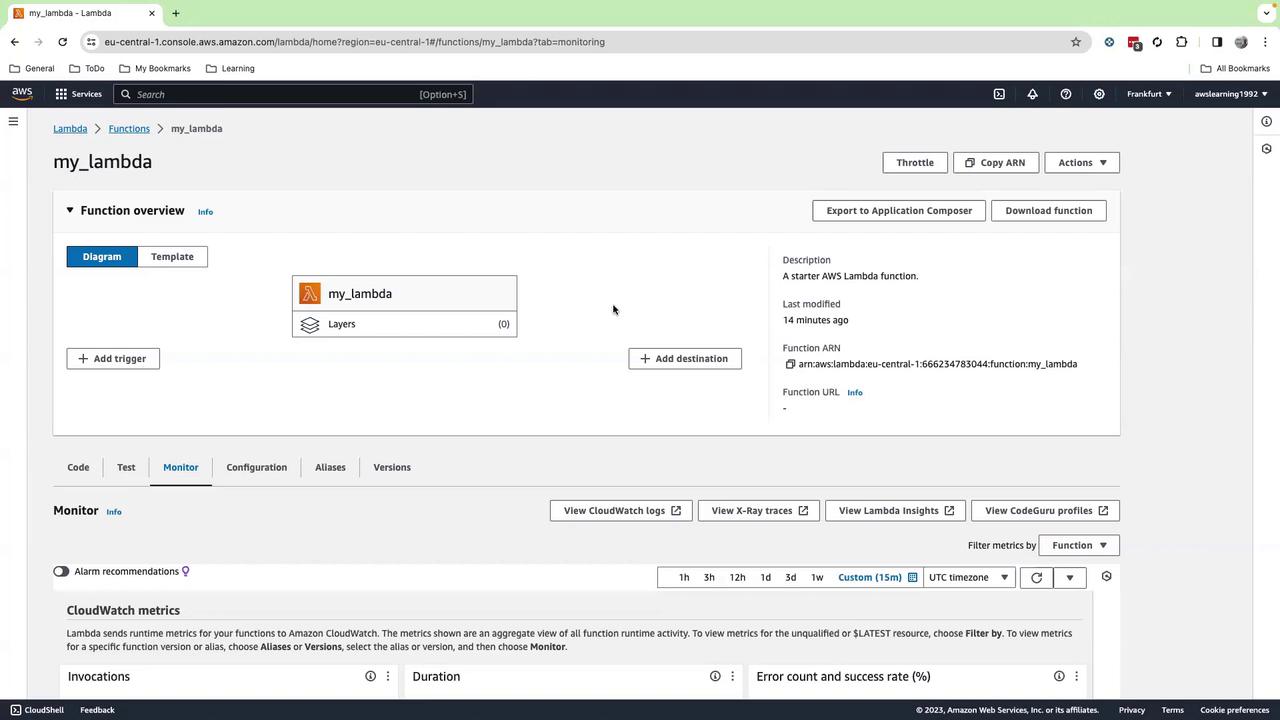
1. Go back to the **Lambda** console and open your `my_lambda` function.
2. Select the **Monitor** tab.
3. Adjust the time range to **Last 30 minutes** (or **15 minutes**).
4. You should see invocations every 2 minutes along with logs and metrics.
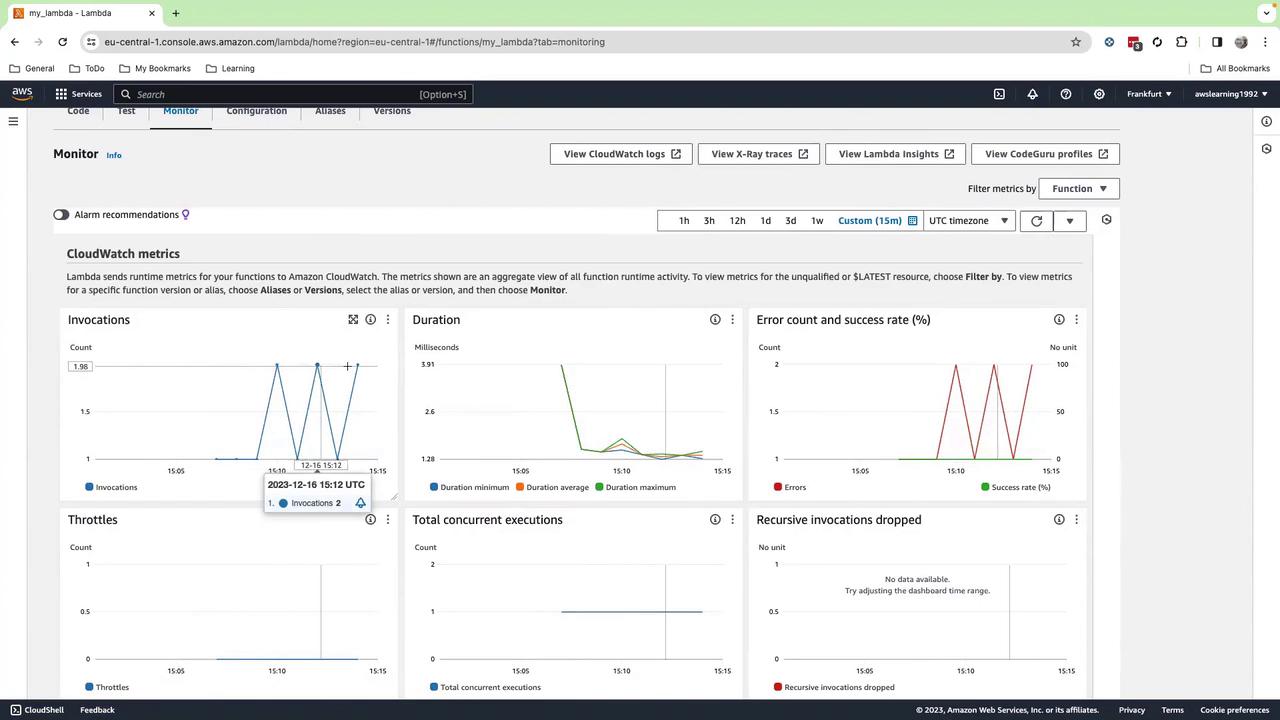
Scroll down to view individual invocation timestamps and durations.
***
## Common Use Cases
| Use Case | Description | Example |
| ----------------------- | ----------------------------------------------- | ---------------------------------------------------------- |
| Periodic Health Checks | Run database or API checks at regular intervals | Lambda polls an RDS instance, logs health status |
| Scheduled Notifications | Send reminders or alerts via SNS | Lambda composes a message and publishes to an SNS topic |
| Automated Reports | Generate and distribute reports to stakeholders | Lambda fetches data from S3, formats a PDF, emails via SNS |
For instance, you could have EventBridge trigger a Lambda that loads a PDF of DevOps headlines from S3 and pushes it to an SNS topic for subscriber email delivery.
***
## Cleanup
To avoid ongoing charges:
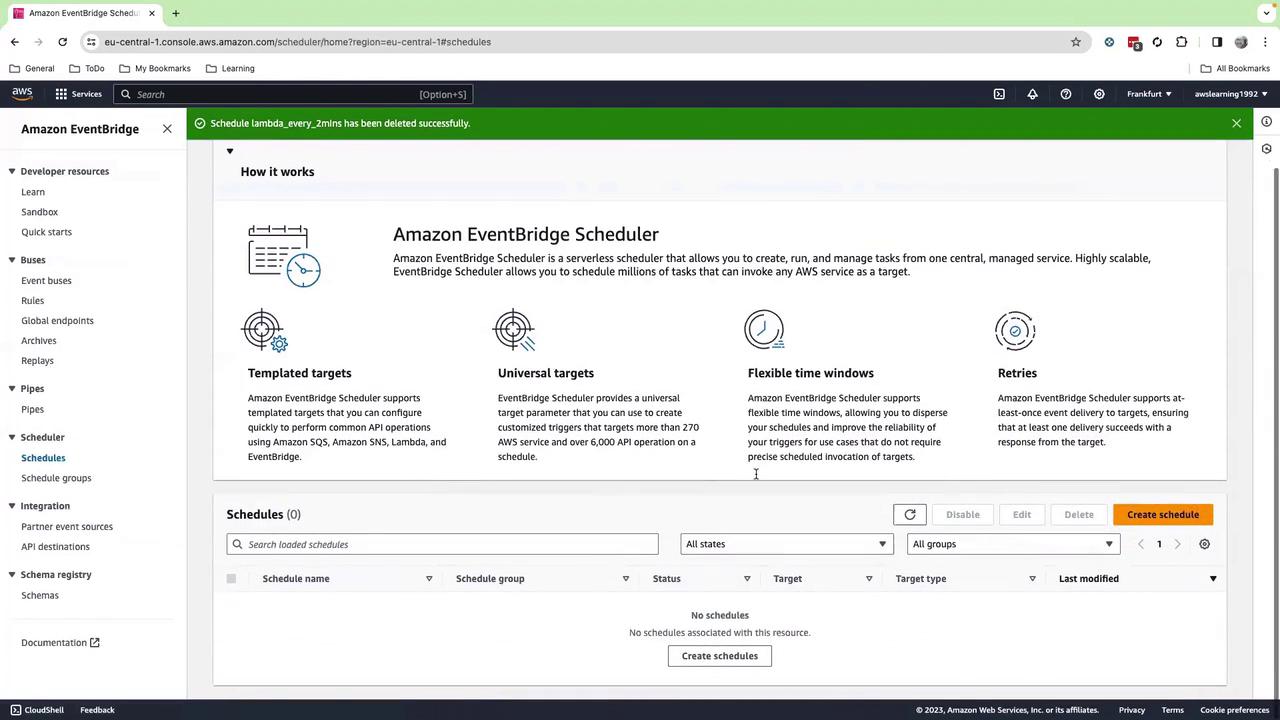
1. Delete the `my_lambda` function in **AWS Lambda**.
2. Remove your schedule under **EventBridge** > **Schedules**.
Be sure to clean up both Lambda functions and EventBridge schedules to prevent unexpected costs.
***
## Links and References
* [AWS Lambda Documentation](https://docs.aws.amazon.com/lambda/latest/dg/welcome.html)
* [Amazon EventBridge Scheduler](https://docs.aws.amazon.com/eventbridge/latest/userguide/scheduler.html)
* [AWS Pricing Calculator](https://calculator.aws/#/)