> ## Documentation Index
> Fetch the complete documentation index at: https://notes.kodekloud.com/llms.txt
> Use this file to discover all available pages before exploring further.

# Demonstration 3 Create 4 Stage Pipeline

> Build a complete AWS CodePipeline CI/CD workflow with four stages  Source, Build, Test, and Deploy using AWS services for consistent deployments and faster delivery cycles.

In this walkthrough, you will build a complete AWS CodePipeline CI/CD workflow with four stages—Source, Build, Test, and Deploy—using AWS CodeCommit, CodeBuild, CodeDeploy, and EC2. Automating these steps ensures consistent, repeatable deployments and faster delivery cycles.

## Pipeline Overview

| Stage  | AWS Service | Purpose                                 |
| ------ | ----------- | --------------------------------------- |
| Source | CodeCommit  | Store application code and scripts      |
| Build  | CodeBuild   | Install dependencies and compile assets |
| Test   | CodeBuild   | Run automated tests                     |
| Deploy | CodeDeploy  | Deploy artifacts to EC2 instances       |

***

## 1. Source Stage with CodeCommit

1. Open the [AWS CodeCommit console](https://docs.aws.amazon.com/codecommit/latest/userguide/welcome.html) and create a new repository named `kodekloudcpdemo`.

<Frame>
  ![The image shows the AWS CodeCommit console with an empty repositories list. The interface includes options to create, clone, and manage repositories.](https://kodekloud.com/kk-media/image/upload/v1752862718/notes-assets/images/AWS-CodePipeline-CICD-Pipeline-Demonstration-3-Create-4-Stage-Pipeline/aws-codecommit-console-empty-repositories.jpg)
</Frame>

2. Enter **Repository name** as `kodekloudcpdemo` and click **Create**.

<Frame>
  ![The image shows the AWS CodeCommit interface for creating a new repository, with fields for repository name, description, and optional settings.](https://kodekloud.com/kk-media/image/upload/v1752862719/notes-assets/images/AWS-CodePipeline-CICD-Pipeline-Demonstration-3-Create-4-Stage-Pipeline/aws-codecommit-new-repository-interface.jpg)
</Frame>

3. Clone the repo locally:

```bash theme={null}
git clone https://git-codecommit.us-east-2.amazonaws.com/v1/repos/KodeKloudCPDemo
```

4. Back in the console, click **Upload file** to add your application files (`after_install`, `application_start`, `appspec.yml`, etc.). For each file, provide an author name and email, then commit.

<Frame>
  ![The image shows a file explorer window open on a computer, displaying a list of files in a directory. In the background, there is a web page related to AWS CodeCommit with fields for committing changes.](https://kodekloud.com/kk-media/image/upload/v1752862721/notes-assets/images/AWS-CodePipeline-CICD-Pipeline-Demonstration-3-Create-4-Stage-Pipeline/file-explorer-aws-codecommit-window.jpg)
</Frame>

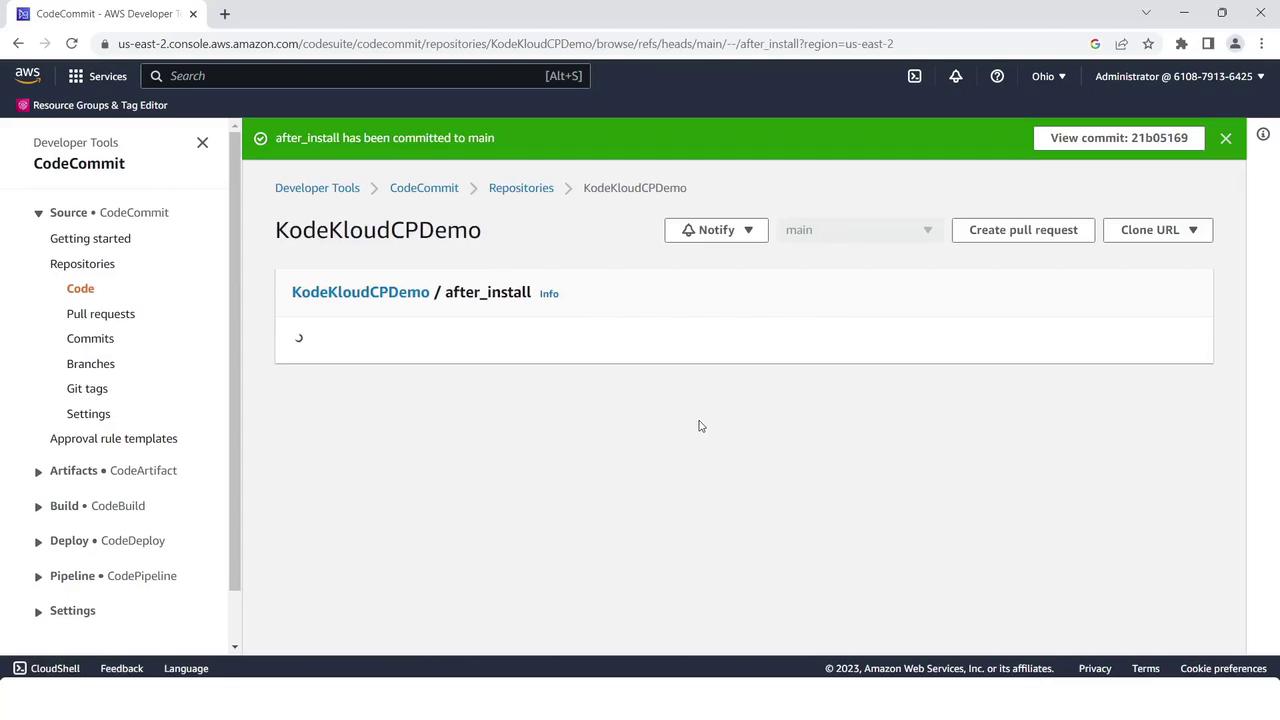
5. After each commit, you’ll see a success notification:
<Frame>
  ![The image shows an AWS CodeCommit interface with a repository named "KodeKloudCPDemo" and a file named "after\_install" committed to the main branch. A notification indicates a successful commit.](https://kodekloud.com/kk-media/image/upload/v1752862722/notes-assets/images/AWS-CodePipeline-CICD-Pipeline-Demonstration-3-Create-4-Stage-Pipeline/aws-codecommit-kodekloudcpdemo-commit.jpg)
</Frame>

6. When all nine files are uploaded, your repo should list them as shown:

<Frame>
  ![The image shows an AWS CodeCommit repository interface named "KodeKloudCPDemo" with a list of files such as after\_install, application\_start, and appspec.yml.](https://kodekloud.com/kk-media/image/upload/v1752862723/notes-assets/images/AWS-CodePipeline-CICD-Pipeline-Demonstration-3-Create-4-Stage-Pipeline/aws-codecommit-repository-kodekloudcpdemo.jpg)
</Frame>

***

## 2. Build Stage with CodeBuild

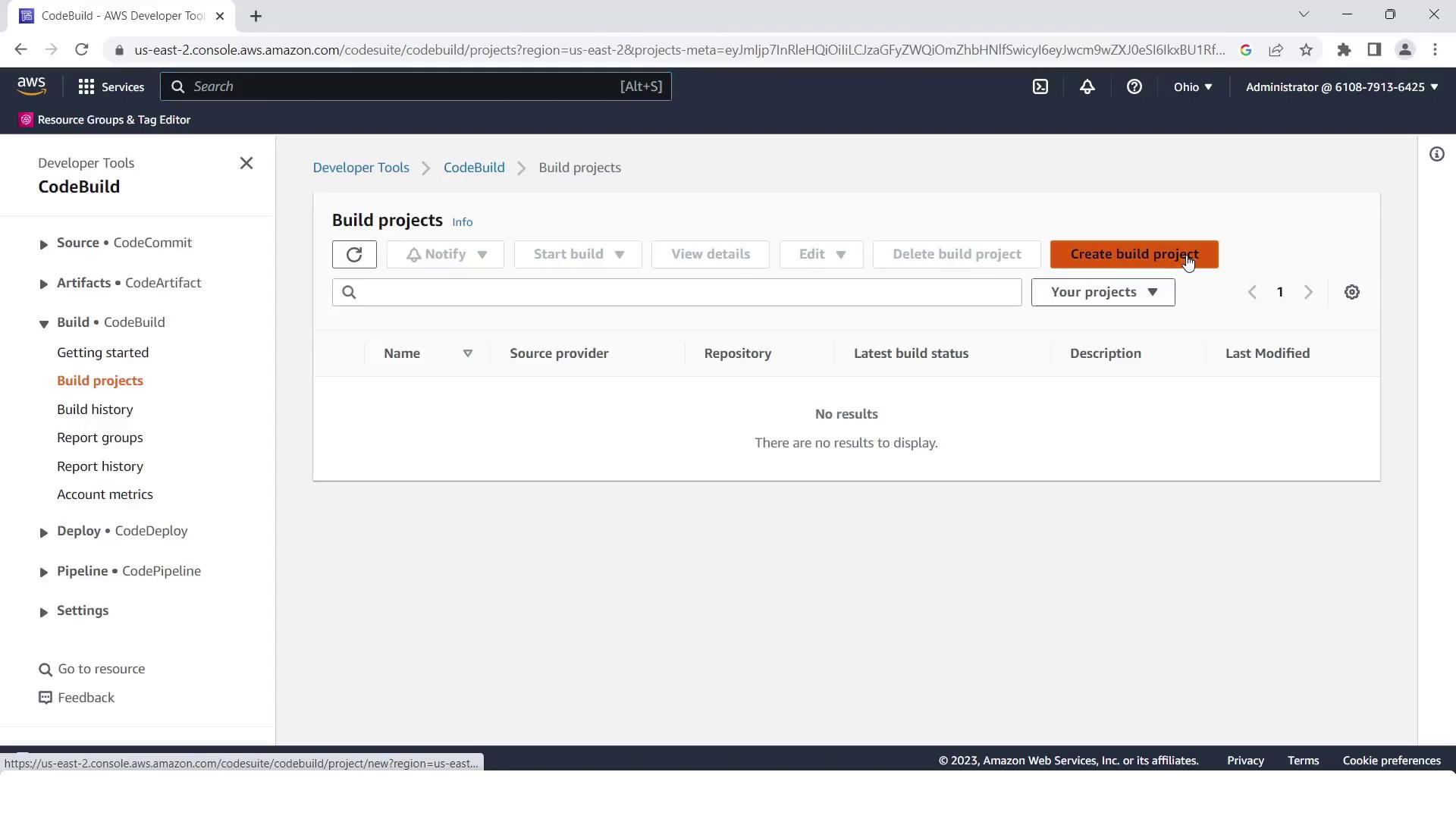
1. Navigate to the [AWS CodeBuild console](https://docs.aws.amazon.com/codebuild/latest/userguide/welcome.html) and click **Create build project**.
<Frame>
  ![The image shows the AWS CodeBuild interface with no build projects listed. There is an option to create a new build project.](https://kodekloud.com/kk-media/image/upload/v1752862724/notes-assets/images/AWS-CodePipeline-CICD-Pipeline-Demonstration-3-Create-4-Stage-Pipeline/aws-codebuild-interface-no-projects.jpg)
</Frame>

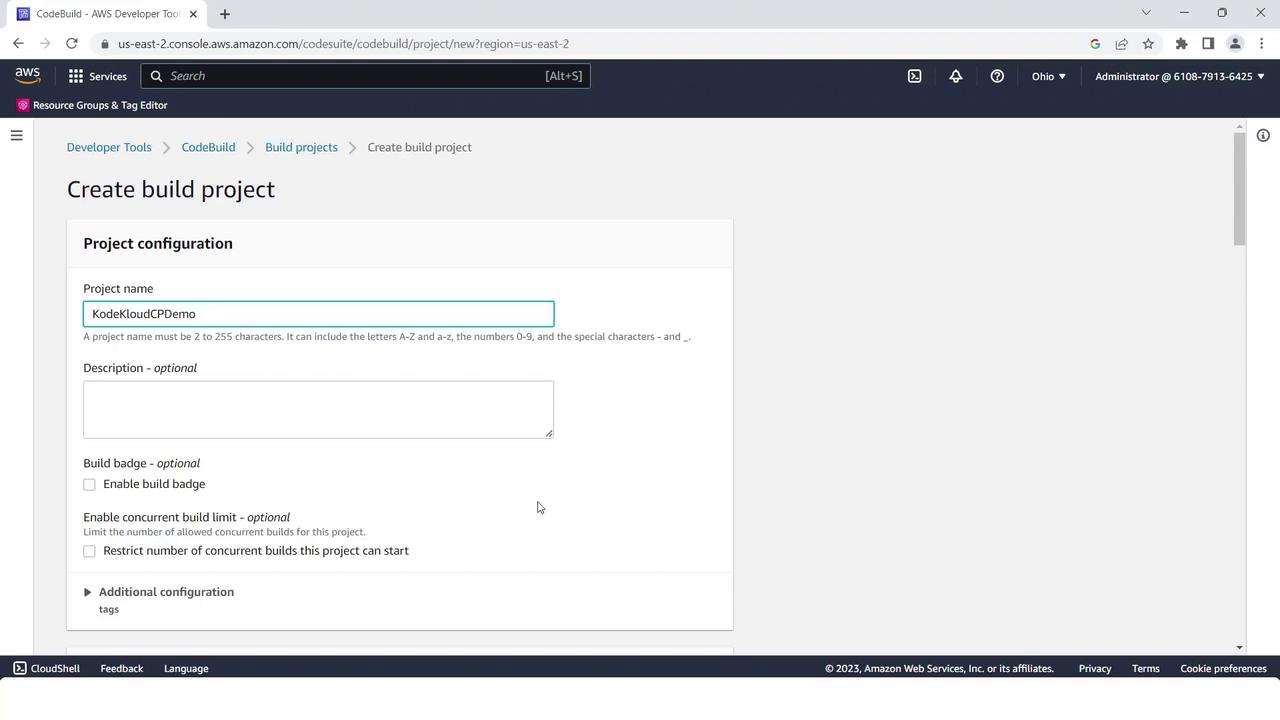
2. Set **Project name** to `KodeKloudCPdemo`.
<Frame>
  ![The image shows the AWS CodeBuild interface for creating a new build project, with fields for project configuration such as project name and description.](https://kodekloud.com/kk-media/image/upload/v1752862725/notes-assets/images/AWS-CodePipeline-CICD-Pipeline-Demonstration-3-Create-4-Stage-Pipeline/aws-codebuild-new-project-interface.jpg)
</Frame>

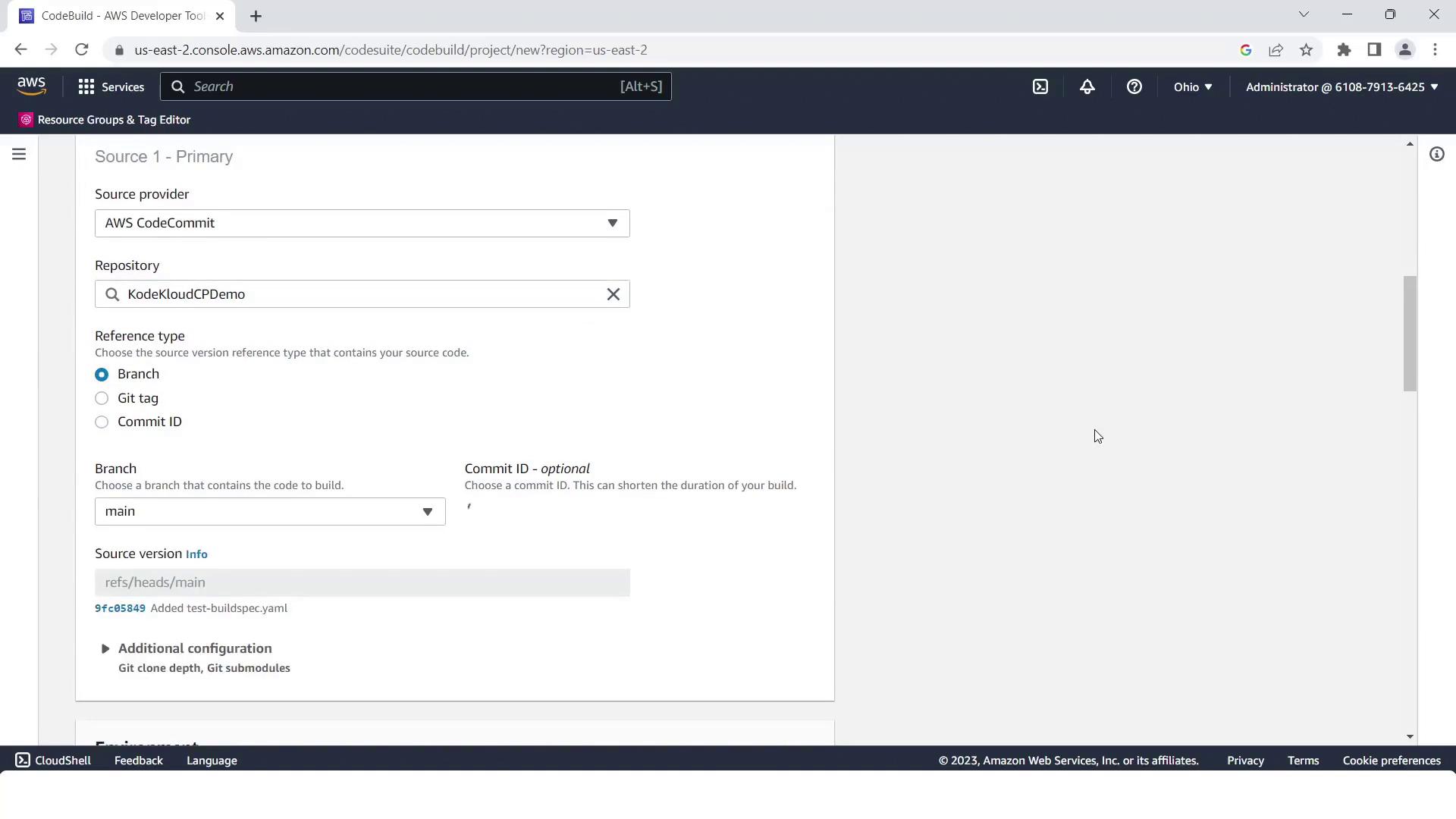
3. Under **Source**, select **AWS CodeCommit**, choose `kodekloudcpdemo`, and branch `main`.
<Frame>
  ![The image shows an AWS CodeBuild configuration screen where the source provider is set to AWS CodeCommit, with a repository named "KodeKloudCPDemo" and the branch "main" selected.](https://kodekloud.com/kk-media/image/upload/v1752862726/notes-assets/images/AWS-CodePipeline-CICD-Pipeline-Demonstration-3-Create-4-Stage-Pipeline/aws-codebuild-codecommit-kodekloudcpdemo.jpg)
</Frame>

4. In **Environment**, pick:
   * Operating system: **Linux**
   * Runtime: **Standard**
   * Image: **aws/codebuild/standard:2.0**

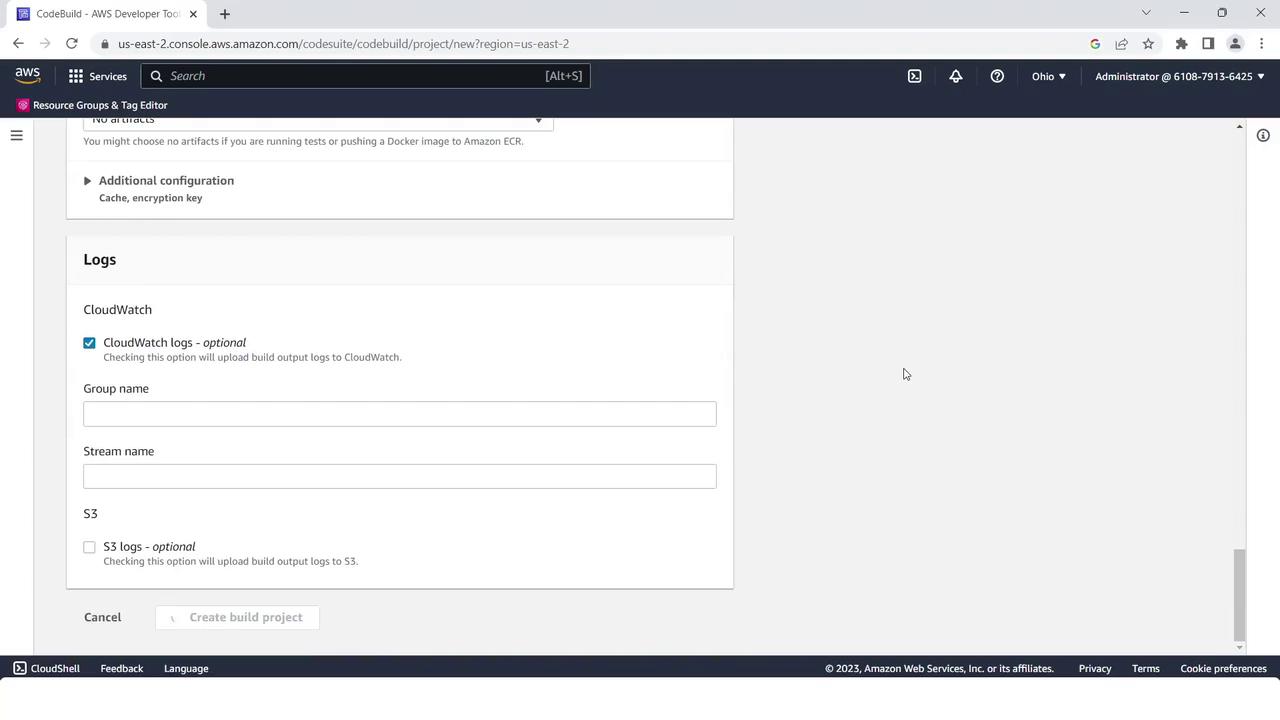
5. Keep service role and log settings at their defaults, then click **Create build project**.
<Frame>
  ![The image shows an AWS CodeBuild interface for configuring logs, with options for CloudWatch and S3 logs.](https://kodekloud.com/kk-media/image/upload/v1752862727/notes-assets/images/AWS-CodePipeline-CICD-Pipeline-Demonstration-3-Create-4-Stage-Pipeline/aws-codebuild-logs-configuration-interface.jpg)
</Frame>

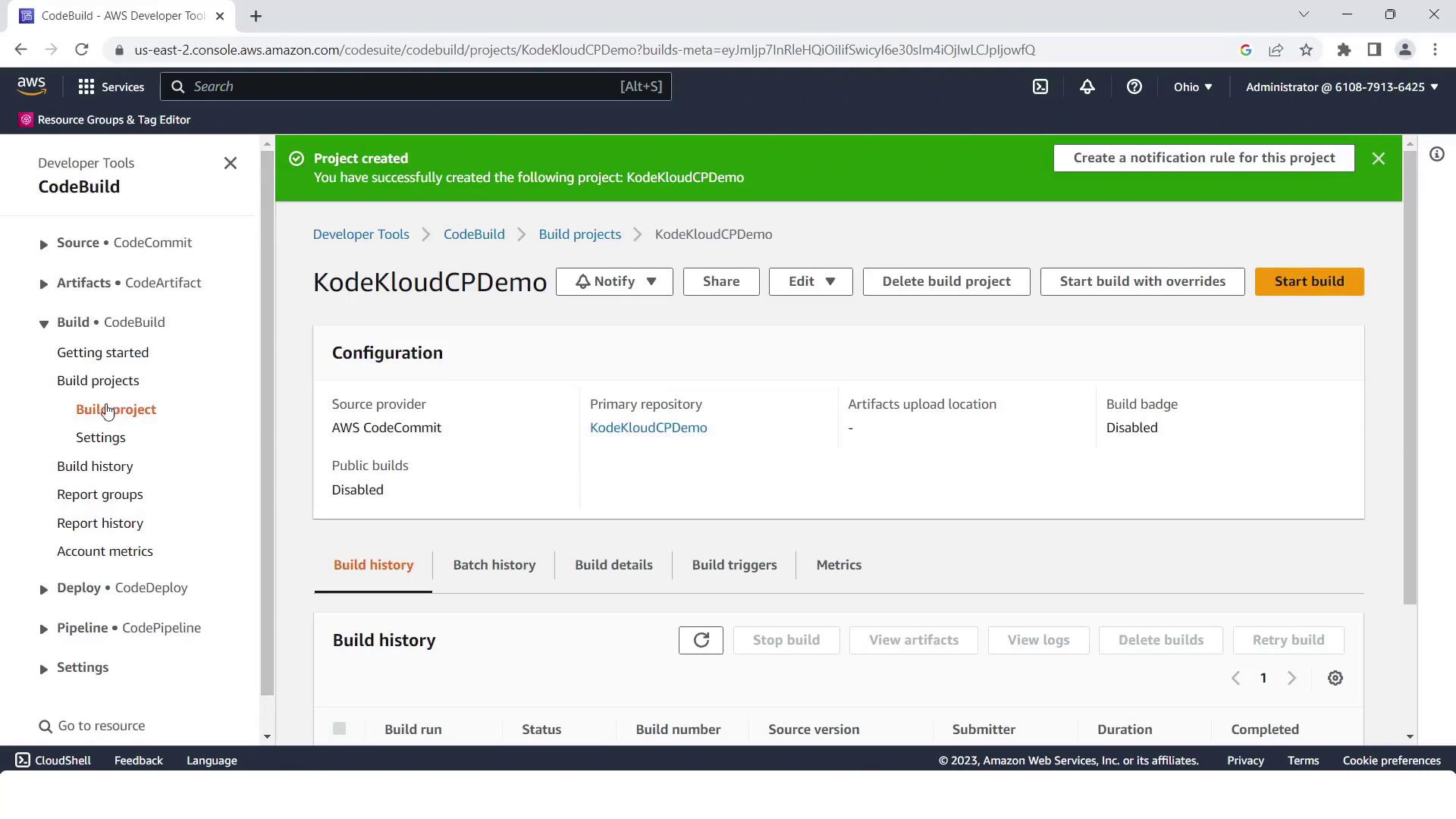
6. Confirm your project is ready:

<Frame>
  ![The image shows an AWS CodeBuild project interface for "KodeKloudCPDemo," displaying configuration details and options to start or manage builds. A green notification bar indicates the project was successfully created.](https://kodekloud.com/kk-media/image/upload/v1752862728/notes-assets/images/AWS-CodePipeline-CICD-Pipeline-Demonstration-3-Create-4-Stage-Pipeline/aws-codebuild-kodekloudcpdemo-interface.jpg)
</Frame>

<Callout icon="triangle-alert" color="#FF6B6B">
  The default `buildspec.yml` uses Node.js 14, but your app requires Node.js 10. Update the `runtime-versions` accordingly to avoid build failures.
</Callout>

### Adjusting the Buildspec

Open `buildspec.yml` in your CodeCommit repo. Change Node.js version from 14 to 10:

```yaml theme={null}
version: 0.2
phases:
  install:
    runtime-versions:
      nodejs: 10
    commands:
      - echo "Installing dependencies"
      - npm install
  build:
    commands:
      - echo "Building the application"
      - npm run build
artifacts:
  files:
    - '**/*'
```

Commit your changes with author metadata.

***

## 3. Prepare EC2 Instances for CodeDeploy

1. In the [EC2 console](https://docs.aws.amazon.com/ec2/index.html), click **Launch Instance**.
2. Name the instance `CodePipelineCPdemo` and choose an Ubuntu AMI.
3. Select or create a key pair.
4. Open HTTP (port 80) and HTTPS (port 443) in the security group.
5. Enable **Auto-assign Public IP**.
6. Under **Advanced Details**, attach an IAM instance profile with CodeDeploy permissions.
7. Click **Launch Instance**.
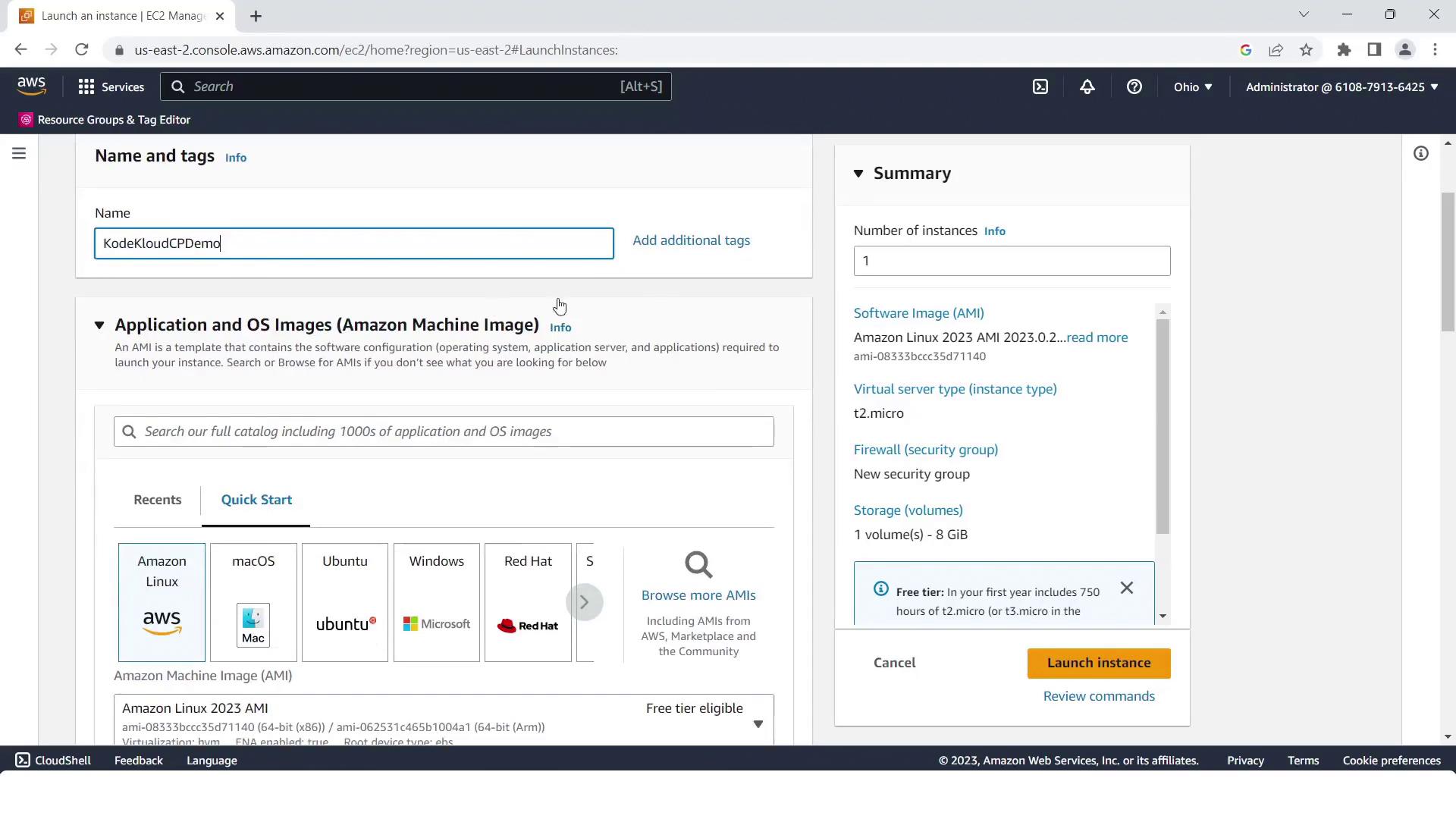
<Frame>
  ![The image shows an AWS EC2 instance launch configuration screen, where a user is selecting an Amazon Machine Image (AMI) and configuring instance details like the server type and security group.](https://kodekloud.com/kk-media/image/upload/v1752862729/notes-assets/images/AWS-CodePipeline-CICD-Pipeline-Demonstration-3-Create-4-Stage-Pipeline/aws-ec2-instance-launch-configuration.jpg)
</Frame>

Review network settings and instance summary:
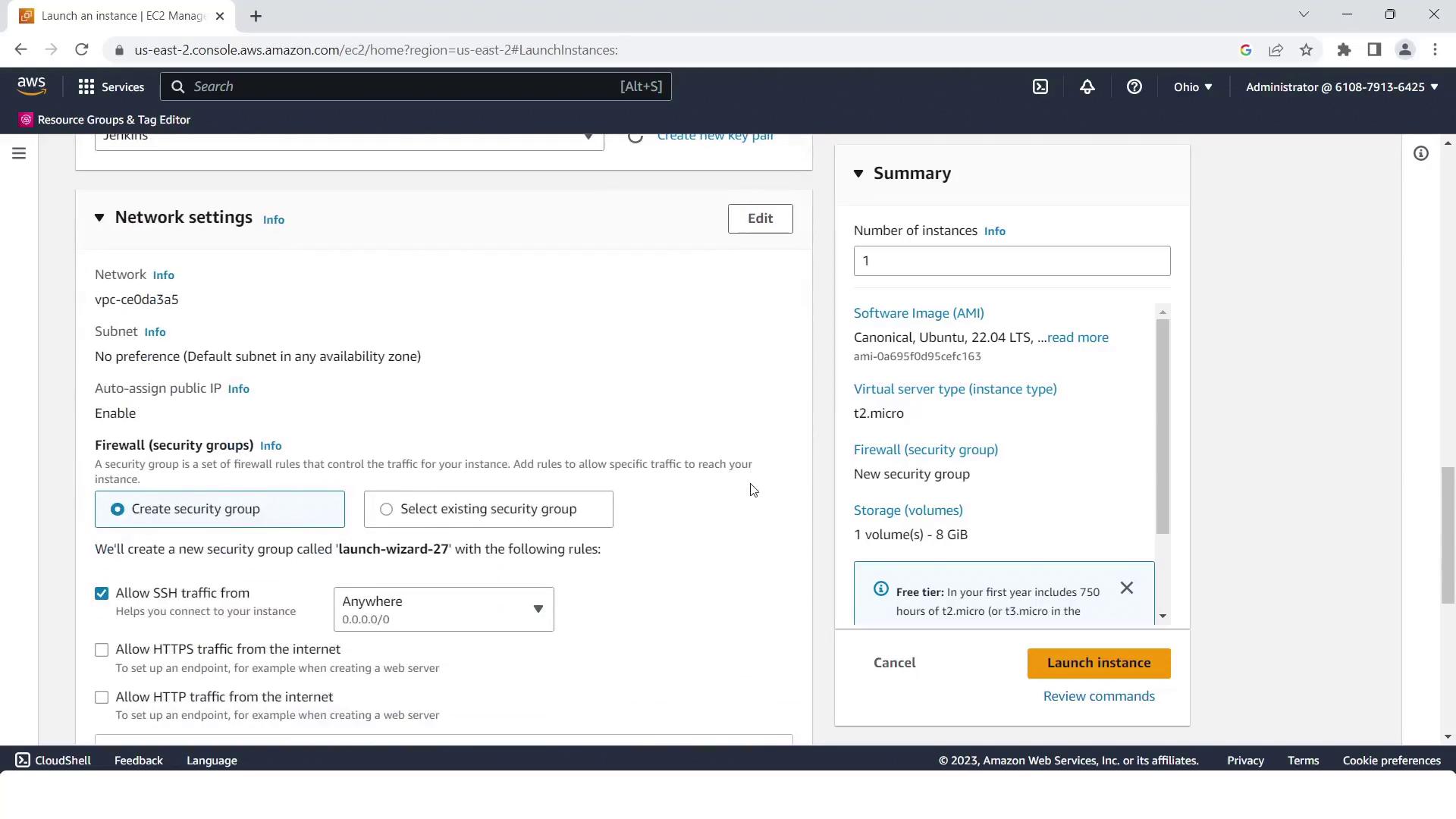
<Frame>
  ![The image shows an AWS EC2 instance launch configuration screen, detailing network settings and a summary of the instance specifications.](https://kodekloud.com/kk-media/image/upload/v1752862730/notes-assets/images/AWS-CodePipeline-CICD-Pipeline-Demonstration-3-Create-4-Stage-Pipeline/aws-ec2-instance-launch-configuration-2.jpg)
</Frame>

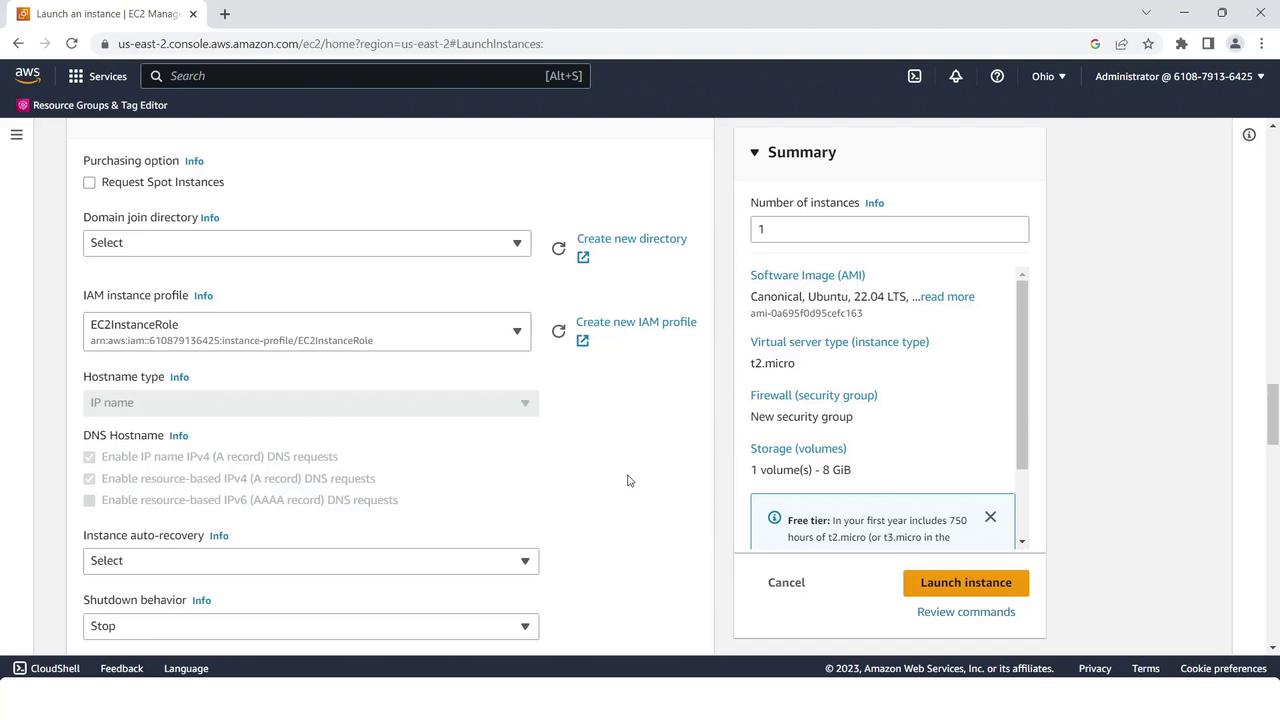
Select the IAM role:

<Frame>
  ![The image shows an AWS EC2 instance launch configuration page, detailing options like purchasing, domain join directory, IAM instance profile, and a summary of the instance settings.](https://kodekloud.com/kk-media/image/upload/v1752862731/notes-assets/images/AWS-CodePipeline-CICD-Pipeline-Demonstration-3-Create-4-Stage-Pipeline/aws-ec2-instance-launch-configuration-3.jpg)
</Frame>

Verify the instance is running before proceeding to CodeDeploy.

<Callout icon="lightbulb" color="#1CB2FE">
  Ensure the IAM instance profile has `AmazonEC2RoleforAWSCodeDeploy` permissions so the CodeDeploy agent can communicate with AWS.
</Callout>

***

## 4. Deploy Stage with CodeDeploy

1. Go to the [AWS CodeDeploy console](https://docs.aws.amazon.com/codedeploy/latest/userguide/welcome.html) and click **Create application**.
2. Name it `KodeKloudCPdemo` and choose **EC2/On-premises** as the compute platform.
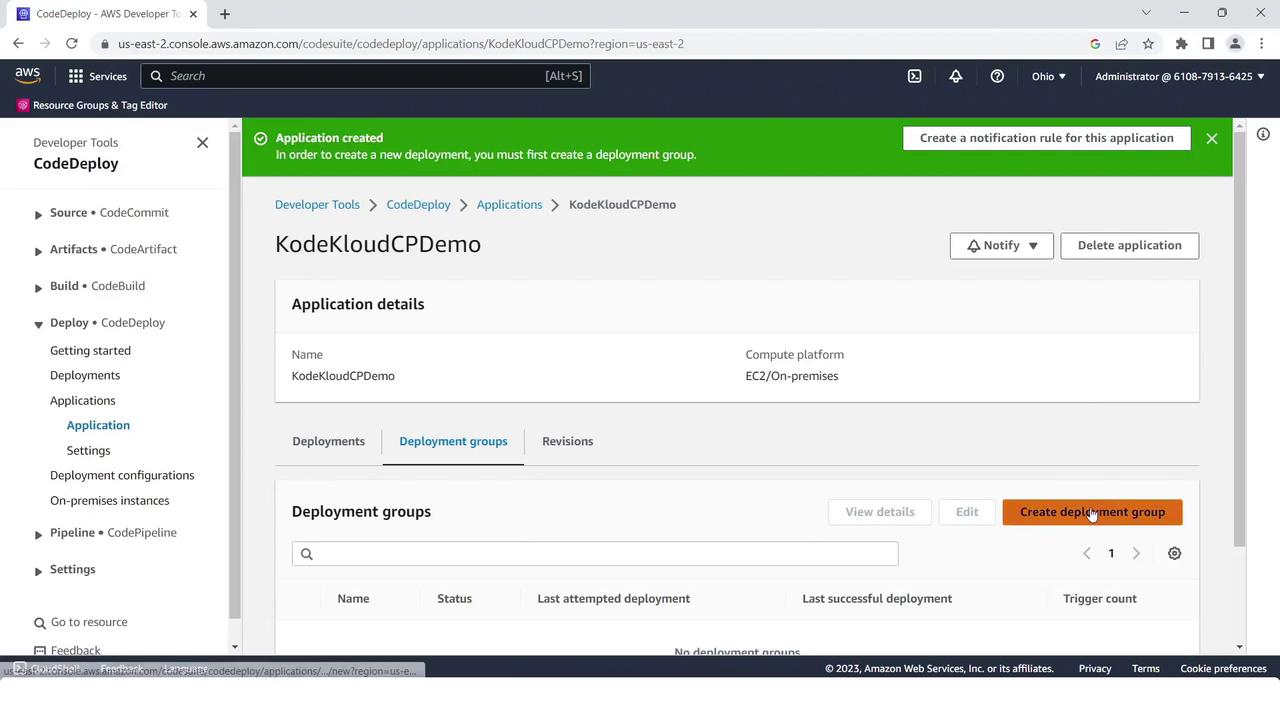
<Frame>
  ![The image shows an AWS CodeDeploy application interface for "KodeKloudCPDemo," with options to create a deployment group and manage application details. The interface includes navigation for various developer tools and deployment settings.](https://kodekloud.com/kk-media/image/upload/v1752862732/notes-assets/images/AWS-CodePipeline-CICD-Pipeline-Demonstration-3-Create-4-Stage-Pipeline/aws-codedeploy-kodekloudcpdemo-interface.jpg)
</Frame>

3. Create a deployment group:
   * Name: **KodeKloudCPdemo**
   * Service role: **CodeDeployDefault** (or your custom role)
   * Uncheck load balancer integration.
   * Environment: **EC2/On-premises**
   * Tag key/value matching your EC2 instance (`Name=CodePipelineCPdemo`).
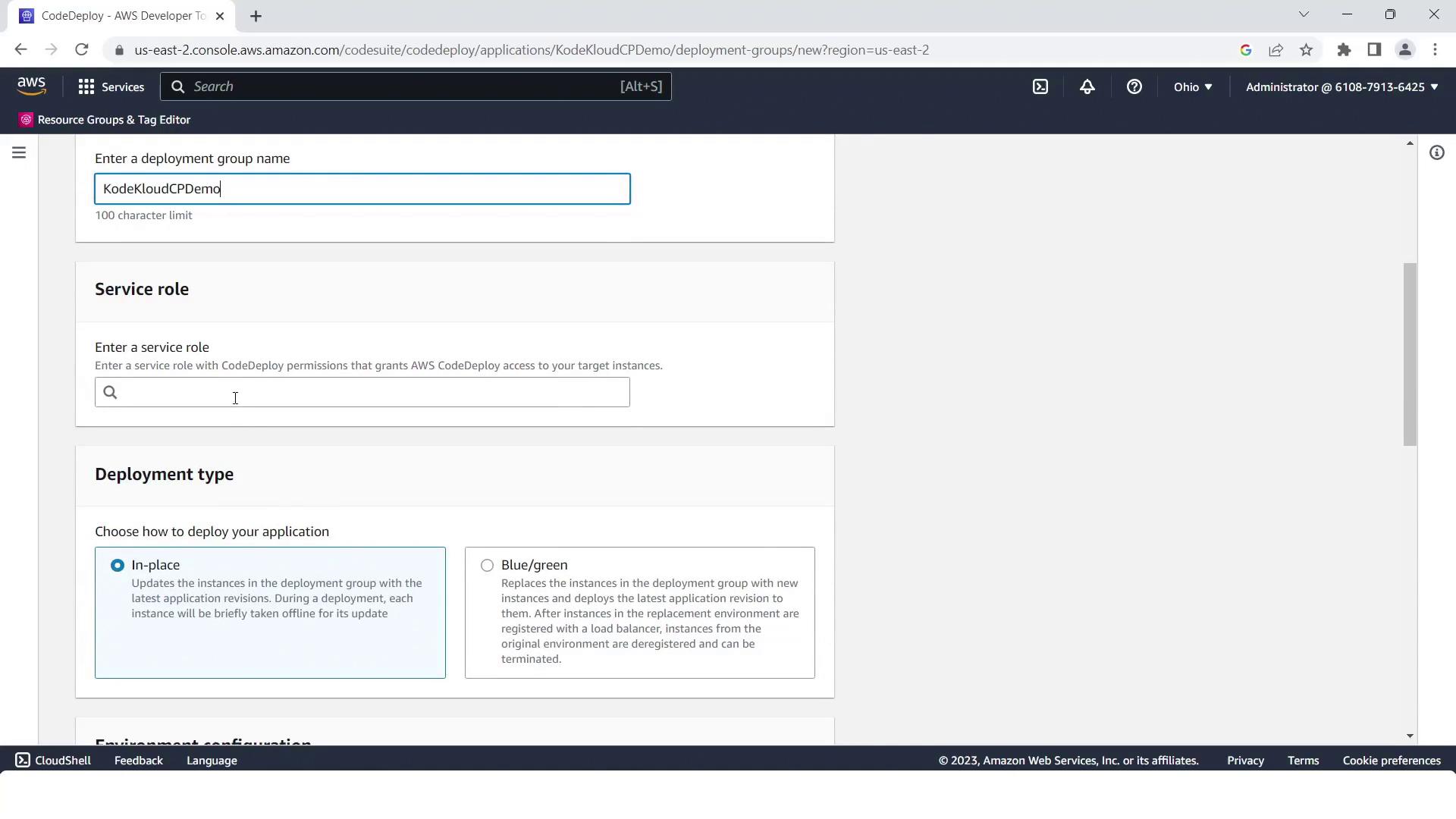
<Frame>
  ![The image shows an AWS CodeDeploy setup page where a deployment group name is being entered, along with options for selecting a service role and deployment type.](https://kodekloud.com/kk-media/image/upload/v1752862733/notes-assets/images/AWS-CodePipeline-CICD-Pipeline-Demonstration-3-Create-4-Stage-Pipeline/aws-codedeploy-setup-deployment-group.jpg)
</Frame>

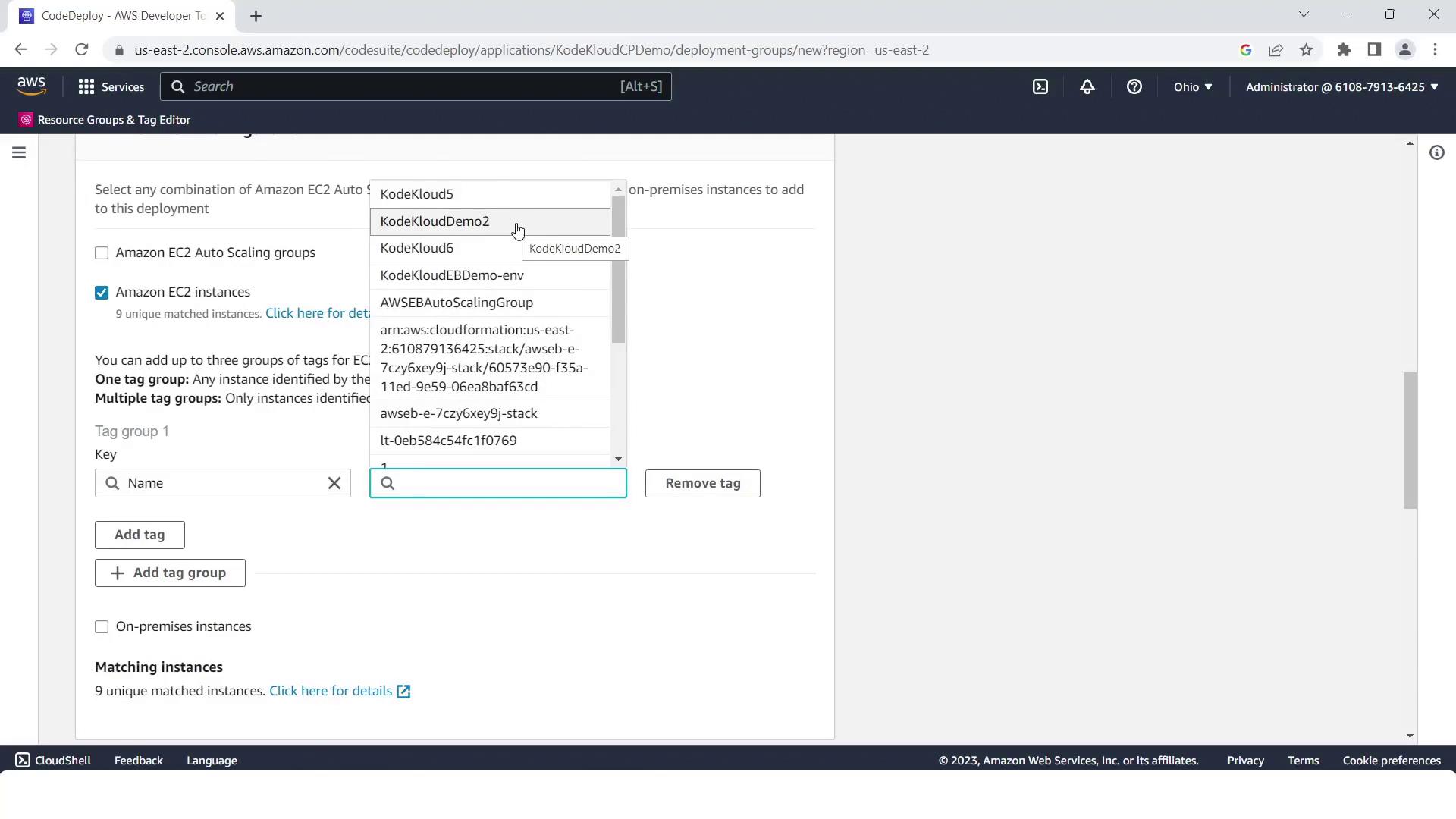
4. Select the EC2 instance by tag:

<Frame>
  ![The image shows an AWS CodeDeploy interface where a user is selecting Amazon EC2 instances for deployment, with a dropdown menu listing various instance options.](https://kodekloud.com/kk-media/image/upload/v1752862734/notes-assets/images/AWS-CodePipeline-CICD-Pipeline-Demonstration-3-Create-4-Stage-Pipeline/aws-codedeploy-ec2-instances-selection.jpg)
</Frame>

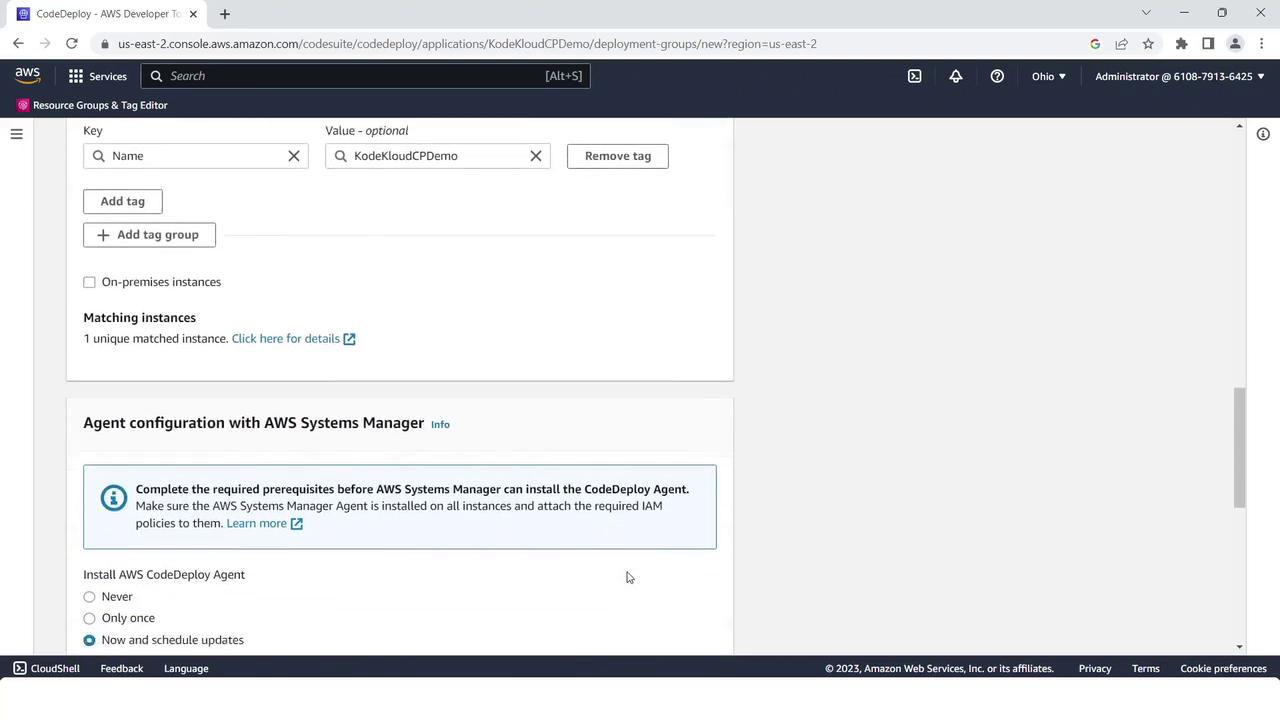
5. (Optional) Install or verify the CodeDeploy agent via Systems Manager, then click **Create deployment group**.
<Frame>
  ![The image shows an AWS CodeDeploy configuration screen with options for tagging and agent configuration using AWS Systems Manager. It includes settings for installing the CodeDeploy Agent.](https://kodekloud.com/kk-media/image/upload/v1752862735/notes-assets/images/AWS-CodePipeline-CICD-Pipeline-Demonstration-3-Create-4-Stage-Pipeline/aws-codedeploy-configuration-screen.jpg)
</Frame>

***

## 5. Create the Four-Stage Pipeline

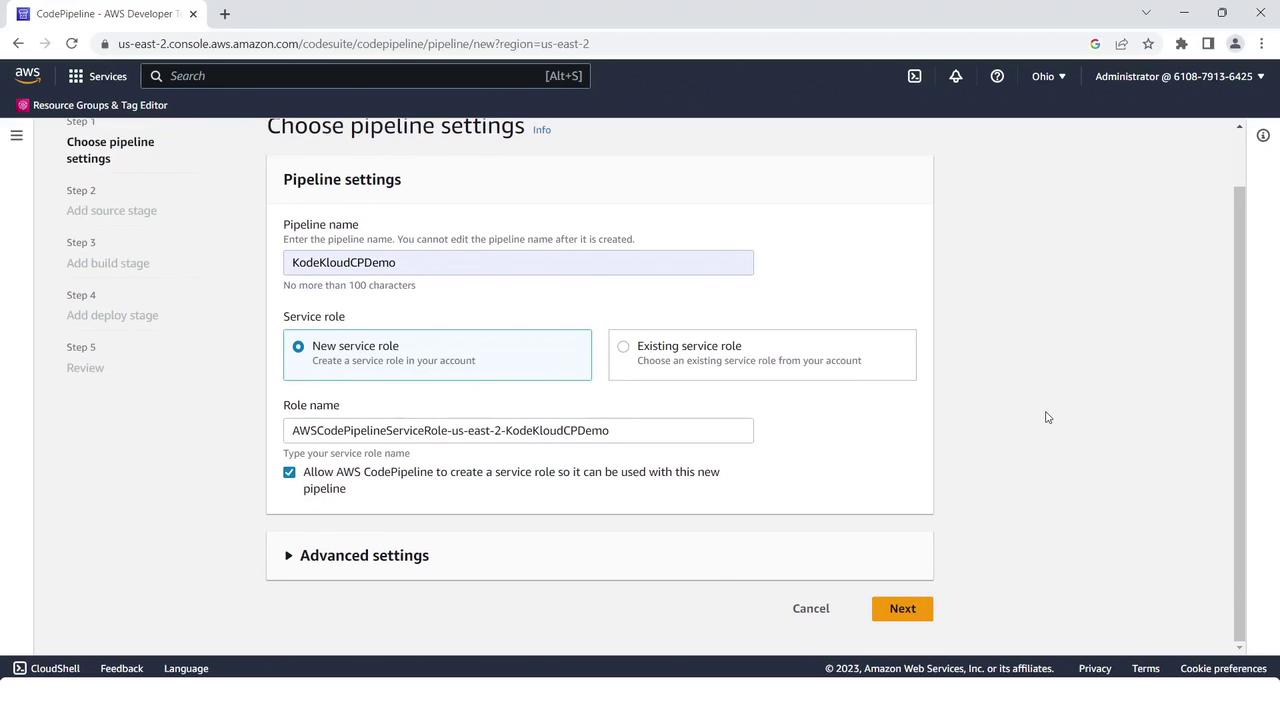
1. Open the [AWS CodePipeline console](https://docs.aws.amazon.com/codepipeline/latest/userguide/welcome.html) and click **Create pipeline**.
2. Name it `KodeKloudCPdemo` and use the default service role.
<Frame>
  ![The image shows an AWS CodePipeline setup screen where a user is configuring pipeline settings, including the pipeline name and service role options.](https://kodekloud.com/kk-media/image/upload/v1752862737/notes-assets/images/AWS-CodePipeline-CICD-Pipeline-Demonstration-3-Create-4-Stage-Pipeline/aws-codepipeline-setup-screen-configure.jpg)
</Frame>

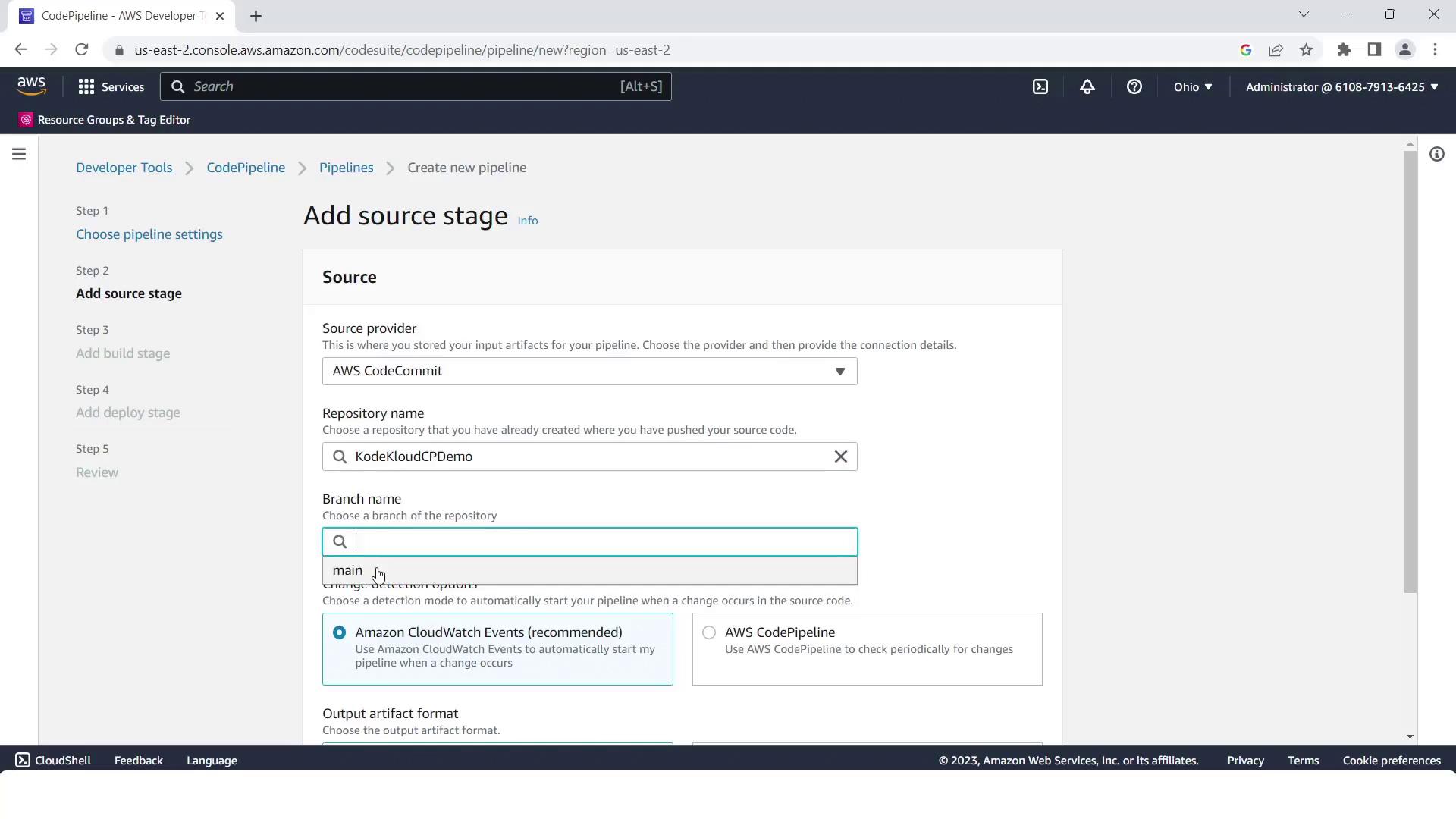
### Source Stage

* Provider: **AWS CodeCommit**
* Repository: `kodekloudcpdemo`
* Branch: `main`
<Frame>
  ![The image shows an AWS CodePipeline interface where a user is adding a source stage, selecting AWS CodeCommit as the source provider, and specifying repository and branch details.](https://kodekloud.com/kk-media/image/upload/v1752862738/notes-assets/images/AWS-CodePipeline-CICD-Pipeline-Demonstration-3-Create-4-Stage-Pipeline/aws-codepipeline-source-stage-codecommit.jpg)
</Frame>

### Build Stage

* Provider: **AWS CodeBuild**
* Project name: `KodeKloudCPdemo`

<Frame>
  <img src="https://mintlify.s3.us-west-1.amazonaws.com/kodekloud-c4ac6d9a/images/AWS-CodeBuild-Console-Project-Ready.jpg" alt="The image shows an AWS CodeBuild project interface with build project details and an option to start builds indicating the project was successfully created." />
</Frame>

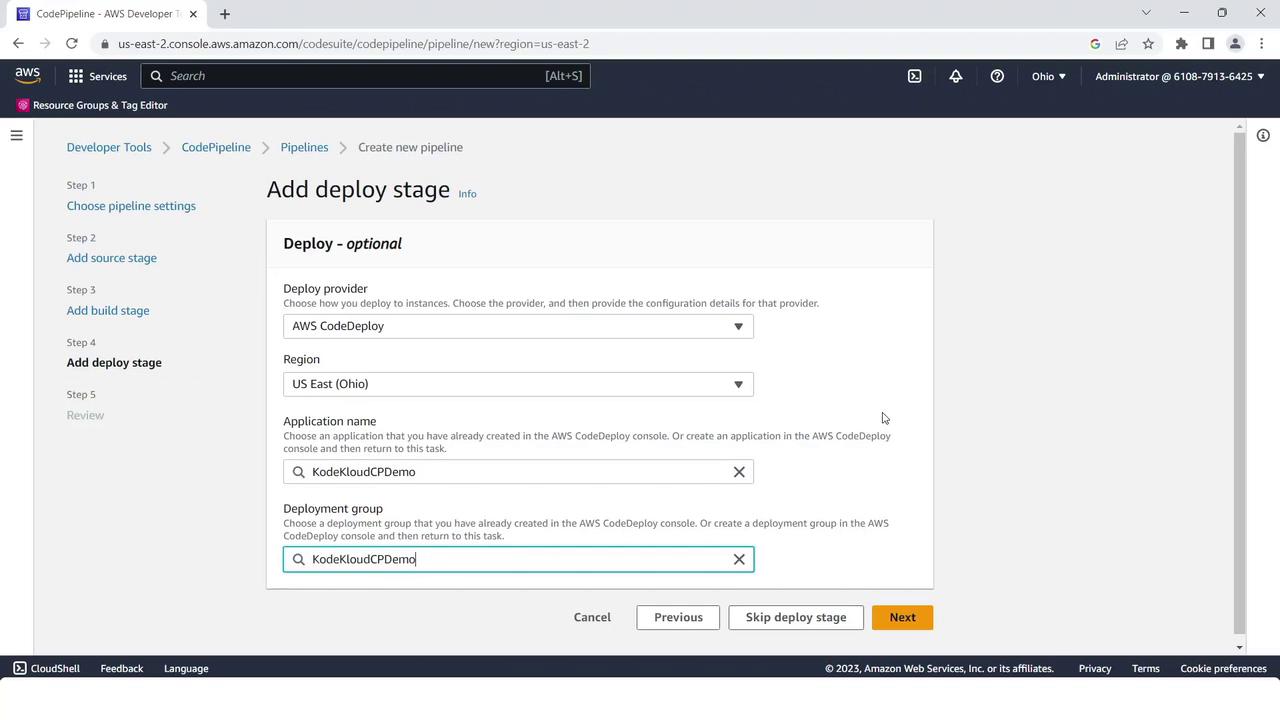
### Deploy Stage

* Provider: **AWS CodeDeploy**
* Region: *your AWS Region*
* Application: `KodeKloudCPdemo`
* Deployment group: `KodeKloudCPdemo`
<Frame>
  ![The image shows an AWS CodePipeline interface where a user is adding a deploy stage, selecting AWS CodeDeploy as the provider, and specifying the region, application name, and deployment group.](https://kodekloud.com/kk-media/image/upload/v1752862739/notes-assets/images/AWS-CodePipeline-CICD-Pipeline-Demonstration-3-Create-4-Stage-Pipeline/aws-codepipeline-deploy-stage-codedeploy.jpg)
</Frame>

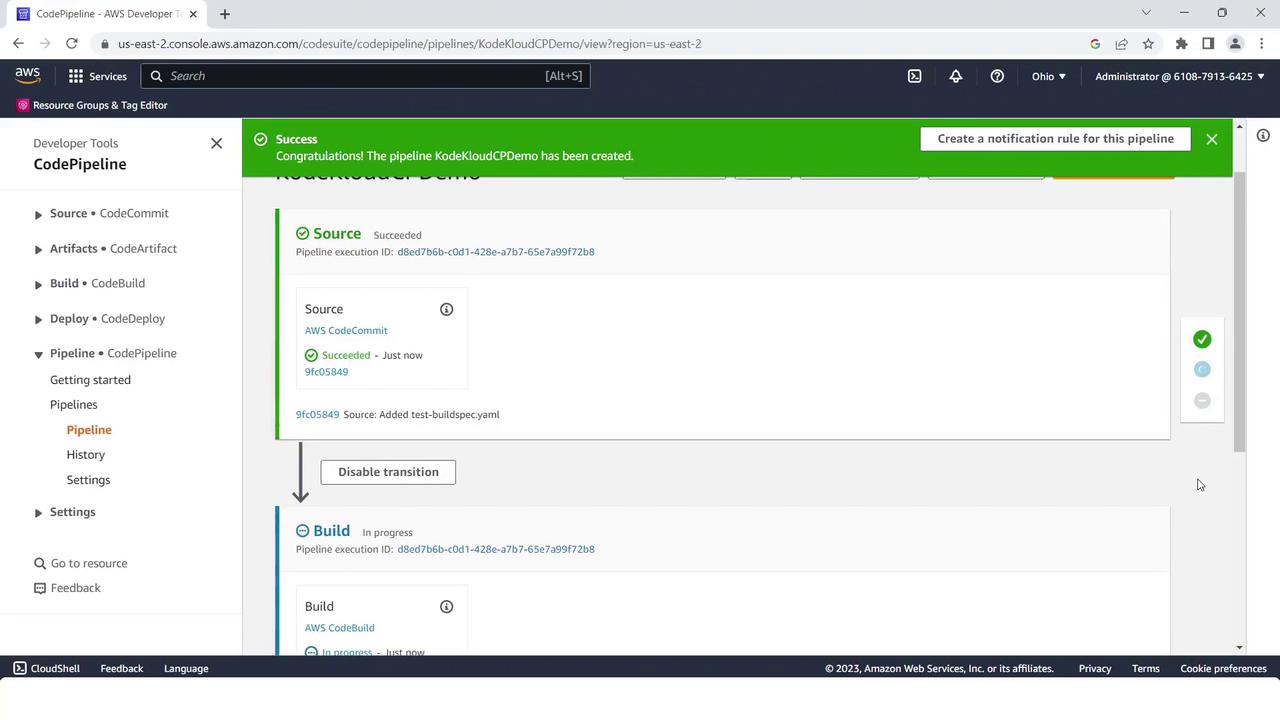
Click **Create pipeline**. The pipeline initializes and starts its first run:
<Frame>
  ![The image shows an AWS CodePipeline interface with a successful pipeline creation message for "KodeKloudCPDemo." It displays the status of the source and build stages, with the source stage marked as succeeded.](https://kodekloud.com/kk-media/image/upload/v1752862740/notes-assets/images/AWS-CodePipeline-CICD-Pipeline-Demonstration-3-Create-4-Stage-Pipeline/aws-codepipeline-kodekloudcpdemo-success.jpg)
</Frame>

***

## 6. Adding the Test Stage

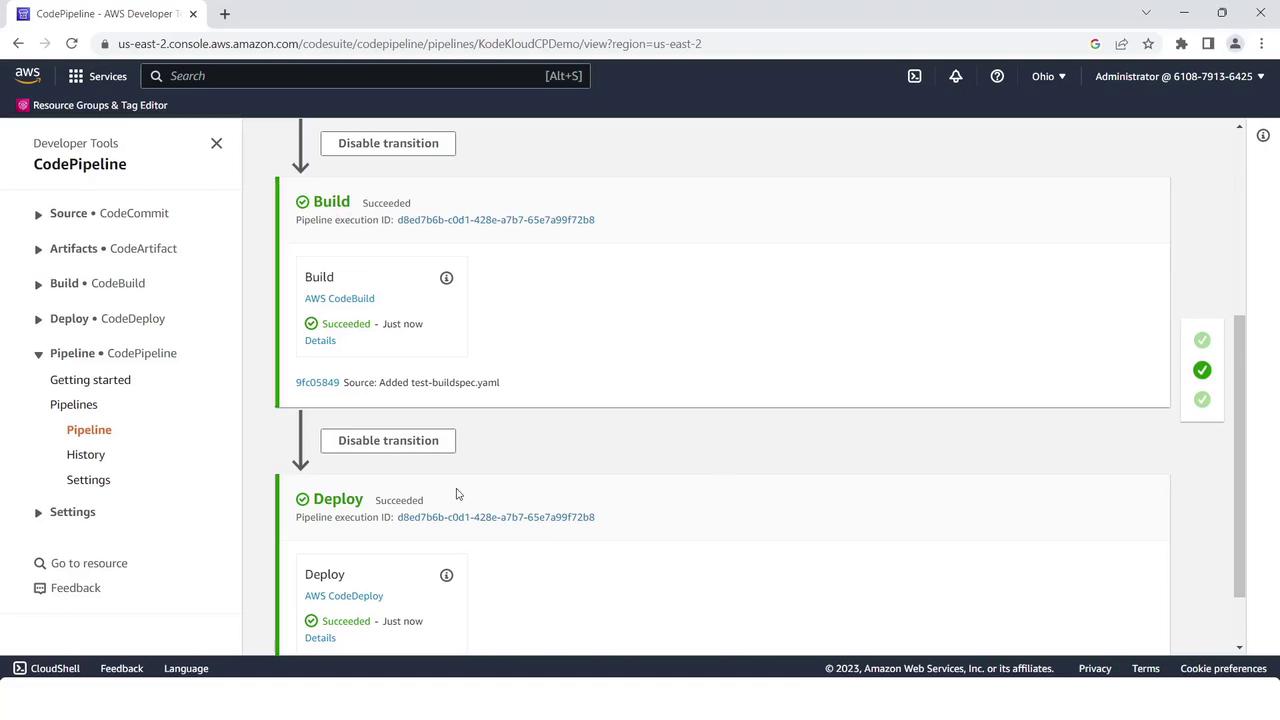
Once the initial pipeline run succeeds, insert a **Test** stage between Build and Deploy:

1. Click **Edit** in the pipeline view.
2. Under the Build stage, click **Add stage**, name it **Test**, then **Add stage**.
<Frame>
  ![The image shows an AWS CodePipeline interface with successful build and deploy stages. The pipeline execution details indicate recent success in both stages.](https://kodekloud.com/kk-media/image/upload/v1752862741/notes-assets/images/AWS-CodePipeline-CICD-Pipeline-Demonstration-3-Create-4-Stage-Pipeline/aws-codepipeline-success-build-deploy.jpg)
</Frame>

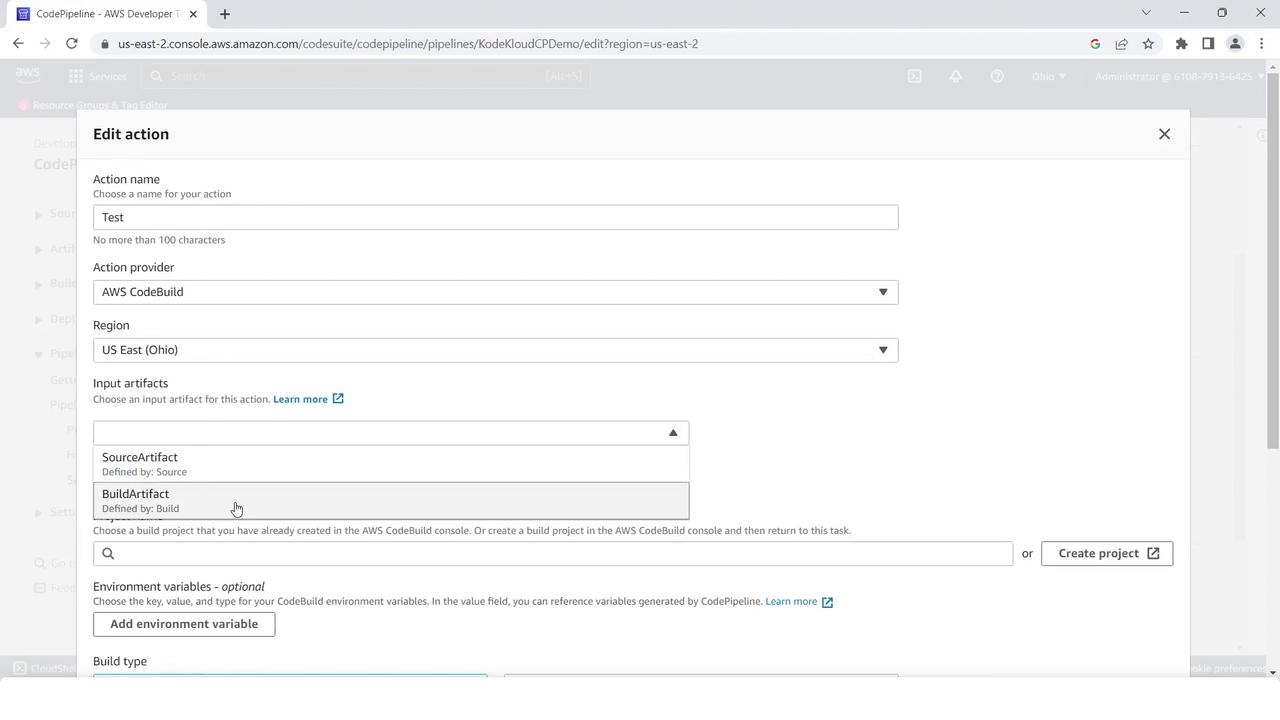
3. Inside **Test**, click **Add action group** and configure:
   * Action name: `TestAction`
   * Provider: **AWS CodeBuild**
   * Input artifact: `BuildArtifact`
   * Project name: `KodeKloudCPdemo`
<Frame>
  ![The image shows an AWS CodePipeline interface where a user is editing an action, selecting AWS CodeBuild as the action provider, and specifying input artifacts and environment variables.](https://kodekloud.com/kk-media/image/upload/v1752862742/notes-assets/images/AWS-CodePipeline-CICD-Pipeline-Demonstration-3-Create-4-Stage-Pipeline/aws-codepipeline-codebuild-action-edit.jpg)
</Frame>

4. Save changes and click **Release change**. The pipeline will now run all four stages in sequence, ending with a green success status across Source, Build, Test, and Deploy.

***

## Summary

You have successfully built an automated four-stage CI/CD pipeline on AWS:

1. **Source**: CodeCommit
2. **Build**: CodeBuild
3. **Test**: CodeBuild
4. **Deploy**: CodeDeploy

Use this template to accelerate your deployments and enforce consistent delivery practices.

***

## Links and References

* [AWS CodePipeline Documentation](https://docs.aws.amazon.com/codepipeline/latest/userguide/welcome.html)
* [AWS CodeCommit Documentation](https://docs.aws.amazon.com/codecommit/latest/userguide/welcome.html)
* [AWS CodeBuild Documentation](https://docs.aws.amazon.com/codebuild/latest/userguide/welcome.html)
* [AWS CodeDeploy Documentation](https://docs.aws.amazon.com/codedeploy/latest/userguide/welcome.html)
* [EC2 Instance Connect](https://docs.aws.amazon.com/AWSEC2/latest/UserGuide/Connect-using-EC2-Instance-Connect.html)

<CardGroup>
  <Card title="Watch Video" icon="video" cta="Learn more" href="https://learn.kodekloud.com/user/courses/aws-codepipeline-ci-cd-pipeline/module/d0ecdc6d-aba5-4798-80c9-171edb45c9dc/lesson/89aad9e4-558b-4865-ad10-133ee3a6454d" />

  <Card title="Practice Lab" icon="installation" cta="Learn more" href="https://learn.kodekloud.com/user/courses/aws-codepipeline-ci-cd-pipeline/module/d0ecdc6d-aba5-4798-80c9-171edb45c9dc/lesson/4ebbcb9e-e655-4977-a97f-4c2f4ccf920c" />
</CardGroup>