> ## Documentation Index
> Fetch the complete documentation index at: https://notes.kodekloud.com/llms.txt
> Use this file to discover all available pages before exploring further.
# Compute Demo
> This guide covers real-time auto scaling on Amazon EKS using managed node groups, Fargate profiles, and Karpenter provisioner.
In this guide, we’ll walk through real-time auto scaling on Amazon EKS using three compute options:
1. Managed Node Groups
2. Fargate Profiles
3. Karpenter Provisioner
By the end, you’ll understand how to deploy workloads that scale automatically based on demand.
***
## 1. Cluster Setup: Managed Node Group & Fargate Profiles
We’ve created:
* A managed Node Group named **main** (desired capacity: 2)
* Two Fargate profiles: **default** and **fargate** (selects `namespace: fargate`)
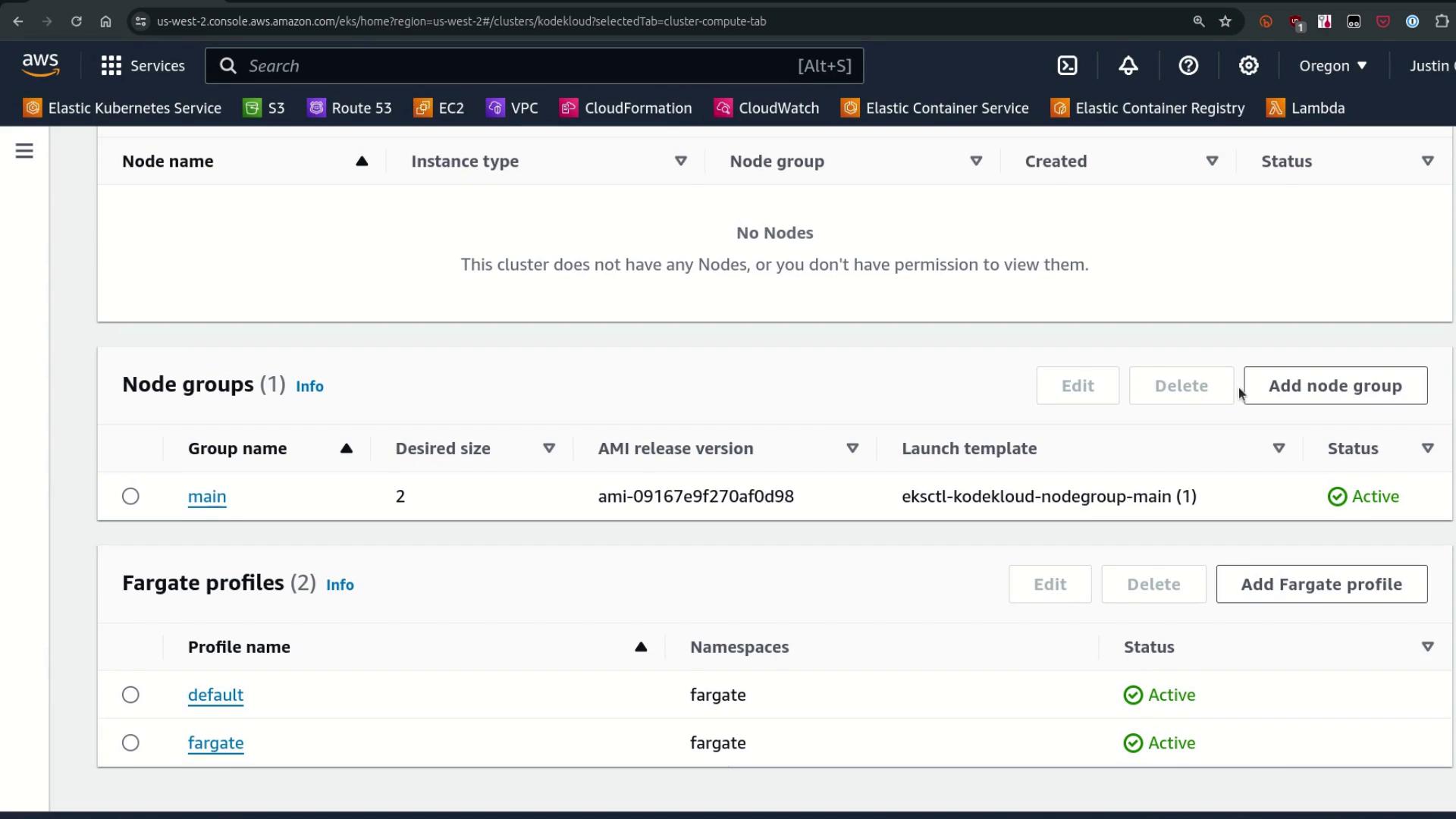
When you schedule a Pod in the **fargate** namespace, the Fargate mutating webhook injects a custom scheduler that routes Pods to serverless Fargate compute.

***
## 2. Verifying Webhooks & Node Status
First, confirm the Fargate mutation webhook is installed:
```bash theme={null}
kubectl get mutatingwebhookconfigurations.admissionregistration.k8s.io
```
```plaintext theme={null}
NAME WEBHOOKS AGE
0500-amazon-eks-fargate-mutation.amazonaws.com 2 4h39m
pod-identity-webhook 1 4h45m
vpc-resource-mutating-webhook 1 4h45m
```
Next, list the current nodes in your cluster (you should see only the managed nodes):
```bash theme={null}
kubectl get nodes
```
```plaintext theme={null}
NAME STATUS ROLES AGE VERSION
i-05b0938045882bc66.us-west-2.compute.internal Ready 4h v1.29.0-eks-5e0fdde
i-0b67dcfad12062f1d.us-west-2.compute.internal Ready 4h v1.29.0-eks-5e0fdde
```
View the **main** Node Group details via `eksdemo` or your preferred CLI:
```bash theme={null}
eksdemo get mng -c kodekloud
```
```plaintext theme={null}
+-------+--------+------+-------+-----+-----+-----------------------------+-----------+
| Age | Status | Name | Nodes | Min | Max | Version | Type |
+-------+--------+------+-------+-----+-----+-----------------------------+-----------+
| 4h | ACTIVE | main | 2 | 0 | 10 | ami-09167e9f270af0d8 (eks) | ON_DEMAND |
+-------+--------+------+-------+-----+-----+-----------------------------+-----------+
```
We currently have no [Cluster Autoscaler](https://docs.aws.amazon.com/eks/latest/userguide/cluster-autoscaler.html) installed, so we’ll adjust the Node Group sizes manually below.
***
## 3. Manual Scaling of the Managed Node Group
To force-scale the **main** Node Group down to 1 node:
```bash theme={null}
eksdemo update mng main -c kodekloud --min 1 --max 1
```
```plaintext theme={null}
Updating nodegroup with 1 Nodes, 1 Max...done
```
Within a minute, one managed node will terminate.
***
## 4. Deploying Workloads to Fargate
Let’s create a namespace and a Deployment that matches the **fargate** profile:
```yaml theme={null}
apiVersion: v1
kind: Namespace
metadata:
name: fargate
---
apiVersion: apps/v1
kind: Deployment
metadata:
name: fargate-nginx
namespace: fargate
spec:
replicas: 1
selector:
matchLabels:
app: fargate-nginx
template:
metadata:
labels:
app: fargate-nginx
spec:
terminationGracePeriodSeconds: 0
containers:
- name: fargate-nginx
image: public.ecr.aws/nginx/nginx:latest
```
Apply the manifest:
```bash theme={null}
kubectl apply -f fargate-deploy.yaml
```
Watch the Pod in **Pending** state until Fargate provisions a node:
```bash theme={null}
kubectl get pods -n fargate --watch
```
Describe the pending Pod to verify the custom scheduler:
```bash theme={null}
kubectl get pod fargate-nginx- -n fargate -o yaml
```
```yaml theme={null}
spec:
schedulerName: fargate-scheduler
tolerations:
- key: node.kubernetes.io/not-ready
operator: Exists
effect: NoExecute
tolerationSeconds: 300
- key: node.kubernetes.io/unreachable
operator: Exists
effect: NoExecute
tolerationSeconds: 300
```
Once Fargate provisioning completes, you’ll see a new node:
```bash theme={null}
kubectl get nodes
```
```plaintext theme={null}
NAME STATUS
fargate-ip-192-168-138-113.us-west-2.compute.internal Ready
i-05b0938045882bc66.us-west-2.compute.internal Ready
```
Scale the Fargate deployment to **5** replicas:
```bash theme={null}
kubectl scale deploy fargate-nginx -n fargate --replicas 5
kubectl get pods -n fargate
```
```plaintext theme={null}
NAME READY STATUS AGE
fargate-nginx-58f48f6b79-7ggz5 0/1 Pending 4s
fargate-nginx-58f48f6b79-gldtV 0/1 Pending 4s
fargate-nginx-58f48f6b79-h8pzw 0/1 Pending 4s
fargate-nginx-58f48f6b79-p46sq 1/1 Running 2m24s
fargate-nginx-58f48f6b79-sjzxz 0/1 Pending 4s
```
Fargate creates one node per Pod, which can add provisioning latency for rapid scaling.
***
## 5. Standard Nginx Deployment on Managed Nodes
Deploy a typical Nginx workload in the default namespace:
```yaml theme={null}
apiVersion: apps/v1
kind: Deployment
metadata:
name: nginx
spec:
replicas: 2
selector:
matchLabels:
app: nginx
template:
metadata:
labels:
app: nginx
spec:
terminationGracePeriodSeconds: 0
containers:
- name: nginx
image: public.ecr.aws/nginx/nginx:latest
```
```bash theme={null}
kubectl apply -f nginx-deploy.yaml
kubectl get pods
```
```plaintext theme={null}
NAME READY STATUS AGE
nginx-56cd7bd595-abcde 1/1 Running 30s
nginx-56cd7bd595-fghij 1/1 Running 30s
```
These Pods schedule immediately on existing on-demand nodes.
***
## 6. Dynamic Scaling with Karpenter
Karpenter automatically provisions compute when Pods remain unscheduled due to resource constraints.
Make sure you’ve installed Karpenter and configured the required IAM roles. See the [Karpenter documentation](https://karpenter.sh/) for setup instructions.
1. **Verify Karpenter pods**:
```bash theme={null}
kubectl get pods -n kube-system | grep karpenter
```
2. **Scale the Nginx deployment** to 25 replicas:
```bash theme={null}
kubectl scale deploy nginx --replicas 25
```
3. **Add CPU requests** to force new node provisioning:
```bash theme={null}
kubectl set resources deployment nginx --requests=cpu=500m
```
4. **Watch Pods and Nodes**:
```bash theme={null}
kubectl get pods --all-namespaces --watch
kubectl get nodes
```
Example of new C5 nodes:
```plaintext theme={null}
NAME STATUS AGE VERSION
i-048b7c8a501cda49d.us-west-2.compute.internal Ready 66s v1.29.0-eks-5e0fdde
i-0c1d8c0722d4758b1.us-west-2.compute.internal Ready 25s v1.29.0-eks-5e0fdde
# ... existing fargate and managed nodes ...
```
5. **Inspect a Karpenter-provisioned node**:
```bash theme={null}
kubectl get node i-048b7c8a501cda49d -o yaml
```
```yaml theme={null}
metadata:
labels:
beta.kubernetes.io/instance-type: c5.2xlarge
karpenter.amazonaws.com/instance-family: c5
karpenter.k8s.aws/instance-cpu: "8"
karpenter.sh/managed-by: karpenter
spec: {}
```
***
## 7. Karpenter Default Provisioner Configuration
View and describe the default Provisioner to see its constraints:
```bash theme={null}
kubectl get provisioners
```
```plaintext theme={null}
NAME
default
```
```bash theme={null}
kubectl get provisioner default -o yaml
```
```yaml theme={null}
spec:
requirements:
- key: kubernetes.io/arch
operator: In
values: ["amd64"]
- key: kubernetes.io/os
operator: In
values: ["linux"]
- key: karpenter.sh/capacity-type
operator: In
values: ["on-demand","spot"]
- key: karpenter.k8s.aws/instance-category
operator: In
values: ["c","m","r"]
- key: karpenter.k8s.aws/instance-generation
operator: Gt
values: ["2"]
limits:
cpu: 1000
status:
resources:
cpu: "16"
memory: 31792072Ki
pods: "116"
```
This provisioner restricts instances to Linux/AMD64 of category C, M, or R (generation > 2) and allows up to 1,000 CPUs.
***
## 8. Summary: EKS Compute Options Comparison
| Compute Option | Description | Characteristics |
| ------------------ | ------------------------------------------ | ------------------------------------------------------- |
| Managed Node Group | Always-on EC2 capacity with lifecycle APIs | Stable, version-managed nodes, manual or autoscaled |
| Fargate Profiles | Serverless pods on demand | One node per Pod, isolation, longer startup latency |
| Karpenter | Dynamic, request-driven node provisioning | Fast scale-out, flexible instance types, cost-efficient |
***
## Links and References
* [Amazon EKS User Guide](https://docs.aws.amazon.com/eks/latest/userguide/)
* [Kubernetes Documentation](https://kubernetes.io/docs/)
* [Karpenter Documentation](https://karpenter.sh/)
* [AWS Fargate for EKS](https://docs.aws.amazon.com/eks/latest/userguide/fargate.html)