> ## Documentation Index
> Fetch the complete documentation index at: https://notes.kodekloud.com/llms.txt
> Use this file to discover all available pages before exploring further.
# Fargate
> This article discusses Amazon EKS compute options, focusing on Fargate, its functionality, limitations, and when to use it for workloads.
When running workloads on Amazon EKS, you can choose from three compute modes based on your workload requirements:
| Compute Mode | Description | Best For |
| ------------ | ---------------------------------------------------- | ---------------------------------------- |
| Fargate | Serverless, pod-based provisioning | Isolation, simplified operations |
| Node Groups | Managed or unmanaged EC2 instances | Full control over instances, custom AMIs |
| Karpenter | Open-source autoscaler that provisions EC2 instances | Cost optimization, rapid scaling |
We’ll start by exploring **Fargate**, Amazon’s serverless compute engine for containers, then compare it with other options in later sections.
## How Fargate Works
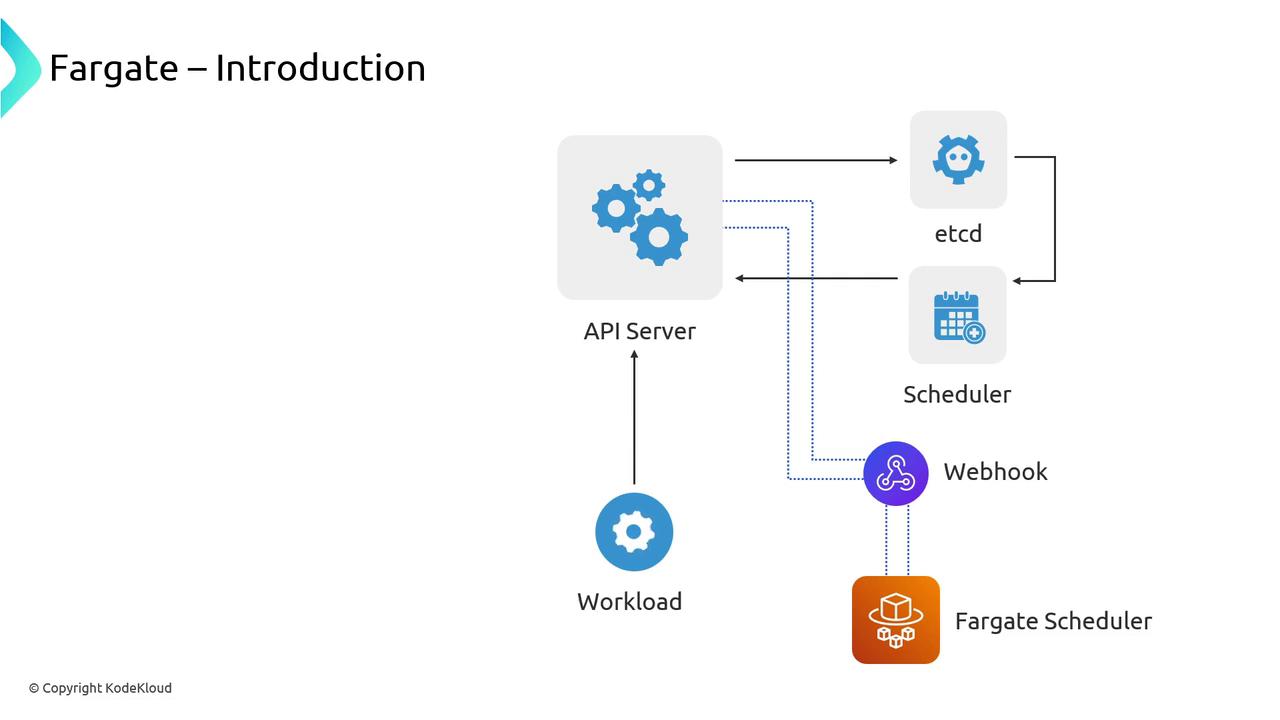
When you deploy a Pod to EKS, the Kubernetes API Server stores its definition in etcd. Normally the default scheduler assigns it to an EC2 instance in a Node Group. With Fargate, you:
1. Define a **Fargate profile**, which installs an admission webhook.
2. The webhook intercepts new Pods matching your profile and mutates them to be scheduled by the Fargate scheduler.
3. The default scheduler ignores those Pods, leaving Fargate to handle provisioning.
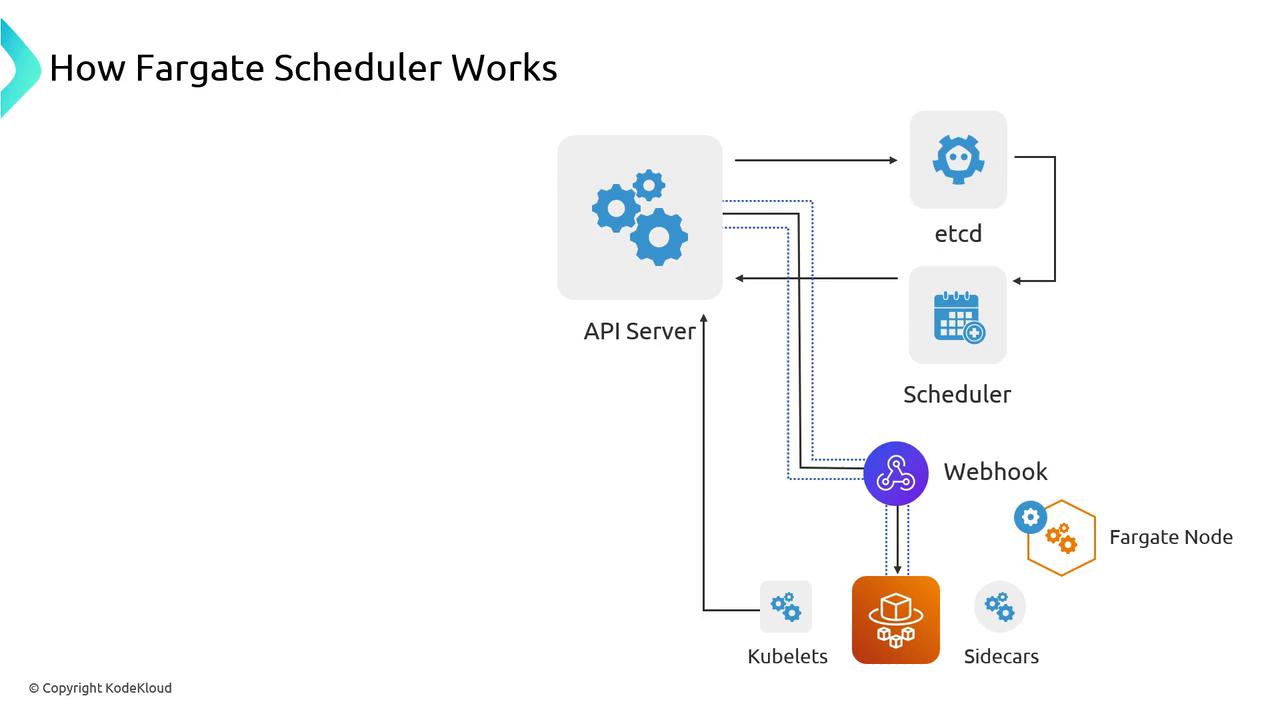
Once the Fargate scheduler claims your Pod, it:
* Evaluates the Pod’s CPU and memory requests.
* Calls AWS APIs to launch the appropriate serverless “node.”
* Waits for the kubelet to join the cluster.
* Binds your Pod to the new Fargate node.
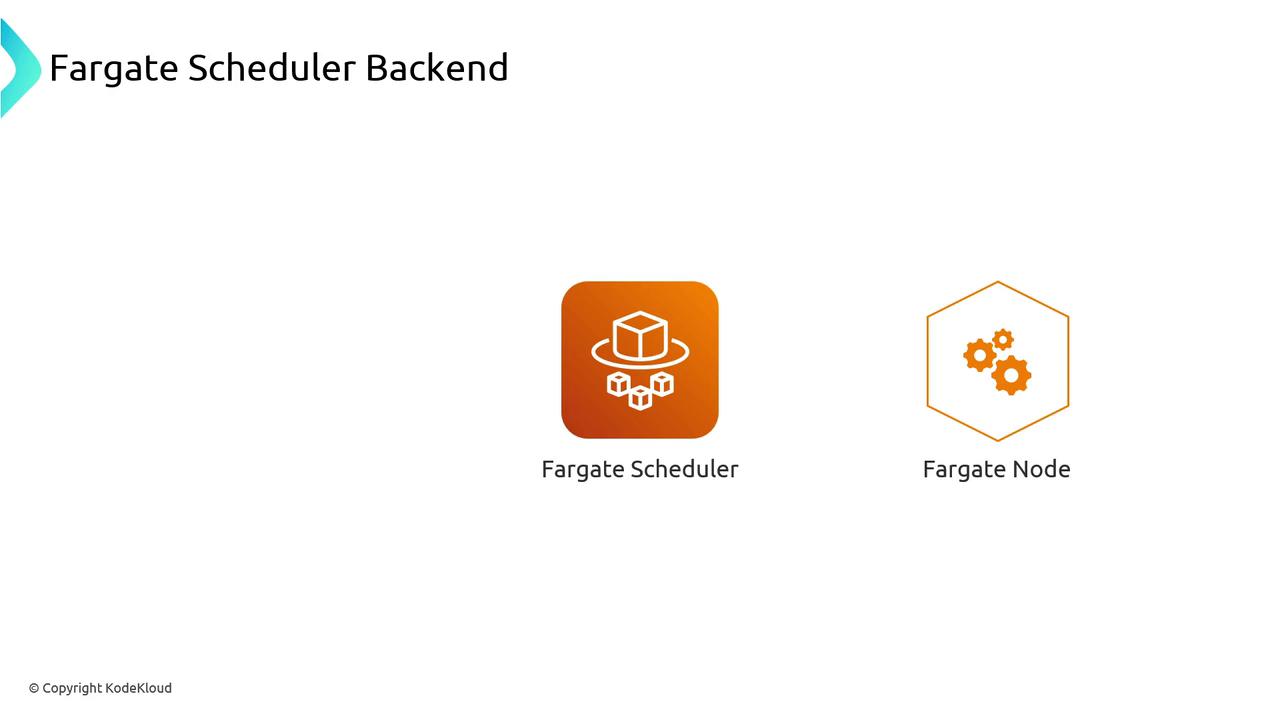
Internally, Fargate reserves minimal resources for system components (kubelets and sidecars) before launching your container. From your AWS account, no EC2 instance appears—only a Fargate node inside the cluster.
Fargate profiles support label- and namespace-based selection. Use them to target only specific workloads for serverless deployment.
## Limitations of Fargate Nodes
Because Fargate nodes aren’t EC2 instances, they come with a few constraints:
* **No EBS volumes**: Use Amazon EFS via the [EFS CSI driver](https://docs.aws.amazon.com/eks/latest/userguide/efs-csi.html) for persistent storage.
* **DaemonSets unsupported**: You cannot schedule DaemonSets on Fargate nodes.
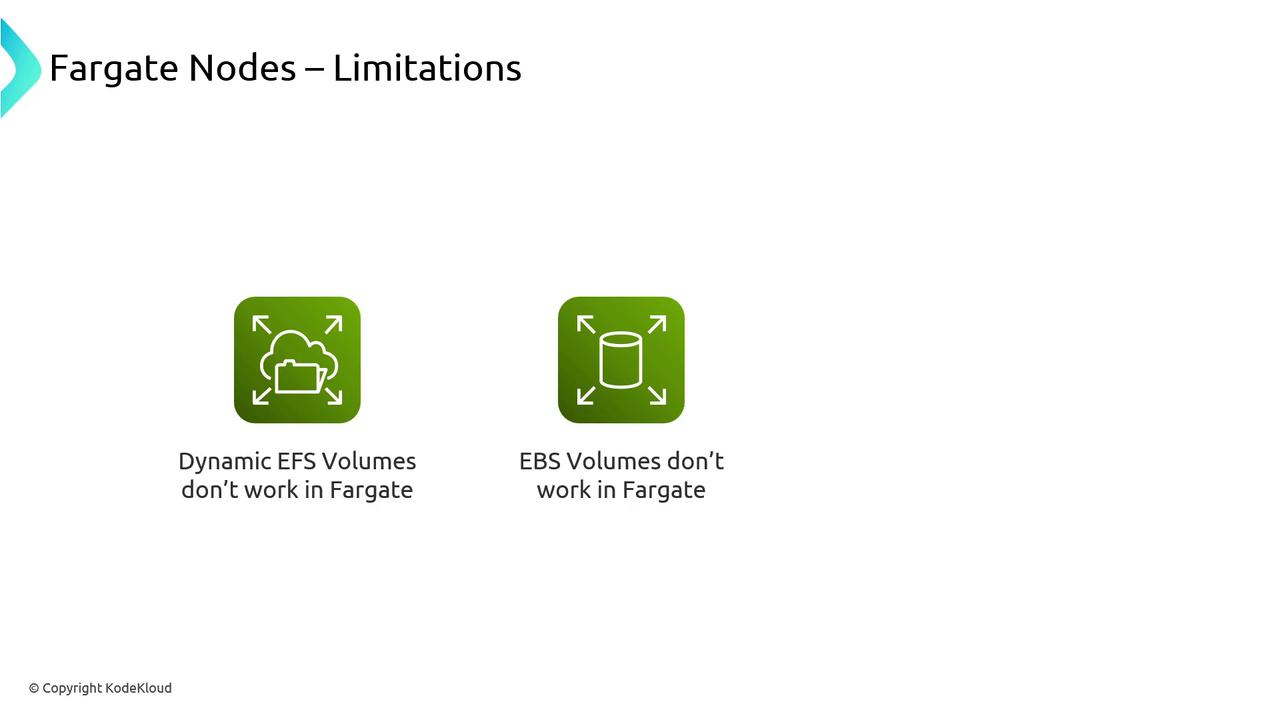
In Kubernetes, DaemonSets ensure one Pod per node. Since Fargate creates a dedicated node per Pod, traditional DaemonSets fail to run. Monitoring and logging agents must run as sidecar containers instead.
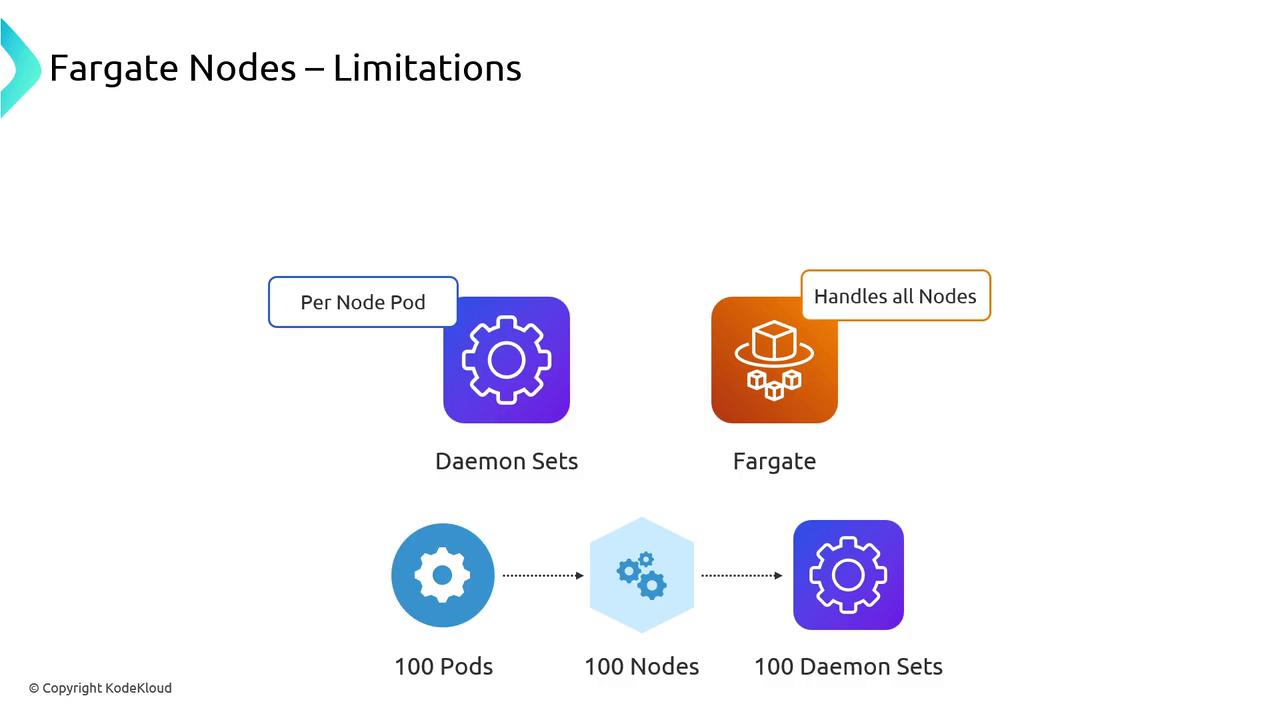
DaemonSets will not schedule on Fargate. Convert critical agents (e.g., log collectors) into sidecars, which increases per-Pod overhead.
## When to Use Fargate
Fargate excels at providing isolation and simplicity:
1. **Security isolation**: Pods run on dedicated kernel and filesystem boundaries.
2. **Compute isolation**: Guaranteed CPU and memory without noisy neighbors.
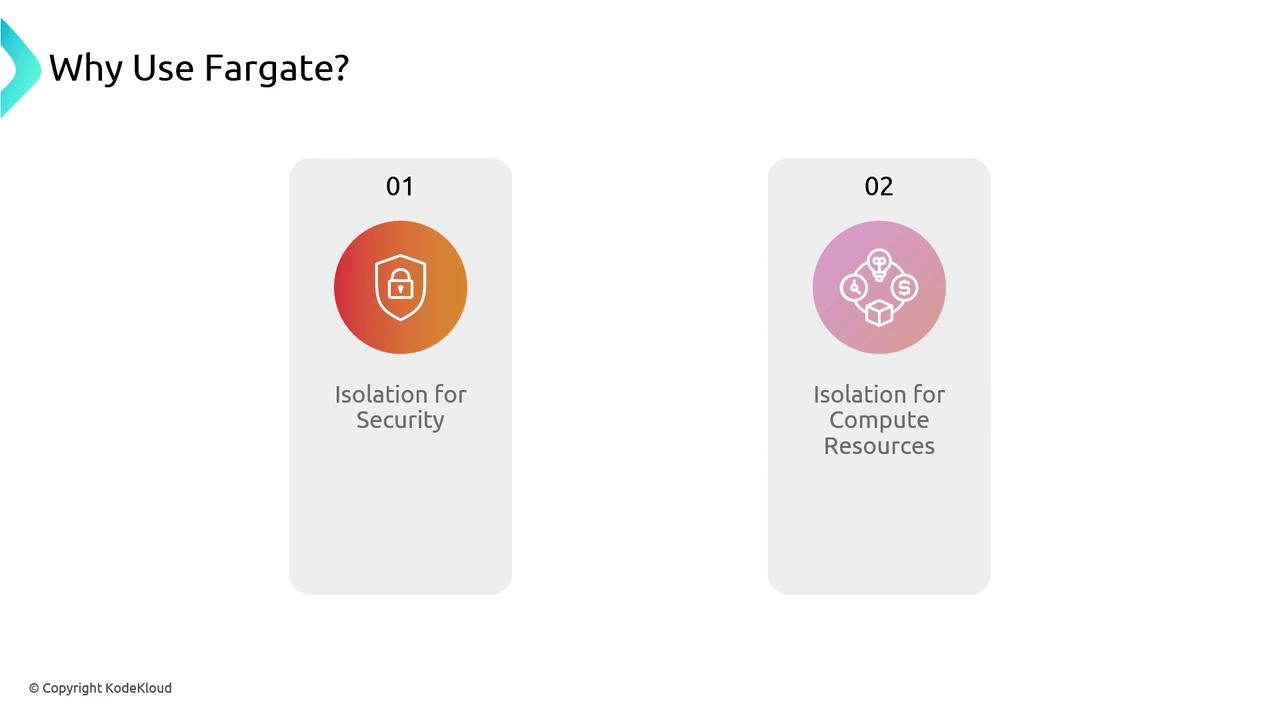
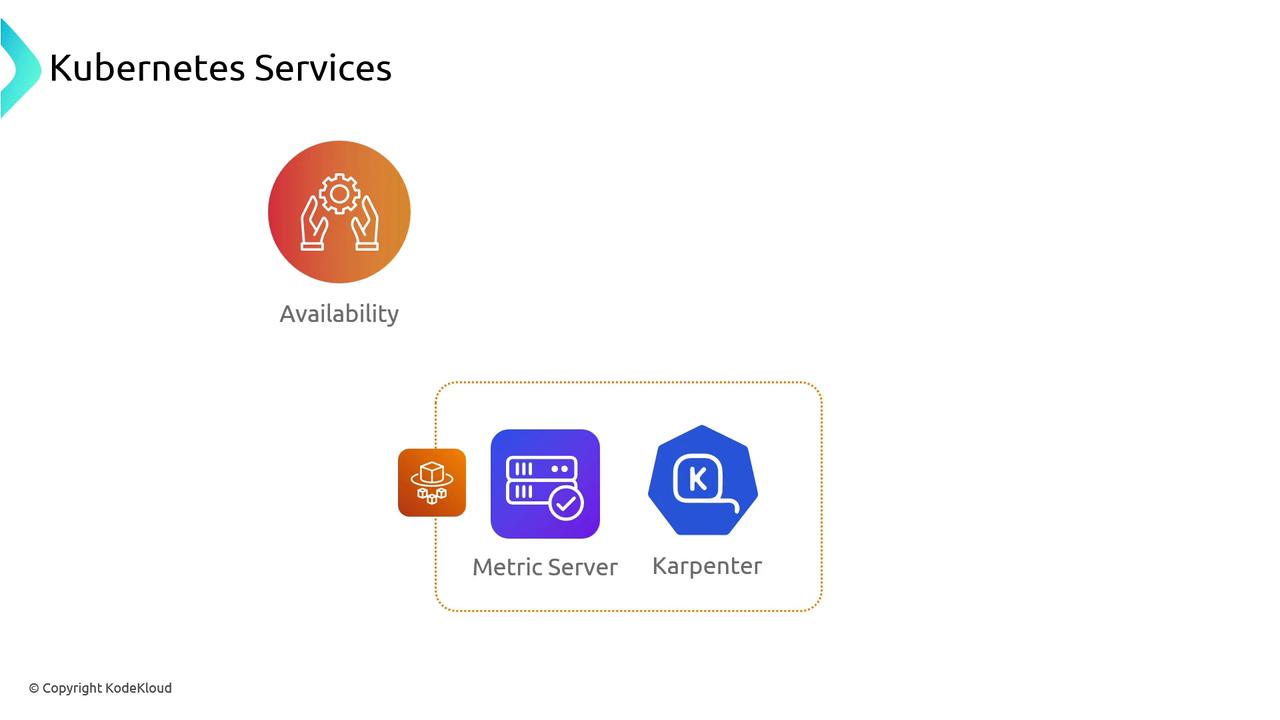
Use Fargate for critical system workloads—metrics-server, cluster-autoscaler, or Karpenter—so they remain unaffected by node lifecycle events. Just remember:
* Deploy multiple replicas across Availability Zones for high availability.
* Balance cost versus resilience when sizing Fargate profiles.
## Links and References
* [Amazon EKS on AWS Fargate](https://docs.aws.amazon.com/eks/latest/userguide/fargate.html)
* [Kubernetes DaemonSet Documentation](https://kubernetes.io/docs/concepts/workloads/controllers/daemonset/)
* [AWS EFS CSI Driver](https://docs.aws.amazon.com/eks/latest/userguide/efs-csi.html)
* [Karpenter Autoscaling](https://karpenter.sh/)