> ## Documentation Index
> Fetch the complete documentation index at: https://notes.kodekloud.com/llms.txt
> Use this file to discover all available pages before exploring further.
# AWS Lambda
> Guide to creating, configuring, testing, and deploying AWS Lambda functions, including triggers, handlers, permissions, packaging dependencies with ZIP or Layers, and monitoring with CloudWatch
This guide walks through creating your first AWS Lambda function in the console, explains core concepts (triggers, runtime, handler, permissions), shows how to test locally and in the console, and demonstrates including third‑party libraries using ZIP deployment or Layers. The examples use Node.js, but the concepts apply to other runtimes (Python, Java, .NET, etc.).
## What is a Lambda function?
AWS Lambda is a serverless compute service that runs your code in response to events. A Lambda "function" is the unit of deployment that contains your code, runtime configuration, and execution role. Triggers like API Gateway, S3, SNS, and EventBridge tell Lambda when to run your code.
## Create a Lambda function (Console)
In the AWS Console, navigate to Lambda and choose Create function. You can:
* Author from scratch (used in this guide)
* Use a blueprint (pre-built templates for common triggers and runtimes)
* Provide a container image (run Lambda as a container image)
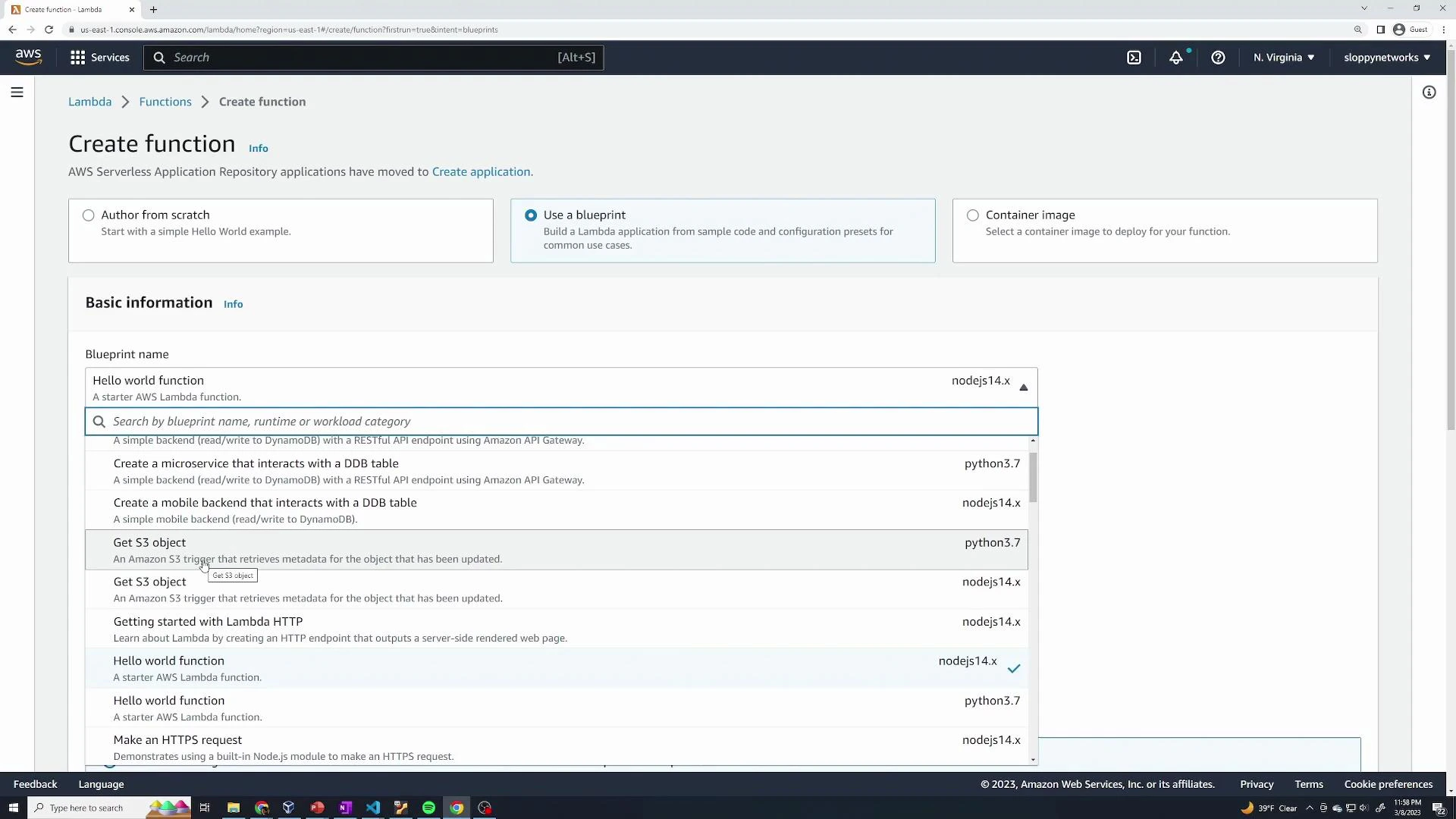 When authoring from scratch you must provide:
* Function name
* Runtime (language + version)
* Architecture (x86\_64 or arm64)
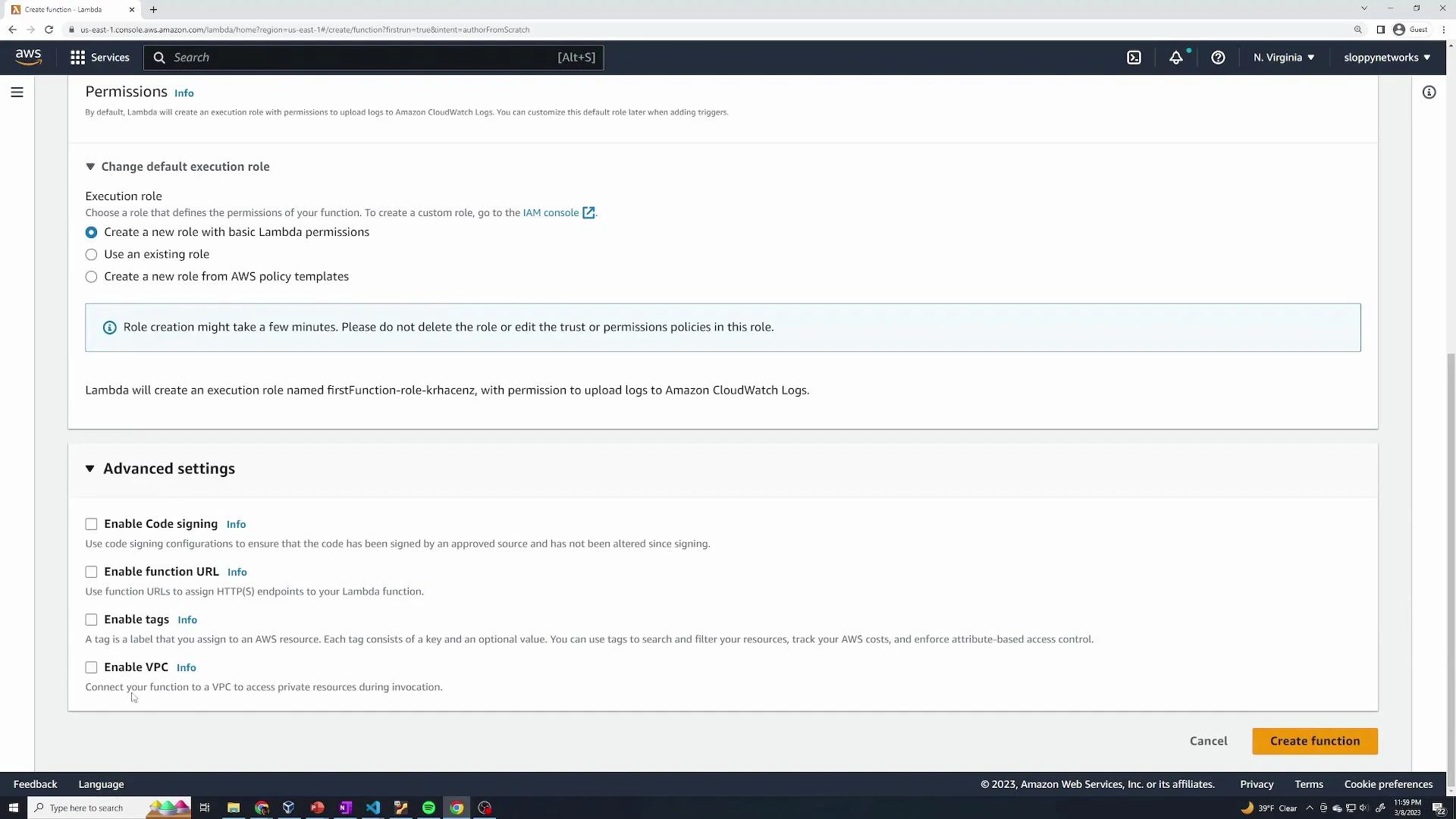
* Execution role (creates one by default or you can use an existing role / template)
The Permissions section allows Lambda to create an execution role with basic CloudWatch Logs permissions, or you can attach a custom IAM role.
When authoring from scratch you must provide:
* Function name
* Runtime (language + version)
* Architecture (x86\_64 or arm64)
* Execution role (creates one by default or you can use an existing role / template)
The Permissions section allows Lambda to create an execution role with basic CloudWatch Logs permissions, or you can attach a custom IAM role.
 ## Function configuration and triggers
After creating the function, the main configuration screen appears. A Lambda function needs a trigger to run. Common triggers:
| Trigger | Use case |
| ----------: | --------------------------------------- |
| API Gateway | Expose a Lambda as an HTTP endpoint |
| S3 | Run code on object creation/deletion |
| SNS | Fan-out or topic-driven invocation |
| SQS | Asynchronous queue processing |
| EventBridge | Scheduled or event-driven orchestration |
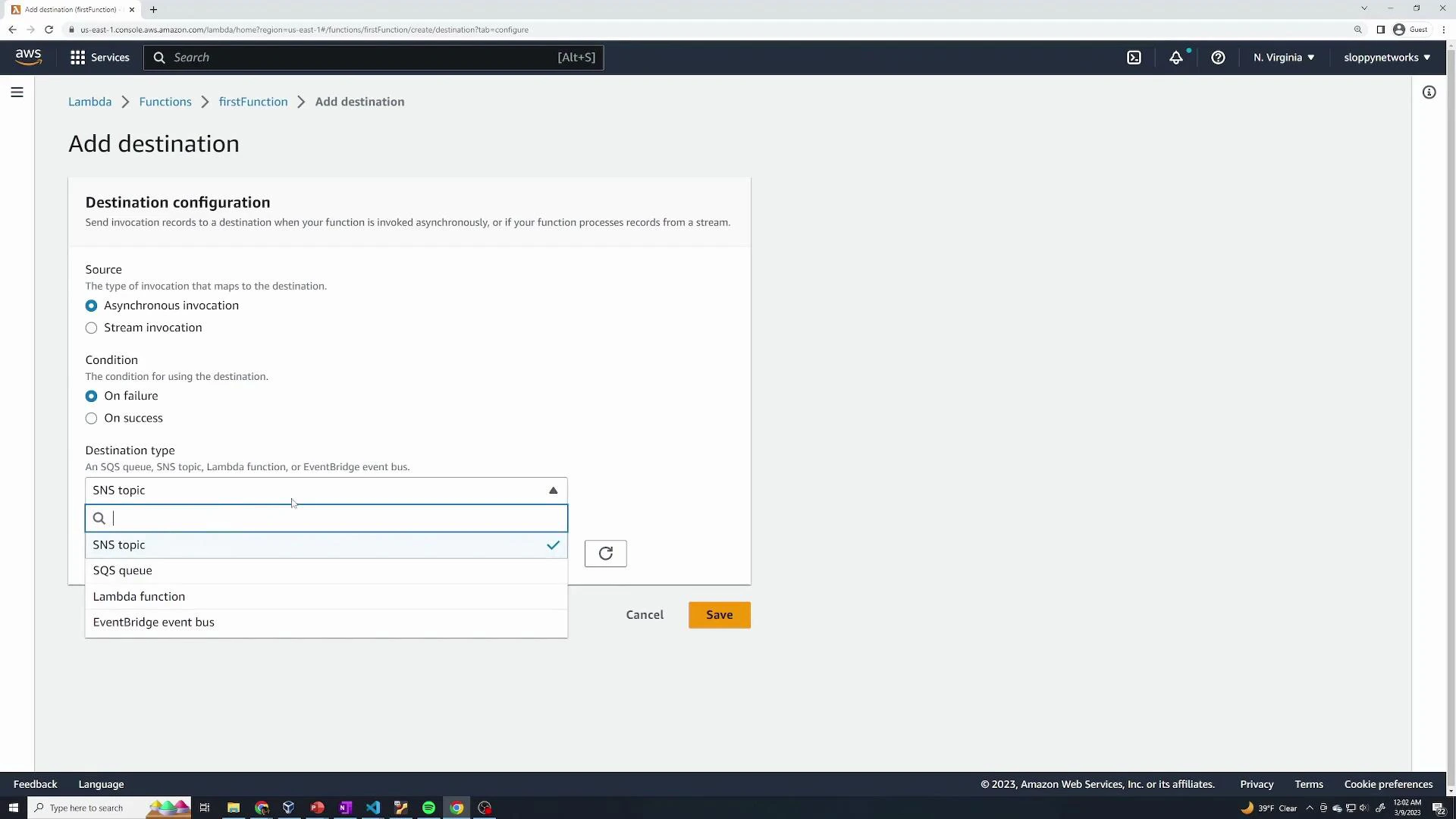
You can also configure Destinations for asynchronous invocations (send success/failure events to SNS, SQS, another Lambda, or EventBridge).
## Function configuration and triggers
After creating the function, the main configuration screen appears. A Lambda function needs a trigger to run. Common triggers:
| Trigger | Use case |
| ----------: | --------------------------------------- |
| API Gateway | Expose a Lambda as an HTTP endpoint |
| S3 | Run code on object creation/deletion |
| SNS | Fan-out or topic-driven invocation |
| SQS | Asynchronous queue processing |
| EventBridge | Scheduled or event-driven orchestration |
You can also configure Destinations for asynchronous invocations (send success/failure events to SNS, SQS, another Lambda, or EventBridge).
 ## Handler and event object (Node.js example)
The handler is the entry point for your function. The runtime invokes this handler with an event object (and optional context). For API Gateway, return an HTTP-like response object.
Example Node.js (ESM) handler template:
```javascript theme={null}
export const handler = async (event) => {
// TODO implement
const response = {
statusCode: 200,
body: JSON.stringify('Hello from Lambda!'),
};
return response;
};
```
The event object is a plain object (Node.js) or dict (Python). When testing, the console lets you create JSON test events to simulate trigger payloads.
Example test event JSON:
```json theme={null}
{
"key1": "value1",
"key2": "value2",
"key3": "value3"
}
```
Example: reading a property from the event and returning it:
```javascript theme={null}
export const handler = async (event) => {
const products = event.products;
const response = {
statusCode: 200,
body: JSON.stringify('Product: ' + products),
};
return response;
};
```
Remember to Deploy changes in the console after edits so the execution environment uses the latest code/configuration.
## Using API Gateway as a trigger
You can attach API Gateway to expose your function as a public HTTP endpoint. Choose API type (REST, HTTP) and authorization (for demos, Authorization = NONE). API Gateway will forward requests to Lambda and return the function response.
Example simple output returned by the Lambda via API Gateway: "Lambda trigger example"
API Gateway example configuration:
* API type: HTTP
* Authorization: NONE
* Example endpoint: [https://rvhf5t2oe7.execute-api.us-east-1.amazonaws.com/default/firstFunction](https://rvhf5t2oe7.execute-api.us-east-1.amazonaws.com/default/firstFunction)
After creating an API trigger, copy the endpoint and call it using curl, Postman, or a browser to invoke the Lambda.
## Third‑party libraries for Node.js (bcryptjs example)
If your function needs third‑party packages (for example, bcryptjs), you must either include the dependencies with your function code or provide them via a Layer.
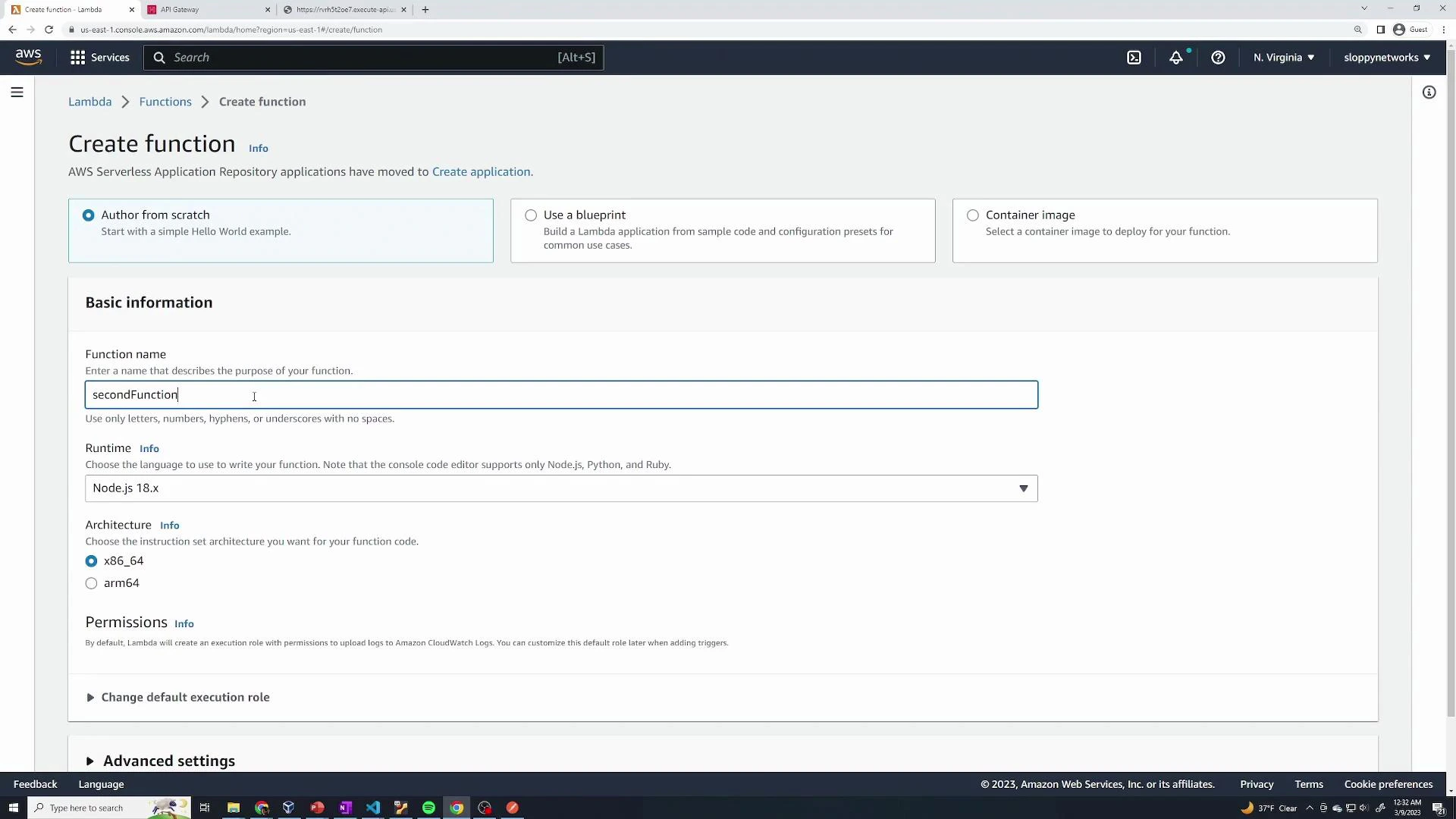
We’ll create a second function that hashes a password using bcryptjs. Create a new function in the console (for example: secondFunction) with Node.js 18.x and x86\_64 architecture, then paste the handler code below.
## Handler and event object (Node.js example)
The handler is the entry point for your function. The runtime invokes this handler with an event object (and optional context). For API Gateway, return an HTTP-like response object.
Example Node.js (ESM) handler template:
```javascript theme={null}
export const handler = async (event) => {
// TODO implement
const response = {
statusCode: 200,
body: JSON.stringify('Hello from Lambda!'),
};
return response;
};
```
The event object is a plain object (Node.js) or dict (Python). When testing, the console lets you create JSON test events to simulate trigger payloads.
Example test event JSON:
```json theme={null}
{
"key1": "value1",
"key2": "value2",
"key3": "value3"
}
```
Example: reading a property from the event and returning it:
```javascript theme={null}
export const handler = async (event) => {
const products = event.products;
const response = {
statusCode: 200,
body: JSON.stringify('Product: ' + products),
};
return response;
};
```
Remember to Deploy changes in the console after edits so the execution environment uses the latest code/configuration.
## Using API Gateway as a trigger
You can attach API Gateway to expose your function as a public HTTP endpoint. Choose API type (REST, HTTP) and authorization (for demos, Authorization = NONE). API Gateway will forward requests to Lambda and return the function response.
Example simple output returned by the Lambda via API Gateway: "Lambda trigger example"
API Gateway example configuration:
* API type: HTTP
* Authorization: NONE
* Example endpoint: [https://rvhf5t2oe7.execute-api.us-east-1.amazonaws.com/default/firstFunction](https://rvhf5t2oe7.execute-api.us-east-1.amazonaws.com/default/firstFunction)
After creating an API trigger, copy the endpoint and call it using curl, Postman, or a browser to invoke the Lambda.
## Third‑party libraries for Node.js (bcryptjs example)
If your function needs third‑party packages (for example, bcryptjs), you must either include the dependencies with your function code or provide them via a Layer.
We’ll create a second function that hashes a password using bcryptjs. Create a new function in the console (for example: secondFunction) with Node.js 18.x and x86\_64 architecture, then paste the handler code below.
 Handler code (index.mjs):
```javascript theme={null}
import bcrypt from "bcryptjs";
export const handler = async (event) => {
const numSaltRounds = 8;
const password = event.password;
const hashedPassword = await bcrypt.hash(password, numSaltRounds);
const response = {
statusCode: 200,
body: JSON.stringify("Hashed Password: " + hashedPassword),
};
return response;
};
```
If bcryptjs is not provided with the function, invocation will fail with a module-not-found error like:
```json theme={null}
{
"errorType": "Error",
"errorMessage": "Cannot find package 'bcryptjs' imported from /var/task/index.mjs",
"trace": [
"Error [ERR_MODULE_NOT_FOUND]: Cannot find package 'bcryptjs' imported from /var/task/index.mjs",
" at new NodeError (node:internal/errors:400:5)",
" at packageResolve (node:internal/modules/esm/resolve:894:9)",
" at moduleResolve (node:internal/modules/esm/resolve:987:20)"
]
}
```
If your function imports third‑party modules, you must supply them either bundled with the function or via a Layer. Missing dependencies cause runtime import errors.
## Packaging dependencies — ZIP upload
To include third‑party libraries in your deployment package:
1. Locally install packages using npm (creates node\_modules).
2. Zip your function file(s) together with node\_modules and package.json.
3. Upload the ZIP to the Lambda console or deploy via CLI.
Example ZIP contents:
* index.mjs
* node\_modules/
* package.json
* package-lock.json
After uploading, node\_modules will be visible in the Lambda editor and imports will succeed. Test with an event such as:
```json theme={null}
{
"password": "password123"
}
```
You should see a successful response (statusCode 200) containing the hashed password.
## Lambda Layers — share dependencies across functions
Instead of bundling the same node\_modules for multiple functions, create a Lambda Layer to share common code and libraries.
Requirements for Node.js layers:
* The ZIP must include nodejs/node\_modules at the top level.
Example layer structure:
xray-sdk.zip
└── nodejs/node\_modules/aws-xray-sdk
Create a custom Layer in the console and upload a ZIP with the proper structure. Select compatible runtimes (e.g., nodejs18.x).
Handler code (index.mjs):
```javascript theme={null}
import bcrypt from "bcryptjs";
export const handler = async (event) => {
const numSaltRounds = 8;
const password = event.password;
const hashedPassword = await bcrypt.hash(password, numSaltRounds);
const response = {
statusCode: 200,
body: JSON.stringify("Hashed Password: " + hashedPassword),
};
return response;
};
```
If bcryptjs is not provided with the function, invocation will fail with a module-not-found error like:
```json theme={null}
{
"errorType": "Error",
"errorMessage": "Cannot find package 'bcryptjs' imported from /var/task/index.mjs",
"trace": [
"Error [ERR_MODULE_NOT_FOUND]: Cannot find package 'bcryptjs' imported from /var/task/index.mjs",
" at new NodeError (node:internal/errors:400:5)",
" at packageResolve (node:internal/modules/esm/resolve:894:9)",
" at moduleResolve (node:internal/modules/esm/resolve:987:20)"
]
}
```
If your function imports third‑party modules, you must supply them either bundled with the function or via a Layer. Missing dependencies cause runtime import errors.
## Packaging dependencies — ZIP upload
To include third‑party libraries in your deployment package:
1. Locally install packages using npm (creates node\_modules).
2. Zip your function file(s) together with node\_modules and package.json.
3. Upload the ZIP to the Lambda console or deploy via CLI.
Example ZIP contents:
* index.mjs
* node\_modules/
* package.json
* package-lock.json
After uploading, node\_modules will be visible in the Lambda editor and imports will succeed. Test with an event such as:
```json theme={null}
{
"password": "password123"
}
```
You should see a successful response (statusCode 200) containing the hashed password.
## Lambda Layers — share dependencies across functions
Instead of bundling the same node\_modules for multiple functions, create a Lambda Layer to share common code and libraries.
Requirements for Node.js layers:
* The ZIP must include nodejs/node\_modules at the top level.
Example layer structure:
xray-sdk.zip
└── nodejs/node\_modules/aws-xray-sdk
Create a custom Layer in the console and upload a ZIP with the proper structure. Select compatible runtimes (e.g., nodejs18.x).
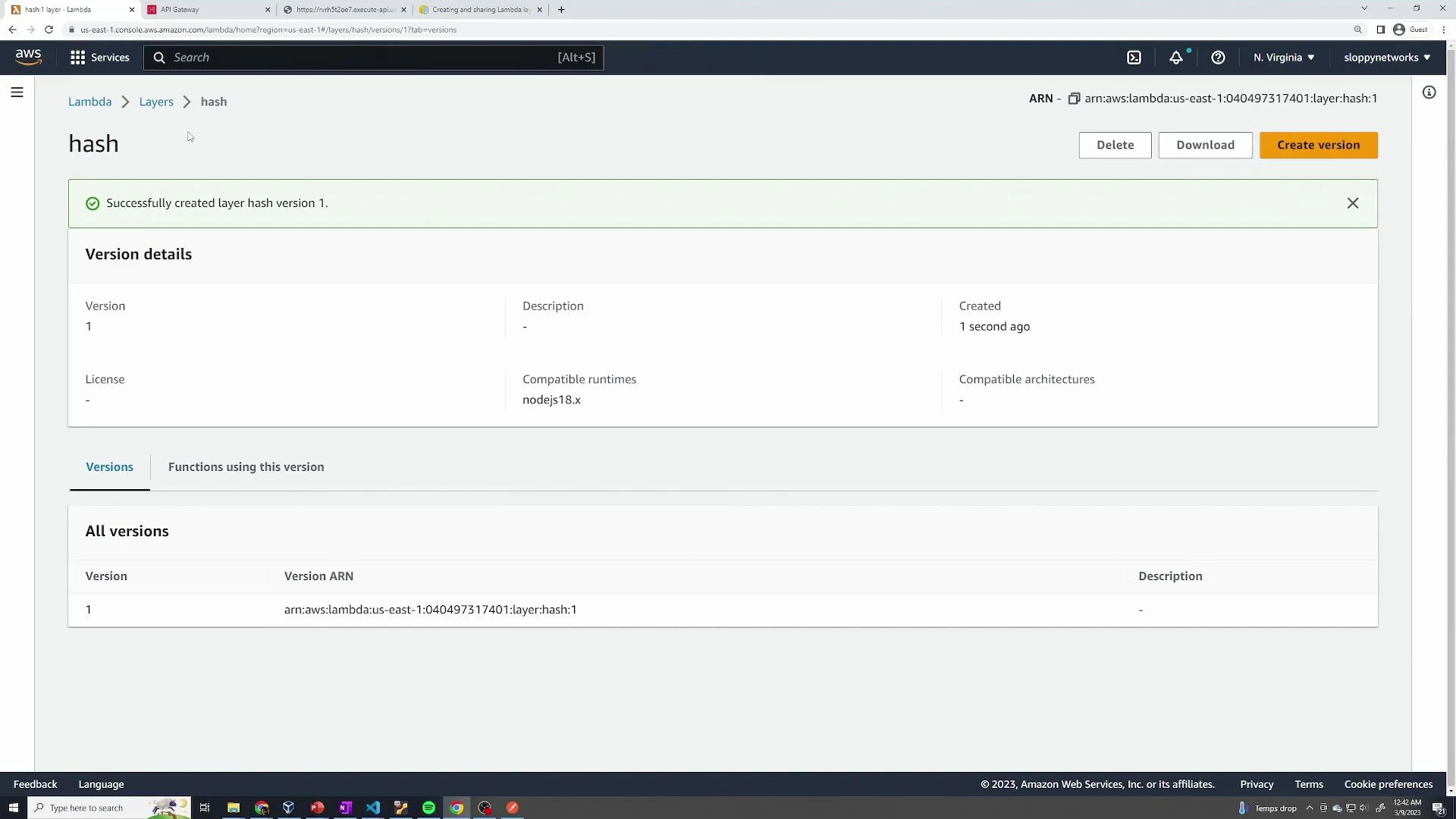 Add the layer to your function from the Layers section of the function configuration. Choose Custom layers and select the appropriate layer and version.
Using Layers is an efficient way to share common dependencies across multiple Lambda functions and to keep individual deployment packages smaller.
Add the layer to your function from the Layers section of the function configuration. Choose Custom layers and select the appropriate layer and version.
Using Layers is an efficient way to share common dependencies across multiple Lambda functions and to keep individual deployment packages smaller.
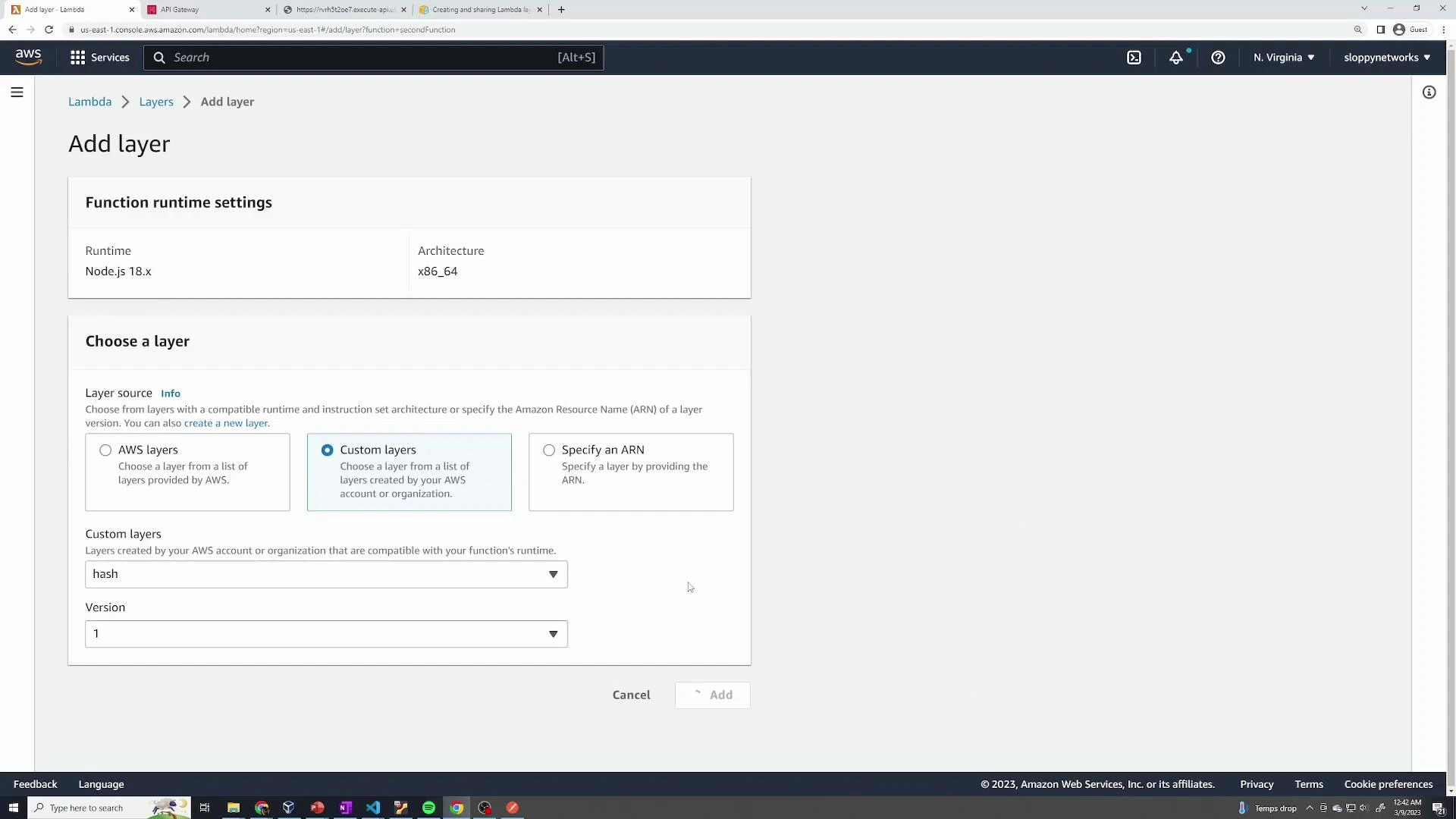 After attaching the layer, your function can import bcryptjs (or other packaged libraries) without bundling node\_modules in the function ZIP.
## Packaging options summary
| Packaging method | When to use | Pros | Cons |
| ---------------------------------- | --------------------------------------------- | --------------------------------------------- | ----------------------------------------------------- |
| ZIP upload (include node\_modules) | Single function or simple deployments | Simple, immediate | Duplicate libraries across functions, larger packages |
| Lambda Layer | Shared dependencies across multiple functions | Reuse, smaller function packages | Extra management step, must match compatible runtimes |
| Container image | Complex dependencies or large binaries | Up to 10 GB image, familiar container tooling | More complex build and deployment |
## Monitoring, logging, and troubleshooting
* Lambda provides built-in monitoring: invocations, duration, errors, throttles.
* Use the Monitoring tab for metrics and click through to CloudWatch Logs for detailed logs and request IDs.
* CloudWatch REPORT lines include Duration, Billed Duration, Memory Size, Max Memory Used, and Init Duration — useful for performance tuning.
Example log metadata snapshot:
```text theme={null}
@log 040497317401:/aws/lambda/secondFunction
@logStream 2023/03/09/[$LATEST]7d9f42adab3f49b682a51c629fdcfbff
@maxMemoryUsed 7.6E7
@memorySize 1.28E8
@message REPORT RequestId: 83ced159-e437-446e-8e86-c266a6deaeb9 Duration: 847.18 ms Billed Duration: 848 ms Memory Size: 128 MB Max Memory Used: 76 MB Init Duration: 244.71 ms
@requestId 83ced159-e437-446e-8e86-c266a6deaeb9
@timestamp 1678340588795
@type REPORT
```
Useful links:
* API Gateway docs: [https://docs.aws.amazon.com/apigateway/latest/developerguide/welcome.html](https://docs.aws.amazon.com/apigateway/latest/developerguide/welcome.html)
* Lambda Layers: [https://docs.aws.amazon.com/lambda/latest/dg/configuration-layers.html](https://docs.aws.amazon.com/lambda/latest/dg/configuration-layers.html)
* CloudWatch docs: [https://learn.kodekloud.com/user/courses/aws-cloudwatch](https://learn.kodekloud.com/user/courses/aws-cloudwatch)
## Quick checklist / Best practices
* Choose an appropriate runtime and memory allocation for your workload.
* Keep functions small and single-purpose.
* Use Layers for shared dependencies to reduce package size.
* Monitor and set alarms for invocation errors and throttles.
* Always test with representative event payloads.
## Summary
* Create functions by authoring from scratch or using blueprints.
* Configure runtime, name, architecture, and execution role.
* Use triggers (API Gateway, S3, SNS, SQS, EventBridge) to invoke Lambda.
* Test with console test events or via API endpoints.
* Bundle dependencies via ZIP or share them via Layers.
* Monitor with Lambda metrics and CloudWatch Logs to troubleshoot and optimize.
After attaching the layer, your function can import bcryptjs (or other packaged libraries) without bundling node\_modules in the function ZIP.
## Packaging options summary
| Packaging method | When to use | Pros | Cons |
| ---------------------------------- | --------------------------------------------- | --------------------------------------------- | ----------------------------------------------------- |
| ZIP upload (include node\_modules) | Single function or simple deployments | Simple, immediate | Duplicate libraries across functions, larger packages |
| Lambda Layer | Shared dependencies across multiple functions | Reuse, smaller function packages | Extra management step, must match compatible runtimes |
| Container image | Complex dependencies or large binaries | Up to 10 GB image, familiar container tooling | More complex build and deployment |
## Monitoring, logging, and troubleshooting
* Lambda provides built-in monitoring: invocations, duration, errors, throttles.
* Use the Monitoring tab for metrics and click through to CloudWatch Logs for detailed logs and request IDs.
* CloudWatch REPORT lines include Duration, Billed Duration, Memory Size, Max Memory Used, and Init Duration — useful for performance tuning.
Example log metadata snapshot:
```text theme={null}
@log 040497317401:/aws/lambda/secondFunction
@logStream 2023/03/09/[$LATEST]7d9f42adab3f49b682a51c629fdcfbff
@maxMemoryUsed 7.6E7
@memorySize 1.28E8
@message REPORT RequestId: 83ced159-e437-446e-8e86-c266a6deaeb9 Duration: 847.18 ms Billed Duration: 848 ms Memory Size: 128 MB Max Memory Used: 76 MB Init Duration: 244.71 ms
@requestId 83ced159-e437-446e-8e86-c266a6deaeb9
@timestamp 1678340588795
@type REPORT
```
Useful links:
* API Gateway docs: [https://docs.aws.amazon.com/apigateway/latest/developerguide/welcome.html](https://docs.aws.amazon.com/apigateway/latest/developerguide/welcome.html)
* Lambda Layers: [https://docs.aws.amazon.com/lambda/latest/dg/configuration-layers.html](https://docs.aws.amazon.com/lambda/latest/dg/configuration-layers.html)
* CloudWatch docs: [https://learn.kodekloud.com/user/courses/aws-cloudwatch](https://learn.kodekloud.com/user/courses/aws-cloudwatch)
## Quick checklist / Best practices
* Choose an appropriate runtime and memory allocation for your workload.
* Keep functions small and single-purpose.
* Use Layers for shared dependencies to reduce package size.
* Monitor and set alarms for invocation errors and throttles.
* Always test with representative event payloads.
## Summary
* Create functions by authoring from scratch or using blueprints.
* Configure runtime, name, architecture, and execution role.
* Use triggers (API Gateway, S3, SNS, SQS, EventBridge) to invoke Lambda.
* Test with console test events or via API endpoints.
* Bundle dependencies via ZIP or share them via Layers.
* Monitor with Lambda metrics and CloudWatch Logs to troubleshoot and optimize.