> ## Documentation Index
> Fetch the complete documentation index at: https://notes.kodekloud.com/llms.txt
> Use this file to discover all available pages before exploring further.
# Amazon VPC
> Overview of Amazon VPC explaining virtual private clouds, subnets, routing, security groups, internet and NAT gateways, default VPCs, and launching EC2 instances within regional VPCs.
In this lesson we'll cover a foundational AWS networking concept: Amazon VPC (Virtual Private Cloud). A VPC is a logically isolated, virtual network in AWS that gives you full control over your cloud networking—IP address ranges, subnets, routing, and network-level security.
Key benefits of a VPC:
* Isolates resources between customers and between workloads in the same account.
* Lets you segment networks (public/private subnets) and apply fine-grained controls.
* Integrates with managed AWS networking services (Internet Gateway, NAT Gateway, Transit Gateway, VPN).
Core VPC capabilities:
* Subnetting: define IPv4/IPv6 CIDR ranges and place resources into subnets.
* Routing: configure route tables to control traffic flow.
* Firewalls: enforce traffic rules with Security Groups and Network ACLs (NACLs).
* Gateways: attach Internet Gateways, NAT Gateways, or VPN/Transit Gateways to enable external connectivity.
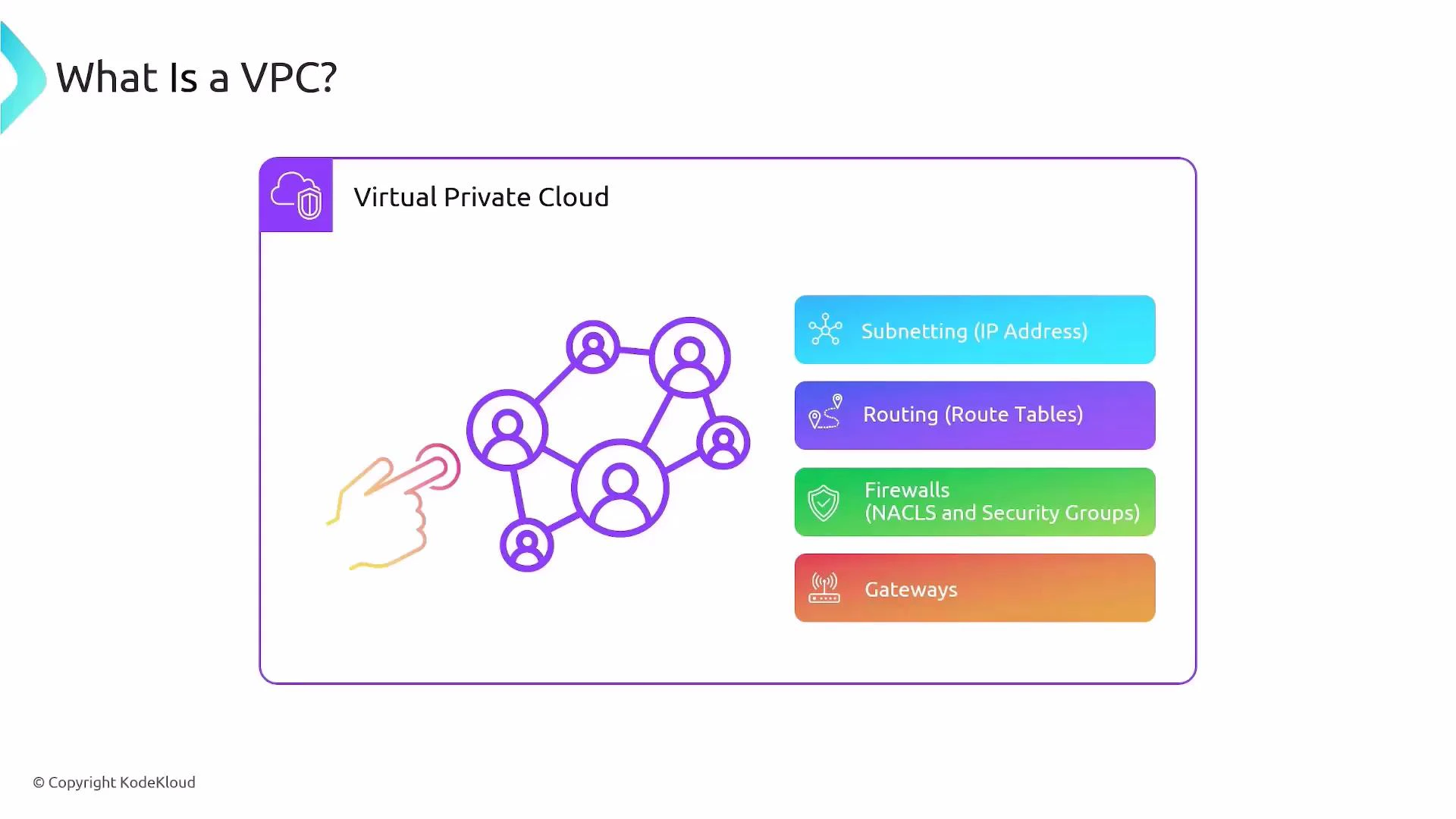 VPCs map closely to traditional data-center networking but are provisioned and managed via the AWS Console, CLI, or APIs. You can treat a VPC as your cloud “network” and build layered topologies—public subnets for internet-facing resources, private subnets for internal services, and dedicated routes for secure connectivity.
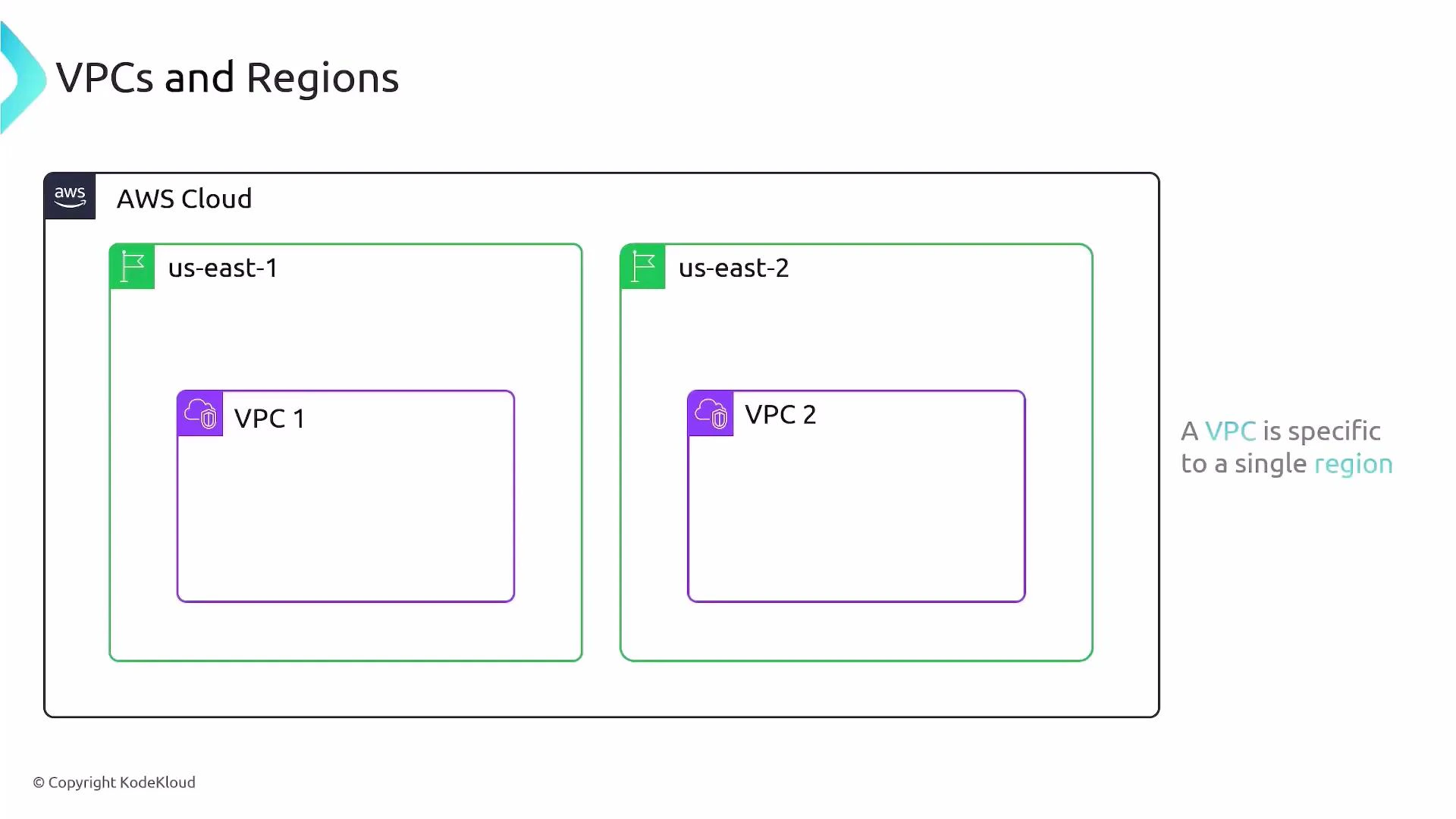
## VPCs are regional
* A VPC exists inside a single AWS region and cannot span regions. A VPC created in us-east-1 is separate from one created in us-east-2.
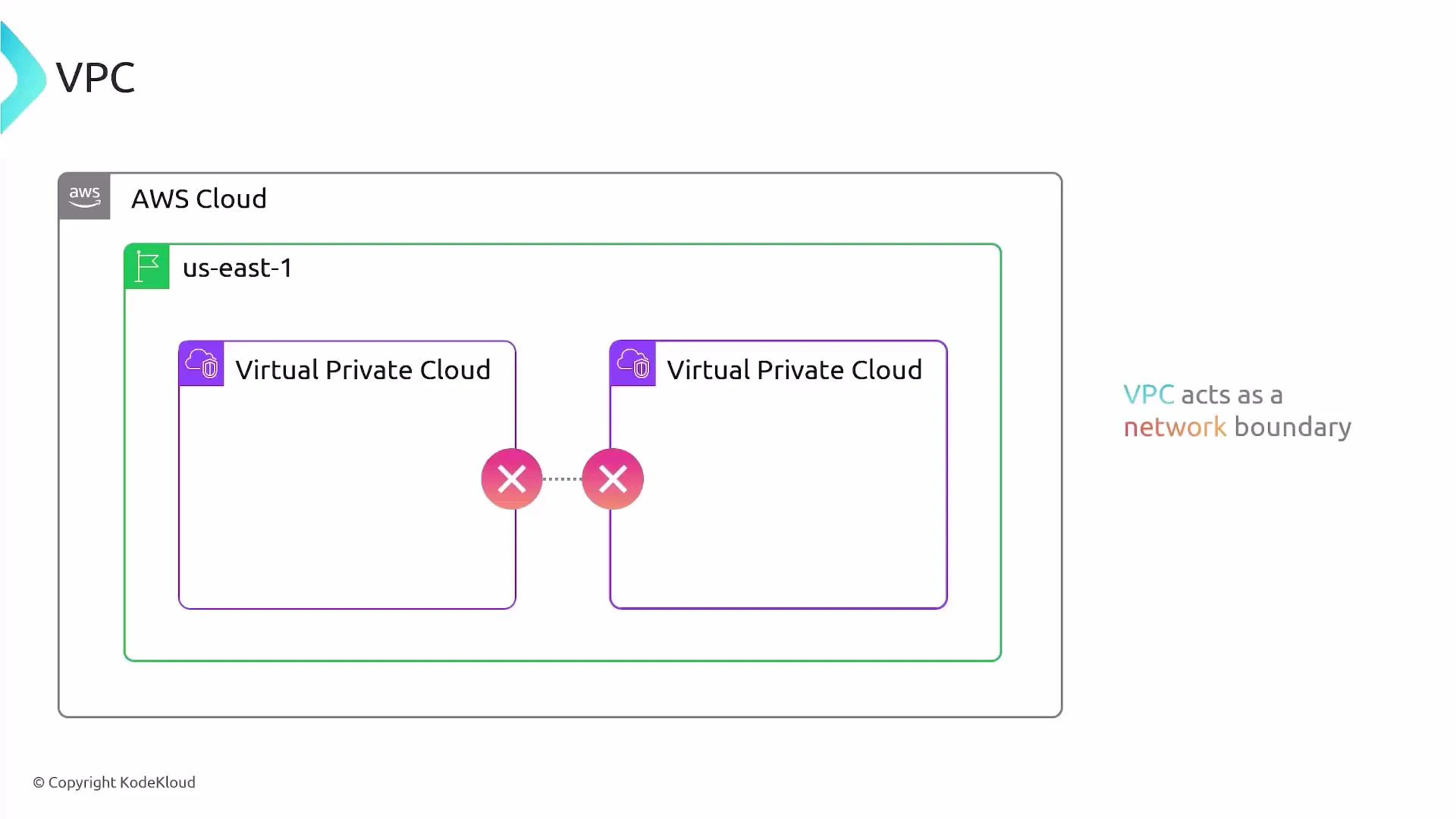
* Resources in different VPCs are isolated by default. Cross-VPC communication requires explicit configuration (VPC Peering, Transit Gateway, VPC endpoints, or VPN).
VPCs map closely to traditional data-center networking but are provisioned and managed via the AWS Console, CLI, or APIs. You can treat a VPC as your cloud “network” and build layered topologies—public subnets for internet-facing resources, private subnets for internal services, and dedicated routes for secure connectivity.
## VPCs are regional
* A VPC exists inside a single AWS region and cannot span regions. A VPC created in us-east-1 is separate from one created in us-east-2.
* Resources in different VPCs are isolated by default. Cross-VPC communication requires explicit configuration (VPC Peering, Transit Gateway, VPC endpoints, or VPN).
 VPCs act as a network boundary: resources deployed into one VPC cannot reach resources in another VPC unless you create network connectivity.
 ## Default VPCs created per region
When you create an AWS account, AWS provisions a default VPC in each region with a standard, ready-to-use configuration. The default VPC is convenient for getting started because it enables Internet access for launched instances without manual network setup.
Every region in your AWS account receives a default VPC. Use it to quickly launch instances without configuring networking from scratch.
You can view VPC resources per region in the VPC Console, which shows counts for VPCs, subnets, route tables, security groups and related resources.
## Default VPCs created per region
When you create an AWS account, AWS provisions a default VPC in each region with a standard, ready-to-use configuration. The default VPC is convenient for getting started because it enables Internet access for launched instances without manual network setup.
Every region in your AWS account receives a default VPC. Use it to quickly launch instances without configuring networking from scratch.
You can view VPC resources per region in the VPC Console, which shows counts for VPCs, subnets, route tables, security groups and related resources.
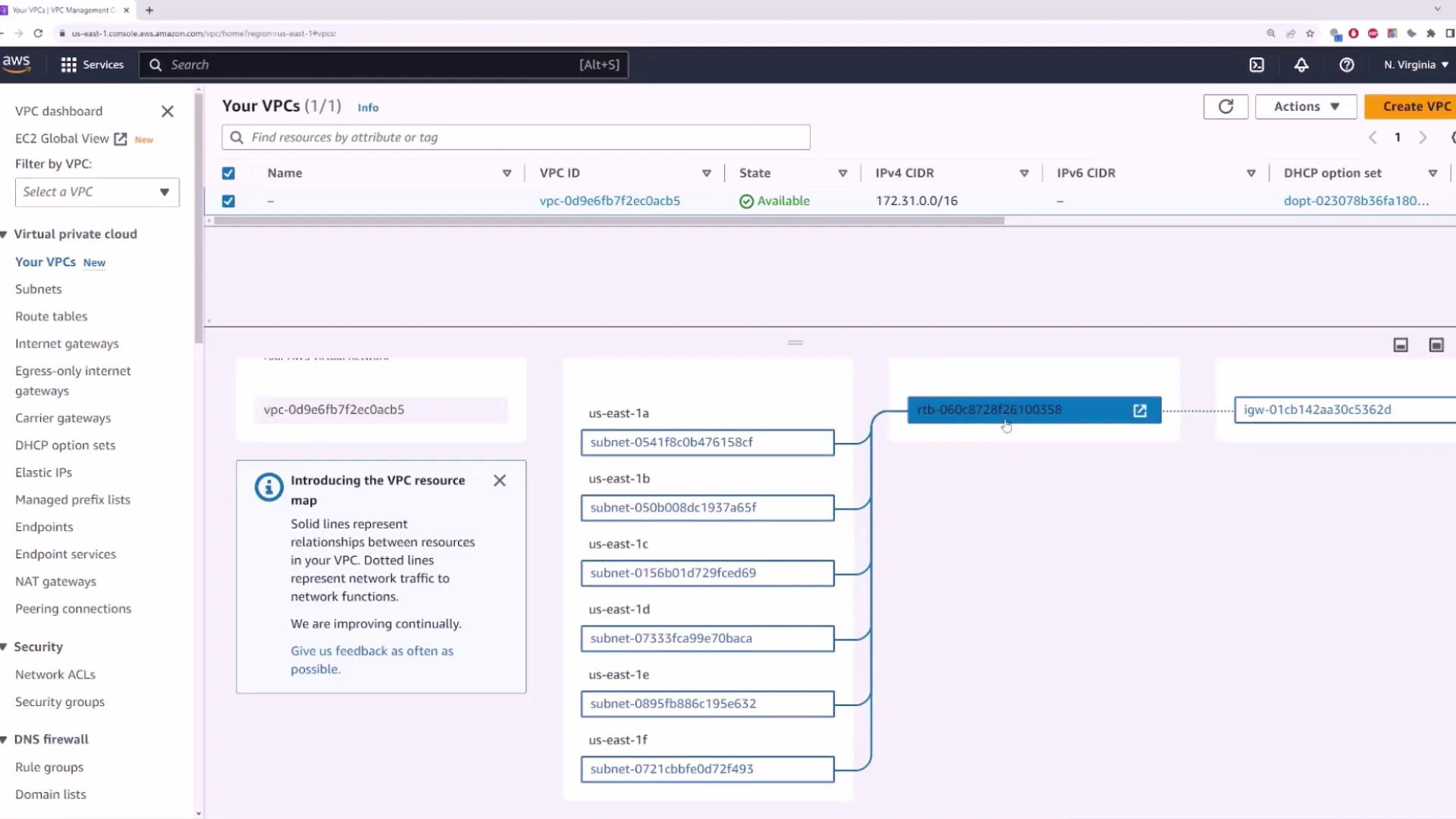
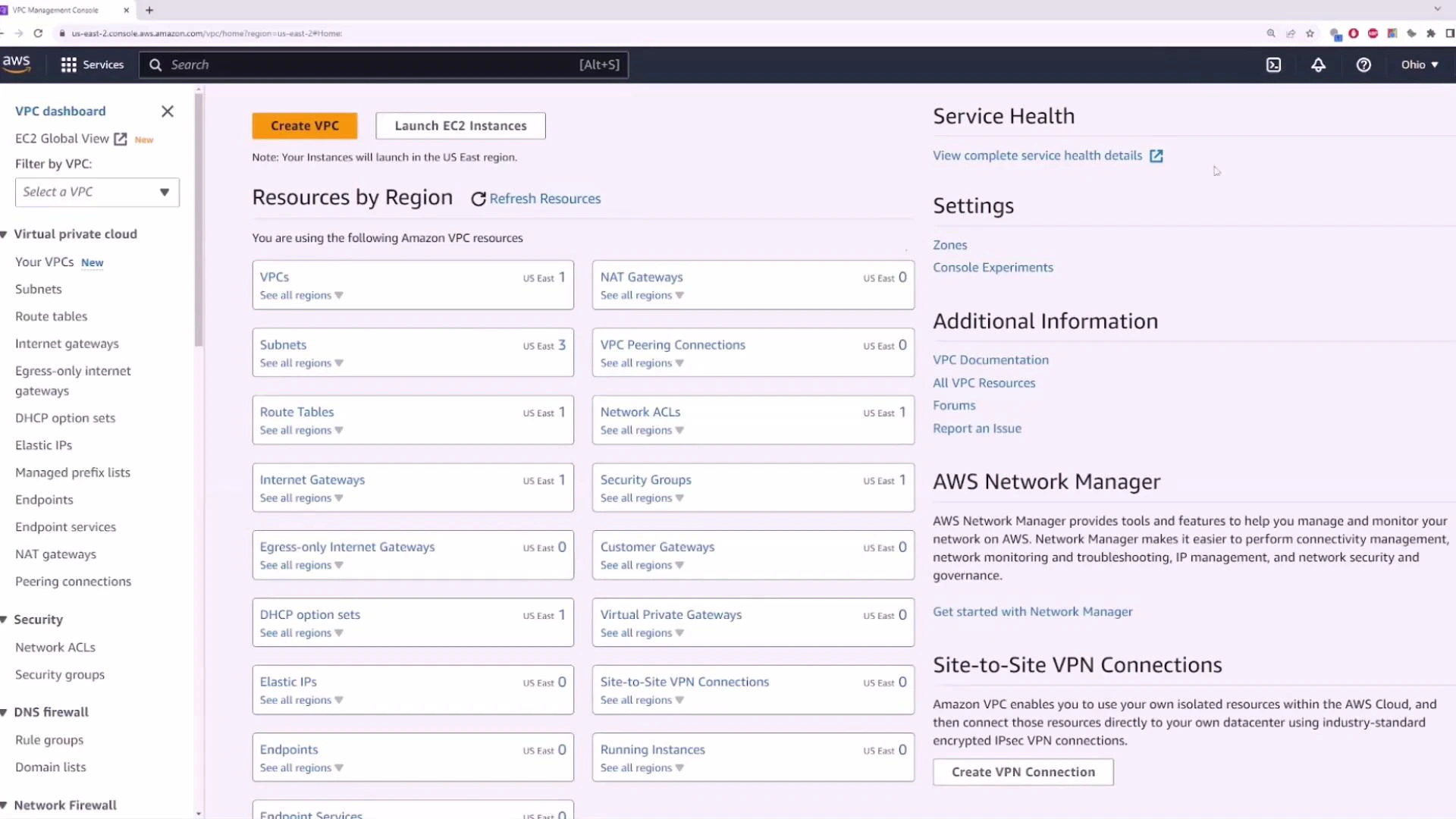 ### Typical default VPC configuration
* CIDR block: 172.31.0.0/16 (default for the default VPC).
* Subnets: AWS creates one default subnet per Availability Zone in the region (e.g., us-east-1 typically has one in each AZ).
* Routing: A default route table and an Internet Gateway (IGW) are attached so instances in default subnets can obtain public IPs and reach the Internet (when auto-assign public IPv4 is enabled).
* Security: Default security group permits outbound traffic and limited inbound traffic; NACLs are permissive by default.
Default VPCs are convenient but not hardened for production workloads. For production, design private subnets, tighten security groups/NACLs, and avoid placing sensitive services in default public subnets.
You can inspect the default VPC in the console to confirm the CIDR and the “default VPC” flag.
### Typical default VPC configuration
* CIDR block: 172.31.0.0/16 (default for the default VPC).
* Subnets: AWS creates one default subnet per Availability Zone in the region (e.g., us-east-1 typically has one in each AZ).
* Routing: A default route table and an Internet Gateway (IGW) are attached so instances in default subnets can obtain public IPs and reach the Internet (when auto-assign public IPv4 is enabled).
* Security: Default security group permits outbound traffic and limited inbound traffic; NACLs are permissive by default.
Default VPCs are convenient but not hardened for production workloads. For production, design private subnets, tighten security groups/NACLs, and avoid placing sensitive services in default public subnets.
You can inspect the default VPC in the console to confirm the CIDR and the “default VPC” flag.
 ## Subnets and Availability Zones
Open the Subnets view for a VPC to see the subnets that AWS created (or that you created). A typical default VPC has one subnet per AZ; each subnet controls the IP addressing and can be configured to auto-assign public IPv4 addresses.
## Subnets and Availability Zones
Open the Subnets view for a VPC to see the subnets that AWS created (or that you created). A typical default VPC has one subnet per AZ; each subnet controls the IP addressing and can be configured to auto-assign public IPv4 addresses.
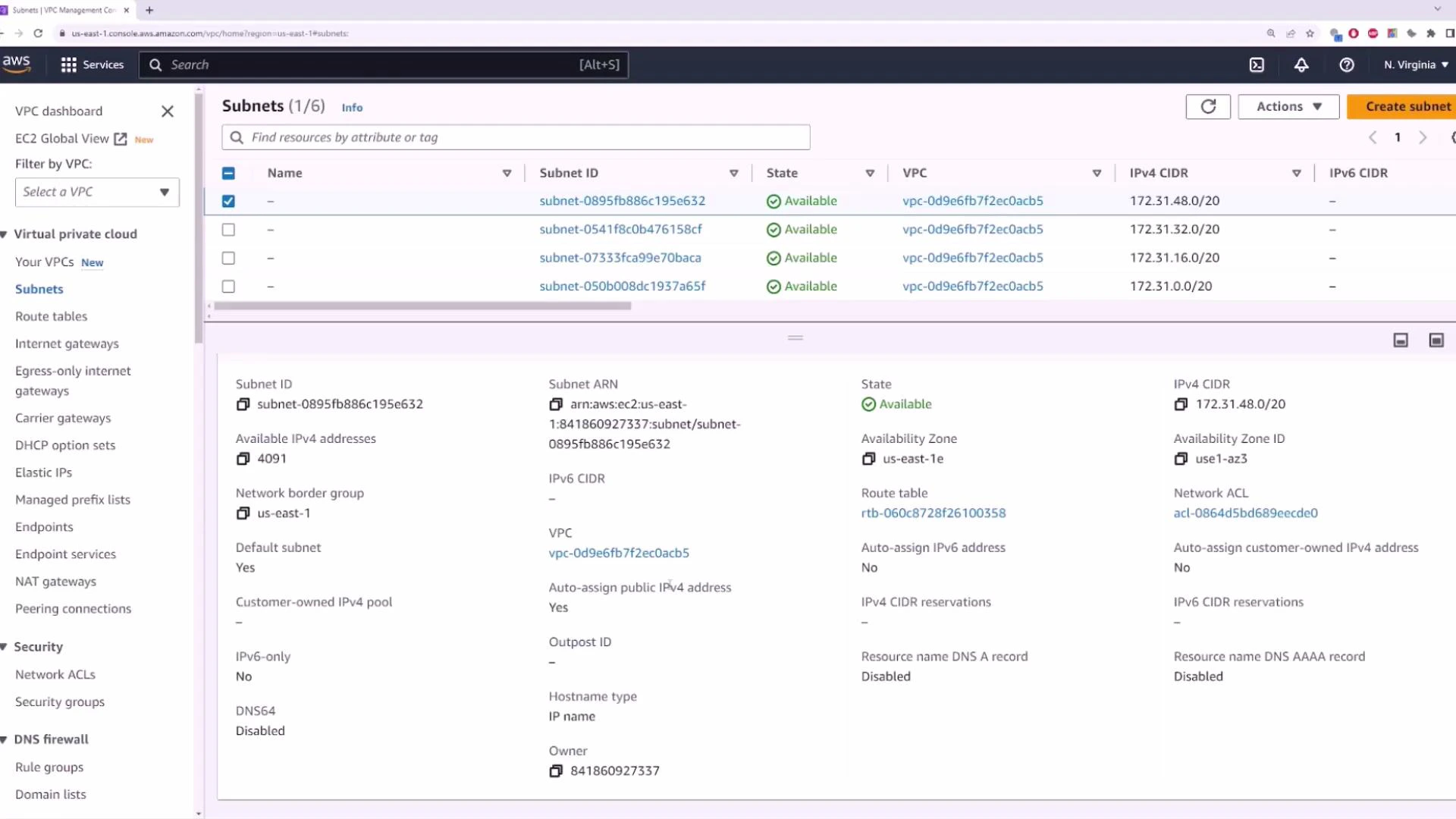 Because default subnets are connected to an Internet Gateway and are often configured to auto-assign public IPv4, you can immediately launch Amazon EC2 instances that are reachable from the Internet.
## Launching an EC2 instance into the default VPC
When you use the EC2 Launch Instance wizard and choose the default VPC (or leave networking at default), the instance receives a public IPv4 address (if auto-assign is enabled) and becomes reachable from the Internet—subject to Security Group rules.
Because default subnets are connected to an Internet Gateway and are often configured to auto-assign public IPv4, you can immediately launch Amazon EC2 instances that are reachable from the Internet.
## Launching an EC2 instance into the default VPC
When you use the EC2 Launch Instance wizard and choose the default VPC (or leave networking at default), the instance receives a public IPv4 address (if auto-assign is enabled) and becomes reachable from the Internet—subject to Security Group rules.
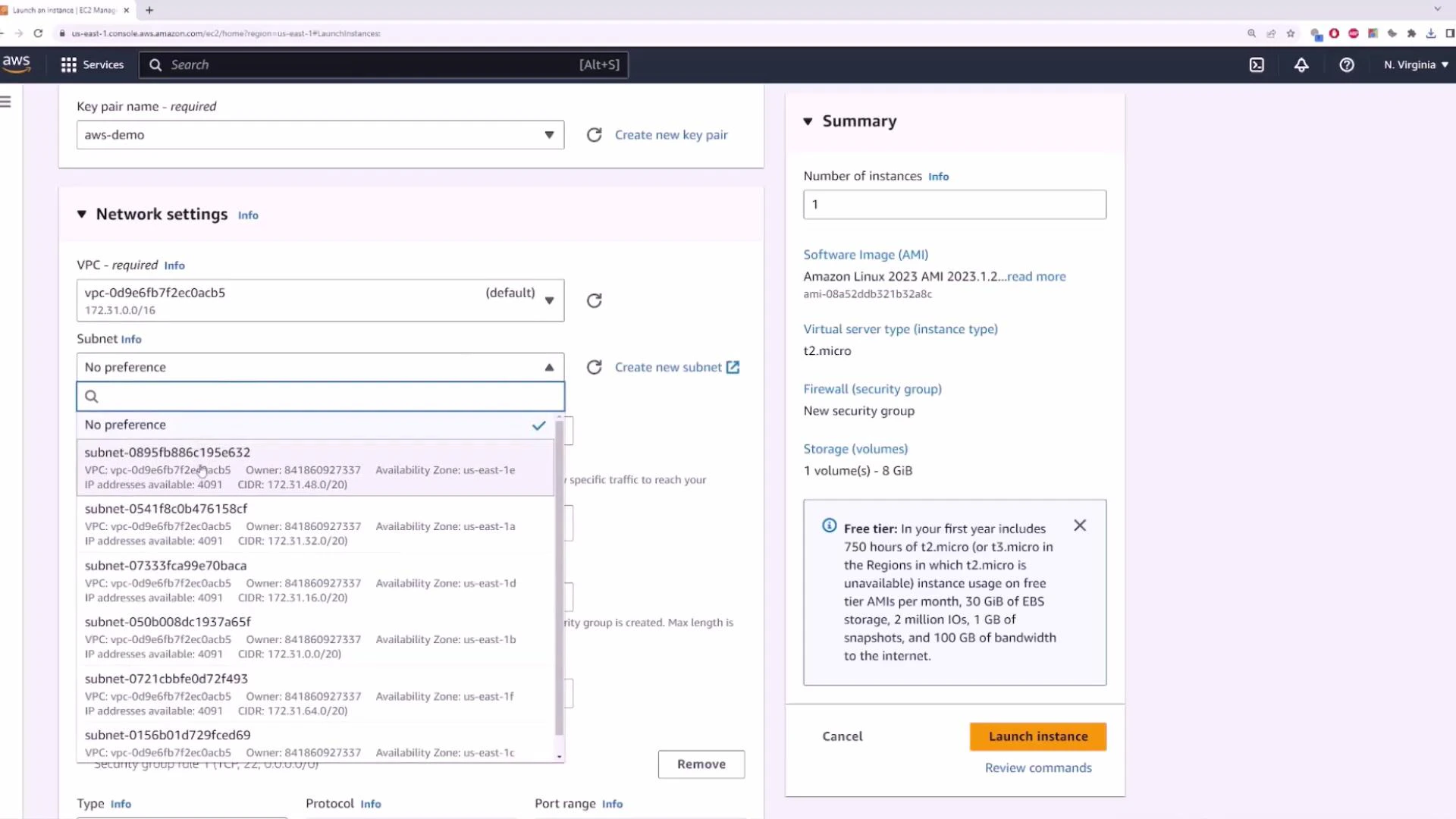
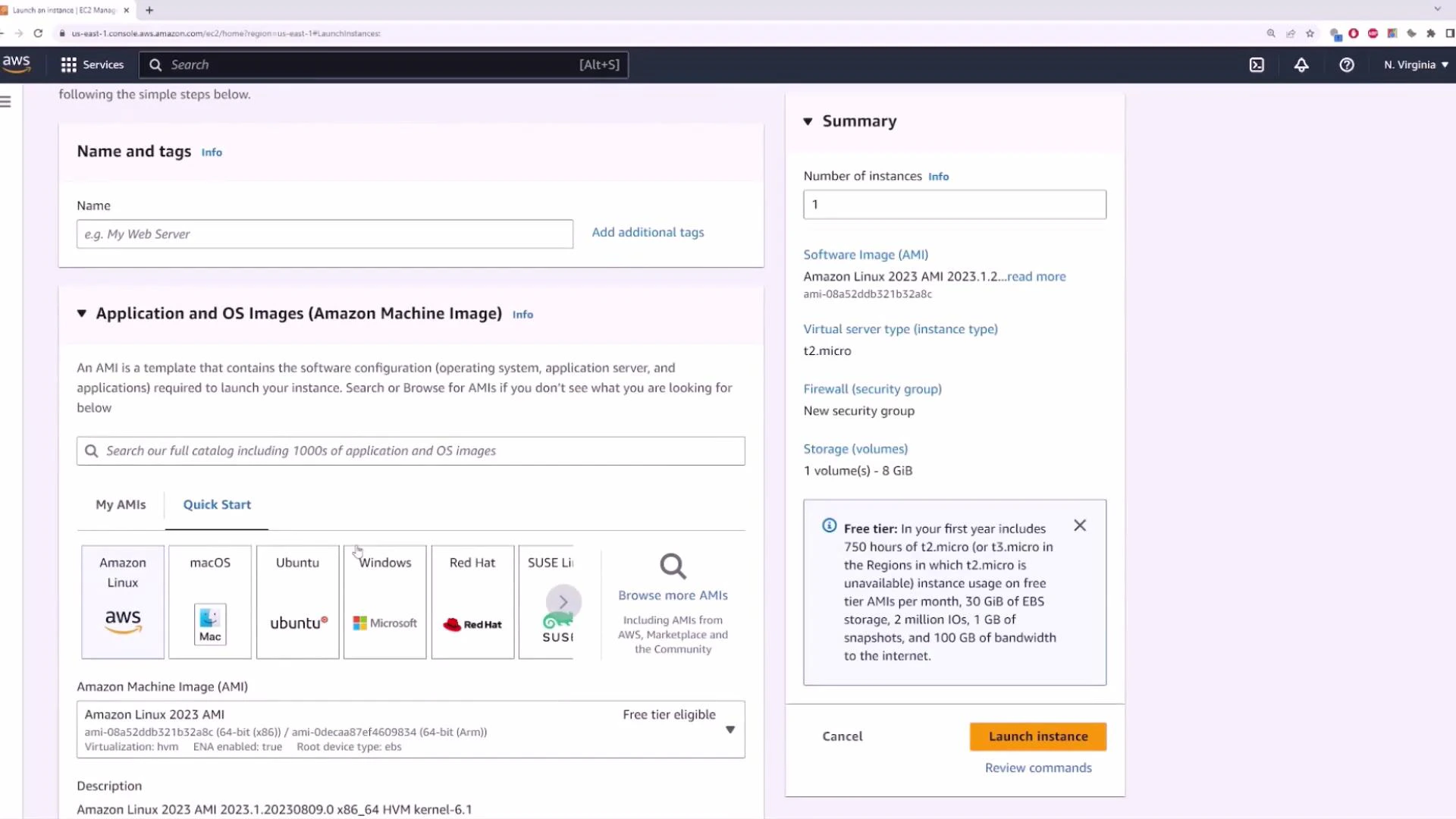 During launch, you can explicitly select the VPC and subnet (and the Availability Zone). Ensure the subnet has "Auto-assign public IPv4" enabled or override it at instance launch to assign a public IP.
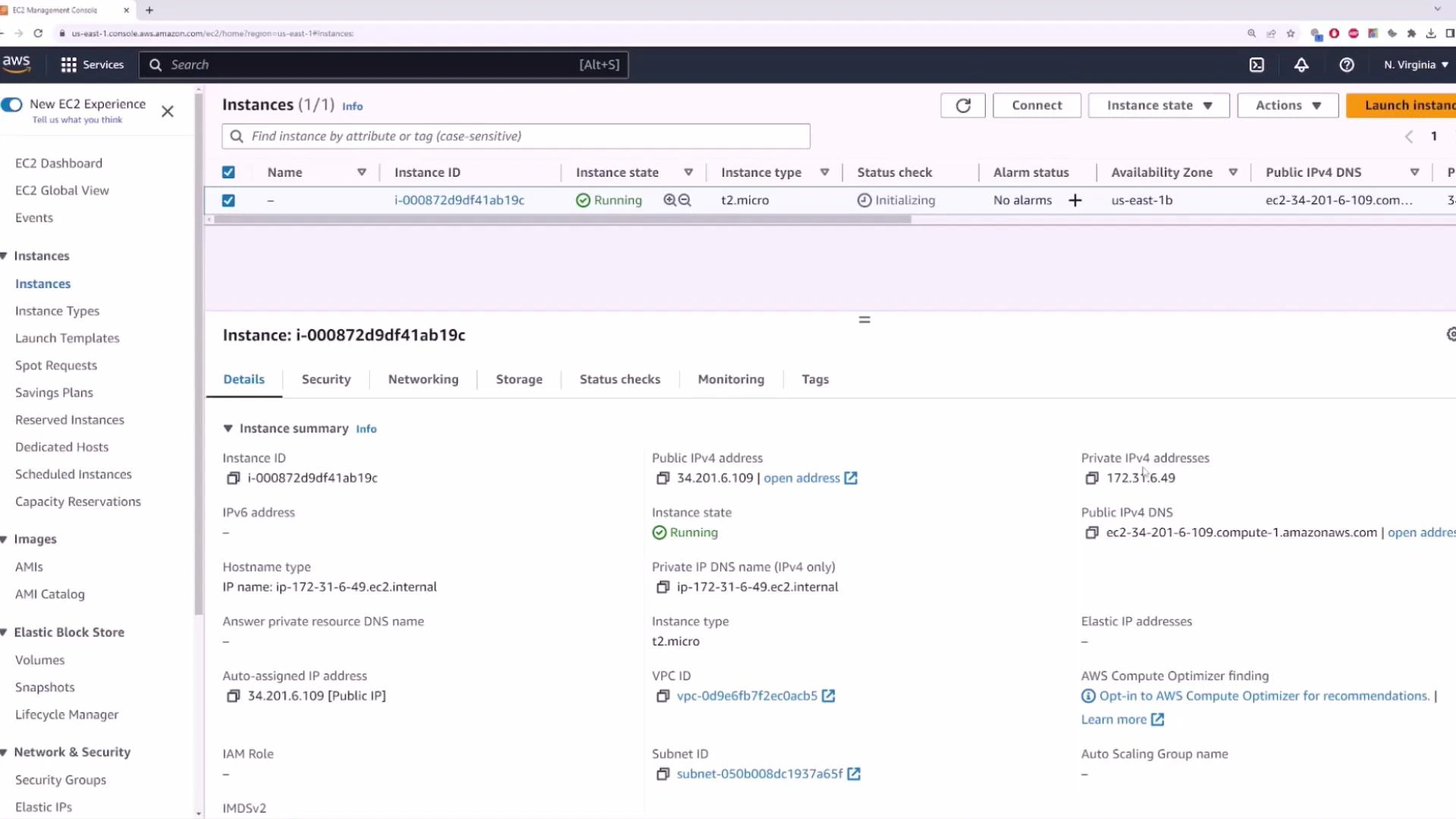
 After launching, the EC2 details show the private IP (from the subnet) and the public IPv4 address. With a public IP and Security Group rules allowing SSH (port 22), you can connect to the instance from your workstation.
 Example: SSH into a launched instance (Windows CMD/PowerShell shown)
* Replace aws-demo.pem with your private key file and 34.201.6.109 with the instance's public IP.
```bash theme={null}
C:\Users\me\Downloads> ssh -i aws-demo.pem ec2-user@34.201.6.109
The authenticity of host '34.201.6.109 (34.201.6.109)' can't be established.
ECDSA key fingerprint is SHA256:fa0CPuUMP2Fvn9aHeAewW56Eei94znaTnFefIDRDg1mE.
Are you sure you want to continue connecting (yes/no/[fingerprint])? yes
Warning: Permanently added '34.201.6.109' (ECDSA) to the list of known hosts.
,_ #_
^\_ ####_
~~ \_#####\ Amazon Linux 2023
~~ \####|
~~ \###\
~~ \#/_ ___ https://aws.amazon.com/linux/amazon-linux-2023
~~ V~'`->
[ec2-user@ip-172-31-6-49 ~]$ ping 8.8.8.8
PING 8.8.8.8 (8.8.8.8) 56(84) bytes of data.
64 bytes from 8.8.8.8: icmp_seq=1 ttl=118 time=12.3 ms
^C
--- 8.8.8.8 ping statistics ---
1 packets transmitted, 1 received, 0% packet loss, time 0ms
```
This confirms Internet connectivity (assuming Security Group egress rules permit outbound traffic).
## Quick reference table: VPC components and purpose
| Resource Type | Purpose | Example |
| ---------------------- | ------------------------------------------- | --------------------------------------- |
| VPC | Isolated virtual network per region | `172.31.0.0/16` default VPC |
| Subnet | Segments within a VPC mapped to AZs | Public subnet (auto-assign public IP) |
| Route Table | Controls routes for subnets | Route to IGW for 0.0.0.0/0 |
| Internet Gateway (IGW) | Enables Internet access for public subnets | Attach to VPC to allow outbound traffic |
| NAT Gateway | Allows private instances to access Internet | Private subnet → NAT in public subnet |
| Security Group | Stateful instance-level firewall | Allow SSH (port 22) inbound |
| Network ACL | Stateless subnet-level firewall | Additional layer of control |
## Recap
* Amazon VPC provides isolated, configurable virtual networks inside AWS.
* Each VPC is regional and isolated by default.
* AWS creates a default VPC per region with a 172.31.0.0/16 CIDR and default subnets (one per AZ).
* To provide Internet access to instances: attach an Internet Gateway, assign public IPs at subnet or instance level, and configure Security Groups and routing appropriately.
* For production, design layered topologies (private subnets, NAT Gateways, VPC Peering/Transit Gateway, VPNs) and harden network policies.
## Links and references
* [AWS VPC Documentation](https://docs.aws.amazon.com/vpc/)
* [Amazon EC2 Documentation](https://docs.aws.amazon.com/ec2/)
* [AWS Transit Gateway](https://docs.aws.amazon.com/vpc/latest/tgw/what-is-transit-gateway.html)
* [AWS NAT Gateway](https://docs.aws.amazon.com/vpc/latest/userguide/vpc-nat-gateway.html)
* Learn more about EC2: [https://learn.kodekloud.com/user/courses/amazon-elastic-compute-cloud-ec2](https://learn.kodekloud.com/user/courses/amazon-elastic-compute-cloud-ec2)
Example: SSH into a launched instance (Windows CMD/PowerShell shown)
* Replace aws-demo.pem with your private key file and 34.201.6.109 with the instance's public IP.
```bash theme={null}
C:\Users\me\Downloads> ssh -i aws-demo.pem ec2-user@34.201.6.109
The authenticity of host '34.201.6.109 (34.201.6.109)' can't be established.
ECDSA key fingerprint is SHA256:fa0CPuUMP2Fvn9aHeAewW56Eei94znaTnFefIDRDg1mE.
Are you sure you want to continue connecting (yes/no/[fingerprint])? yes
Warning: Permanently added '34.201.6.109' (ECDSA) to the list of known hosts.
,_ #_
^\_ ####_
~~ \_#####\ Amazon Linux 2023
~~ \####|
~~ \###\
~~ \#/_ ___ https://aws.amazon.com/linux/amazon-linux-2023
~~ V~'`->
[ec2-user@ip-172-31-6-49 ~]$ ping 8.8.8.8
PING 8.8.8.8 (8.8.8.8) 56(84) bytes of data.
64 bytes from 8.8.8.8: icmp_seq=1 ttl=118 time=12.3 ms
^C
--- 8.8.8.8 ping statistics ---
1 packets transmitted, 1 received, 0% packet loss, time 0ms
```
This confirms Internet connectivity (assuming Security Group egress rules permit outbound traffic).
## Quick reference table: VPC components and purpose
| Resource Type | Purpose | Example |
| ---------------------- | ------------------------------------------- | --------------------------------------- |
| VPC | Isolated virtual network per region | `172.31.0.0/16` default VPC |
| Subnet | Segments within a VPC mapped to AZs | Public subnet (auto-assign public IP) |
| Route Table | Controls routes for subnets | Route to IGW for 0.0.0.0/0 |
| Internet Gateway (IGW) | Enables Internet access for public subnets | Attach to VPC to allow outbound traffic |
| NAT Gateway | Allows private instances to access Internet | Private subnet → NAT in public subnet |
| Security Group | Stateful instance-level firewall | Allow SSH (port 22) inbound |
| Network ACL | Stateless subnet-level firewall | Additional layer of control |
## Recap
* Amazon VPC provides isolated, configurable virtual networks inside AWS.
* Each VPC is regional and isolated by default.
* AWS creates a default VPC per region with a 172.31.0.0/16 CIDR and default subnets (one per AZ).
* To provide Internet access to instances: attach an Internet Gateway, assign public IPs at subnet or instance level, and configure Security Groups and routing appropriately.
* For production, design layered topologies (private subnets, NAT Gateways, VPC Peering/Transit Gateway, VPNs) and harden network policies.
## Links and references
* [AWS VPC Documentation](https://docs.aws.amazon.com/vpc/)
* [Amazon EC2 Documentation](https://docs.aws.amazon.com/ec2/)
* [AWS Transit Gateway](https://docs.aws.amazon.com/vpc/latest/tgw/what-is-transit-gateway.html)
* [AWS NAT Gateway](https://docs.aws.amazon.com/vpc/latest/userguide/vpc-nat-gateway.html)
* Learn more about EC2: [https://learn.kodekloud.com/user/courses/amazon-elastic-compute-cloud-ec2](https://learn.kodekloud.com/user/courses/amazon-elastic-compute-cloud-ec2)