> ## Documentation Index
> Fetch the complete documentation index at: https://notes.kodekloud.com/llms.txt
> Use this file to discover all available pages before exploring further.
# CloudWatch
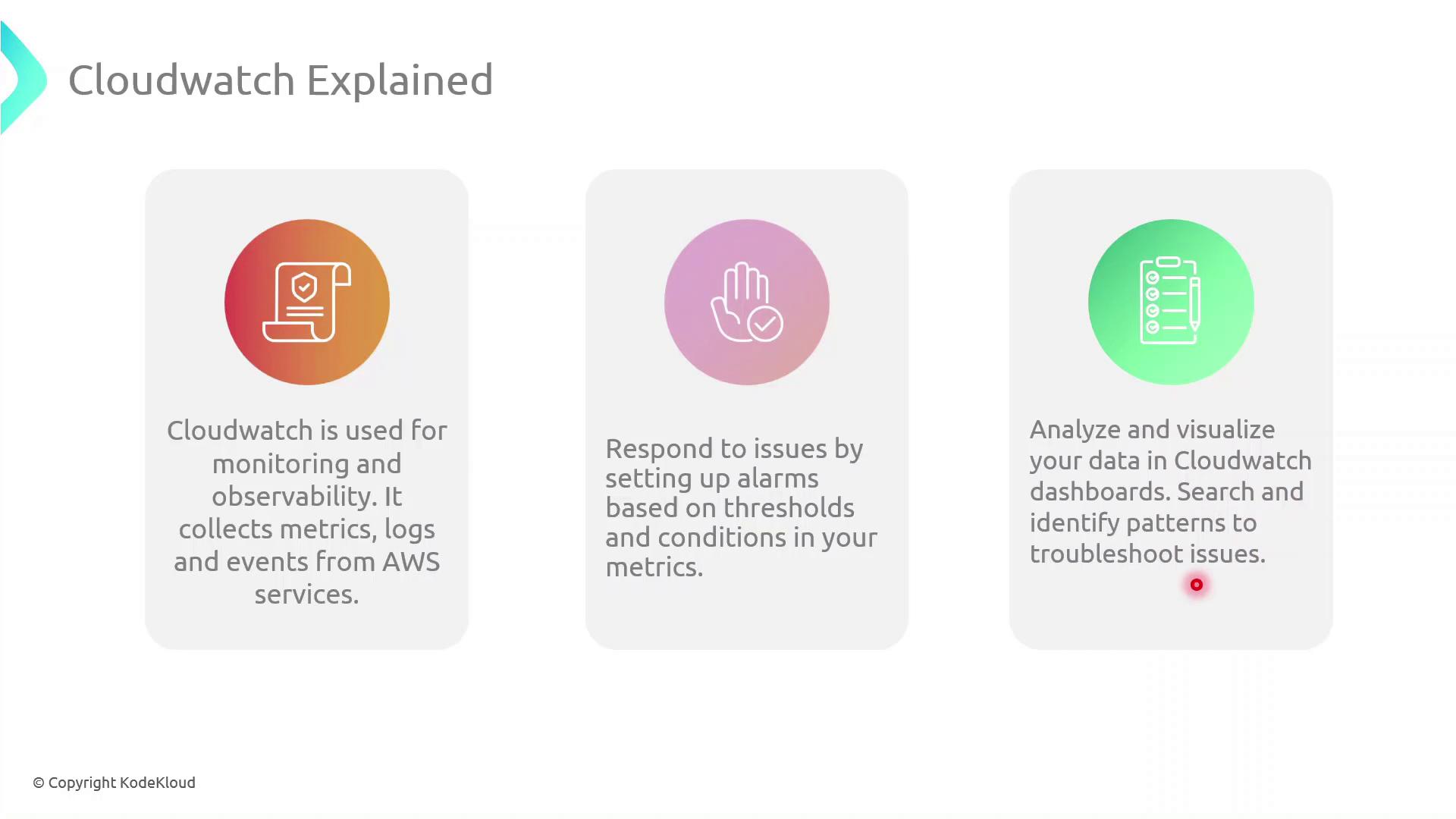
> This article explains how to use AWS CloudWatch for monitoring, setting alarms, and creating dashboards for AWS resources and applications.
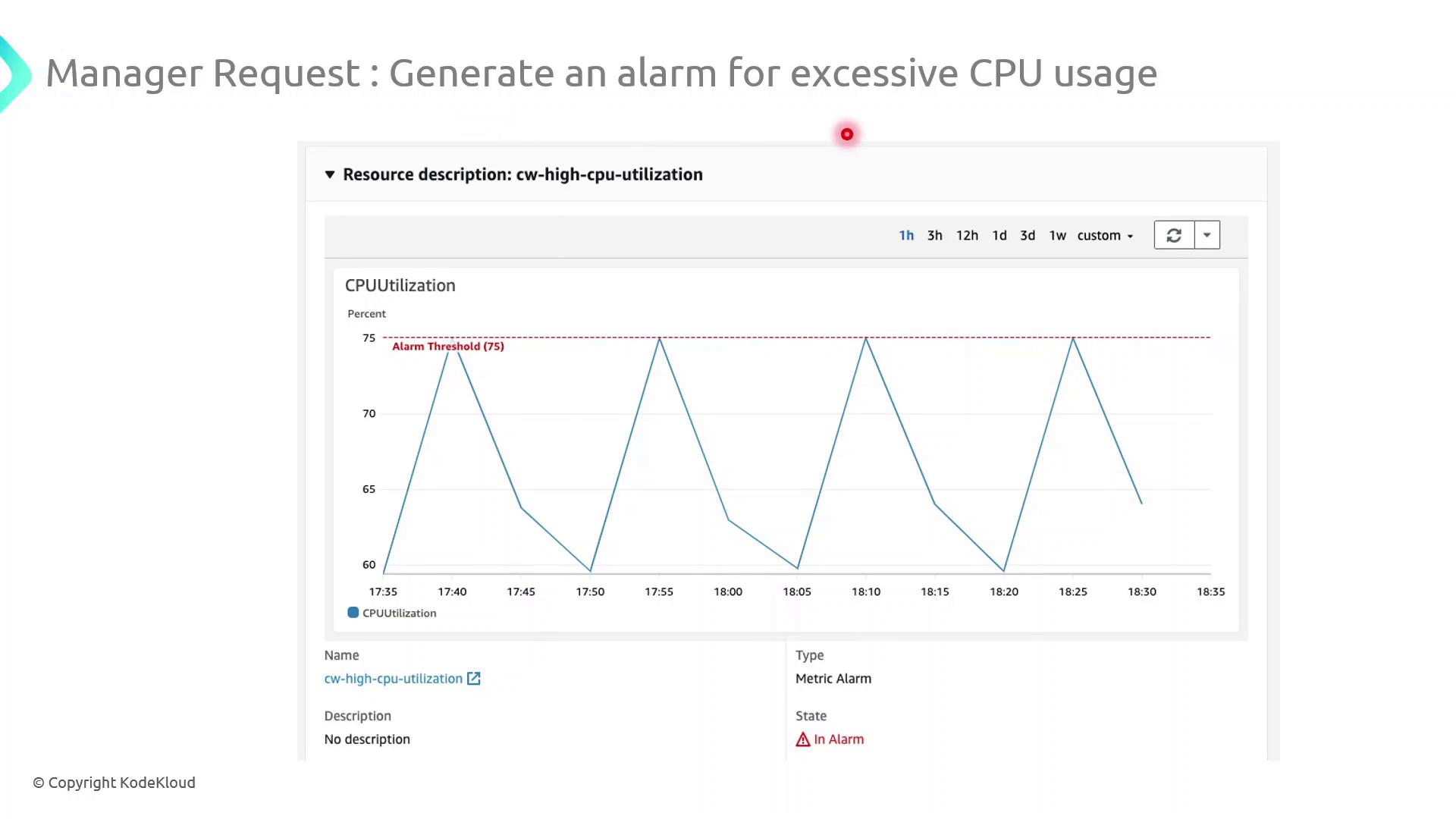
AWS CloudWatch is the central observability service for collecting metrics, logs, and events from your AWS resources and applications. In this guide, you’ll learn how to set up a CPU utilization alarm for an EC2 instance, ensuring you receive notifications whenever usage crosses a critical threshold.
## Why Use CloudWatch?
With CloudWatch, you can:
* Collect and visualize metrics (CPU, memory, disk I/O, network) from AWS services and custom applications
* Aggregate, search, and analyze logs in real time
* Trigger automated actions or notifications when specified events or thresholds are met
* Build dashboards for a consolidated, at-a-glance view of your infrastructure health
Be aware that custom metrics and detailed monitoring (1-minute resolution) may incur additional charges.
## Key CloudWatch Components
| Component | Purpose |
| ------------ | -------------------------------------------------------------------- |
| Metrics | Time-series data for resource performance (e.g., `CPUUtilization`). |
| Logs | Centralized aggregation and querying of application and system logs. |
| Alarms | Threshold-based triggers to send notifications or invoke actions. |
| Dashboards | Customizable visualizations combining metrics and logs in one view. |
| Events/Rules | Automated reactions to state changes or scheduled tasks across AWS. |
## Demo: Configure a High-CPU Alarm
Follow these steps in the AWS Management Console to create an alarm that notifies you when CPU utilization exceeds 75% for 5 minutes:
1. Navigate to **CloudWatch** in the AWS Console.
2. In the sidebar, choose **Alarms** → **All alarms** → **Create alarm**.
3. Under **Select metric**, pick the **EC2** namespace and then **Per-Instance Metrics** → **CPUUtilization**.
4. Click **Select metric** for your target instance.
5. On the **Specify metric and conditions** page:
* **Threshold type**: Static
* **Whenever CPUUtilization is**: `>` 75
* **For**: 5 consecutive periods of 1 minute each
6. Under **Configure actions**, choose an SNS topic or create a new one to send email notifications.
7. (Optional) Add tags to organize billing and access management.
8. Review settings and click **Create alarm**.
Once activated, CloudWatch will continuously evaluate the metric and send an email via SNS whenever CPU usage remains above 75% for 5 minutes.
Ensure your SNS subscription is confirmed; otherwise, you won’t receive alarm notifications.
## Further Reading & References
* [AWS CloudWatch Documentation](https://docs.aws.amazon.com/cloudwatch/latest/monitoring/WhatIsCloudWatch.html)
* [Managing Amazon SNS Topics](https://docs.aws.amazon.com/sns/latest/dg/sns-create-topic.html)
* [AWS Well-Architected Monitoring and Observability](https://docs.aws.amazon.com/wellarchitected/latest/mon-in-op/overview.html)