> ## Documentation Index
> Fetch the complete documentation index at: https://notes.kodekloud.com/llms.txt
> Use this file to discover all available pages before exploring further.

# Demo AWS Config

> This guide covers configuring AWS Config, adding rules, and deploying a PCI DSS conformance pack in the US East (Ohio) region.

In this guide, we'll walk through configuring AWS Config in the **US East (Ohio)** region, deploying a managed rule to restrict SSH access, and using a sample **PCI DSS** conformance pack to assess your environment’s compliance.

## Table of Contents

1. [Prerequisites](#prerequisites)
2. [Accessing AWS Config](#1-accessing-aws-config)
3. [Configuring AWS Config](#2-configuring-aws-config)
4. [Adding a Managed Rule](#3-adding-a-managed-rule)
5. [Deploying a PCI DSS Conformance Pack](#4-deploying-a-pci-dss-conformance-pack)
6. [Reviewing Compliance Results](#5-reviewing-compliance-results)
7. [References](#references)

## Prerequisites

* An AWS account with administrative or Config-related IAM permissions
* A designated S3 bucket for storing configuration snapshots
* Region set to **US East (Ohio) (us-east-2)**

<Callout icon="triangle-alert" color="#FF6B6B">
  Enabling AWS Config may incur charges for configuration recordings, S3 storage, and conformance pack evaluations. Review the [AWS Config Pricing](https://aws.amazon.com/config/pricing/) page before proceeding.
</Callout>

## 1. Accessing AWS Config

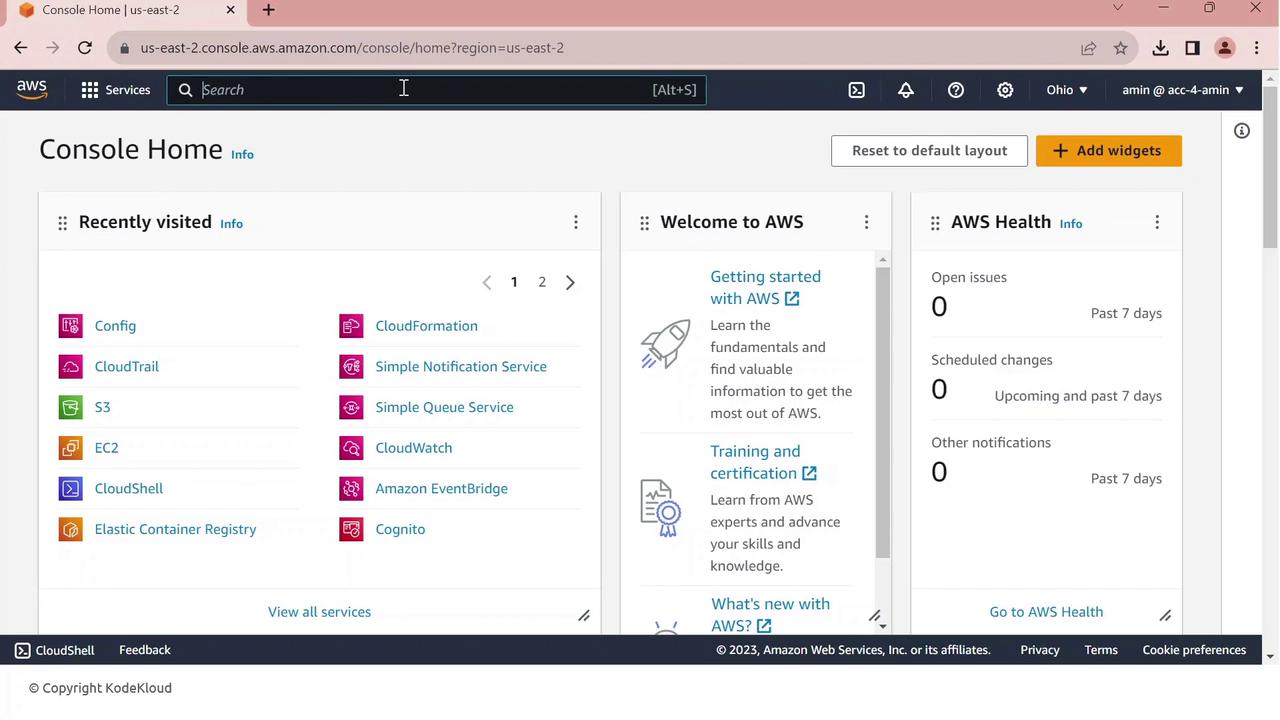
1. Sign in to the AWS Management Console.
2. In the search bar, type **Config** and select **AWS Config**.
<Frame>
  ![The image shows the AWS Management Console home page, displaying sections for recently visited services, a welcome panel with AWS resources, and AWS Health status.](https://kodekloud.com/kk-media/image/upload/v1752862941/notes-assets/images/AWS-IAM-Demo-AWS-Config/aws-management-console-home-page.jpg)
</Frame>

3. Confirm your region is **US East (Ohio)** (us-east-2).
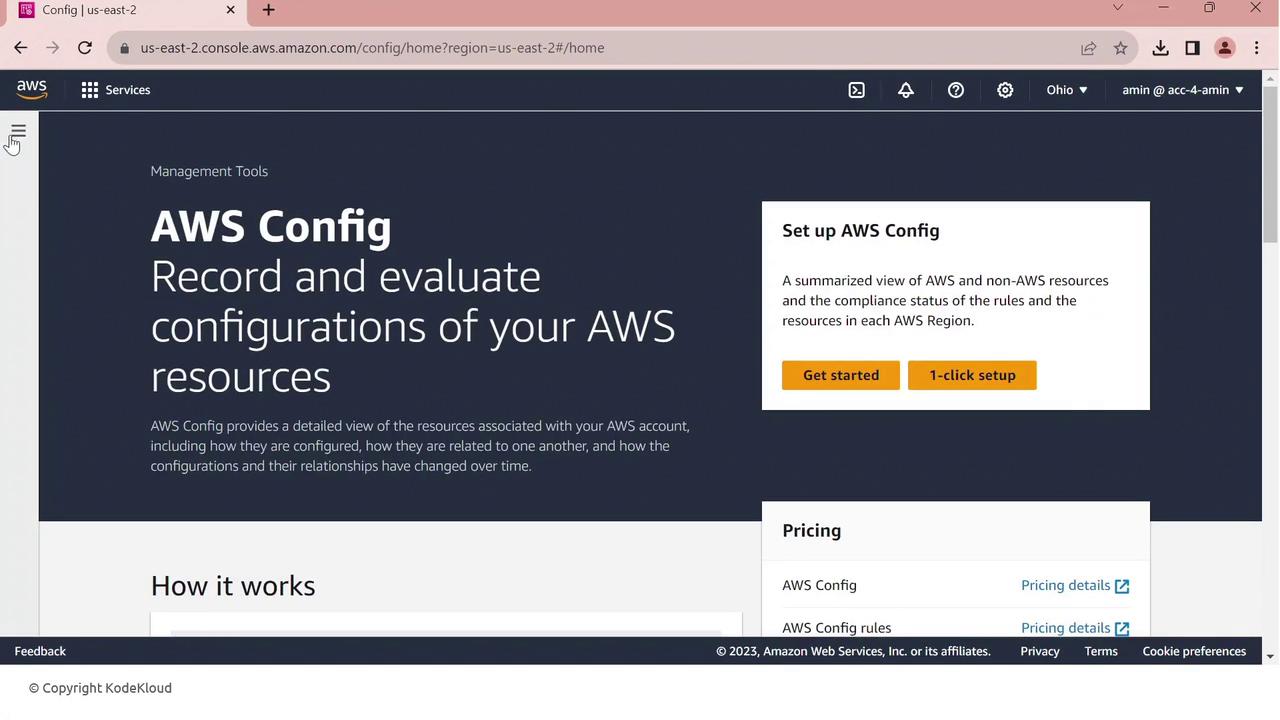
4. Click **Config**. If AWS Config isn’t set up yet, you’ll see the setup dashboard.
<Frame>
  ![The image shows the AWS Config dashboard, which is used to record and evaluate configurations of AWS resources. It includes options to set up AWS Config and provides pricing details.](https://kodekloud.com/kk-media/image/upload/v1752862942/notes-assets/images/AWS-IAM-Demo-AWS-Config/aws-config-dashboard-setup-pricing.jpg)
</Frame>

Click **Get started** to begin.

## 2. Configuring AWS Config

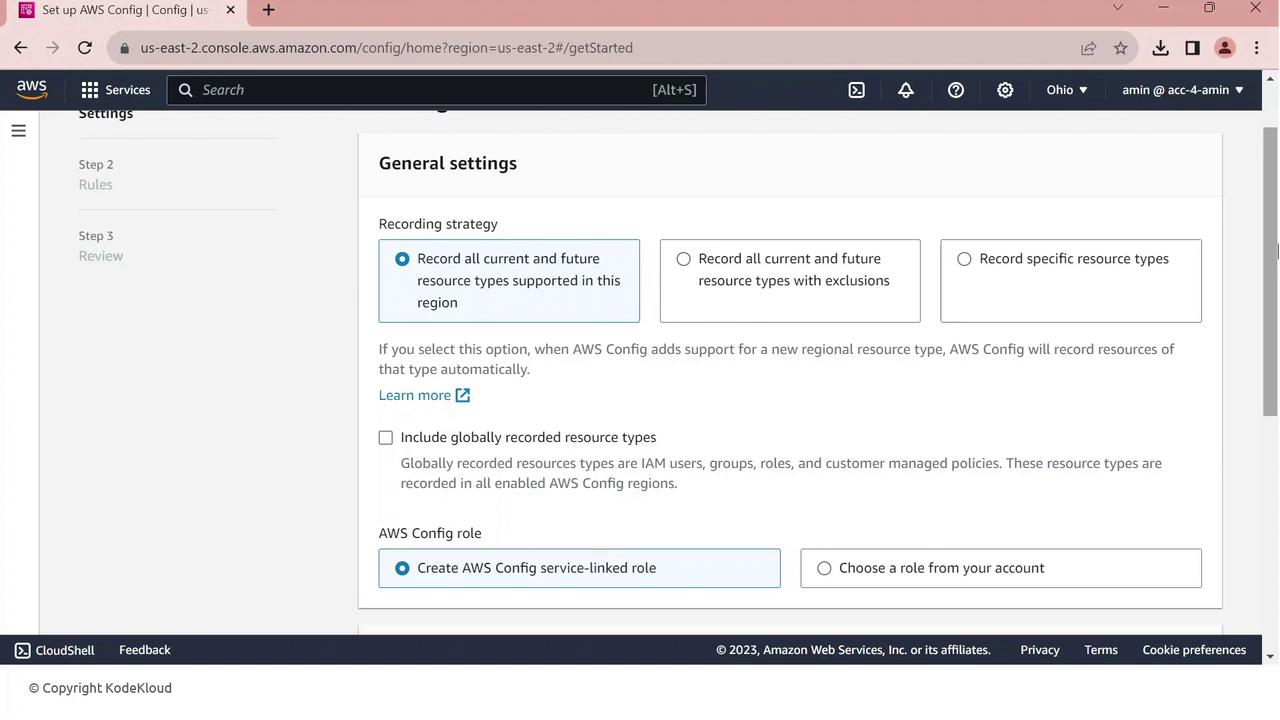
On **General settings**, choose **All current and future resource types supported in this region**. This enables comprehensive tracking.
<Frame>
  ![The image shows the AWS Config setup page, specifically the "General settings" section, where users can select a recording strategy for resource types and configure AWS Config roles.](https://kodekloud.com/kk-media/image/upload/v1752862944/notes-assets/images/AWS-IAM-Demo-AWS-Config/aws-config-setup-general-settings.jpg)
</Frame>

Scroll to **Resource types to record**—AWS Config will create a service-linked role automatically.

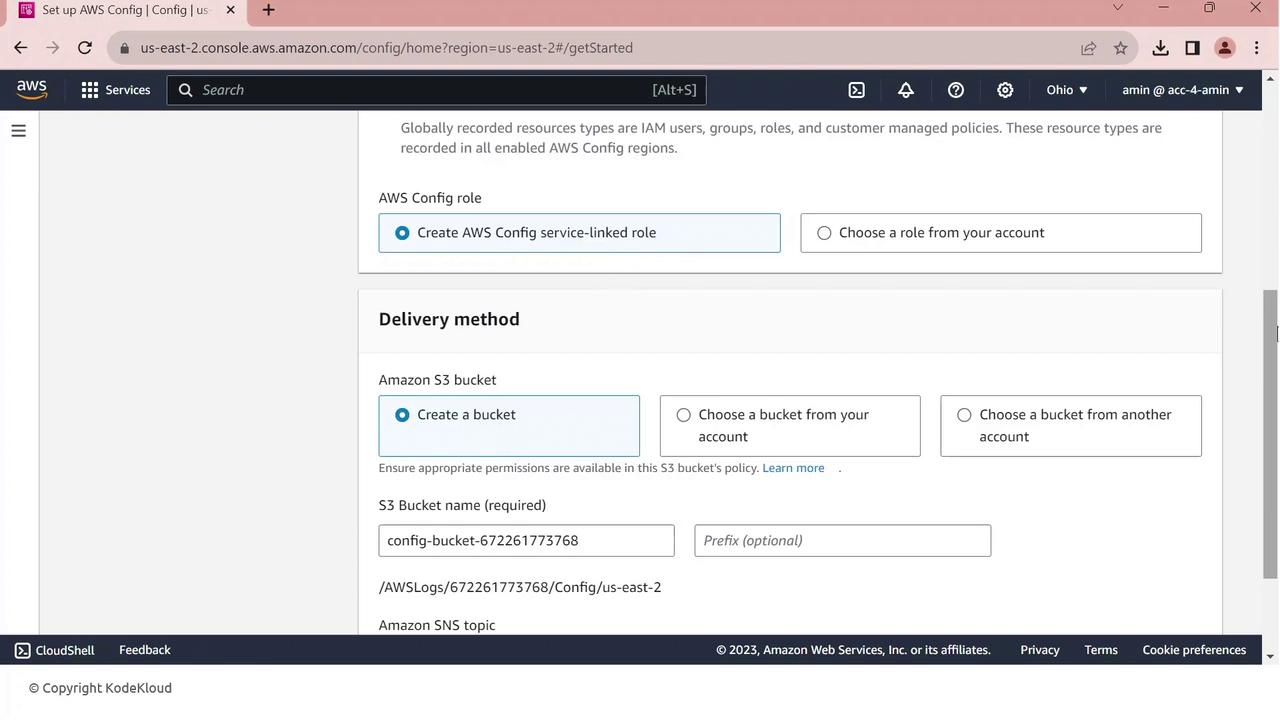
Next, specify your delivery channel:

* **S3 bucket**: to store configuration snapshots and compliance histories
* **IAM role**: AWS Config uses this to write data to your bucket
<Frame>
  ![The image shows an AWS Config setup page where a user can create or choose an AWS Config role and specify a delivery method using an Amazon S3 bucket.](https://kodekloud.com/kk-media/image/upload/v1752862945/notes-assets/images/AWS-IAM-Demo-AWS-Config/aws-config-setup-s3-delivery-role.jpg)
</Frame>

Click **Next** to review, then **Confirm** to complete setup.

## 3. Adding a Managed Rule

AWS Config includes a library of managed rules to enforce best practices. Let’s add the **restricted-ssh** rule:

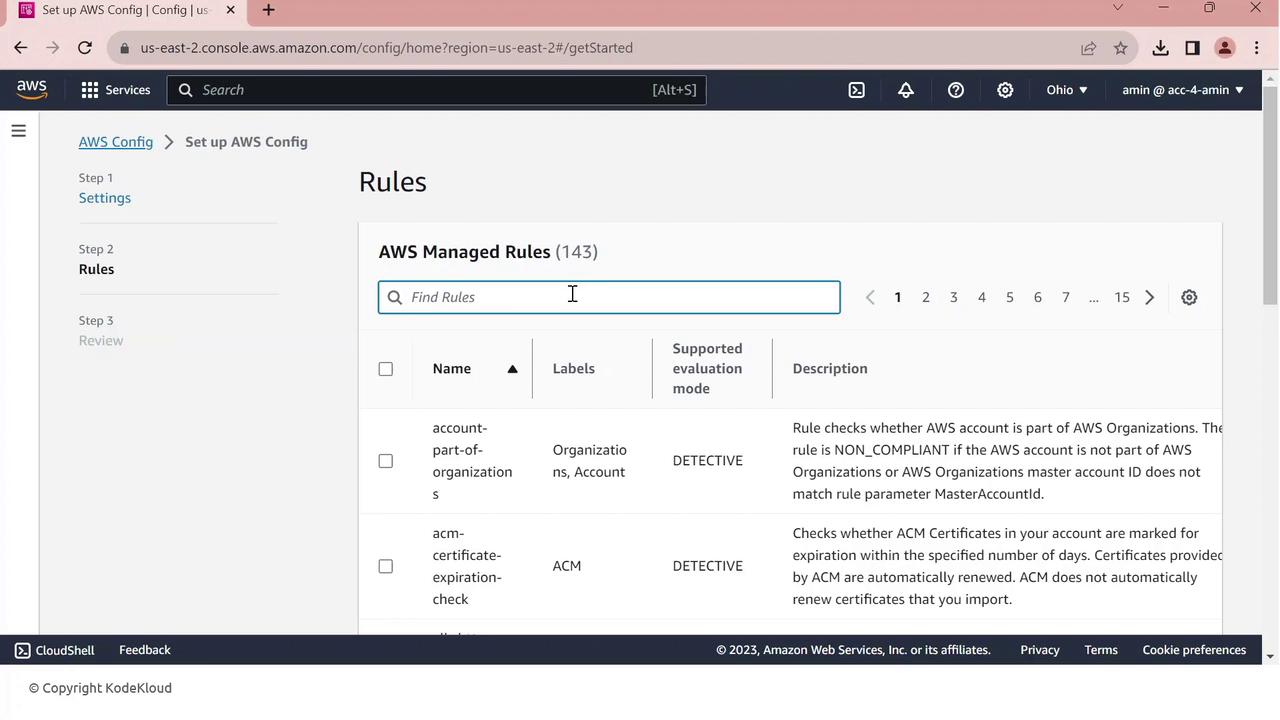
1. In the console, go to **Rules**.
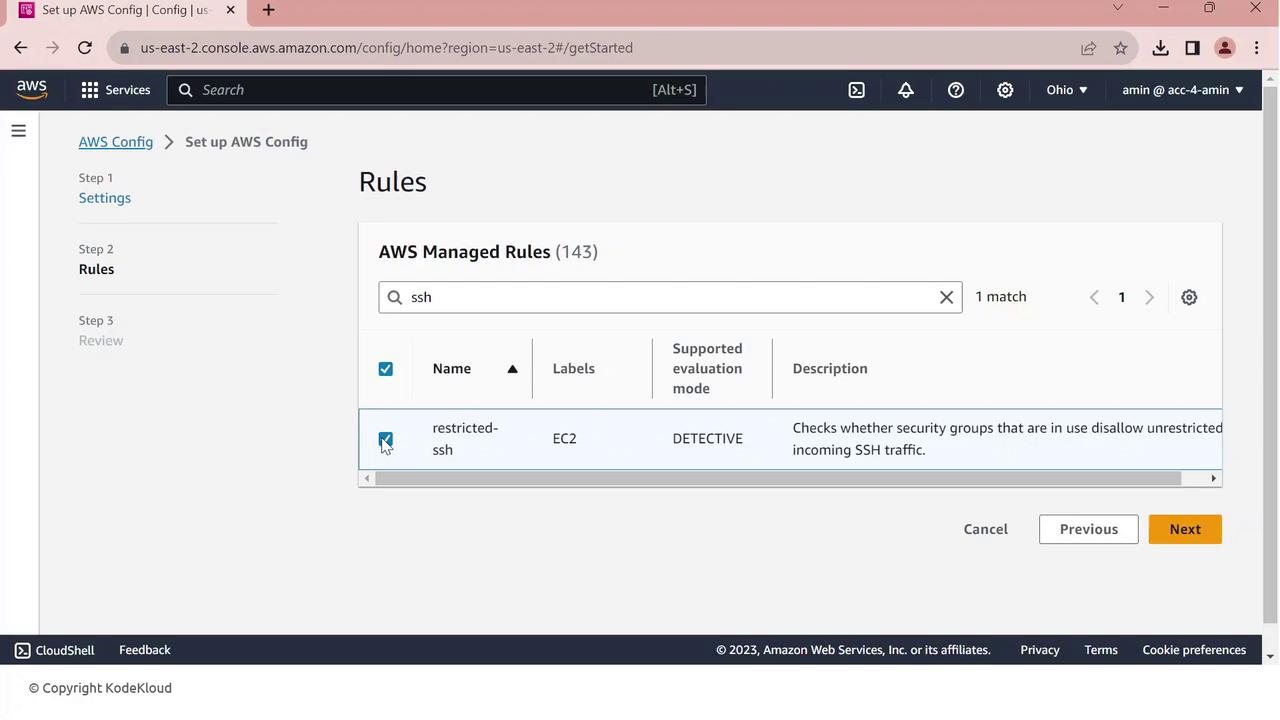
2. Search for **restricted-ssh**—this rule ensures no security group permits 0.0.0.0/0 on port 22.
<Frame>
  ![The image shows the AWS Config console, specifically the "Rules" section, listing AWS Managed Rules with details like name, labels, supported evaluation mode, and description.](https://kodekloud.com/kk-media/image/upload/v1752862947/notes-assets/images/AWS-IAM-Demo-AWS-Config/aws-config-console-rules-managed-details.jpg)
</Frame>

3. Select **restricted-ssh** and click **Next**.
4. Review the parameters and click **Confirm**.
<Frame>
  ![The image shows an AWS Config setup page, specifically the "Rules" section, where a rule named "restricted-ssh" is selected to check if security groups disallow unrestricted incoming SSH traffic.](https://kodekloud.com/kk-media/image/upload/v1752862948/notes-assets/images/AWS-IAM-Demo-AWS-Config/aws-config-restricted-ssh-rules-section.jpg)
</Frame>

The rule is created and begins evaluating your security groups. Initially, compliance may show zero resources until the first evaluation completes.

## 4. Deploying a PCI DSS Conformance Pack

To scale compliance checks against PCI DSS requirements, deploy the AWS–provided conformance pack:

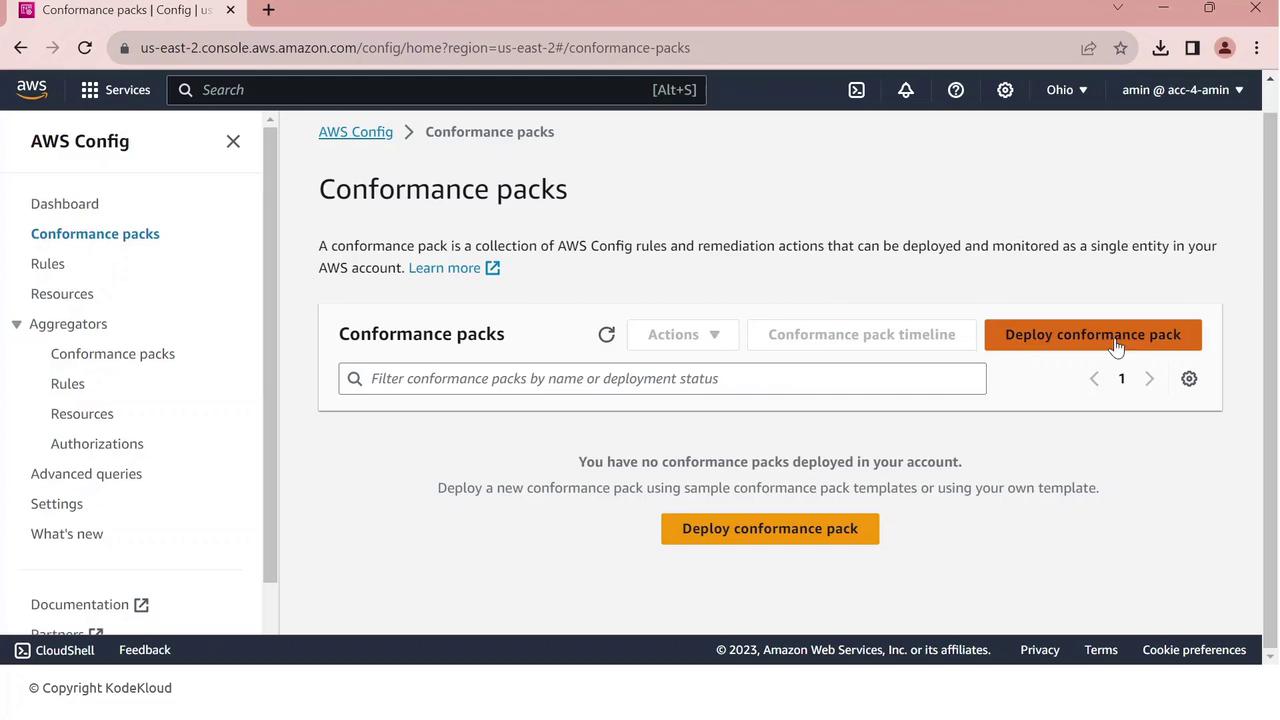
1. In AWS Config, navigate to **Conformance packs**.
2. Click **Deploy conformance pack**.
<Frame>
  ![The image shows the AWS Config dashboard for managing conformance packs, with options to deploy a new conformance pack. The interface includes a search bar and a button labeled "Deploy conformance pack."](https://kodekloud.com/kk-media/image/upload/v1752862949/notes-assets/images/AWS-IAM-Demo-AWS-Config/aws-config-dashboard-conformance-pack-deploy.jpg)
</Frame>

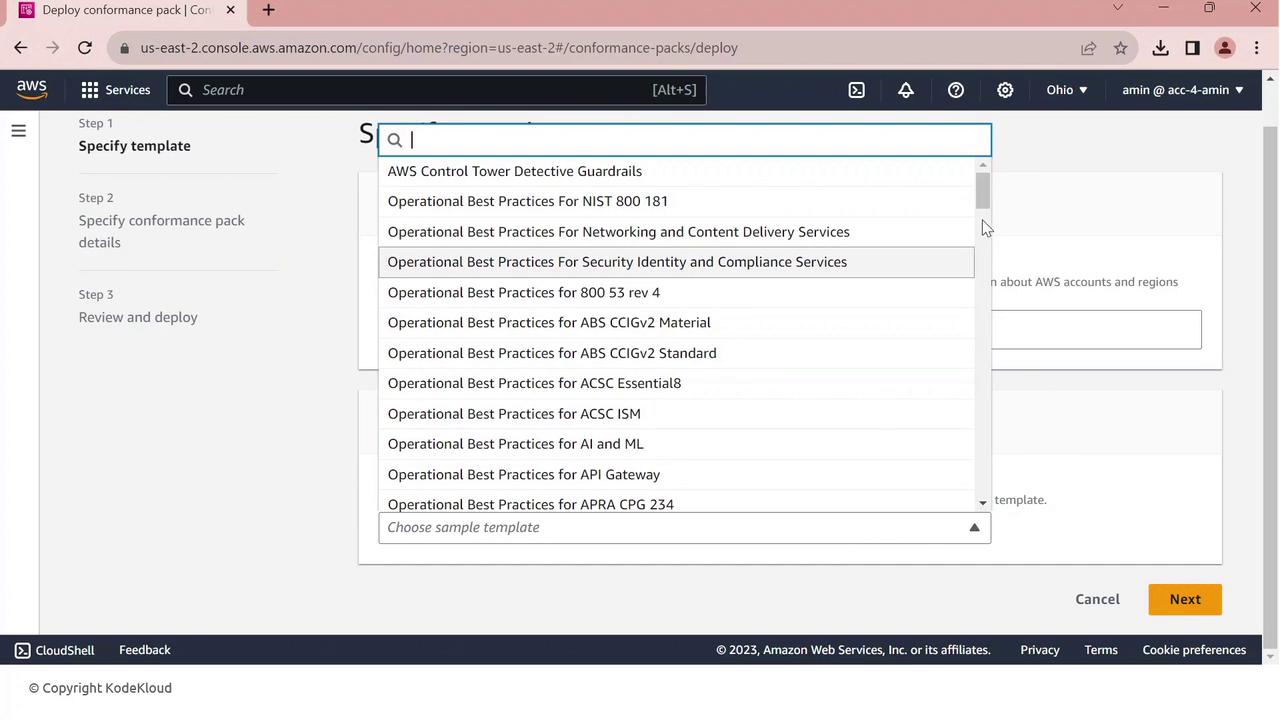
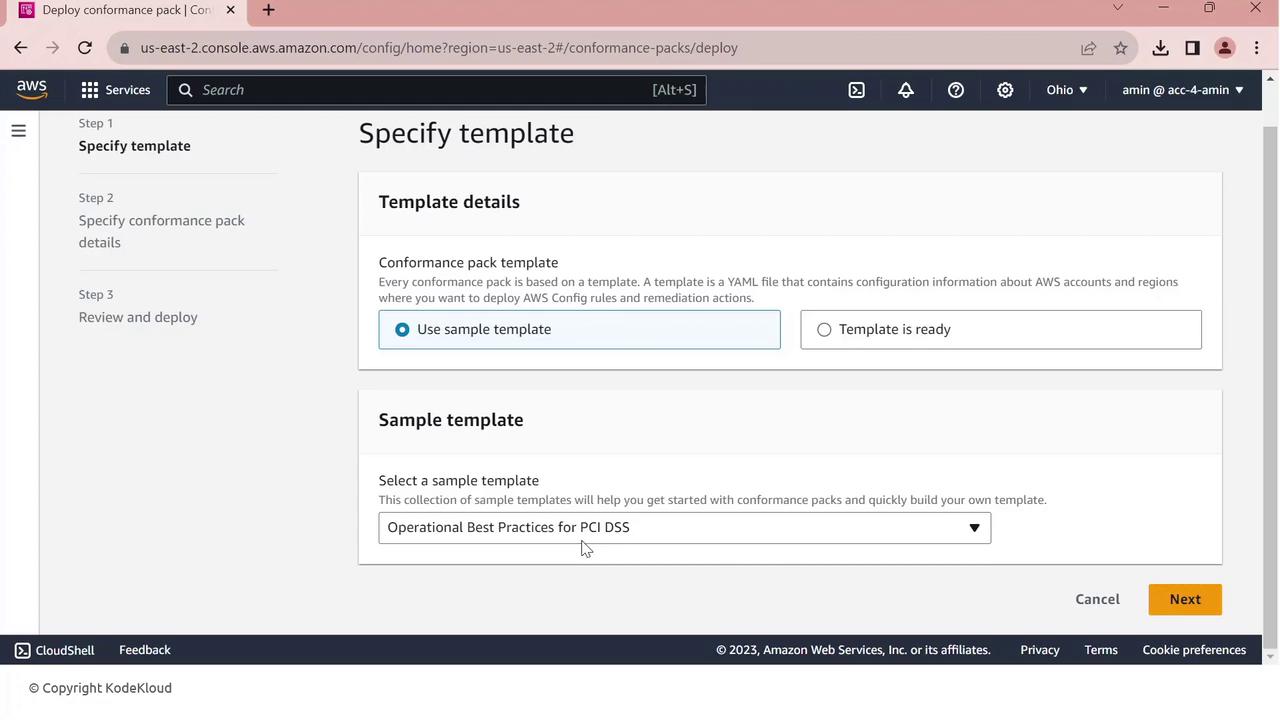
3. Choose **Use a sample template**.
4. From the dropdown, select **Operational Best Practices for PCI DSS**.
<Frame>
  ![The image shows an AWS console interface for deploying a conformance pack, with a dropdown menu listing various operational best practice templates.](https://kodekloud.com/kk-media/image/upload/v1752862950/notes-assets/images/AWS-IAM-Demo-AWS-Config/aws-console-deploying-conformance-pack.jpg)
</Frame>

5. Click **Next**, give your pack a name (e.g., `PCI-Conformance-Pack`), and proceed.
<Frame>
  ![The image shows an AWS console interface for deploying a conformance pack, with options to specify a template and select a sample template for "Operational Best Practices for PCI DSS."](https://kodekloud.com/kk-media/image/upload/v1752862951/notes-assets/images/AWS-IAM-Demo-AWS-Config/aws-console-conformance-pack-deployment.jpg)
</Frame>

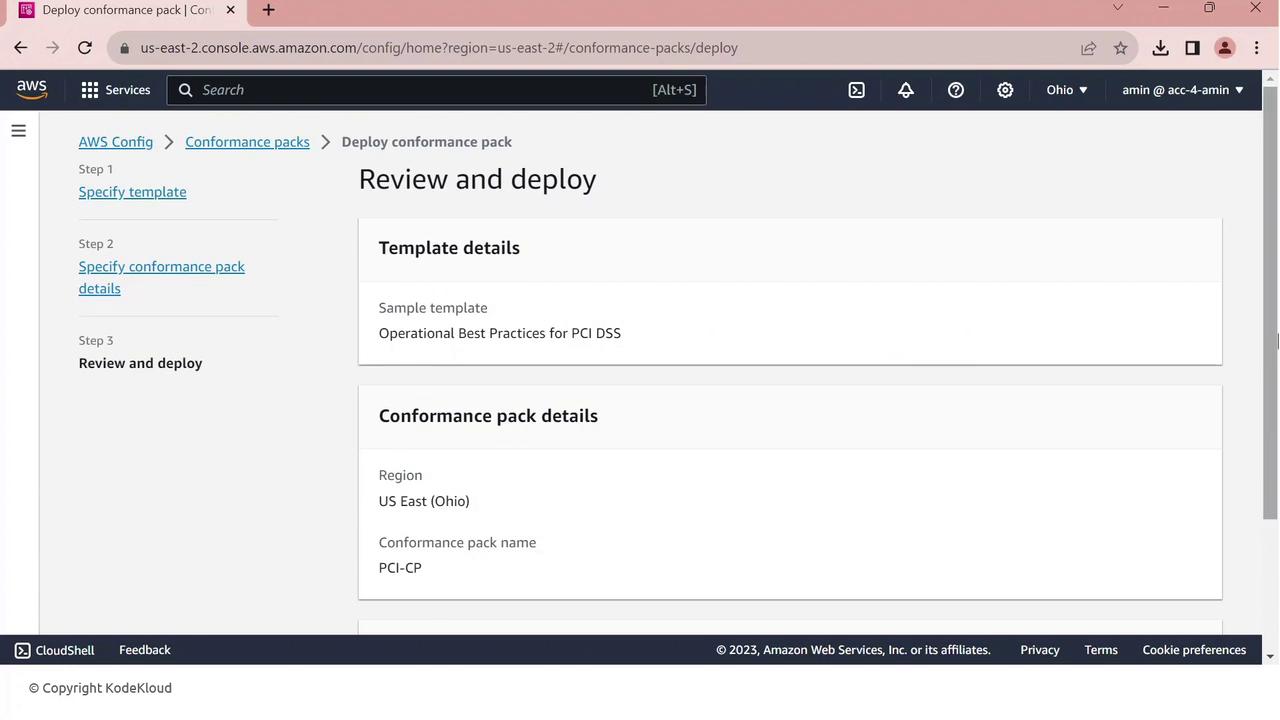
6. Review the configuration and click **Deploy**.
<Frame>
  ![The image shows an AWS console page for deploying a conformance pack, specifically reviewing and deploying a template for "Operational Best Practices for PCI DSS" in the US East (Ohio) region.](https://kodekloud.com/kk-media/image/upload/v1752862952/notes-assets/images/AWS-IAM-Demo-AWS-Config/aws-console-deploy-conformance-pack-pci-dss.jpg)
</Frame>

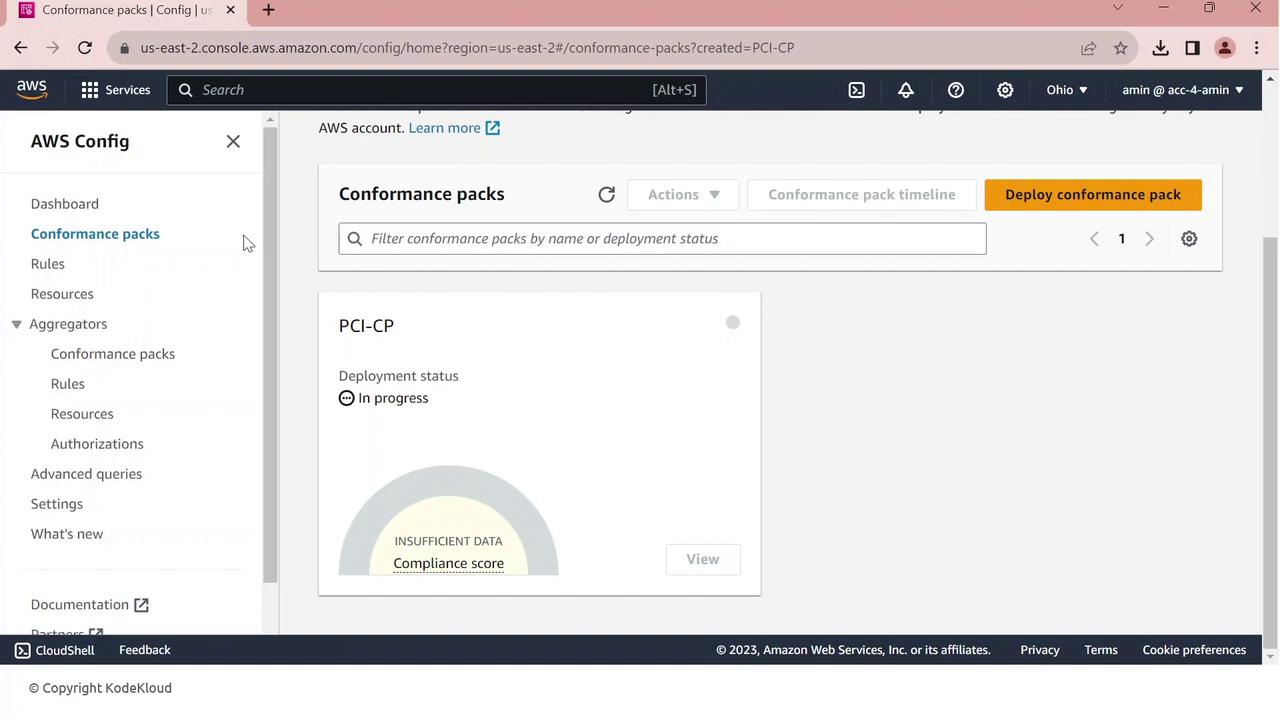
AWS Config will now create and evaluate all PCI DSS rules. Monitor status under **Conformance packs**.
<Frame>
  ![The image shows an AWS Config dashboard with a focus on "Conformance packs," specifically highlighting a pack named "PCI-CP" with a deployment status of "In progress" and an insufficient data compliance score.](https://kodekloud.com/kk-media/image/upload/v1752862954/notes-assets/images/AWS-IAM-Demo-AWS-Config/aws-config-conformance-packs-pci-cp.jpg)
</Frame>

## 5. Reviewing Compliance Results

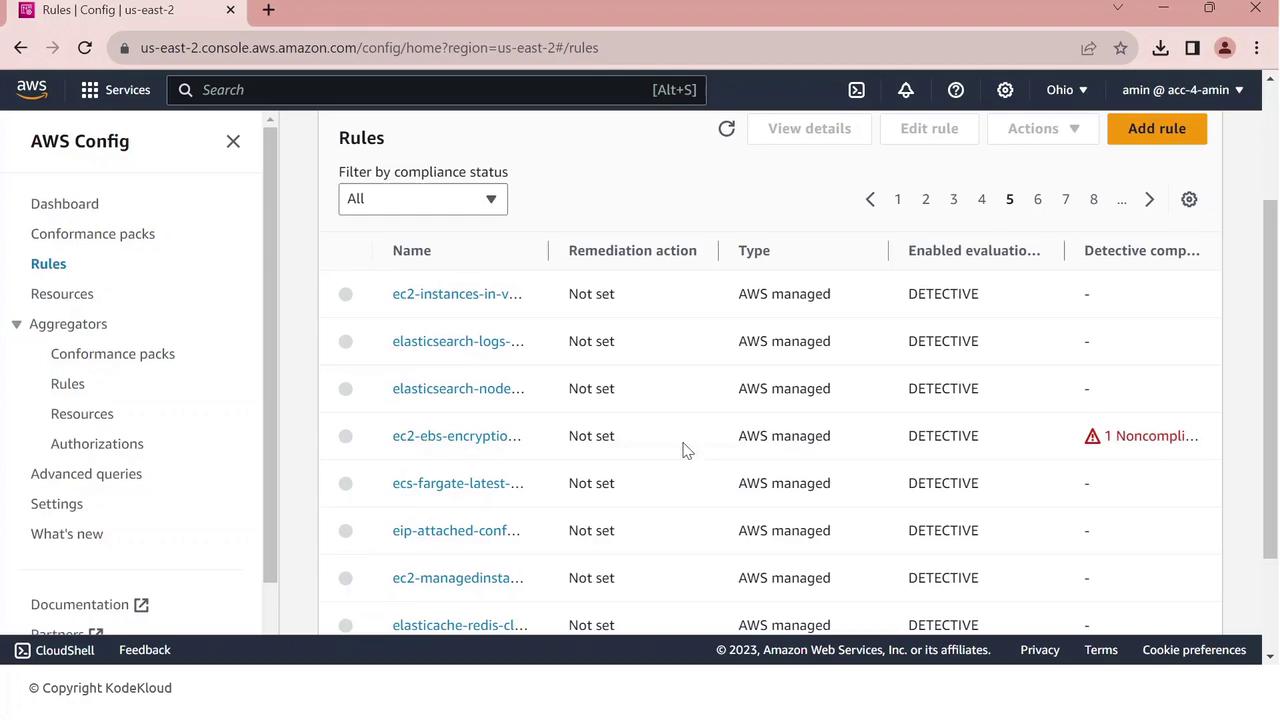
Once your conformance pack is deployed, view all rules and their statuses:

1. Go to **Rules** in the AWS Config console.
2. You’ll see managed and conformance-pack rules listed with compliance indicators.
<Frame>
  ![The image shows an AWS Config dashboard displaying a list of rules, their remediation actions, types, and compliance statuses. One rule is marked as noncompliant.](https://kodekloud.com/kk-media/image/upload/v1752862955/notes-assets/images/AWS-IAM-Demo-AWS-Config/aws-config-dashboard-rules-compliance.jpg)
</Frame>

One common finding is **EBS default encryption**:

3. Click the non-compliant rule to view details—resource IDs, configuration timeline, and remediation options.

<Frame>
  ![The image shows an AWS Config rule details page for checking if Amazon Elastic Block Store (EBS) encryption is enabled by default. It includes information about the rule's description, evaluation mode, and last successful evaluation date.](https://kodekloud.com/kk-media/image/upload/v1752862956/notes-assets/images/AWS-IAM-Demo-AWS-Config/aws-config-rule-ebs-encryption-details.jpg)
</Frame>

From here, you can investigate resources, enable encryption, or configure automated remediation.

## References

* [AWS Config Developer Guide](https://docs.aws.amazon.com/config/latest/developerguide/)
* [AWS Config Pricing](https://aws.amazon.com/config/pricing/)
* [PCI DSS Overview](https://www.pcisecuritystandards.org/)
* [AWS Security Best Practices](https://docs.aws.amazon.com/whitepapers/latest/aws-security-best-practices/)

<CardGroup>
  <Card title="Watch Video" icon="video" cta="Learn more" href="https://learn.kodekloud.com/user/courses/aws-iam/module/586f5114-fd4d-45e3-88ba-6a691fde129c/lesson/1eede5a6-fe60-4993-a095-4044bba6298b" />
</CardGroup>
