> ## Documentation Index
> Fetch the complete documentation index at: https://notes.kodekloud.com/llms.txt
> Use this file to discover all available pages before exploring further.
# Demo CloudWatch
> This guide explains how to configure an Amazon CloudWatch alarm for EC2 CPU utilization exceeding 70% and set up email notifications.
In this guide, you’ll configure an Amazon CloudWatch alarm that notifies you via email whenever an EC2 instance’s average CPU usage exceeds 70% over a five-minute period. This is essential for maintaining optimal performance and responding swiftly to resource bottlenecks.
## Prerequisites
| Requirement | Description |
| ----------------------------------- | ----------------------------------------------------- |
| AWS account with CloudWatch access | Permissions to view metrics and create alarms |
| Running EC2 instance | The instance you intend to monitor |
| Verified email subscription for SNS | Confirmed subscription to receive alarm notifications |
Make sure your IAM user or role has the following managed policies:
* `CloudWatchFullAccess`
* `AmazonSNSFullAccess`
Without these permissions, you won’t be able to create alarms or SNS topics.
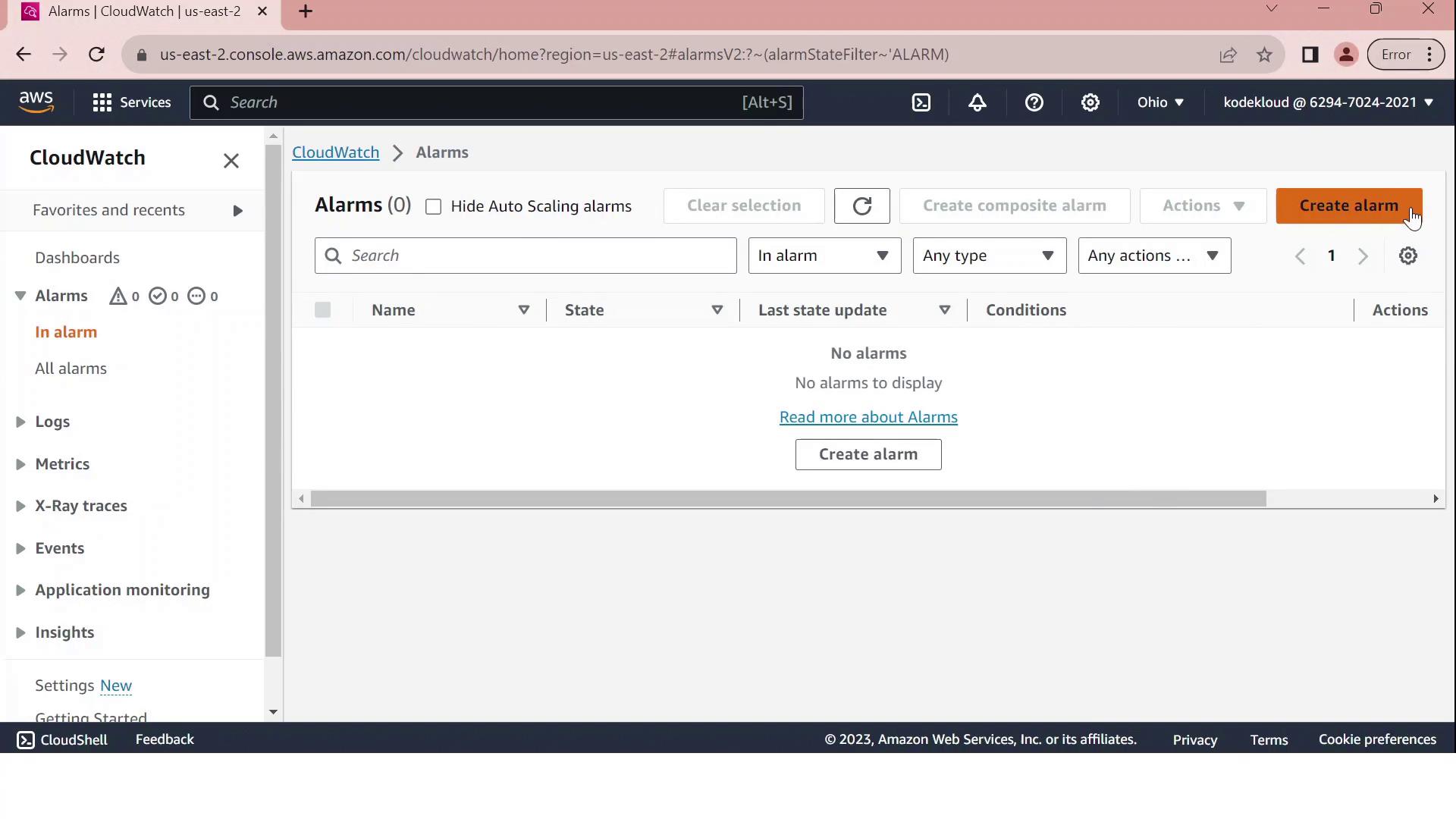
## 1. Open the Alarms Dashboard
1. Sign in to the [AWS Management Console](https://aws.amazon.com/console/) and open **CloudWatch**.
2. In the left navigation pane, choose **Alarms**, then click **Create alarm**.
## 2. Select the EC2 CPUUtilization Metric
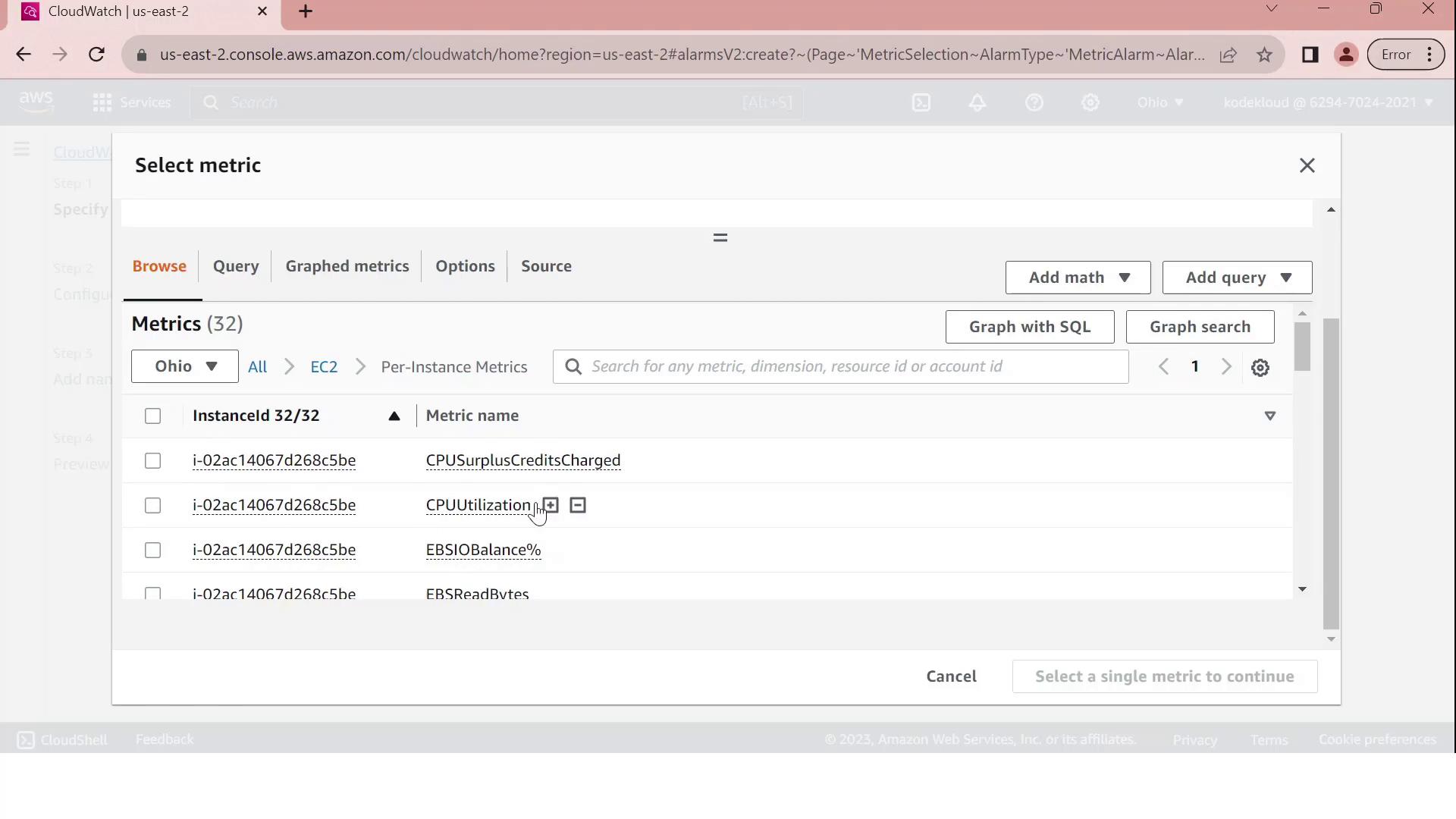
1. On **Select metric**, pick **EC2**.
2. Under **Per-Instance Metrics**, locate and select your instance’s **CPUUtilization** metric.
3. Click **Select metric**.
## 3. Define the Alarm Threshold
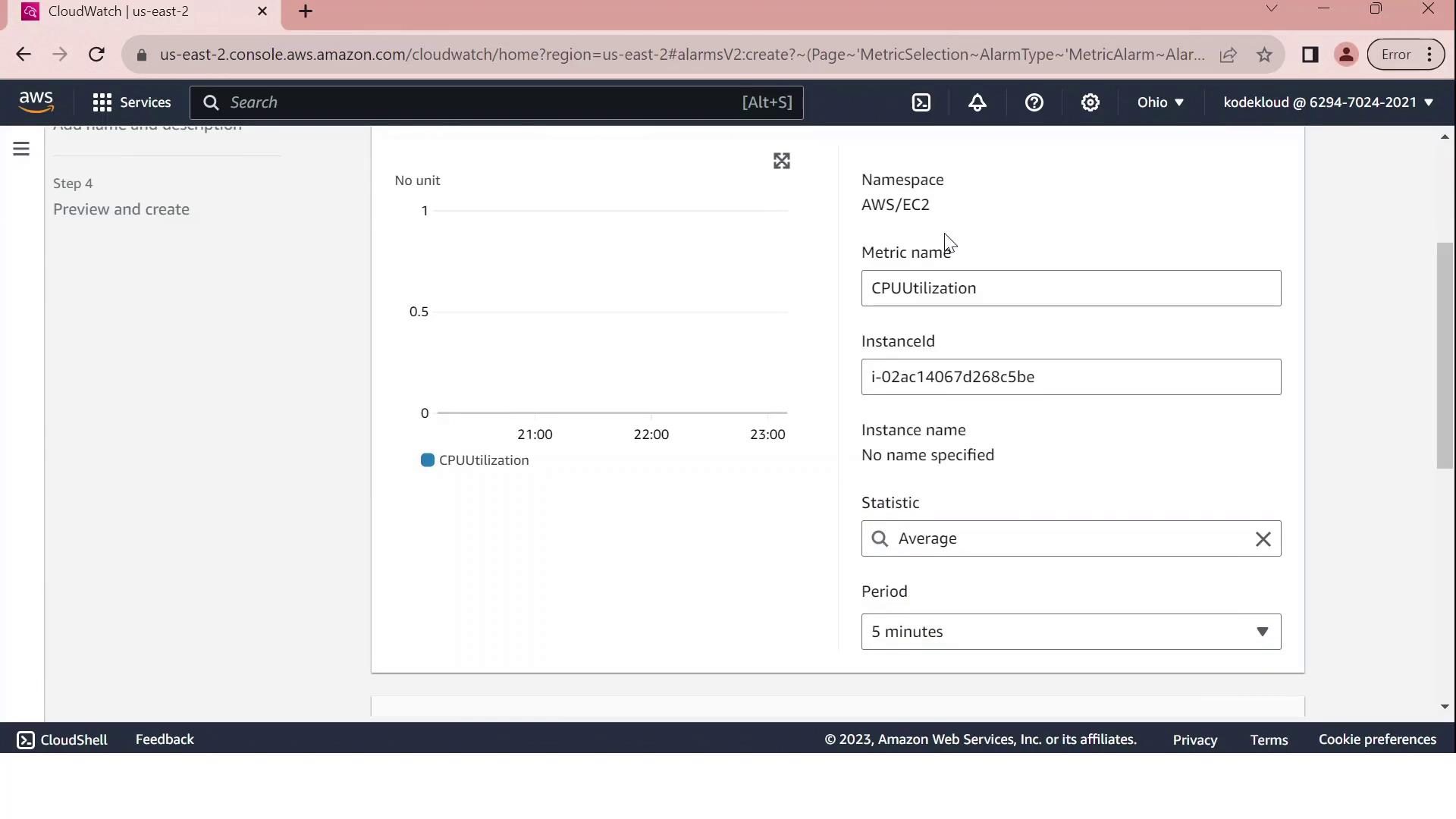
Configure the alarm conditions on the **Configure metric** page:
| Setting | Value |
| ---------------- | -------------------- |
| Statistic period | 5 minutes |
| Threshold type | Static |
| Condition | GreaterThanThreshold |
| Threshold value | 70 |
This setup tells CloudWatch to evaluate the average CPU utilization over each 5-minute interval and fire the alarm if it exceeds 70%.
Custom metrics and long-term storage can incur additional charges. Review [CloudWatch pricing](https://aws.amazon.com/cloudwatch/pricing/) before enabling high-frequency monitoring.
## 4. Configure Notifications via SNS
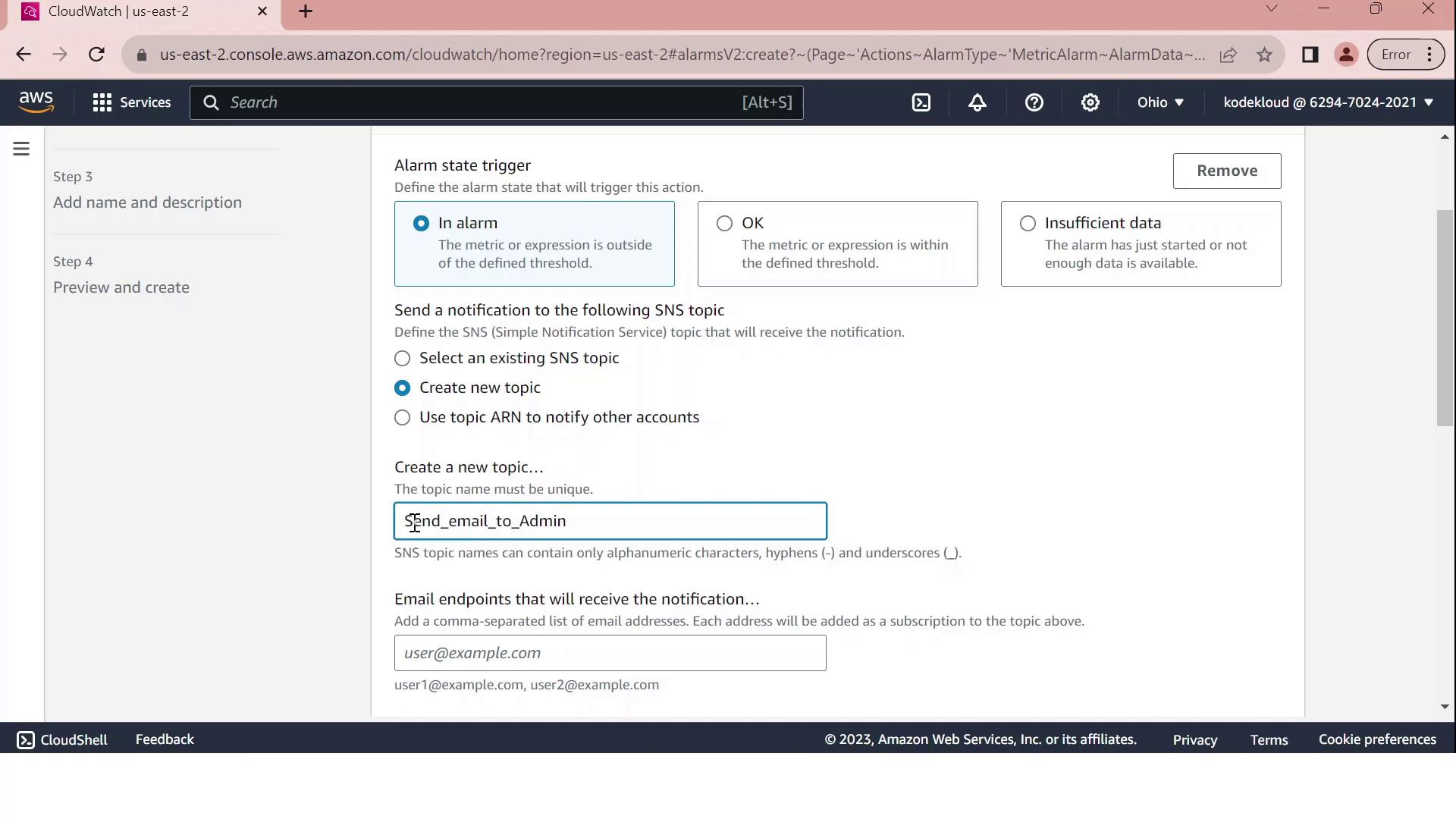
Under **Notification**, choose **Create new topic** and enter:
* **Topic name**: Send\_email\_to\_Admin
* **Endpoint**: [admin@test.com](mailto:admin@test.com)
Click **Create topic** to confirm. You can also attach automated actions for Auto Scaling, EC2, or Systems Manager.

Click **Next** to proceed.
## 5. Name, Review, and Create
1. Provide a name such as `CPUUtilizationAbove70` and an optional description.
2. Review all settings:
* Metric: **CPUUtilization** for your EC2 instance
* Period and statistic
* Threshold: **GreaterThan 70**
* Notification: **SNS email to [admin@test.com](mailto:admin@test.com)**
3. Click **Create alarm**.
Upon successful creation, you’ll see a confirmation message in the Alarms dashboard.
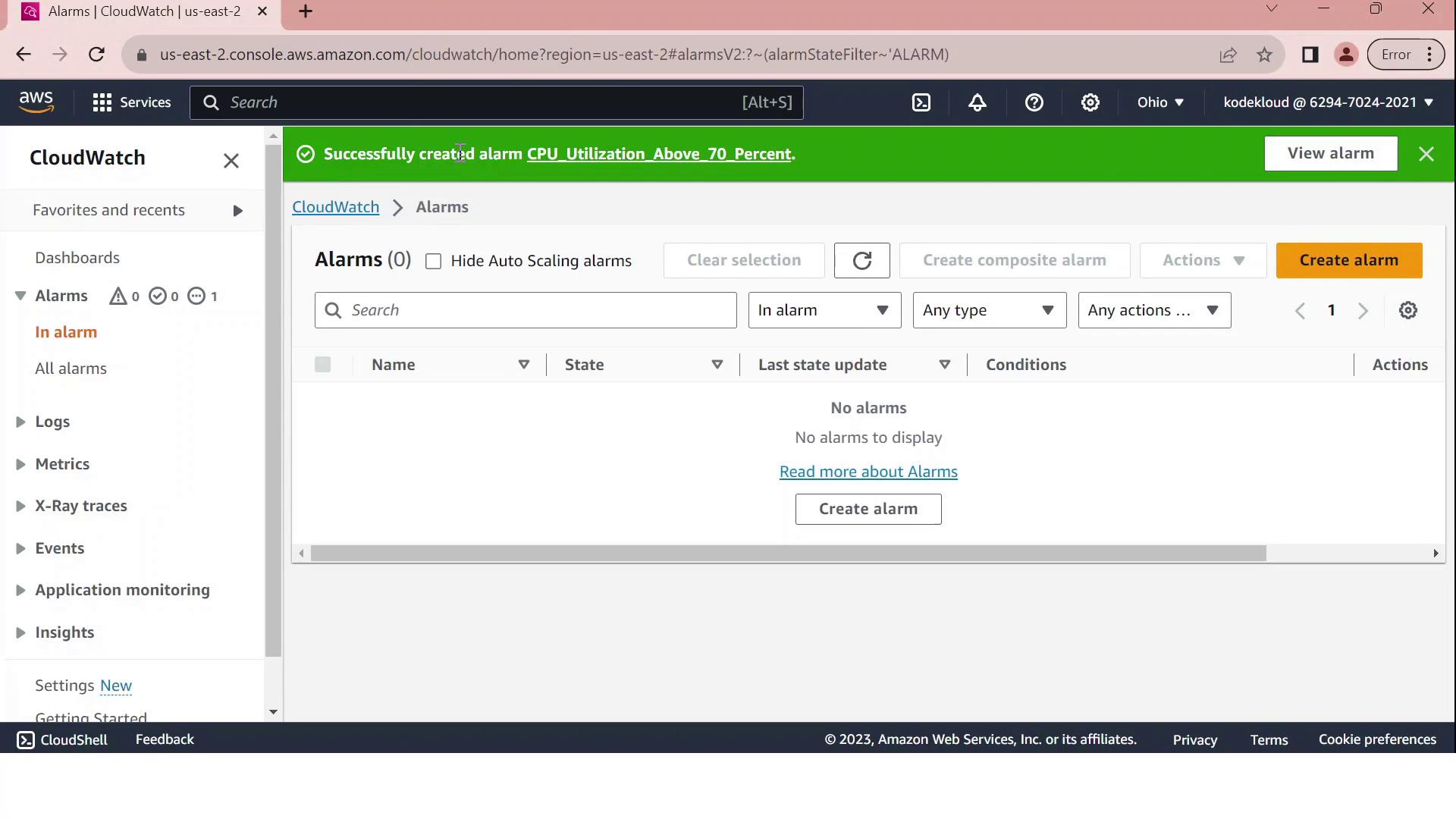
***
Your CloudWatch alarm is now active. When the average CPU utilization exceeds 70% over a five-minute span, an email is sent to the administrator. Monitor and adjust thresholds as needed to align with your application’s performance requirements.
## References
* [AWS CloudWatch Alarms](https://docs.aws.amazon.com/AmazonCloudWatch/latest/monitoring/AlarmThatSendsEmail.html)
* [Amazon EC2 Monitoring](https://docs.aws.amazon.com/AWSEC2/latest/UserGuide/using-cloudwatch.html)
* [Amazon SNS Developer Guide](https://docs.aws.amazon.com/sns/latest/dg/welcome.html)