> ## Documentation Index
> Fetch the complete documentation index at: https://notes.kodekloud.com/llms.txt
> Use this file to discover all available pages before exploring further.
# IAM Cross Account Access
> This guide configures cross-account access between AWS accounts for secure log retrieval from an S3 bucket without sharing long-term credentials.
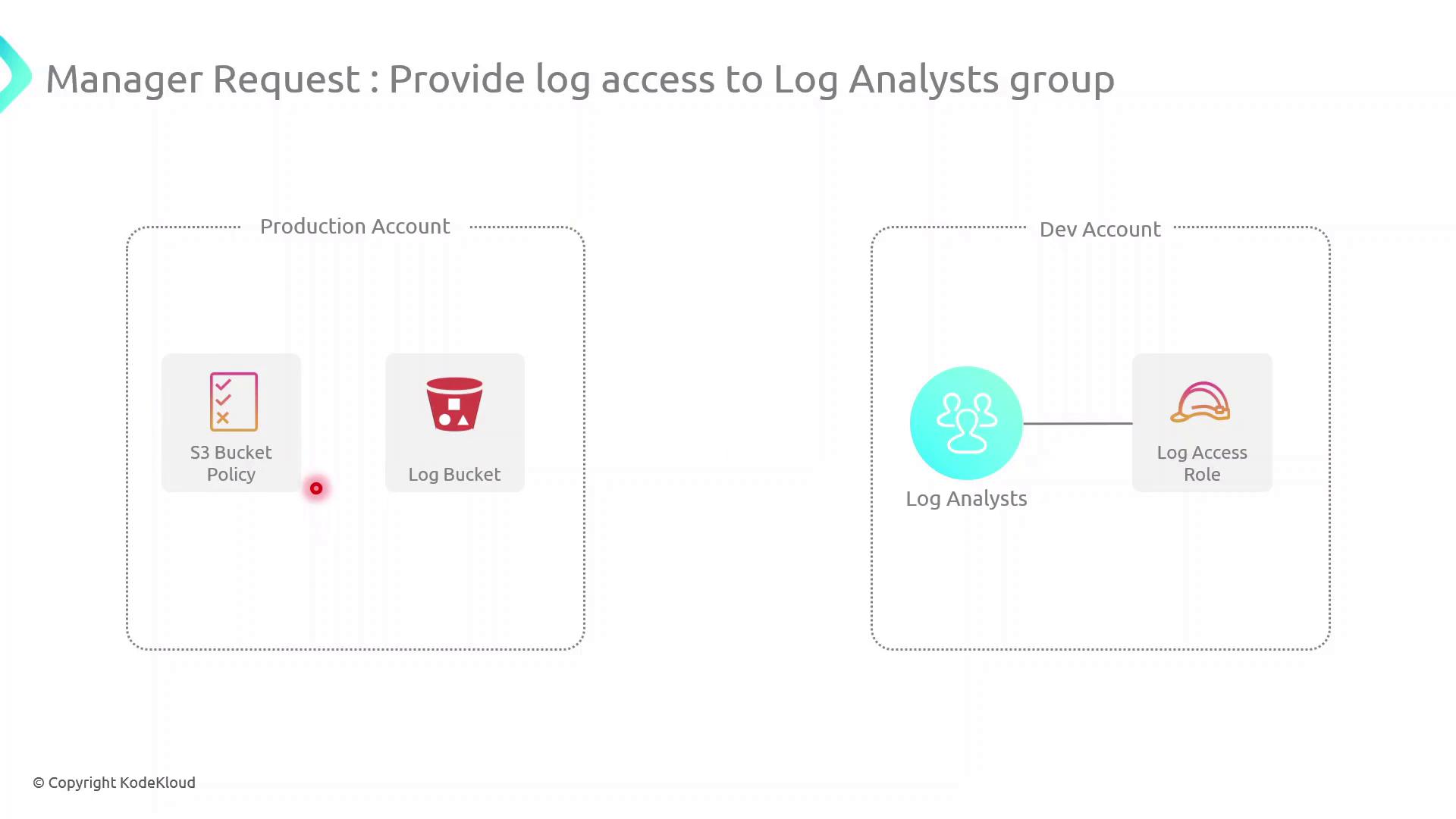
In this guide, we'll configure cross-account access between a **Production** AWS account (owns an S3 log bucket) and a **Development** AWS account (hosts a Log Analysts group). This setup enables secure, temporary access to logs without sharing long-term credentials.
## Scenario
| AWS Account | Resource | Purpose |
| ------------------- | -------------------------- | ------------------------------------------- |
| Production Account | S3 bucket (`log-bucket`) | Stores application log files |
| Development Account | IAM Group (`Log Analysts`) | Needs permission to list and read log files |
Our objective is to let the `Log Analysts` group assume a role in the Production account to retrieve logs.
## High-Level Architecture
1. Create an IAM Role in the **Production Account**
2. Attach an inline S3 policy to that role
3. Update the **S3 Bucket Policy** to trust the role
4. Assume the role from the **Development Account** and verify access
## Cross-Account Access Components
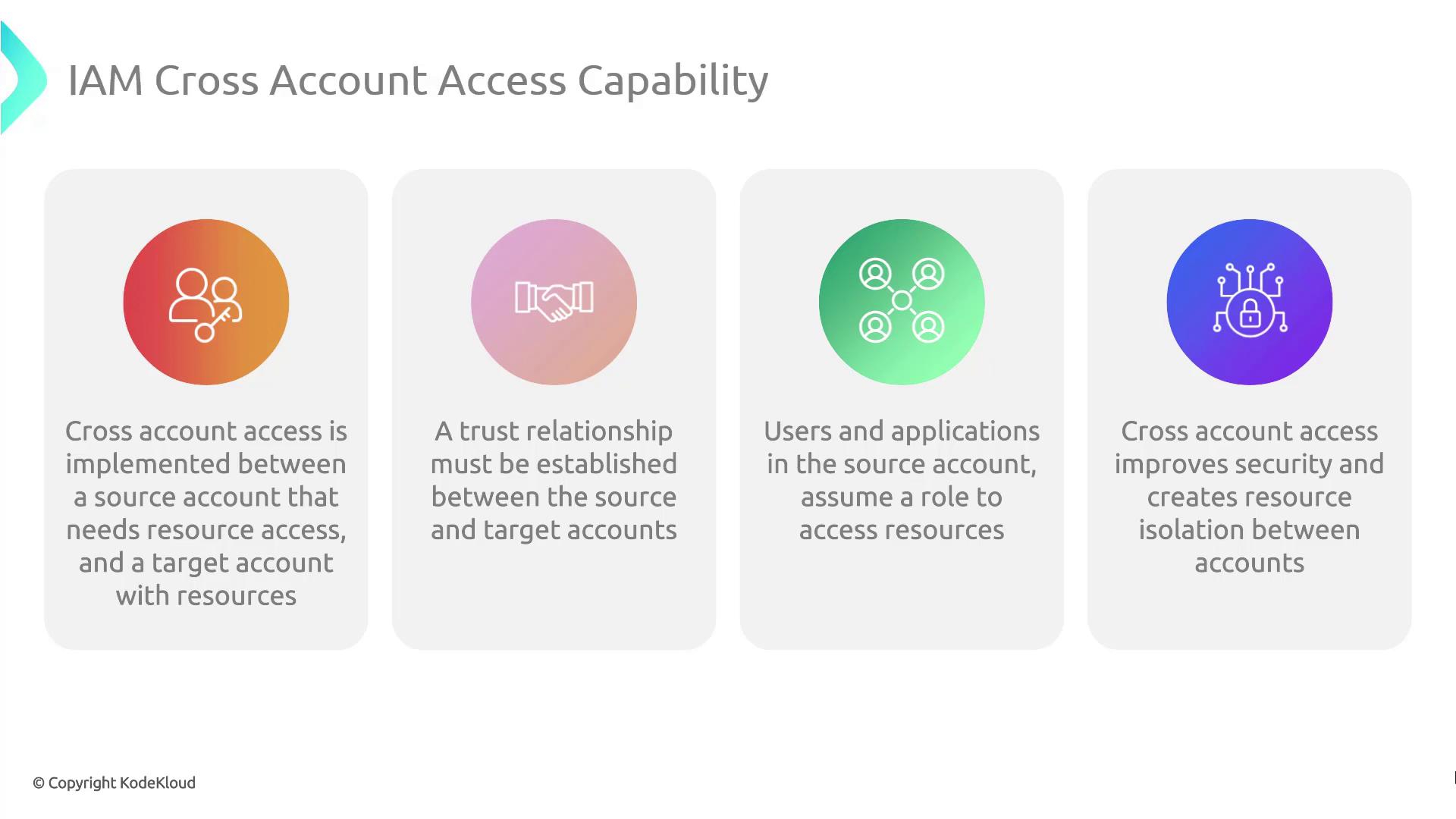
| Component | Description |
| -------------------- | --------------------------------------------------------------------------------- |
| Trust Relationship | IAM Role trust policy in the Production account allowing Dev account to assume it |
| Role Assumption | `sts:AssumeRole` call from Dev account for temporary credentials |
| Permissions Boundary | Inline policy (or managed) on the role controls S3 access |
| Resource Policy | S3 Bucket policy grants the role `s3:ListBucket` and `s3:GetObject` |
Be explicit in your trust policy to avoid granting unintended access. Restrict `Principal` to specific IAM roles or account IDs.
## Demo Walkthrough
Follow these steps to implement and test cross-account S3 access.
### 1. Create the IAM Role in Production
Create a trust policy (`trust-policy.json`):
```json theme={null}
{
"Version": "2012-10-17",
"Statement": [
{
"Effect": "Allow",
"Principal": {
"AWS": "arn:aws:iam::DEV_ACCOUNT_ID:root"
},
"Action": "sts:AssumeRole"
}
]
}
```
Use the AWS CLI to create the role:
```bash theme={null}
aws iam create-role \
--role-name DevLogAccessRole \
--assume-role-policy-document file://trust-policy.json \
--description "Allows Dev account to access logs" \
--profile prod-account
```
### 2. Attach an Inline S3 Access Policy
Define `s3-access-policy.json`:
```json theme={null}
{
"Version": "2012-10-17",
"Statement": [
{
"Effect": "Allow",
"Action": [
"s3:ListBucket",
"s3:GetObject"
],
"Resource": [
"arn:aws:s3:::log-bucket",
"arn:aws:s3:::log-bucket/*"
]
}
]
}
```
Attach it to the role:
```bash theme={null}
aws iam put-role-policy \
--role-name DevLogAccessRole \
--policy-name S3LogAccess \
--policy-document file://s3-access-policy.json \
--profile prod-account
```
### 3. Update the S3 Bucket Policy
Create or edit your bucket policy (`bucket-policy.json`):
```json theme={null}
{
"Version": "2012-10-17",
"Statement": [
{
"Sid": "AllowDevRoleAccess",
"Effect": "Allow",
"Principal": {
"AWS": "arn:aws:iam::PROD_ACCOUNT_ID:role/DevLogAccessRole"
},
"Action": [
"s3:ListBucket",
"s3:GetObject"
],
"Resource": [
"arn:aws:s3:::log-bucket",
"arn:aws:s3:::log-bucket/*"
]
}
]
}
```
Apply it:
```bash theme={null}
aws s3api put-bucket-policy \
--bucket log-bucket \
--policy file://bucket-policy.json \
--profile prod-account
```
Ensure the bucket policy’s `Principal` matches the exact ARN of the role. Using wildcards may expose your bucket to unintended access.
### 4. Assume the Role and Verify Access
From the Development account, assume the role:
```bash theme={null}
aws sts assume-role \
--role-arn arn:aws:iam::PROD_ACCOUNT_ID:role/DevLogAccessRole \
--role-session-name LogAnalysisSession \
--profile dev-account > assume-role-output.json
```
Export temporary credentials:
```bash theme={null}
export AWS_ACCESS_KEY_ID=$(jq -r '.Credentials.AccessKeyId' assume-role-output.json)
export AWS_SECRET_ACCESS_KEY=$(jq -r '.Credentials.SecretAccessKey' assume-role-output.json)
export AWS_SESSION_TOKEN=$(jq -r '.Credentials.SessionToken' assume-role-output.json)
```
List and retrieve logs:
```bash theme={null}
aws s3 ls s3://log-bucket
aws s3 cp s3://log-bucket/example.log .
```
## References
* [AWS IAM Roles](https://docs.aws.amazon.com/iam/latest/UserGuide/id_roles.html)
* [AWS STS AssumeRole](https://docs.aws.amazon.com/STS/latest/APIReference/API_AssumeRole.html)
* [Amazon S3 Bucket Policies](https://docs.aws.amazon.com/AmazonS3/latest/dev/using-iam-policies.html)