> ## Documentation Index
> Fetch the complete documentation index at: https://notes.kodekloud.com/llms.txt
> Use this file to discover all available pages before exploring further.
# Demo MFA and Password Policies
> This tutorial explains how to secure AWS environments by enabling Multi-Factor Authentication and enforcing custom password policies for IAM users.
In this tutorial, you’ll learn how to secure your AWS environment by enabling Multi-Factor Authentication (MFA) for IAM users and enforcing custom password policies in the AWS Identity and Access Management (IAM) console.
## Configuring MFA for an IAM User
1. Sign in to the AWS Management Console and open the **IAM** dashboard.
2. Select **Users** in the navigation pane to view all IAM accounts.
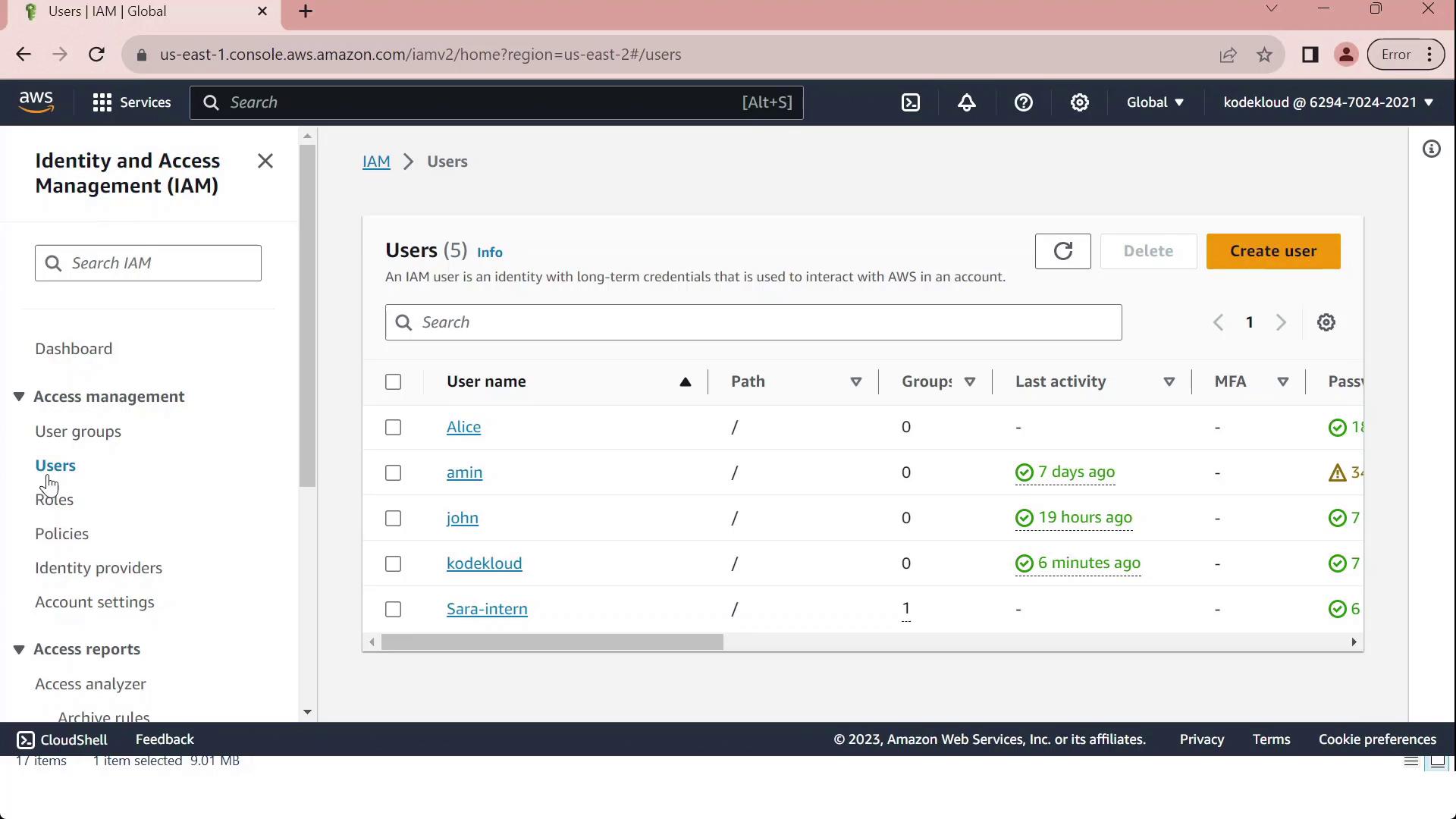
3. Click on the user **John**, then open the **Security credentials** tab.
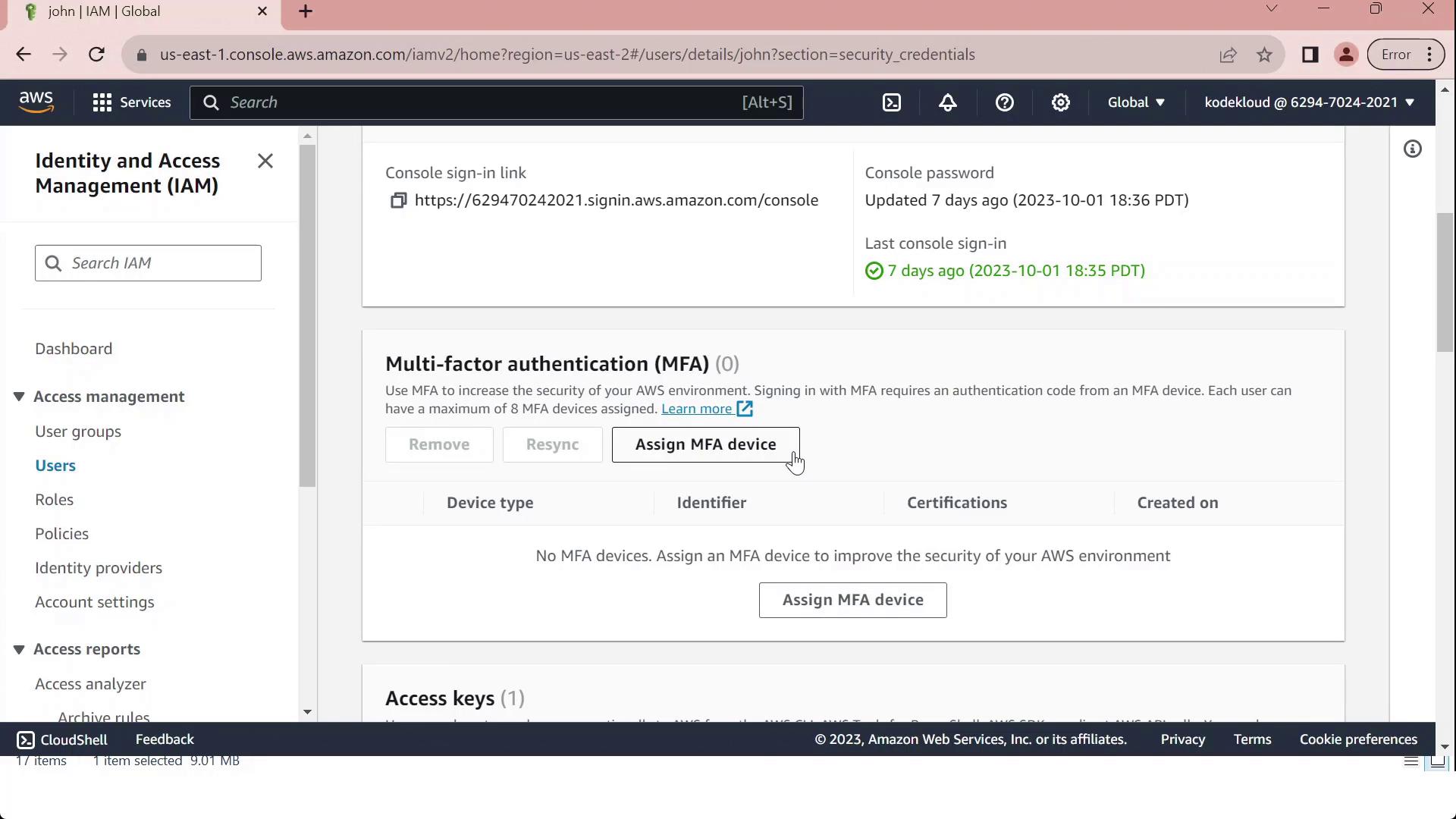
4. Under **Multi-Factor Authentication (MFA)**, click **Assign MFA device**.
5. Provide a **Device label** (for example, “MFA”) and choose your device type from the table below:
| Device Type | Description |
| ------------------- | ---------------------------------------------------------------- |
| Virtual MFA device | Software authenticator (Google Authenticator, Authy, Duo Mobile) |
| Security key | FIDO2/WebAuthn hardware key |
| Hardware TOTP token | Physical token generating time-based codes |
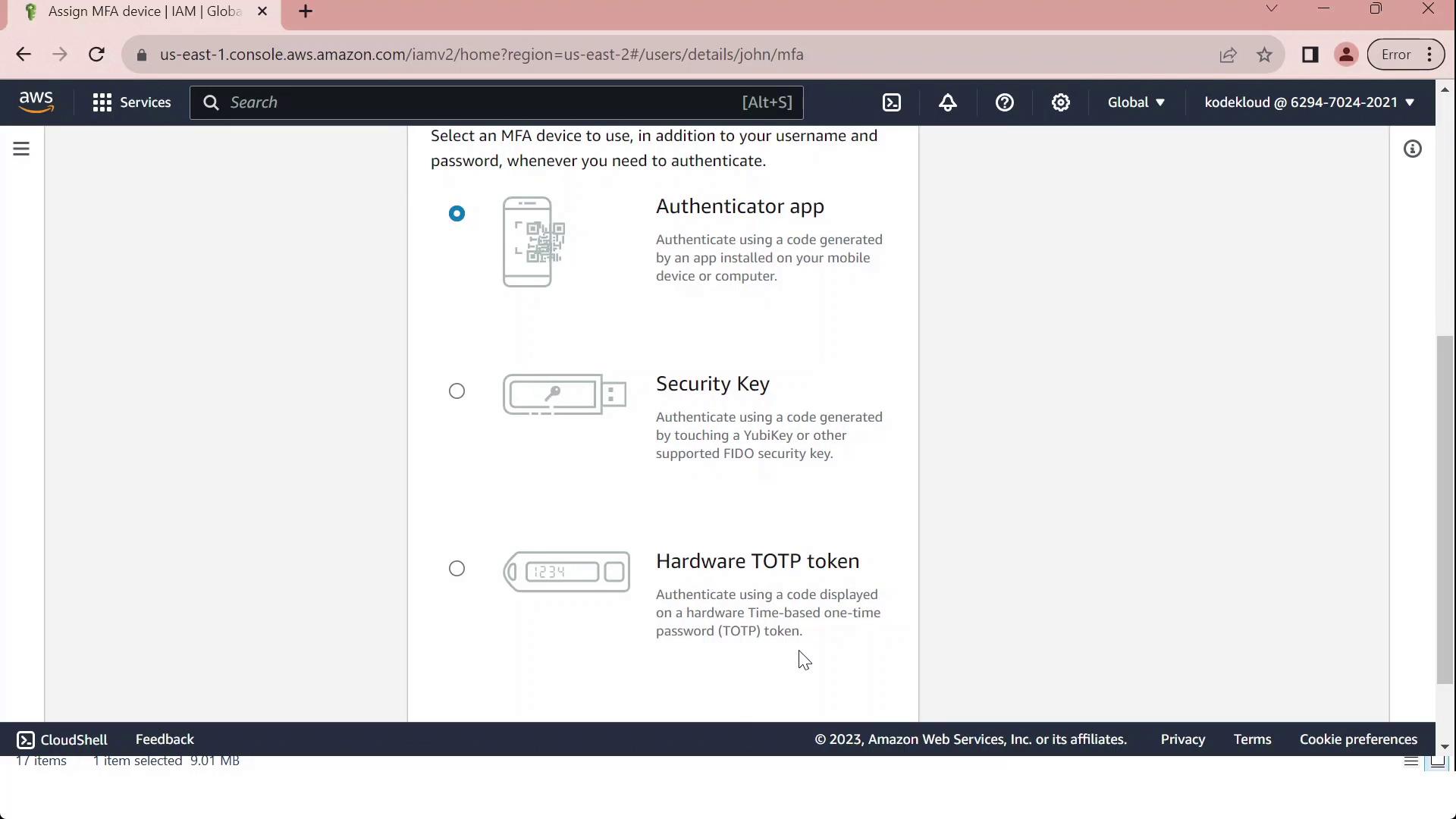
Make sure your chosen authenticator app supports Time-based One-Time Passwords (TOTP).
6. To set up a **Virtual MFA device**:
* Install and open a compatible authenticator app.
* Scan the QR code displayed in the console.
* Enter the two consecutive codes from your app (MFA Code 1 and MFA Code 2).
* Click **Assign MFA** to finalize.
If you lose access to your MFA device and haven’t saved the seed key, you may need to contact your AWS account administrator or use your root credentials to regain access.
## Customizing Password Policies
1. In the IAM console, select **Account settings** to view the **Password policy** section.
2. Review the default requirements, which ensure basic password strength:
| Requirement | Default Setting |
| ------------------------- | ---------------------------------------------------------------- |
| Minimum length | 8 characters |
| Character categories | At least 3 of: uppercase, lowercase, numbers, special characters |
| Exclusions | Cannot match username or email address |
| Password expiration | Disabled |
| Password reuse prevention | None |
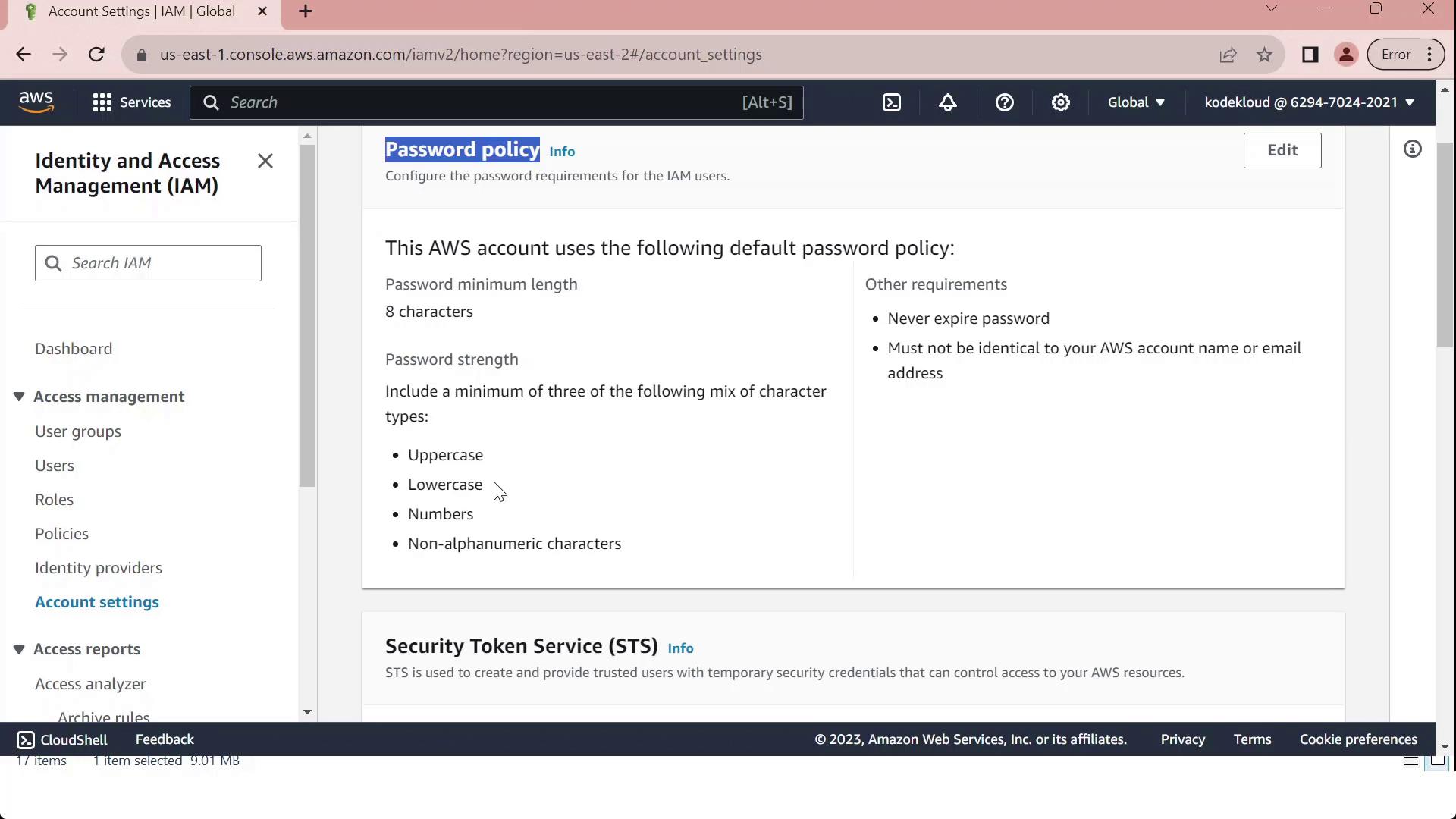
3. Click **Edit**, select **Custom**, and modify settings such as:
* **Minimum password length**
* **Maximum password age**
* **Required character types**
* **Prevent password reuse**
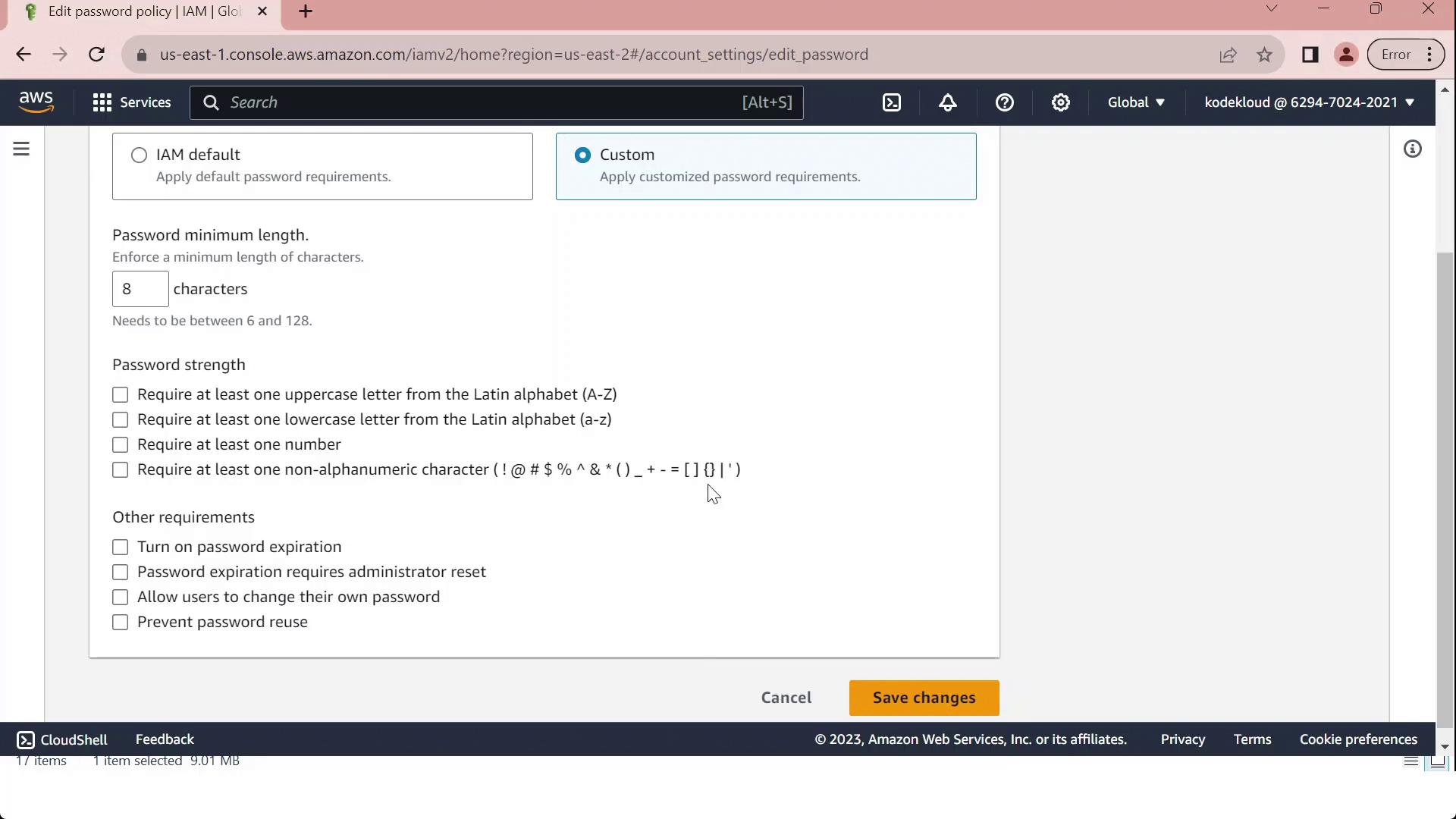
4. Once you've tailored the policy to your organizational standards, click **Save changes**. All IAM users will now be subject to the updated policy.
## Links and References
* [AWS IAM User Guide: Managing MFA Devices](https://docs.aws.amazon.com/IAM/latest/UserGuide/id_credentials_mfa_manage.html)
* [AWS IAM: Password Policy](https://docs.aws.amazon.com/IAM/latest/UserGuide/id_credentials_passwords_account-policy.html)
* [AWS Security Best Practices](https://docs.aws.amazon.com/securityhub/latest/userguide/securityhub-standards.html)