> ## Documentation Index
> Fetch the complete documentation index at: https://notes.kodekloud.com/llms.txt
> Use this file to discover all available pages before exploring further.
# MFA and Password Policies
> This guide explains enabling MFA and strong password policies in AWS IAM to enhance account security.
Enhancing your AWS account’s security posture involves two critical measures:
1. Enabling Multi-Factor Authentication (MFA) for IAM users
2. Defining and enforcing a robust password policy
This guide explains why MFA and strong password rules matter, outlines the key policy settings, and provides step-by-step instructions to configure both in the AWS Management Console.
***
## Why Enforce Multi-Factor Authentication?
Multi-Factor Authentication adds an additional proof of identity beyond a username and password. After entering their credentials, users must supply a one-time code from a hardware token or a virtual MFA app like [Google Authenticator](https://support.google.com/accounts/answer/1066447). This secondary factor dramatically reduces the risk of unauthorized access, even if passwords are compromised.
Virtual MFA apps (e.g., [Authy](https://authy.com/), [Google Authenticator](https://support.google.com/accounts/answer/1066447)) are free and easy to deploy across multiple devices.
***
## Understanding IAM Password Policies
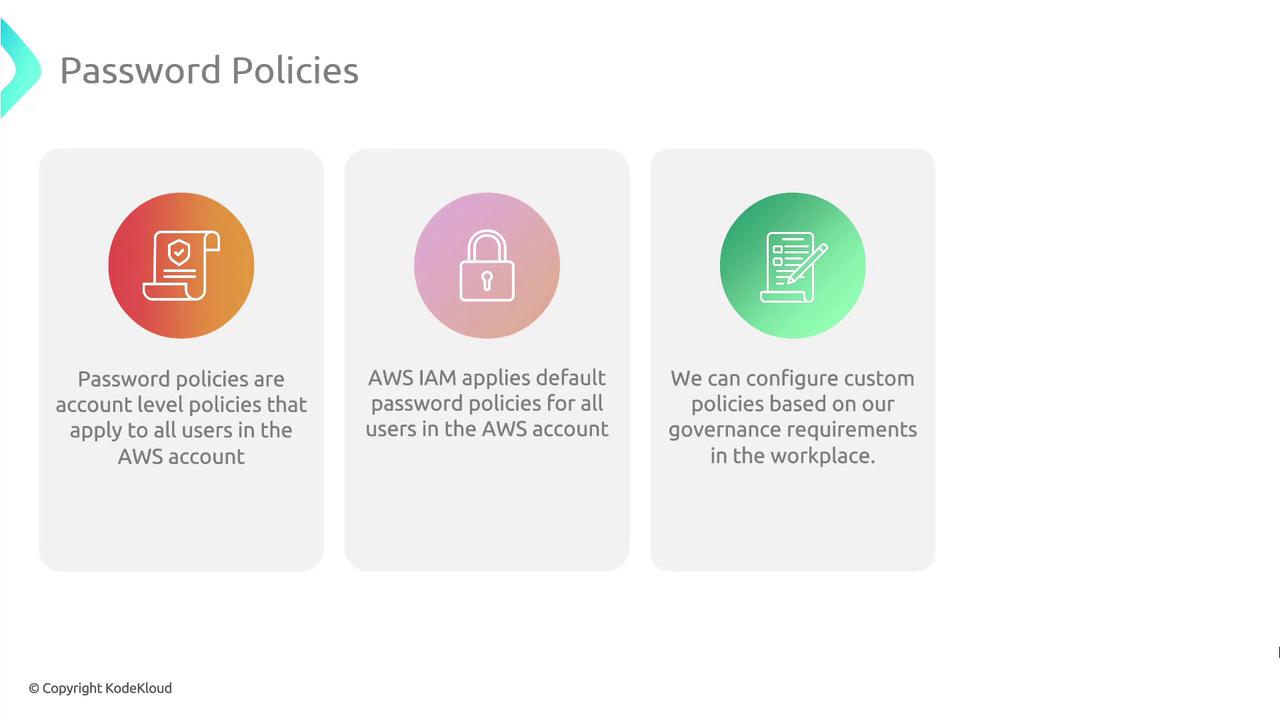
By default, AWS IAM does not enforce any password policy. Creating a custom policy allows you to align password complexity, expiration, and reuse rules with your organization’s governance standards.
### Key Password Policy Settings
| Policy Setting | Description | Example |
| ----------------------------------- | --------------------------------------------------- | ------- |
| Minimum password length | Enforces a lower bound on characters | 12 |
| Maximum password length | (Optional) Caps password size to reduce system load | 128 |
| Require uppercase characters | Ensures at least one `A–Z` | Enabled |
| Require lowercase characters | Ensures at least one `a–z` | Enabled |
| Require numbers | Ensures at least one digit `0–9` | Enabled |
| Require non-alphanumeric characters | Ensures at least one symbol (e.g., `!@#$%^&*`) | Enabled |
| Password expiration | Forces periodic password updates (in days) | 90 |
| Prevent password reuse | Blocks reuse of the last *N* passwords | Last 5 |
Enabling password expiration **without** a notification process can lead to unexpected lockouts. Communicate expiration policies clearly to your team.
***
## Step-by-Step: Enable MFA and Configure a Password Policy
Follow these steps in the AWS Management Console:
### 1. Sign In to the AWS Management Console
* Navigate to [https://console.aws.amazon.com/](https://console.aws.amazon.com/) and open the **IAM** service.
### 2. Enable MFA for an IAM User
1. In the left sidebar, choose **Users**.
2. Select the target user name.
3. Open the **Security credentials** tab.
4. Under **Assigned MFA device**, click **Manage**.
5. Follow the prompts to activate a hardware or virtual MFA device.
### 3. Define Your Account Password Policy
1. From the IAM dashboard, click **Account settings**.
2. Under **Password policy**, select **Manage**.
3. Configure the policy using your organization’s minimums for length, complexity, expiration, and reuse.
4. Click **Save changes** to apply.
***
## References and Further Reading
* [AWS Identity and Access Management (IAM) Documentation](https://docs.aws.amazon.com/iam/latest/UserGuide/)
* [AWS MFA Best Practices](https://docs.aws.amazon.com/organizations/latest/userguide/orgs_manage_accounts_support-mfa.html)
* [Google Authenticator Overview](https://support.google.com/accounts/answer/1066447)