> ## Documentation Index
> Fetch the complete documentation index at: https://notes.kodekloud.com/llms.txt
> Use this file to discover all available pages before exploring further.
# Demo Create IAM User
> This tutorial teaches how to create an IAM user in AWS, verify console access, and configure AWS CLI credentials.
In this tutorial, you’ll learn how to create a new IAM user in AWS, verify console access, and configure AWS CLI credentials using AWS CloudShell. We’ll use `john` as our example user.
You must be signed in to the AWS Management Console with an account or IAM user that has administrator privileges.
***
## 1. Access the IAM Console
1. Sign in to the [AWS Management Console](https://aws.amazon.com/console/).
2. In the search bar, type **IAM** and select **Identity and Access Management**.
3. On the IAM dashboard, review any security recommendations (e.g., enabling MFA).
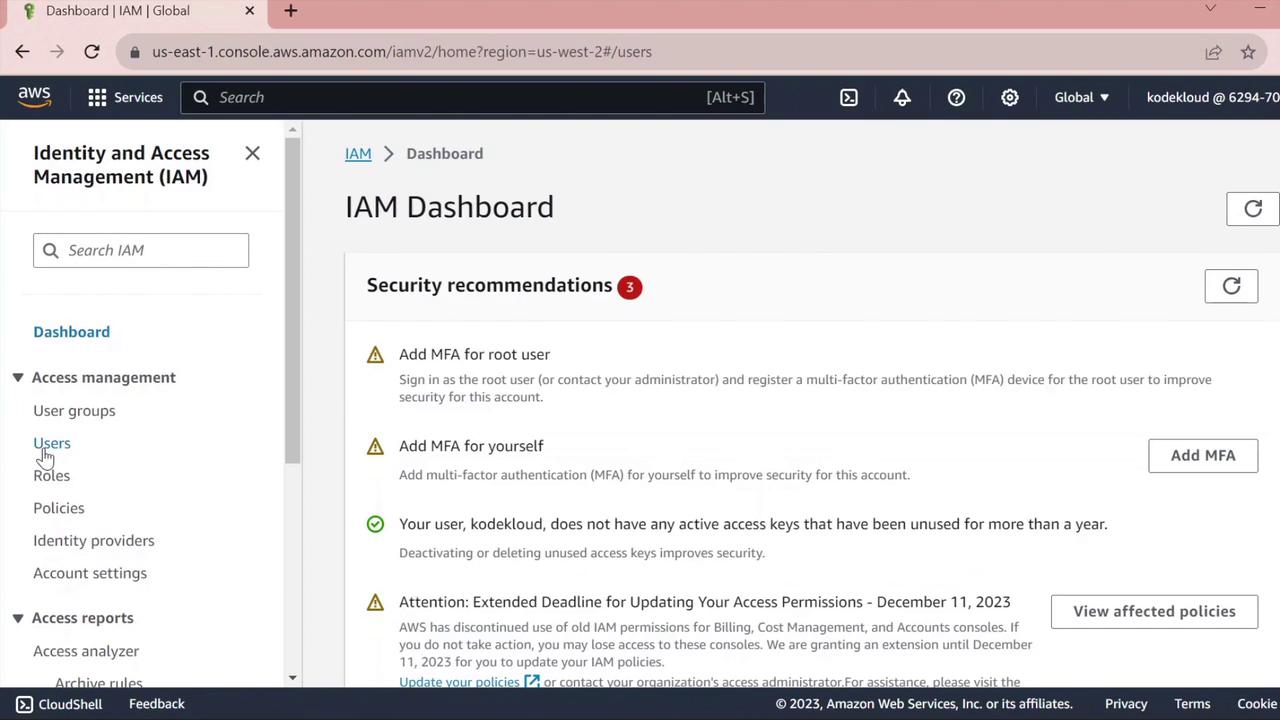
4. In the left navigation pane, click **Users** to view existing IAM users.
***
## 2. Create a New IAM User
1. Click **Add users**.
2. Enter **john** as the **User name**.
3. Under **Select AWS access type**, choose one or both of the following:
| Access Type | Description |
| ----------------------------- | --------------------------------------------- |
| AWS Management Console access | Enables web console sign-in |
| Programmatic access | Generates access keys for CLI/SDK interaction |
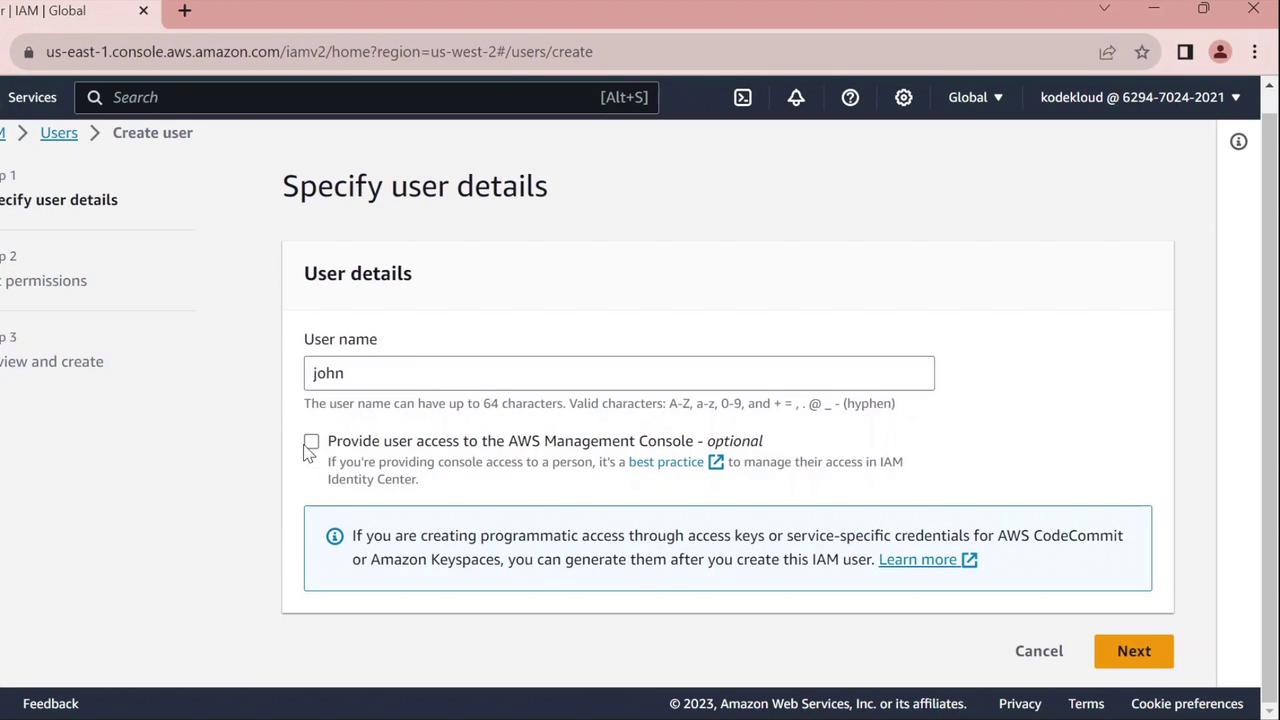
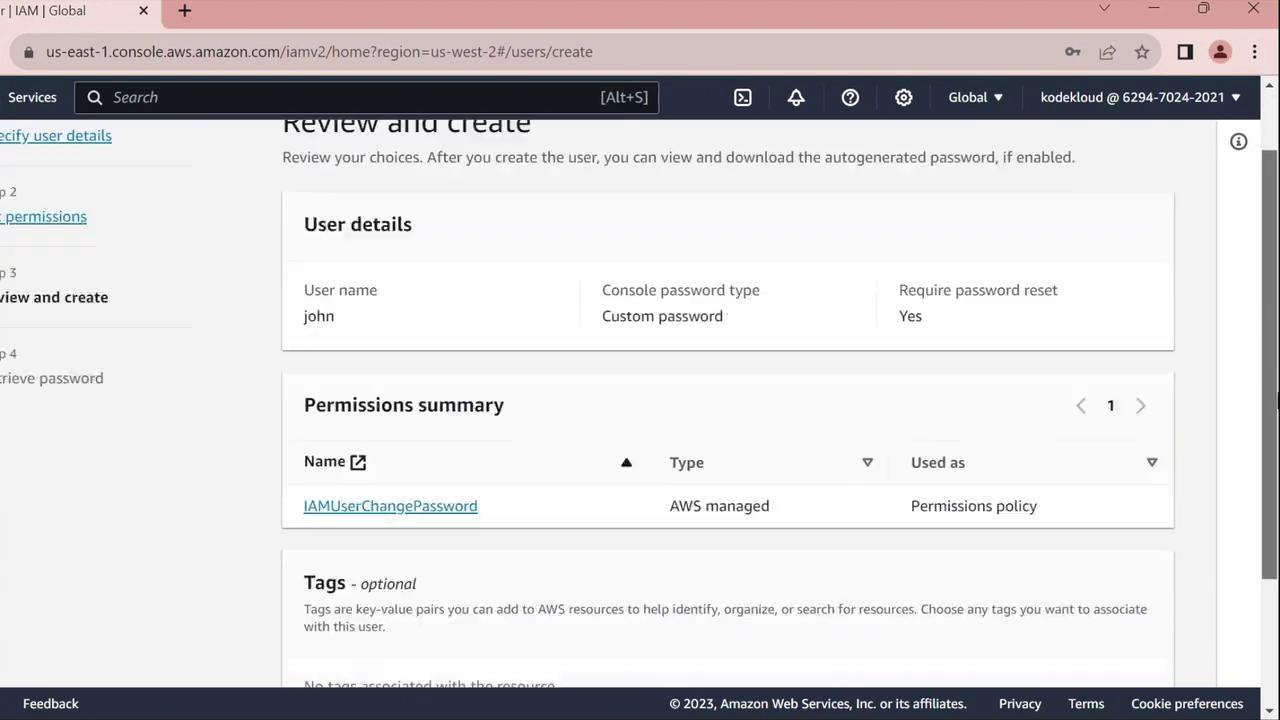
4. For **Console password**, select **Custom password** and enter your desired password.
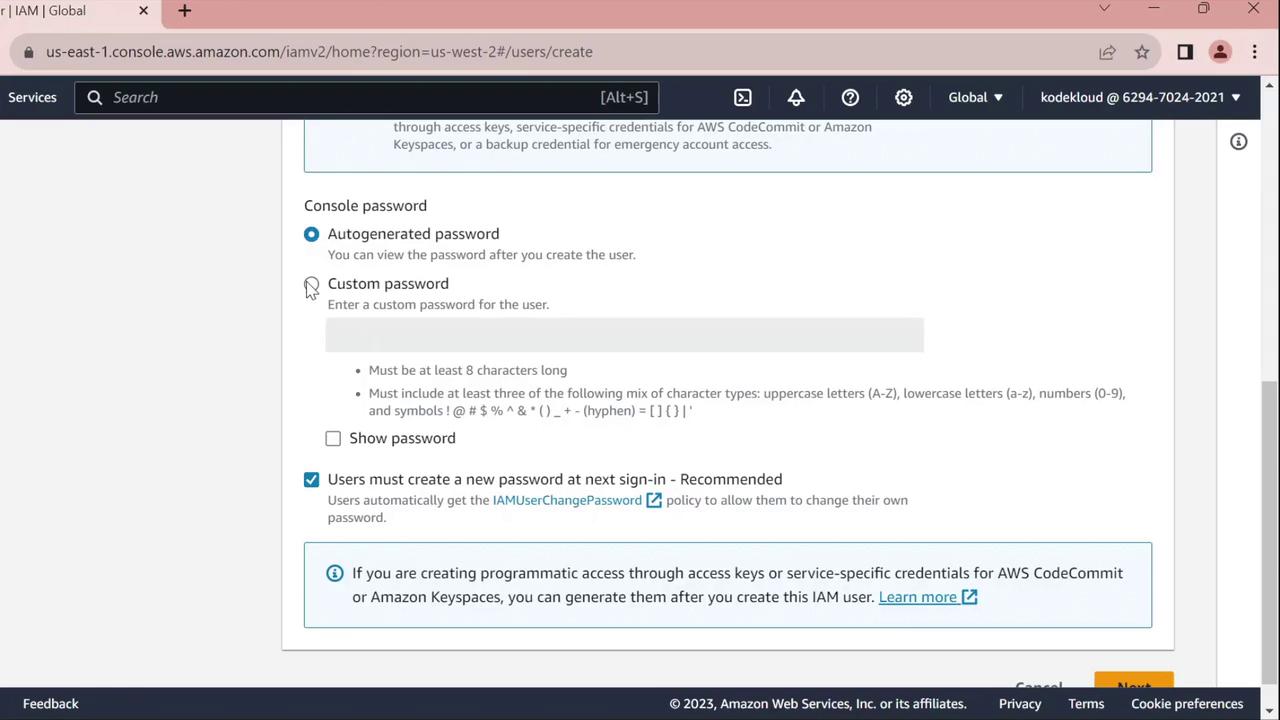
5. Enable **Require password reset** to force `john` to set a new password at first sign-in.
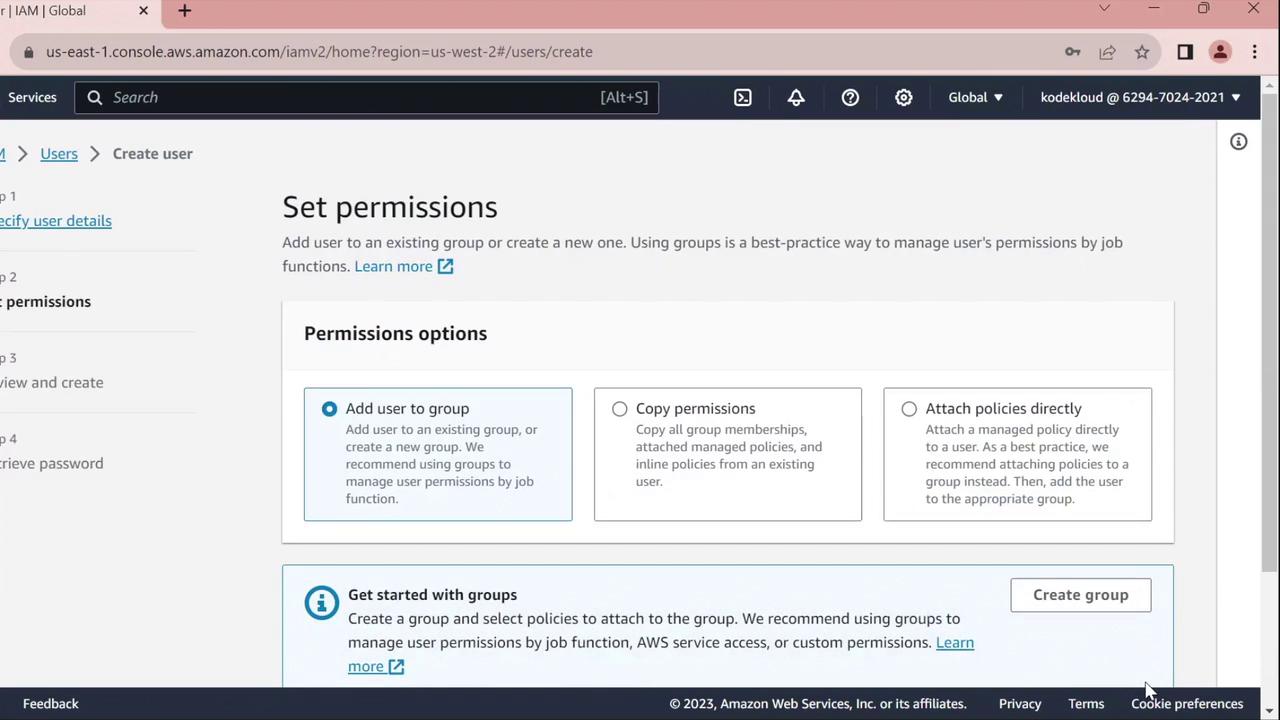
6. On the **Set permissions** page, assign policies or skip this step to configure permissions later.
7. Click **Next** until you reach the **Review** page, verify all settings, then click **Create user**.
8. Choose **Return to users**.
***
## 3. Test the Console Sign-In
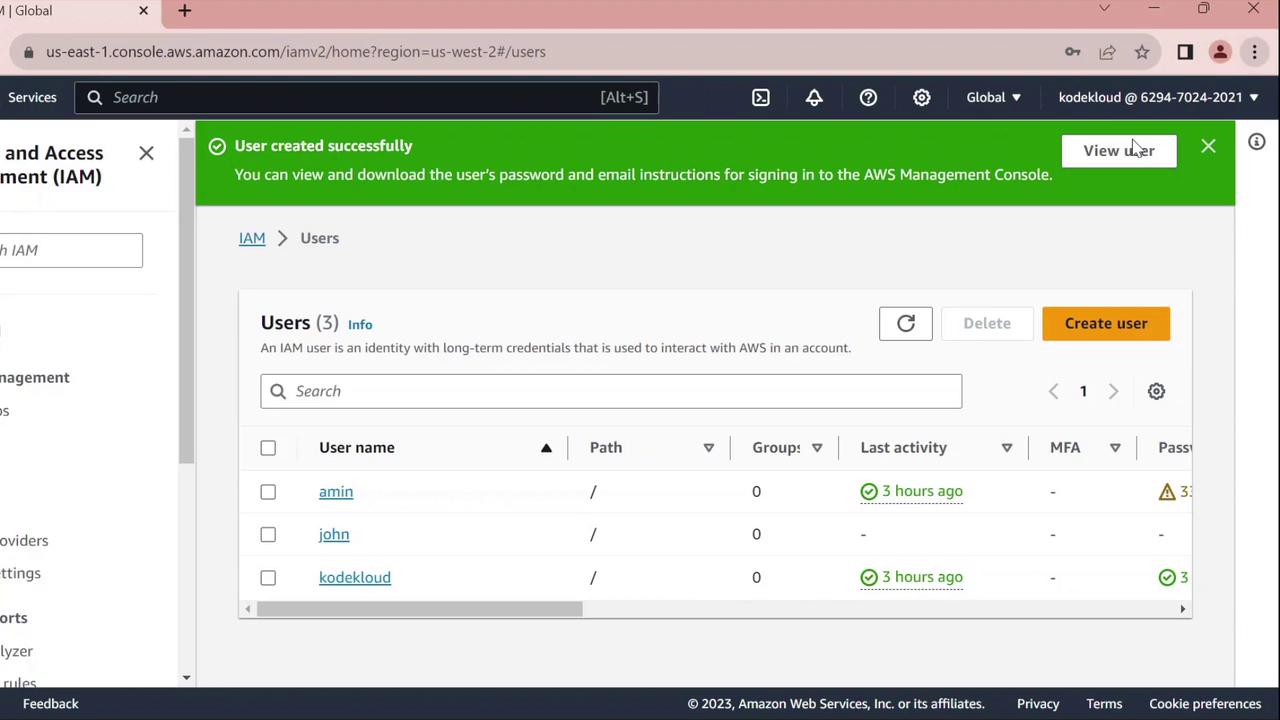
1. Open a private/incognito browser window.
2. Navigate to [https://aws.amazon.com](https://aws.amazon.com) and click **Sign In**.
3. Select **IAM user**, enter your AWS account ID, then click **Next**.
4. Provide **Username**: `john` and the initial password you set.
5. You’ll be prompted to change the password:
6. Enter the old password, choose a new one, and confirm.

After confirmation, you will be signed in as `john`.
***
## 4. Configure AWS CLI for the New User
Next, we’ll set up AWS CLI credentials in CloudShell for the `john` profile.
1. From the AWS Console, open **CloudShell**.
2. Verify your current identity (should show your admin user, e.g., `kodekloud`):
```bash theme={null}
aws sts get-caller-identity
```
```json theme={null}
{
"UserId": "AIDAZFD2ZUTSVCJWCHYKF",
"Account": "629470240221",
"Arn": "arn:aws:iam::629470240221:user/kodekloud"
}
```
3. Create access keys for `john`:
* In IAM Console, go to **Users** > **john**.
* Select the **Security credentials** tab.
* Under **Access keys**, click **Create access key**.
* For **Use case**, pick **Command line interface** and proceed.
* Copy the **Access key ID** and **Secret access key**.
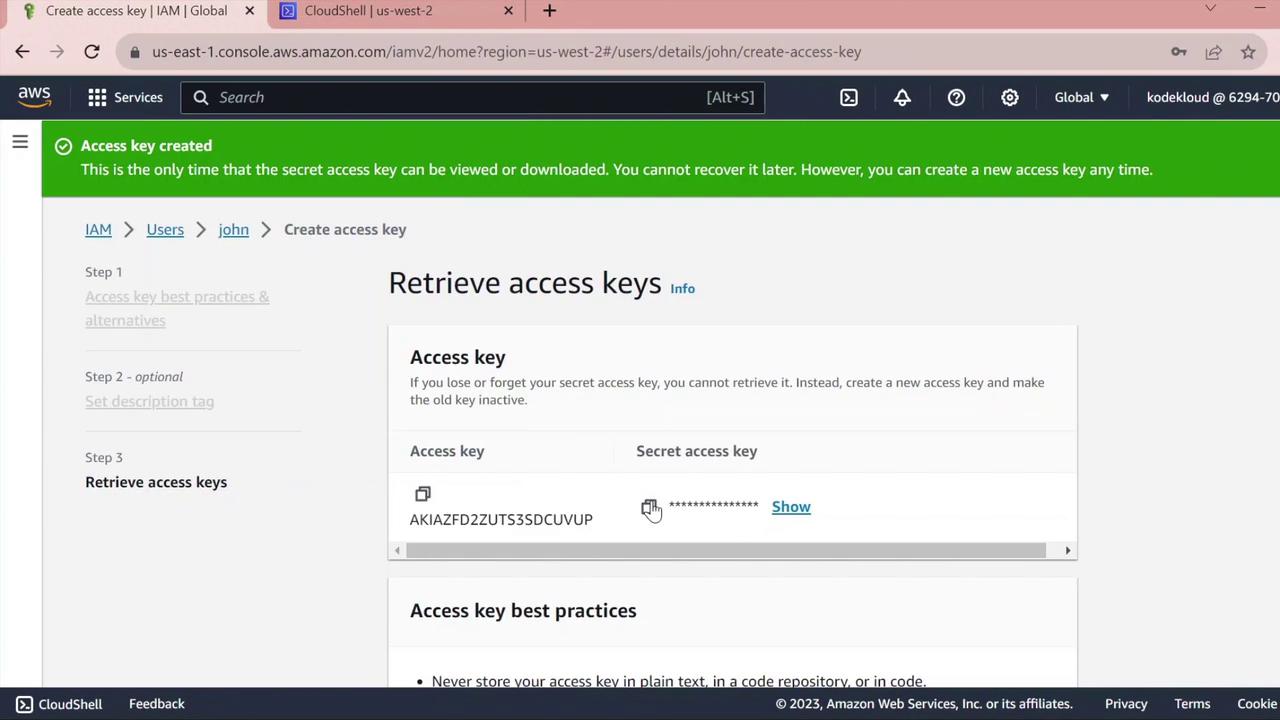
Keep the secret access key confidential. Do not commit it to version control or share it.
4. Back in CloudShell, configure a dedicated profile:
```bash theme={null}
aws configure --profile john
```
When prompted, enter:
* AWS Access Key ID: ``
* AWS Secret Access Key: ``
* Default region name: `us-west-2` (or your preferred region)
* Default output format: *(leave blank or choose `json`)*
5. Validate the `john` profile:
```bash theme={null}
aws sts get-caller-identity --profile john
```
```json theme={null}
{
"UserId": "AIDAZFD2ZUTS3DCUVP",
"Account": "629470240221",
"Arn": "arn:aws:iam::629470240221:user/john"
}
```
You have now successfully created an IAM user, tested console sign-in, and configured AWS CLI access for `john`.
***
## Links and References
* [AWS IAM Documentation](https://docs.aws.amazon.com/iam/)
* [Managing Access Keys for IAM Users](https://docs.aws.amazon.com/IAM/latest/UserGuide/id_credentials_access-keys.html)
* [AWS CLI User Guide](https://docs.aws.amazon.com/cli/latest/userguide/cli-chap-welcome.html)