> ## Documentation Index
> Fetch the complete documentation index at: https://notes.kodekloud.com/llms.txt
> Use this file to discover all available pages before exploring further.
# Demo Creating AWS Account
> This tutorial explains how to set up a new AWS account specifically for an HR team.
In this tutorial, you’ll learn how to set up a brand-new AWS account for your HR team. We’ll cover:
* Creating and verifying a root user
* Signing in for the first time
* Accessing the AWS Management Console
***
## Step 1: Navigate to the AWS Homepage
1. Open your browser and go to [https://aws.amazon.com](https://aws.amazon.com).
2. In the top-right corner, click **Create an AWS Account**.
Ensure you’re using a secure and private network when creating your AWS root account.
***
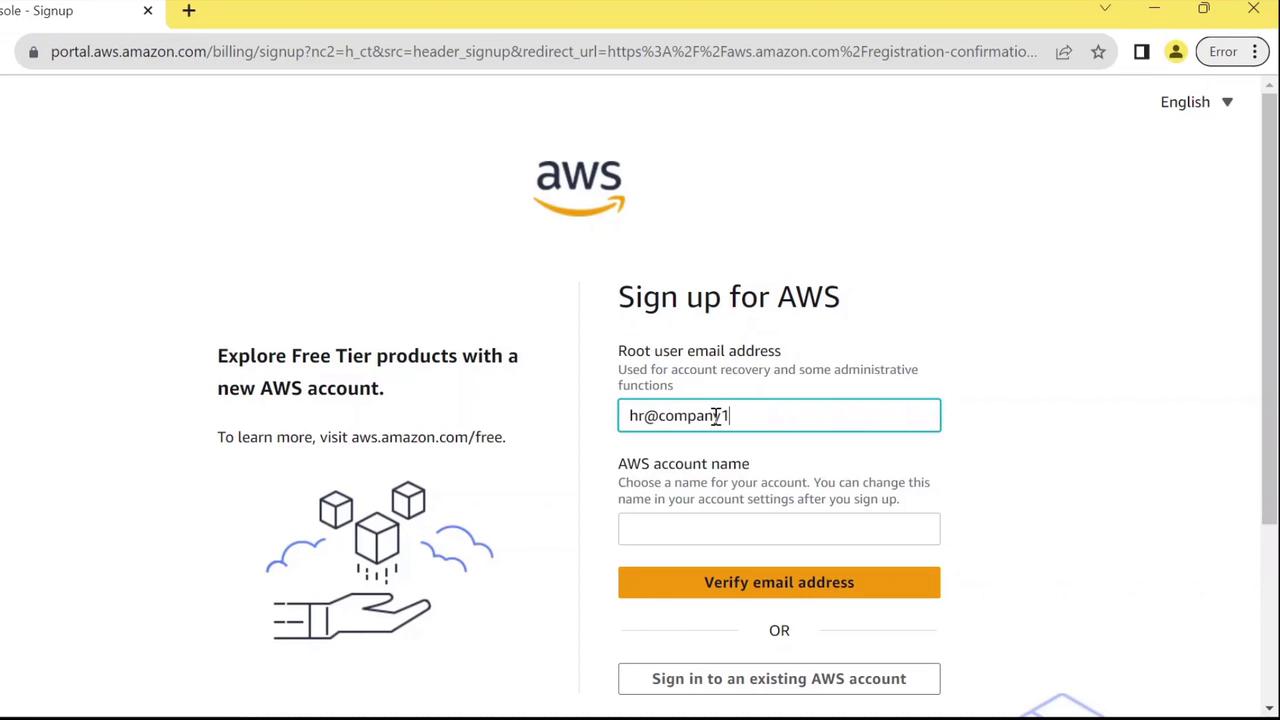
## Step 2: Provide Root User Email and Account Name
On the signup form:
* Under **Root user**, enter the email address that HR will manage:
```text theme={null}
HR@company1.com
```
* Under **Account name**, choose a clear identifier:
```text theme={null}
HR
```
* Click **Verify email address**.\
You’ll receive a one-time code—enter it to confirm your email.
***
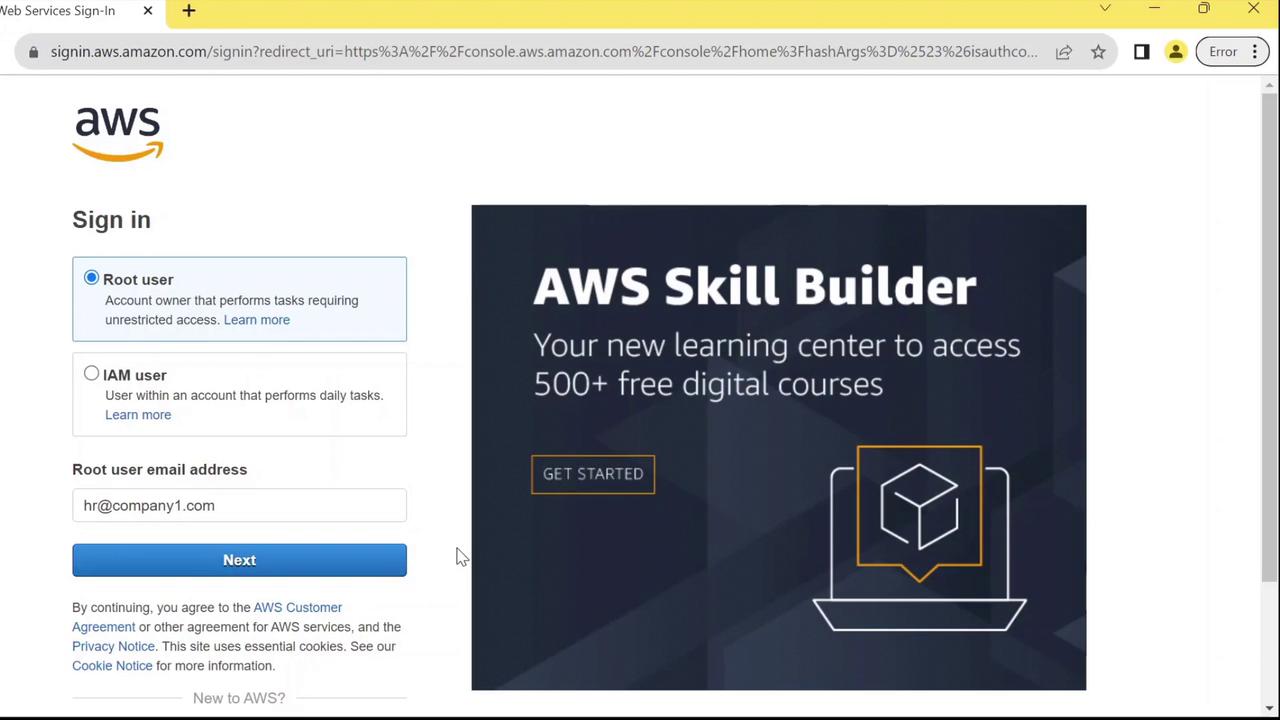
## Step 3: Sign In as the Root User
1. Return to [https://aws.amazon.com](https://aws.amazon.com) and click **Sign In**.
2. Select **Root user** (since no IAM users exist yet).
3. Enter the same email you used during signup, then click **Next**.
***
## Step 4: Authenticate and Access the Console
1. Enter your chosen password at the prompt.
2. Click **Sign In**.
3. You’ll land on the AWS Management Console as the root user.
Your root user has full account access. Avoid using these credentials for everyday tasks. After setup, create an [IAM admin user](https://docs.aws.amazon.com/IAM/latest/UserGuide/id_users_create.html) and assign least-privilege permissions.
***
## AWS Account Setup Overview
| User Type | Description | Best Practice |
| --------- | -------------------------------- | ---------------------------------------------- |
| Root user | Full access to all AWS resources | Use only for billing, support, and setup tasks |
| IAM user | Permission-scoped user accounts | Assign roles and policies for daily operations |
***
## Next Steps
* Create IAM users and groups for HR staff
* Attach appropriate policies (e.g., `AmazonS3ReadOnlyAccess`)
* Enable MFA on your root and admin accounts
***
## References
* [AWS Account Root User Best Practices](https://docs.aws.amazon.com/accounts/latest/reference/root-user.html)
* [IAM User Guide](https://docs.aws.amazon.com/IAM/latest/UserGuide/)
* [AWS Management Console](https://aws.amazon.com/console/)