> ## Documentation Index
> Fetch the complete documentation index at: https://notes.kodekloud.com/llms.txt
> Use this file to discover all available pages before exploring further.
# Demo Creating IAM Role
> This guide explains how to create an IAM role for EC2 instances to access an S3 bucket securely.
In this step-by-step guide, you'll learn how to create an AWS Identity and Access Management (IAM) role that grants an Amazon EC2 instance permission to read objects from an S3 bucket named `company1-logs`. By leveraging IAM roles, you avoid hardcoding credentials on your server and follow AWS best practices for secure access management.
## Prerequisites
* An AWS account with administrative privileges
* A running EC2 instance
* An existing S3 bucket named `company1-logs`
## Step 1: Create the IAM Role
1. Open the [IAM console](https://console.aws.amazon.com/iam/), select **Roles**, then click **Create role**.
2. On **Select trusted entity**, choose **AWS service**.
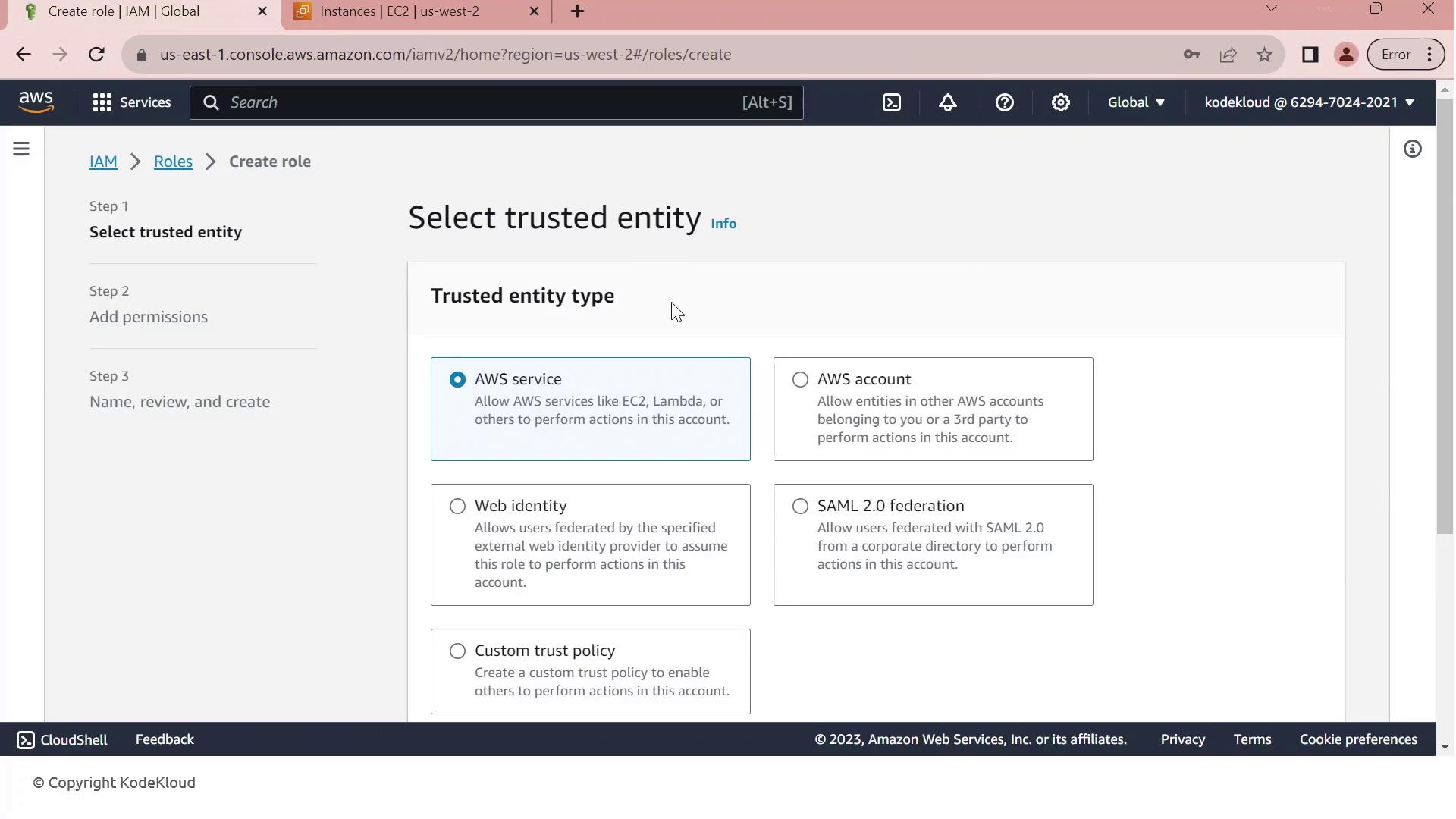
3. Under **Use cases for other AWS services**, select **EC2**.
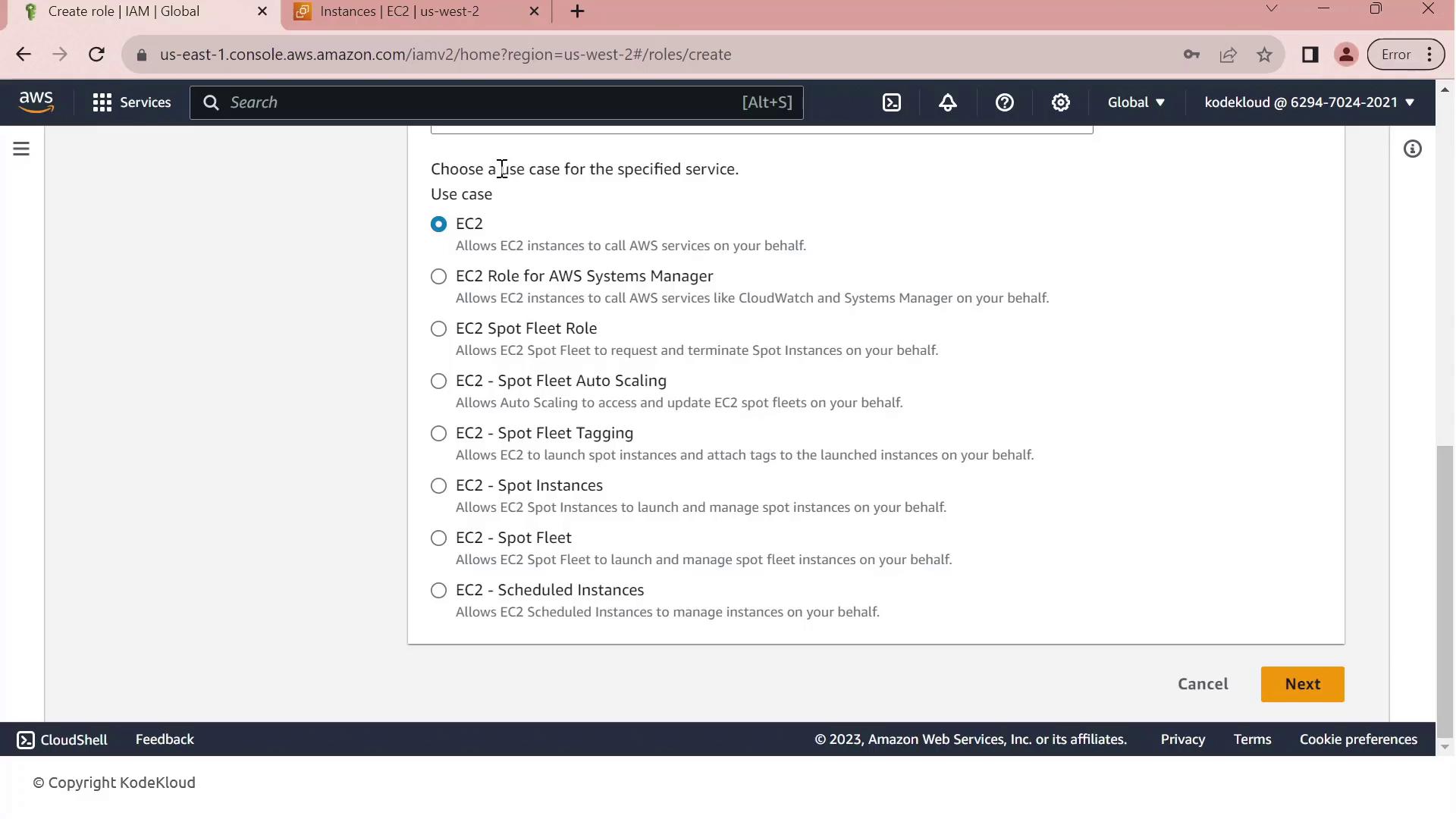
4. Click **Next** to move to the permissions page.
5. In **Permissions**, search for **company1** and select the **Company1 logs policy** which grants `s3:GetObject` access to the `company1-logs` bucket.
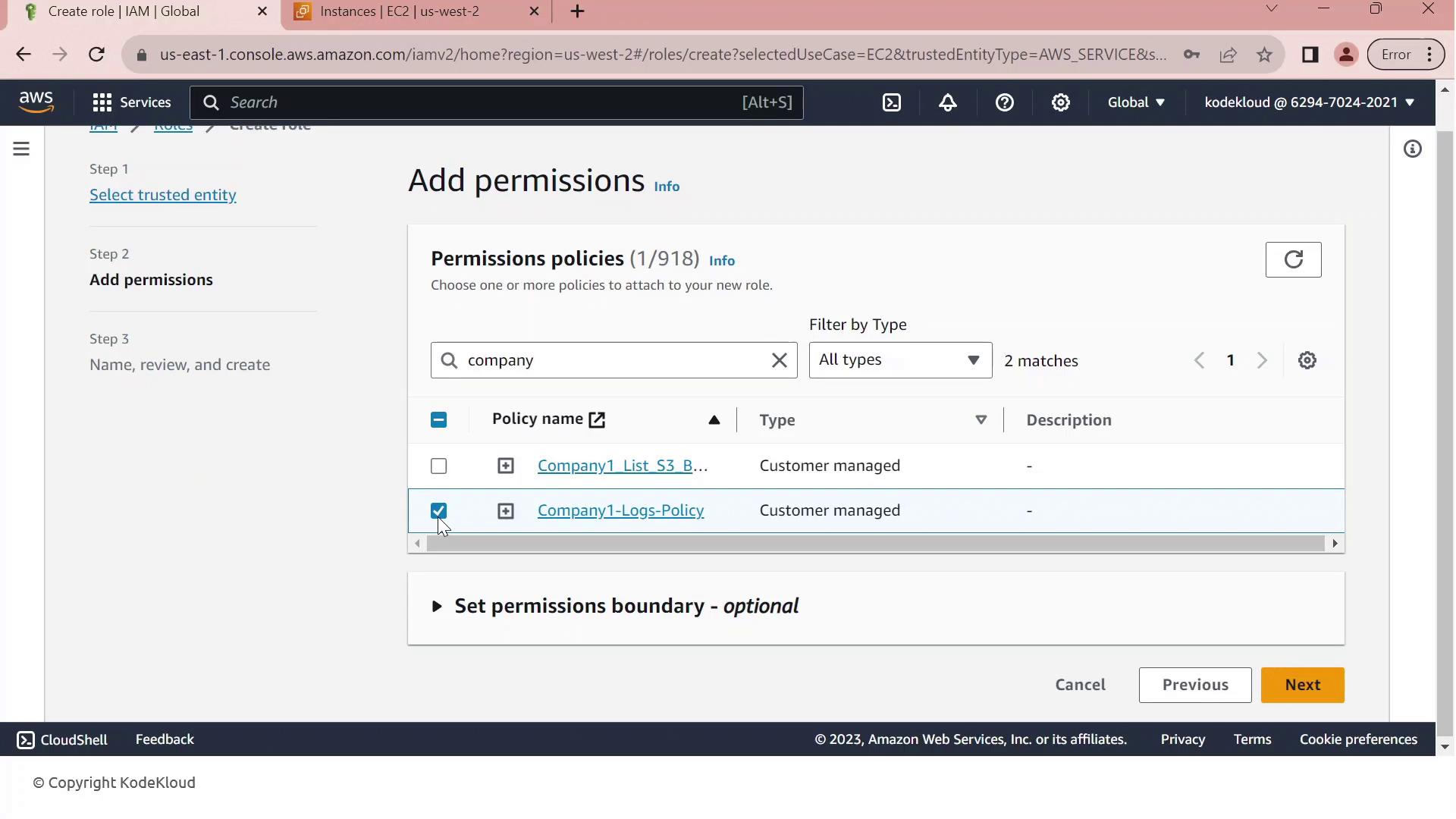
6. Click **Next**, then enter a **Role name** (e.g., `Company1-Logs-Role`) and an optional description.
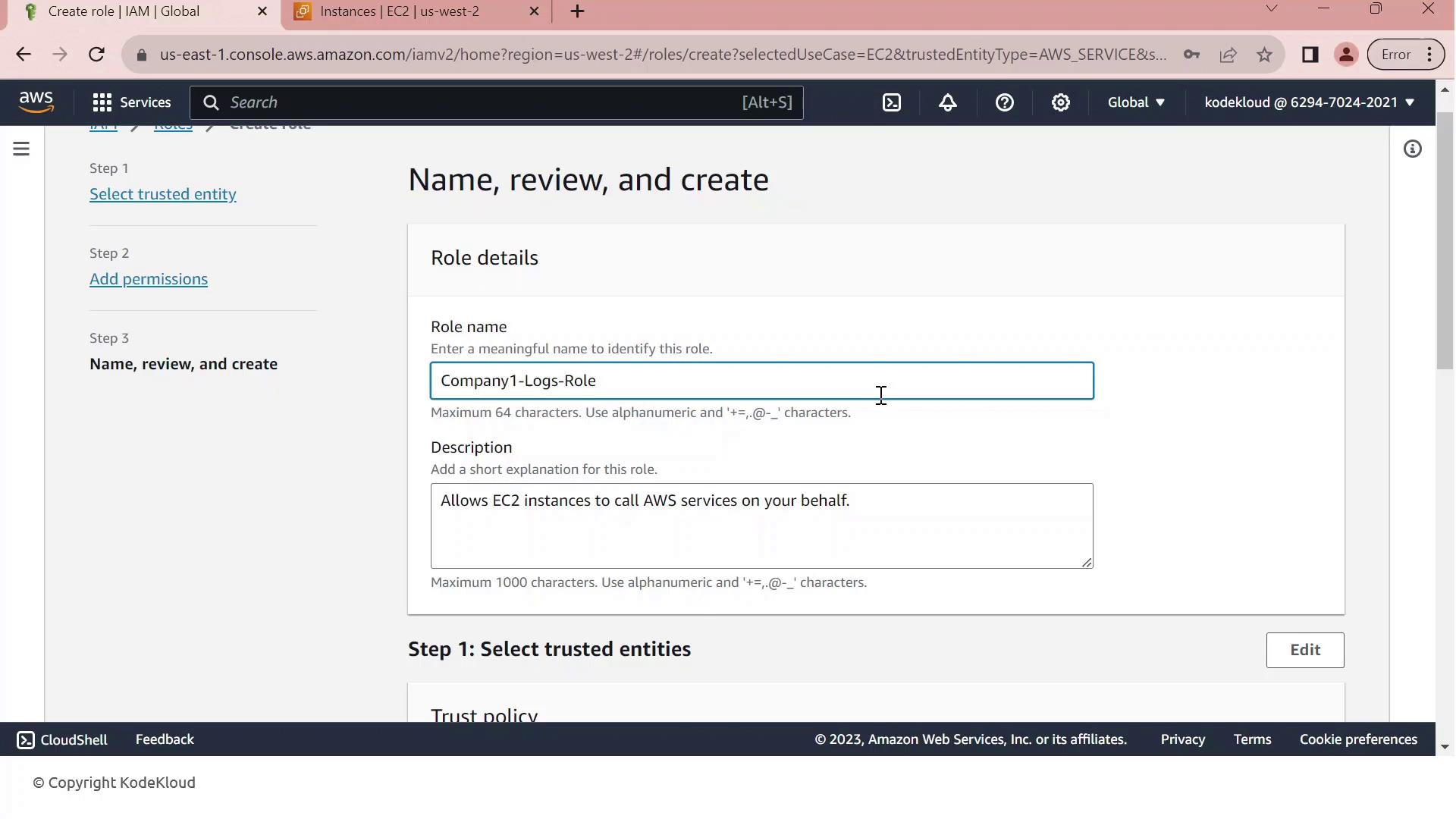
7. Review the **Trust relationship** to ensure EC2 can assume this role. It should resemble:
```json theme={null}
{
"Version": "2012-10-17",
"Statement": [
{
"Effect": "Allow",
"Action": ["sts:AssumeRole"],
"Principal": {"Service": ["ec2.amazonaws.com"]}
}
]
}
```
8. (Optional) Add tags to categorize your role, then click **Create role**.
You’ve successfully created an IAM role that EC2 instances can assume to access S3 resources securely.
## Step 2: Attach the IAM Role to Your EC2 Instance
1. Go to the [EC2 console](https://console.aws.amazon.com/ec2/), select **Instances**, and choose your running instance.
2. From the **Actions** menu, select **Security > Modify IAM role**.
3. In the **IAM role** dropdown, pick **Company1-Logs-Role**.
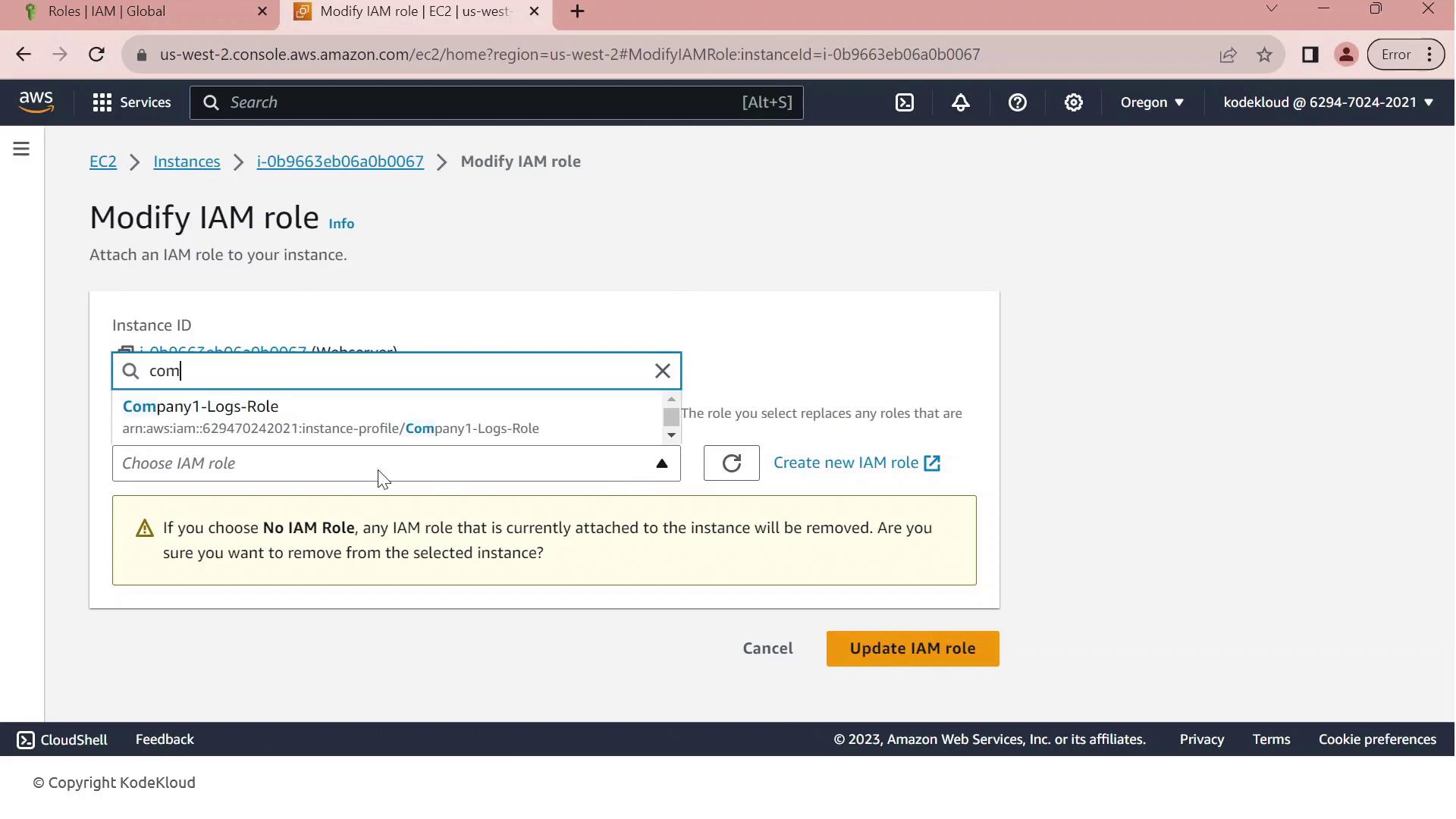
4. Click **Update IAM role** to apply the change.
If your EC2 instance already has an IAM role attached, updating it will replace the existing role and associated permissions. Ensure this change aligns with your security policies.
Your EC2 instance now inherits the permissions defined in `Company1-Logs-Role`, allowing it to securely read log files from the `company1-logs` bucket without embedded credentials.
## References
* [AWS IAM Roles Documentation](https://docs.aws.amazon.com/iam/latest/UserGuide/id_roles.html)
* [Amazon EC2 IAM Roles](https://docs.aws.amazon.com/AWSEC2/latest/UserGuide/iam-roles-for-amazon-ec2.html)
* [Managing Access to S3 Buckets](https://docs.aws.amazon.com/AmazonS3/latest/userguide/using-iam-policies.html)