> ## Documentation Index
> Fetch the complete documentation index at: https://notes.kodekloud.com/llms.txt
> Use this file to discover all available pages before exploring further.
# Demo IAM Groups
> This tutorial teaches how to create IAM groups in AWS, attach policies, and add users for specific access permissions.
In this tutorial, you'll learn how to create IAM groups in the AWS Management Console, attach policies, and add existing users. We’ll set up two groups:
* **HR**: Grants access to a specific S3 bucket.
* **IT**: Provides full administrative privileges.
Always follow the principle of least privilege when assigning permissions. Create custom policies scoped to the resources your team actually needs.
## Prerequisites
* An AWS account with sufficient privileges to manage IAM resources.
* Existing IAM users (e.g., John, Sarah).
## Step 1: Open the IAM Console
1. Sign in to the [AWS Management Console](https://console.aws.amazon.com/).
2. Navigate to **Services** > **Security, Identity, & Compliance** > **IAM**.
3. In the left pane, select **User groups**.
You should see a list of your current IAM user groups (if any).
***
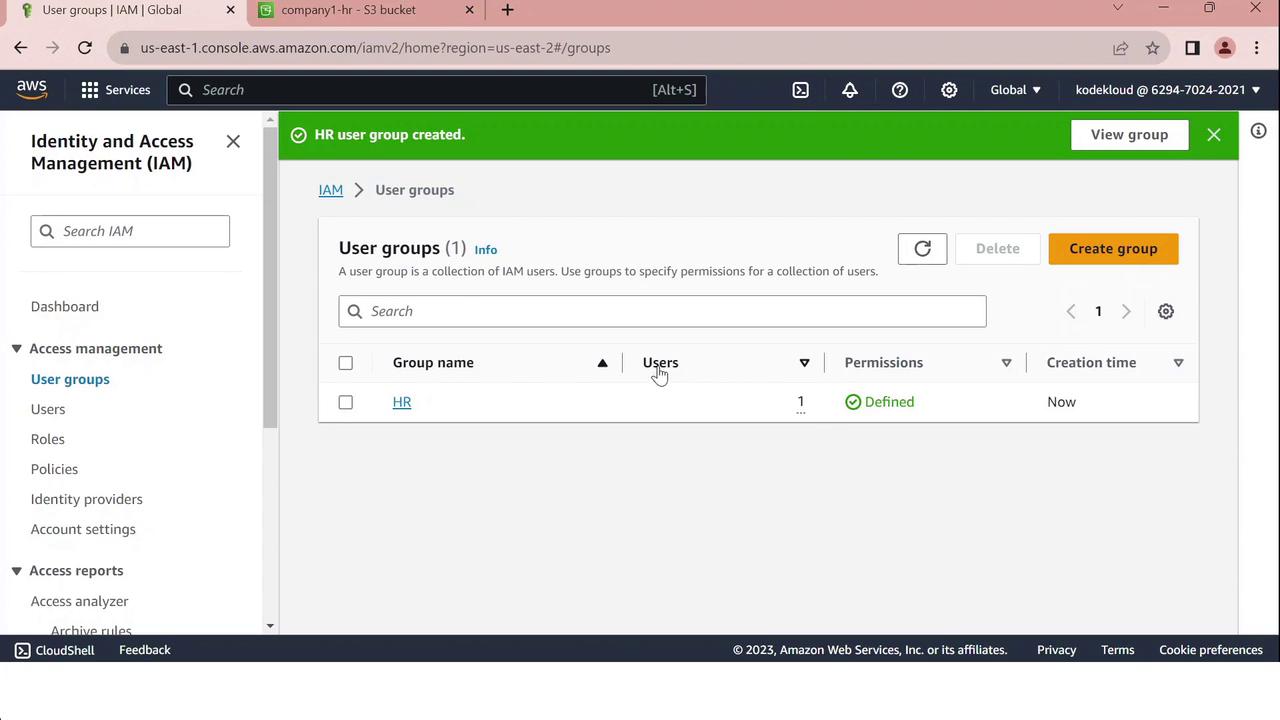
## Step 2: Create the “HR” Group
1. Click **Create group**.
2. Enter `HR` as the **Group name**.
3. Under **Add users to group**, select **John**.
4. In **Attach managed policies**, click **Create policy**, then paste the JSON below:
```json theme={null}
{
"Version": "2012-10-17",
"Statement": [
{
"Sid": "HRPolicy",
"Effect": "Allow",
"Action": "s3:*",
"Resource": [
"arn:aws:s3:::company1-hr-bucket",
"arn:aws:s3:::company1-hr-bucket/*"
]
}
]
}
```
5. Review the policy, give it a name like `HRPolicy`, and attach it to the group.
6. Click **Create group** to finalize.
***
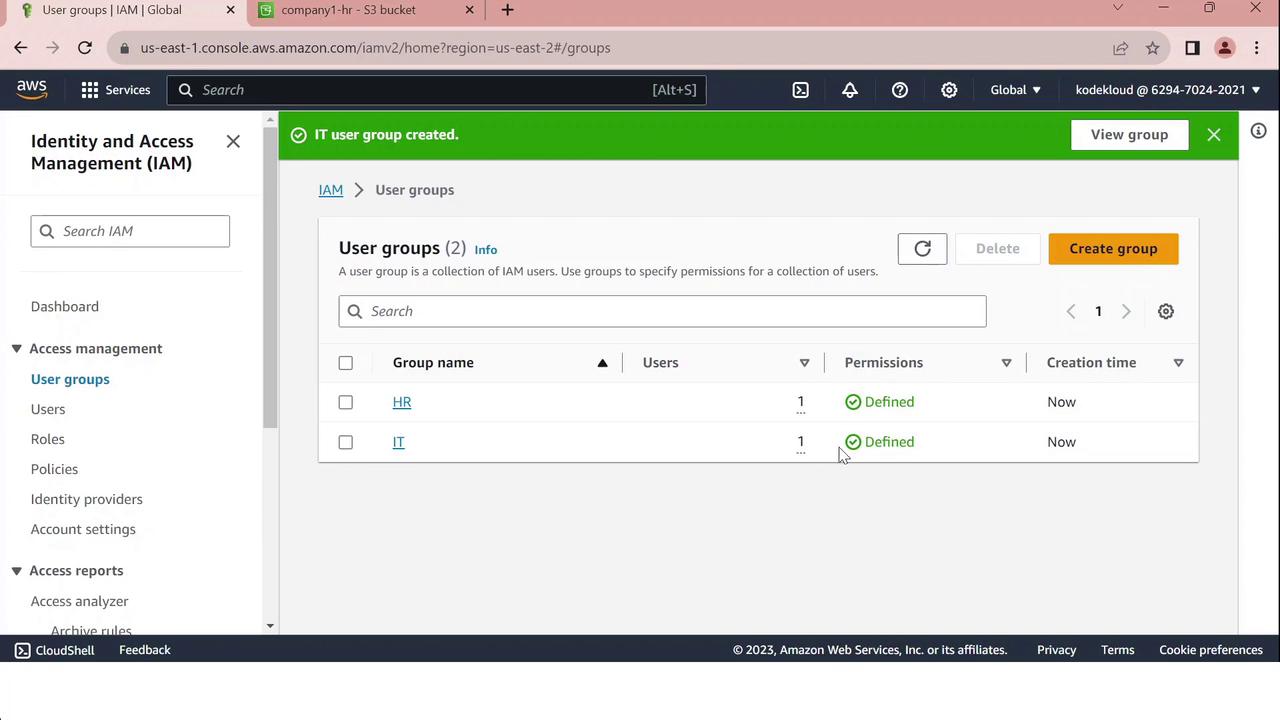
## Step 3: Create the “IT” Group
1. Click **Create group** again.
2. Enter `IT` as the **Group name**.
3. Select **Sarah** under **Add users to group**.
4. In **Attach managed policies**, search for and select **AdministratorAccess**.
5. Click **Create group**.
The **IT** group will now have full AWS administrative access.
***
## Summary of IAM Groups
| Group | User | Policy | Access Scope |
| ----- | ----- | ------------------- | -------------------------------------- |
| HR | John | HRPolicy | `company1-hr-bucket` S3 bucket |
| IT | Sarah | AdministratorAccess | Full AWS services and resource control |
## Links and References
* [AWS IAM User Groups](https://docs.aws.amazon.com/IAM/latest/UserGuide/id_groups.html)
* [AWS S3 Bucket Permissions](https://docs.aws.amazon.com/AmazonS3/latest/userguide/using-with-s3-actions.html)
* [AWS AdministratorAccess Managed Policy](https://docs.aws.amazon.com/IAM/latest/UserGuide/access_policies_job-functions.html#jf_admin)
Review and regularly audit your IAM policies to ensure compliance and security.