> ## Documentation Index
> Fetch the complete documentation index at: https://notes.kodekloud.com/llms.txt
> Use this file to discover all available pages before exploring further.
# Demo Identity Policy
> This tutorial teaches how to create a custom IAM identity policy in AWS and manage permissions for a user group.
In this tutorial, you’ll learn how to create a custom IAM identity policy in AWS, attach it to a user group, and then refine its permissions using both the Visual editor and the JSON editor. By the end, you’ll have a policy that grants S3 read access, full EC2 permissions, and explicitly denies the ability to stop EC2 instances.
***
## 1. Create a Developers Group
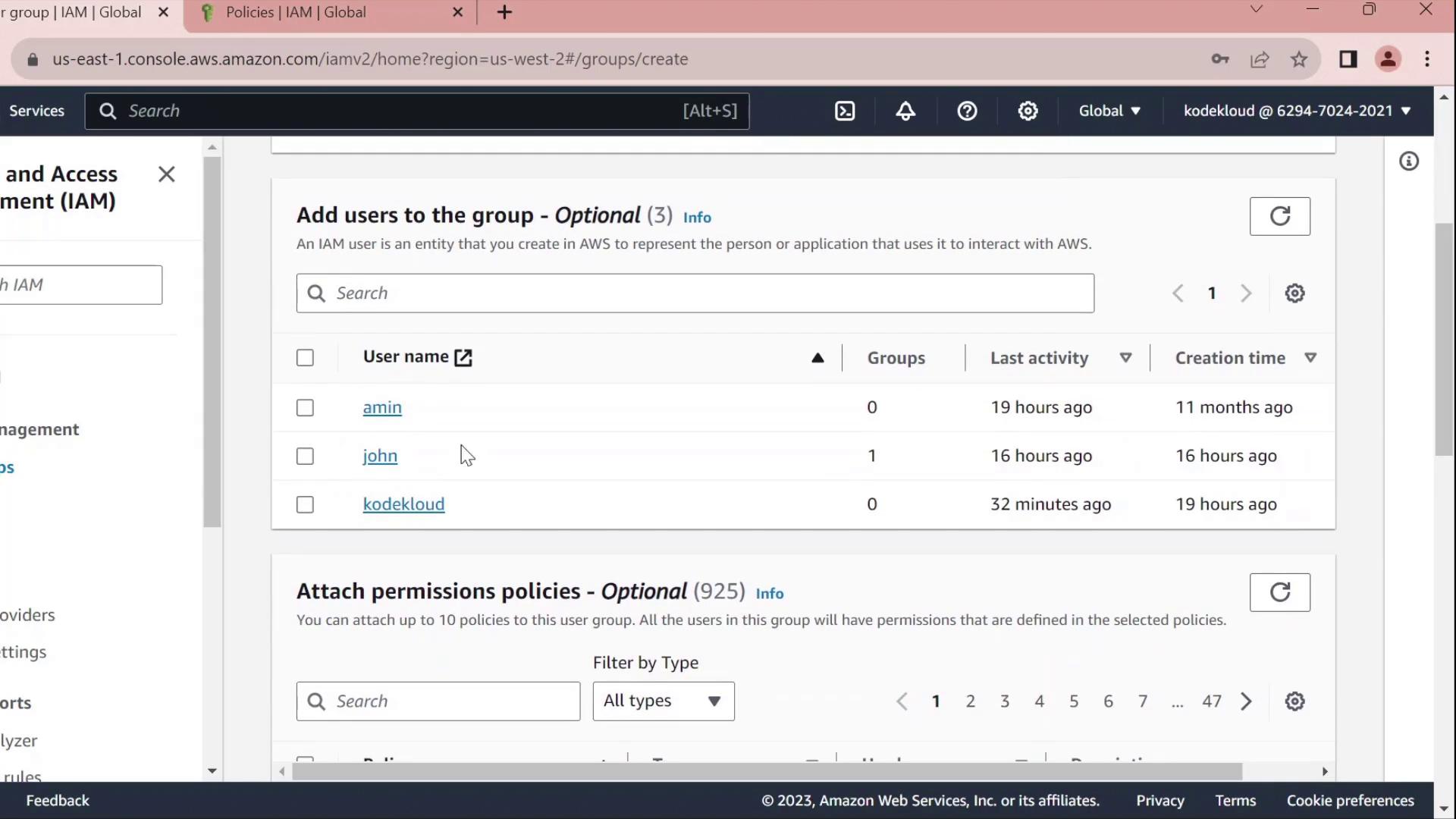
1. In the AWS Management Console, navigate to **IAM** → **User groups**.
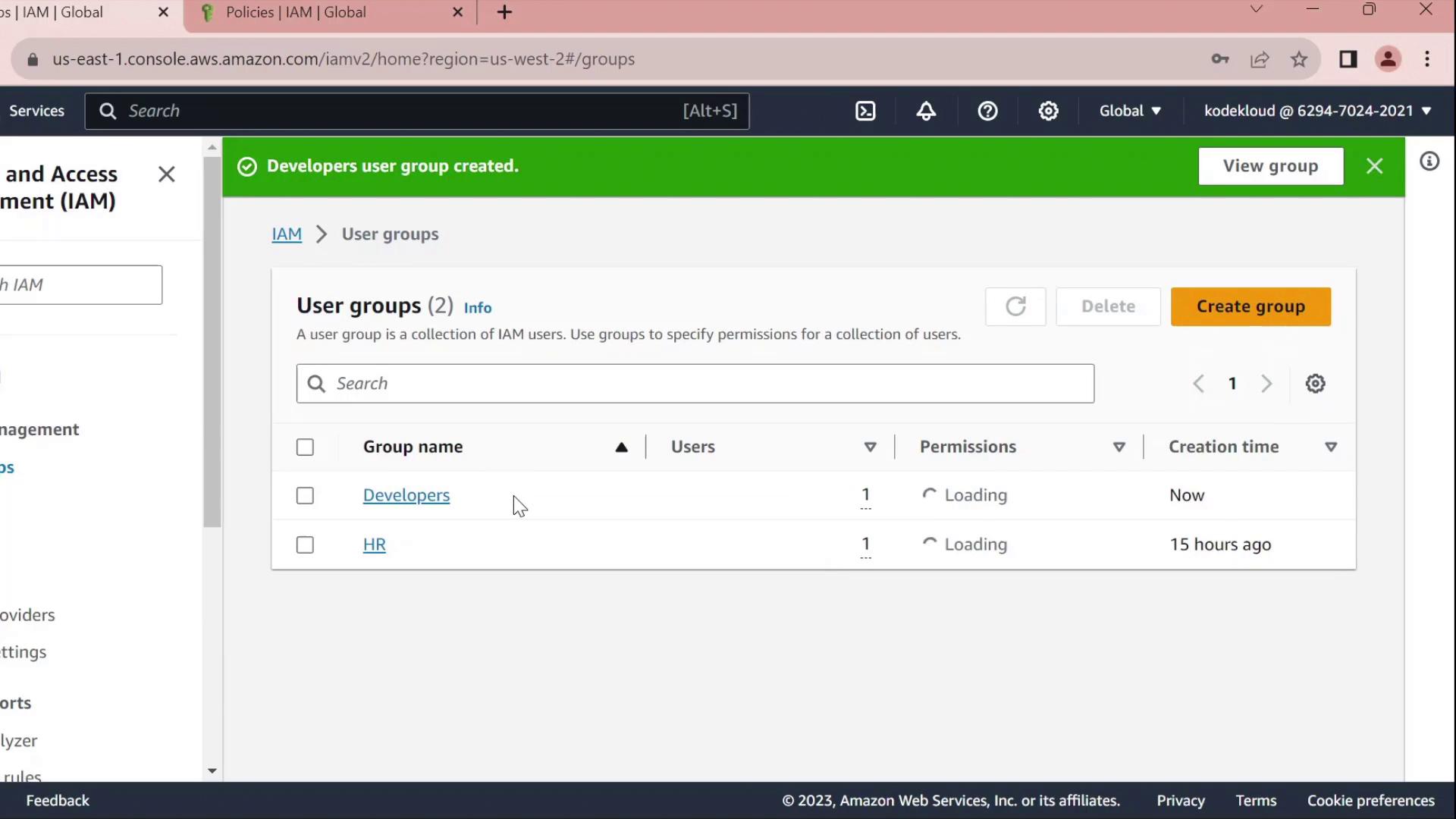
2. Click **Create group**, name it **Developers**, and add the user **John** to the group.
3. Skip attaching any policies for now and finish the wizard.
Once created, you’ll see **Developers** listed without any permissions:
***
## 2. Create a Custom Policy
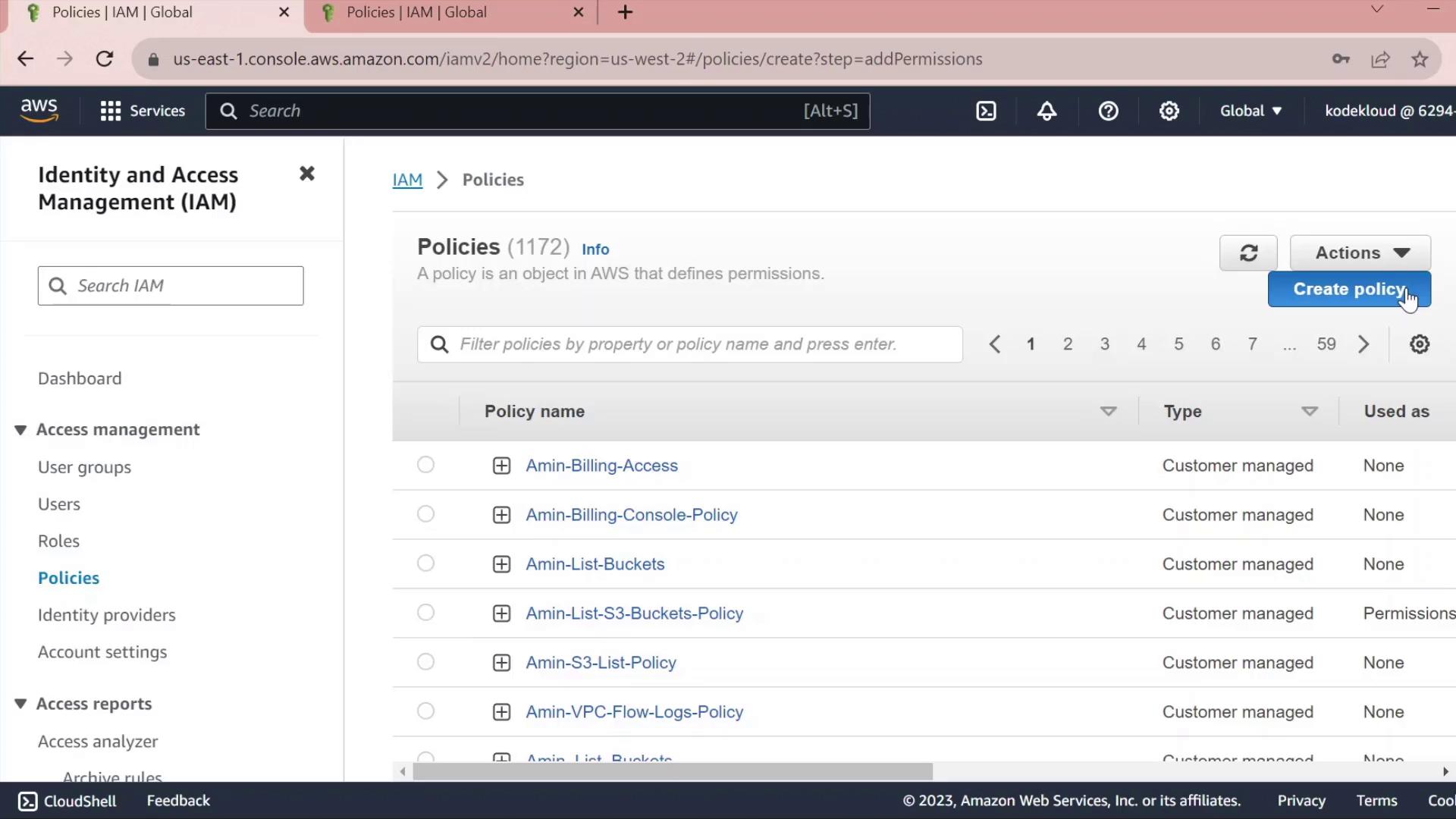
1. In the IAM sidebar, select **Policies**.
2. Click **Create policy**.
### 2.1 Grant S3 Read Access
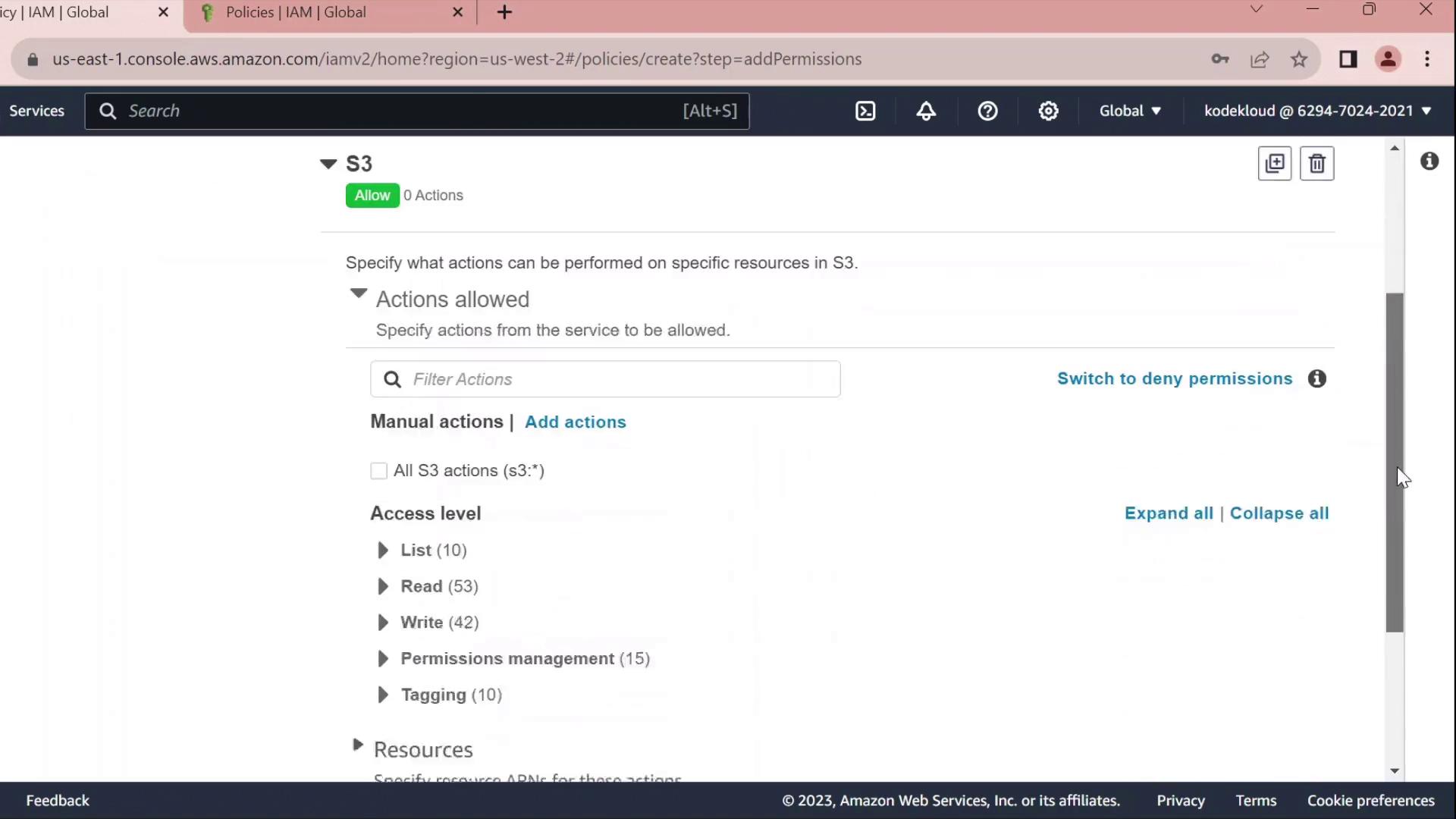
* Under **Service**, choose **S3**.
* In **Actions**, expand **Read** and check **GetObject**.
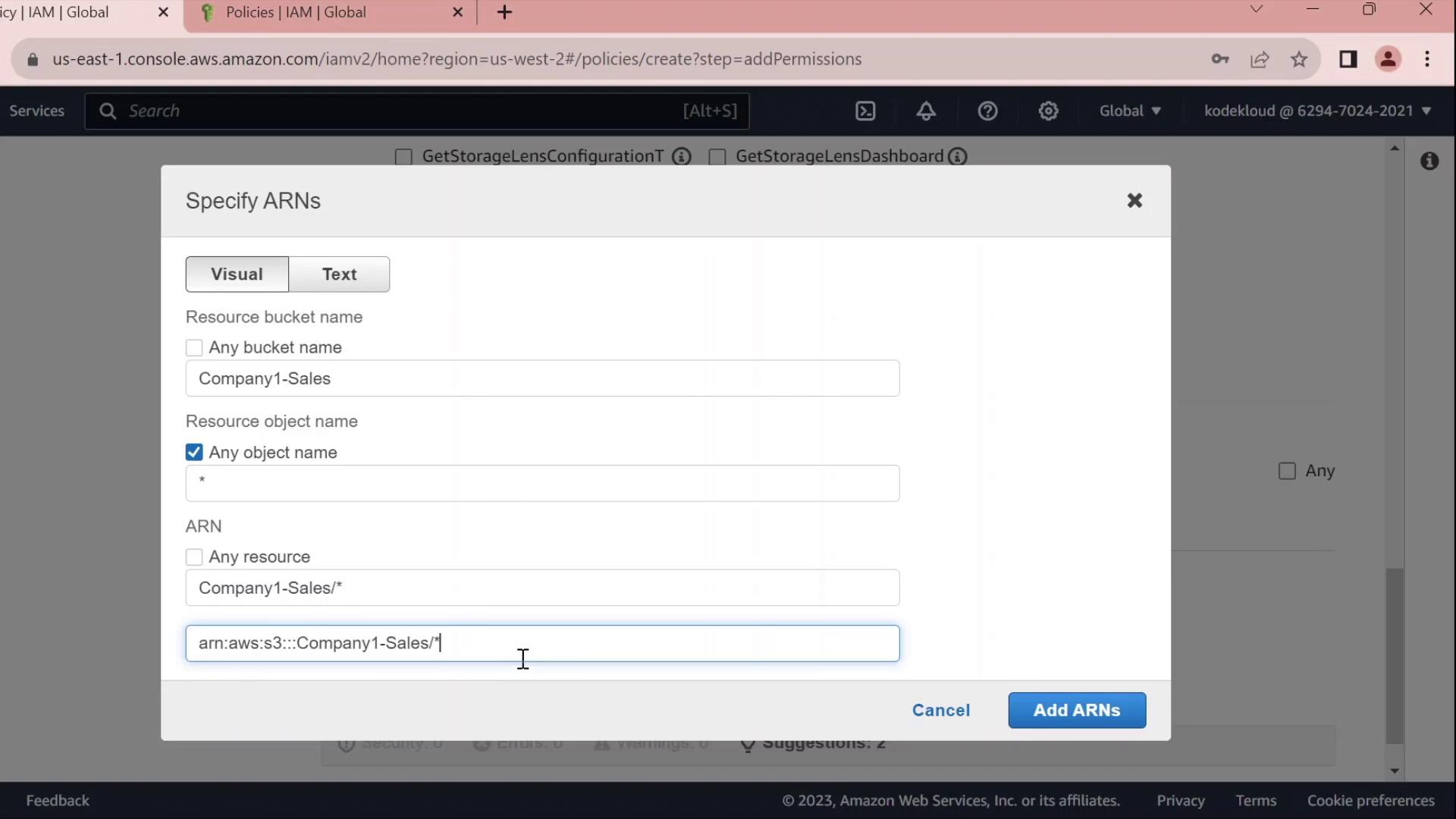
* Under **Resources** → **Add ARN**, enter:
* Bucket: `company1-sales`
* Object: `*`\
The console will build the ARN for you.
### 2.2 Grant EC2 Full Access
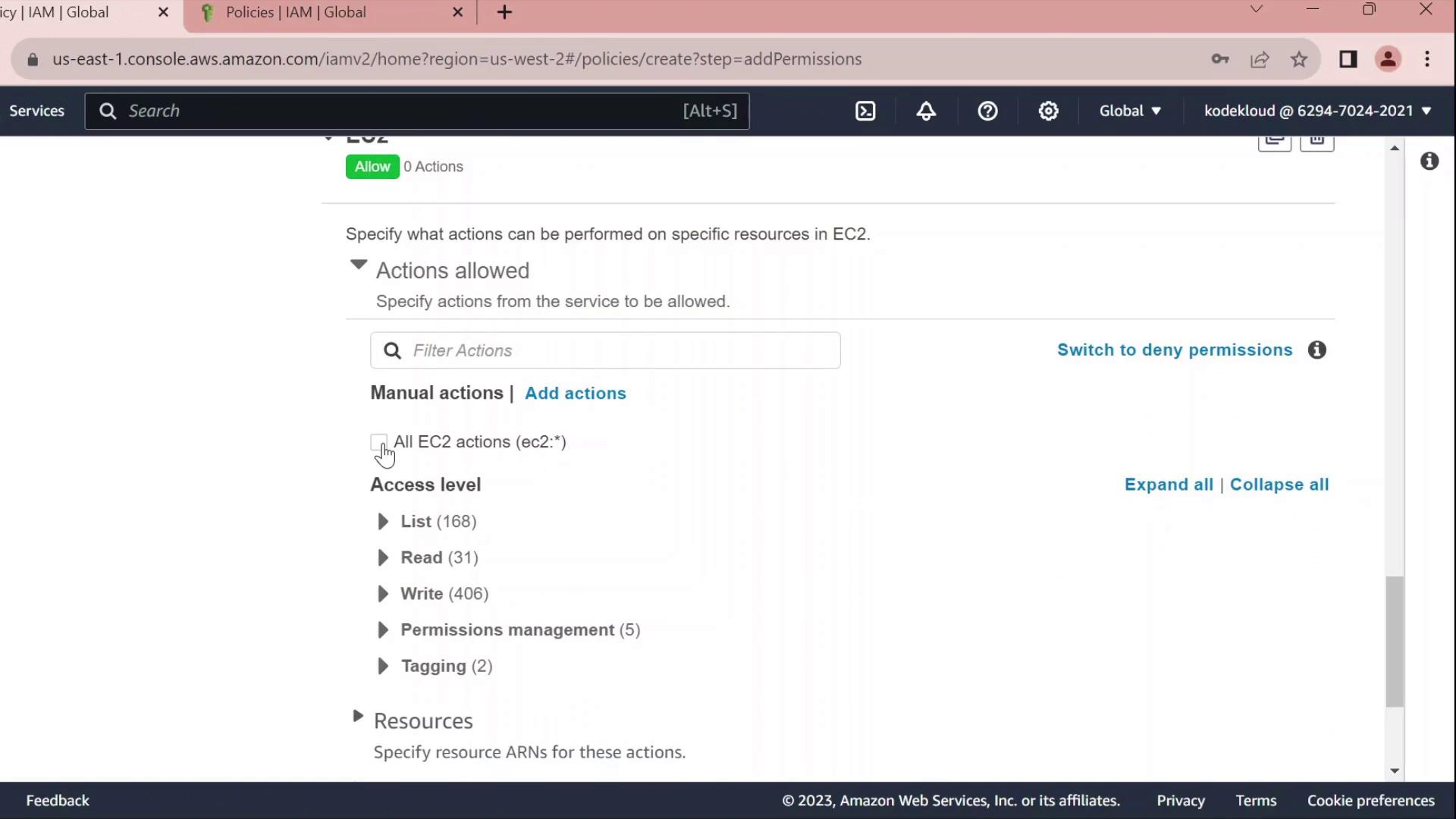
* Click **Add permissions** → **EC2**.
* Select **All EC2 actions** under **Actions**.
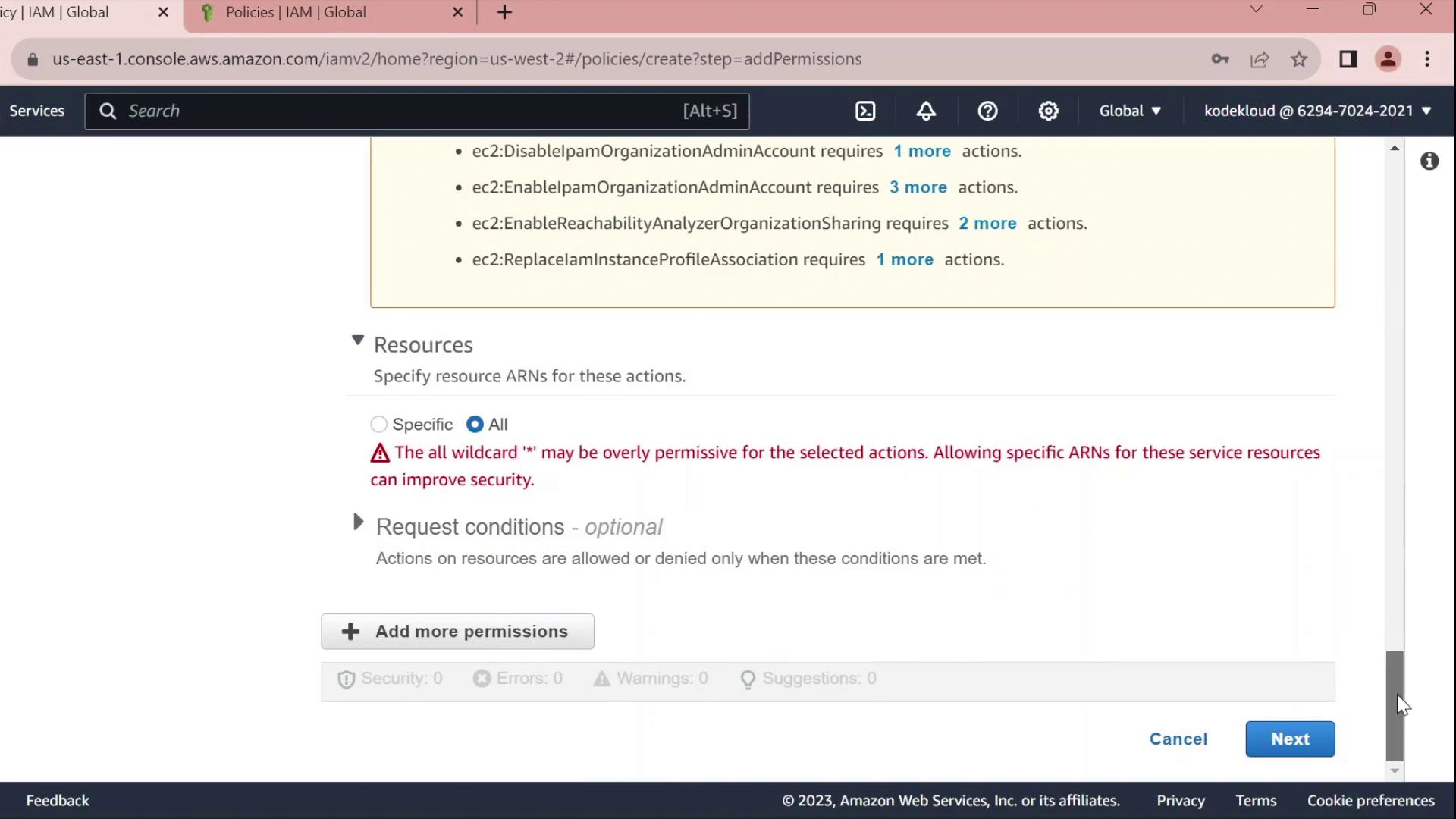
* Leave the resource set to `*` for all instances.
Using `*` for resources grants full access to all EC2 instances. In production, scope this down by specifying ARNs for specific instances or regions.
### 2.3 Review, Name, and Create
1. Click **Next** until you reach **Review policy**.
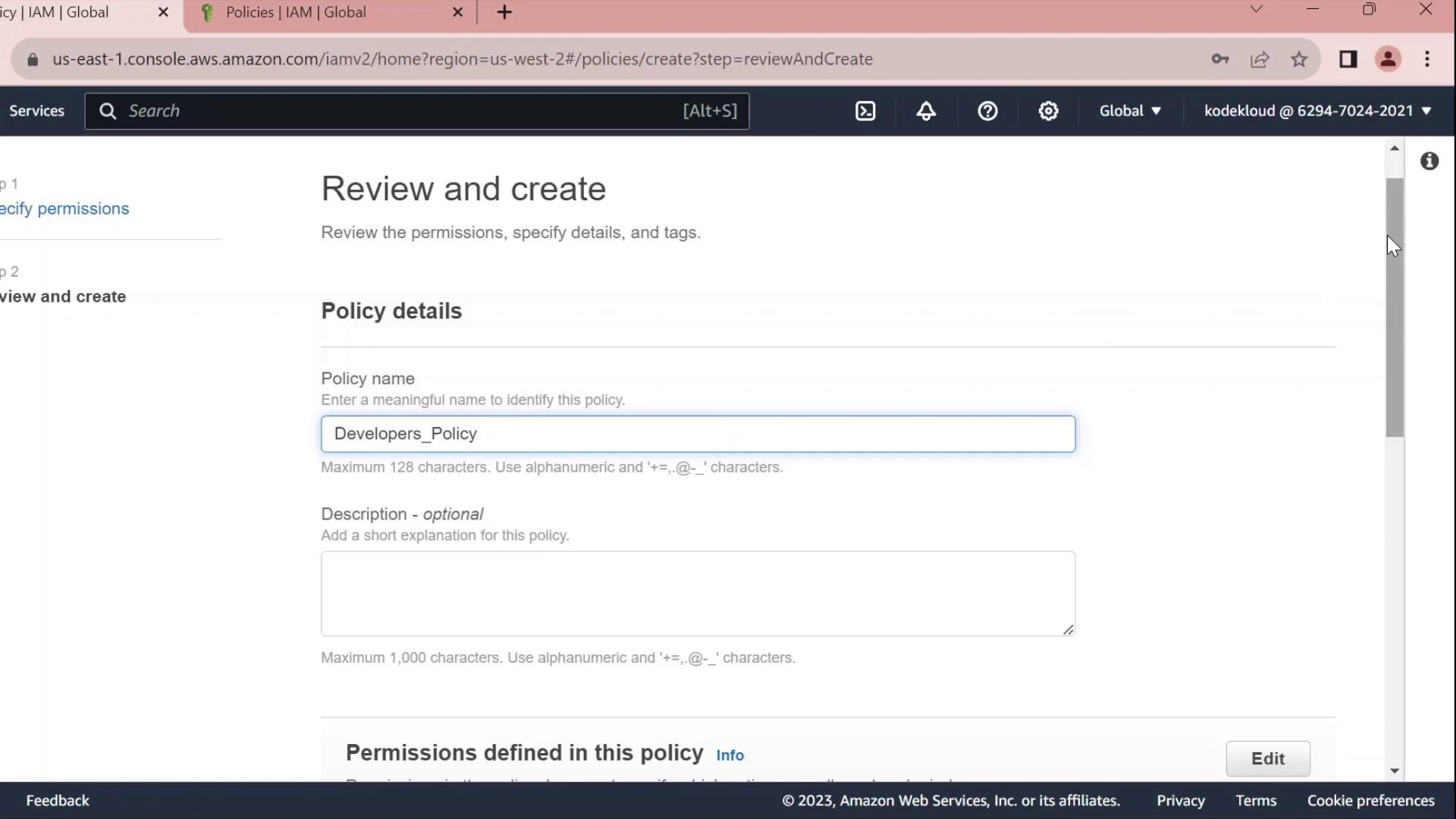
2. Set **Name** to `Developers_Policy` and add an optional description.
3. Click **Create policy**.
***
## 3. Attach Policy to the Developers Group
1. Return to **IAM** → **User groups**.
2. Select **Developers**.
3. Under the **Permissions** tab, click **Attach policies**.
4. Search for and select **Developers\_Policy**, then click **Attach policy**.
Once attached, you can click the **JSON** icon to inspect the policy:
```json theme={null}
{
"Version": "2012-10-17",
"Statement": [
{
"Sid": "VisualEditor0",
"Effect": "Allow",
"Action": "ec2:*",
"Resource": "*"
},
{
"Sid": "VisualEditor1",
"Effect": "Allow",
"Action": "s3:GetObject",
"Resource": "arn:aws:s3:::company1-sales/*"
}
]
}
```
***
## 4. Edit the Policy
Click **Edit policy** on the **Permissions** tab to open the policy editor. You can switch between the Visual editor and the JSON tab.
### 4.1 Rename Statement IDs
Replace autogenerated `Sid` values with clear identifiers:
```json theme={null}
{
"Version": "2012-10-17",
"Statement": [
{
"Sid": "AllowAllEC2Actions",
"Effect": "Allow",
"Action": "ec2:*",
"Resource": "*"
},
{
"Sid": "AllowS3GetObject",
"Effect": "Allow",
"Action": "s3:GetObject",
"Resource": "arn:aws:s3:::company1-sales/*"
}
]
}
```
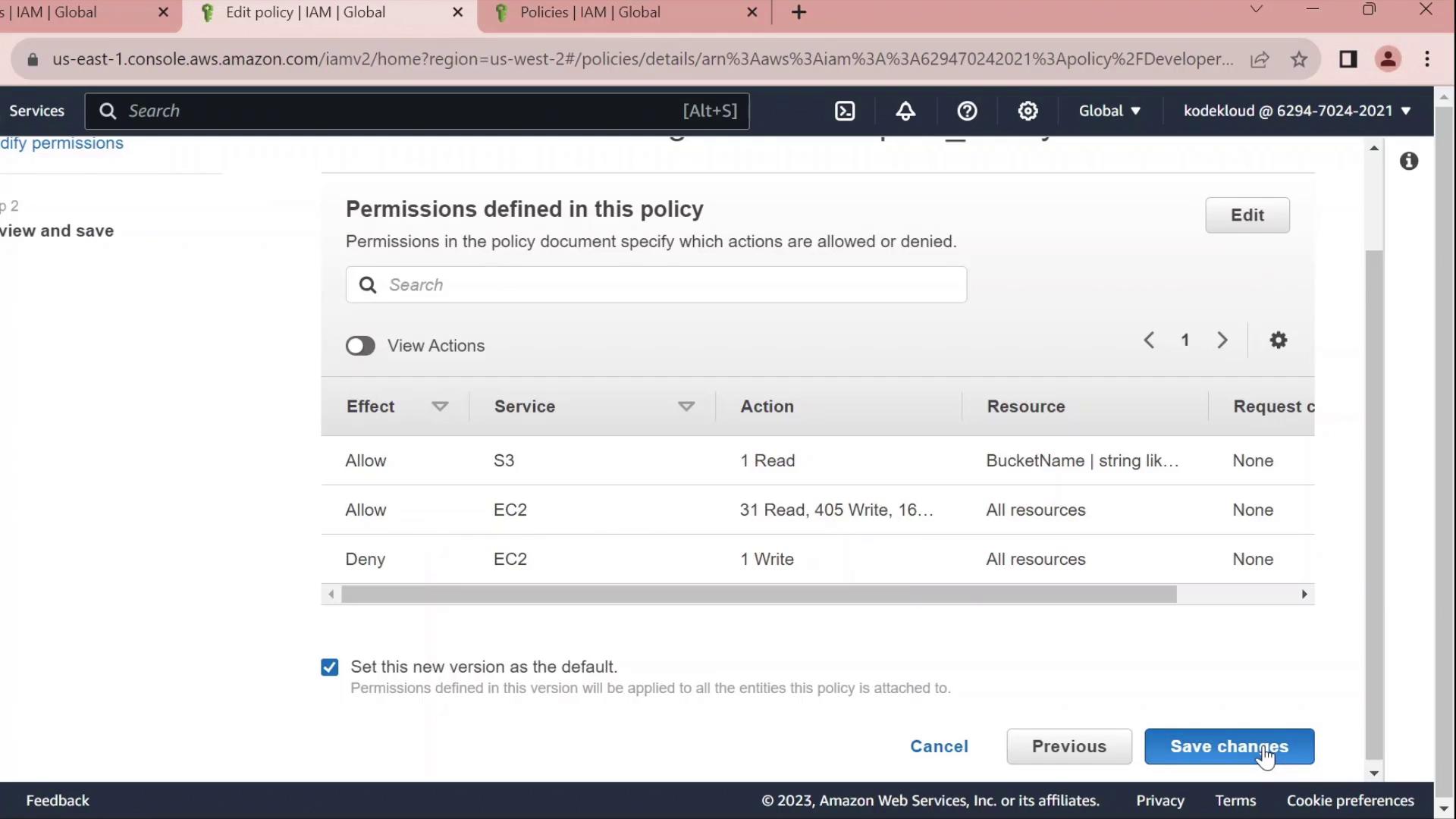
### 4.2 Deny Stopping EC2 Instances
Add a statement to prevent developers from stopping instances:
```json theme={null}
{
"Sid": "DenyStopInstances",
"Effect": "Deny",
"Action": "ec2:StopInstances",
"Resource": "*"
}
```
### 4.3 Final Policy JSON
Combine all statements into your final policy:
```json theme={null}
{
"Version": "2012-10-17",
"Statement": [
{
"Sid": "AllowAllEC2Actions",
"Effect": "Allow",
"Action": "ec2:*",
"Resource": "*"
},
{
"Sid": "AllowS3GetObject",
"Effect": "Allow",
"Action": "s3:GetObject",
"Resource": "arn:aws:s3:::company1-sales/*"
},
{
"Sid": "DenyStopInstances",
"Effect": "Deny",
"Action": "ec2:StopInstances",
"Resource": "*"
}
]
}
```
| Sid | Effect | Action | Resource |
| ------------------ | ------ | ----------------- | ------------------------------ |
| AllowAllEC2Actions | Allow | ec2:\* | \* |
| AllowS3GetObject | Allow | s3:GetObject | arn:aws:s3:::company1-sales/\* |
| DenyStopInstances | Deny | ec2:StopInstances | \* |
Click **Save changes** to apply the updated policy.
***
## References
* [AWS IAM User Guide – Policies and Permissions](https://docs.aws.amazon.com/IAM/latest/UserGuide/access_policies.html)
* [IAM JSON Policy Elements: Statement](https://docs.aws.amazon.com/IAM/latest/UserGuide/reference_policies_elements_statement.html)