> ## Documentation Index
> Fetch the complete documentation index at: https://notes.kodekloud.com/llms.txt
> Use this file to discover all available pages before exploring further.
# Demo Permission Boundaries
> This tutorial demonstrates enforcing least privilege in AWS IAM using permission boundaries to restrict a new users effective permissions.
In this tutorial, we’ll demonstrate how to enforce the principle of least privilege in AWS IAM by using permission boundaries. You’ll learn how to restrict a new user’s effective permissions so that they can only list S3 buckets without gaining full access.
## 1. Identify the Target S3 Bucket
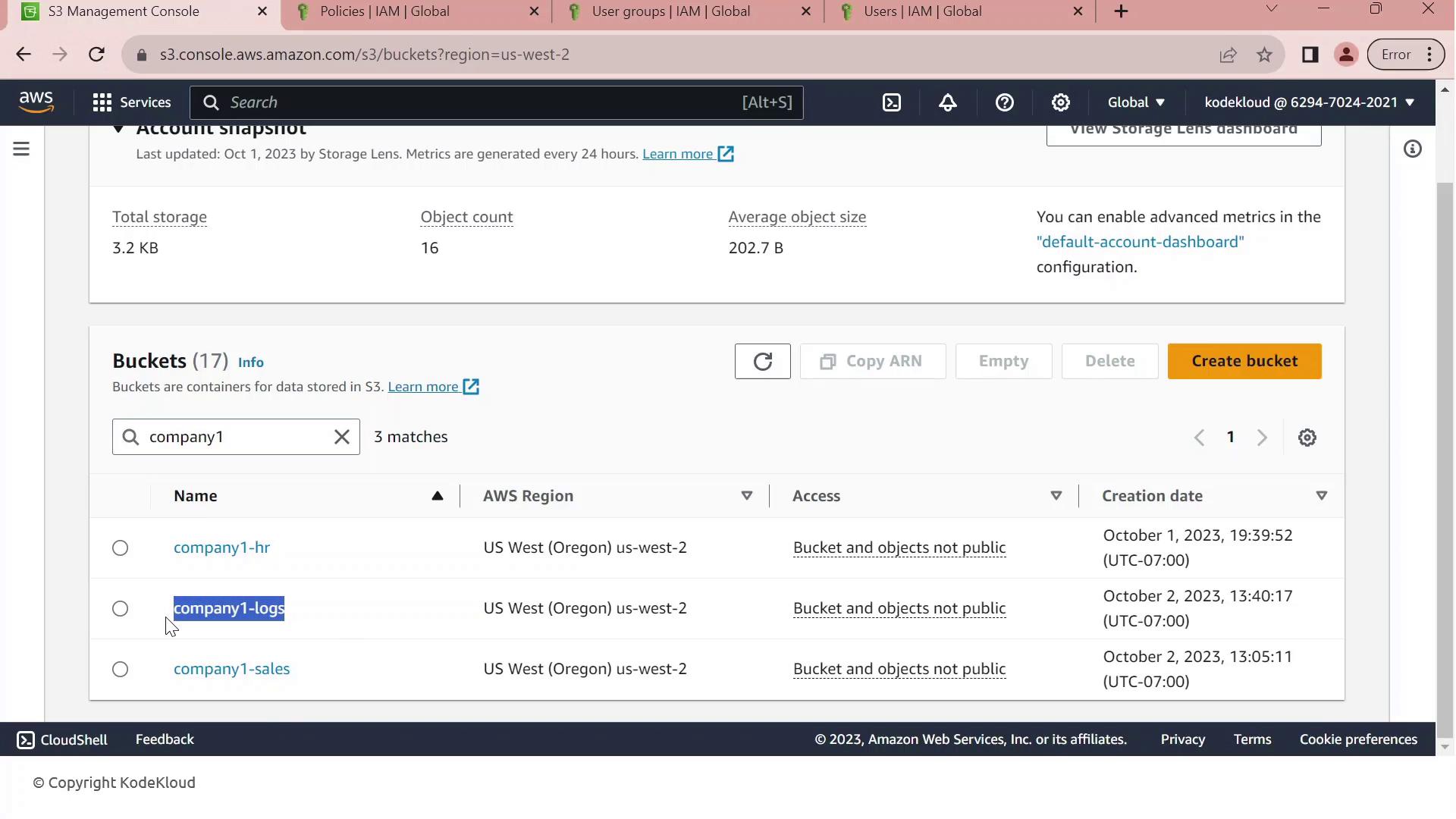
First, open the Amazon S3 Management Console. Filter your buckets by the prefix “Company1” and locate **company1-logs**, which stores daily logs used by your development team.
## 2. Review Customer-Managed Policies
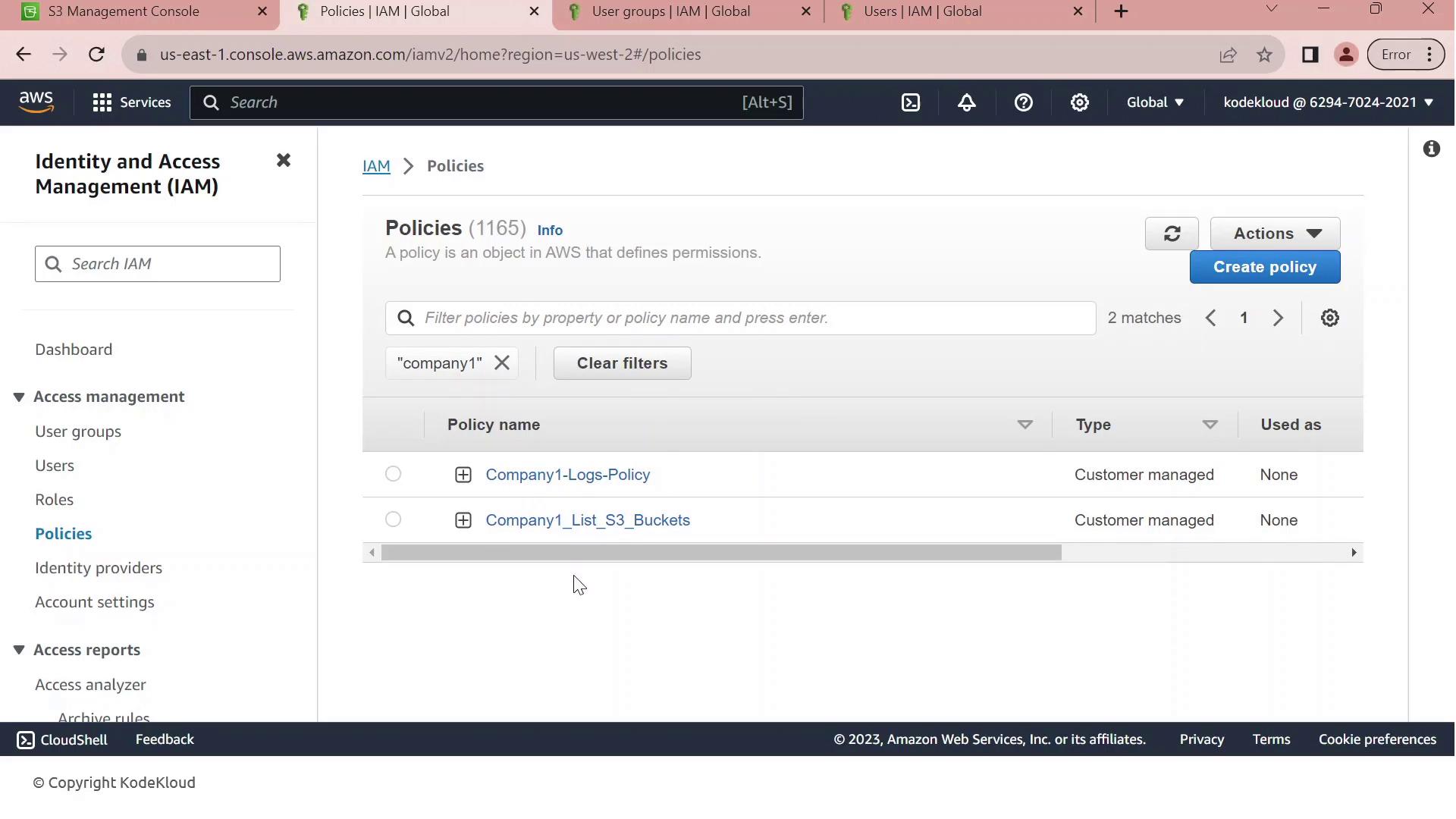
Next, navigate to the IAM console and filter customer-managed policies by “company1.” You should see:
| Policy Name | Purpose | Key Actions |
| --------------------------- | ----------------------------------- | ------------------------------------------------------------------ |
| Company1-Logs-Policy | Full S3 access to `company1-logs` | `s3:ListBucket`, `s3:GetObject`, `s3:PutObject`, `s3:DeleteObject` |
| Company1\_List\_S3\_Buckets | Read-only listing of all S3 buckets | `s3:ListAllMyBuckets`, `s3:GetBucketLocation` |
## 3. Inspect the Full-Access Logs Policy
Click on **Company1-Logs-Policy** to view its JSON document. This policy grants any principal full control over the `company1-logs` bucket.
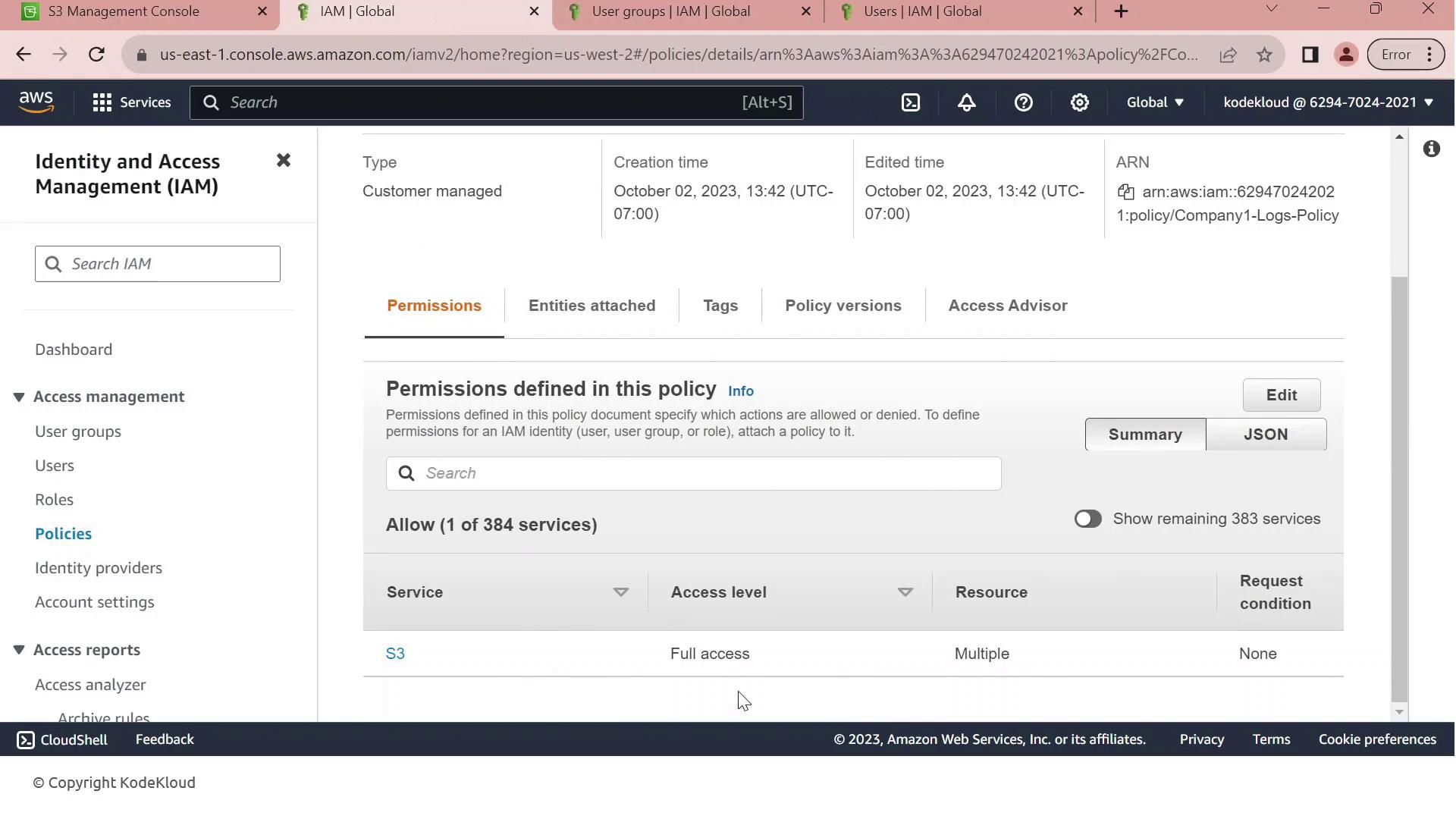
Currently, this policy is attached to the **Developers** group. All members—like John—inherit full S3 permissions on `company1-logs`.
***
## 4. Scenario: Hiring a New Intern
We’ve hired an intern, Sara, but we want to limit her permissions to bucket listing only. Without adjustments, adding her to the Developers group would grant full S3 access.
1. In the IAM console, click **Create User**.
2. Enter **Sara-intern** as the username.
3. Enable **AWS Management Console access**, generate a password, and require a reset on first login.
4. Add **Sara-intern** to the **Developers** group and complete the user creation.
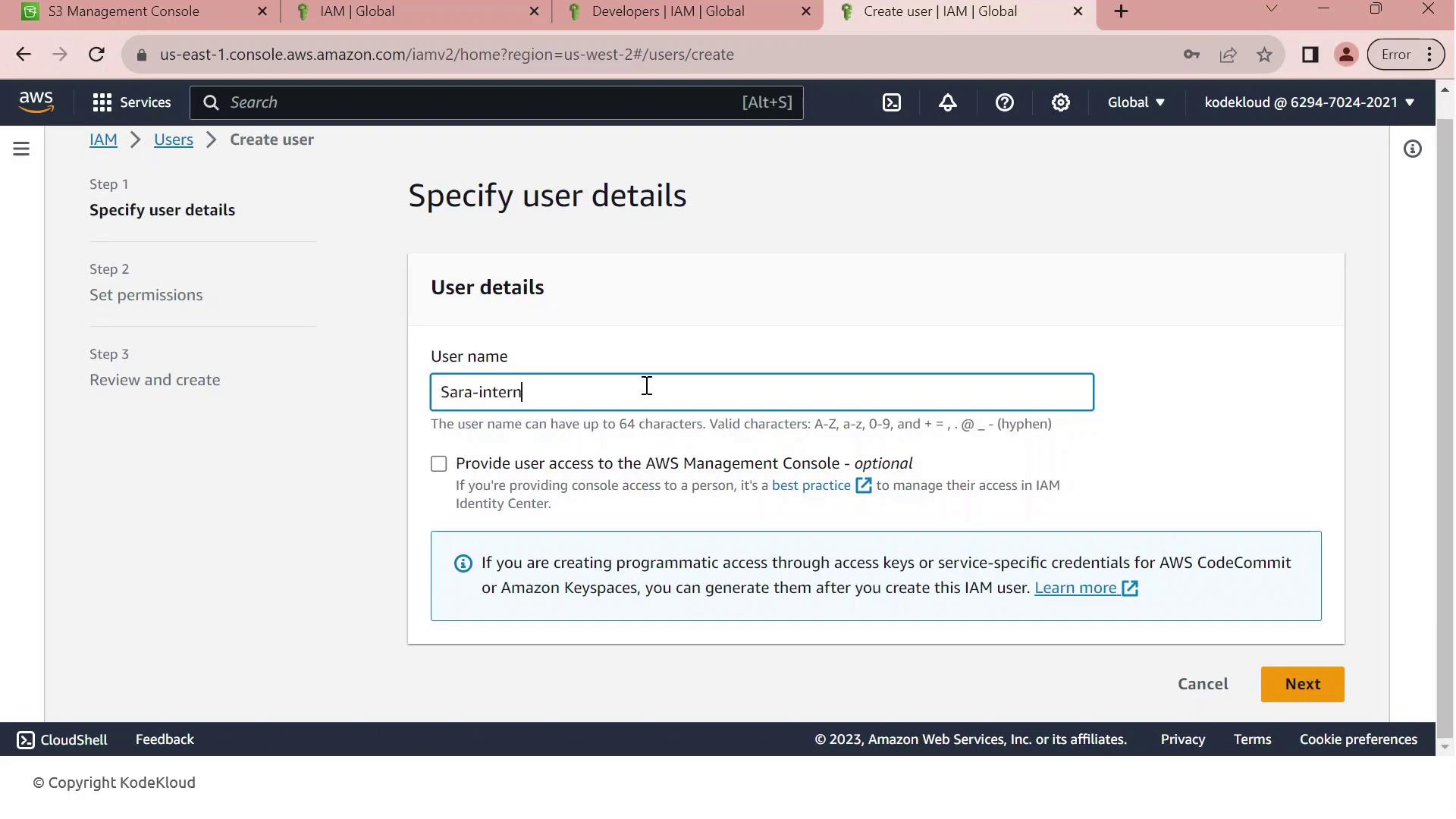
By default, Sara inherits every permission granted to the Developers group. We need a permissions boundary to cap her maximum privileges.
***
## 5. Apply the Permissions Boundary
To restrict Sara’s permissions:
1. Open **Sara-intern**’s user summary and go to the **Permissions** tab.
2. Click **Set permissions boundary**.
3. Select **Company1\_List\_S3\_Buckets** and save.
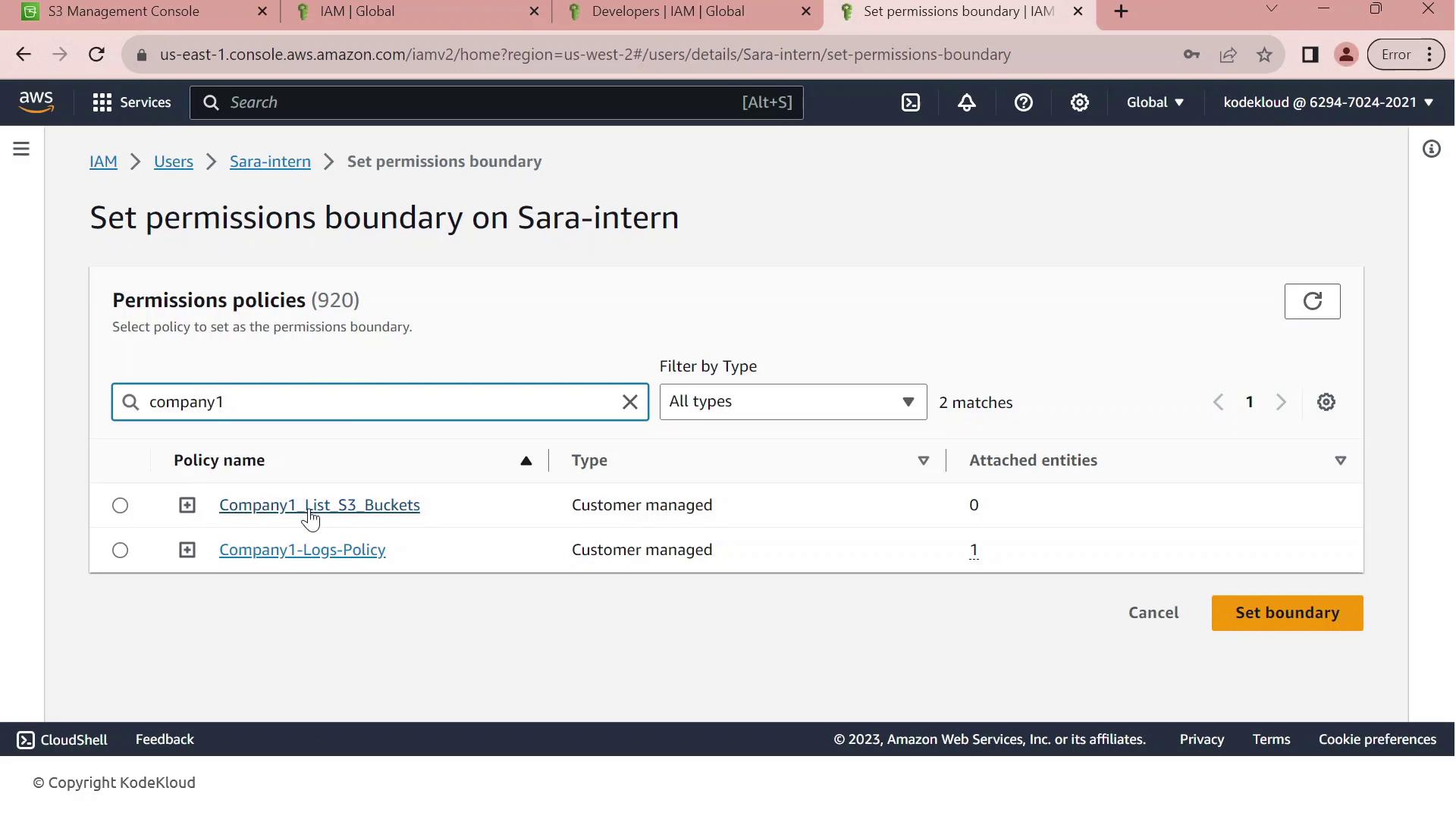
A permissions boundary only defines the maximum rights a user can have. The user’s effective permissions are the intersection of their group policies and the boundary. Always validate by testing in a non-production account.
With **Company1\_List\_S3\_Buckets** as Sara’s boundary, she can list bucket names (`s3:ListAllMyBuckets`) but cannot read, write, or delete any objects. This enforces least privilege for new users.
***
## References
* [AWS IAM Policies](https://docs.aws.amazon.com/IAM/latest/UserGuide/access_policies.html)
* [Using Permissions Boundaries for IAM Identities](https://docs.aws.amazon.com/IAM/latest/UserGuide/access_policies_boundaries.html)
* [Amazon S3 Documentation](https://docs.aws.amazon.com/s3/index.html)