> ## Documentation Index
> Fetch the complete documentation index at: https://notes.kodekloud.com/llms.txt
> Use this file to discover all available pages before exploring further.
# IAM Roles
> AWS IAM roles provide secure, temporary access to resources, enabling fine-grained permissions and trust relationships while minimizing exposure risk.
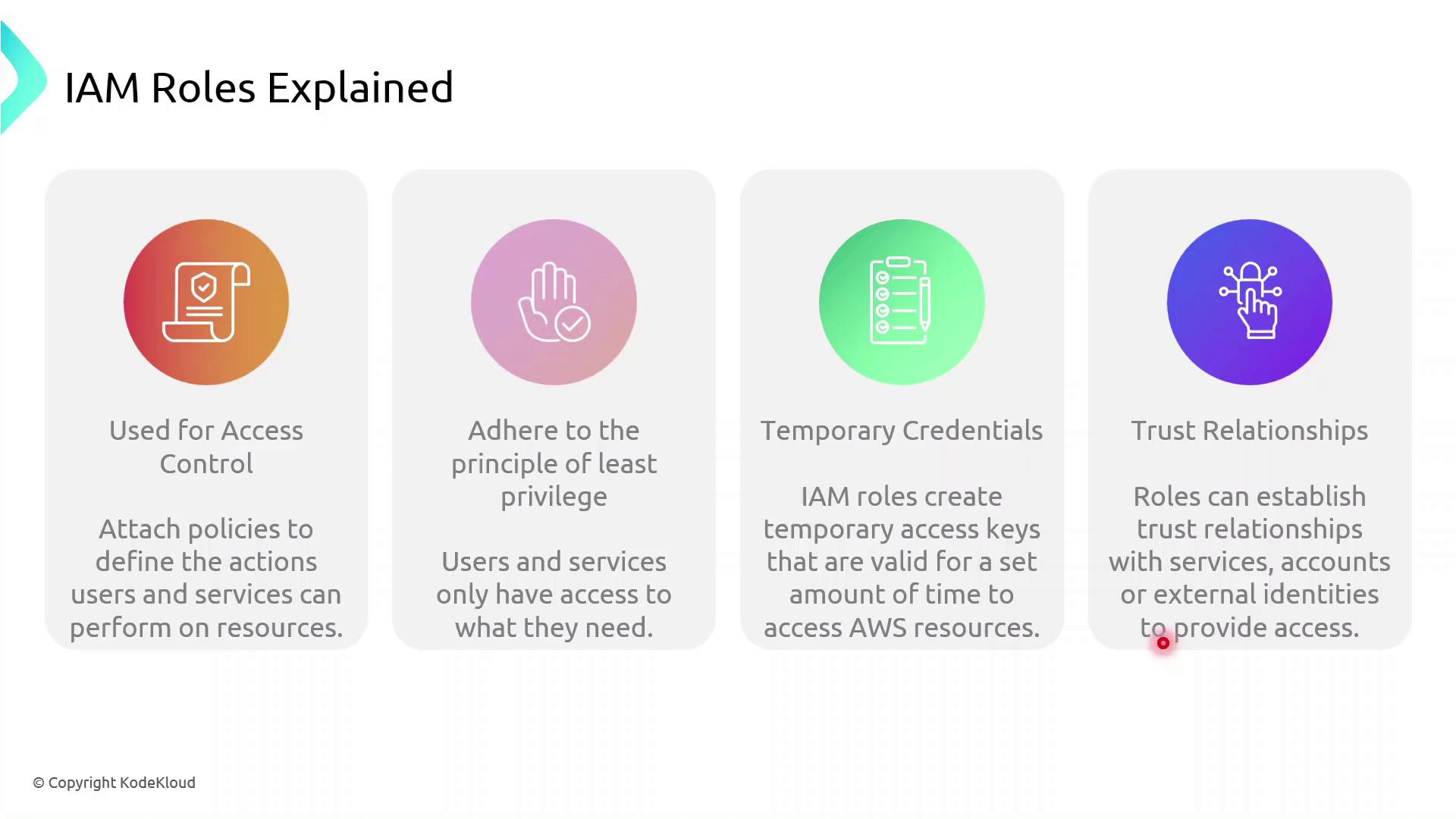
AWS Identity and Access Management (IAM) roles enable secure, temporary access to AWS resources without embedding long-term credentials. By defining fine-grained permissions and trust relationships, you can enforce the principle of least privilege and reduce exposure risk.
| Component | Description | Example |
| ------------------ | --------------------------------------------------------------------------- | ------------------------------------------------ |
| Role | An identity with attached permissions and a trust policy | `S3AccessRole` |
| Permissions Policy | A JSON document specifying allowed or denied actions | `AmazonS3ReadOnlyAccess` |
| Trust Policy | Defines which principals (services, users, or accounts) can assume the role | EC2 service: `ec2.amazonaws.com` |
| Temporary Tokens | Short-lived credentials issued by AWS STS | `AccessKeyId`, `SecretAccessKey`, `SessionToken` |
## How IAM Roles Enhance Security
Instead of hard-coding long-term AWS keys:
1. A principal (user or service) calls `sts:AssumeRole`.
2. AWS returns temporary credentials.
3. The principal uses these credentials to access resources.
4. Credentials expire automatically, minimizing the blast radius.
Always follow the [principle of least privilege](https://docs.aws.amazon.com/IAM/latest/UserGuide/best-practices.html#grant-least-privilege). Grant only the permissions required for the task.
### Role Assumption Flow
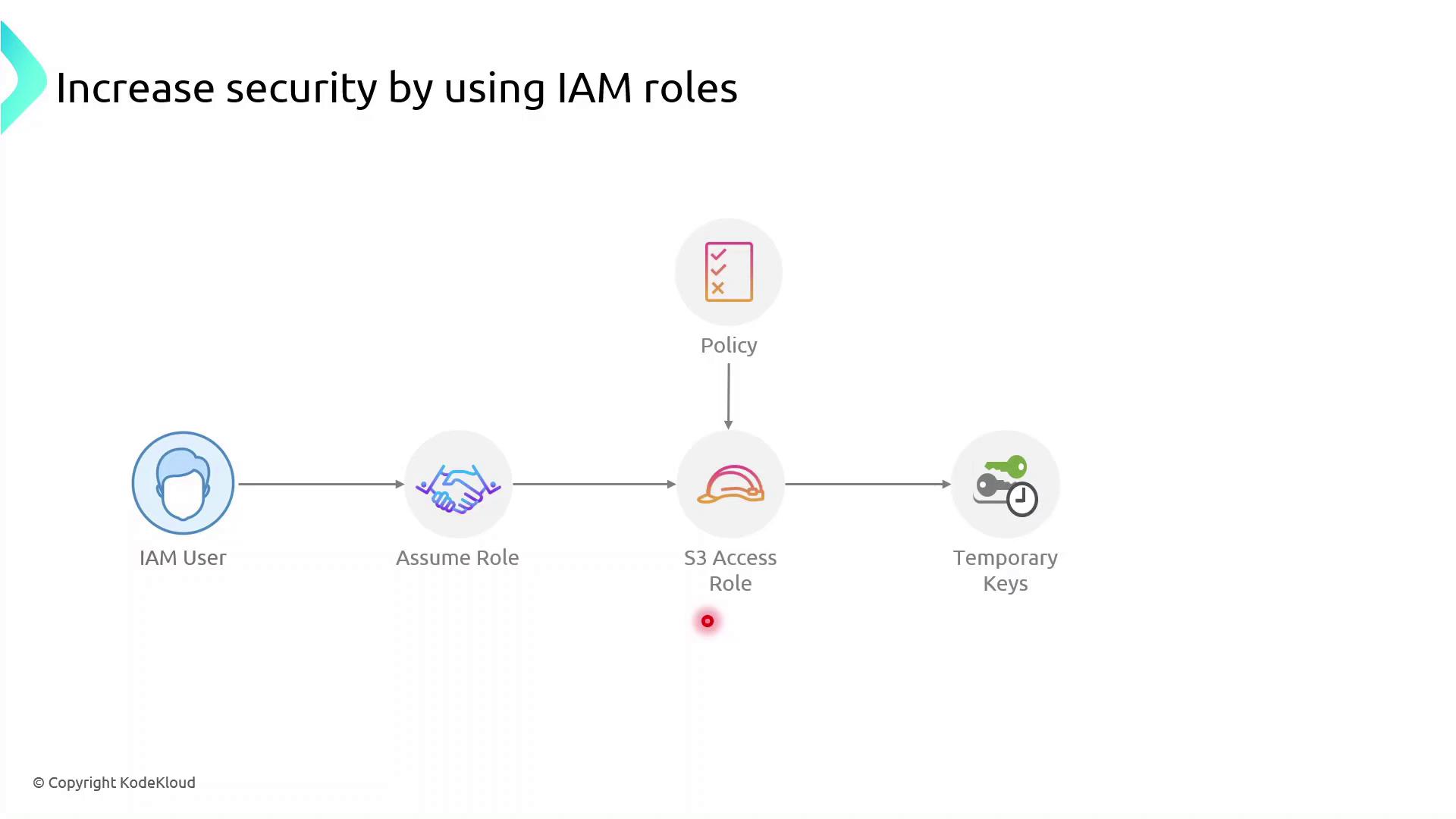
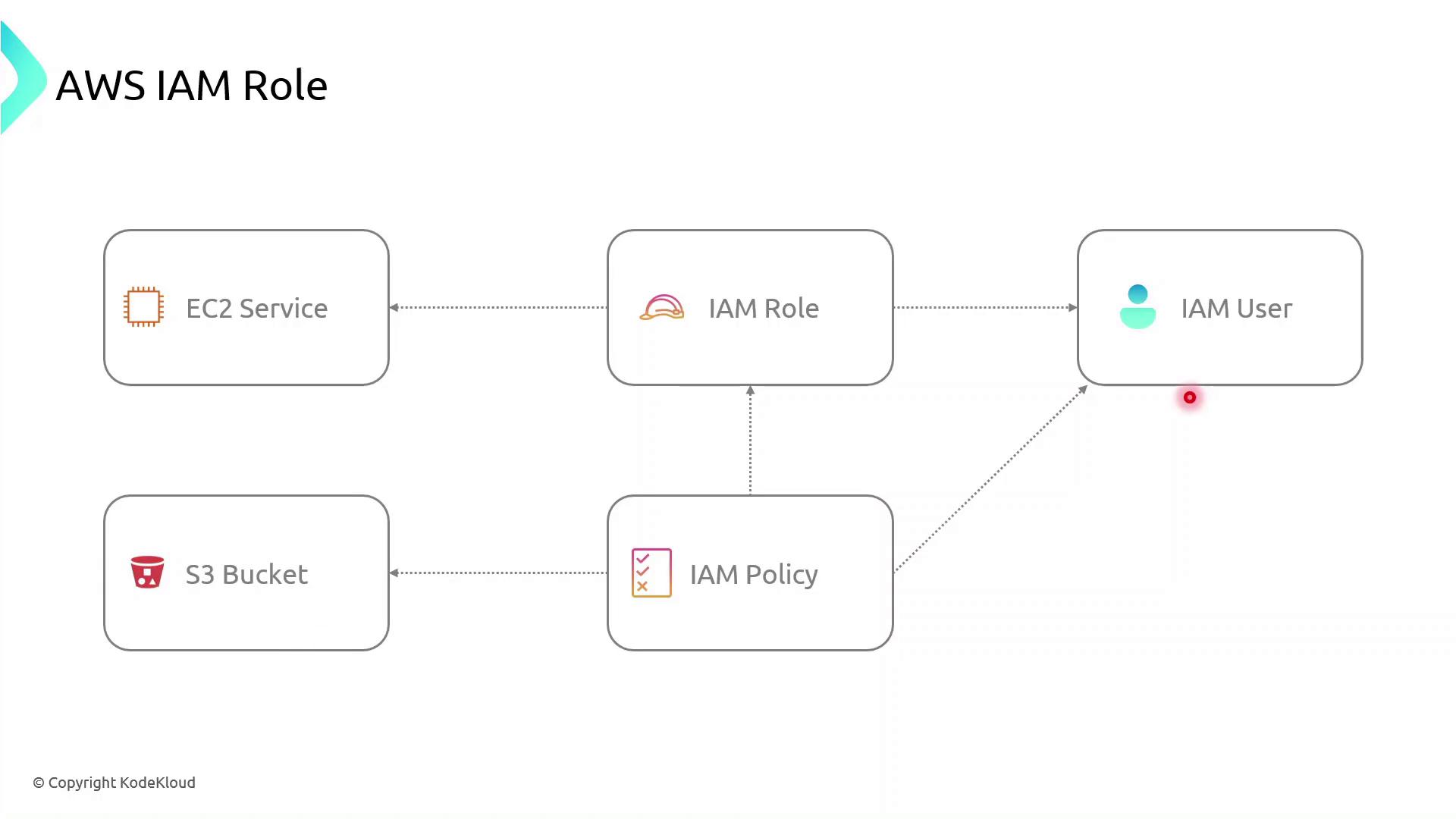
Roles can be assumed not only by IAM users but also by AWS services such as EC2, Lambda, and ECS. The permissions come from attached policies, while the trust policy specifies who can assume the role.
### AWS Components Interaction
***
## Demo: Create an IAM Role for EC2 to Access S3
Follow these steps in the AWS Management Console or use the AWS CLI commands shown.
### Console Steps
1. **Open the IAM console**\
[https://console.aws.amazon.com/iam](https://console.aws.amazon.com/iam)
2. **Create a new role**
* In the navigation pane, choose **Roles** → **Create role**.
* Under **Select trusted entity**, choose **AWS service**, then **EC2**, and click **Next**.
3. **Attach permissions**
* Search for **AmazonS3ReadOnlyAccess** (or attach your custom policy).
* Select it and click **Next**.
4. **Name and create**
* Enter **Role name**: `S3AccessRole`
* Review settings and click **Create role**.
5. **Attach the role to an existing EC2 instance**
* Open the EC2 console, select your instance.
* Choose **Actions** → **Security** → **Modify IAM role**.
* Select **S3AccessRole** and click **Save**.
### AWS CLI Alternative
First, create a trust policy file (`trust-policy.json`):
```json theme={null}
{
"Version": "2012-10-17",
"Statement": [
{
"Effect": "Allow",
"Principal": { "Service": "ec2.amazonaws.com" },
"Action": "sts:AssumeRole"
}
]
}
```
Then run:
```bash theme={null}
# Create the role
aws iam create-role \
--role-name S3AccessRole \
--assume-role-policy-document file://trust-policy.json
# Attach the AmazonS3ReadOnlyAccess policy
aws iam attach-role-policy \
--role-name S3AccessRole \
--policy-arn arn:aws:iam::aws:policy/AmazonS3ReadOnlyAccess
```
***
## Verify from the EC2 Instance
SSH into your EC2 instance and confirm the role is in effect:
```bash theme={null}
# Check the caller identity (should show the assumed role ARN)
aws sts get-caller-identity
# List S3 buckets or contents to verify permissions
aws s3 ls s3://your-bucket-name
```
If you see the bucket contents, the role is correctly configured—no long-term keys required.
***
## References
* [AWS IAM Roles Documentation](https://docs.aws.amazon.com/IAM/latest/UserGuide/id_roles.html)
* [AWS Security Best Practices](https://docs.aws.amazon.com/security/)
* [AWS STS AssumeRole](https://docs.aws.amazon.com/STS/latest/APIReference/API_AssumeRole.html)