> ## Documentation Index
> Fetch the complete documentation index at: https://notes.kodekloud.com/llms.txt
> Use this file to discover all available pages before exploring further.
# Create a Basic Lambda Function
> This tutorial teaches how to create, deploy, and test a simple AWS Lambda function using Python.
In this tutorial, you’ll learn how to create, deploy, and test a simple AWS Lambda function written in Python. We’ll cover the entire workflow from the AWS Management Console to verifying your function’s output and logs.
## Prerequisites
* An AWS account with permissions to create Lambda functions
* Basic knowledge of Python
## 1. Navigate to the AWS Lambda Console
1. Sign in to the [AWS Management Console](https://console.aws.amazon.com/).
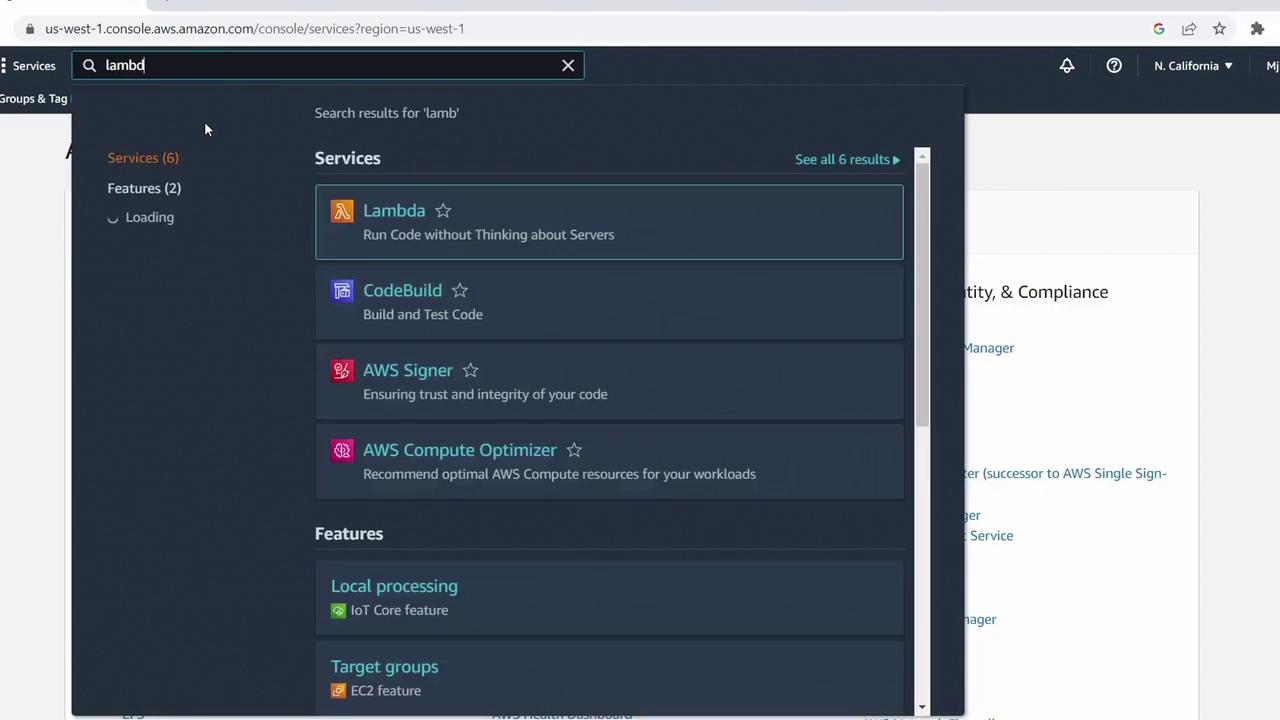
2. In the search bar, type **Lambda** and select **AWS Lambda**.
## 2. Create a New Function
1. Click **Create function**.
2. Select **Author from scratch**.
3. Enter a name, e.g., `MyFirstFunction`.
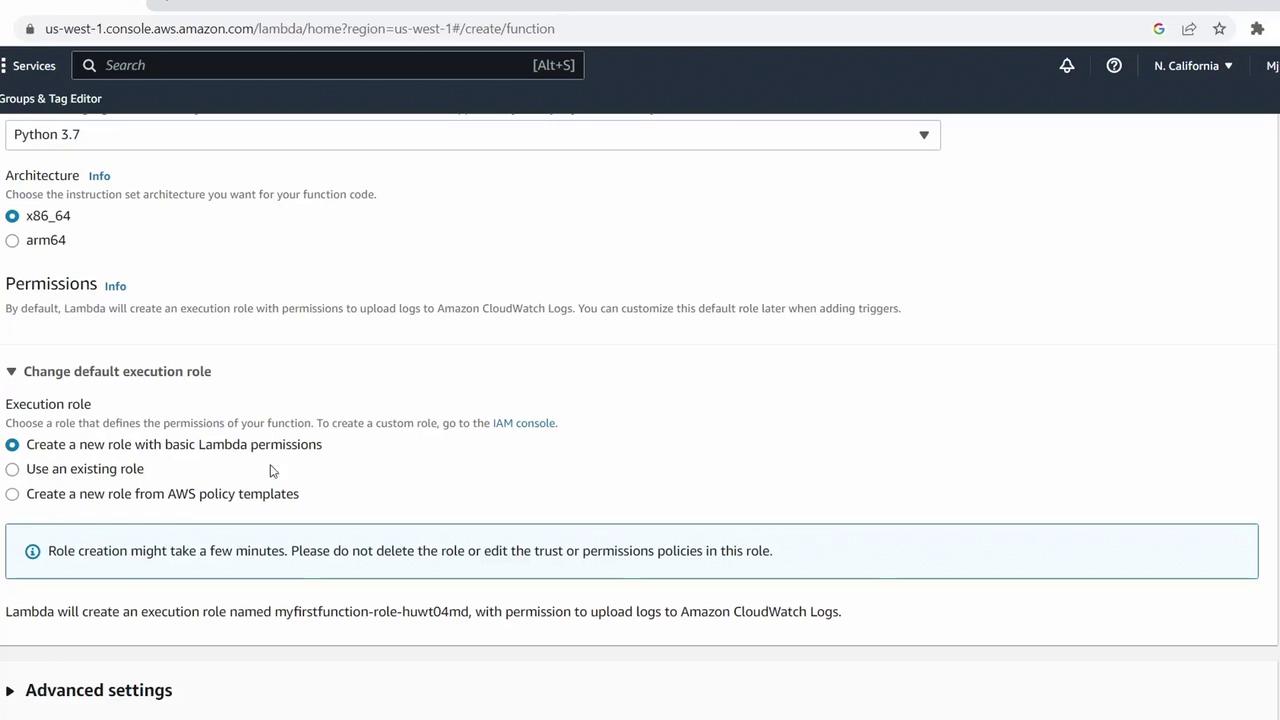
4. Choose **Python 3.7** for the runtime.
5. Under **Permissions**, leave the default to let AWS create a new IAM role with basic Lambda permissions.
6. Click **Create function**.
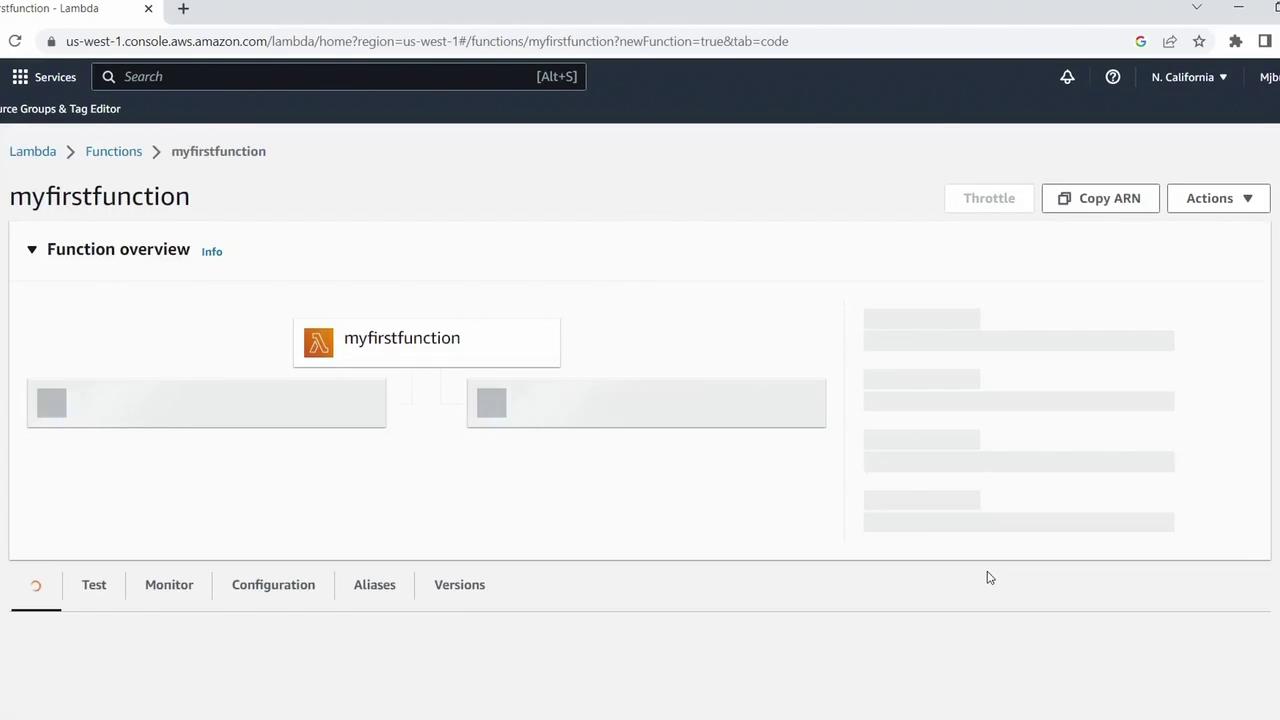
Once provisioning is complete, you’ll see the function’s configuration page:
## 3. Add and Deploy Your Code
Scroll to the **Code source** section, remove the default boilerplate, and paste the following handler:
```python theme={null}
def lambda_handler(event, context):
name = event.get("name")
if name == "KodeKloud":
return "Success"
else:
return "No"
```
Click **Deploy** to save your changes.
The function returns a simple string based on the `name` parameter. You can expand this logic to handle more complex business rules.
## 4. Test Your Lambda Function
1. Switch to the **Test** tab.
2. Click **Create new test event**.
3. Configure the event:
* **Event name**: `ColdStartTest`
* **Template**: Hello World
* **Event JSON**:
```json theme={null}
{
"name": "KodeKloud"
}
```
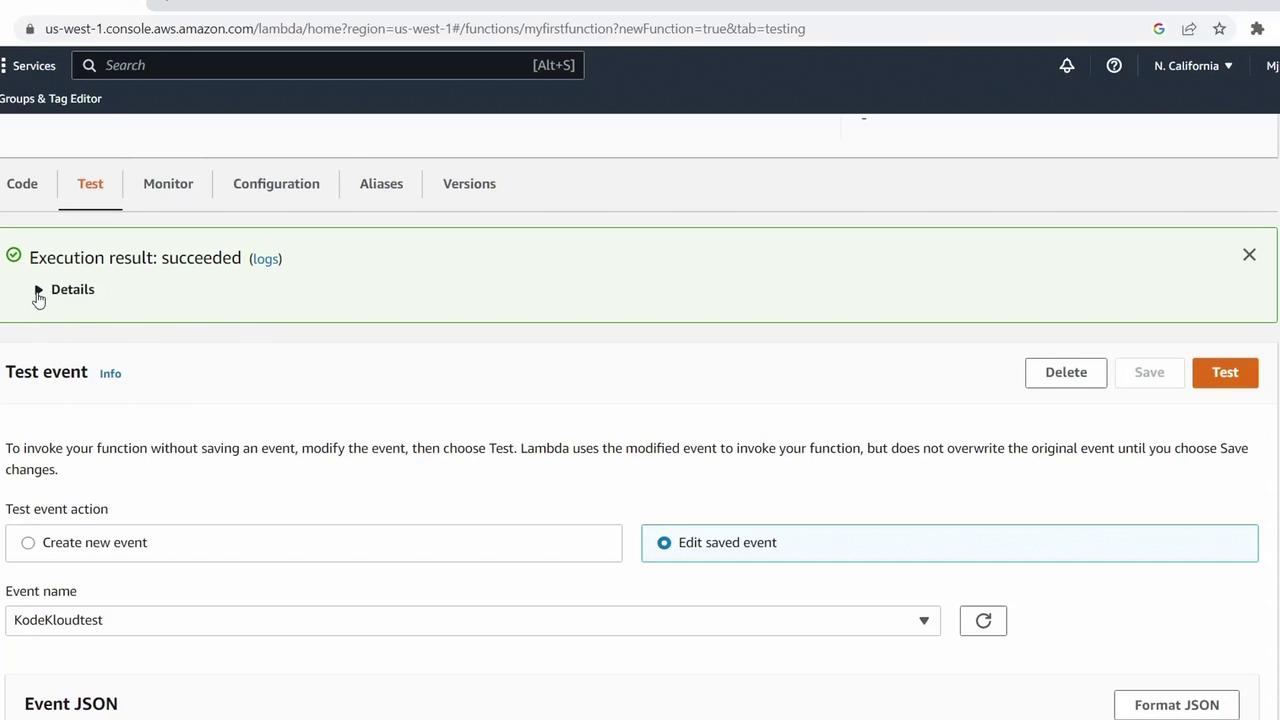
4. Click **Create** and then **Test**.
A successful run will display the output `"Success"` and execution details:
### Review CloudWatch Logs
Under **Monitor**, click **View logs in CloudWatch** to inspect log entries similar to:
```text theme={null}
START RequestId: ... Version: $LATEST
END RequestId: ...
REPORT RequestId: ... Duration: 1.90 ms Billed Duration: 2 ms Memory Size: 128 MB Max Memory Used: 36 MB Init Duration: 137.57 ms
```
## 5. Test the Else Branch
Create a second test event:
```json theme={null}
{
"name": "Other"
}
```
* **Event name**: `OtherTest`
Run the test again. The function should return `"No"`.
## 6. Summary of Test Events
| Event Name | Input JSON | Expected Output |
| ------------- | ----------------------- | --------------- |
| ColdStartTest | `{"name": "KodeKloud"}` | "Success" |
| OtherTest | `{"name": "Other"}` | "No" |
## Next Steps
You’ve successfully created, configured, and tested a Python-based AWS Lambda function. In upcoming lessons, we’ll explore:
* Advanced Lambda configurations
* Integrating event source triggers (S3, SNS, API Gateway)
* Environment variables and layers
## References
* [AWS Lambda Developer Guide](https://docs.aws.amazon.com/lambda/latest/dg/welcome.html)
* [AWS IAM Roles for Lambda](https://docs.aws.amazon.com/lambda/latest/dg/lambda-intro-execution-role.html)
* [Serverless Computing Overview](https://aws.amazon.com/serverless/)