> ## Documentation Index
> Fetch the complete documentation index at: https://notes.kodekloud.com/llms.txt
> Use this file to discover all available pages before exploring further.

# Create a Canary Function using Blueprint

> Learn to deploy a Canary Function in AWS Lambda using a blueprint, configure triggers, environment variables, and monitor with logs and metrics.

Learn how to deploy a Canary Function in AWS Lambda with a ready-made blueprint. In this guide, you’ll use Amazon EventBridge (CloudWatch Events) as a trigger, configure environment variables, set up SNS destinations for success and failure notifications, and monitor your function using logs and metrics.

<Callout icon="lightbulb" color="#1CB2FE">
  • An AWS account with permissions to create Lambda functions, EventBridge rules, and SNS topics\
  • Basic knowledge of Python and AWS services
</Callout>

## Table of Contents

1. [Open the Lambda Console](#1-open-the-lambda-console)
2. [Select the Canary Blueprint](#2-select-the-canary-blueprint)
3. [Configure the Function](#3-configure-the-function)
4. [Review the Sample Code](#4-review-the-sample-code)
5. [Set Schedule & Environment Variables](#5-set-schedule--environment-variables)
6. [View Your New Function](#6-view-your-new-function)
7. [Add SNS Destinations for Success & Failure](#7-add-sns-destinations-for-success--failure)
8. [Test the Canary Function](#8-test-the-canary-function)
9. [Monitor Metrics and Logs](#9-monitor-metrics-and-logs)

***

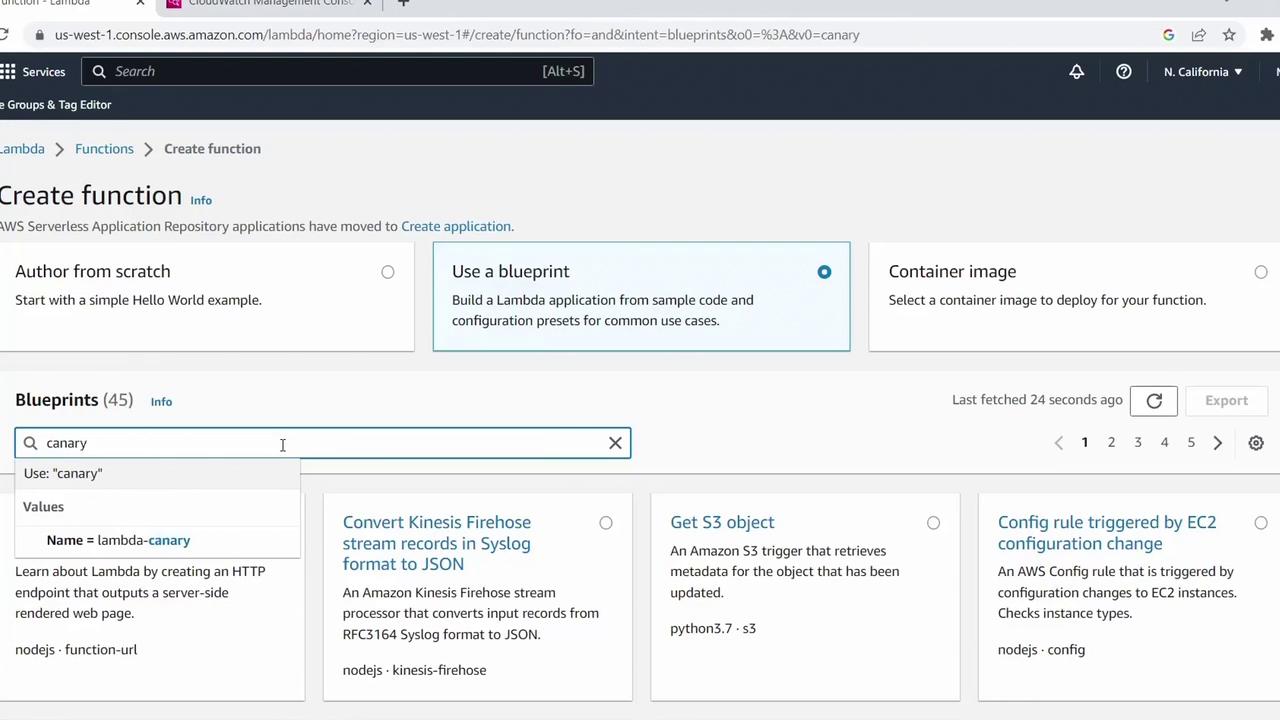
## 1. Open the Lambda Console

1. Sign in to the [AWS Management Console](https://aws.amazon.com/console/).
2. In the **Services** menu, search for **Lambda** and click **Lambda**.
3. Choose **Create function**.
<Frame>
  ![The image shows the AWS Lambda console where a user is creating a function. It includes options to author from scratch, use a blueprint, or select a container image, with a search for "canary" in the blueprints section.](https://kodekloud.com/kk-media/image/upload/v1752863125/notes-assets/images/AWS-Lambda-Create-a-Canary-Function-using-Blueprint/aws-lambda-console-function-creation.jpg)
</Frame>

## 2. Select the Canary Blueprint

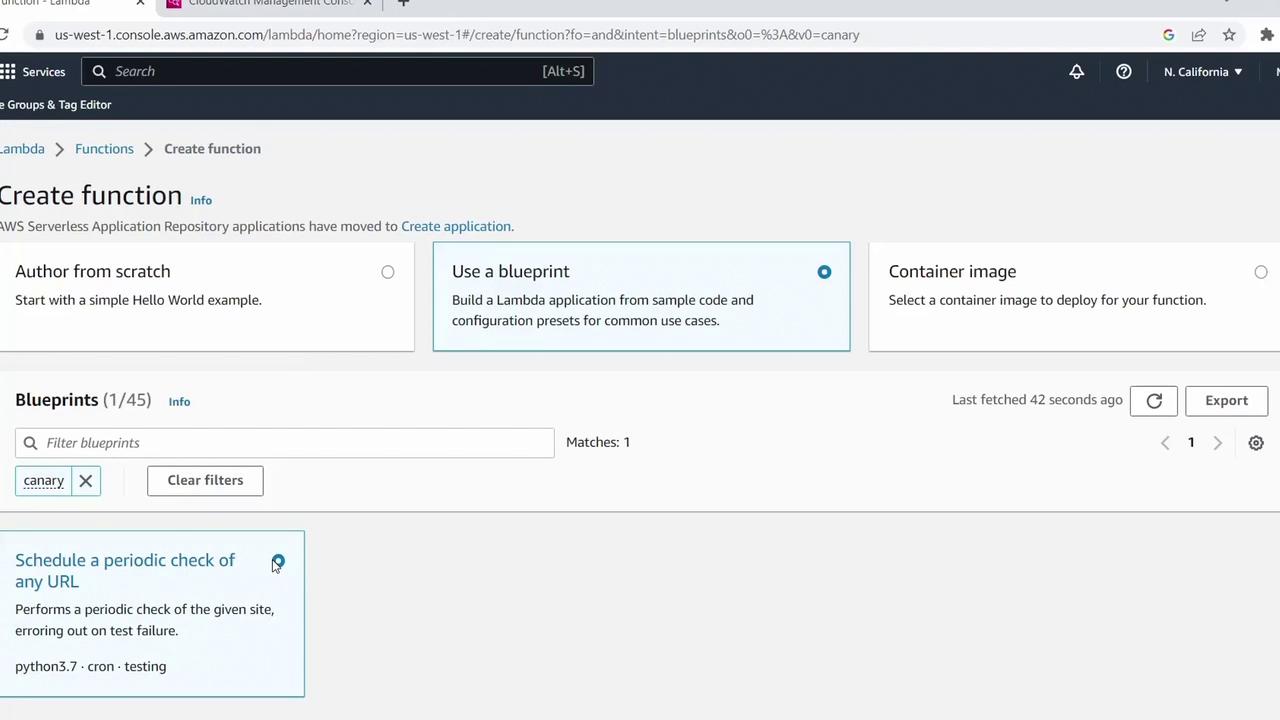
AWS provides several blueprints with boilerplate code for common tasks. In the **Use a blueprint** tab:

* Search for **canary**.
* Select **Canary Function** (runtime: **Python 3.7**).
<Frame>
  ![The image shows the AWS Lambda console where a user can create a function. Options include authoring from scratch, using a blueprint, or selecting a container image, with a blueprint for scheduling periodic URL checks highlighted.](https://kodekloud.com/kk-media/image/upload/v1752863126/notes-assets/images/AWS-Lambda-Create-a-Canary-Function-using-Blueprint/aws-lambda-console-create-function.jpg)
</Frame>

This blueprint periodically checks a URL for a specified text string.

## 3. Configure the Function

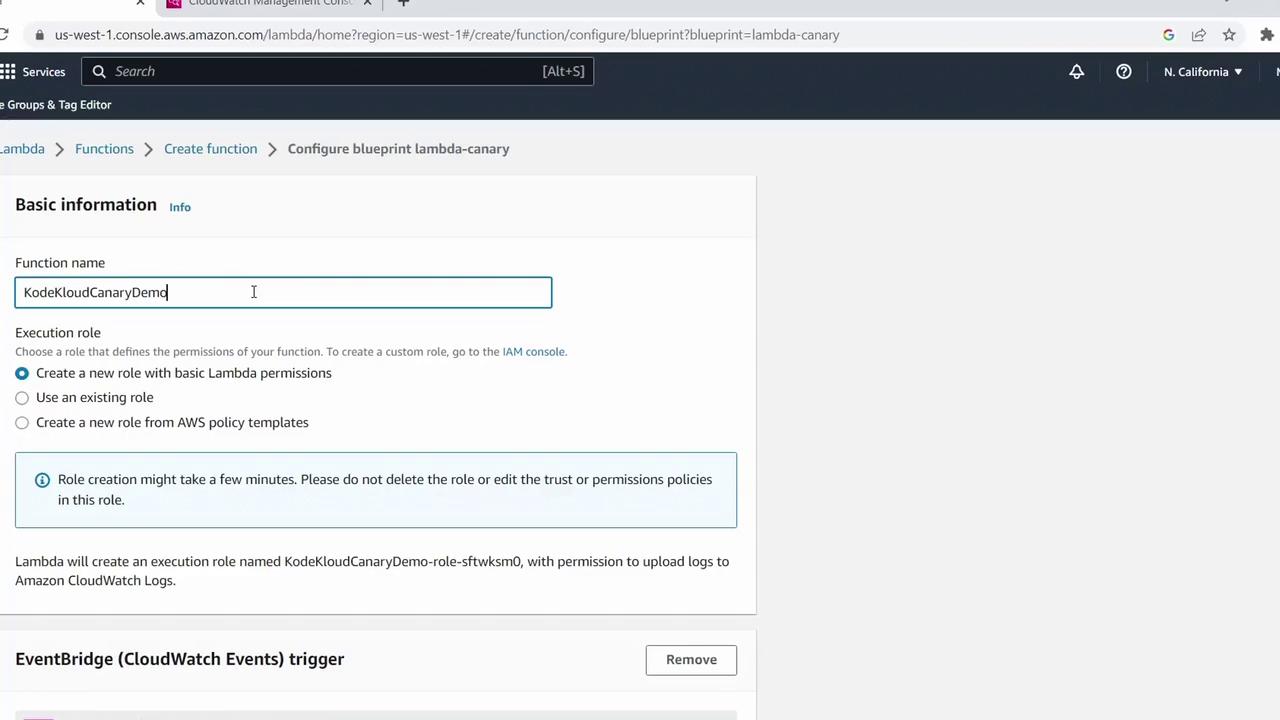
1. Click **Configure**.
2. Enter a **Function name**, e.g., `KodeKloudCanaryDemo`.
3. Under **Permissions**, select **Create a new role with basic Lambda permissions**.
<Frame>
  ![The image shows a configuration screen for creating a Lambda function in the AWS Management Console, with options for setting the function name and execution role.](https://kodekloud.com/kk-media/image/upload/v1752863127/notes-assets/images/AWS-Lambda-Create-a-Canary-Function-using-Blueprint/aws-lambda-function-configuration-screen.jpg)
</Frame>

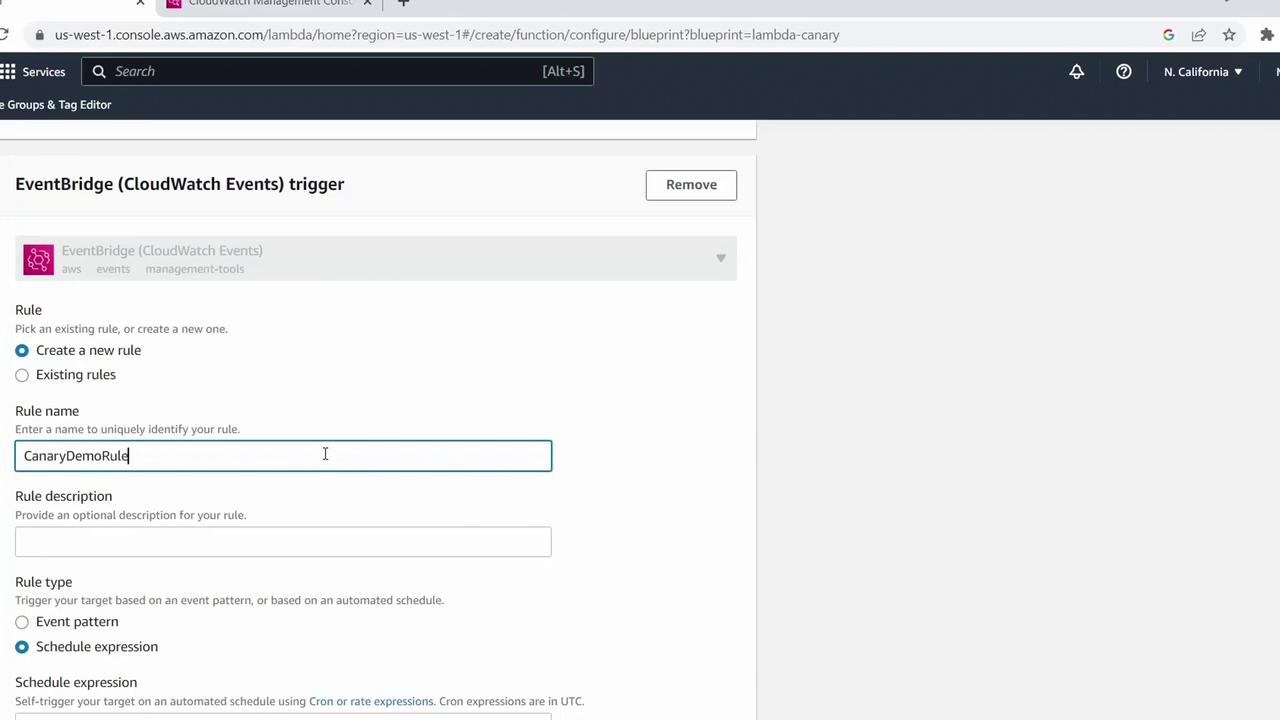
EventBridge is already set as the trigger. Create a new rule:

* **Rule name**: `CanaryDemoRule`
<Frame>
  ![The image shows a configuration screen for setting up an EventBridge (CloudWatch Events) trigger in the AWS Management Console, with options to create a new rule named "CanaryDemoRule."](https://kodekloud.com/kk-media/image/upload/v1752863128/notes-assets/images/AWS-Lambda-Create-a-Canary-Function-using-Blueprint/eventbridge-trigger-configuration-aws-console.jpg)
</Frame>

## 4. Review the Sample Code

Scroll to **Function code** to inspect the handler:

```python theme={null}
import os
from datetime import datetime
from urllib.request import Request, urlopen

SITE = os.environ['site']         # URL to check
EXPECTED = os.environ['expected'] # Expected text on the page

def validate(response):
    """
    Return True if EXPECTED appears in the content.
    Extend this for custom checks.
    """
    return EXPECTED in response

def lambda_handler(event, context):
    print(f"Checking {SITE} at {event['time']}")
    try:
        req = Request(SITE, headers={'User-Agent': 'AWS Lambda'})
        content = urlopen(req).read().decode('utf-8')
        if not validate(content):
            raise Exception('Validation failed')
        print('Check passed')
    except Exception as e:
        print('Check failed:', e)
        raise
```

This uses two environment variables:

| Variable   | Description               |
| ---------- | ------------------------- |
| `site`     | URL of the site to check  |
| `expected` | Text string to search for |

## 5. Set Schedule & Environment Variables

1. In the trigger pane, set the **Schedule expression** to:

   ```text theme={null}
   rate(1 minute)
   ```

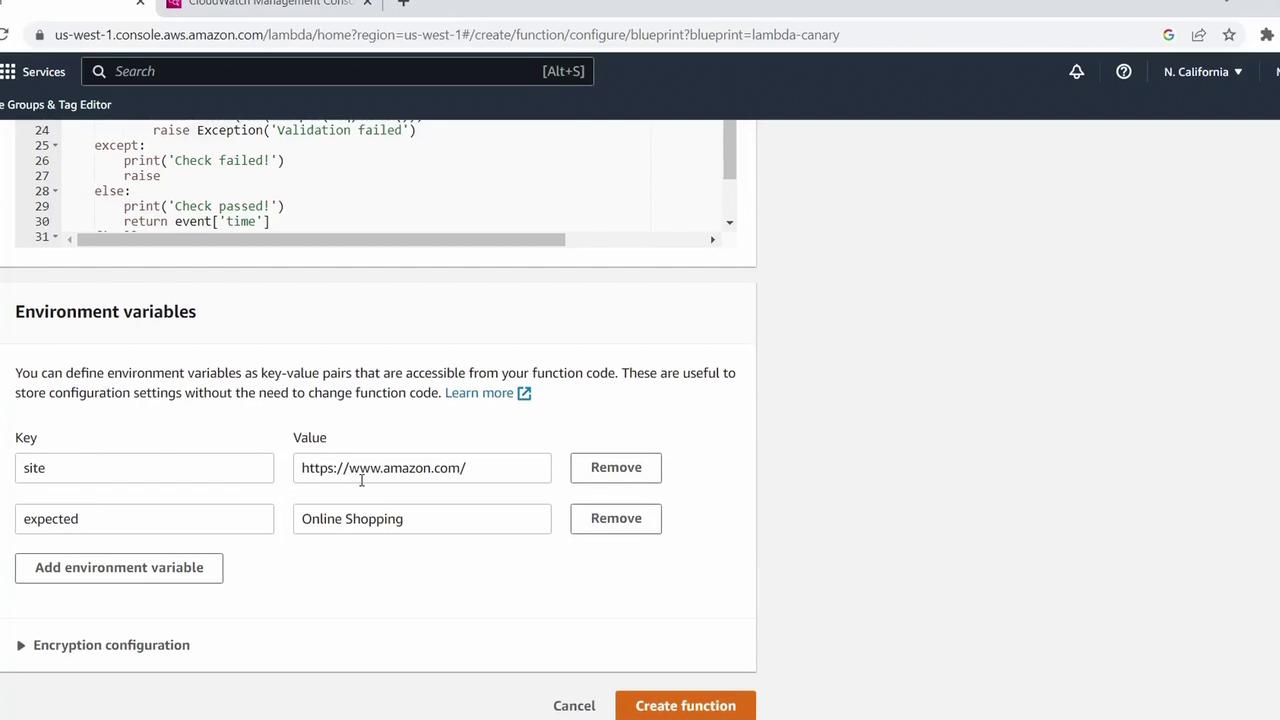
2. Under **Variables and secrets**, add:

   | Key        | Value                                        |
   | ---------- | -------------------------------------------- |
   | `site`     | `https://kodekloud.com`                      |
   | `expected` | a string *not* on the site (to test failure) |
<Frame>
  ![The image shows a section of the AWS Lambda console where environment variables are being configured. It includes key-value pairs for a site URL and an expected value.](https://kodekloud.com/kk-media/image/upload/v1752863129/notes-assets/images/AWS-Lambda-Create-a-Canary-Function-using-Blueprint/aws-lambda-console-environment-variables.jpg)
</Frame>

When ready, click **Create function**. AWS will provision the new function.

## 6. View Your New Function

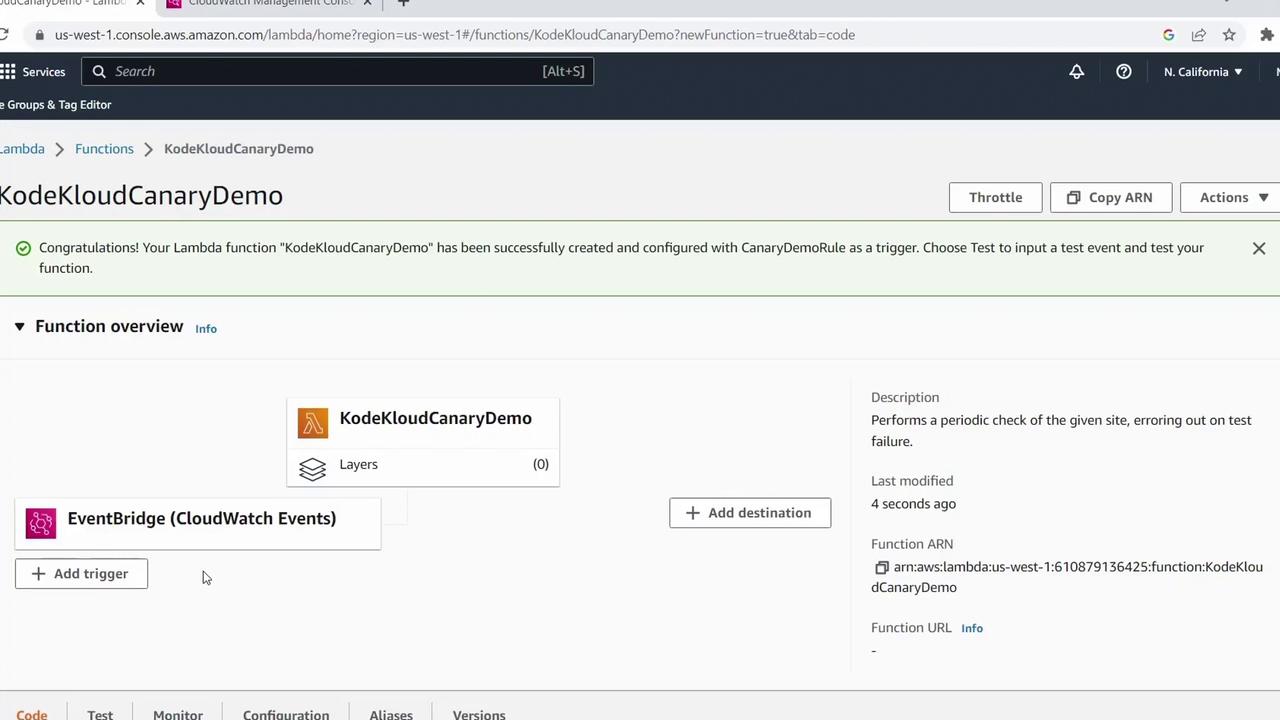
After creation, the Lambda console displays your function’s details and trigger.
<Frame>
  ![The image shows an AWS Lambda console where a function named "KodeKloudCanaryDemo" has been successfully created and configured with a trigger. It includes details about the function and an option to add a destination.](https://kodekloud.com/kk-media/image/upload/v1752863131/notes-assets/images/AWS-Lambda-Create-a-Canary-Function-using-Blueprint/aws-lambda-kodekloudcanarydemo-function.jpg)
</Frame>

## 7. Add SNS Destinations for Success & Failure

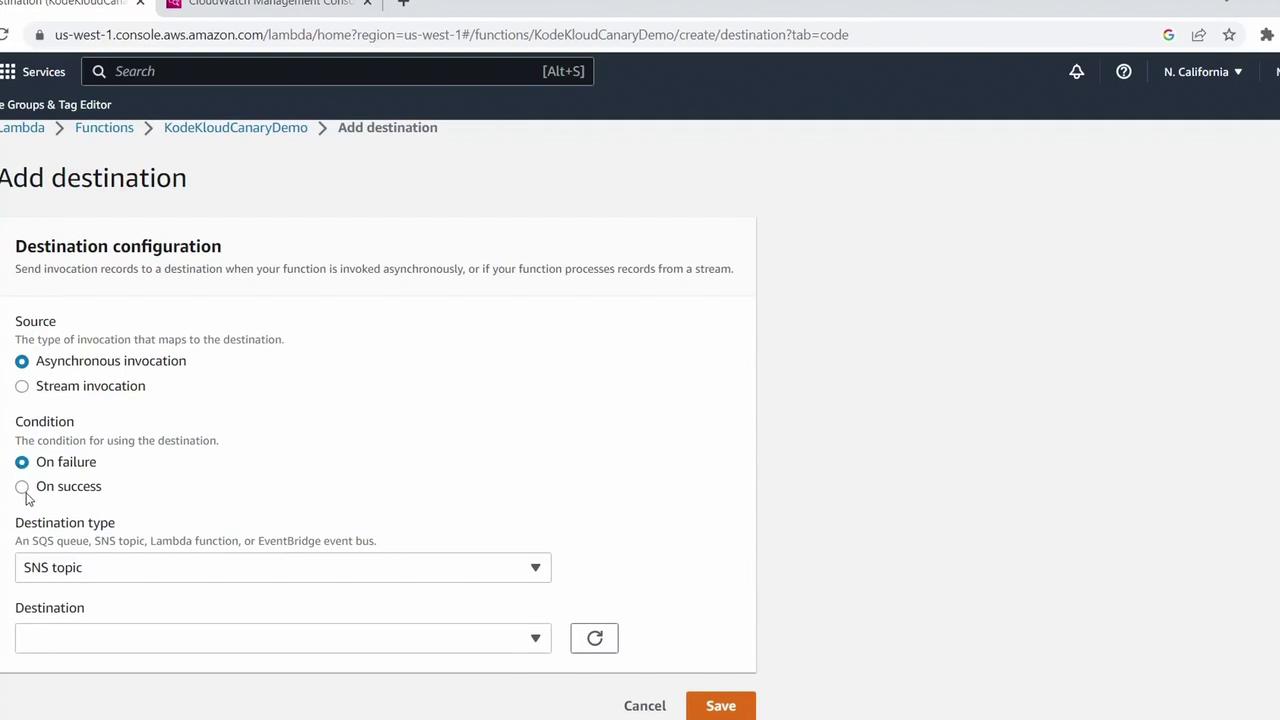
By default, asynchronous invocations don’t return errors to the trigger. To capture outcomes:

1. Click **Add destination**.
2. Under **Source type**, select **Asynchronous invocation**.
3. Set **Condition** to **On failure**.
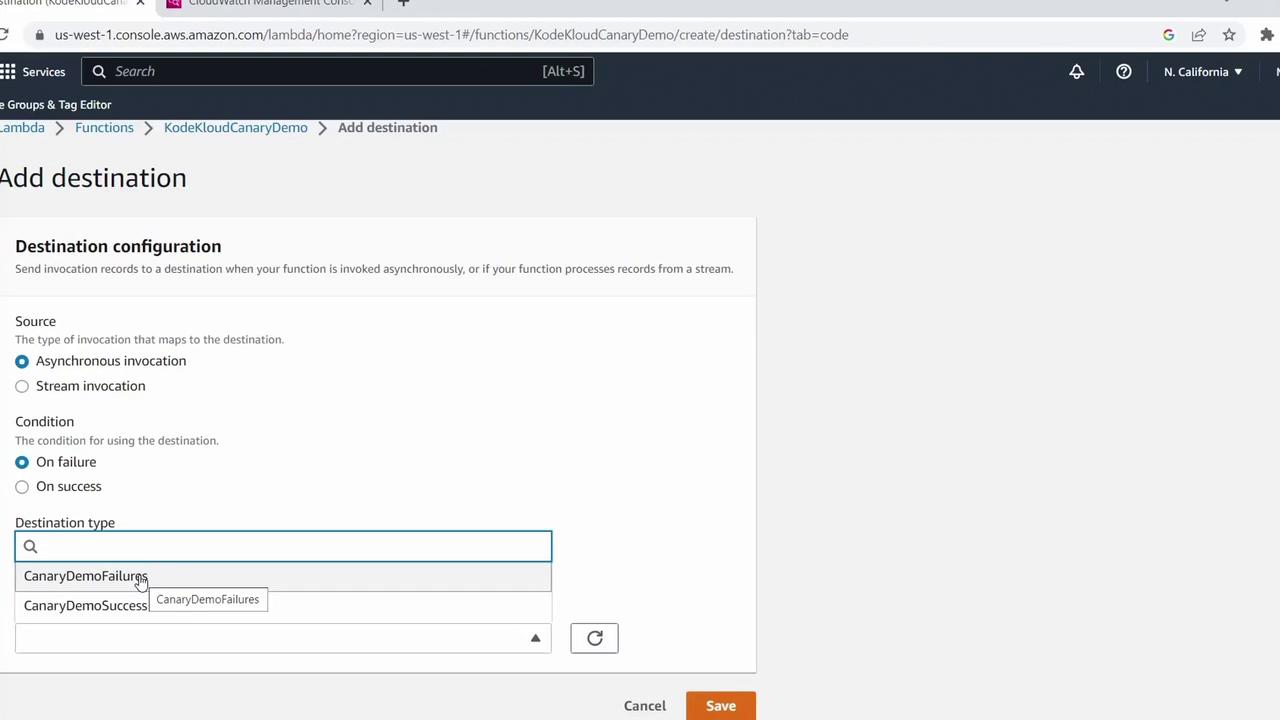
4. For **Destination type**, choose **SNS topic** and pick (or create) your topic, e.g., `Canary Demo Failures`.
5. Save and allow AWS to create the necessary IAM role.
<Frame>
  ![The image shows a configuration screen for adding a destination in AWS Lambda, with options for source type, condition, and destination type. The user can select between asynchronous or stream invocation and choose conditions like "On failure" or "On success."](https://kodekloud.com/kk-media/image/upload/v1752863132/notes-assets/images/AWS-Lambda-Create-a-Canary-Function-using-Blueprint/aws-lambda-destination-configuration-screen.jpg)
</Frame>

Repeat to add an **On success** destination to an SNS topic (e.g., `Canary Demo Success`).
<Frame>
  ![The image shows the AWS Lambda console with a configuration screen for adding a destination. It includes options for source type, condition, and destination type selection.](https://kodekloud.com/kk-media/image/upload/v1752863133/notes-assets/images/AWS-Lambda-Create-a-Canary-Function-using-Blueprint/aws-lambda-console-destination-configuration.jpg)
</Frame>

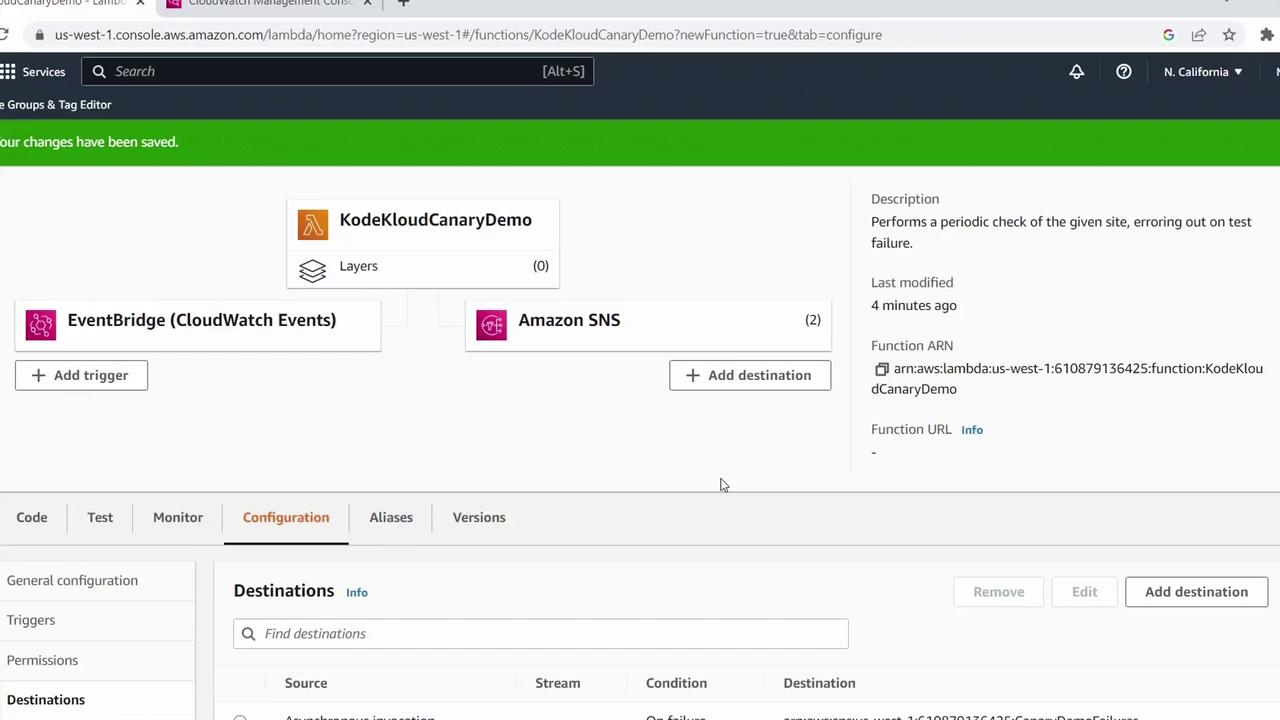
Once done, both destinations will appear alongside your EventBridge rule.
<Frame>
  ![The image shows an AWS Lambda configuration screen for a function named "KodeKloudCanaryDemo," with EventBridge and Amazon SNS as triggers and destinations.](https://kodekloud.com/kk-media/image/upload/v1752863135/notes-assets/images/AWS-Lambda-Create-a-Canary-Function-using-Blueprint/aws-lambda-kodekloudcanarydemo-configuration.jpg)
</Frame>

## 8. Test the Canary Function

1. In the Lambda console, click **Test**.
   * The first invocation should fail (expected=string not on site).
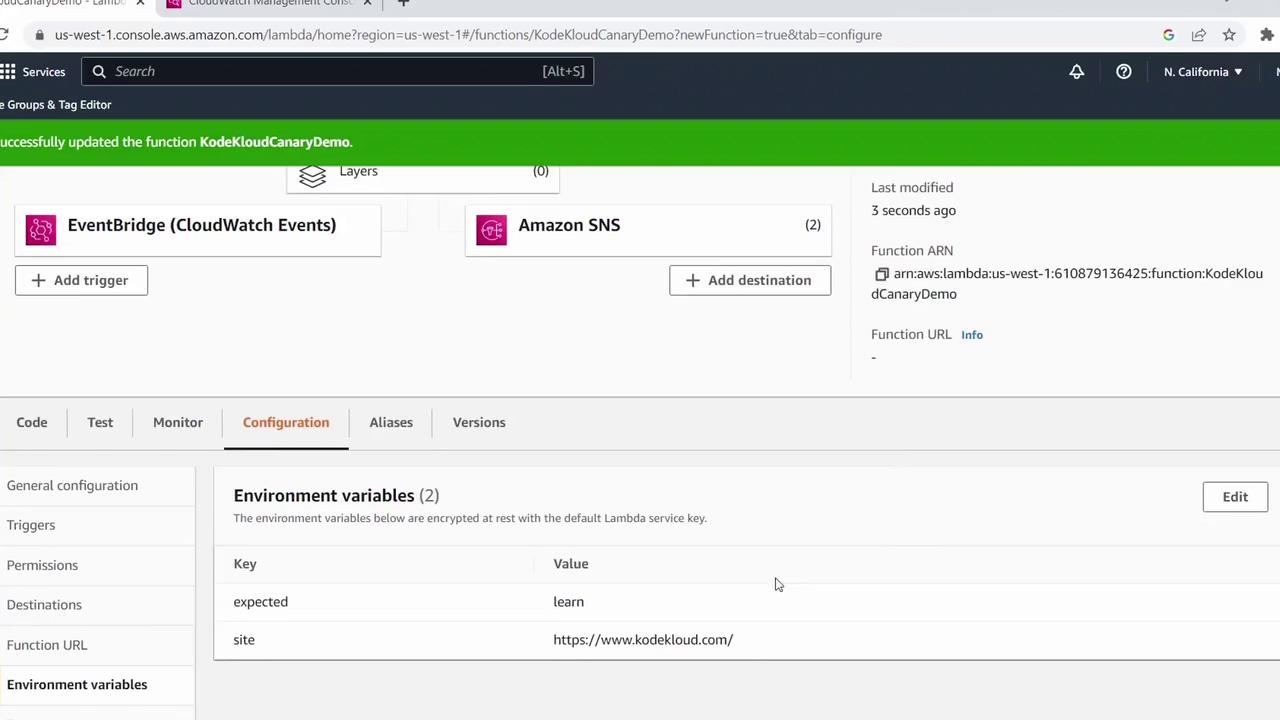
2. To simulate success, go to **Configuration > Variables and secrets** and update `expected` to a word you know exists (e.g., `learned`).
3. Save and click **Test** again.
<Frame>
  ![The image shows an AWS Lambda function configuration screen with triggers and environment variables. It includes EventBridge and Amazon SNS as triggers and displays environment variables with keys "expected" and "site."](https://kodekloud.com/kk-media/image/upload/v1752863136/notes-assets/images/AWS-Lambda-Create-a-Canary-Function-using-Blueprint/aws-lambda-function-configuration-triggers.jpg)
</Frame>

Now the function should pass the validation.

## 9. Monitor Metrics and Logs

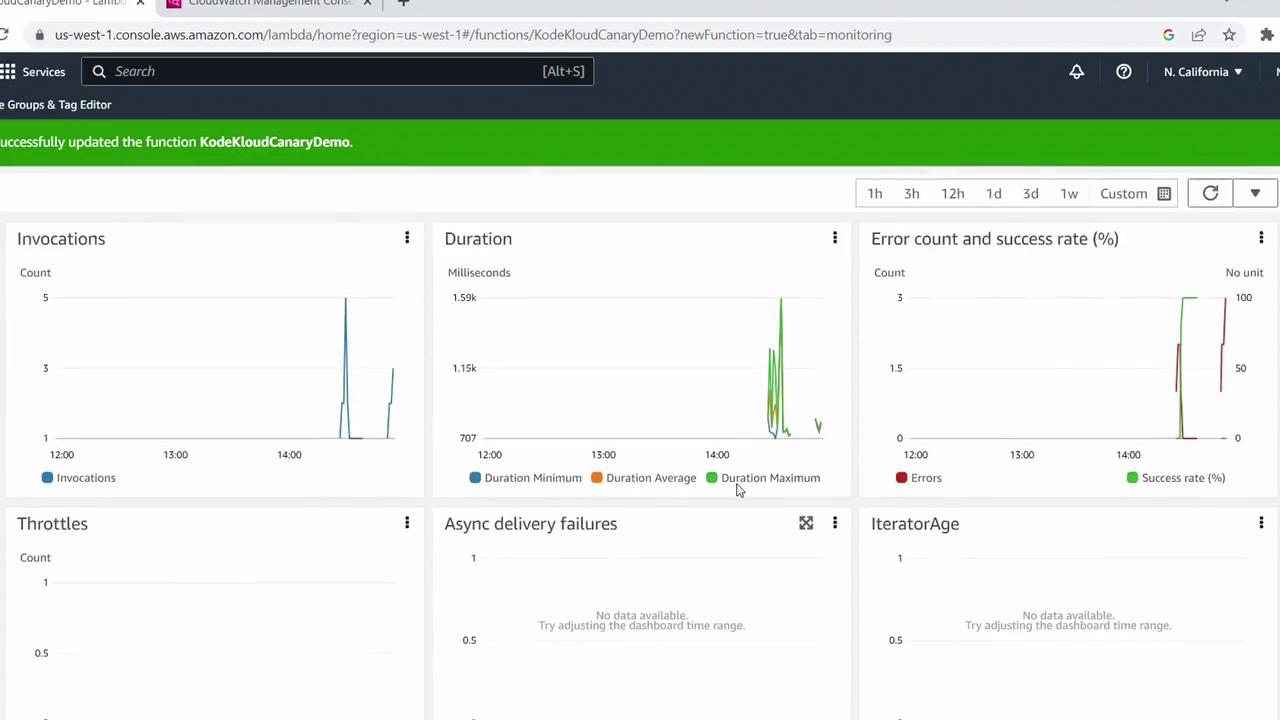
To review invocation metrics:

1. Click the **Monitor** tab in the Lambda console.
<Frame>
  ![The image shows a dashboard from the AWS Lambda console, displaying metrics such as invocations, duration, error count, success rate, throttles, async delivery failures, and iterator age.](https://kodekloud.com/kk-media/image/upload/v1752863138/notes-assets/images/AWS-Lambda-Create-a-Canary-Function-using-Blueprint/aws-lambda-console-dashboard-metrics.jpg)
</Frame>

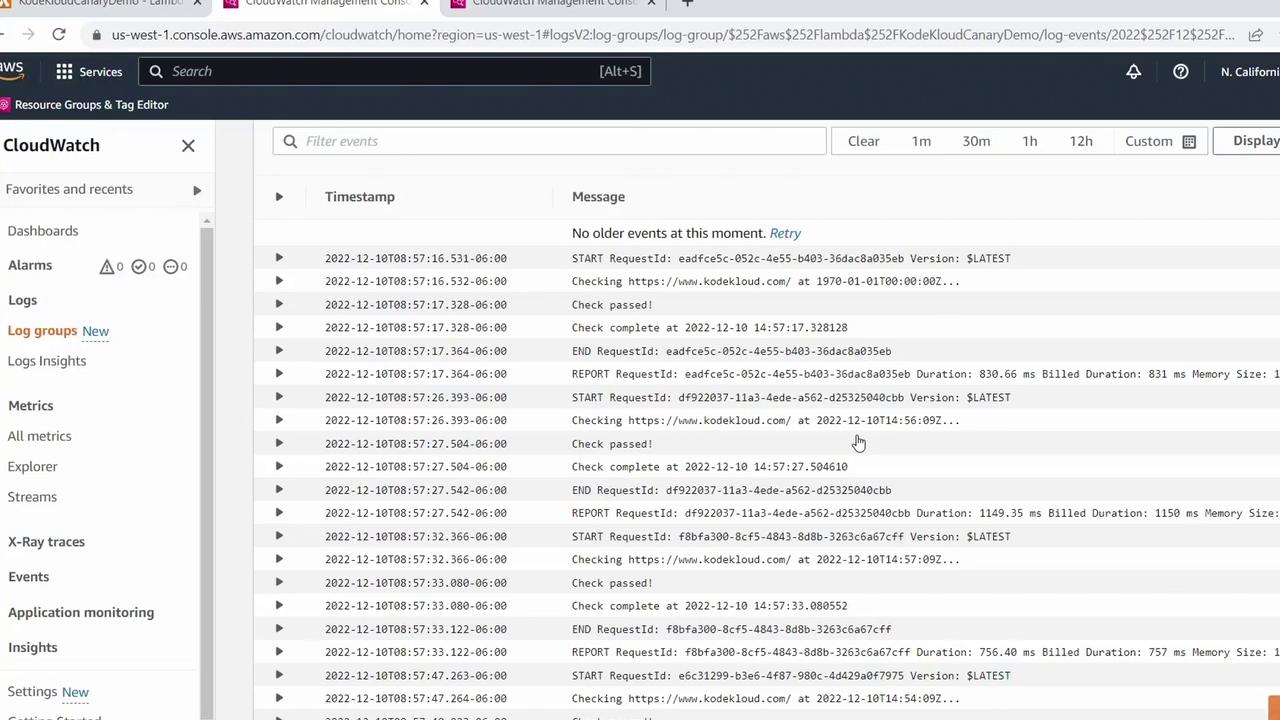
2. For detailed logs, select **View logs in CloudWatch**.\
   Inspect each log stream to see both failures and successful runs.
<Frame>
  ![The image shows an AWS CloudWatch console displaying log events with timestamps and messages related to request checks and completions. The interface includes options for filtering and navigating through logs.](https://kodekloud.com/kk-media/image/upload/v1752863139/notes-assets/images/AWS-Lambda-Create-a-Canary-Function-using-Blueprint/aws-cloudwatch-console-log-events.jpg)
</Frame>

***

Congratulations! You’ve successfully created a Canary Function using an AWS Lambda blueprint, scheduled it with EventBridge, configured SNS destinations, and monitored its behavior. For more AWS Lambda tips and tutorials, explore the [AWS Lambda Documentation](https://docs.aws.amazon.com/lambda/latest/dg/welcome.html).

<CardGroup>
  <Card title="Watch Video" icon="video" cta="Learn more" href="https://learn.kodekloud.com/user/courses/aws-lambda/module/8fef3e34-137a-46d4-8dec-61fb5bae4e0e/lesson/296e9d97-a325-49c2-b280-3dbe637f4452" />

  <Card title="Practice Lab" icon="installation" cta="Learn more" href="https://learn.kodekloud.com/user/courses/aws-lambda/module/8fef3e34-137a-46d4-8dec-61fb5bae4e0e/lesson/bff3ec77-f408-45d7-a711-9ba1d4b024d0" />
</CardGroup>
