> ## Documentation Index
> Fetch the complete documentation index at: https://notes.kodekloud.com/llms.txt
> Use this file to discover all available pages before exploring further.

# Create a Pull Event SQS Function using Blueprint

> This tutorial explains how to set up an AWS Lambda function that polls an SQS queue and processes incoming messages using a blueprint.

In this tutorial, you’ll learn how to set up an AWS Lambda function that polls an SQS queue and processes incoming messages. We’ll use the built-in SQS blueprint, configure permissions, and verify the end-to-end flow.

## Prerequisites

* An existing SQS queue named `KodeKloudDemoQueue`
* IAM permissions to create Lambda functions and roles
* Basic familiarity with AWS Lambda and Amazon SQS

## 1. Navigate to the AWS Lambda Console

1. Open the [AWS Management Console][aws-console]
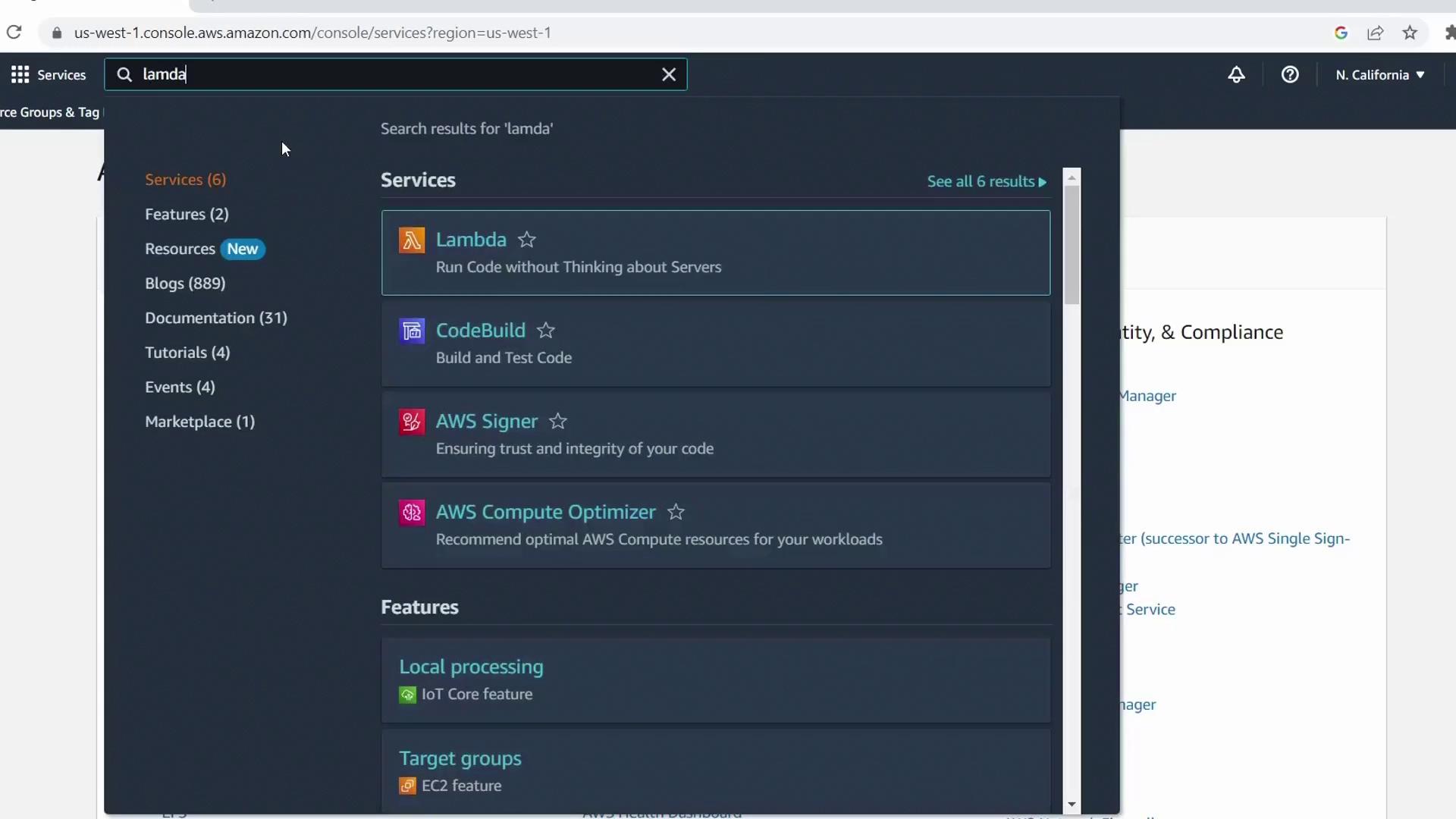
2. In the search bar, type **Lambda** and select **AWS Lambda**
<Frame>
  ![AWS Management Console search for "lambda" in dark mode, highlighting AWS services including AWS Lambda.](https://kodekloud.com/kk-media/image/upload/v1752863140/notes-assets/images/AWS-Lambda-Create-a-Pull-Event-SQS-Function-using-Blueprint/aws-management-console-lambda-search-dark-mode.jpg)
</Frame>

## 2. Create a New Function from a Blueprint

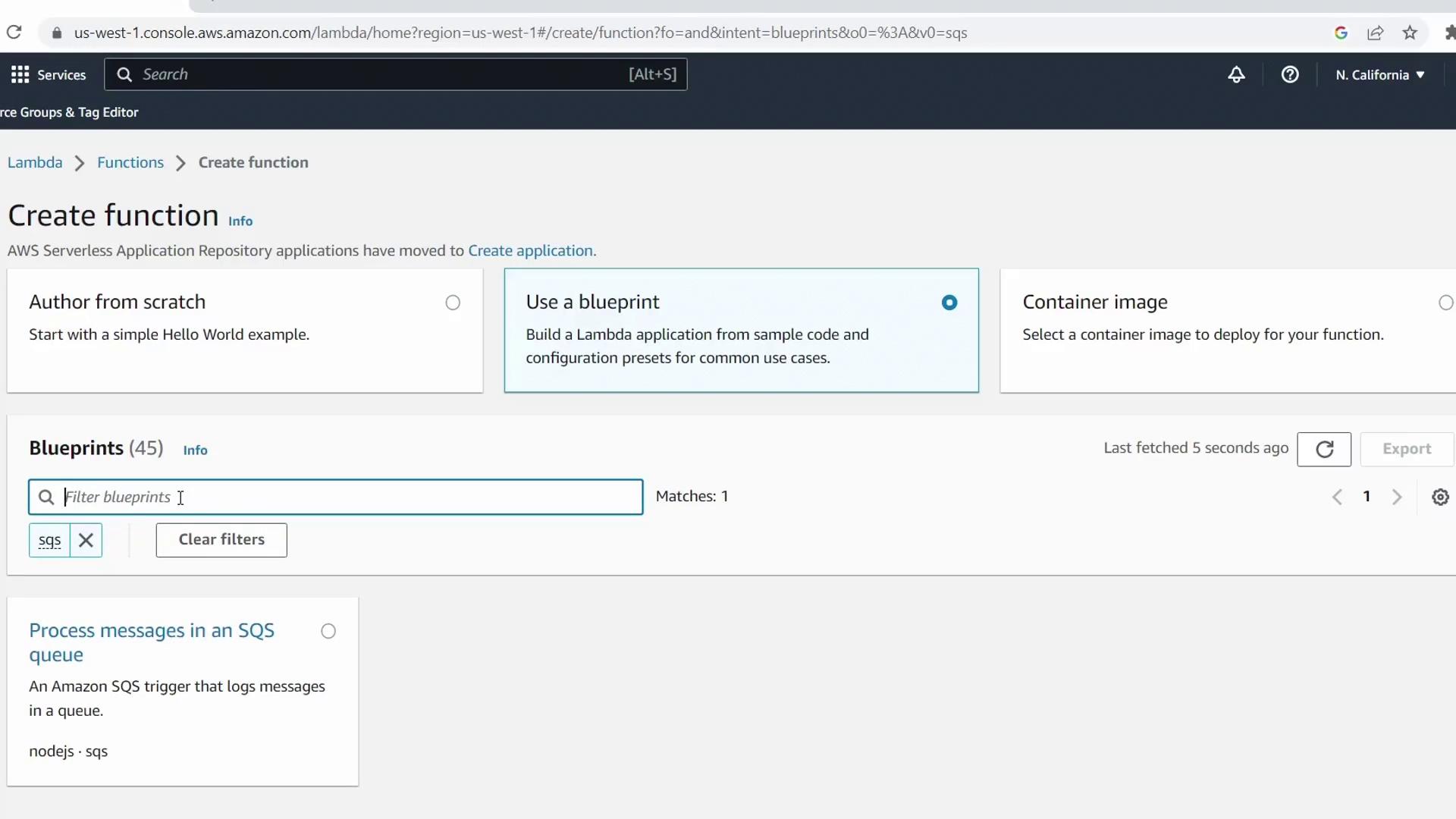
1. Click **Create function**
2. Select the **Blueprint** tab
3. Enter **SQS** in the filter box and choose the **sqs-invoke-lambda** blueprint
4. Click **Configure**
<Frame>
  ![Lambda console "Create function" screen showing blueprint selection, with an SQS processing blueprint highlighted.](https://kodekloud.com/kk-media/image/upload/v1752863141/notes-assets/images/AWS-Lambda-Create-a-Pull-Event-SQS-Function-using-Blueprint/aws-lambda-console-create-function-blueprint.jpg)
</Frame>

### Function Settings

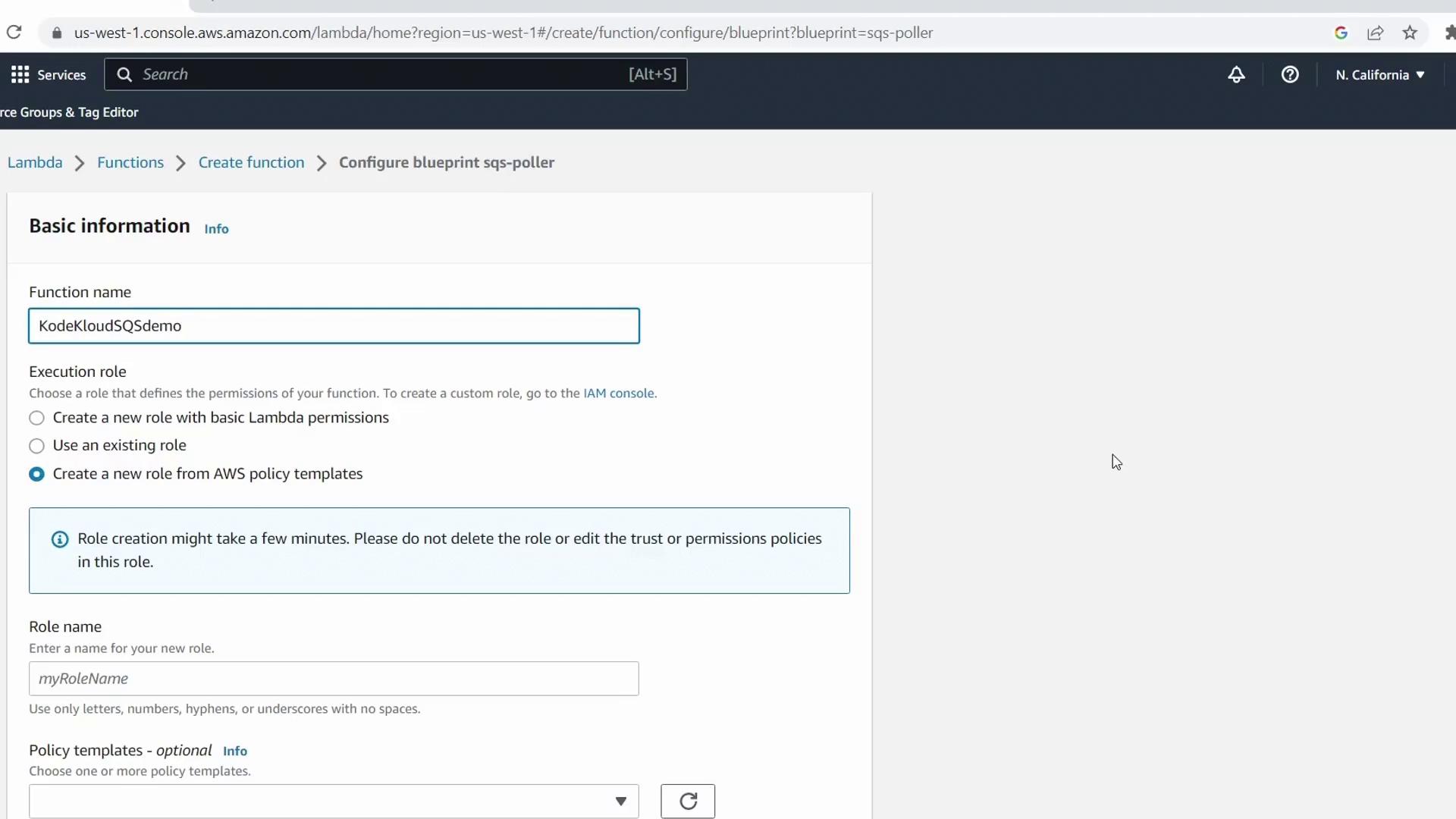
* **Function name**: `KodeKloudSQSDemo`
* **Execution role**: Keep **Create a new role from AWS policy templates**
<Frame>
  ![Lambda function configuration screen with function name "KodeKloudSQSdemo" and execution role options.](https://kodekloud.com/kk-media/image/upload/v1752863142/notes-assets/images/AWS-Lambda-Create-a-Pull-Event-SQS-Function-using-Blueprint/aws-lambda-kodekloudsqs-demo-configuration.jpg)
</Frame>

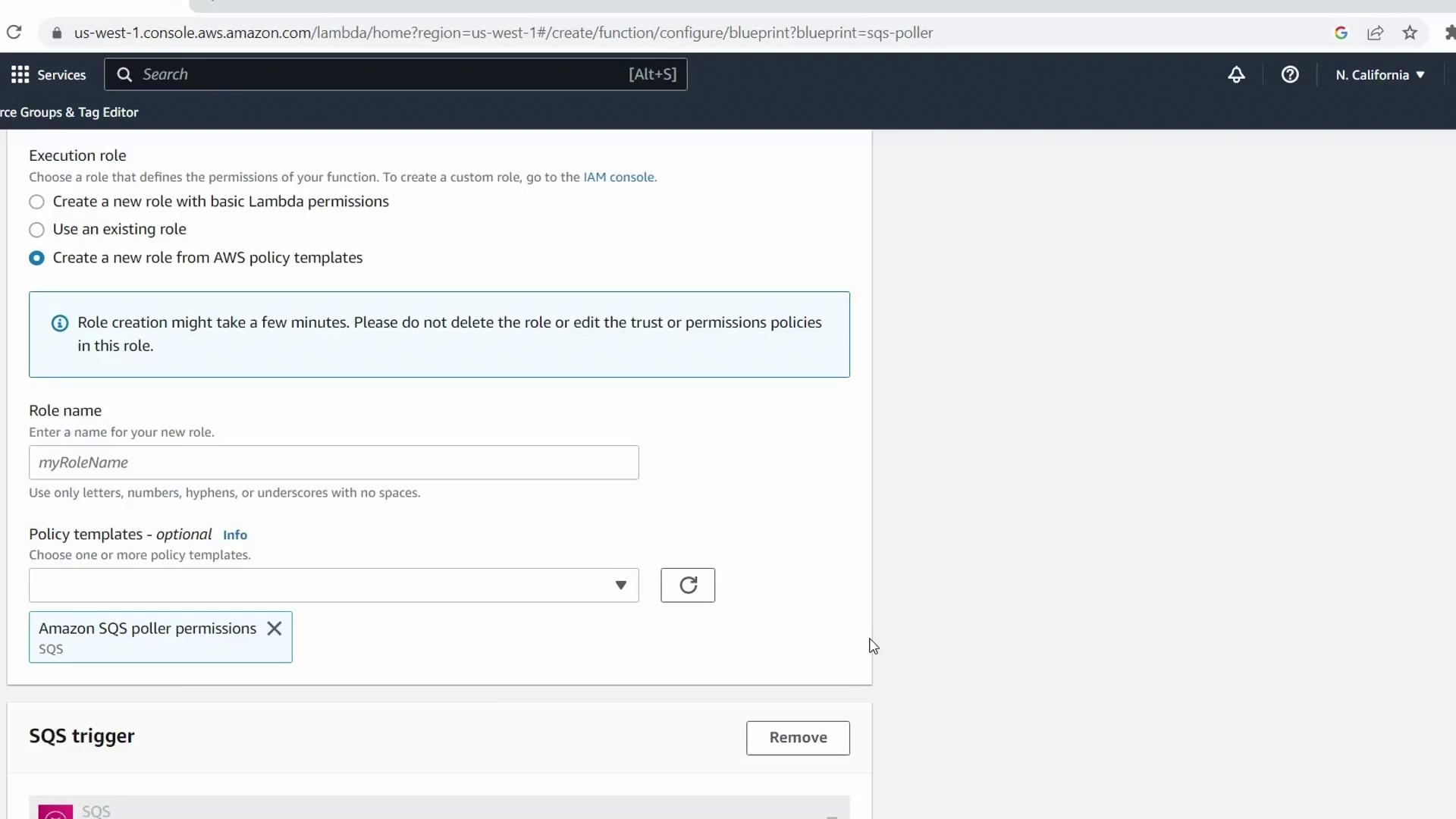
Scroll to **Policy templates** and confirm **Amazon SQS Poller** (or **Amazon SQS Pull event permissions**) is checked. Lambda requires these permissions to read and delete messages from your queue.
<Frame>
  ![Lambda execution role creation interface with Amazon SQS poller permissions policy template selected.](https://kodekloud.com/kk-media/image/upload/v1752863144/notes-assets/images/AWS-Lambda-Create-a-Pull-Event-SQS-Function-using-Blueprint/aws-lambda-execution-role-sqs-permissions.jpg)
</Frame>

* **Role name**: `demo-lambda-sqs-role`

## 3. Configure the SQS Trigger

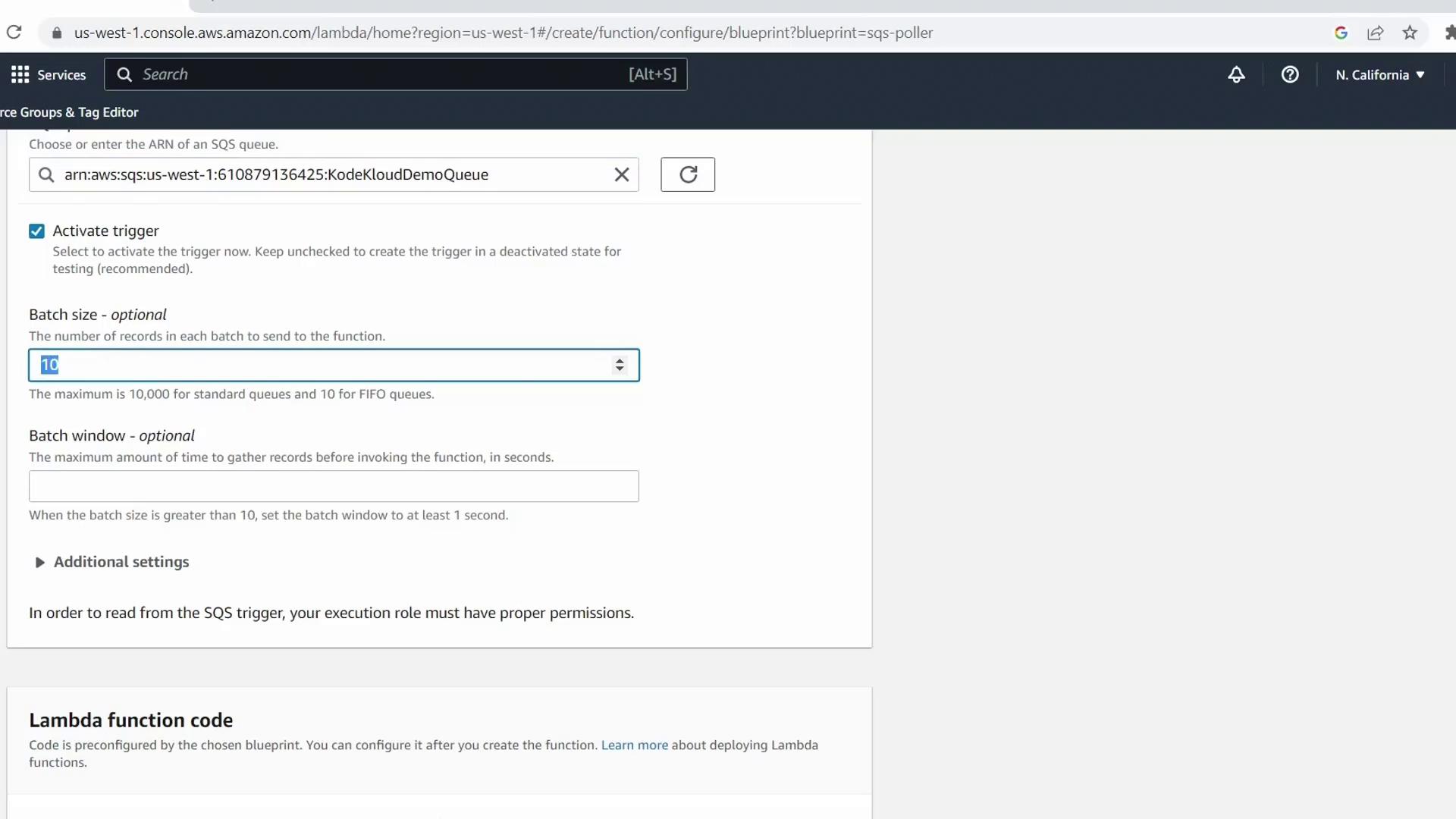
Under **Configure triggers**, pick your `KodeKloudDemoQueue` queue.

| Parameter    | Value | Description                                        |
| ------------ | ----- | -------------------------------------------------- |
| Batch size   | 1     | Number of messages retrieved per Lambda invocation |
| Batch window | 1 s   | Maximum wait time before invocation                |
<Frame>
  ![Lambda SQS trigger configuration screen showing batch size and batch window options.](https://kodekloud.com/kk-media/image/upload/v1752863145/notes-assets/images/AWS-Lambda-Create-a-Pull-Event-SQS-Function-using-Blueprint/aws-lambda-sqs-trigger-configuration.jpg)
</Frame>

<Callout icon="lightbulb" color="#1CB2FE">
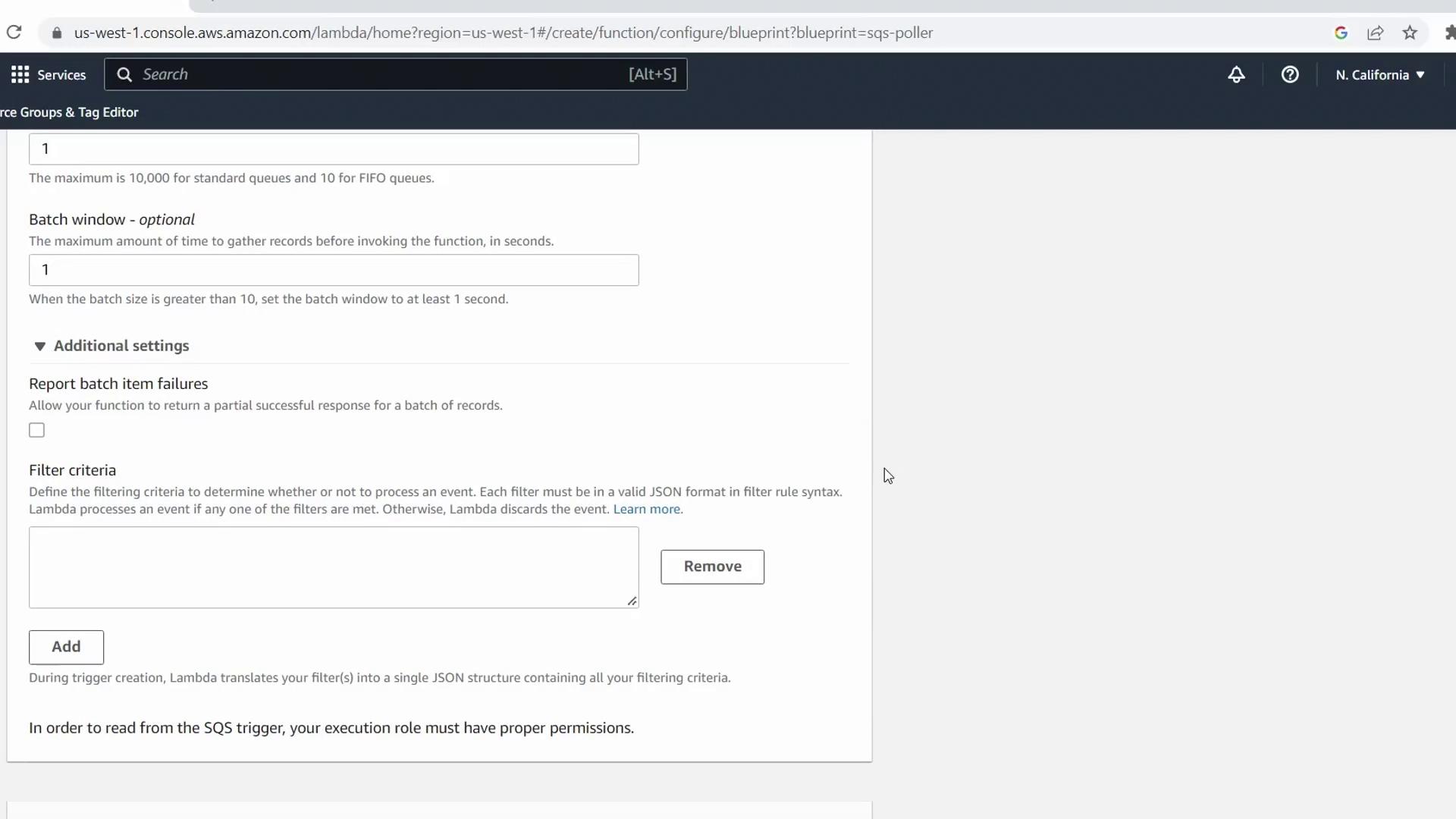
  You can expand **Additional settings** to apply JSON filters or configure batch-item failure reporting. For this demo, we’ll skip filters.
</Callout>

<Frame>
  ![Lambda batch settings page showing batch size, window, and additional settings like filters.](https://kodekloud.com/kk-media/image/upload/v1752863146/notes-assets/images/AWS-Lambda-Create-a-Pull-Event-SQS-Function-using-Blueprint/aws-lambda-configuration-batch-settings.jpg)
</Frame>

## 4. Review and Deploy the Handler Code

The blueprint generates this sample Node.js handler:

```javascript theme={null}
console.log('Loading function');

exports.handler = async (event) => {
  for (const { messageId, body } of event.Records) {
    console.log('SQS message %s: %j', messageId, body);
  }
  return `Successfully processed ${event.Records.length} messages.`;
};
```

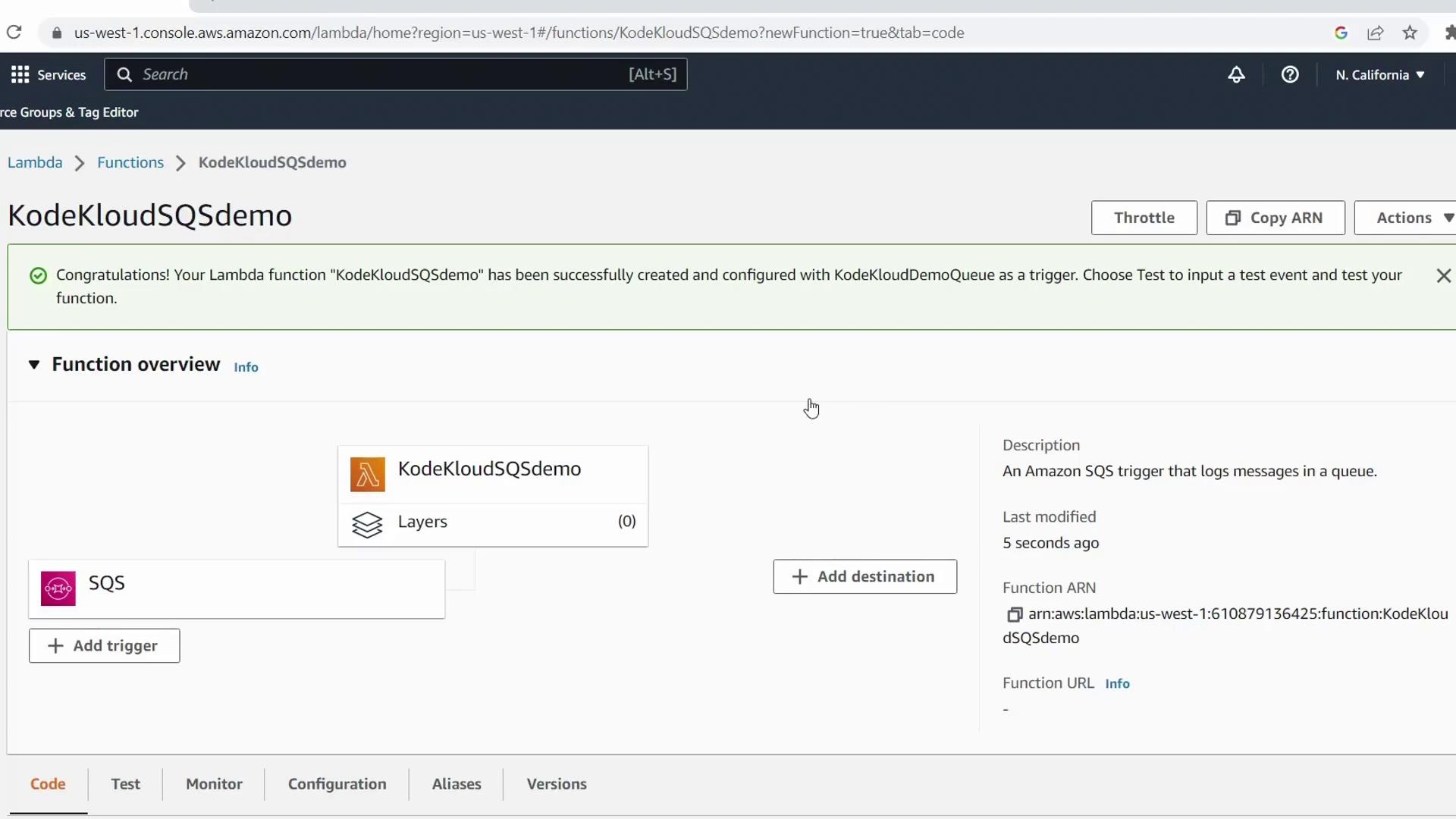
Click **Create function**. AWS will provision your Lambda and attach the SQS trigger automatically.
<Frame>
  ![Lambda console showing the newly created function "KodeKloudSQSdemo" with an SQS trigger.](https://kodekloud.com/kk-media/image/upload/v1752863147/notes-assets/images/AWS-Lambda-Create-a-Pull-Event-SQS-Function-using-Blueprint/aws-lambda-kodekloudsqs-demo-configured.jpg)
</Frame>

## 5. Send a Test Message to SQS

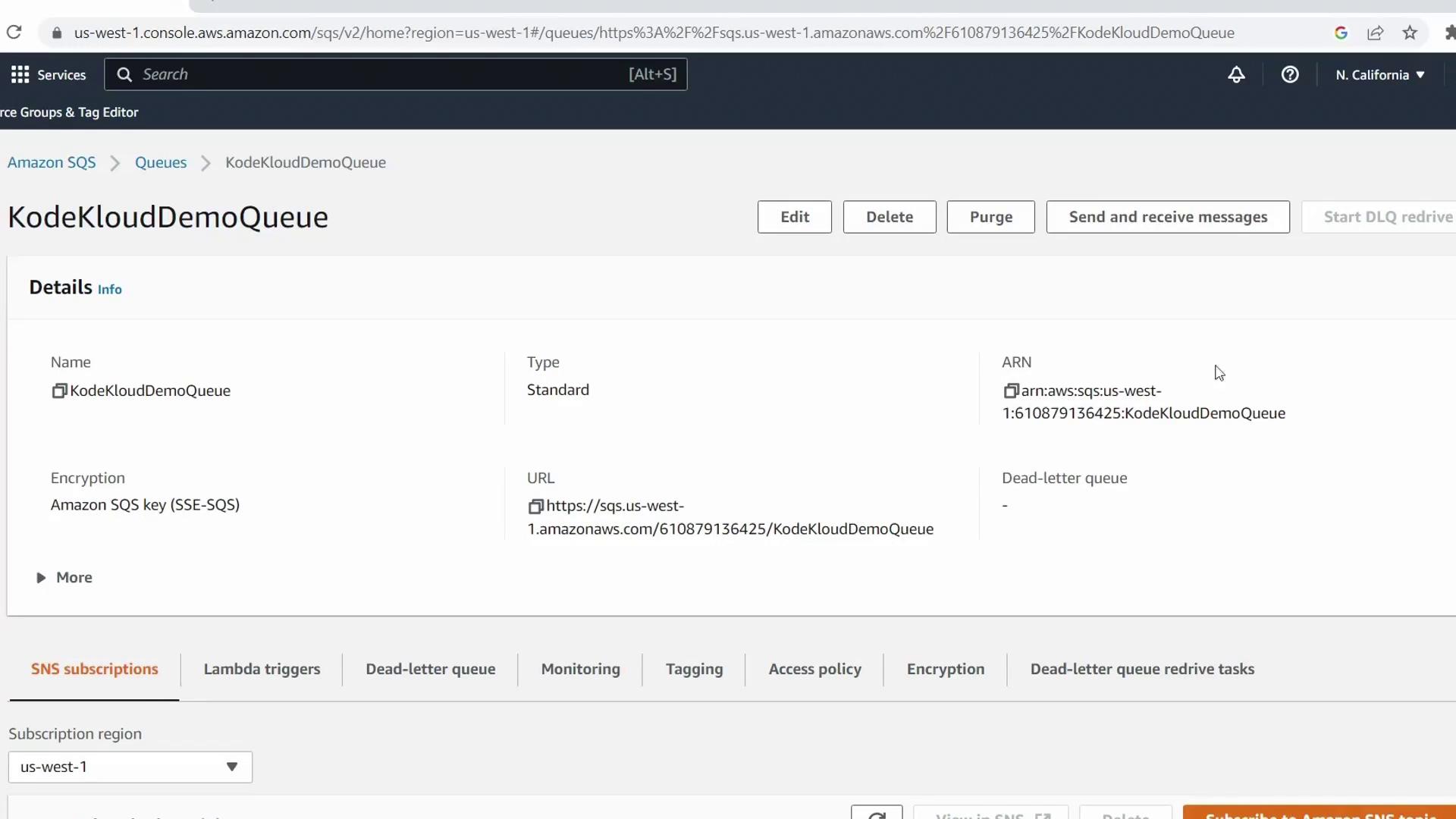
1. In the AWS Console search bar, select **Simple Queue Service**
2. Open **KodeKloudDemoQueue**
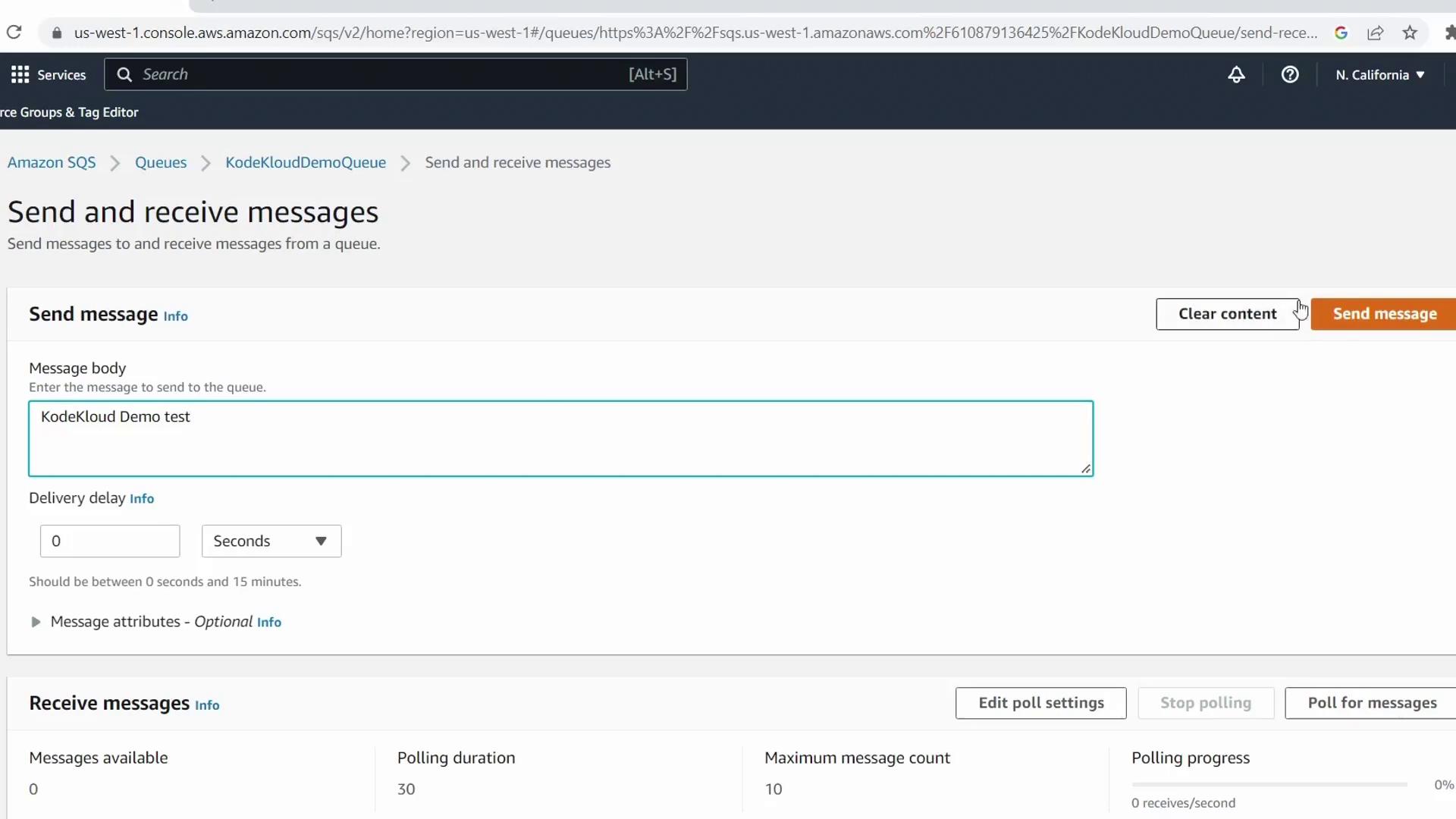
3. Click **Send and receive messages**, enter **KodeKloud Demo Test** as the body, and hit **Send message**
<Frame>
  ![Amazon SQS console for the queue "KodeKloudDemoQueue" with queue details and options to send messages.](https://kodekloud.com/kk-media/image/upload/v1752863149/notes-assets/images/AWS-Lambda-Create-a-Pull-Event-SQS-Function-using-Blueprint/amazon-sqs-kodeklouddemoqueue-console.jpg)
</Frame>

<Frame>
  ![SQS interface for composing and sending a message, with message body "KodeKloud Demo Test".](https://kodekloud.com/kk-media/image/upload/v1752863151/notes-assets/images/AWS-Lambda-Create-a-Pull-Event-SQS-Function-using-Blueprint/amazon-sqs-interface-message-sending.jpg)
</Frame>

## 6. Verify Lambda Invocation in CloudWatch

1. Return to the Lambda console for `KodeKloudSQSDemo`
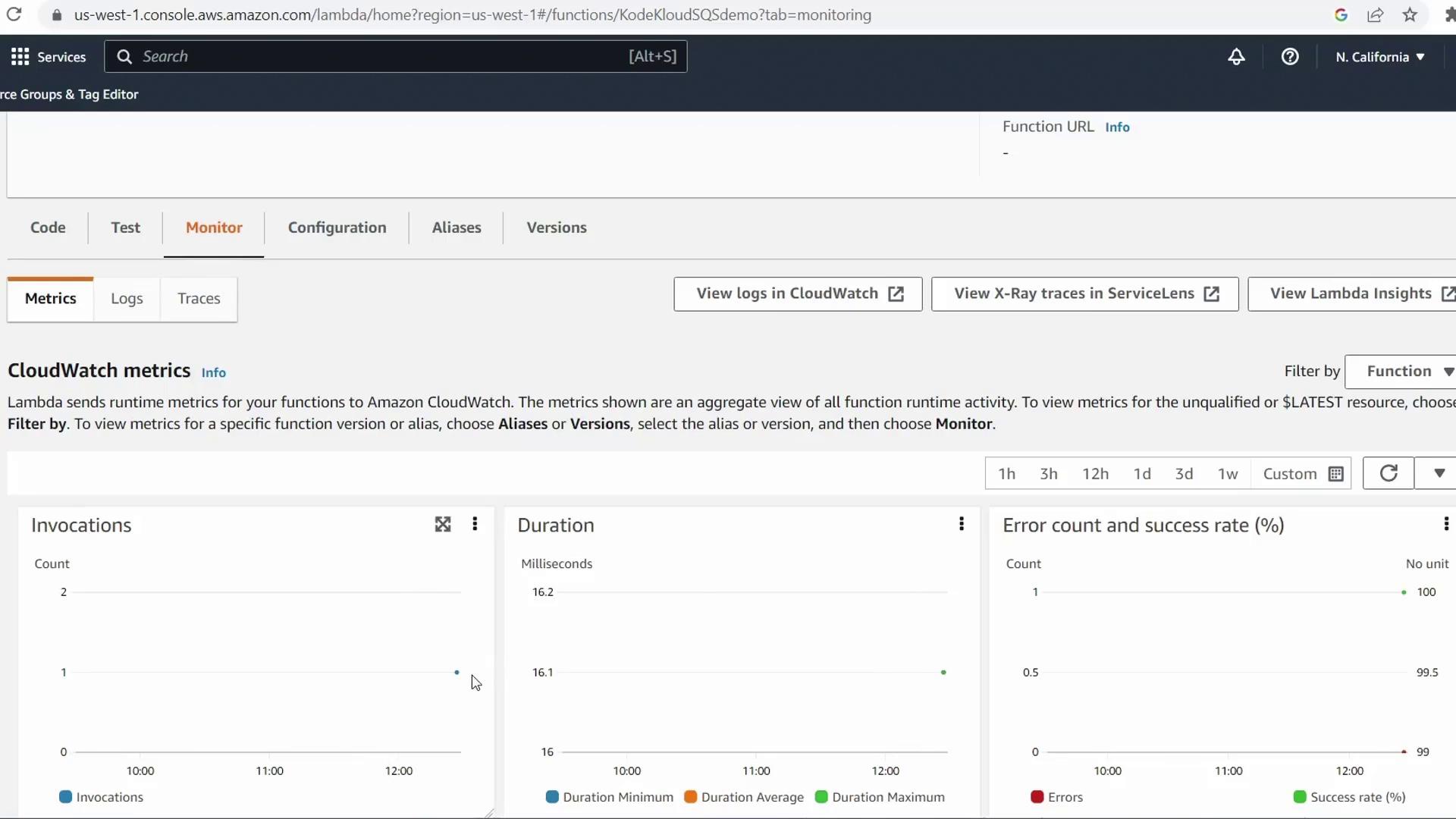
2. Select the **Monitor** tab
3. Check **Invocations** and **Errors** in the CloudWatch metrics
<Frame>
  ![Lambda monitoring dashboard showing CloudWatch metrics for invocations, duration, and errors.](https://kodekloud.com/kk-media/image/upload/v1752863152/notes-assets/images/AWS-Lambda-Create-a-Pull-Event-SQS-Function-using-Blueprint/aws-lambda-monitoring-dashboard-cloudwatch-metrics.jpg)
</Frame>

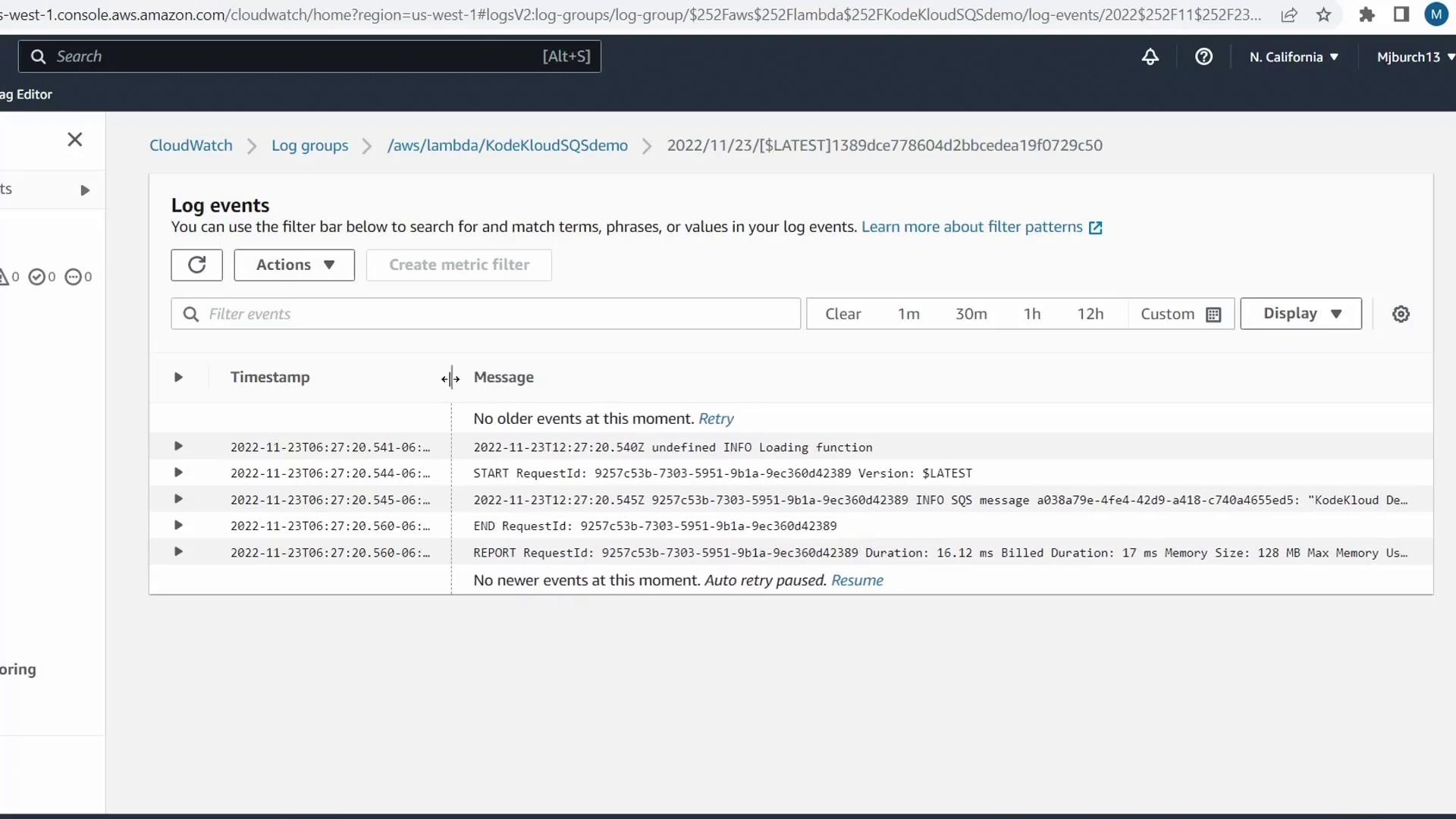
Click **View logs in CloudWatch** to inspect the log stream. You should see entries for your loaded function and the test message body.
<Frame>
  ![CloudWatch log events showing Lambda execution logs, including the received SQS message.](https://kodekloud.com/kk-media/image/upload/v1752863154/notes-assets/images/AWS-Lambda-Create-a-Pull-Event-SQS-Function-using-Blueprint/aws-cloudwatch-lambda-log-events.jpg)
</Frame>

## Next Steps

You’ve successfully:

* Created a Lambda function from the SQS blueprint
* Configured IAM roles and pull permissions
* Deployed an SQS trigger and processed a test message

Extend this workflow by integrating with SNS, writing to DynamoDB, or chaining additional Lambda functions.

***

## Links and References

* [AWS Lambda Developer Guide][lambda-docs]
* [Amazon SQS Developer Guide][sqs-docs]

[aws-console]: https://console.aws.amazon.com

[lambda-docs]: https://docs.aws.amazon.com/lambda/latest/dg/welcome.html

[sqs-docs]: https://docs.aws.amazon.com/AWSSimpleQueueService/latest/SQSDeveloperGuide/welcome.html

<CardGroup>
  <Card title="Watch Video" icon="video" cta="Learn more" href="https://learn.kodekloud.com/user/courses/aws-lambda/module/8fef3e34-137a-46d4-8dec-61fb5bae4e0e/lesson/908bd671-d0ff-45d8-a722-3d039b839e0e" />
</CardGroup>
