> ## Documentation Index
> Fetch the complete documentation index at: https://notes.kodekloud.com/llms.txt
> Use this file to discover all available pages before exploring further.
# Custom VPC Demo
> Learn to create and delete a Virtual Private Cloud in AWS, including region selection, VPC configuration, and resource cleanup.
In this quick demonstration, you’ll learn how to create and delete a Virtual Private Cloud (VPC) in AWS. We’ll walk through choosing a region, navigating the VPC console, configuring a custom VPC, reviewing its settings, and finally cleaning up the resources. This tutorial is part of AWS Networking Fundamentals.
## Selecting a Region
1. Sign in to the [AWS Management Console](https://aws.amazon.com/console/).
2. In the top-right corner, choose the region where you want to deploy your VPC. VPCs are region-specific.\
In this example, we select **US East (N. Virginia)**.
## Navigating to the VPC Dashboard
1. Enter **VPC** in the AWS Console search bar and select the **VPC** service.
2. In the left-hand navigation pane, click **Your VPCs**.
3. You will see a **Default VPC** (AWS creates one per region). We’ll create a custom VPC instead.
A default VPC already exists in each region. It’s ready to deploy resources but lacks custom CIDR and tagging.
## Creating a New VPC
Click **Create VPC** and choose **VPC only**:
| Option | Description |
| ------------ | ----------------------------------------------------------------------- |
| VPC only | Creates only the VPC resource |
| VPC and more | Provisions subnets, route tables, Internet Gateways, NAT Gateways, etc. |
Configure the following parameters:
| Parameter | Value |
| --------------- | ------------------------- |
| Name tag | `demo-vpc` |
| IPv4 CIDR block | `10.0.0.0/16` |
| IPv6 CIDR block | Amazon-provided (default) |
| Tenancy | Default |

After verifying the settings, click **Create VPC**.
## Reviewing VPC Details
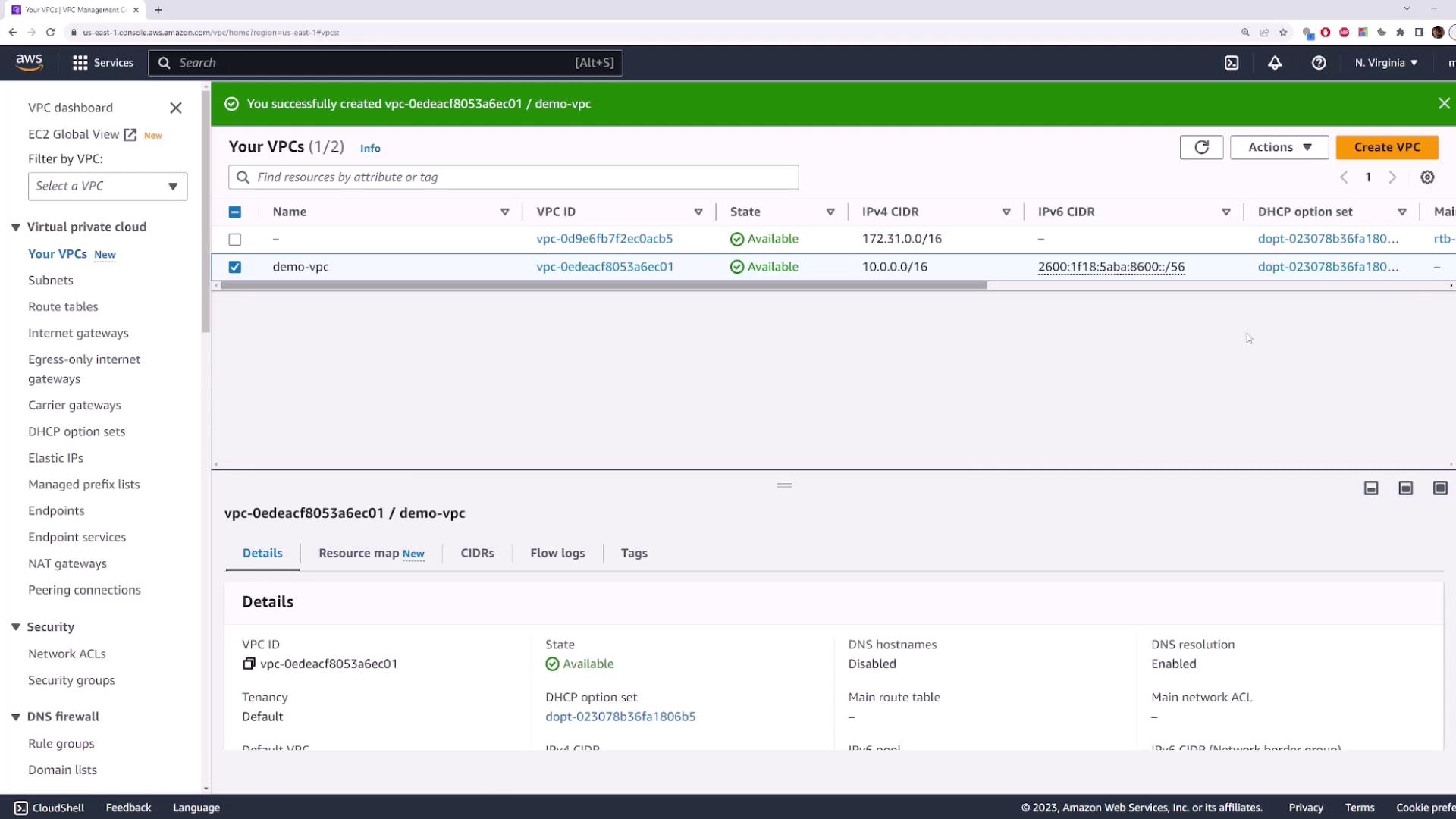
When the VPC creation succeeds, a green status bar appears. Select your new VPC to view its properties:
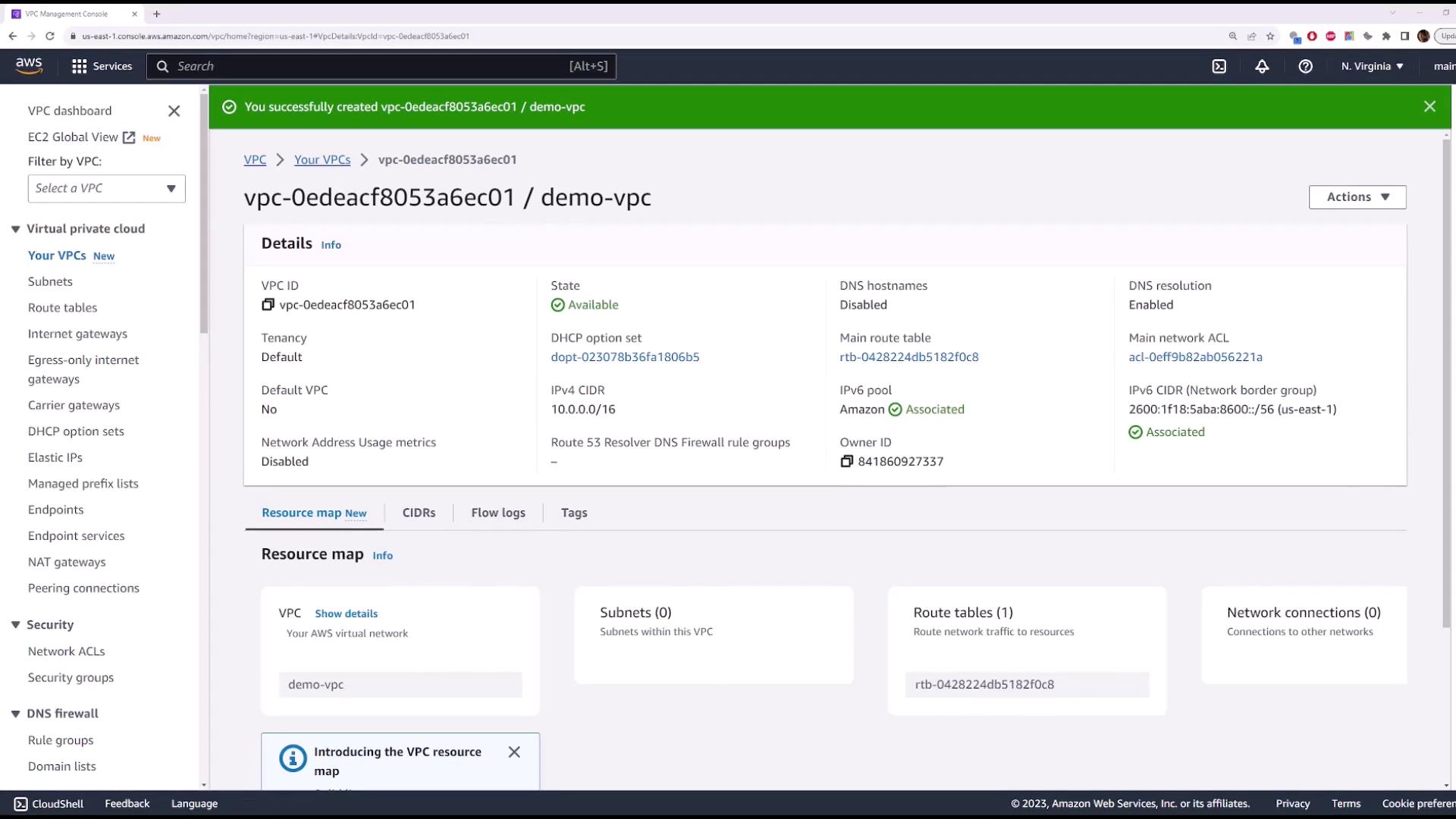
Key attributes:
| Attribute | Description |
| -------------- | -------------------------------------------------------------------------------------- |
| VPC ID & State | Unique identifier and status (Available) |
| CIDR blocks | Configured IPv4 and IPv6 network ranges |
| DNS settings | DNS hostnames and DNS resolution enabled or disabled |
| Tenancy | Default or dedicated host tenancy |
| Route table | Routes traffic between subnets within the VPC |
| Network ACLs | Stateless traffic filters applied at the subnet level |
| Resource map | Visual diagram showing VPC components (subnets, route tables, Internet gateways, etc.) |
At this point, your VPC exists but contains no subnets yet.
## Deleting the VPC
To remove the `demo-vpc`:
Deleting a VPC is irreversible. Ensure no critical resources are attached before you proceed.
1. In the left navigation pane, click **Your VPCs**.
2. Select **demo-vpc**.
3. Choose **Actions** → **Delete VPC**.
4. Type **delete** in the confirmation box and confirm.
***
## References
* [Amazon VPC Documentation](https://docs.aws.amazon.com/vpc/latest/userguide/what-is-amazon-vpc.html)
* [AWS Regions and Endpoints](https://docs.aws.amazon.com/general/latest/gr/rande.html)
* [AWS Management Console](https://aws.amazon.com/console/)