> ## Documentation Index
> Fetch the complete documentation index at: https://notes.kodekloud.com/llms.txt
> Use this file to discover all available pages before exploring further.
# Default VPC Demo
> This guide explores AWS Default VPCs, including inspection, subnet examination, and launching a test EC2 instance with internet connectivity.
In this guide, we explore **AWS Default VPCs**, the network environment AWS provisions by default in each region. You’ll learn how to inspect the default VPC, examine its subnets and resources, and launch a test EC2 instance with internet connectivity—all without manual network configuration.
***
## Table of Contents
1. [Inspecting the Default VPC](#inspecting-the-default-vpc)
2. [Default VPC Across Regions](#default-vpc-across-regions)
3. [Subnets by Availability Zone](#subnets-by-availability-zone)
4. [Resource Map Visualization](#resource-map-visualization)
5. [Internet Gateway & Default Route](#internet-gateway--default-route)
6. [Launching a Test EC2 Instance](#launching-a-test-ec2-instance)
7. [Connecting via SSH & Testing Connectivity](#connecting-via-ssh--testing-connectivity)
8. [Links and References](#links-and-references)
***
## Inspecting the Default VPC
1. Sign in to the AWS Management Console.
2. Navigate to **VPC** (search “VPC” or select from recently visited services).
3. Click **VPCs** in the sidebar and locate the one marked **Default VPC**.
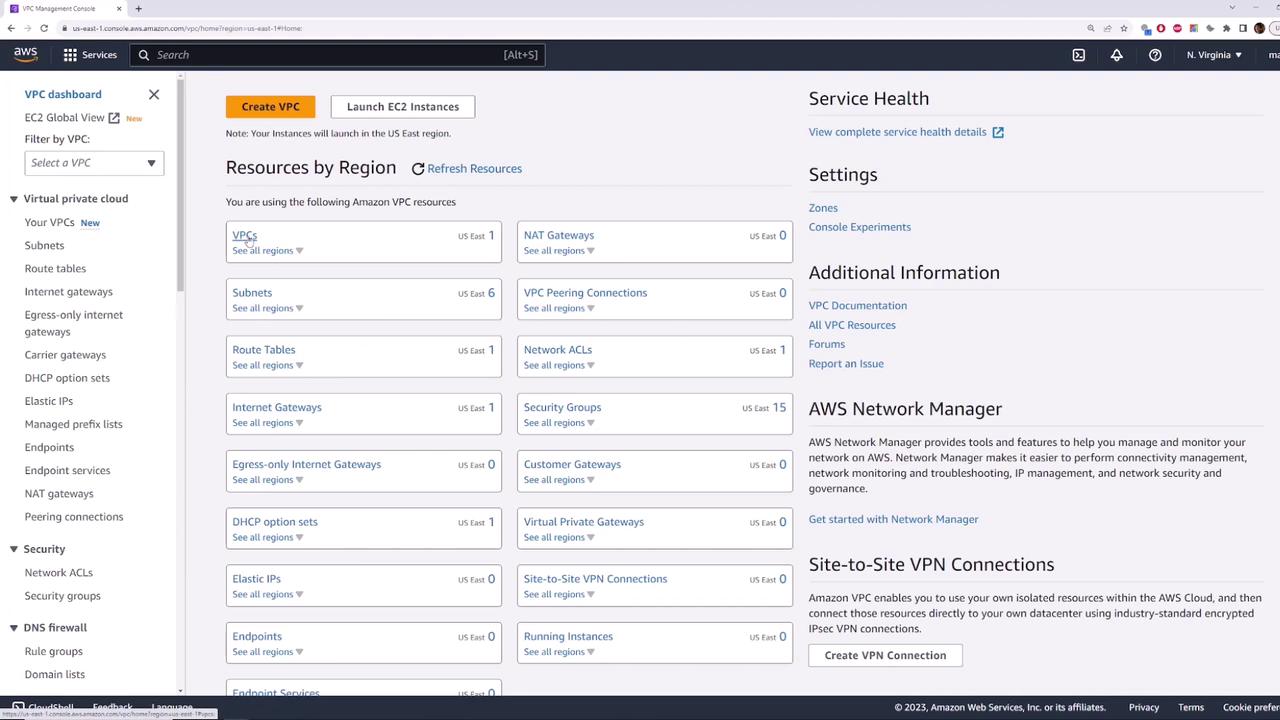
You should see:
* **State**: available
* **CIDR block**: `172.31.0.0/16`
* **Default VPC**: Yes
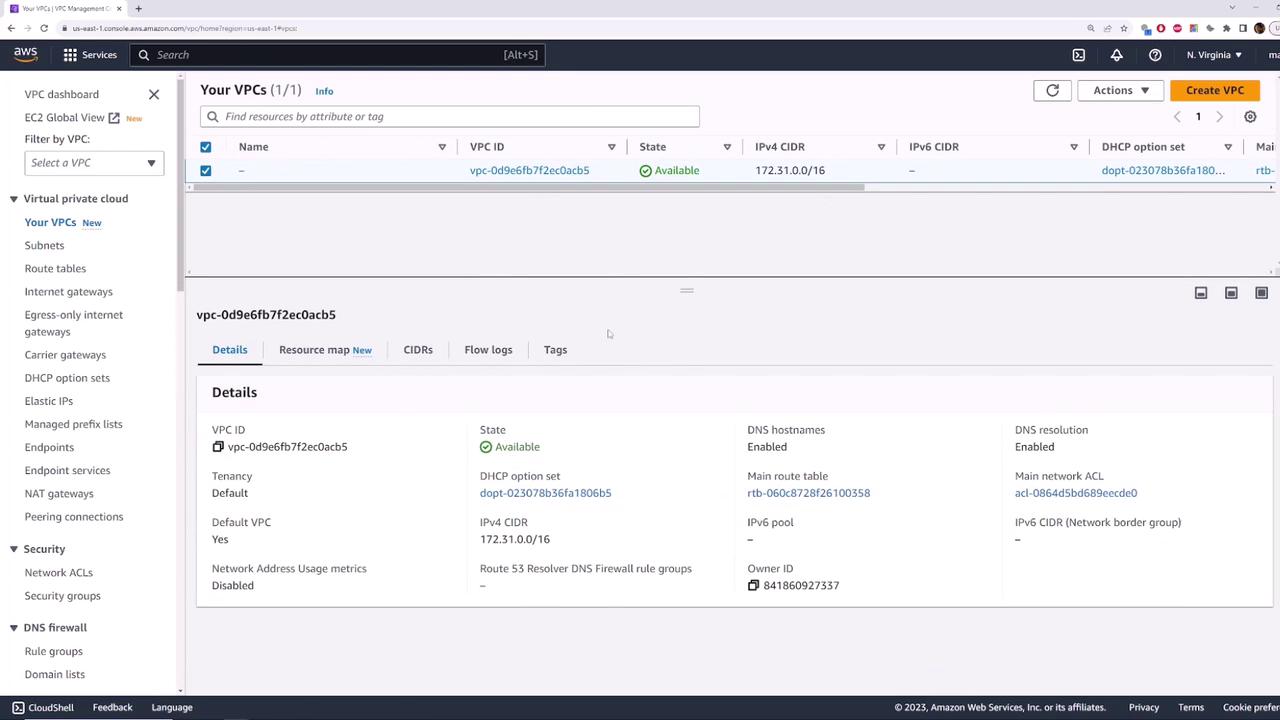
Every AWS region automatically gets one default VPC with the same `172.31.0.0/16` CIDR block.
***
## Default VPC Across Regions
AWS creates an identical default VPC in each region. To verify:
1. Switch your region (e.g., from **US East (N. Virginia)** to **US East (Ohio)**).
2. Open **VPCs**—you’ll again see one default VPC with the same settings and CIDR block.
***
## Subnets by Availability Zone
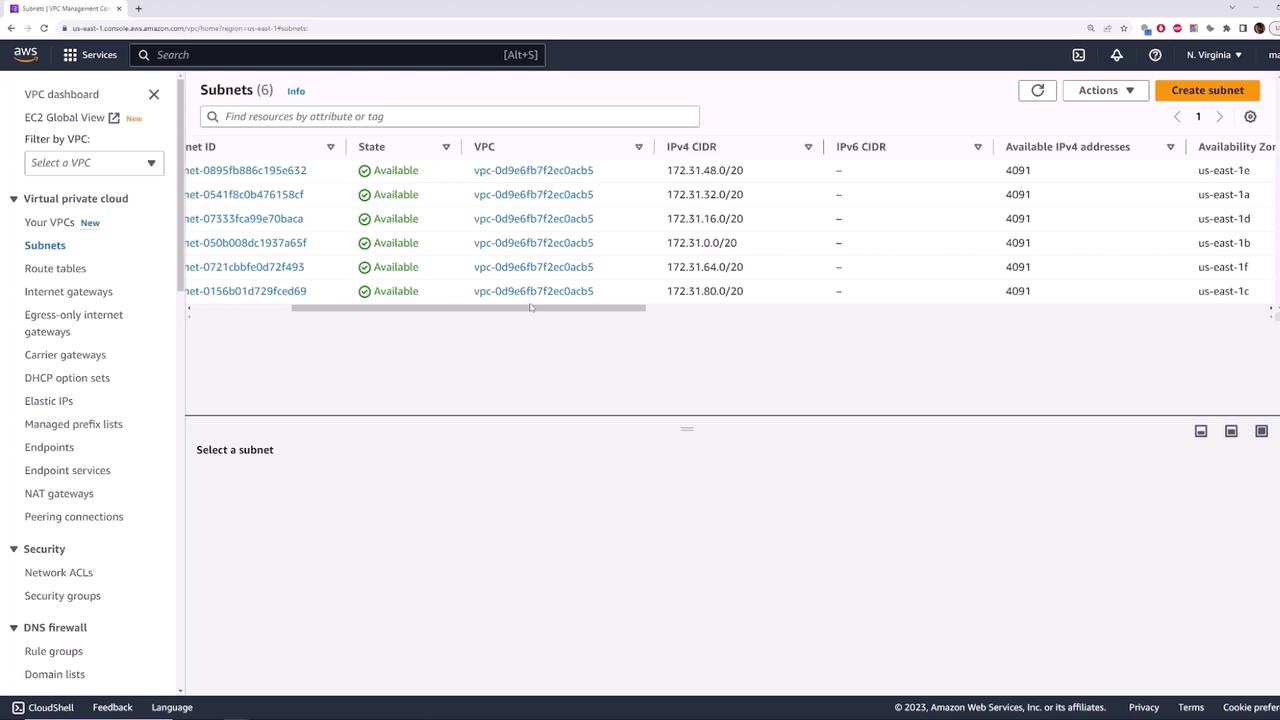
Within a default VPC, AWS provisions one subnet per Availability Zone (AZ). In **us-east-1** there are six AZs, so you get six subnets.
| Availability Zone | Subnet CIDR |
| ----------------- | -------------- |
| us-east-1a | 172.31.0.0/20 |
| us-east-1b | 172.31.16.0/20 |
| us-east-1c | 172.31.32.0/20 |
| us-east-1d | 172.31.48.0/20 |
| us-east-1e | 172.31.64.0/20 |
| us-east-1f | 172.31.80.0/20 |
***
## Resource Map Visualization
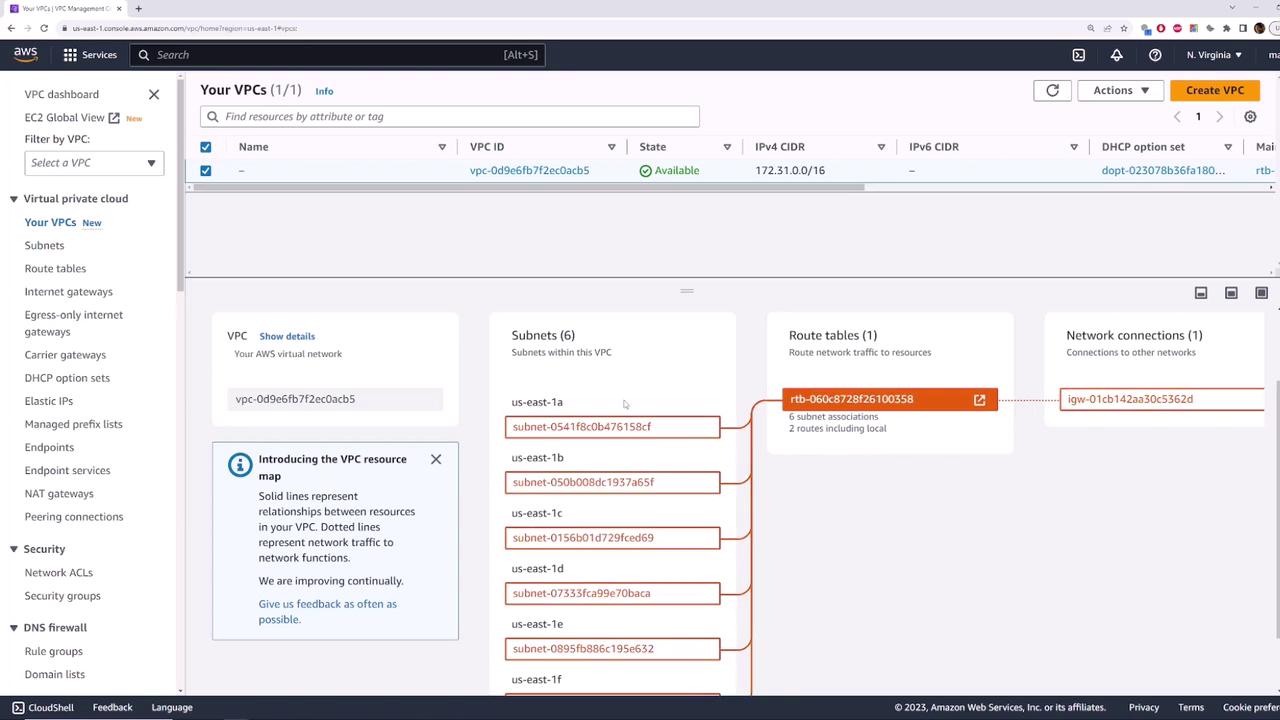
Use the **Resource Map** view to see the relationships between subnets, route tables, and the Internet Gateway.
***
## Internet Gateway & Default Route
* A **Default Internet Gateway** is attached to your default VPC.
* The **main route table** includes an `0.0.0.0/0` route targeting the Internet Gateway.
* Each default subnet has **Auto-assign Public IPv4** enabled.
As a result, any EC2 instance launched into a default subnet receives a public IP and immediate internet access.
***
## Launching a Test EC2 Instance
Let’s launch a Linux instance into the default VPC to validate internet connectivity.
1. Go to the **EC2** console and click **Launch Instance**.
2. Select **Amazon Linux 2 AMI** and **t2.micro**.
3. Click **Next** until **Key Pair**—create a new key named `aws-demo` and download the `.pem` file.
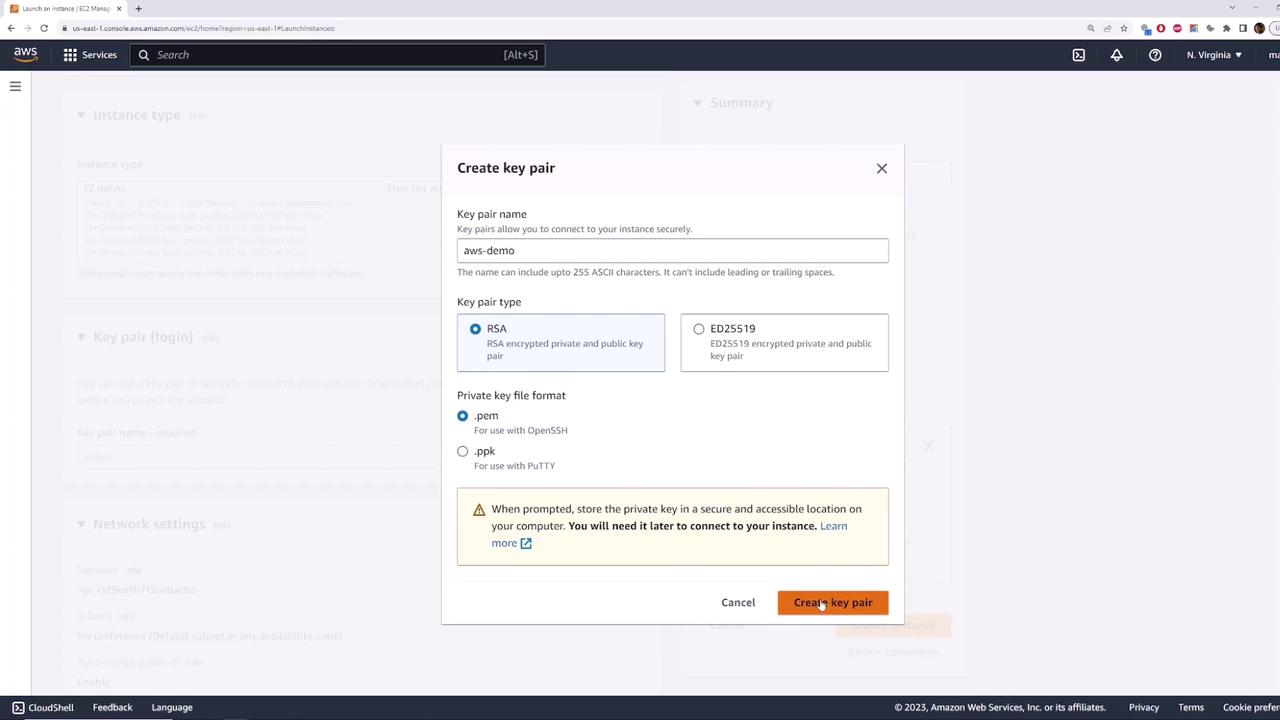
4. In **Configure Security Group**, allow SSH (port 22) from your IP.
5. Under **Configure Instance**, ensure:
* **Network**: Default VPC (`172.31.0.0/16`)
* **Subnet**: e.g., us-east-1b
* **Auto-assign Public IP**: Enabled
6. Review and **Launch**.
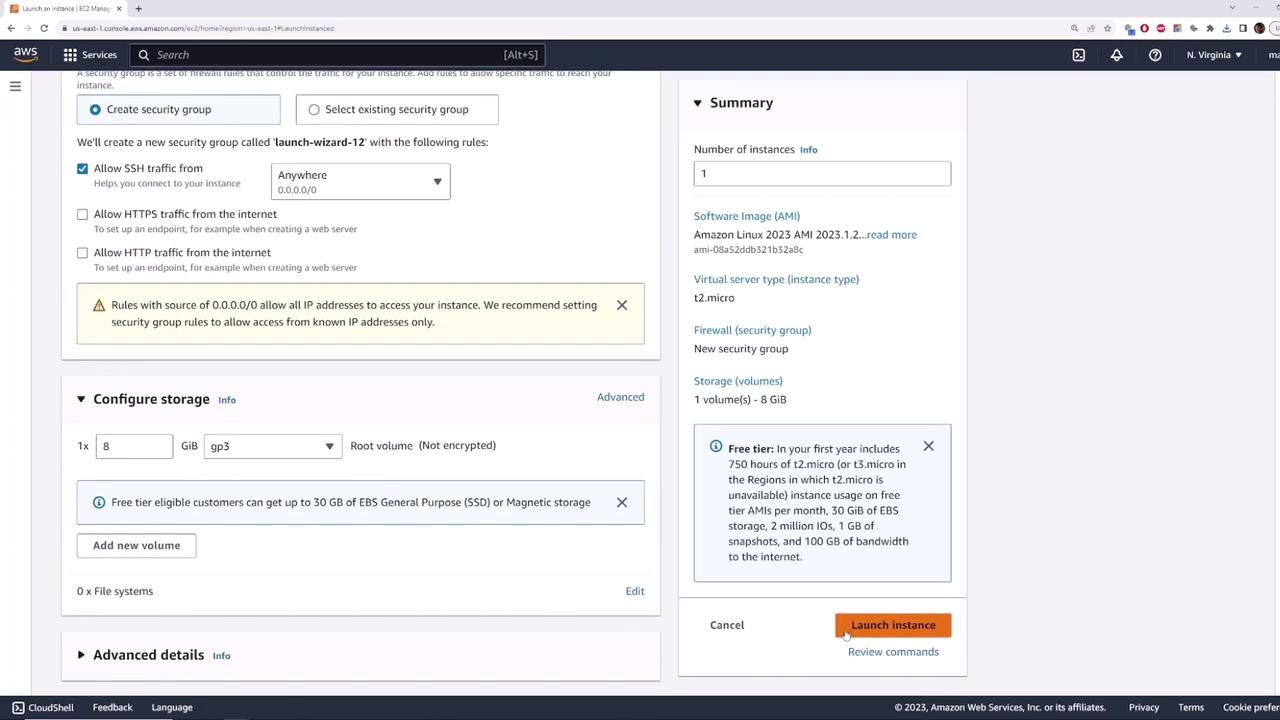
Terminate your test instance when finished to avoid unexpected charges.
***
## Connecting via SSH & Testing Connectivity
Once the instance state is **running**, copy its public IP and connect:
```bash theme={null}
ssh -i aws-demo.pem ec2-user@
```
Test internet connectivity:
```bash theme={null}
ping -c 4 8.8.8.8
```
Example output:
```text theme={null}
64 bytes from 8.8.8.8: icmp_seq=1 ttl=110 time=0.965 ms
64 bytes from 8.8.8.8: icmp_seq=2 ttl=110 time=1.01 ms
--- 8.8.8.8 ping statistics ---
4 packets transmitted, 4 received, 0% packet loss
```
This confirms that instances in the default VPC automatically receive a public IP and internet access.
***
## Links and References
* [Amazon VPC User Guide][1]
* [Launching an Instance (EC2)][2]
* [AWS Regions and AZs][3]
[1]: https://docs.aws.amazon.com/vpc/latest/userguide/
[2]: https://docs.aws.amazon.com/AWSEC2/latest/UserGuide/EC2_GetStarted.html
[3]: https://docs.aws.amazon.com/AWSEC2/latest/UserGuide/using-regions-availability-zones.html