> ## Documentation Index
> Fetch the complete documentation index at: https://notes.kodekloud.com/llms.txt
> Use this file to discover all available pages before exploring further.
# Elastic IP
> This article explains AWS Elastic IP addresses, their benefits, management, pricing, and how they ensure consistent connectivity for applications.
Understanding how AWS handles public IPs and leveraging Elastic IPs can help you maintain consistent connectivity for your applications.
## Why Dynamic Public IPs Can Be Problematic
When you launch an EC2 instance in a public subnet, AWS automatically assigns a **public IPv4 address** (for example, `1.1.1.1`). However, this IP is drawn from AWS’s shared pool and is **not** reserved for your account. Stopping or restarting the instance may result in a new IP, causing:
* Downtime if clients have hardcoded the old address
* Configuration drift in DNS records or security groups
* Operational overhead to track changing IPs
## Introducing Elastic IPs
**Elastic IP addresses** are static IPv4 addresses that you allocate and control within a specific AWS Region. Key benefits include:
* Static mapping: The IP stays yours until you explicitly release it
* Flexibility: Associate or disassociate the address from EC2 instances or ENIs at any time
* High availability: Instantly remap to a standby instance during maintenance or failure
### Example: Failover with Elastic IPs
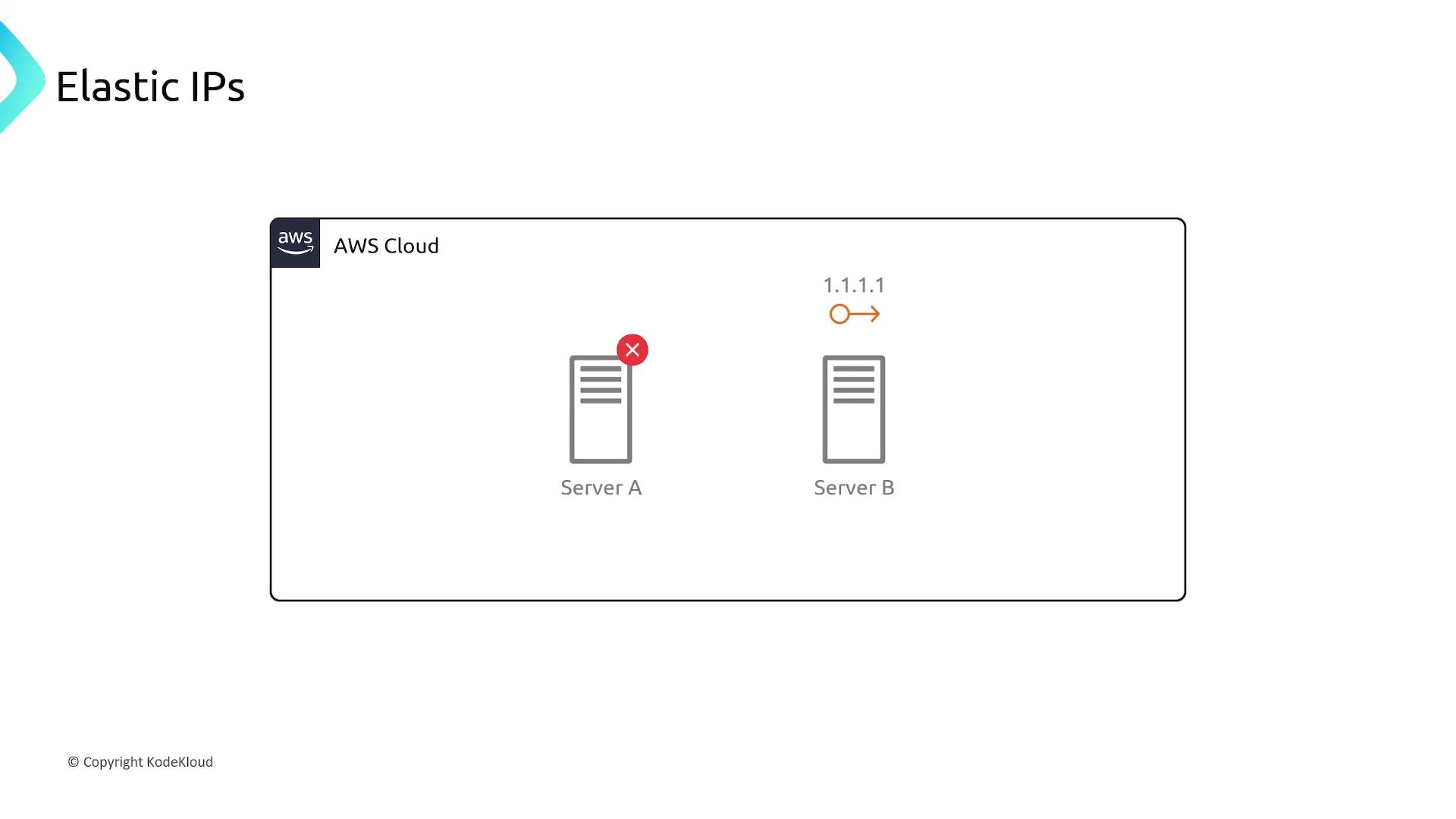
If **Server A** goes down, simply disassociate its Elastic IP and reassign it to **Server B**. Clients continue to reach your application at the same address (`1.1.1.1`), eliminating DNS propagation delays.
## Allocating and Managing Elastic IPs
You can manage Elastic IPs via the AWS Management Console or AWS CLI. Below is a sample CLI workflow.
```bash theme={null}
# Allocate a new Elastic IP in your default VPC
aws ec2 allocate-address --domain vpc
# Associate the Elastic IP with an EC2 instance
aws ec2 associate-address \
--instance-id i-0123456789abcdef0 \
--allocation-id eipalloc-12345678
# Disassociate the Elastic IP when needed
aws ec2 disassociate-address --association-id eipassoc-87654321
```
You can also manage Elastic IPs using AWS SDKs, CloudFormation, or Terraform. Refer to the [AWS Elastic IP Documentation](https://docs.aws.amazon.com/AWSEC2/latest/UserGuide/elastic-ip-addresses-eip.html) for more details.
## Elastic IP Pricing
| Scenario | Cost |
| --------------------------------------------------- | ---------------- |
| First Elastic IP associated with a running instance | Free |
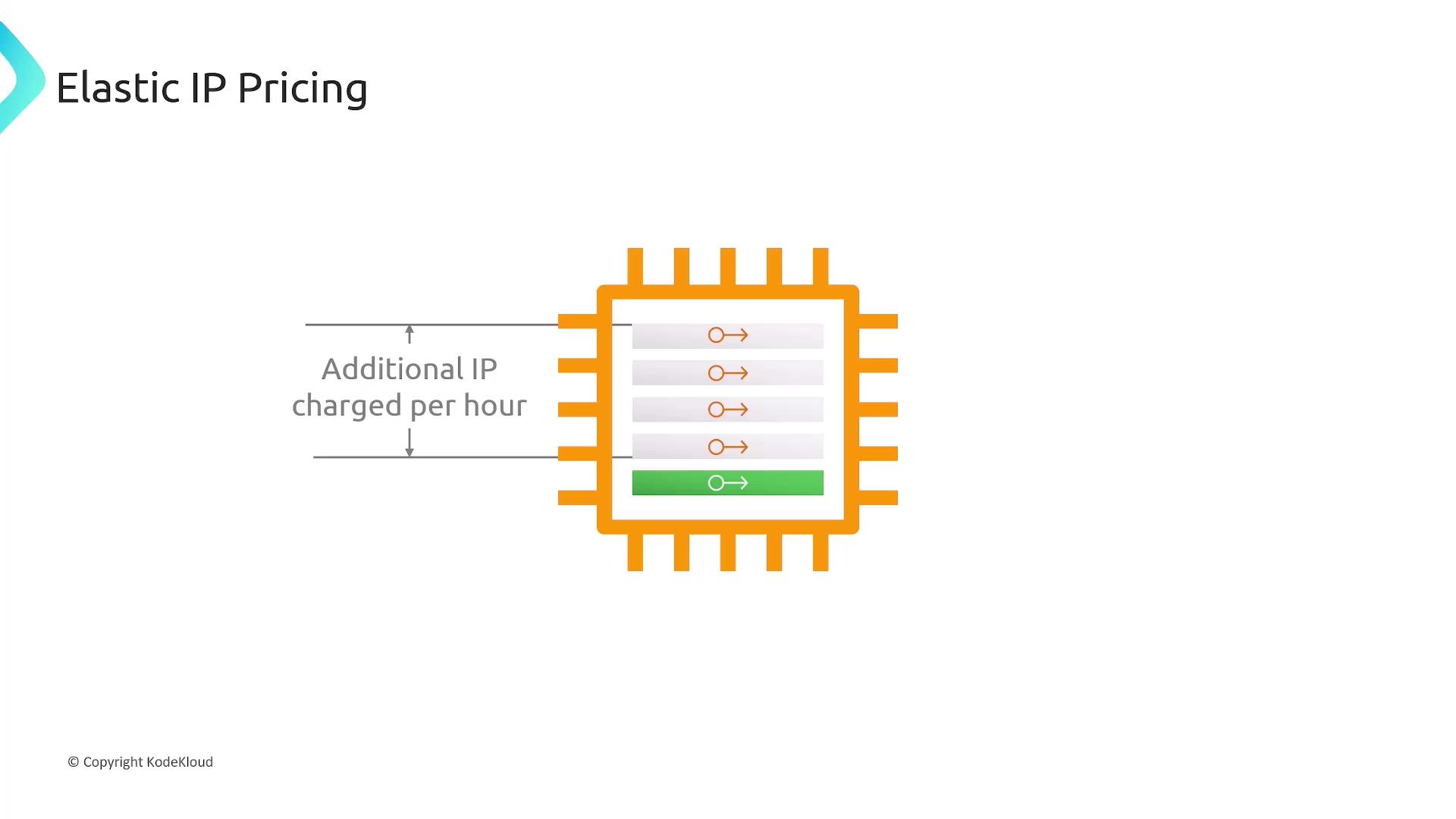
| Additional Elastic IPs on the same instance | Charged per hour |
| Allocated but unattached Elastic IPs | Small hourly fee |
Unattached Elastic IPs incur charges. Always release unused addresses to avoid unexpected costs.
## Key Considerations
* Elastic IPs are **region-specific** and cannot be moved across regions.
* You can associate them only with **EC2 instances** or **network interfaces (ENIs)** in the same region.
* Choose between AWS’s public IPv4 pool or bring your own custom IPv4 address block.
## Summary
* AWS **public IPv4 addresses** are dynamic and may change on instance stop/start.
* **Elastic IP addresses** provide a static, portable IPv4 address under your control.
* Workflow to use an Elastic IP:
1. Allocate it to your AWS account.
2. Associate it with an EC2 instance or ENI.
3. Reassociate as needed during failover or maintenance.
## Links and References
* [Elastic IP Addresses – AWS EC2 User Guide](https://docs.aws.amazon.com/AWSEC2/latest/UserGuide/elastic-ip-addresses-eip.html)
* [AWS CLI Command Reference – allocate-address](https://docs.aws.amazon.com/cli/latest/reference/ec2/allocate-address.html)
* [AWS CLI Command Reference – associate-address](https://docs.aws.amazon.com/cli/latest/reference/ec2/associate-address.html)