> ## Documentation Index
> Fetch the complete documentation index at: https://notes.kodekloud.com/llms.txt
> Use this file to discover all available pages before exploring further.
# NACLs Demo
> This tutorial explores configuring Network ACLs in AWS and their differences from security groups, focusing on traffic filtering at the subnet level.
In this tutorial, we’ll explore how to configure **Network ACLs (NACLs)** in AWS and see how they differ from **security groups**. Security groups are *stateful* and apply at the instance level, whereas NACLs are *stateless* and operate at the subnet level. You’ll learn how to test and modify NACL rules to filter traffic in and out of your subnet.
## Table of Contents
1. [Overview of Security Groups vs NACLs](#overview-of-security-groups-vs-nacls)
2. [1. Preparing the Security Group](#1-preparing-the-security-group)
3. [2. Verifying Subnet Membership](#2-verifying-subnet-membership)
4. [3. Inspecting the Default Network ACL](#3-inspecting-the-default-network-acl)
5. [4. Testing Initial Connectivity](#4-testing-initial-connectivity)
6. [5. Restricting Inbound NACL Rules to SSH Only](#5-restricting-inbound-nacl-rules-to-ssh-only)
7. [6. Allowing HTTP and HTTPS Traffic](#6-allowing-http-and-https-traffic)
8. [7. Demonstrating Stateless Behavior](#7-demonstrating-stateless-behavior)
9. [8. Using Explicit Deny Rules](#8-using-explicit-deny-rules)
10. [Conclusion](#conclusion)
11. [References](#references)
## Overview of Security Groups vs NACLs
| Feature | Security Groups | Network ACLs (NACLs) |
| ---------------- | ------------------- | -------------------------- |
| Statefulness | Stateful | Stateless |
| Scope | Instance-level | Subnet-level |
| Rule Types | Allow only | Allow & Deny |
| Evaluation Order | All rules evaluated | First-match by rule number |
Use security groups for fine-grained, instance-level controls and NACLs for broader subnet-level filtering.
***
## 1. Preparing the Security Group
Before testing NACL behavior, make sure your EC2 security group is wide open so it won’t block any traffic.
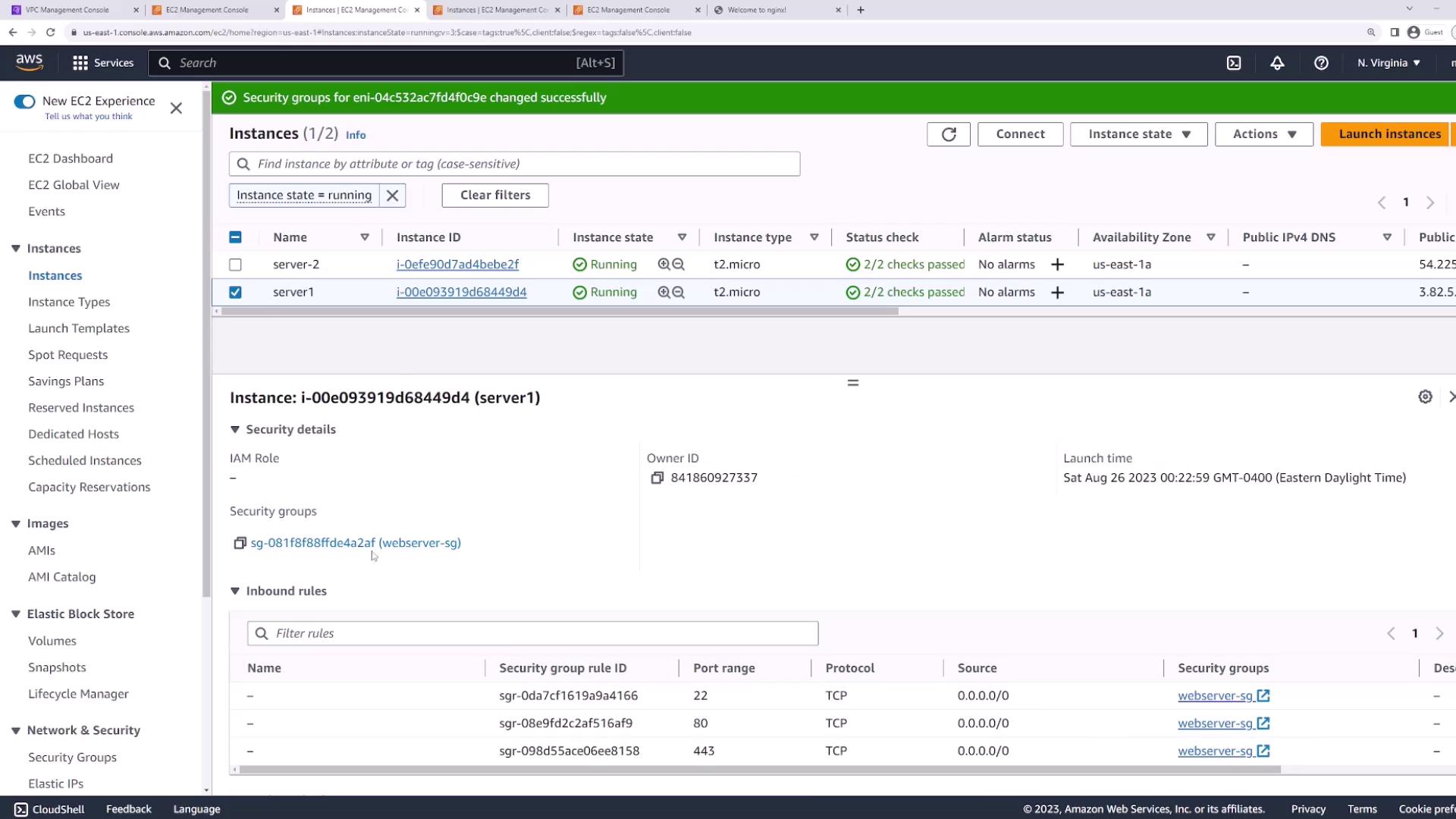
1. In the AWS Management Console, go to **EC2** → **Instances**, select your servers.
2. Under **Security** → **Security Groups**, click **Change security groups**.
3. Attach the `webserver-sg` security group to both instances.
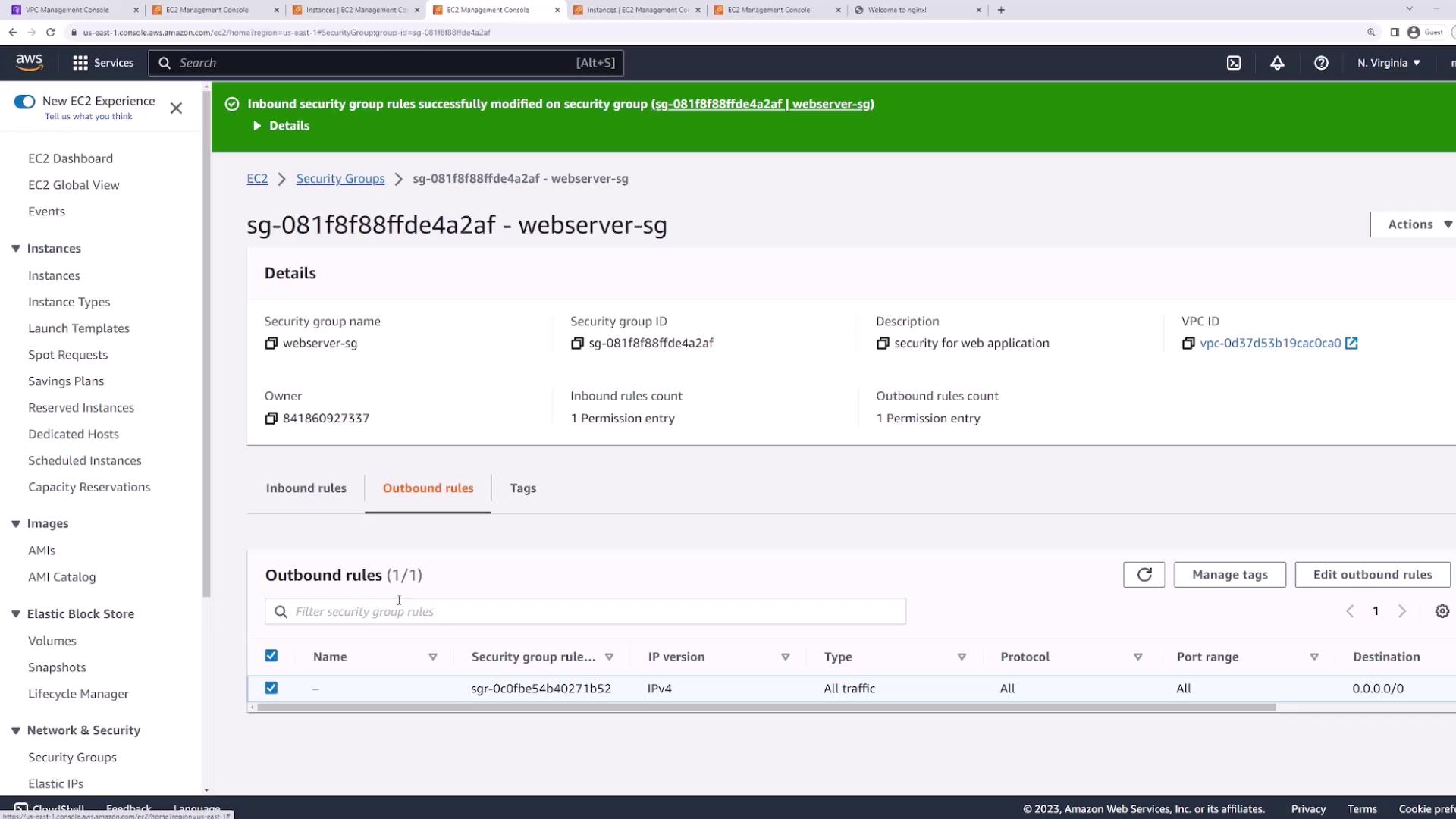
4. Edit **Inbound** and **Outbound** rules to allow all traffic (All protocols, All ports, Source/Destination `0.0.0.0/0`).
***
## 2. Verifying Subnet Membership
Both instances must reside in the same subnet to observe NACL behavior:
1. Select your instance in **EC2** → **Networking** tab.
2. Copy the **Subnet ID** (e.g., `subnet-e1683`).
Repeat for the second instance to confirm they share the same Subnet ID.
***
## 3. Inspecting the Default Network ACL
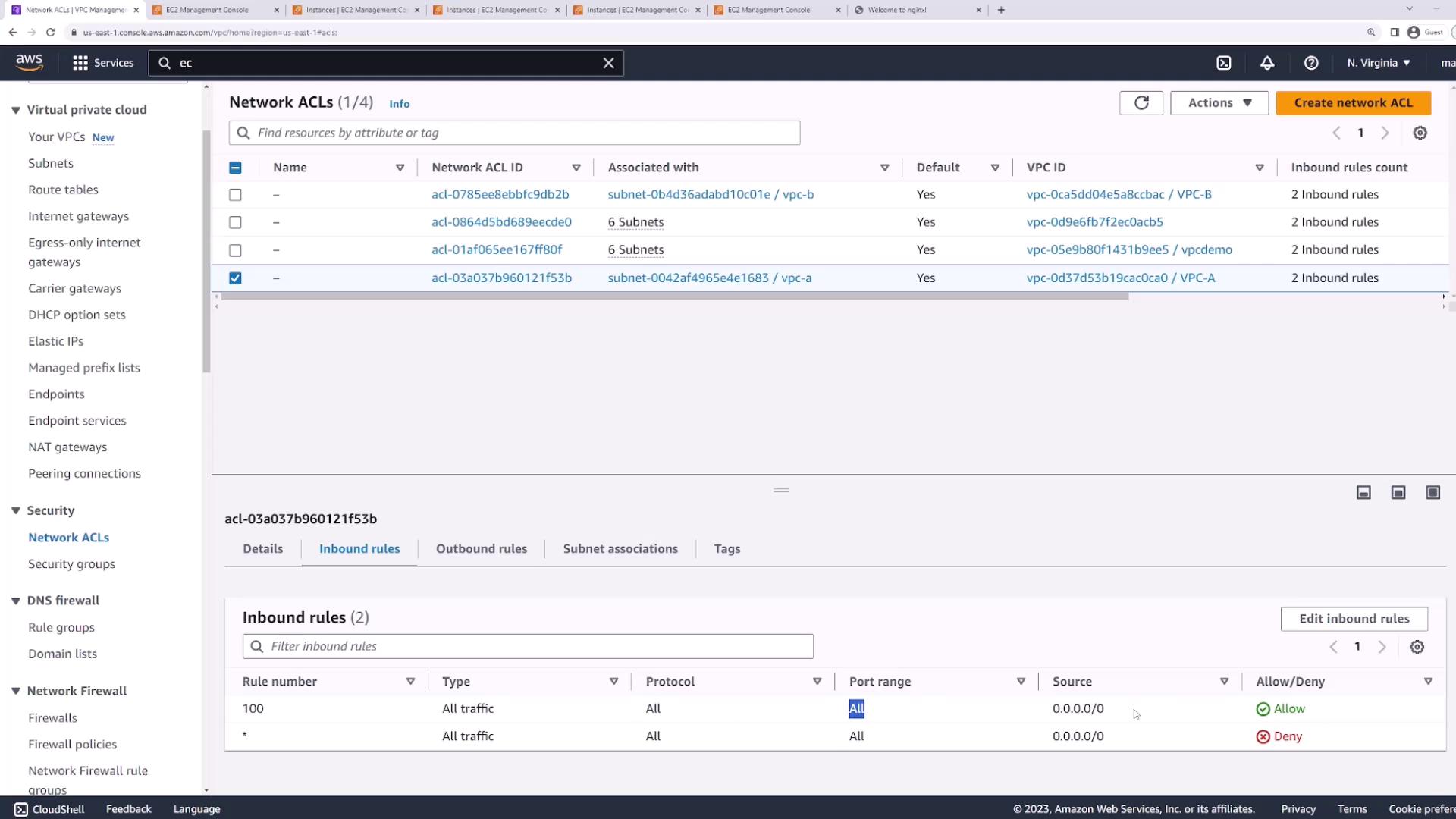
Navigate to **VPC** → **Security** → **Network ACLs**. Select the default ACL for your VPC and review its inbound rules:
* **Rule 100**: Allow all traffic (All protocols, All ports, `0.0.0.0/0`)
* **Rule \***: Deny all traffic
Because rule 100 catches all traffic first, the deny rule never applies.
***
## 4. Testing Initial Connectivity
With the security group and default NACL wide open, verify connectivity:
```bash theme={null}
# From your local machine:
ssh -i main.pem ec2-user@
# On the EC2 instance:
ping -c 4 8.8.8.8
# Expected output:
# 64 bytes from 8.8.8.8: icmp_seq=1 ttl=53 time=1.58 ms
# ...
# 0% packet loss
```
Your web server (if running) should also be reachable over HTTP:
```bash theme={null}
curl http://
```
***
## 5. Restricting Inbound NACL Rules to SSH Only
Now lock down the NACL so only SSH (port 22) is allowed inbound:
1. In **VPC** → **Network ACLs**, select your ACL.
2. Edit **Inbound Rules**:
* Change **Rule 100** to allow only SSH (TCP port 22) from `0.0.0.0/0`.
* The default deny will now block everything else.
Test SSH and HTTP:
```bash theme={null}
# SSH should still connect:
ssh -i main.pem ec2-user@
# HTTP now times out:
curl http://
# (No response)
```
***
## 6. Allowing HTTP and HTTPS Traffic
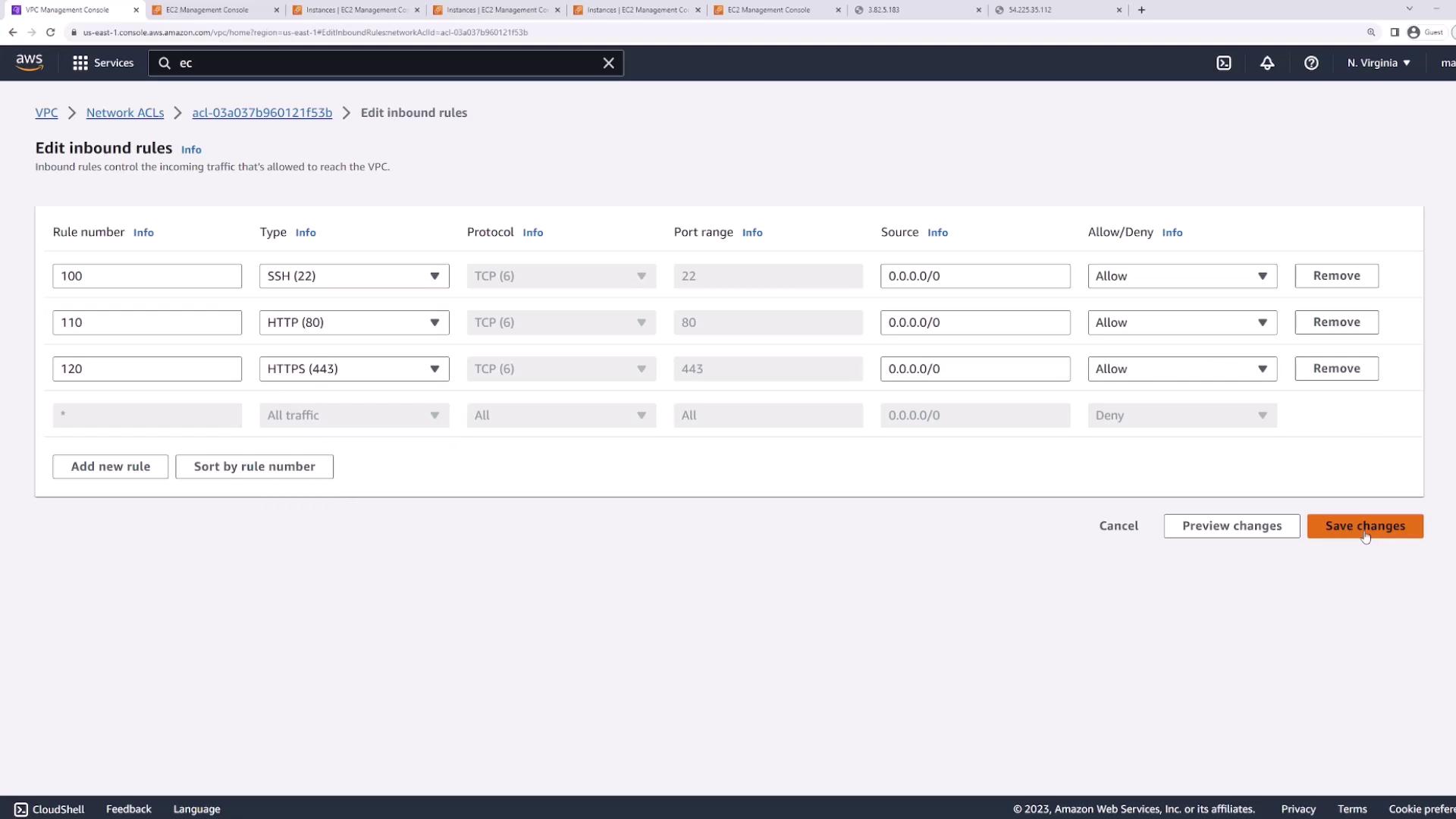
To re-enable web traffic, add two inbound rules after SSH:
* **Rule 101**: Allow HTTP (TCP 80) from `0.0.0.0/0`
* **Rule 120**: Allow HTTPS (TCP 443) from `0.0.0.0/0`
Verify web access again:
```bash theme={null}
curl http:// # Should return your web page
```
If your second server doesn’t serve HTTP yet, install and start NGINX:
```bash theme={null}
sudo yum install nginx -y
sudo systemctl enable nginx
sudo systemctl start nginx
```
Refresh your browser on both instances’ IPs to confirm HTTP works.
***
## 7. Demonstrating Stateless Behavior
NACLs are stateless, so return traffic must be explicitly allowed. Even with outbound rules open, inbound return packets for ephemeral ports are blocked:
```bash theme={null}
ping -c 4 8.8.8.8
# 100% packet loss
```
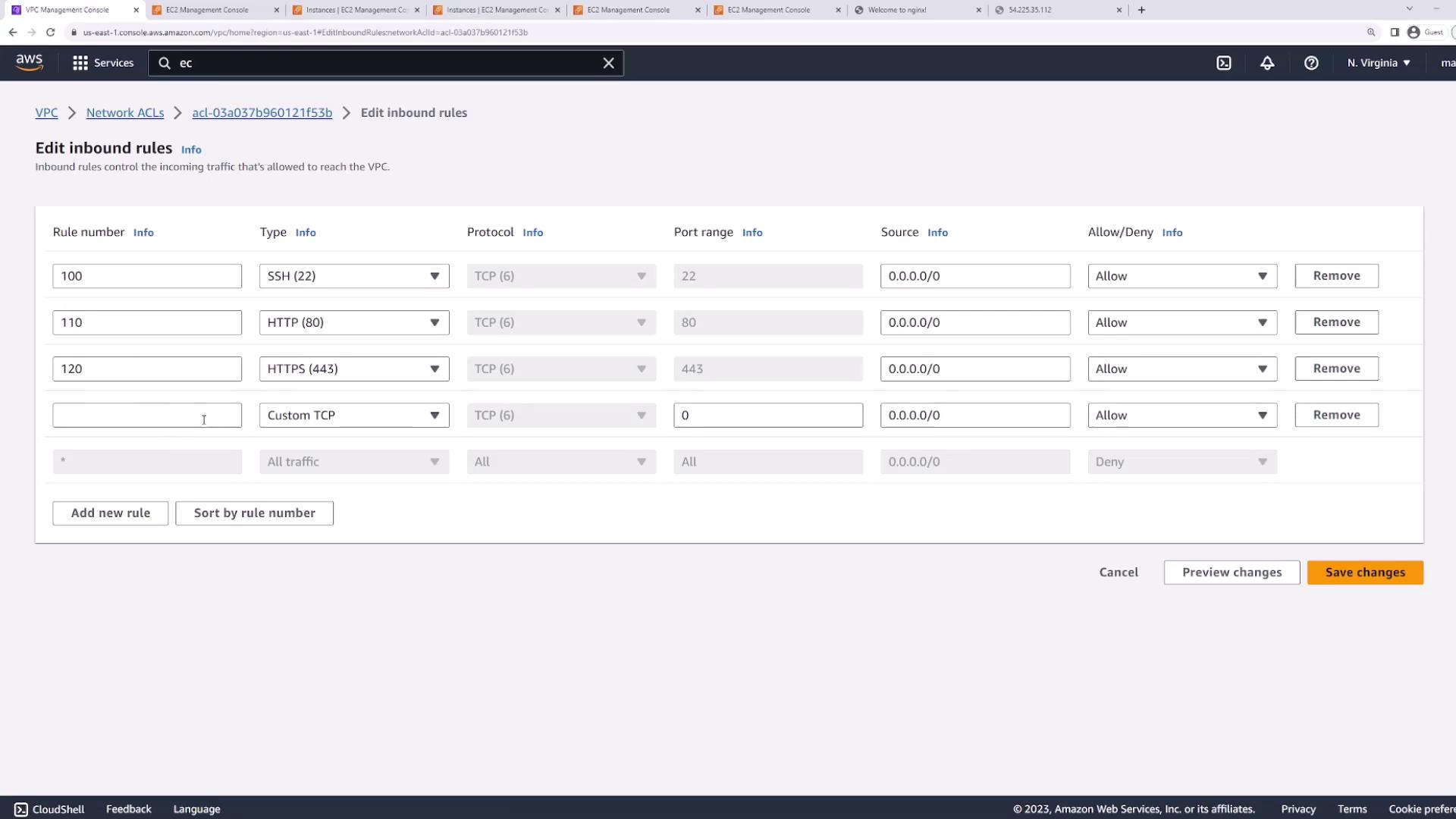
To download packages, add a temporary inbound rule:
* **Rule 130**: Allow all traffic (for the duration of your download)
After installing, remove rule 130. This illustrates that both directions require explicit rules in a stateless firewall.
***
## 8. Using Explicit Deny Rules
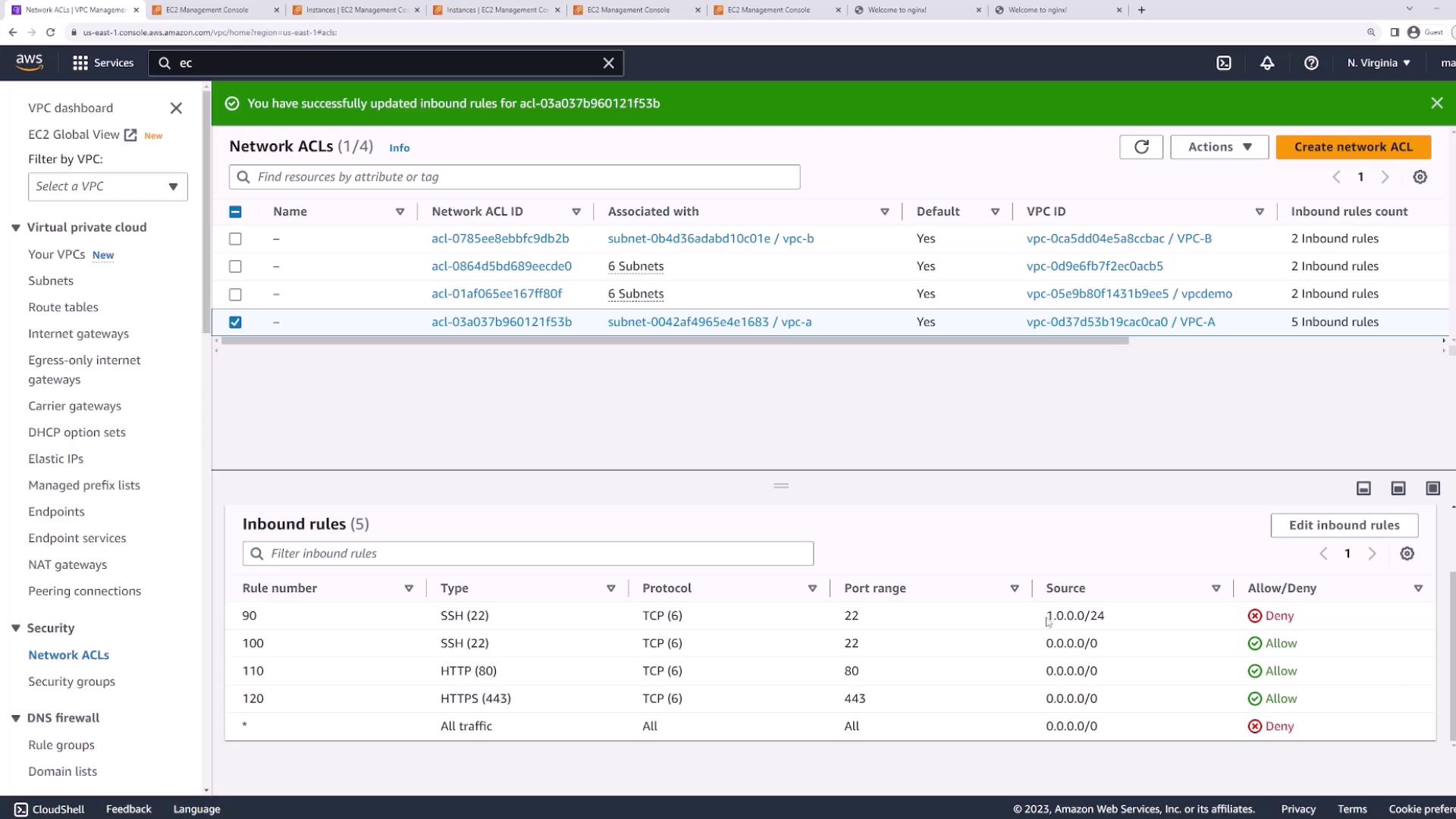
Unlike security groups, NACLs support explicit **Deny** entries. For example, to block SSH from a specific CIDR:
1. Create **Rule 90**: Deny TCP port 22 from `1.0.0.0/24`.
2. Keep **Rule 100**: Allow TCP port 22 from `0.0.0.0/0` (evaluated after rule 90).
Traffic evaluation:
* SSH from `1.0.0.0/24` is denied by rule 90.
* SSH from all other IPs is allowed by rule 100.
***
## Conclusion
In this demo we covered:
* Security groups are **stateful** and instance-level.
* NACLs are **stateless** and subnet-level.
* NACLs support both **Allow** and **Deny**, evaluated in ascending order.
Use security groups for per-instance controls and NACLs for broader subnet-based traffic filtering.
## References
* [AWS Network ACLs Documentation](https://docs.aws.amazon.com/vpc/latest/userguide/vpc-network-acls.html)
* [AWS Security Groups](https://docs.aws.amazon.com/vpc/latest/userguide/VPC_SecurityGroups.html)
* [Nginx Installation on Amazon Linux 2](https://docs.nginx.com/nginx/admin-guide/installing-nginx/installing-nginx-open-source/)