> ## Documentation Index
> Fetch the complete documentation index at: https://notes.kodekloud.com/llms.txt
> Use this file to discover all available pages before exploring further.
# VPC Peering Demo
> This tutorial explains how to establish a VPC peering connection between two AWS VPCs for EC2 instance communication.
In this tutorial, you’ll learn how to establish a VPC peering connection between two AWS VPCs so that their EC2 instances can communicate over the private AWS network:
| VPC Identifier | CIDR Block | EC2 Instance | Private IP |
| -------------- | ----------- | ------------ | ---------- |
| VPC-A | 10.1.0.0/16 | server1 | 10.1.1.13 |
| VPC-B | 10.2.0.0/16 | server2 | 10.2.1.139 |
Make sure both VPCs have security groups and network ACLs allowing ICMP traffic. You also need IAM permissions to manage VPC peering and route tables.
Since VPCs are isolated by default, pinging from **server1** to **server2** will initially fail:
```bash theme={null}
[ec2-user@ip-10-1-1-13 ~]$ ping 10.2.1.139
PING 10.2.1.139 (10.2.1.139) 56(84) bytes of data.
^C
--- 10.2.1.139 ping statistics ---
195 packets transmitted, 0 received, 100% packet loss
```
## 1. Create the VPC Peering Connection
1. Open the AWS VPC console and select **Peering Connections** → **Create Peering Connection**.
2. Name the connection `VPC-A-to-VPC-B`.
3. Under **Requester**, choose **VPC-A**.
4. Under **Accepter**, select your account and region, then choose **VPC-B**.
5. Click **Create Peering Connection**.
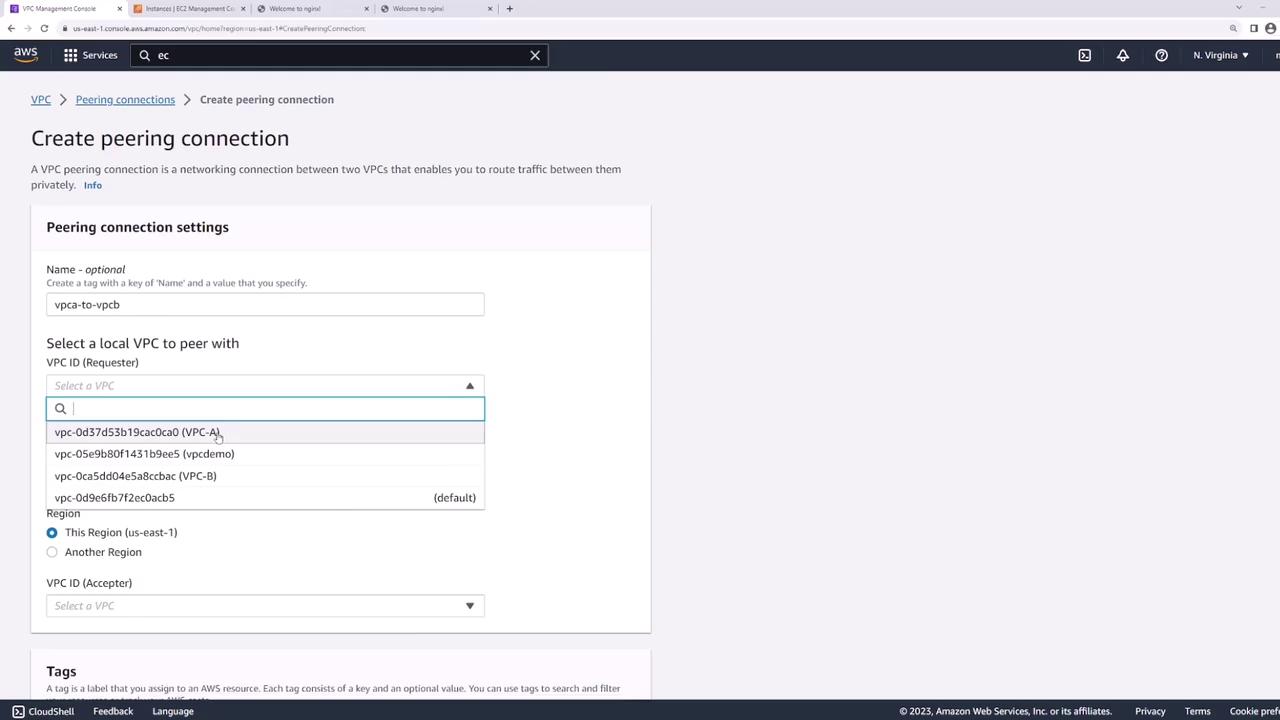
You can also provision VPC peering using Infrastructure as Code tools like Terraform or AWS CloudFormation.
## 2. Accept the Peering Request
1. In **Peering Connections**, locate the new connection in **Pending Acceptance**.
2. Select it, then choose **Actions** → **Accept Request**.
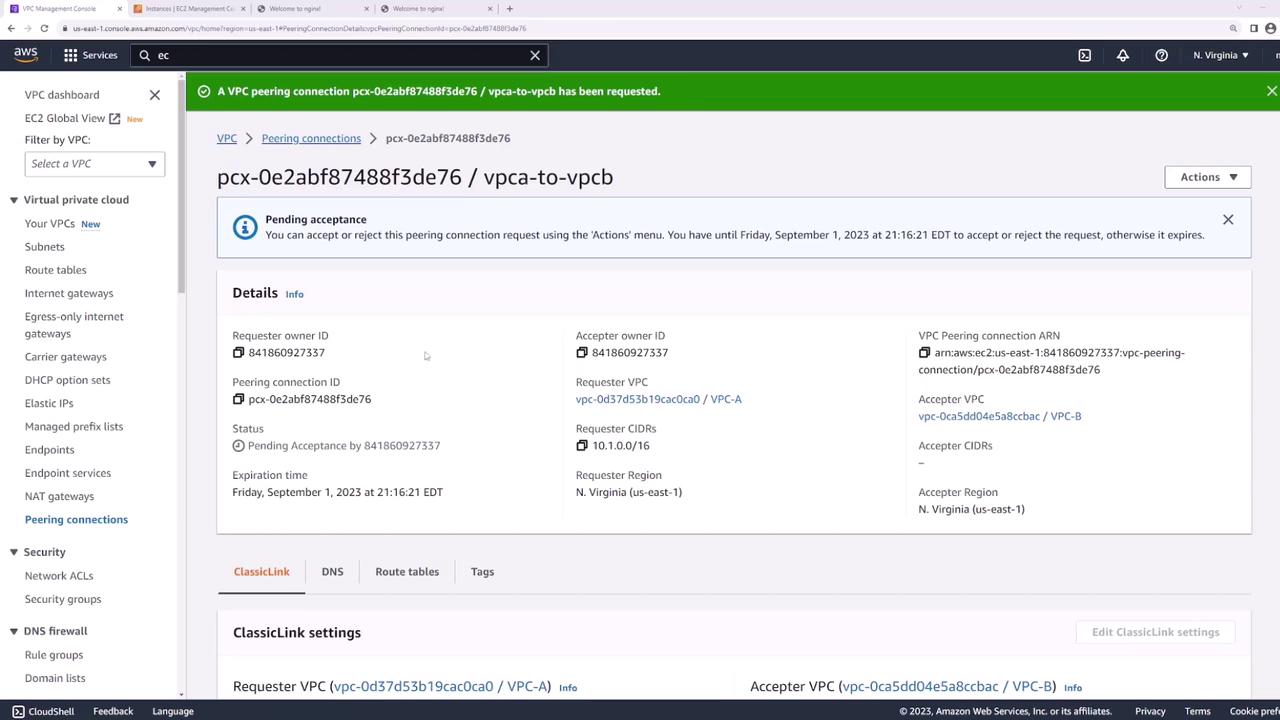
Once accepted, its status changes to **Active**:
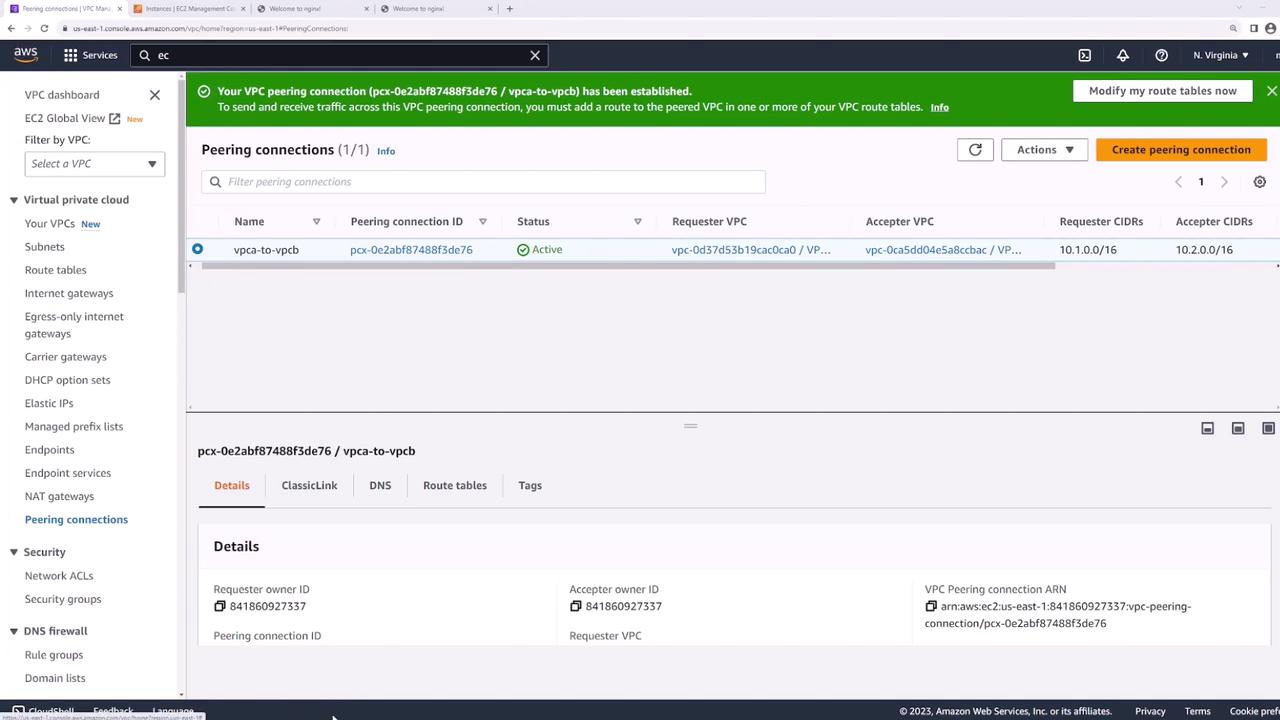
Even after peering is active, traffic won’t flow until you update each VPC’s route tables.
## 3. Update Route Tables
Each VPC needs a route pointing to the other VPC’s CIDR block through the peering connection:
1. In the VPC console, go to **Route Tables**.
2. Select the route table for **VPC-A**.
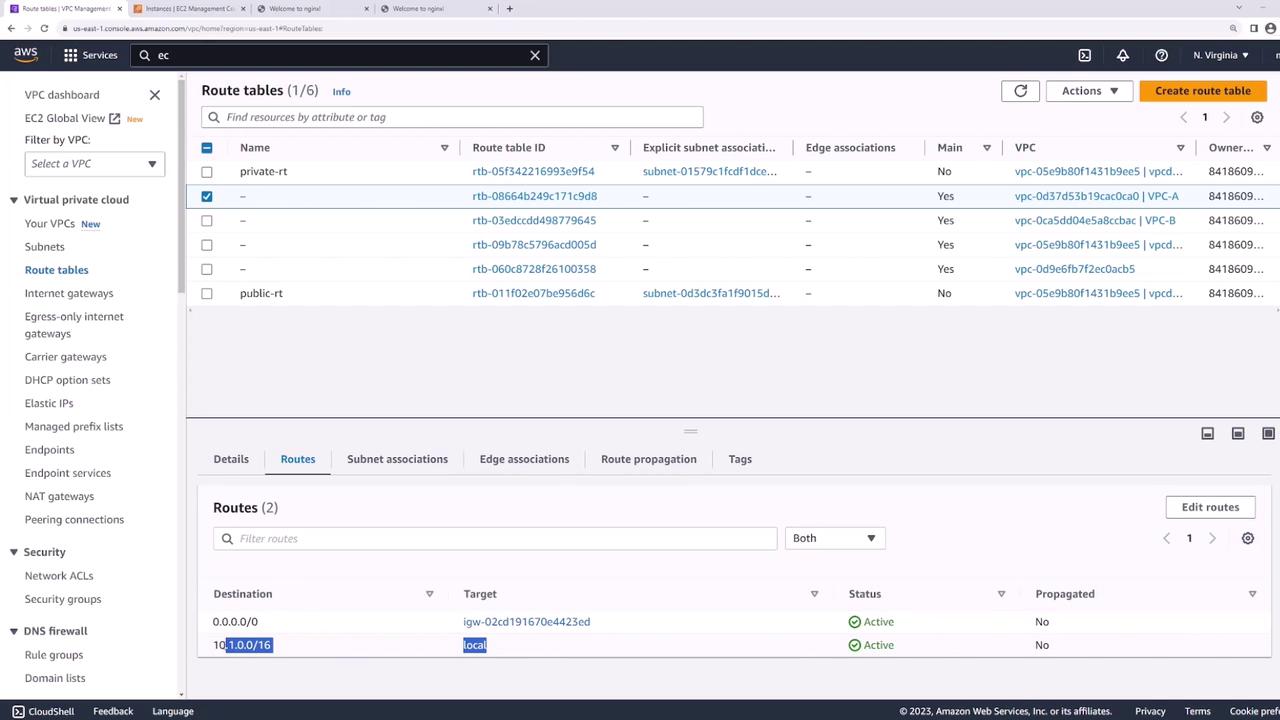
3. Under **Routes**, click **Edit routes** → **Add route**:
* Destination: `10.2.0.0/16`
* Target: the peering connection (`VPC-A-to-VPC-B`)
4. Save changes.
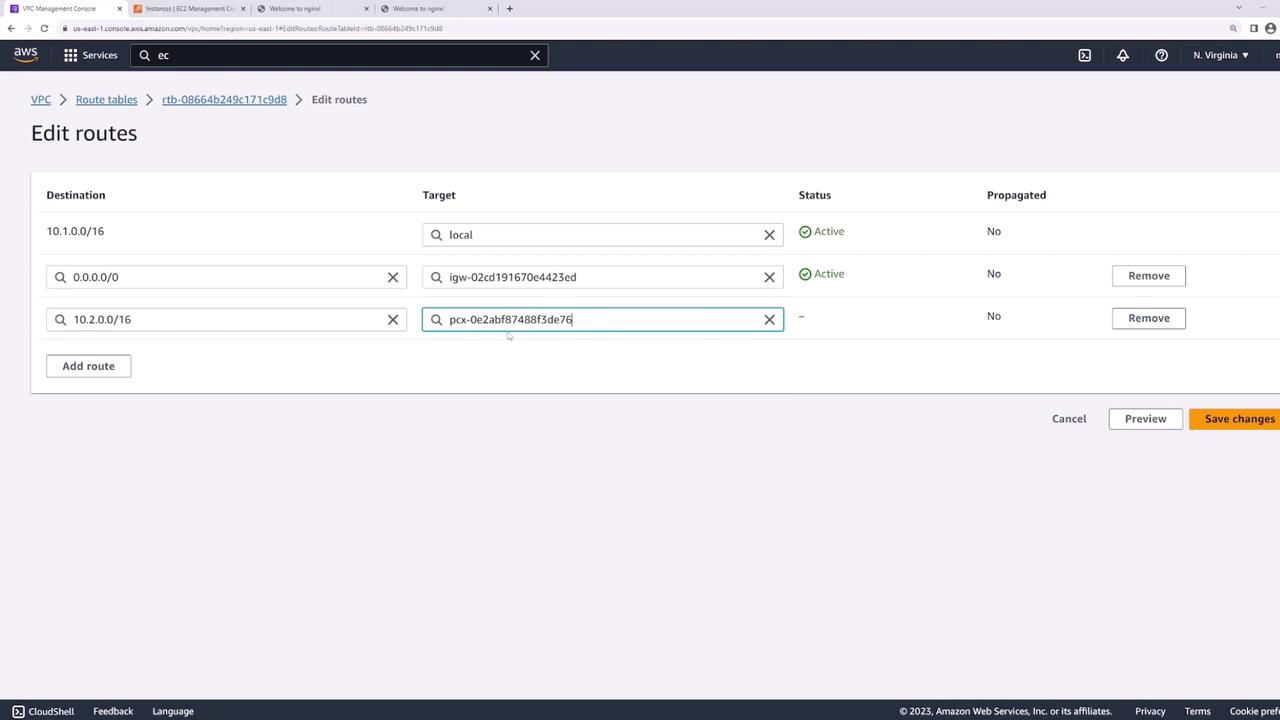
5. Repeat these steps on **VPC-B**’s route table, adding a route to `10.1.0.0/16` via the same peering connection.
## 4. Verify Connectivity
Return to **server1** and ping **server2**:
```bash theme={null}
[ec2-user@ip-10-1-1-13 ~]$ ping 10.2.1.139
PING 10.2.1.139 (10.2.1.139) 56(84) bytes of data.
64 bytes from 10.2.1.139: icmp_seq=1 ttl=127 time=1.88 ms
64 bytes from 10.2.1.139: icmp_seq=2 ttl=127 time=1.43 ms
64 bytes from 10.2.1.139: icmp_seq=3 ttl=127 time=1.38 ms
^C
--- 10.2.1.139 ping statistics ---
3 packets transmitted, 3 received, 0% packet loss, time 2002ms
rtt min/avg/max/mdev = 1.382/1.563/1.882/0.187 ms
```
Your EC2 instances can now communicate across VPCs using the private AWS backbone.
## Links and References
* [AWS VPC Peering Documentation](https://docs.aws.amazon.com/vpc/latest/peering/what-is-vpc-peering.html)
* [AWS Route Tables](https://docs.aws.amazon.com/vpc/latest/userguide/VPC_Route_Tables.html)
* [Terraform AWS VPC Peering Module](https://registry.terraform.io/modules/terraform-aws-modules/vpc/aws/latest)