> ## Documentation Index
> Fetch the complete documentation index at: https://notes.kodekloud.com/llms.txt
> Use this file to discover all available pages before exploring further.
# Demo Password management with Amazon RDS and AWS Secrets Manager
> Provisioning an Amazon RDS MariaDB instance, capturing its auto-generated master password, and securely storing and retrieving credentials using AWS Secrets Manager for applications
In this lesson you'll provision an Amazon RDS (MariaDB) instance, capture the auto-generated master password shown during creation, and securely store that credential in AWS Secrets Manager so your applications can retrieve it at runtime. This pattern reduces secrets sprawl, enables automatic rotation, and follows least-privilege and auditable access to database credentials.
What you will do
* Create an RDS (MariaDB) instance and let RDS auto-generate a strong master password.
* Retrieve the generated password from the RDS creation banner (the password is displayed only once).
* Store the username/password pair in AWS Secrets Manager and link the secret to the RDS instance.
* Use example client code (Python and Java) that reads the secret before creating DB connections.
Create the RDS instance
1. Open the AWS Management Console and navigate to [Amazon RDS](https://docs.aws.amazon.com/AmazonRDS/latest/UserGuide/Welcome.html).
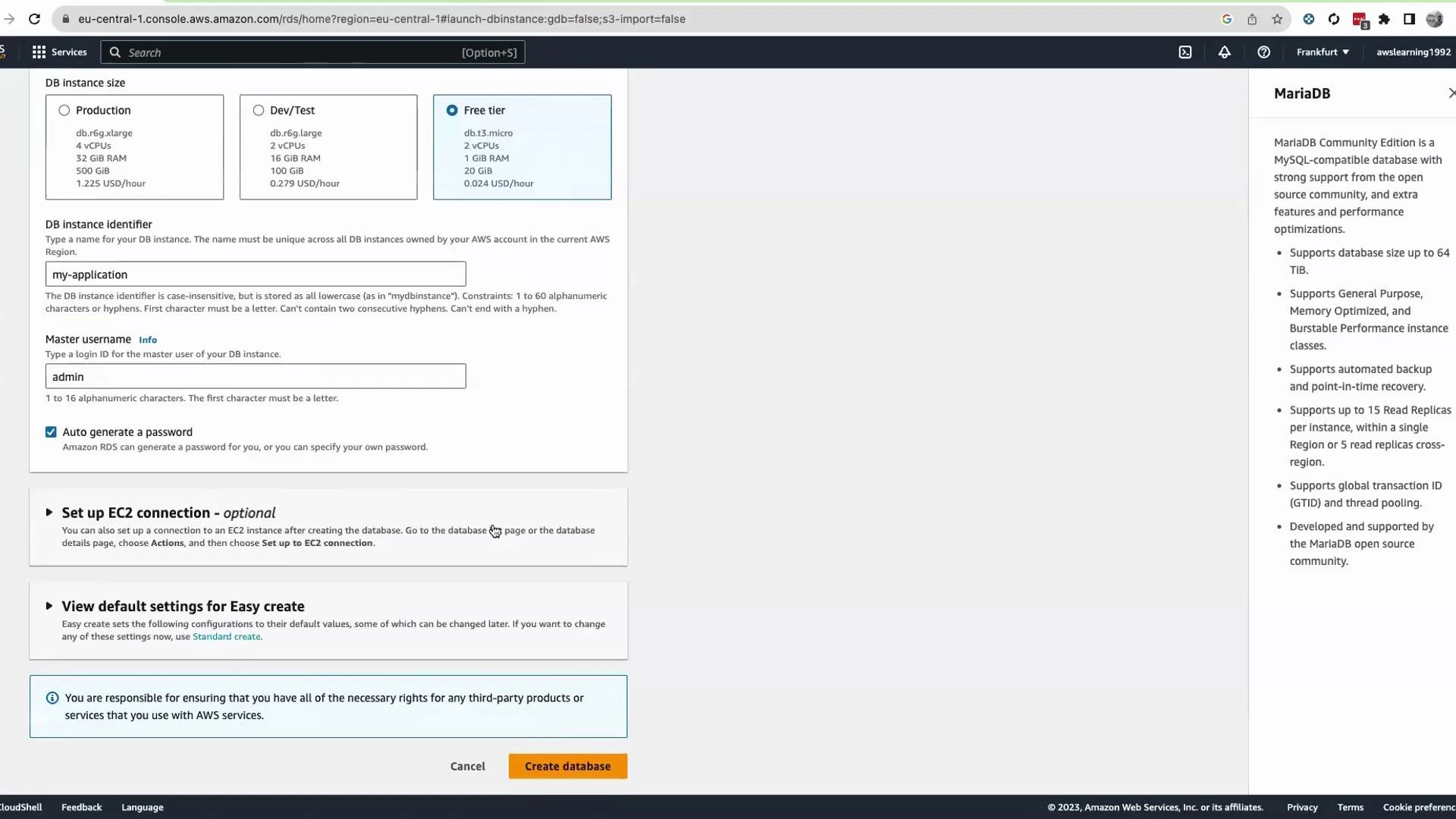
2. Choose "DB instances" → "Create DB instance".
3. For this demo select MariaDB and choose the Free tier (if eligible).
4. Provide a DB instance identifier (for example, my-application) and a master username (for example, admin).
5. Click "Auto-generate a password" to have RDS create a strong master password. Leave other defaults as appropriate for your environment.
6. Click "Create database".
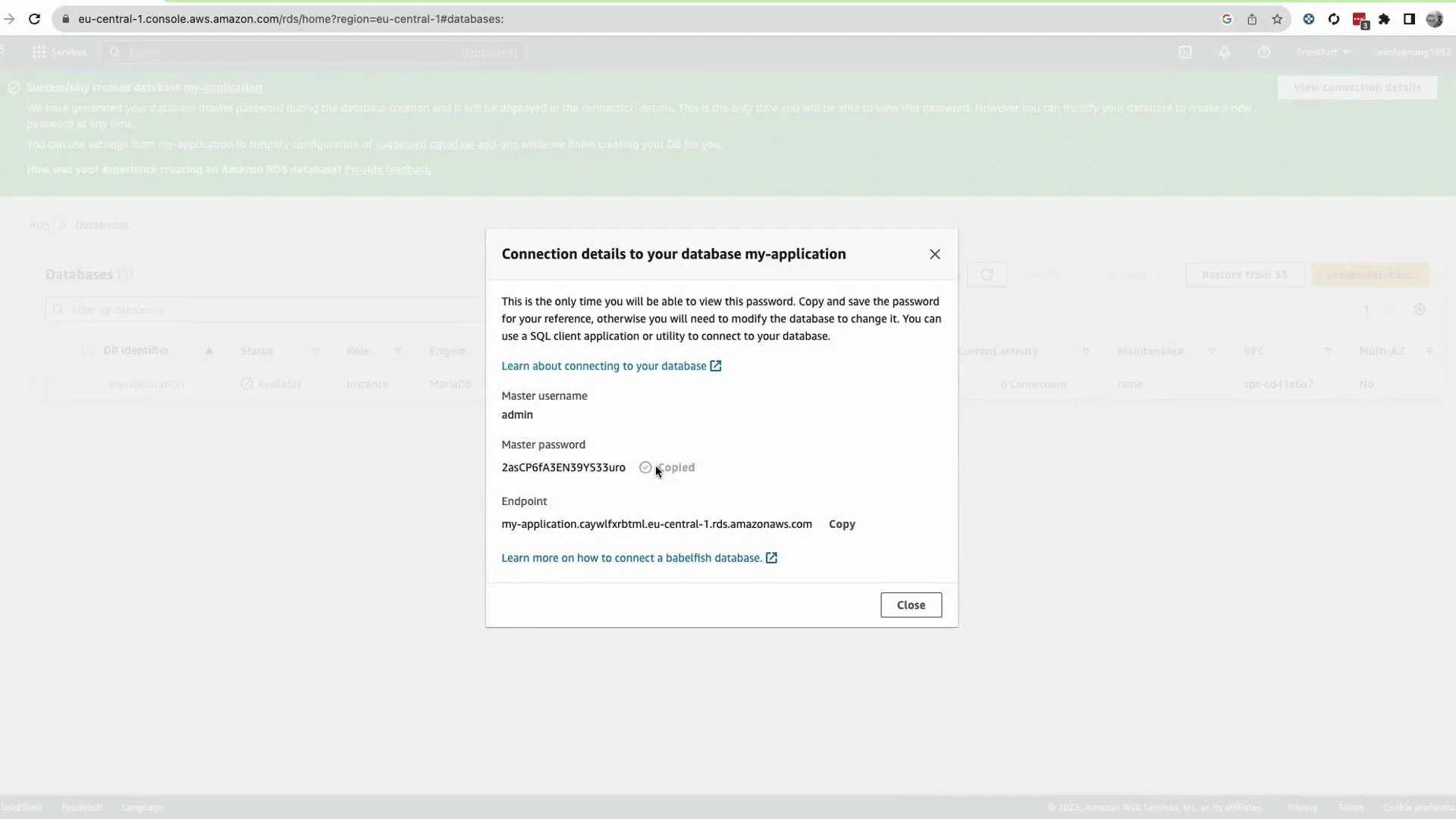
 Wait for the database to finish provisioning (typically 10–15 minutes). When creation completes, the RDS console displays a banner with connection details including the master username and the auto-generated master password. Click "View connection details" and copy the master password to a secure temporary location so you can store it in Secrets Manager.
The auto-generated master password is shown only once in the RDS creation banner. If you close the banner without saving it elsewhere, the password cannot be retrieved — you would need to reset the master password.
Wait for the database to finish provisioning (typically 10–15 minutes). When creation completes, the RDS console displays a banner with connection details including the master username and the auto-generated master password. Click "View connection details" and copy the master password to a secure temporary location so you can store it in Secrets Manager.
The auto-generated master password is shown only once in the RDS creation banner. If you close the banner without saving it elsewhere, the password cannot be retrieved — you would need to reset the master password.
 Store the credential in AWS Secrets Manager
1. In the AWS Console search bar open [AWS Secrets Manager](https://docs.aws.amazon.com/secretsmanager/latest/userguide/intro.html).
2. Click "Store a new secret".
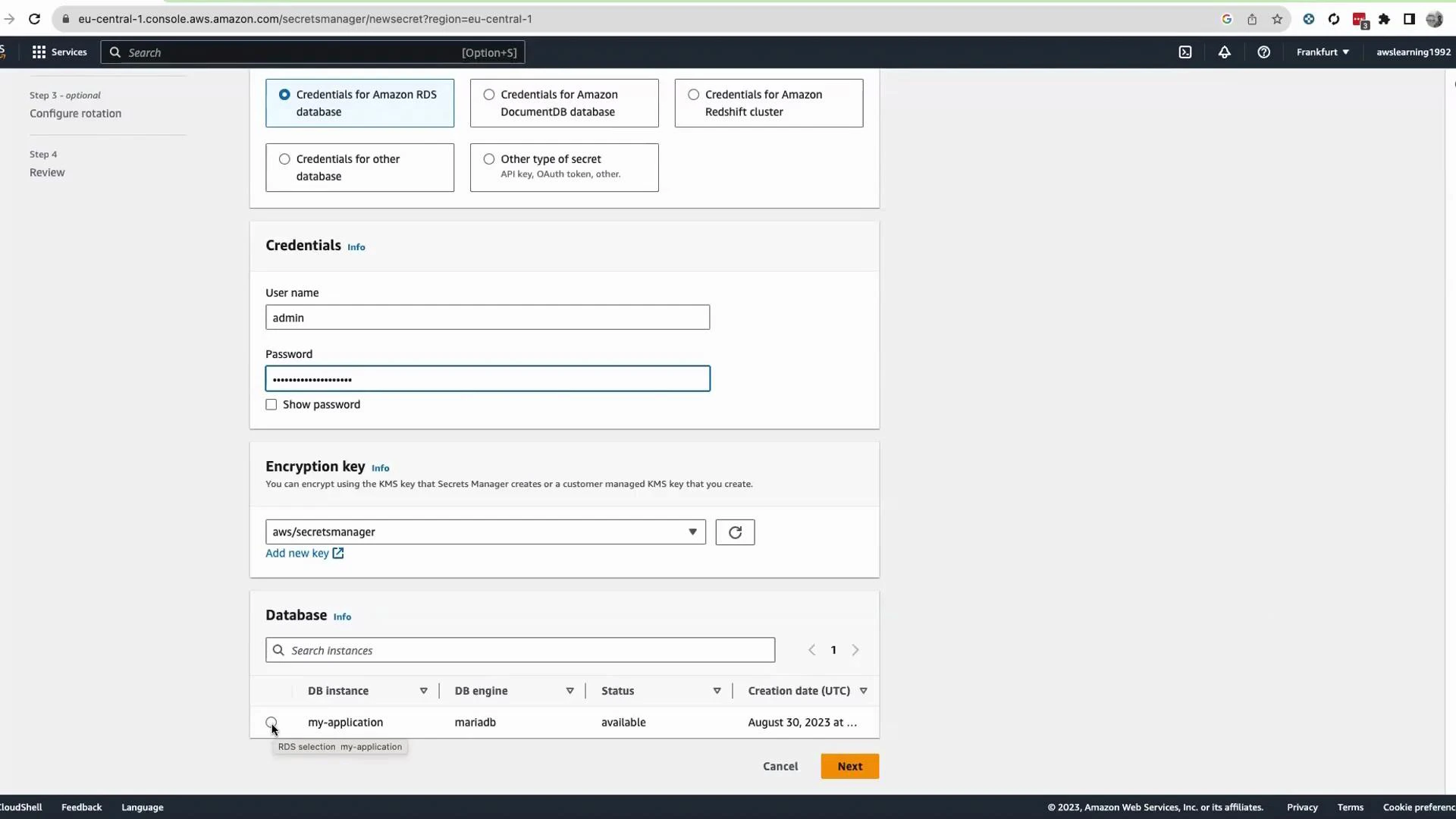
3. Choose the secret type: "Credentials for RDS database".
4. Enter the DB username (admin) and paste the master password you copied from the RDS banner.
5. Keep the KMS encryption key as the default (aws/secretsmanager) unless you require a custom KMS key.
6. Secrets Manager will list RDS instances available in the account/region — select the RDS instance you created (for example, my-application).
7. Click "Next".
8. Provide a secret name (for example, application-01-secret) and an optional description.
9. Configure cross-region replication only if you need it; otherwise continue with "Next".
10. Click "Store" to persist the secret into Secrets Manager.
Store the credential in AWS Secrets Manager
1. In the AWS Console search bar open [AWS Secrets Manager](https://docs.aws.amazon.com/secretsmanager/latest/userguide/intro.html).
2. Click "Store a new secret".
3. Choose the secret type: "Credentials for RDS database".
4. Enter the DB username (admin) and paste the master password you copied from the RDS banner.
5. Keep the KMS encryption key as the default (aws/secretsmanager) unless you require a custom KMS key.
6. Secrets Manager will list RDS instances available in the account/region — select the RDS instance you created (for example, my-application).
7. Click "Next".
8. Provide a secret name (for example, application-01-secret) and an optional description.
9. Configure cross-region replication only if you need it; otherwise continue with "Next".
10. Click "Store" to persist the secret into Secrets Manager.
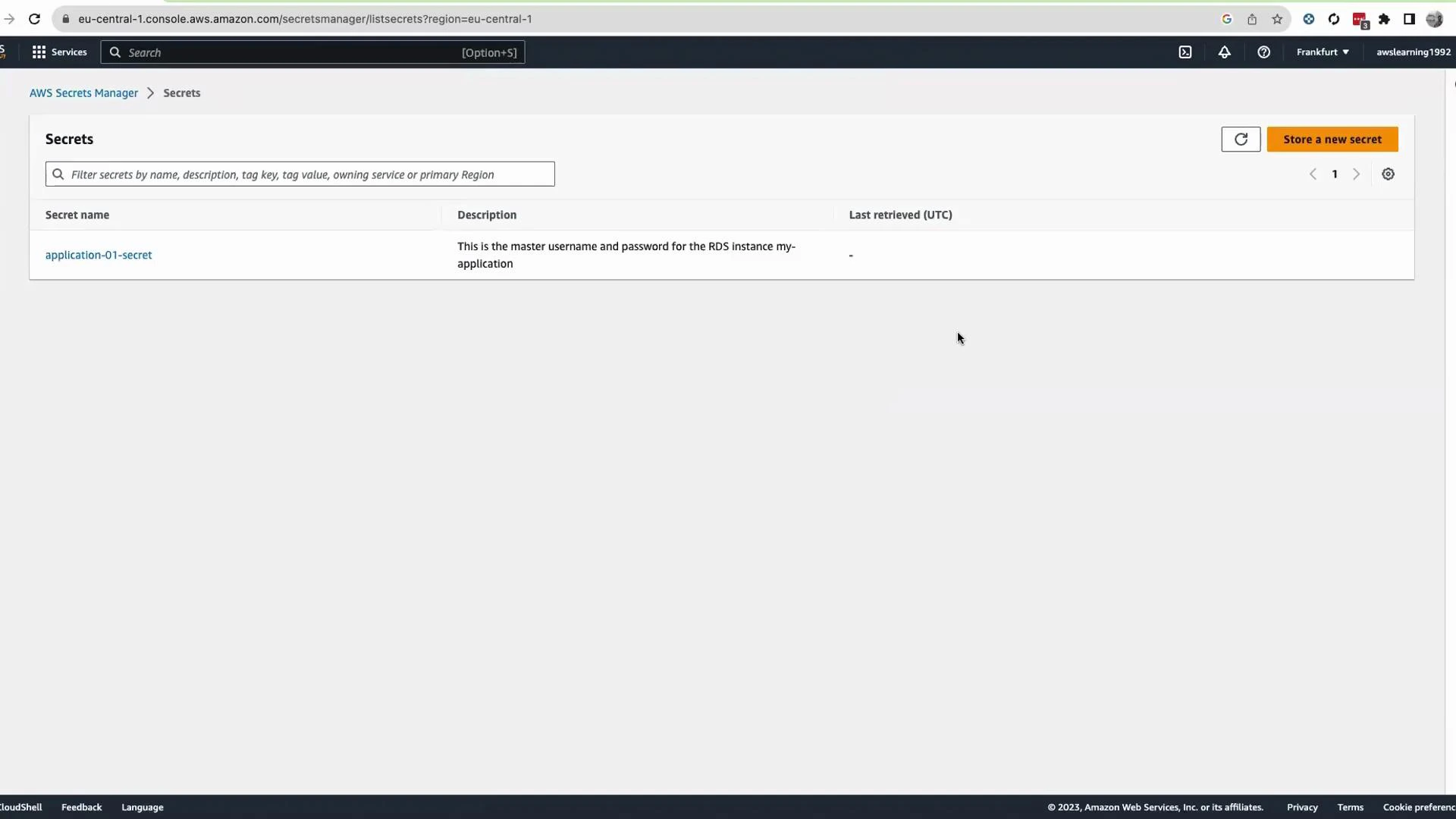
 After storing the secret you will see it listed in the Secrets Manager console (for example, application-01-secret). The stored secret contains the master username and password associated with your RDS instance.
 Using Secrets Manager from your application
Best practice: retrieve the secret at application startup (or immediately before creating database connections) so the application uses credentials returned by [Secrets Manager](https://docs.aws.amazon.com/secretsmanager/latest/userguide/intro.html) instead of hard-coded values. The AWS console includes snippets for many languages; below are ready-to-use examples for Python (boto3) and Java (AWS SDK v2).
Python (boto3)
* Install boto3: pip install boto3
* Ensure the application's IAM role or IAM user has permission to call GetSecretValue: [https://docs.aws.amazon.com/secretsmanager/latest/apireference/API\_GetSecretValue.html](https://docs.aws.amazon.com/secretsmanager/latest/apireference/API_GetSecretValue.html)
```python theme={null}
import json
import boto3
from botocore.exceptions import ClientError
def get_secret(secret_name: str, region_name: str) -> dict:
"""
Retrieve a secret from AWS Secrets Manager and return it as a dict.
If the secret's SecretString contains JSON, this returns the parsed JSON.
Otherwise returns {"secret": } or {"secretBinary": }.
Example secret JSON for RDS:
{"username": "admin", "password": "generated-password", "host": "...", "port": 3306}
"""
client = boto3.client("secretsmanager", region_name=region_name)
try:
response = client.get_secret_value(SecretId=secret_name)
except ClientError as e:
# Propagate or handle specific errors as required by your app
raise e
# SecretString contains a string; SecretBinary contains bytes if used.
if "SecretString" in response and response["SecretString"]:
secret_string = response["SecretString"]
try:
return json.loads(secret_string)
except json.JSONDecodeError:
return {"secret": secret_string}
else:
# SecretBinary is base64-encoded bytes
return {"secretBinary": response.get("SecretBinary")}
```
Java (AWS SDK v2)
* Ensure your build includes the AWS SDK v2 Secrets Manager module and that the app's IAM identity has GetSecretValue permission.
* The method below returns the secret string; if it contains JSON, parse it into an object using your JSON library of choice.
```java theme={null}
// import software.amazon.awssdk.regions.Region;
// import software.amazon.awssdk.services.secretsmanager.SecretsManagerClient;
// import software.amazon.awssdk.services.secretsmanager.model.GetSecretValueRequest;
// import software.amazon.awssdk.services.secretsmanager.model.GetSecretValueResponse;
// import software.amazon.awssdk.services.secretsmanager.model.SecretsManagerException;
public static String getSecret(String secretName, String region) {
Region awsRegion = Region.of(region);
try (SecretsManagerClient client = SecretsManagerClient.builder()
.region(awsRegion)
.build()) {
GetSecretValueRequest getSecretValueRequest = GetSecretValueRequest.builder()
.secretId(secretName)
.build();
GetSecretValueResponse getSecretValueResponse = client.getSecretValue(getSecretValueRequest);
if (getSecretValueResponse.secretString() != null) {
return getSecretValueResponse.secretString();
} else {
// If secret is in binary form, handle it accordingly
return getSecretValueResponse.secretBinary().asUtf8String();
}
} catch (SecretsManagerException e) {
throw e;
}
}
```
Integration and operational notes
| Topic | Recommendation | Reference |
| ------------------ | --------------------------------------------------------------------------------------------------------------------- | -------------------------------------------------------------------------------------------------------------------------------------------------------------------------------------------------------------------------------------------------------------------------------------------------------------------------------- |
| Retrieval timing | Fetch secrets at startup or immediately before DB connections to avoid long-lived secrets in memory | [https://docs.aws.amazon.com/secretsmanager/latest/userguide/intro.html](https://docs.aws.amazon.com/secretsmanager/latest/userguide/intro.html) |
| Permissions | Grant minimal IAM permissions (GetSecretValue) to the application role; include kms:Decrypt if using a custom KMS key | [https://docs.aws.amazon.com/secretsmanager/latest/apireference/API\_GetSecretValue.html](https://docs.aws.amazon.com/secretsmanager/latest/apireference/API_GetSecretValue.html) and [https://docs.aws.amazon.com/kms/latest/developerguide/overview.html](https://docs.aws.amazon.com/kms/latest/developerguide/overview.html) |
| Automatic rotation | Enable Secrets Manager rotation for supported engines to rotate and update DB credentials automatically | [https://docs.aws.amazon.com/secretsmanager/latest/userguide/rotating-secrets.html](https://docs.aws.amazon.com/secretsmanager/latest/userguide/rotating-secrets.html) |
| Secret format | Store RDS secrets as JSON (username, password, host, port) to simplify parsing in apps | Console samples and SDK examples |
AWS provides sample snippets for many languages in the [Secrets Manager console](https://docs.aws.amazon.com/secretsmanager/latest/userguide/intro.html). Use those samples as a starting point and adapt them to your application's error handling, caching, and refresh strategy.
Additional resources
* [Amazon RDS Documentation](https://docs.aws.amazon.com/AmazonRDS/latest/UserGuide/Welcome.html)
* [AWS Secrets Manager Documentation](https://docs.aws.amazon.com/secretsmanager/latest/userguide/intro.html)
* [Secrets Manager API - GetSecretValue](https://docs.aws.amazon.com/secretsmanager/latest/apireference/API_GetSecretValue.html)
* [Secrets rotation with AWS Secrets Manager](https://docs.aws.amazon.com/secretsmanager/latest/userguide/rotating-secrets.html)
* [AWS KMS overview](https://docs.aws.amazon.com/kms/latest/developerguide/overview.html)
Summary
* You provisioned a MariaDB instance in RDS and used the auto-generated master password.
* The auto-generated password is visible only once during creation; copy it immediately or store it in Secrets Manager.
* You stored the credential in AWS Secrets Manager and learned how to retrieve it from Python and Java applications, enabling secure, auditable access to DB credentials.
* Consider enabling automatic rotation and apply least-privilege IAM policies for production deployments.
That is it for this lesson.
Using Secrets Manager from your application
Best practice: retrieve the secret at application startup (or immediately before creating database connections) so the application uses credentials returned by [Secrets Manager](https://docs.aws.amazon.com/secretsmanager/latest/userguide/intro.html) instead of hard-coded values. The AWS console includes snippets for many languages; below are ready-to-use examples for Python (boto3) and Java (AWS SDK v2).
Python (boto3)
* Install boto3: pip install boto3
* Ensure the application's IAM role or IAM user has permission to call GetSecretValue: [https://docs.aws.amazon.com/secretsmanager/latest/apireference/API\_GetSecretValue.html](https://docs.aws.amazon.com/secretsmanager/latest/apireference/API_GetSecretValue.html)
```python theme={null}
import json
import boto3
from botocore.exceptions import ClientError
def get_secret(secret_name: str, region_name: str) -> dict:
"""
Retrieve a secret from AWS Secrets Manager and return it as a dict.
If the secret's SecretString contains JSON, this returns the parsed JSON.
Otherwise returns {"secret": } or {"secretBinary": }.
Example secret JSON for RDS:
{"username": "admin", "password": "generated-password", "host": "...", "port": 3306}
"""
client = boto3.client("secretsmanager", region_name=region_name)
try:
response = client.get_secret_value(SecretId=secret_name)
except ClientError as e:
# Propagate or handle specific errors as required by your app
raise e
# SecretString contains a string; SecretBinary contains bytes if used.
if "SecretString" in response and response["SecretString"]:
secret_string = response["SecretString"]
try:
return json.loads(secret_string)
except json.JSONDecodeError:
return {"secret": secret_string}
else:
# SecretBinary is base64-encoded bytes
return {"secretBinary": response.get("SecretBinary")}
```
Java (AWS SDK v2)
* Ensure your build includes the AWS SDK v2 Secrets Manager module and that the app's IAM identity has GetSecretValue permission.
* The method below returns the secret string; if it contains JSON, parse it into an object using your JSON library of choice.
```java theme={null}
// import software.amazon.awssdk.regions.Region;
// import software.amazon.awssdk.services.secretsmanager.SecretsManagerClient;
// import software.amazon.awssdk.services.secretsmanager.model.GetSecretValueRequest;
// import software.amazon.awssdk.services.secretsmanager.model.GetSecretValueResponse;
// import software.amazon.awssdk.services.secretsmanager.model.SecretsManagerException;
public static String getSecret(String secretName, String region) {
Region awsRegion = Region.of(region);
try (SecretsManagerClient client = SecretsManagerClient.builder()
.region(awsRegion)
.build()) {
GetSecretValueRequest getSecretValueRequest = GetSecretValueRequest.builder()
.secretId(secretName)
.build();
GetSecretValueResponse getSecretValueResponse = client.getSecretValue(getSecretValueRequest);
if (getSecretValueResponse.secretString() != null) {
return getSecretValueResponse.secretString();
} else {
// If secret is in binary form, handle it accordingly
return getSecretValueResponse.secretBinary().asUtf8String();
}
} catch (SecretsManagerException e) {
throw e;
}
}
```
Integration and operational notes
| Topic | Recommendation | Reference |
| ------------------ | --------------------------------------------------------------------------------------------------------------------- | -------------------------------------------------------------------------------------------------------------------------------------------------------------------------------------------------------------------------------------------------------------------------------------------------------------------------------- |
| Retrieval timing | Fetch secrets at startup or immediately before DB connections to avoid long-lived secrets in memory | [https://docs.aws.amazon.com/secretsmanager/latest/userguide/intro.html](https://docs.aws.amazon.com/secretsmanager/latest/userguide/intro.html) |
| Permissions | Grant minimal IAM permissions (GetSecretValue) to the application role; include kms:Decrypt if using a custom KMS key | [https://docs.aws.amazon.com/secretsmanager/latest/apireference/API\_GetSecretValue.html](https://docs.aws.amazon.com/secretsmanager/latest/apireference/API_GetSecretValue.html) and [https://docs.aws.amazon.com/kms/latest/developerguide/overview.html](https://docs.aws.amazon.com/kms/latest/developerguide/overview.html) |
| Automatic rotation | Enable Secrets Manager rotation for supported engines to rotate and update DB credentials automatically | [https://docs.aws.amazon.com/secretsmanager/latest/userguide/rotating-secrets.html](https://docs.aws.amazon.com/secretsmanager/latest/userguide/rotating-secrets.html) |
| Secret format | Store RDS secrets as JSON (username, password, host, port) to simplify parsing in apps | Console samples and SDK examples |
AWS provides sample snippets for many languages in the [Secrets Manager console](https://docs.aws.amazon.com/secretsmanager/latest/userguide/intro.html). Use those samples as a starting point and adapt them to your application's error handling, caching, and refresh strategy.
Additional resources
* [Amazon RDS Documentation](https://docs.aws.amazon.com/AmazonRDS/latest/UserGuide/Welcome.html)
* [AWS Secrets Manager Documentation](https://docs.aws.amazon.com/secretsmanager/latest/userguide/intro.html)
* [Secrets Manager API - GetSecretValue](https://docs.aws.amazon.com/secretsmanager/latest/apireference/API_GetSecretValue.html)
* [Secrets rotation with AWS Secrets Manager](https://docs.aws.amazon.com/secretsmanager/latest/userguide/rotating-secrets.html)
* [AWS KMS overview](https://docs.aws.amazon.com/kms/latest/developerguide/overview.html)
Summary
* You provisioned a MariaDB instance in RDS and used the auto-generated master password.
* The auto-generated password is visible only once during creation; copy it immediately or store it in Secrets Manager.
* You stored the credential in AWS Secrets Manager and learned how to retrieve it from Python and Java applications, enabling secure, auditable access to DB credentials.
* Consider enabling automatic rotation and apply least-privilege IAM policies for production deployments.
That is it for this lesson.