> ## Documentation Index
> Fetch the complete documentation index at: https://notes.kodekloud.com/llms.txt
> Use this file to discover all available pages before exploring further.
# Demo SageMaker Canvas Data Wrangler Part 2
> Guide showing how to export SageMaker Data Wrangler transformations to Canvas datasets, Amazon S3, or a Jupyter notebook plus .flow for reproducible Processing jobs, with step examples and tips
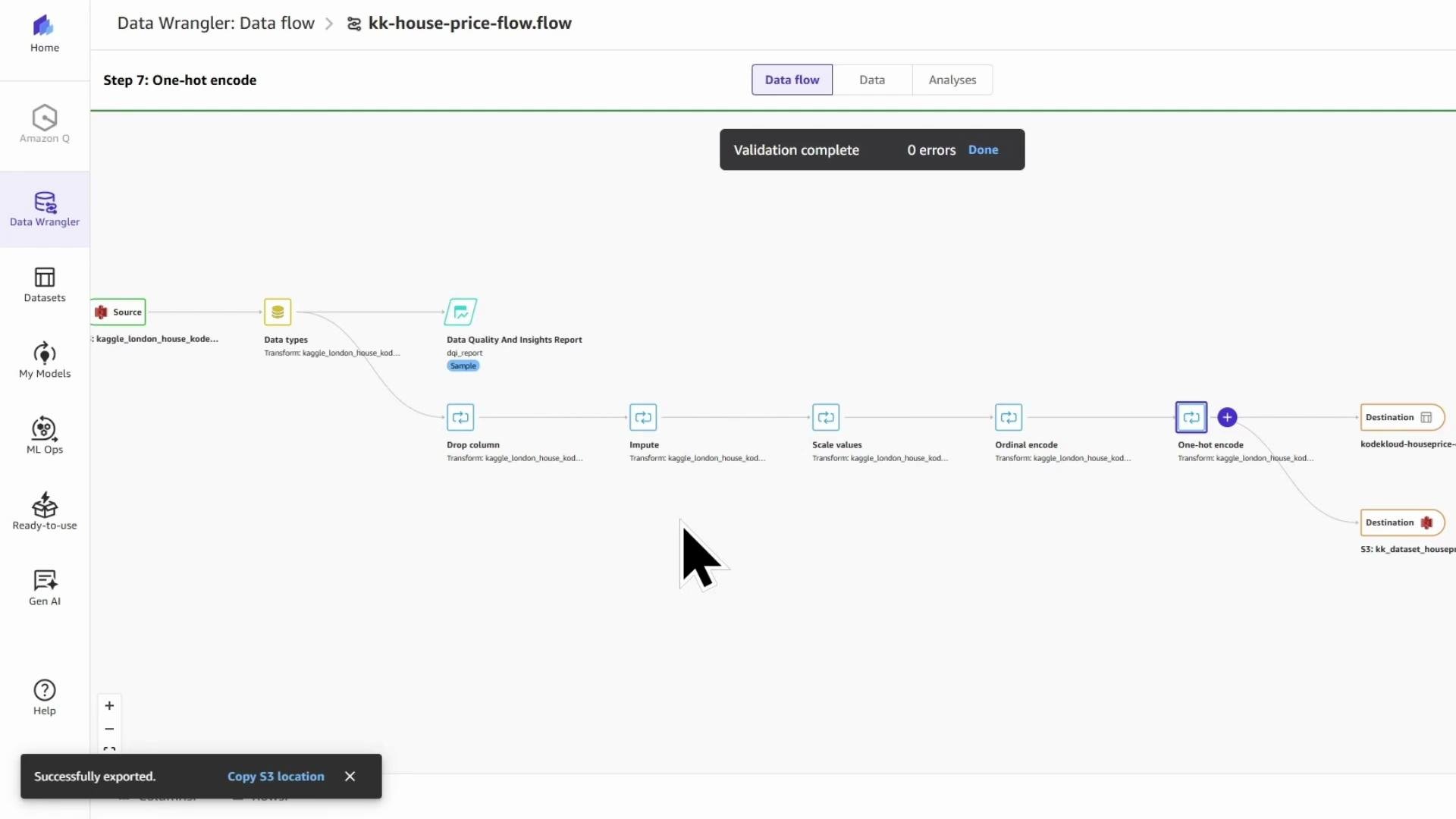
At this stage the data-flow transforms are already defined and ordered correctly: drop column → impute → scale values → ordinal encode → one-hot encode. The remaining step is to export the transformed dataset so it can be persisted and consumed later (for training, reporting, or downstream pipelines).
This guide shows three export targets and how to reproduce the same Data Wrangler flow as code:
* Export to a Canvas dataset (low-code, Canvas-managed)
* Export to Amazon S3 (for downstream processing or storage)
* Export a Jupyter Notebook + .flow file (reproducible Processing job)
Each section explains the steps and examples you can adapt for your environment.
## Export to a Canvas dataset
1. From the end of the Data Wrangler flow, click the plus sign → Export → Canvas dataset.
2. Give the dataset a clear, descriptive name (for example, "KodeKloud house price data").
3. Optionally choose whether to process a sample (fast iteration) or the entire dataset. For demos, a subset is fine.
4. Run the export. Data Wrangler will choose where to execute the transform:
* If it fits within the Canvas managed instance limits, it runs locally there.
* Otherwise Data Wrangler uses a managed Spark backend (for example, EMR).
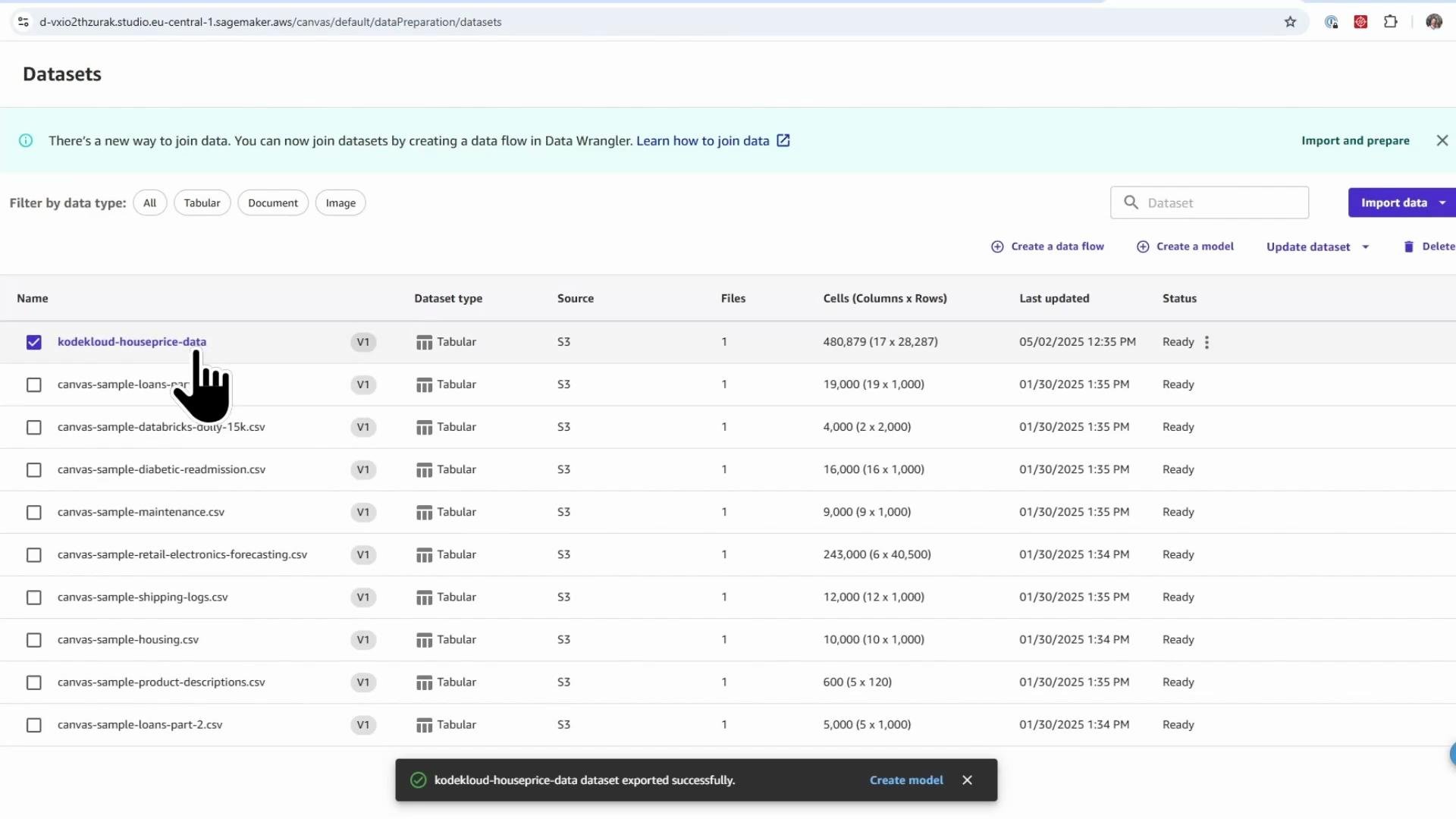
Once created, you can view the dataset metadata on the SageMaker Datasets page (name, size, creation time, status).
 Tip: Rename the flow to something readable (for example, "KodeKloud house price flow"). Timestamps and auto-generated IDs in flow names are often awkward when referenced in code.
## Export to Amazon S3
To export transformed data to S3:
1. Open your Data Wrangler flow and add a destination node: Export → Amazon S3.
2. Choose a descriptive dataset name (example: "KodeKloud dataset house price") and select an S3 bucket and path.
3. For production/full runs choose to process the entire dataset. Click Export and wait for the job to finish.
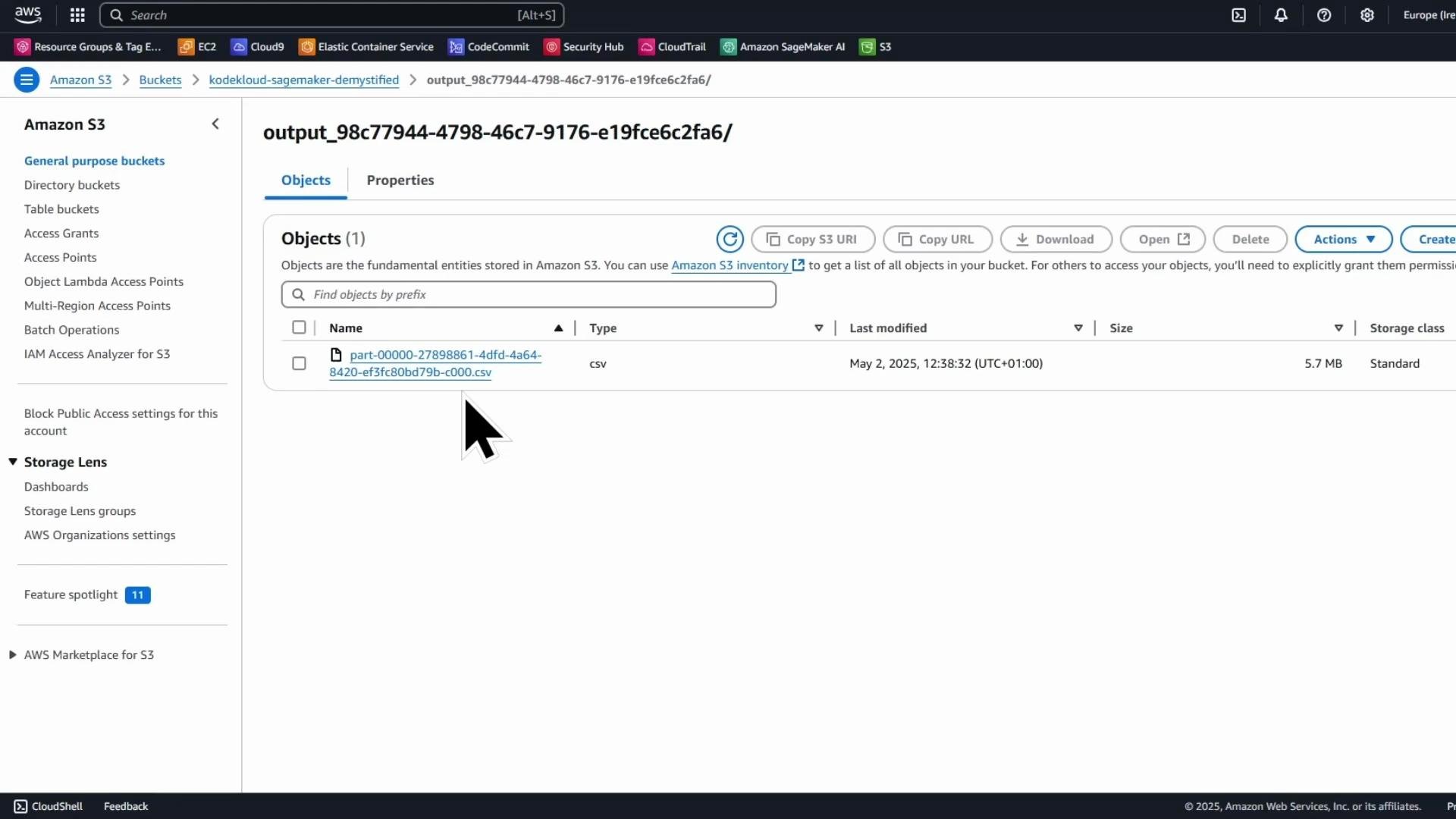
After the job completes, verify the output in the S3 bucket. If the Data Wrangler job used Spark, the output is typically partitioned files with prefixes like `part-00000-...` and an output prefix/directory created by the export job.
Tip: Rename the flow to something readable (for example, "KodeKloud house price flow"). Timestamps and auto-generated IDs in flow names are often awkward when referenced in code.
## Export to Amazon S3
To export transformed data to S3:
1. Open your Data Wrangler flow and add a destination node: Export → Amazon S3.
2. Choose a descriptive dataset name (example: "KodeKloud dataset house price") and select an S3 bucket and path.
3. For production/full runs choose to process the entire dataset. Click Export and wait for the job to finish.
After the job completes, verify the output in the S3 bucket. If the Data Wrangler job used Spark, the output is typically partitioned files with prefixes like `part-00000-...` and an output prefix/directory created by the export job.
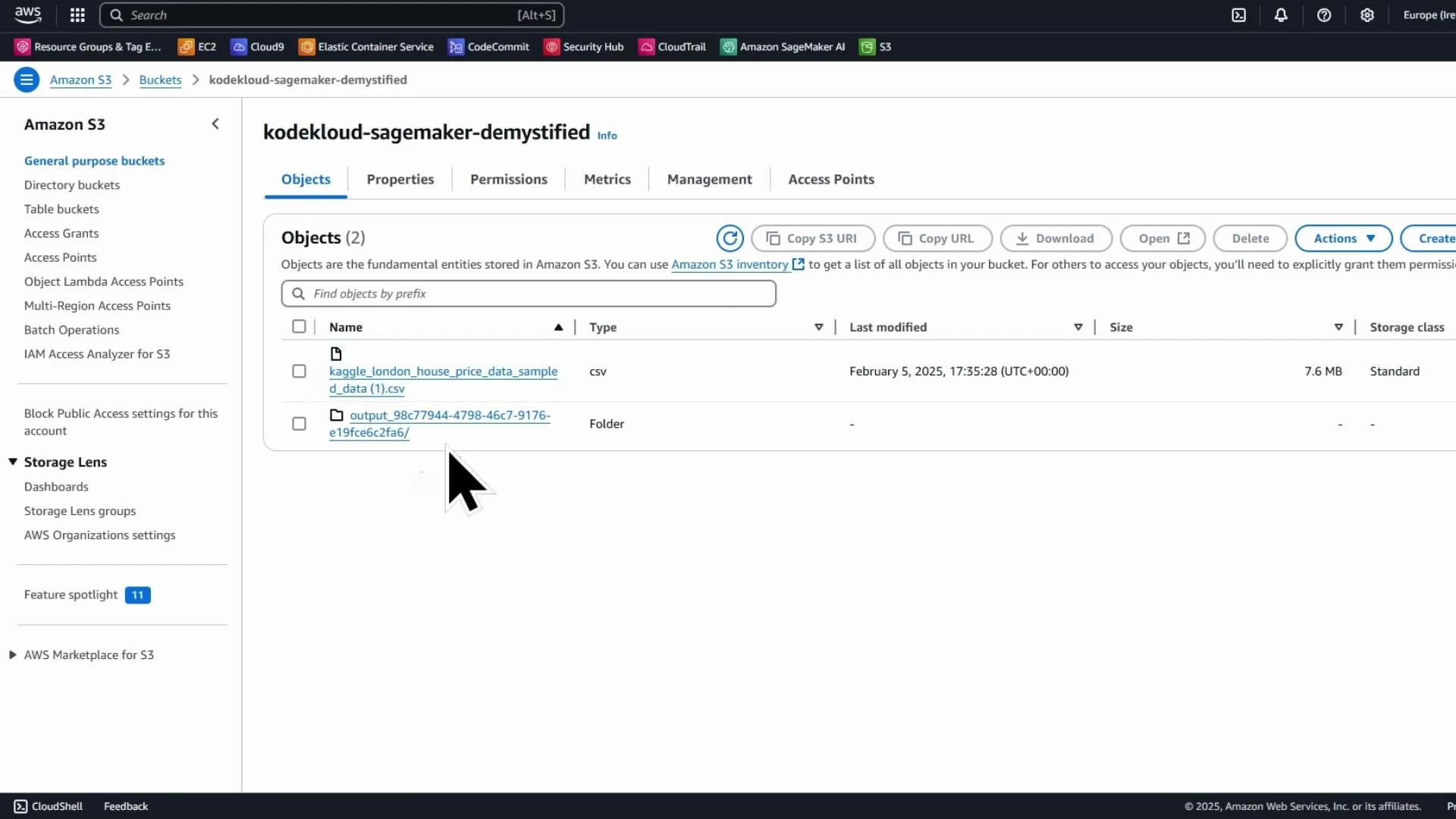 If you open the export folder you will see one or more CSV objects produced by the job. Spark-style outputs use file names like `part-00000-...`.
 ## Export the flow as a Jupyter Notebook (and .flow)
Exporting the flow as a Jupyter Notebook gives a reproducible artifact that sets up a SageMaker Processing job to apply the same transformations. This is ideal for handing work to a developer or integrating into CI/CD.
From the Data Wrangler flow:
* Add Export → Jupyter Notebooks → Amazon S3 and choose an S3 destination.
* Data Wrangler will store a `.ipynb` and a `.flow` file in the chosen location. The notebook contains boilerplate code to create and run a SageMaker Processing job that uses the `.flow` file as the transformation spec.
When the export completes, you will see a confirmation in the Canvas UI.
## Export the flow as a Jupyter Notebook (and .flow)
Exporting the flow as a Jupyter Notebook gives a reproducible artifact that sets up a SageMaker Processing job to apply the same transformations. This is ideal for handing work to a developer or integrating into CI/CD.
From the Data Wrangler flow:
* Add Export → Jupyter Notebooks → Amazon S3 and choose an S3 destination.
* Data Wrangler will store a `.ipynb` and a `.flow` file in the chosen location. The notebook contains boilerplate code to create and run a SageMaker Processing job that uses the `.flow` file as the transformation spec.
When the export completes, you will see a confirmation in the Canvas UI.
 Best practice: Sign out of SageMaker Canvas when finished to stop the managed instance and avoid charges. Canvas will warn you if background jobs are still running.
## Open JupyterLab and copy exported files from S3
SageMaker Studio/JupyterLab does not show S3 objects directly in the file browser. Use the AWS CLI in a terminal to copy the exported notebook and `.flow` file into the Studio filesystem.
First, verify you can list buckets:
```console theme={null}
sagemaker-user@default:~$ aws s3 ls
```
Then copy the notebook and flow file (quote URIs that contain spaces):
```console theme={null}
sagemaker-user@default:~$ aws s3 cp "s3://kodekloud-sagemaker-demystified/output_1746186367/kk-house-price-flow.ipynb" sagemaker-demystified/
download: s3://kodekloud-sagemaker-demystified/output_1746186367/kk-house-price-flow.ipynb to sagemaker-demystified/kk-house-price-flow.ipynb
sagemaker-user@default:~$ aws s3 cp "s3://kodekloud-sagemaker-demystified/output_1746186367/kk-house-price-flow.flow" sagemaker-demystified/
download: s3://kodekloud-sagemaker-demystified/output_1746186367/kk-house-price-flow.flow to sagemaker-demystified/kk-house-price-flow.flow
```
You should now see both files in the JupyterLab file browser.
## Open the exported notebook
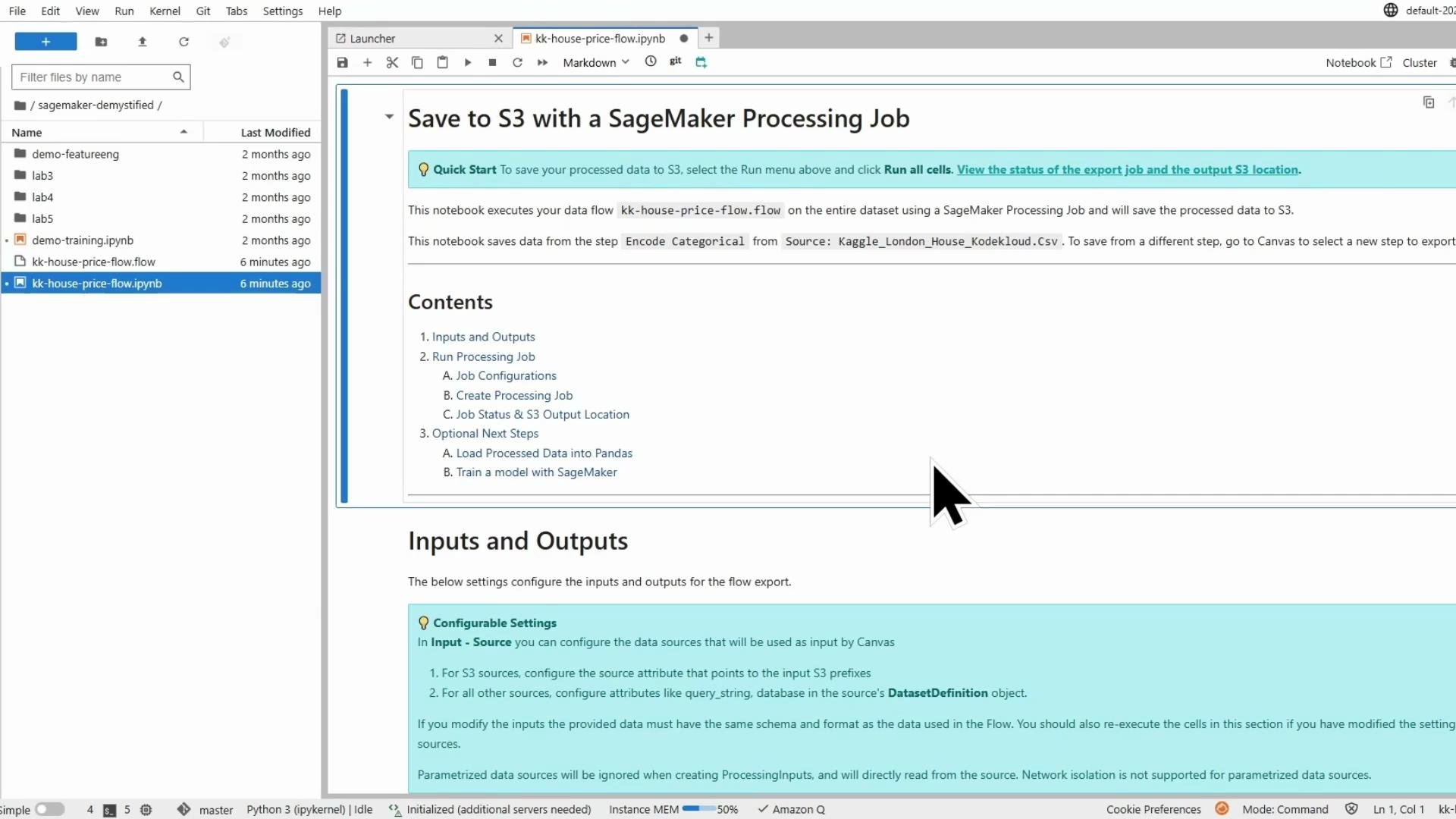
Launch the notebook in JupyterLab and select an appropriate Python kernel. The notebook includes:
* Markdown explaining the flow and export
* Code to configure and run a SageMaker Processing job that executes the `.flow` transformation
* References to the `.flow` file and input CSV(s)
Best practice: Sign out of SageMaker Canvas when finished to stop the managed instance and avoid charges. Canvas will warn you if background jobs are still running.
## Open JupyterLab and copy exported files from S3
SageMaker Studio/JupyterLab does not show S3 objects directly in the file browser. Use the AWS CLI in a terminal to copy the exported notebook and `.flow` file into the Studio filesystem.
First, verify you can list buckets:
```console theme={null}
sagemaker-user@default:~$ aws s3 ls
```
Then copy the notebook and flow file (quote URIs that contain spaces):
```console theme={null}
sagemaker-user@default:~$ aws s3 cp "s3://kodekloud-sagemaker-demystified/output_1746186367/kk-house-price-flow.ipynb" sagemaker-demystified/
download: s3://kodekloud-sagemaker-demystified/output_1746186367/kk-house-price-flow.ipynb to sagemaker-demystified/kk-house-price-flow.ipynb
sagemaker-user@default:~$ aws s3 cp "s3://kodekloud-sagemaker-demystified/output_1746186367/kk-house-price-flow.flow" sagemaker-demystified/
download: s3://kodekloud-sagemaker-demystified/output_1746186367/kk-house-price-flow.flow to sagemaker-demystified/kk-house-price-flow.flow
```
You should now see both files in the JupyterLab file browser.
## Open the exported notebook
Launch the notebook in JupyterLab and select an appropriate Python kernel. The notebook includes:
* Markdown explaining the flow and export
* Code to configure and run a SageMaker Processing job that executes the `.flow` transformation
* References to the `.flow` file and input CSV(s)
 ## Notebook contents — core snippets
The exported notebook sets up ProcessingInput(s) for the flow and inputs, and ProcessingOutput(s) for S3. Below are representative snippets you will find (adapt as needed).
Typical imports used in the exported notebook:
```python theme={null}
# Typical imports used in the exported notebook
from sagemaker.processing import ProcessingInput, ProcessingOutput
from sagemaker.dataset_definition.inputs import AthenaDatasetDefinition, DatasetDefinition, RedshiftDatasetDefinition
import time
import uuid
import boto3
import sagemaker
import os
import json
from pprint import pprint
```
Define the S3 bucket and create a unique export prefix:
```python theme={null}
# Define the S3 bucket used to store export outputs
bucket = "kodekloud-sagemaker-demystified"
# Create a unique export name and S3 prefix
flow_export_id = f"{time.strftime('%d-%H-%M-%S', time.gmtime())}{str(uuid.uuid4())[:8]}"
flow_export_name = f"flow-{flow_export_id}"
# Output_name is auto-generated from the select node's ID + output name from the flow file.
output_name = "3e5d1454-c172-4b12-b0c9-99b2e4d040d1.default"
s3_output_prefix = f"export-{flow_export_name}/output"
s3_output_base_path = f"s3://{bucket}/{s3_output_prefix}"
print(f"Processing output base path: {s3_output_base_path}\nThe final output location will contain additional subdirectories.")
```
Configure the ProcessingOutput that writes results to S3:
```python theme={null}
processing_job_output = ProcessingOutput(
output_name=output_name,
source="/opt/ml/processing/output",
destination=s3_output_base_path,
s3_upload_mode="EndOfJob"
)
```
Provide the exported `.flow` file as a ProcessingInput:
```python theme={null}
# The flow file's S3 location (from the Data Wrangler export)
flow_s3_uri = "s3://kodekloud-sagemaker-demystified/output_1746186367/kk-house-price-flow.flow"
print(f"Data flow is located at {flow_s3_uri}")
# Provide the flow file as a ProcessingInput to the SageMaker Processing job
flow_input = ProcessingInput(
source=flow_s3_uri,
destination="/opt/ml/processing/flow",
input_name="flow",
s3_data_type="S3Prefix",
s3_input_mode="File",
s3_data_distribution_type="FullyReplicated"
)
```
## Inspect the .flow file (JSON) locally
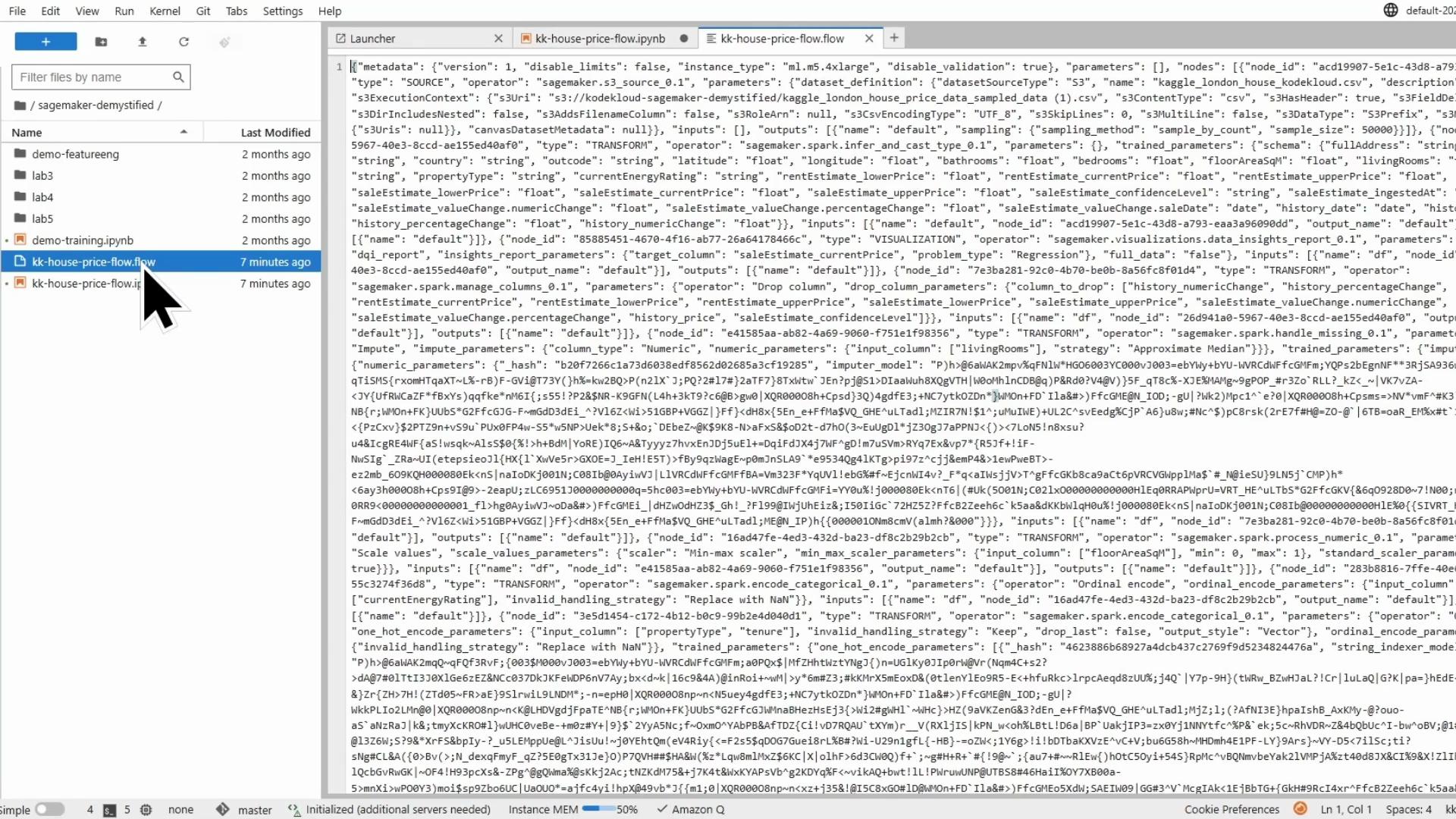
The `.flow` file is JSON and contains the pipeline metadata, nodes, operators, and parameters. Loading and pretty-printing it in the notebook helps you review the exact transformations and execution settings:
```python theme={null}
import json
from pprint import pprint
with open('kk-house-price-flow.flow') as f:
data = json.load(f)
pprint(data)
```
Key contents you will typically see:
* metadata (for example, an `instance_type` suggestion like "ml.m5.4xlarge")
* nodes list with SOURCE and TRANSFORM nodes (infer\_and\_cast\_type, drop column, impute, scale, ordinal encode, one-hot encode)
* operator implementations (often under `sagemaker.spark.*`)
* transform parameters and any trained parameters (e.g., learned imputations or encodings)
Example (truncated) pretty-printed snippet:
```python theme={null}
pprint(data)
# Example (truncated) output:
{
'metadata': {'disable_limits': False,
'disable_validation': True,
'instance_type': 'ml.m5.4xlarge',
'version': 1},
'nodes': [
{'inputs': [],
'node_id': 'acd19907-5e1c-43d8-a793-eaa3a96090dd',
'operator': 'sagemaker.s3.addsample_1',
'outputs': [{'name': 'default',
'sampling': {'sample_size': 50000,
'sampling_method': 'sample_by_count'}}],
'parameters': {'dataset_definition': {
'datasetSourceType': 'S3',
'name': 'kaggle_london_house_kodekloud.csv',
's3ExecutionContext': {
's3Uri': 's3://kodekloud-sagemaker-demystified/kaggle_london_house_price_data_sampled_data (1).csv',
's3ContentType': 'csv',
's3HasHeader': True,
's3FieldDelimiter': ','
}
}},
'type': 'SOURCE'
},
{'inputs': [{'name': 'default', 'node_id': 'acd19907-...'}],
'node_id': '264941a0-5967-40e3-8ccd-ae155ed40af0',
'operator': 'sagemaker.spark.infer_and_cast_type_0.1',
'trained_parameters': {'schema': {
'bathrooms': 'float',
'bedrooms': 'float',
...
'tenure': 'string'}},
'type': 'TRANSFORM'
},
...
{'operator': 'sagemaker.spark.encode_categorical_0.1',
'parameters': {'one_hot_encode_parameters': {
'input_column': ['propertyType', 'tenure'],
'drop_last': False,
'output_style': 'Vector'
}, 'operator': 'One-hot encode'},
'type': 'TRANSFORM',
'node_id': '3e5d1454-c172-4b12-b0c9-99b2e4d040d1'
}
]
}
```
This JSON shows the exact transform sequence and parameters that Data Wrangler will run via a Spark-based processing job.
## Notebook contents — core snippets
The exported notebook sets up ProcessingInput(s) for the flow and inputs, and ProcessingOutput(s) for S3. Below are representative snippets you will find (adapt as needed).
Typical imports used in the exported notebook:
```python theme={null}
# Typical imports used in the exported notebook
from sagemaker.processing import ProcessingInput, ProcessingOutput
from sagemaker.dataset_definition.inputs import AthenaDatasetDefinition, DatasetDefinition, RedshiftDatasetDefinition
import time
import uuid
import boto3
import sagemaker
import os
import json
from pprint import pprint
```
Define the S3 bucket and create a unique export prefix:
```python theme={null}
# Define the S3 bucket used to store export outputs
bucket = "kodekloud-sagemaker-demystified"
# Create a unique export name and S3 prefix
flow_export_id = f"{time.strftime('%d-%H-%M-%S', time.gmtime())}{str(uuid.uuid4())[:8]}"
flow_export_name = f"flow-{flow_export_id}"
# Output_name is auto-generated from the select node's ID + output name from the flow file.
output_name = "3e5d1454-c172-4b12-b0c9-99b2e4d040d1.default"
s3_output_prefix = f"export-{flow_export_name}/output"
s3_output_base_path = f"s3://{bucket}/{s3_output_prefix}"
print(f"Processing output base path: {s3_output_base_path}\nThe final output location will contain additional subdirectories.")
```
Configure the ProcessingOutput that writes results to S3:
```python theme={null}
processing_job_output = ProcessingOutput(
output_name=output_name,
source="/opt/ml/processing/output",
destination=s3_output_base_path,
s3_upload_mode="EndOfJob"
)
```
Provide the exported `.flow` file as a ProcessingInput:
```python theme={null}
# The flow file's S3 location (from the Data Wrangler export)
flow_s3_uri = "s3://kodekloud-sagemaker-demystified/output_1746186367/kk-house-price-flow.flow"
print(f"Data flow is located at {flow_s3_uri}")
# Provide the flow file as a ProcessingInput to the SageMaker Processing job
flow_input = ProcessingInput(
source=flow_s3_uri,
destination="/opt/ml/processing/flow",
input_name="flow",
s3_data_type="S3Prefix",
s3_input_mode="File",
s3_data_distribution_type="FullyReplicated"
)
```
## Inspect the .flow file (JSON) locally
The `.flow` file is JSON and contains the pipeline metadata, nodes, operators, and parameters. Loading and pretty-printing it in the notebook helps you review the exact transformations and execution settings:
```python theme={null}
import json
from pprint import pprint
with open('kk-house-price-flow.flow') as f:
data = json.load(f)
pprint(data)
```
Key contents you will typically see:
* metadata (for example, an `instance_type` suggestion like "ml.m5.4xlarge")
* nodes list with SOURCE and TRANSFORM nodes (infer\_and\_cast\_type, drop column, impute, scale, ordinal encode, one-hot encode)
* operator implementations (often under `sagemaker.spark.*`)
* transform parameters and any trained parameters (e.g., learned imputations or encodings)
Example (truncated) pretty-printed snippet:
```python theme={null}
pprint(data)
# Example (truncated) output:
{
'metadata': {'disable_limits': False,
'disable_validation': True,
'instance_type': 'ml.m5.4xlarge',
'version': 1},
'nodes': [
{'inputs': [],
'node_id': 'acd19907-5e1c-43d8-a793-eaa3a96090dd',
'operator': 'sagemaker.s3.addsample_1',
'outputs': [{'name': 'default',
'sampling': {'sample_size': 50000,
'sampling_method': 'sample_by_count'}}],
'parameters': {'dataset_definition': {
'datasetSourceType': 'S3',
'name': 'kaggle_london_house_kodekloud.csv',
's3ExecutionContext': {
's3Uri': 's3://kodekloud-sagemaker-demystified/kaggle_london_house_price_data_sampled_data (1).csv',
's3ContentType': 'csv',
's3HasHeader': True,
's3FieldDelimiter': ','
}
}},
'type': 'SOURCE'
},
{'inputs': [{'name': 'default', 'node_id': 'acd19907-...'}],
'node_id': '264941a0-5967-40e3-8ccd-ae155ed40af0',
'operator': 'sagemaker.spark.infer_and_cast_type_0.1',
'trained_parameters': {'schema': {
'bathrooms': 'float',
'bedrooms': 'float',
...
'tenure': 'string'}},
'type': 'TRANSFORM'
},
...
{'operator': 'sagemaker.spark.encode_categorical_0.1',
'parameters': {'one_hot_encode_parameters': {
'input_column': ['propertyType', 'tenure'],
'drop_last': False,
'output_style': 'Vector'
}, 'operator': 'One-hot encode'},
'type': 'TRANSFORM',
'node_id': '3e5d1454-c172-4b12-b0c9-99b2e4d040d1'
}
]
}
```
This JSON shows the exact transform sequence and parameters that Data Wrangler will run via a Spark-based processing job.
 ## Wrap-up and next steps
* The exported notebook plus the `.flow` file provide a reproducible way to run the same Data Wrangler transformations in a SageMaker Processing job.
* Hand the notebook to data scientists or integrate it into automated pipelines to produce transformed datasets for training.
* Always shut down idle SageMaker Canvas instances to avoid unnecessary charges.
| Export Target | Best For | Notes |
| ------------------------ | ------------------------------------------------: | --------------------------------------------------------- |
| Canvas dataset | Quick low-code iteration and sharing | Viewable from SageMaker Datasets page |
| Amazon S3 | Integrating with downstream processing or storage | Spark output uses `part-00000-...` prefixes |
| Jupyter Notebook + .flow | Reproducible code-based processing job | Notebook configures SageMaker Processing and uses `.flow` |
Links and references
* [Amazon SageMaker Data Wrangler](https://docs.aws.amazon.com/sagemaker/latest/dg/data-wrangler.html)
* [Amazon SageMaker Canvas overview](https://docs.aws.amazon.com/sagemaker/latest/dg/canvas.html)
* [SageMaker Processing jobs](https://docs.aws.amazon.com/sagemaker/latest/dg/processing.html)
* [Amazon S3 documentation](https://docs.aws.amazon.com/s3/index.html)
When copying S3 objects whose key contains spaces, quote the S3 URI (or URL-encode the path) so the CLI treats it as a single argument. Also ensure the IAM role or credentials used by your notebook/studio have access to the bucket.
## Wrap-up and next steps
* The exported notebook plus the `.flow` file provide a reproducible way to run the same Data Wrangler transformations in a SageMaker Processing job.
* Hand the notebook to data scientists or integrate it into automated pipelines to produce transformed datasets for training.
* Always shut down idle SageMaker Canvas instances to avoid unnecessary charges.
| Export Target | Best For | Notes |
| ------------------------ | ------------------------------------------------: | --------------------------------------------------------- |
| Canvas dataset | Quick low-code iteration and sharing | Viewable from SageMaker Datasets page |
| Amazon S3 | Integrating with downstream processing or storage | Spark output uses `part-00000-...` prefixes |
| Jupyter Notebook + .flow | Reproducible code-based processing job | Notebook configures SageMaker Processing and uses `.flow` |
Links and references
* [Amazon SageMaker Data Wrangler](https://docs.aws.amazon.com/sagemaker/latest/dg/data-wrangler.html)
* [Amazon SageMaker Canvas overview](https://docs.aws.amazon.com/sagemaker/latest/dg/canvas.html)
* [SageMaker Processing jobs](https://docs.aws.amazon.com/sagemaker/latest/dg/processing.html)
* [Amazon S3 documentation](https://docs.aws.amazon.com/s3/index.html)
When copying S3 objects whose key contains spaces, quote the S3 URI (or URL-encode the path) so the CLI treats it as a single argument. Also ensure the IAM role or credentials used by your notebook/studio have access to the bucket.