> ## Documentation Index
> Fetch the complete documentation index at: https://notes.kodekloud.com/llms.txt
> Use this file to discover all available pages before exploring further.
# Demo Keeping Track of Models Using the SageMaker Model Registry
> Shows how to register, version, approve, and deploy machine learning models using Amazon SageMaker Model Registry with the Python SDK and Boto3
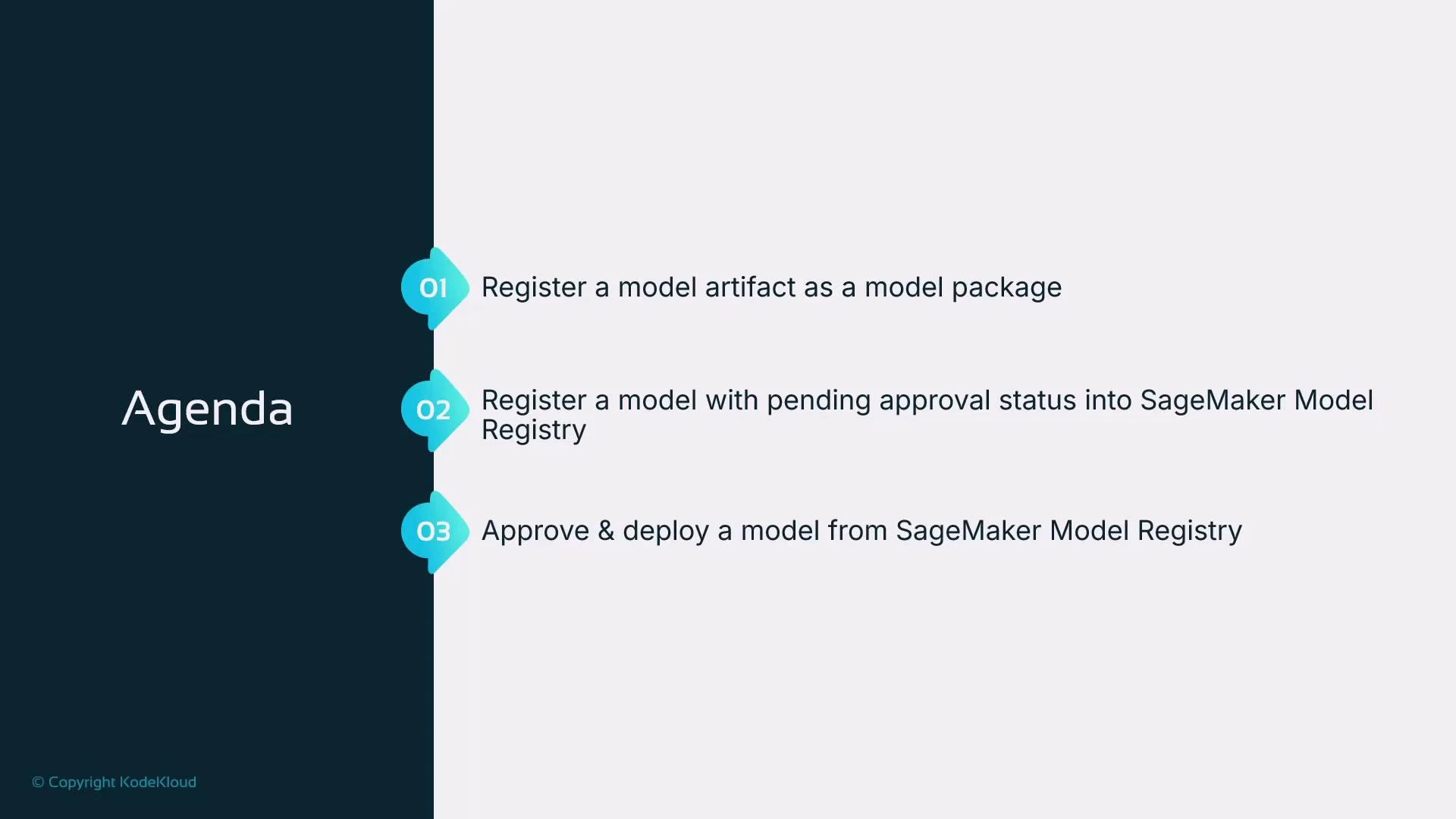
This lesson demonstrates how to use the SageMaker Model Registry to track model artifacts, manage versions, and deploy approved models. The examples are executed from a Jupyter notebook in SageMaker Studio and use the SageMaker Python SDK along with Boto3.
We will:
* register a model artifact as a model package,
* register that model into the SageMaker Model Registry with an approval status, and
* approve a model version and obtain the latest approved model for deployment.
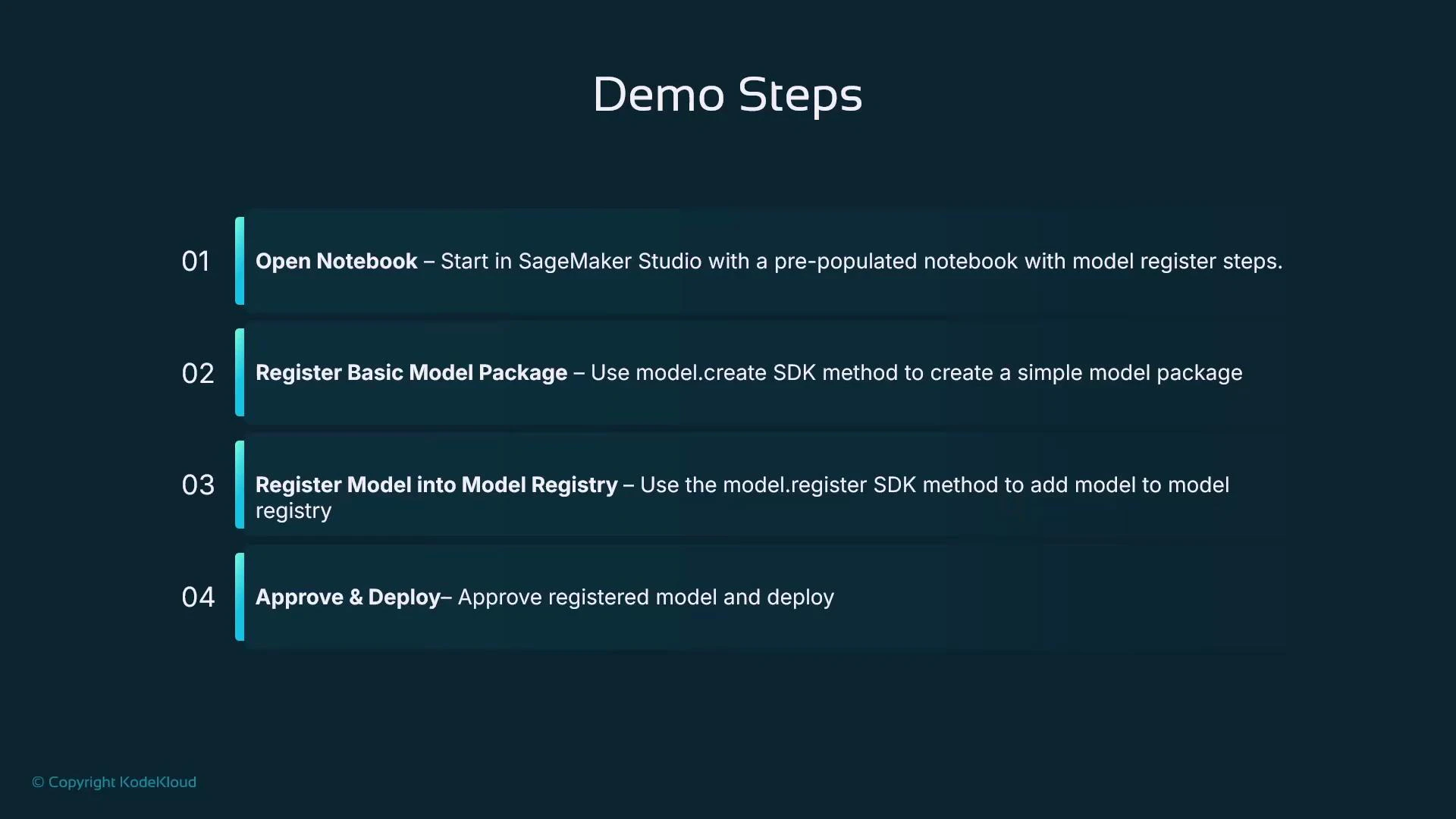
 This notebook covers the following SageMaker SDK usage:
1. create a legacy model package using Model.create,
2. register a model into the Model Registry using Model.register,
3. list and obtain the latest approved package from the registry, and
4. deploy the approved package to an endpoint.
This notebook covers the following SageMaker SDK usage:
1. create a legacy model package using Model.create,
2. register a model into the Model Registry using Model.register,
3. list and obtain the latest approved package from the registry, and
4. deploy the approved package to an endpoint.
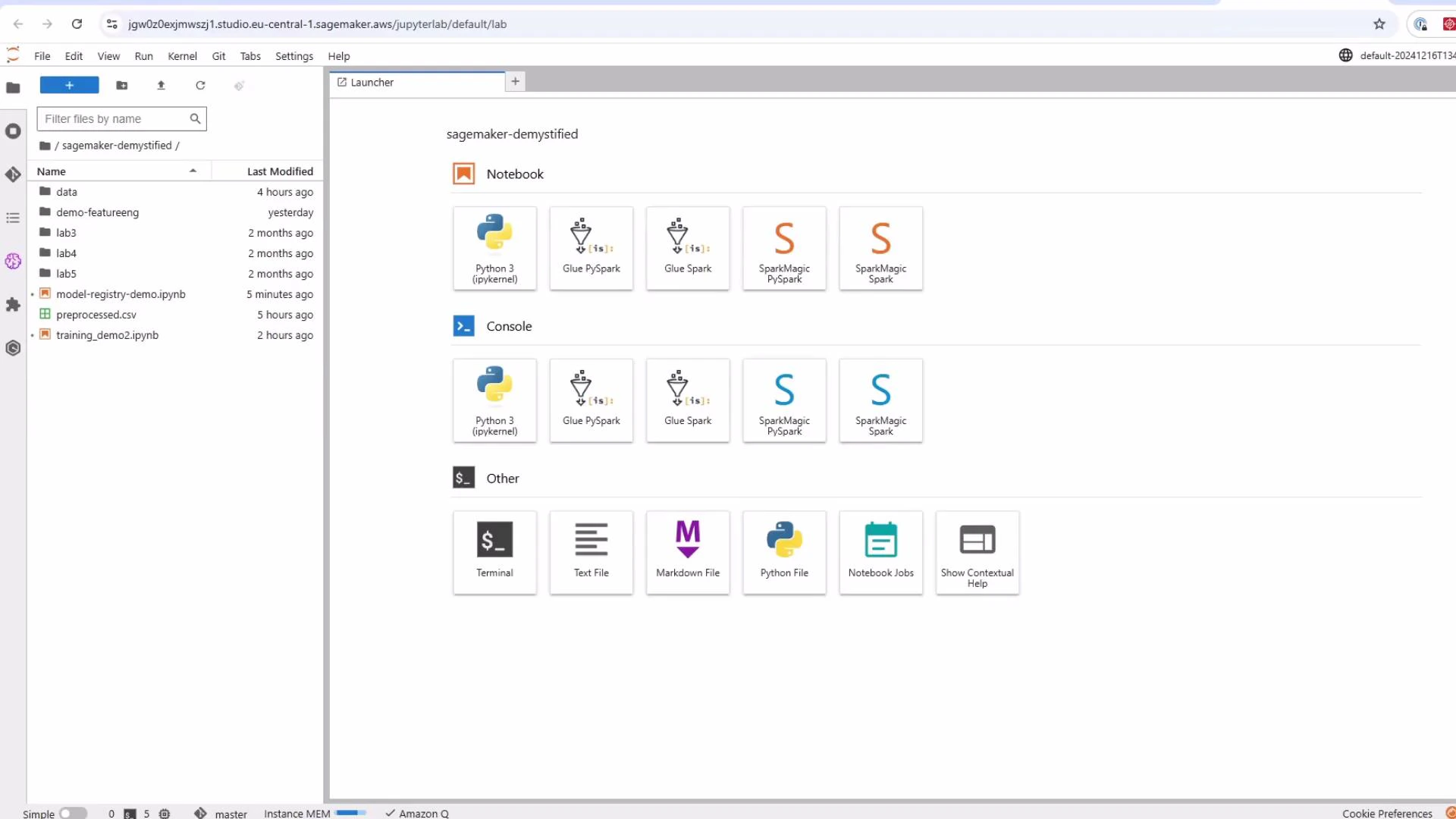
 Getting started: open SageMaker Studio, launch JupyterLab, and open the notebook named "Model Registry Demo".
 ## 1. Imports and session setup
Start by importing required libraries and creating a SageMaker session and role reference. This session object is used throughout the notebook for SDK operations.
```python theme={null}
# imports and session setup
import boto3
import sagemaker
from sagemaker import get_execution_role
from sagemaker.session import Session
from sagemaker import Model, ModelPackage
sagemaker_session = Session()
role = get_execution_role()
print(role)
```
The printed value is the IAM execution role ARN associated with your notebook environment.
## 2. Legacy model package (Model.create)
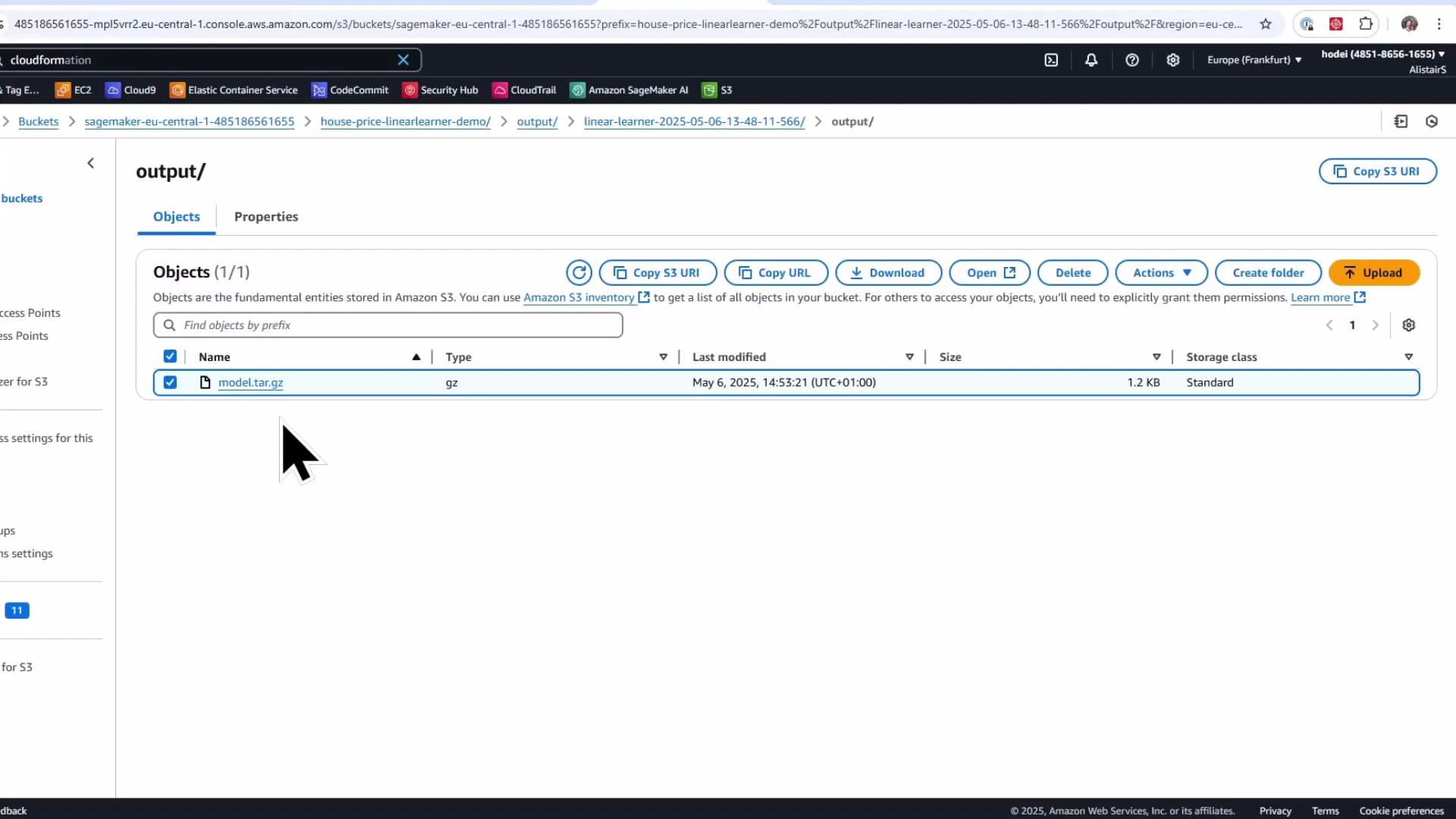
If you already have a trained model artifact saved in S3 and want a quick way to create a SageMaker model package (legacy flow), call `Model.create()` by supplying the S3 model artifact and the appropriate container image for the framework.
* model artifact (output of a training job)
* container image URI for the training framework (for example, Linear Learner)
Example:
```python theme={null}
# Reference model artifact in S3 (this is the trained model output)
model_artifact = 's3://sagemaker-eu-central-1-485186561655/house-price-linearlearner-demo/output/linear-learner-2025-05-06-13-48-11-566/output/model.tar.gz'
# Determine region and fetch container image URI for the Linear Learner framework
region = sagemaker_session.boto_region_name
container_image_uri = sagemaker.image_uris.retrieve(framework="linear-learner", region=region)
print(f"SageMaker Linear Learner Image URI: {container_image_uri}")
# Assign a meaningful name to the model
model_name = 'kodekloud-house-prices-demo'
# Create the SageMaker model (legacy model package)
model = Model(
image_uri=container_image_uri,
model_data=model_artifact,
role=role,
name=model_name
)
# Register the model package (legacy)
model.create()
```
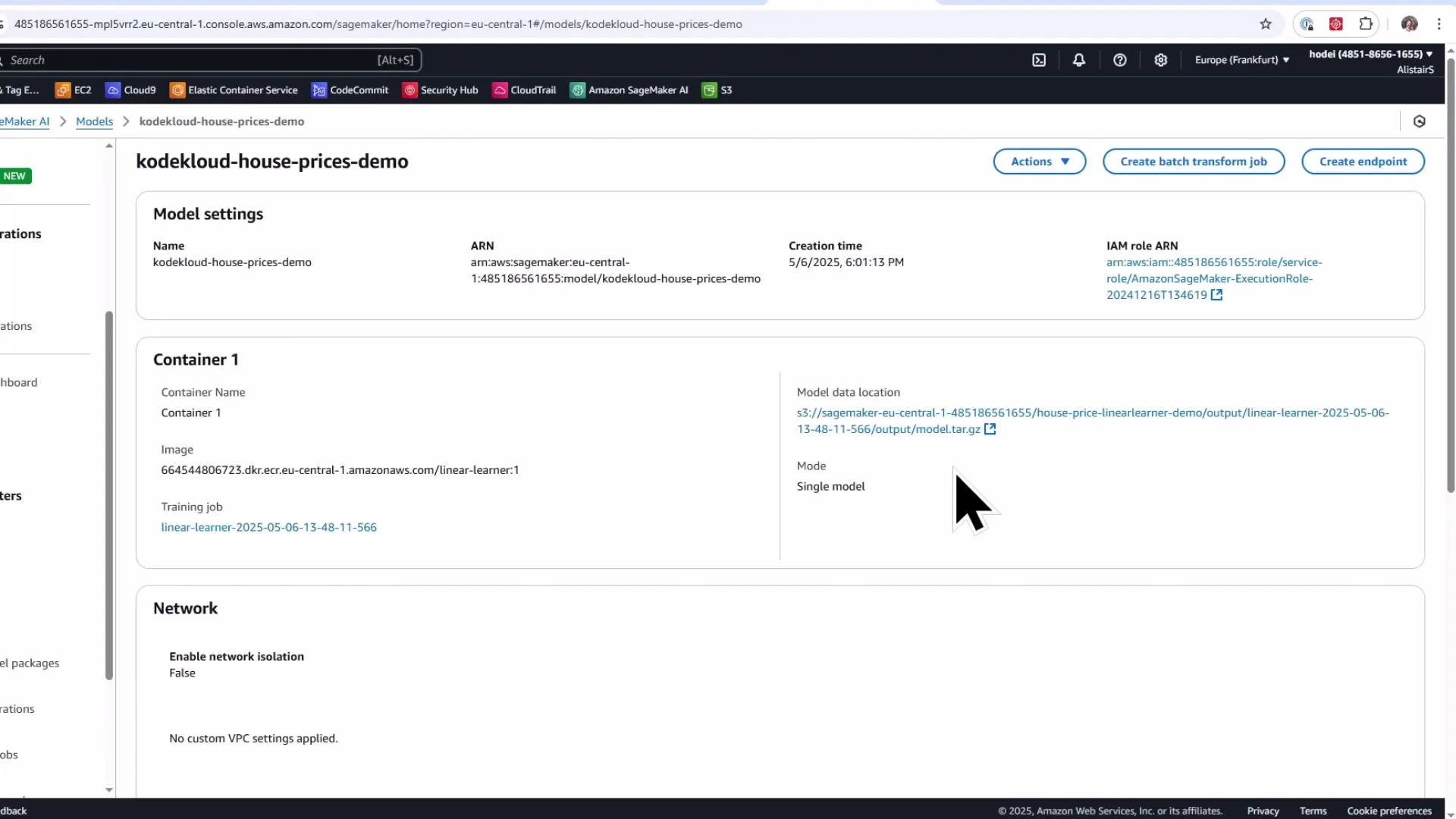
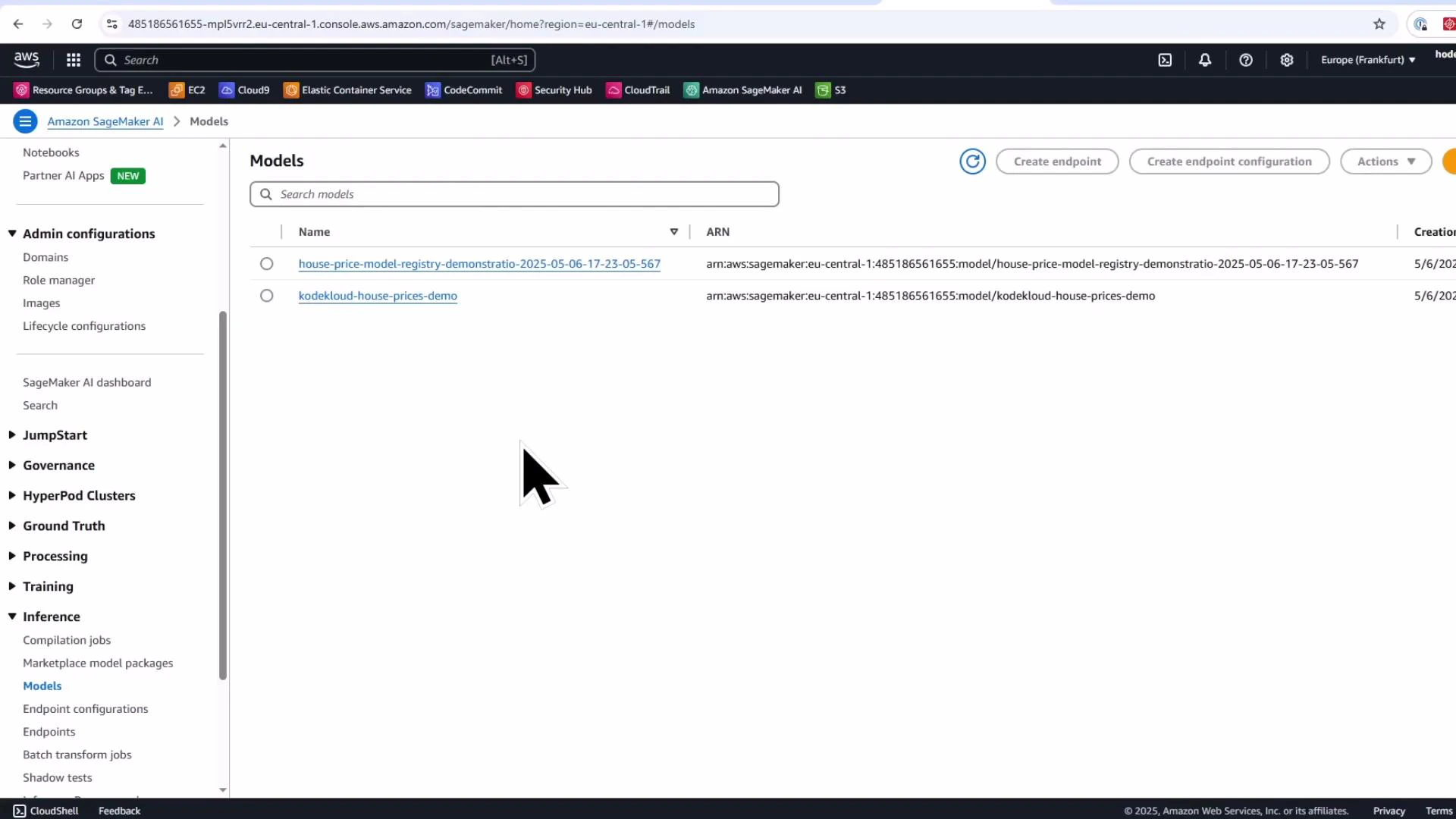
After calling `model.create()`, the model package shows up in the SageMaker console under Inference → Models, and you can create an endpoint directly from that model object for quick testing.
## 1. Imports and session setup
Start by importing required libraries and creating a SageMaker session and role reference. This session object is used throughout the notebook for SDK operations.
```python theme={null}
# imports and session setup
import boto3
import sagemaker
from sagemaker import get_execution_role
from sagemaker.session import Session
from sagemaker import Model, ModelPackage
sagemaker_session = Session()
role = get_execution_role()
print(role)
```
The printed value is the IAM execution role ARN associated with your notebook environment.
## 2. Legacy model package (Model.create)
If you already have a trained model artifact saved in S3 and want a quick way to create a SageMaker model package (legacy flow), call `Model.create()` by supplying the S3 model artifact and the appropriate container image for the framework.
* model artifact (output of a training job)
* container image URI for the training framework (for example, Linear Learner)
Example:
```python theme={null}
# Reference model artifact in S3 (this is the trained model output)
model_artifact = 's3://sagemaker-eu-central-1-485186561655/house-price-linearlearner-demo/output/linear-learner-2025-05-06-13-48-11-566/output/model.tar.gz'
# Determine region and fetch container image URI for the Linear Learner framework
region = sagemaker_session.boto_region_name
container_image_uri = sagemaker.image_uris.retrieve(framework="linear-learner", region=region)
print(f"SageMaker Linear Learner Image URI: {container_image_uri}")
# Assign a meaningful name to the model
model_name = 'kodekloud-house-prices-demo'
# Create the SageMaker model (legacy model package)
model = Model(
image_uri=container_image_uri,
model_data=model_artifact,
role=role,
name=model_name
)
# Register the model package (legacy)
model.create()
```
After calling `model.create()`, the model package shows up in the SageMaker console under Inference → Models, and you can create an endpoint directly from that model object for quick testing.
 Model.create is great for rapid prototyping and one-off endpoints. For production tracking, reproducibility, and approval workflows, prefer the SageMaker Model Registry with Model.register.
## 3. Model Registry: create a Model Package Group and register a model version
The Model Registry stores model versions inside a Model Package Group and provides metadata, metrics, versioning, lineage, and approval workflows. Use the Boto3 SageMaker client to create a model package group, then call `Model.register()` to add a model version.
Create the package group:
```python theme={null}
# Create a model package group using the low-level boto3 client
model_package_group_name = 'house-price-model-registry-demonstration'
model_package_group_description = 'KodeKloud model package group for house price prediction'
sagemaker_client = boto3.client('sagemaker')
try:
sagemaker_client.create_model_package_group(
ModelPackageGroupName=model_package_group_name,
ModelPackageGroupDescription=model_package_group_description
)
print(f'Created Model Package Group: {model_package_group_name}')
except sagemaker_client.exceptions.ResourceInUse:
print(f'Model Package Group {model_package_group_name} already exists.')
```
Register the model artifact into the registry as a model package version. Set an initial approval status (for example, `PendingManualApproval`) and attach any custom metadata you want to track.
```python theme={null}
# Register the model into the model registry
model_approval_status = "PendingManualApproval"
customer_metadata_properties = {"ModelType": "HousePricePrediction"}
model_package = model.register(
content_types=["text/csv"],
response_types=["text/csv"],
inference_instances=["ml.t2.medium", "ml.m5.large"],
transform_instances=["ml.m5.large"],
model_package_group_name=model_package_group_name,
approval_status=model_approval_status,
customer_metadata_properties=customer_metadata_properties,
)
print(f"Model package version ARN: {model_package.model_package_arn}")
```
After registration, the version appears in SageMaker Studio → Model Registry under the specified Model Package Group with the approval status you supplied.
Model.create is great for rapid prototyping and one-off endpoints. For production tracking, reproducibility, and approval workflows, prefer the SageMaker Model Registry with Model.register.
## 3. Model Registry: create a Model Package Group and register a model version
The Model Registry stores model versions inside a Model Package Group and provides metadata, metrics, versioning, lineage, and approval workflows. Use the Boto3 SageMaker client to create a model package group, then call `Model.register()` to add a model version.
Create the package group:
```python theme={null}
# Create a model package group using the low-level boto3 client
model_package_group_name = 'house-price-model-registry-demonstration'
model_package_group_description = 'KodeKloud model package group for house price prediction'
sagemaker_client = boto3.client('sagemaker')
try:
sagemaker_client.create_model_package_group(
ModelPackageGroupName=model_package_group_name,
ModelPackageGroupDescription=model_package_group_description
)
print(f'Created Model Package Group: {model_package_group_name}')
except sagemaker_client.exceptions.ResourceInUse:
print(f'Model Package Group {model_package_group_name} already exists.')
```
Register the model artifact into the registry as a model package version. Set an initial approval status (for example, `PendingManualApproval`) and attach any custom metadata you want to track.
```python theme={null}
# Register the model into the model registry
model_approval_status = "PendingManualApproval"
customer_metadata_properties = {"ModelType": "HousePricePrediction"}
model_package = model.register(
content_types=["text/csv"],
response_types=["text/csv"],
inference_instances=["ml.t2.medium", "ml.m5.large"],
transform_instances=["ml.m5.large"],
model_package_group_name=model_package_group_name,
approval_status=model_approval_status,
customer_metadata_properties=customer_metadata_properties,
)
print(f"Model package version ARN: {model_package.model_package_arn}")
```
After registration, the version appears in SageMaker Studio → Model Registry under the specified Model Package Group with the approval status you supplied.
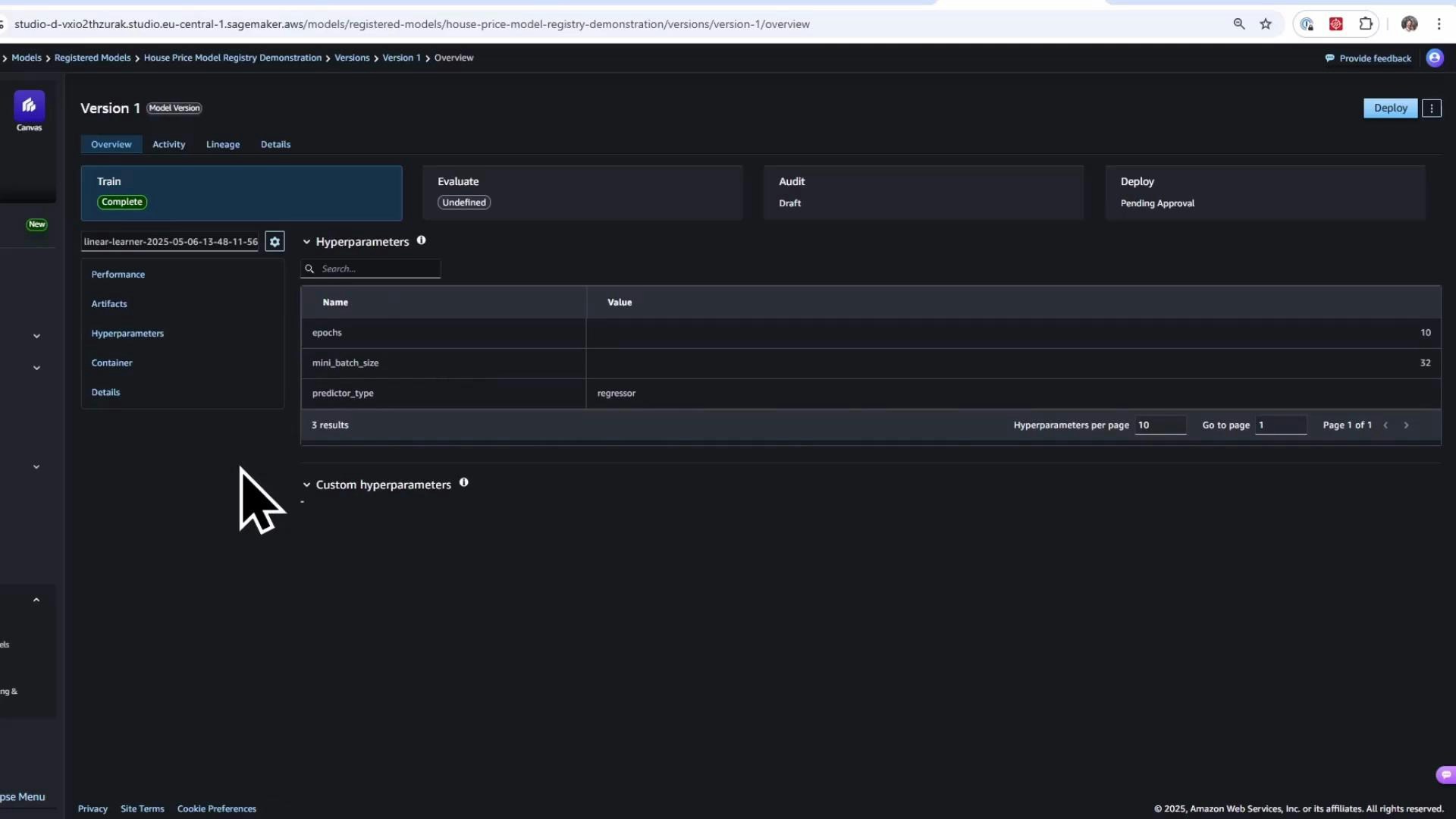
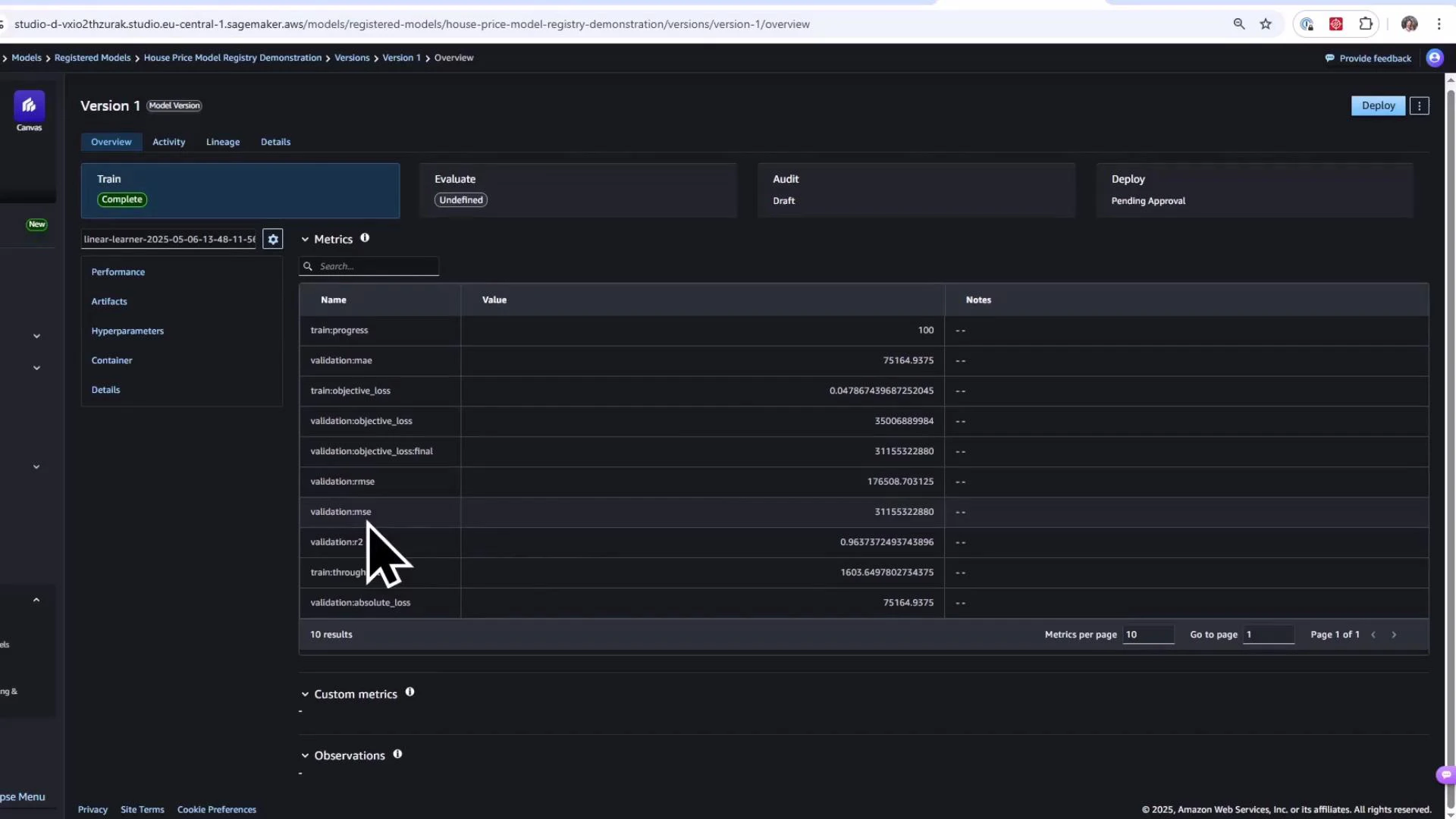 In the Model Registry UI you can inspect:
* Metrics collected during training (MAE, MSE, R2, etc.),
* Artifacts (training and validation datasets, model artifact S3 paths),
* Hyperparameters used during training,
* The container image associated with the model,
* Activity feed (registration, approval, deployment events),
* Lineage that links datasets, training jobs, and containers to the model.
In the Model Registry UI you can inspect:
* Metrics collected during training (MAE, MSE, R2, etc.),
* Artifacts (training and validation datasets, model artifact S3 paths),
* Hyperparameters used during training,
* The container image associated with the model,
* Activity feed (registration, approval, deployment events),
* Lineage that links datasets, training jobs, and containers to the model.
 ## 4. Approve a model version (in the UI) and deploy the latest approved version
Once a model version is approved in the Model Registry UI (for example, change status from `PendingManualApproval` → `Approved`), you can programmatically find the latest approved version and deploy it.
Approving a model should follow your organization's validation and governance processes. Only approve models that meet performance, fairness, and security requirements.
List the latest approved model packages in the package group (sorted by creation time) and select the most recent:
```python theme={null}
# List the latest approved model packages in the package group (descending by creation time)
response = sagemaker_client.list_model_packages(
ModelPackageGroupName=model_package_group_name,
ModelApprovalStatus='Approved',
SortBy='CreationTime',
SortOrder='Descending'
)
if not response.get('ModelPackageSummaryList'):
raise RuntimeError('No approved model packages found.')
latest_approved_model_package_arn = response['ModelPackageSummaryList'][0]['ModelPackageArn']
print(f'Latest Approved Model Package ARN: {latest_approved_model_package_arn}')
```
Create a ModelPackage object from the approved ARN and deploy it to a real-time endpoint:
```python theme={null}
# Create a ModelPackage object and deploy it
model_package = ModelPackage(
role=role,
model_package_arn=latest_approved_model_package_arn,
sagemaker_session=sagemaker_session
)
predictor = model_package.deploy(
initial_instance_count=1,
instance_type="ml.m5.large",
endpoint_name="latest-house-price-model"
)
```
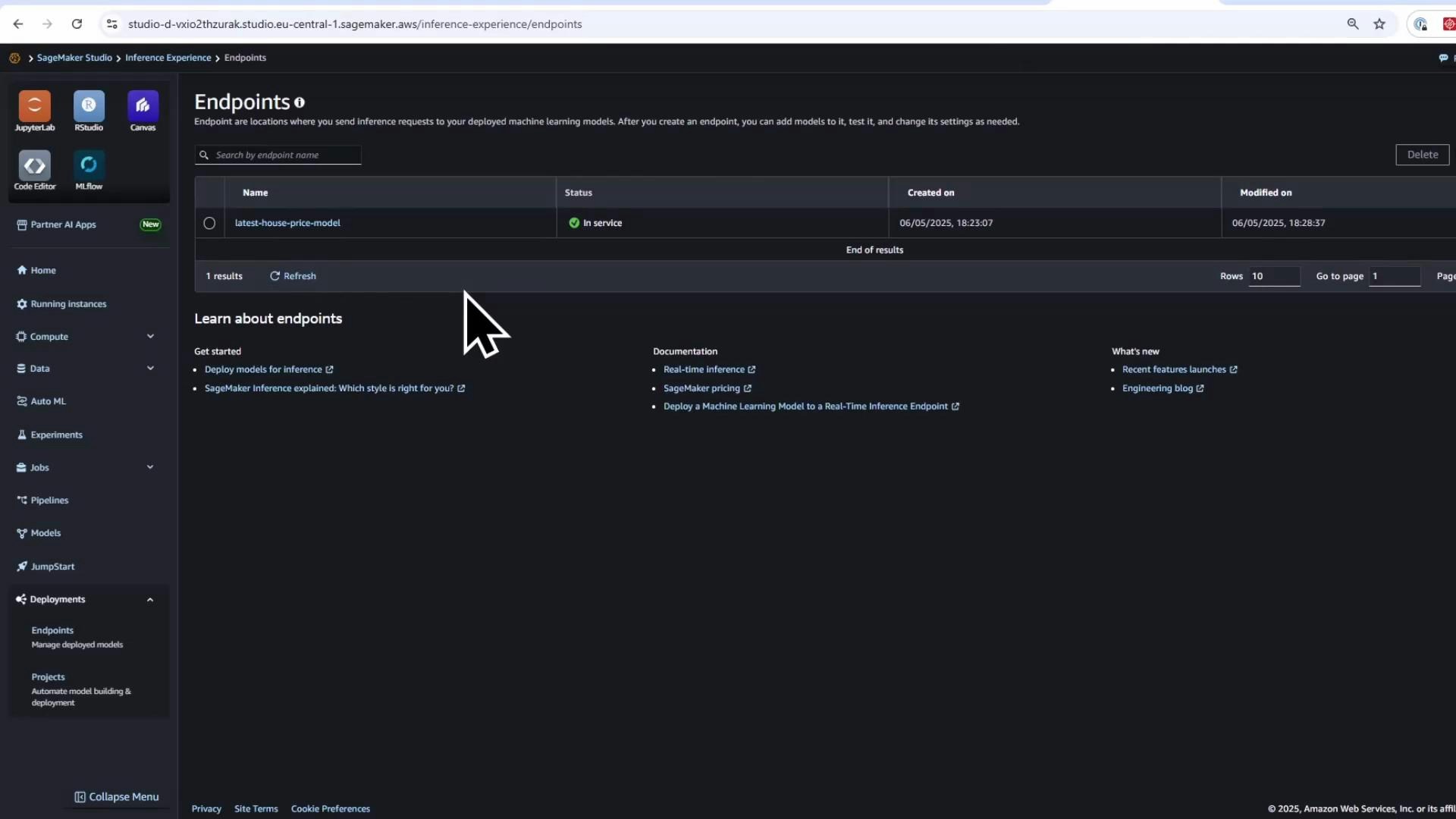
Deployment can take several minutes. Once deployed, the endpoint will appear under Endpoints in SageMaker Studio/Console.
## 4. Approve a model version (in the UI) and deploy the latest approved version
Once a model version is approved in the Model Registry UI (for example, change status from `PendingManualApproval` → `Approved`), you can programmatically find the latest approved version and deploy it.
Approving a model should follow your organization's validation and governance processes. Only approve models that meet performance, fairness, and security requirements.
List the latest approved model packages in the package group (sorted by creation time) and select the most recent:
```python theme={null}
# List the latest approved model packages in the package group (descending by creation time)
response = sagemaker_client.list_model_packages(
ModelPackageGroupName=model_package_group_name,
ModelApprovalStatus='Approved',
SortBy='CreationTime',
SortOrder='Descending'
)
if not response.get('ModelPackageSummaryList'):
raise RuntimeError('No approved model packages found.')
latest_approved_model_package_arn = response['ModelPackageSummaryList'][0]['ModelPackageArn']
print(f'Latest Approved Model Package ARN: {latest_approved_model_package_arn}')
```
Create a ModelPackage object from the approved ARN and deploy it to a real-time endpoint:
```python theme={null}
# Create a ModelPackage object and deploy it
model_package = ModelPackage(
role=role,
model_package_arn=latest_approved_model_package_arn,
sagemaker_session=sagemaker_session
)
predictor = model_package.deploy(
initial_instance_count=1,
instance_type="ml.m5.large",
endpoint_name="latest-house-price-model"
)
```
Deployment can take several minutes. Once deployed, the endpoint will appear under Endpoints in SageMaker Studio/Console.
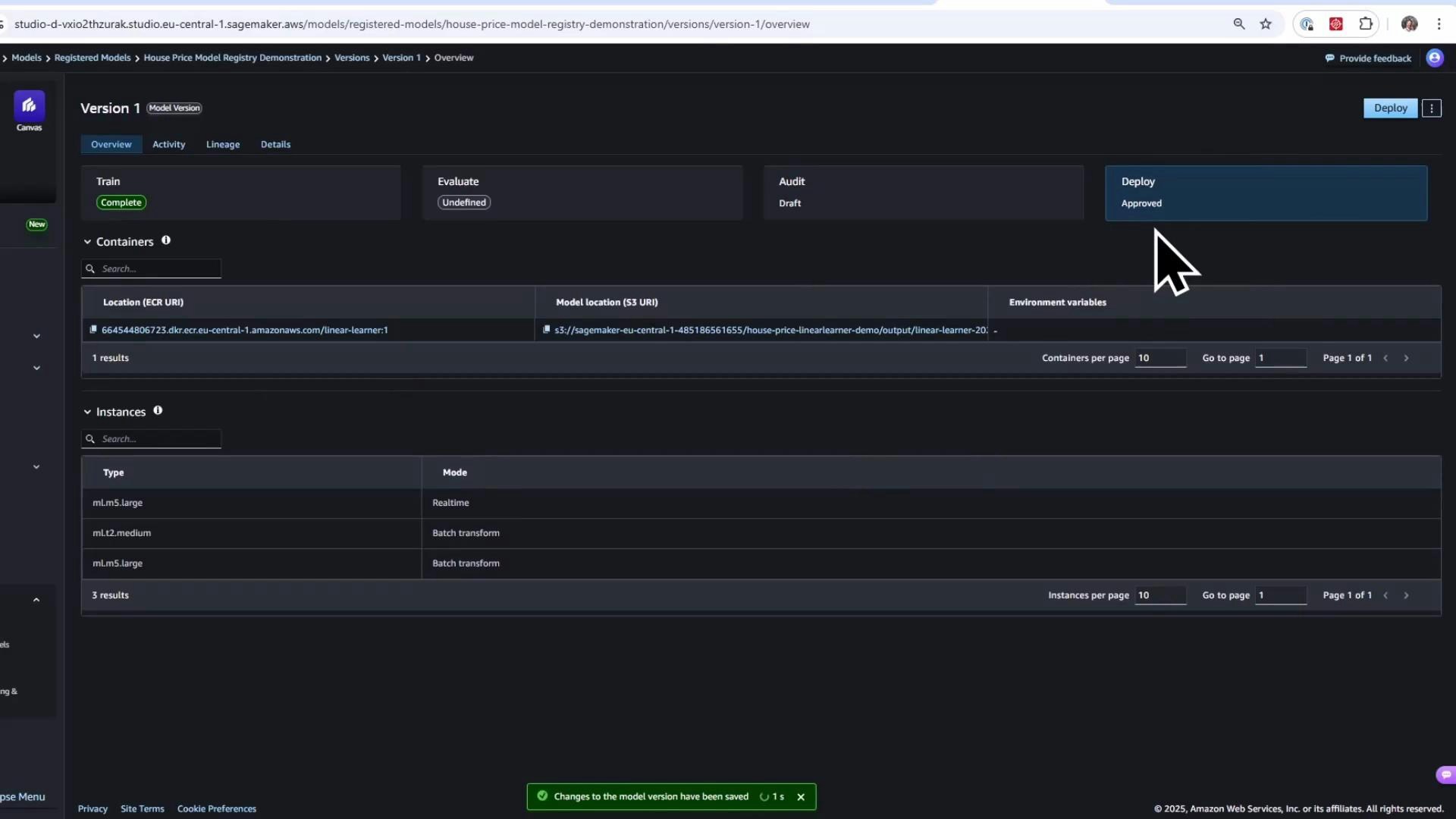 Deploying a model created from a Model Registry package will also create a model entry under the legacy Models console (Inference → Models), since the deployed artifact is a managed model package.
 After deployment you can confirm the endpoint status:
 ## Quick comparison: Model.create vs Model.register
| Resource | Use Case | Benefits |
| ----------------------------------- | -------------------------------------------------- | --------------------------------------------------------------------------- |
| Model.create (legacy model package) | Rapid prototyping, one-off endpoints | Fast, minimal workflow to create a model package and deploy |
| Model.register + Model Registry | Production model lifecycle, versioning, governance | Versioning, approval workflows, metrics, lineage, metadata, reproducibility |
## Summary
* Model.create is a quick, legacy method to create model packages for prototyping and rapid testing.
* Model.register combined with the SageMaker Model Registry is the recommended approach for production: it provides robust versioning, approval workflows, stored metrics, activity logs, and lineage for reproducibility.
* After a model version is approved in the registry, you can programmatically fetch the latest approved package and deploy it as a real-time endpoint.
We will also explore different hosting options—real-time endpoints and batch transforms—and when to choose each approach.
## Links and references
* SageMaker Model Registry: [https://docs.aws.amazon.com/sagemaker/latest/dg/model-registry.html](https://docs.aws.amazon.com/sagemaker/latest/dg/model-registry.html)
* SageMaker Python SDK: [https://sagemaker.readthedocs.io/](https://sagemaker.readthedocs.io/)
* Boto3 SageMaker client: [https://boto3.amazonaws.com/v1/documentation/api/latest/reference/services/sagemaker.html](https://boto3.amazonaws.com/v1/documentation/api/latest/reference/services/sagemaker.html)
* SageMaker Hosting (endpoints and batch transforms): [https://docs.aws.amazon.com/sagemaker/latest/dg/deploy-model.html](https://docs.aws.amazon.com/sagemaker/latest/dg/deploy-model.html)
## Quick comparison: Model.create vs Model.register
| Resource | Use Case | Benefits |
| ----------------------------------- | -------------------------------------------------- | --------------------------------------------------------------------------- |
| Model.create (legacy model package) | Rapid prototyping, one-off endpoints | Fast, minimal workflow to create a model package and deploy |
| Model.register + Model Registry | Production model lifecycle, versioning, governance | Versioning, approval workflows, metrics, lineage, metadata, reproducibility |
## Summary
* Model.create is a quick, legacy method to create model packages for prototyping and rapid testing.
* Model.register combined with the SageMaker Model Registry is the recommended approach for production: it provides robust versioning, approval workflows, stored metrics, activity logs, and lineage for reproducibility.
* After a model version is approved in the registry, you can programmatically fetch the latest approved package and deploy it as a real-time endpoint.
We will also explore different hosting options—real-time endpoints and batch transforms—and when to choose each approach.
## Links and references
* SageMaker Model Registry: [https://docs.aws.amazon.com/sagemaker/latest/dg/model-registry.html](https://docs.aws.amazon.com/sagemaker/latest/dg/model-registry.html)
* SageMaker Python SDK: [https://sagemaker.readthedocs.io/](https://sagemaker.readthedocs.io/)
* Boto3 SageMaker client: [https://boto3.amazonaws.com/v1/documentation/api/latest/reference/services/sagemaker.html](https://boto3.amazonaws.com/v1/documentation/api/latest/reference/services/sagemaker.html)
* SageMaker Hosting (endpoints and batch transforms): [https://docs.aws.amazon.com/sagemaker/latest/dg/deploy-model.html](https://docs.aws.amazon.com/sagemaker/latest/dg/deploy-model.html)