> ## Documentation Index
> Fetch the complete documentation index at: https://notes.kodekloud.com/llms.txt
> Use this file to discover all available pages before exploring further.
# Advanced Inference Options
> Explains SageMaker advanced inference options, focusing on Batch Transform for cost-effective offline, periodic, and high-throughput predictions, including workload distribution, transient instances, and mini-batching.
In this lesson we cover advanced inference strategies available in Amazon SageMaker for scenarios where a continuously running real-time endpoint is not the best fit. We’ll explain when to use batch (offline) inference, how SageMaker Feature Store and Inference Pipelines fit into the flow, and how these options can lower cost and improve efficiency compared to a 24/7 endpoint.
Topics covered:
* Batch inference with SageMaker Batch Transform
* How Batch Transform distributes work and uses transient compute
* Mini-batching behavior inside instances
* When to choose batch vs. real-time inference
Problem: inference might not be real time
If you collect data over a time window and want to predict on the accumulated dataset, you don’t need an always-on SageMaker Endpoint. Running an endpoint 24/7 while waiting to collect data is often inefficient and costly.
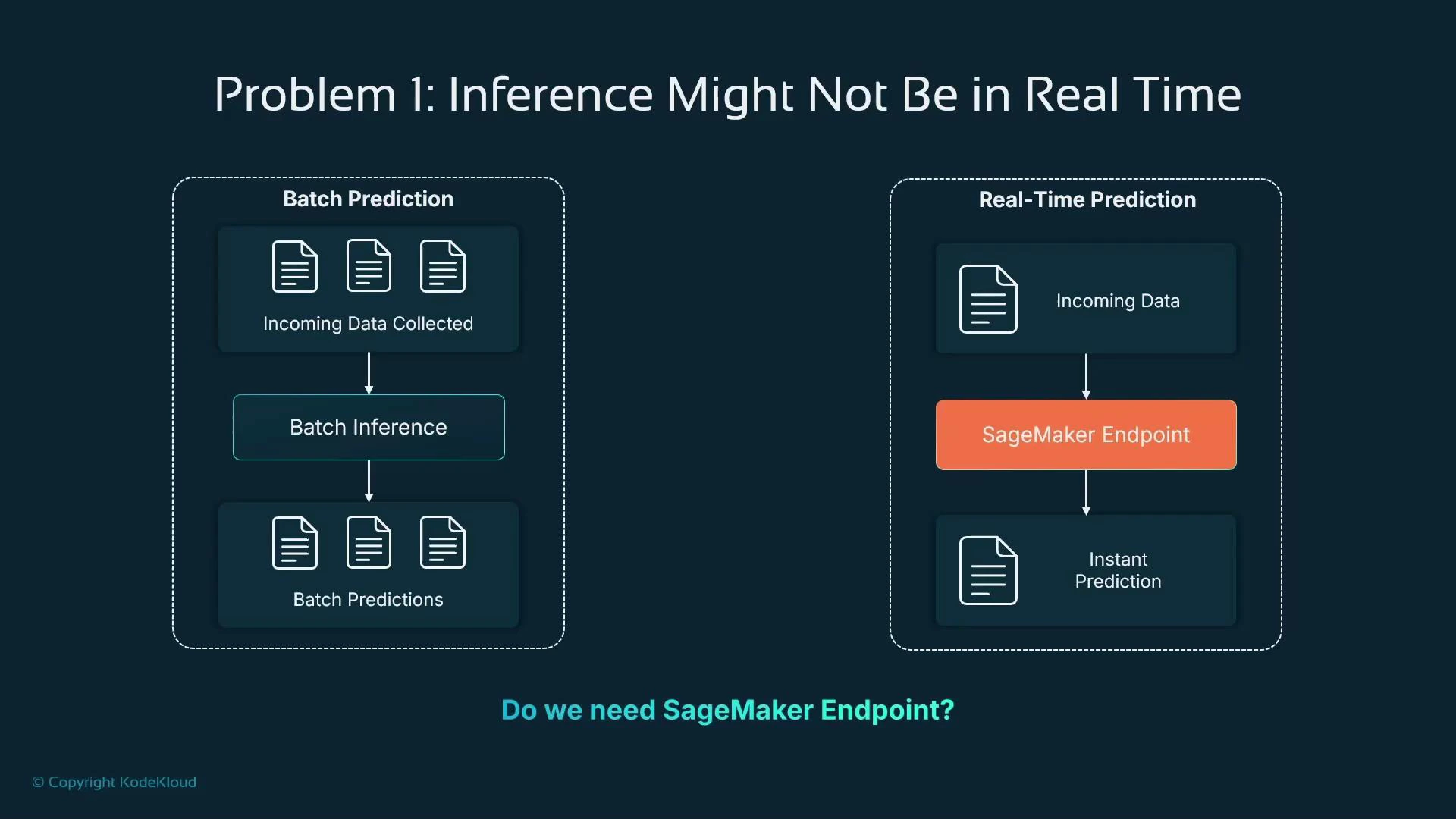 When to use Batch Transform vs. a real-time endpoint
| Resource Type | Best for | Typical pattern |
| ------------------------------ | --------------------------------------------------- | -------------------------------------------------------- |
| SageMaker Batch Transform | Offline or periodic predictions on accumulated data | Store inputs in S3 → run batch job → write outputs to S3 |
| SageMaker Endpoint (real-time) | Low-latency, per-request inference | Continuous endpoint serving real-time requests |
SageMaker Batch Transform (offline / periodic inference)
SageMaker Batch Transform is a managed service for non-real-time inference. Provide input files in Amazon S3 and a pre-registered SageMaker model; Batch Transform launches managed compute instances, runs inference on the input, writes outputs back to S3, and then shuts down those instances. This avoids the cost of a continuously running endpoint by using transient compute only when needed.
Key benefits:
* Cost-effective for periodic or bulk prediction jobs
* Managed lifecycle: instances spin up to run the job and terminate after completion
* Supports parallelism across instances when you provide multiple input files
* Mini-batching within an instance improves throughput for models that accept batched input
When to use Batch Transform vs. a real-time endpoint
| Resource Type | Best for | Typical pattern |
| ------------------------------ | --------------------------------------------------- | -------------------------------------------------------- |
| SageMaker Batch Transform | Offline or periodic predictions on accumulated data | Store inputs in S3 → run batch job → write outputs to S3 |
| SageMaker Endpoint (real-time) | Low-latency, per-request inference | Continuous endpoint serving real-time requests |
SageMaker Batch Transform (offline / periodic inference)
SageMaker Batch Transform is a managed service for non-real-time inference. Provide input files in Amazon S3 and a pre-registered SageMaker model; Batch Transform launches managed compute instances, runs inference on the input, writes outputs back to S3, and then shuts down those instances. This avoids the cost of a continuously running endpoint by using transient compute only when needed.
Key benefits:
* Cost-effective for periodic or bulk prediction jobs
* Managed lifecycle: instances spin up to run the job and terminate after completion
* Supports parallelism across instances when you provide multiple input files
* Mini-batching within an instance improves throughput for models that accept batched input
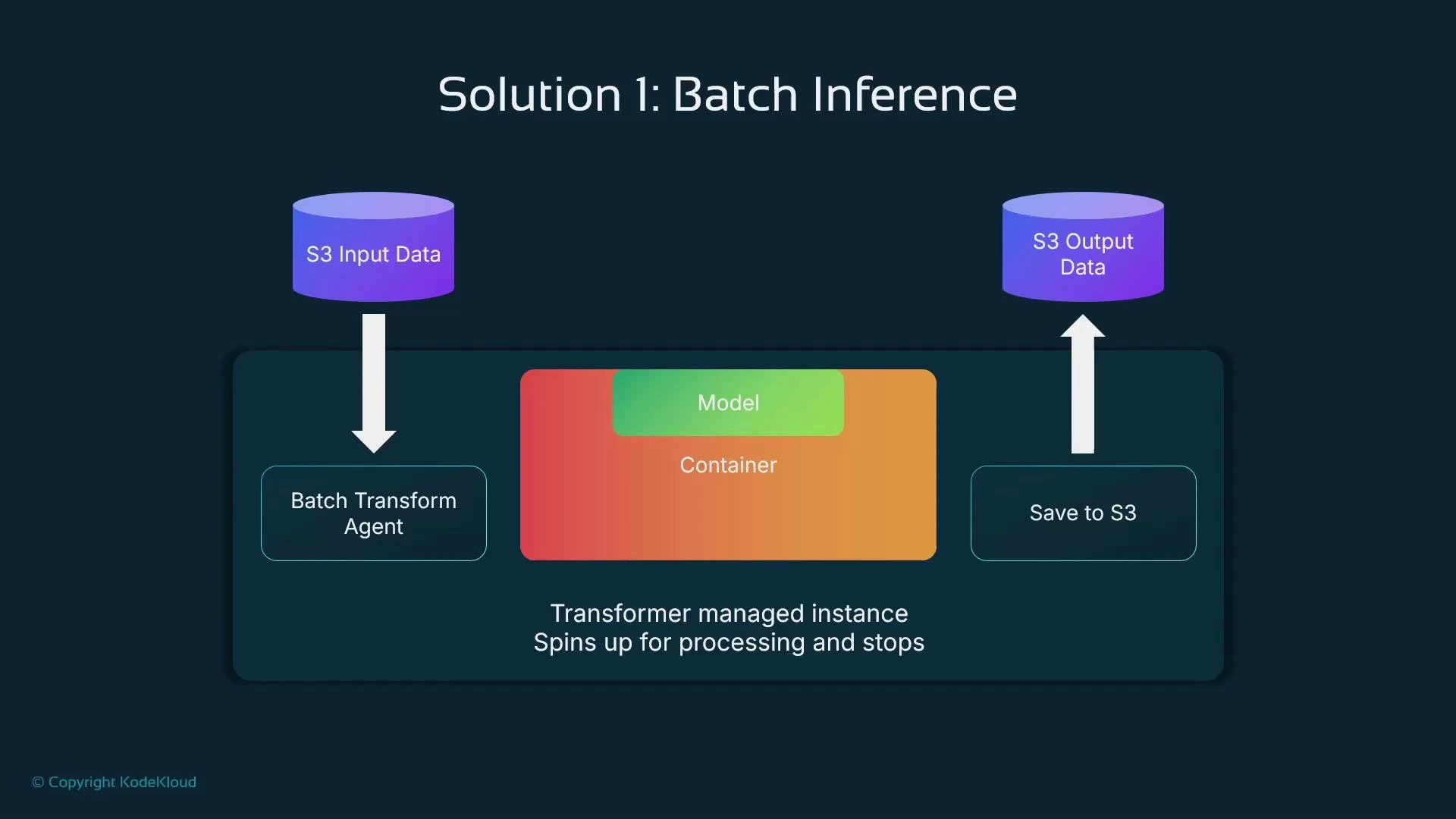 Example: Start a Batch Transform job with the SageMaker Python SDK
Replace the placeholders below with your model name and S3 paths. The Transformer object references a SageMaker model you have already created or registered.
```python theme={null}
import sagemaker
from sagemaker.transformer import Transformer
# Initialize SageMaker session
sagemaker_session = sagemaker.Session()
# Replace with your existing SageMaker model name
model_name = "your-trained-model"
# S3 input and output locations (replace with your bucket/paths)
input_s3_path = "s3://your-bucket/input-data/"
output_s3_path = "s3://your-bucket/output-data/"
# Create a Transformer object (this does NOT start the job yet)
transformer = Transformer(
model_name=model_name,
instance_count=1,
instance_type="ml.m5.large", # Choose an appropriate instance type
output_path=output_s3_path,
accept="application/json", # What the container will return
)
# Start the Batch Transform job
transformer.transform(
data=input_s3_path,
content_type="text/csv", # e.g., "text/csv" or "application/json"
split_type="Line", # how to split input files for processing
# Optional parameters for filtering/formatting:
# input_filter="$[0:2]", # optional: select fields from input (depends on your model/container)
# output_filter="$[2:]", # optional: select fields from output
# join_source="Input", # optional: include original input in the output
)
# Wait for completion (optional - blocks until job finishes)
transformer.wait()
print(f"Batch Transform job completed! Results at {output_s3_path}")
```
Replace placeholders like model\_name and S3 paths with your own values. Ensure the model container supports the specified content\_type / accept values and can process batched input if you enable mini-batching. See the SageMaker Batch Transform docs for available parameters.\
(Reference: [https://docs.aws.amazon.com/sagemaker/latest/dg/batch-transform.html](https://docs.aws.amazon.com/sagemaker/latest/dg/batch-transform.html))
Notes about the example
* The Transformer object configures the job; calling transform() actually starts it.
* SageMaker launches the specified instance\_count of identical instances, distributes input files across them, and terminates instances after processing.
* Use transformer.wait() to block until the job completes and results are written to S3.
How Batch Transform distributes work
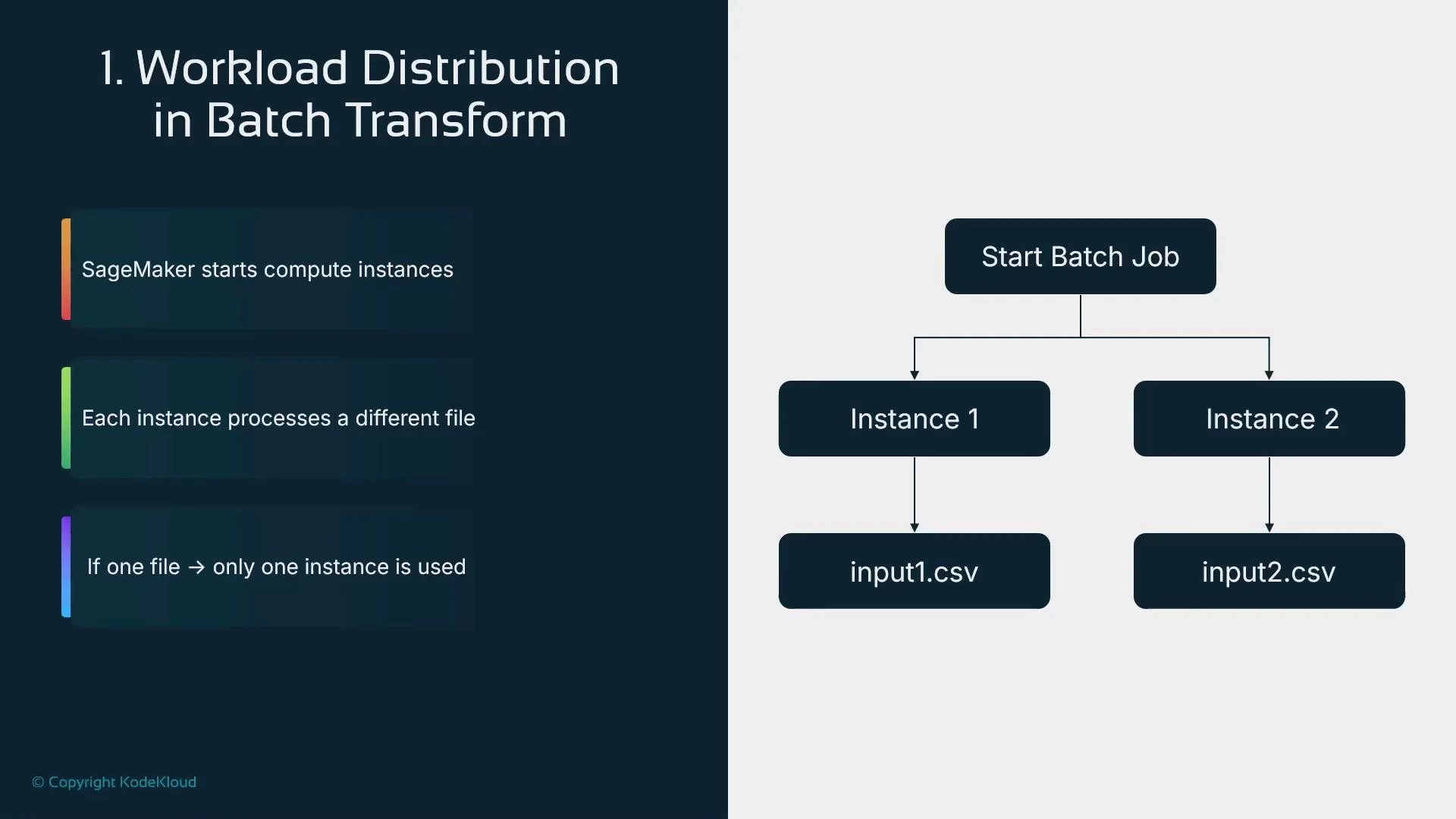
When you request multiple instances, SageMaker distributes whole input files across instances (parallel file-level distribution). For example, if you supply two CSV files and request two instances, each instance will typically process one file. If you provide a single large file, SageMaker will not split that file across instances by default; instead, one instance will process it. To achieve parallelism you can:
* Provide multiple input files in your S3 prefix, or
* Pre-split large files into smaller chunks that can be distributed across instances.
Example: Start a Batch Transform job with the SageMaker Python SDK
Replace the placeholders below with your model name and S3 paths. The Transformer object references a SageMaker model you have already created or registered.
```python theme={null}
import sagemaker
from sagemaker.transformer import Transformer
# Initialize SageMaker session
sagemaker_session = sagemaker.Session()
# Replace with your existing SageMaker model name
model_name = "your-trained-model"
# S3 input and output locations (replace with your bucket/paths)
input_s3_path = "s3://your-bucket/input-data/"
output_s3_path = "s3://your-bucket/output-data/"
# Create a Transformer object (this does NOT start the job yet)
transformer = Transformer(
model_name=model_name,
instance_count=1,
instance_type="ml.m5.large", # Choose an appropriate instance type
output_path=output_s3_path,
accept="application/json", # What the container will return
)
# Start the Batch Transform job
transformer.transform(
data=input_s3_path,
content_type="text/csv", # e.g., "text/csv" or "application/json"
split_type="Line", # how to split input files for processing
# Optional parameters for filtering/formatting:
# input_filter="$[0:2]", # optional: select fields from input (depends on your model/container)
# output_filter="$[2:]", # optional: select fields from output
# join_source="Input", # optional: include original input in the output
)
# Wait for completion (optional - blocks until job finishes)
transformer.wait()
print(f"Batch Transform job completed! Results at {output_s3_path}")
```
Replace placeholders like model\_name and S3 paths with your own values. Ensure the model container supports the specified content\_type / accept values and can process batched input if you enable mini-batching. See the SageMaker Batch Transform docs for available parameters.\
(Reference: [https://docs.aws.amazon.com/sagemaker/latest/dg/batch-transform.html](https://docs.aws.amazon.com/sagemaker/latest/dg/batch-transform.html))
Notes about the example
* The Transformer object configures the job; calling transform() actually starts it.
* SageMaker launches the specified instance\_count of identical instances, distributes input files across them, and terminates instances after processing.
* Use transformer.wait() to block until the job completes and results are written to S3.
How Batch Transform distributes work
When you request multiple instances, SageMaker distributes whole input files across instances (parallel file-level distribution). For example, if you supply two CSV files and request two instances, each instance will typically process one file. If you provide a single large file, SageMaker will not split that file across instances by default; instead, one instance will process it. To achieve parallelism you can:
* Provide multiple input files in your S3 prefix, or
* Pre-split large files into smaller chunks that can be distributed across instances.
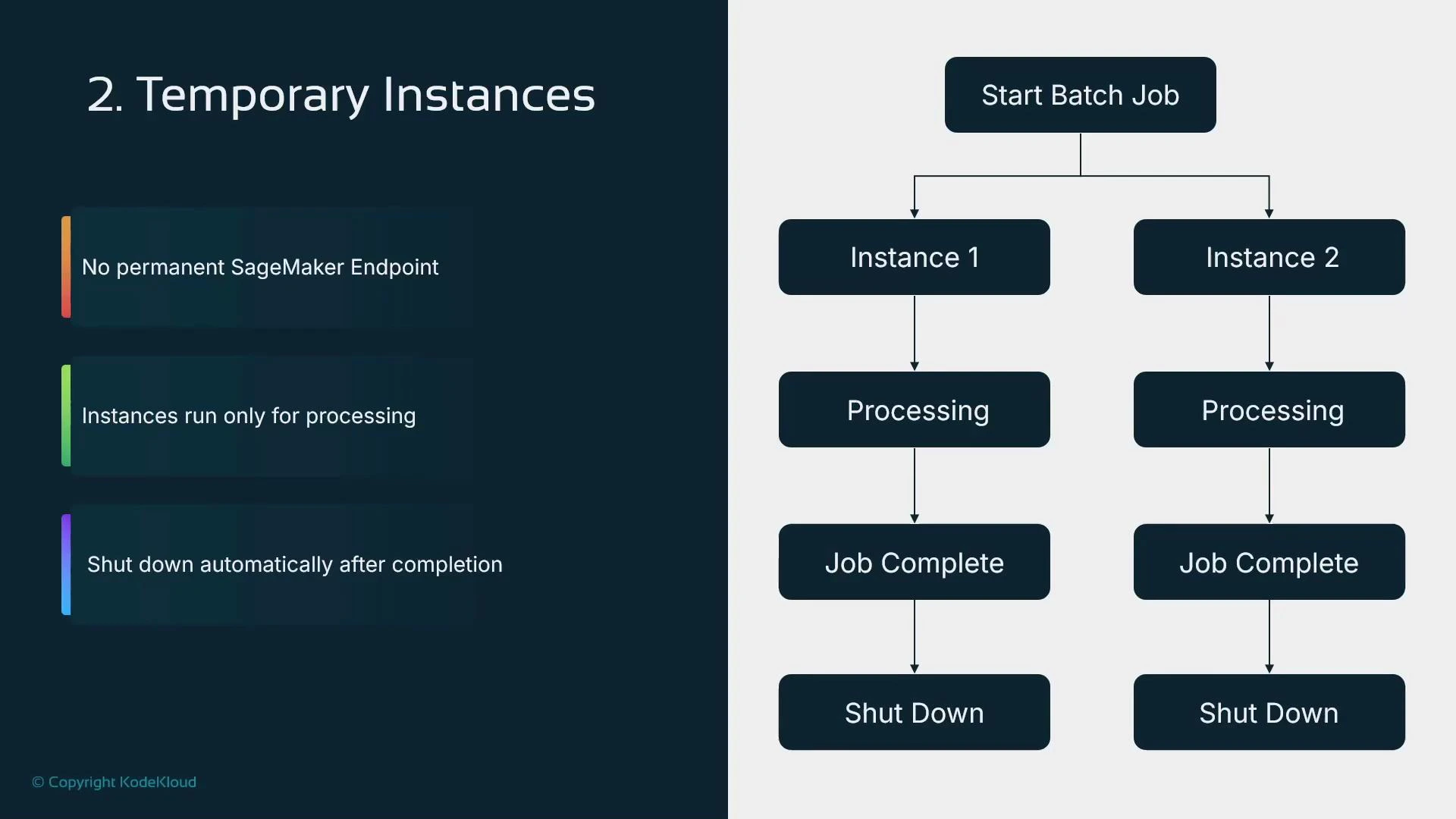
 Temporary (transient) instances
Batch Transform does not create a permanent SageMaker endpoint. Instances are launched for the duration of the batch job and terminated when processing completes, so you only pay for the compute time that you actually use.
Temporary (transient) instances
Batch Transform does not create a permanent SageMaker endpoint. Instances are launched for the duration of the batch job and terminated when processing completes, so you only pay for the compute time that you actually use.
 Mini-batching inside a single instance
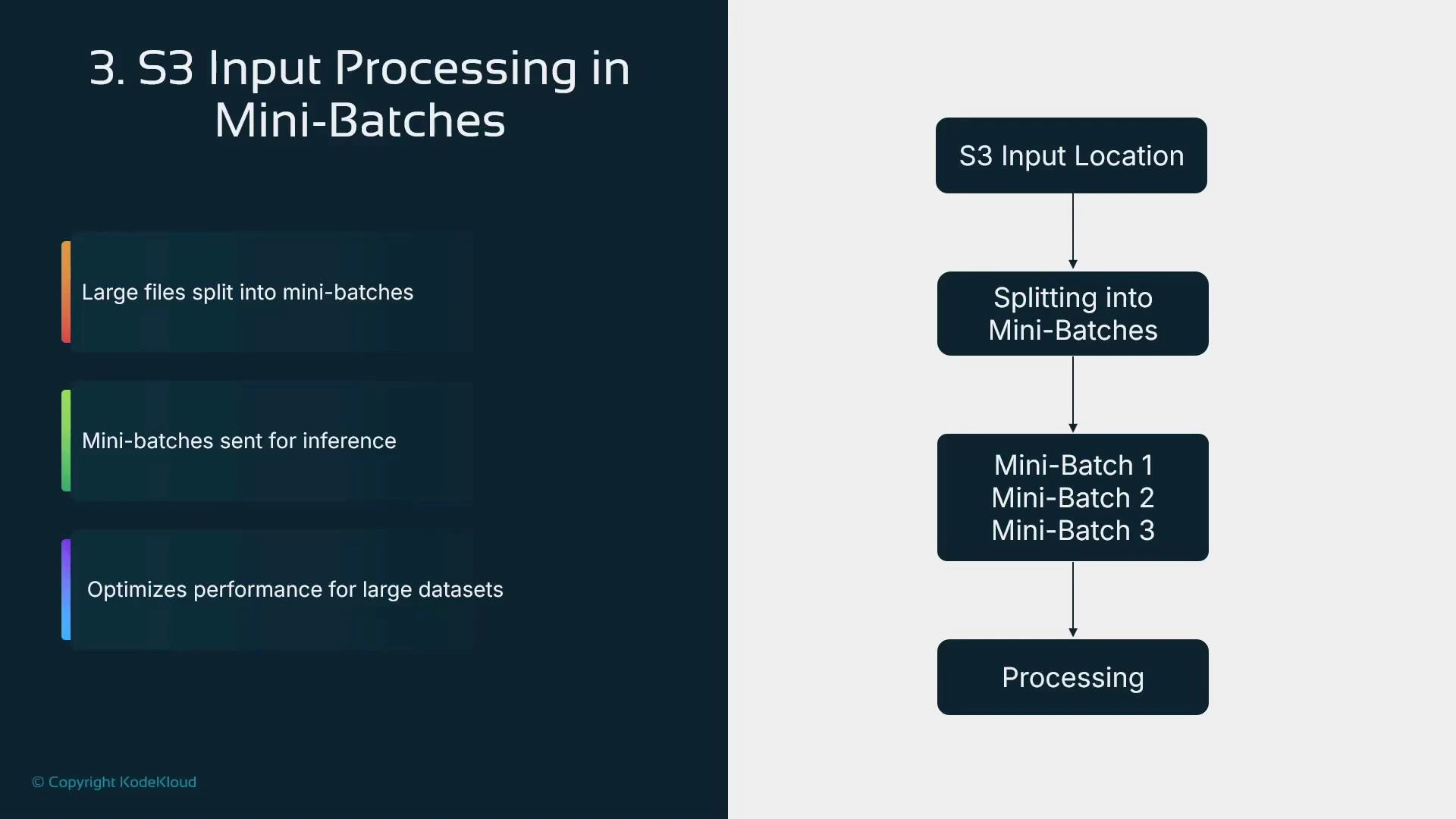
Within a single instance, Batch Transform can further split large input files into smaller "mini-batches" that are sent to the model container sequentially. This reduces memory pressure, improves caching, and increases throughput compared to sending a single huge request.
You can control batching behavior using transform parameters and container logic. If your model requires one-record-per-invocation, disable mini-batching; otherwise, enable mini-batching to improve performance for models that support batched input.
Mini-batching inside a single instance
Within a single instance, Batch Transform can further split large input files into smaller "mini-batches" that are sent to the model container sequentially. This reduces memory pressure, improves caching, and increases throughput compared to sending a single huge request.
You can control batching behavior using transform parameters and container logic. If your model requires one-record-per-invocation, disable mini-batching; otherwise, enable mini-batching to improve performance for models that support batched input.
 Best practices and considerations
* Use Batch Transform for periodic, offline, and high-throughput inference jobs to reduce cost and simplify operations.
* Ensure your model container supports the expected content\_type and batched inputs (or adapt the container).
* For parallelism, provide many input files or pre-split large files—Batch Transform maps files to instances.
* Monitor job logs and output artifacts in S3 to validate results and troubleshoot issues.
* For workflows that need pre- or post-processing steps, consider SageMaker Inference Pipelines (covered in other lessons) or preprocess inputs before invoking Batch Transform.
Batch Transform is ideal when predictions can be performed offline or in scheduled batches. It reduces cost by avoiding always-on endpoints and supports parallel processing and mini-batching for efficiency. Always confirm that your model container and input formats are compatible with batched requests before enabling mini-batching.
Links and references
* SageMaker Batch Transform documentation: [https://docs.aws.amazon.com/sagemaker/latest/dg/batch-transform.html](https://docs.aws.amazon.com/sagemaker/latest/dg/batch-transform.html)
* SageMaker inference overview: [https://docs.aws.amazon.com/sagemaker/latest/dg/inference.html](https://docs.aws.amazon.com/sagemaker/latest/dg/inference.html)
* SageMaker Python SDK: [https://sagemaker.readthedocs.io/](https://sagemaker.readthedocs.io/)
Best practices and considerations
* Use Batch Transform for periodic, offline, and high-throughput inference jobs to reduce cost and simplify operations.
* Ensure your model container supports the expected content\_type and batched inputs (or adapt the container).
* For parallelism, provide many input files or pre-split large files—Batch Transform maps files to instances.
* Monitor job logs and output artifacts in S3 to validate results and troubleshoot issues.
* For workflows that need pre- or post-processing steps, consider SageMaker Inference Pipelines (covered in other lessons) or preprocess inputs before invoking Batch Transform.
Batch Transform is ideal when predictions can be performed offline or in scheduled batches. It reduces cost by avoiding always-on endpoints and supports parallel processing and mini-batching for efficiency. Always confirm that your model container and input formats are compatible with batched requests before enabling mini-batching.
Links and references
* SageMaker Batch Transform documentation: [https://docs.aws.amazon.com/sagemaker/latest/dg/batch-transform.html](https://docs.aws.amazon.com/sagemaker/latest/dg/batch-transform.html)
* SageMaker inference overview: [https://docs.aws.amazon.com/sagemaker/latest/dg/inference.html](https://docs.aws.amazon.com/sagemaker/latest/dg/inference.html)
* SageMaker Python SDK: [https://sagemaker.readthedocs.io/](https://sagemaker.readthedocs.io/)