> ## Documentation Index
> Fetch the complete documentation index at: https://notes.kodekloud.com/llms.txt
> Use this file to discover all available pages before exploring further.
# Autoscaling
> This lesson explores auto-scaling, which dynamically adjusts compute resources to meet demand, ensuring applications have the right resources without manual intervention.
In this lesson, we will explore auto-scaling and how it dynamically adjusts compute resources to meet demand. Auto-scaling ensures that your applications have the right resources at all times without manual intervention.
Imagine a bakery where cupcakes are baked on demand. As more customers arrive, the bakery activates additional ovens when an existing one hits 80% capacity to maintain smooth operations. Conversely, if an oven is only operating at 20% capacity, it is shut down after production to conserve energy. This analogy mirrors how AWS Auto Scaling groups adjust the number of EC2 instances based on current demand.
## Auto-Scaling Group Features
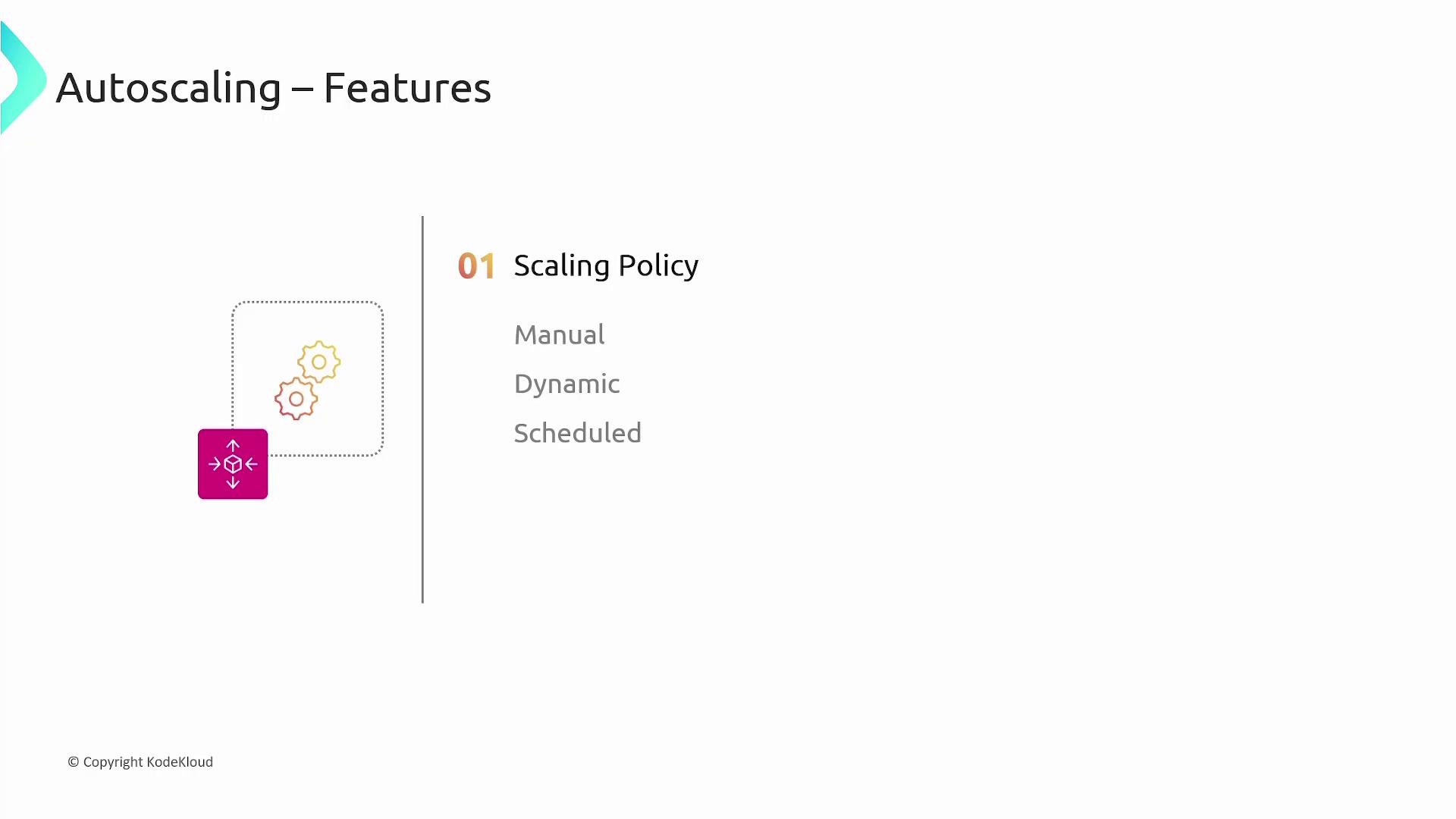
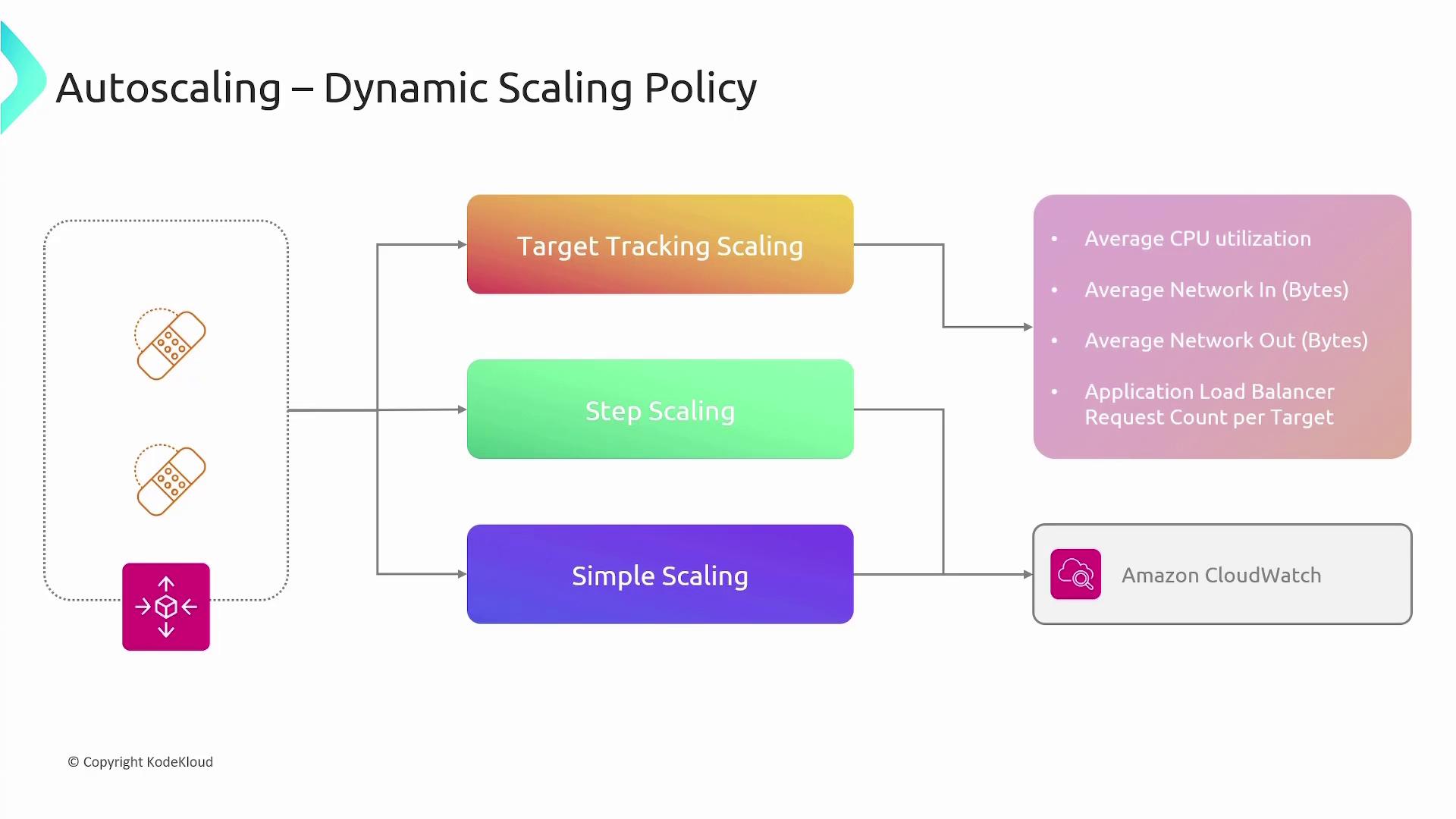
The core element of an auto-scaling group is its scaling policy. A scaling policy modifies the desired capacity by launching or terminating EC2 instances within a defined minimum and maximum range. AWS supports three categories of scaling policies:
* **Manual Scaling:** Adjust instances by direct user input.
* **Dynamic Scaling:** Automatically adjusts instances based on real-time metrics.
* **Scheduled Scaling:** Predetermines scaling actions at specific times.
Another critical feature is auto-healing. If an EC2 instance is flagged as unhealthy based on your health check configurations, the auto-scaling group terminates it and launches a replacement to maintain the ideal group configuration.
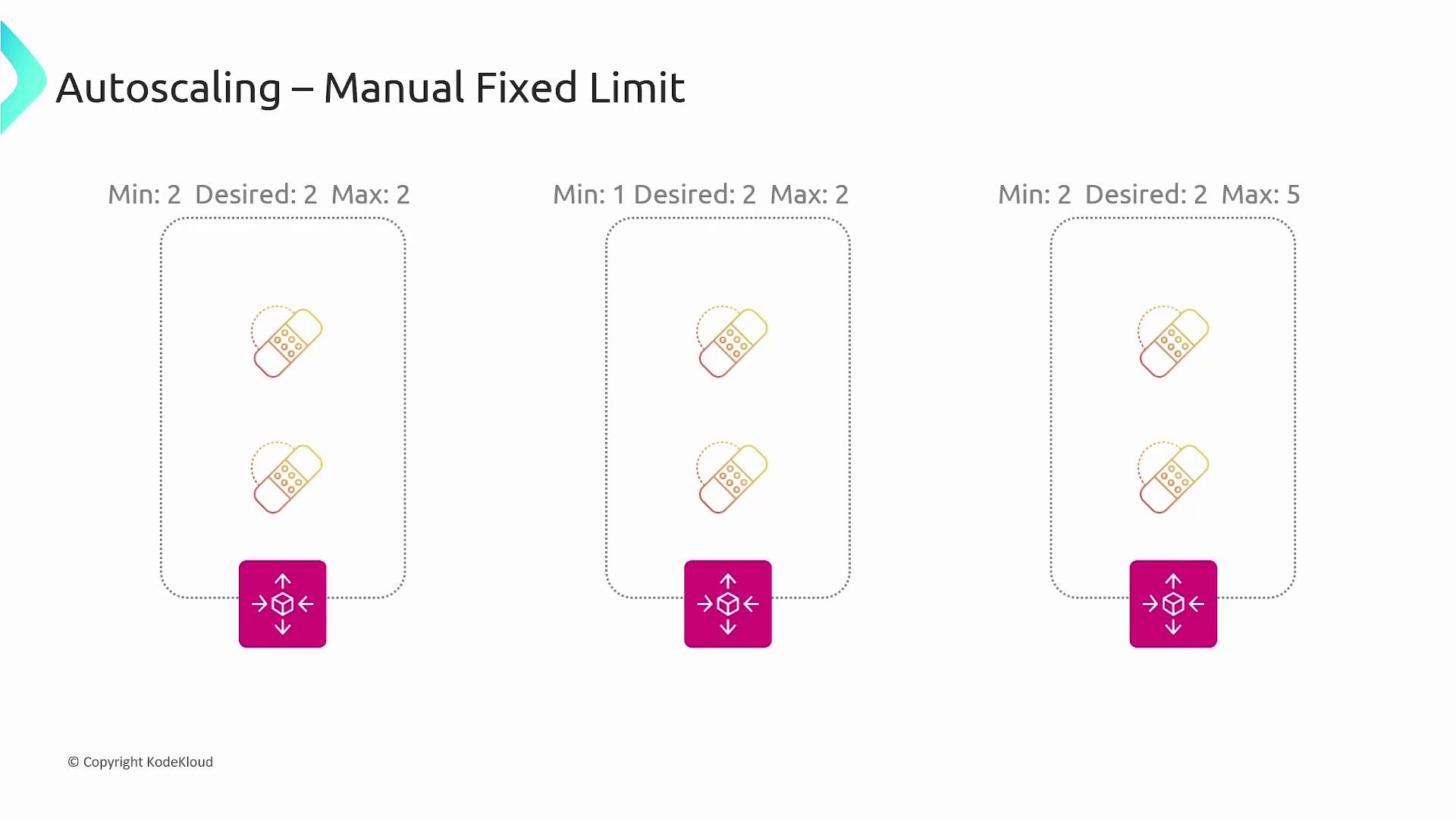
When configuring an auto-scaling group, you need to specify three key properties:
* **Minimum:** The absolute lowest number of instances in the group.
* **Desired:** The ideal number of instances you want running. This value is often set equal to or higher than the minimum.
* **Maximum:** The upper limit on the number of instances the group can scale out to.
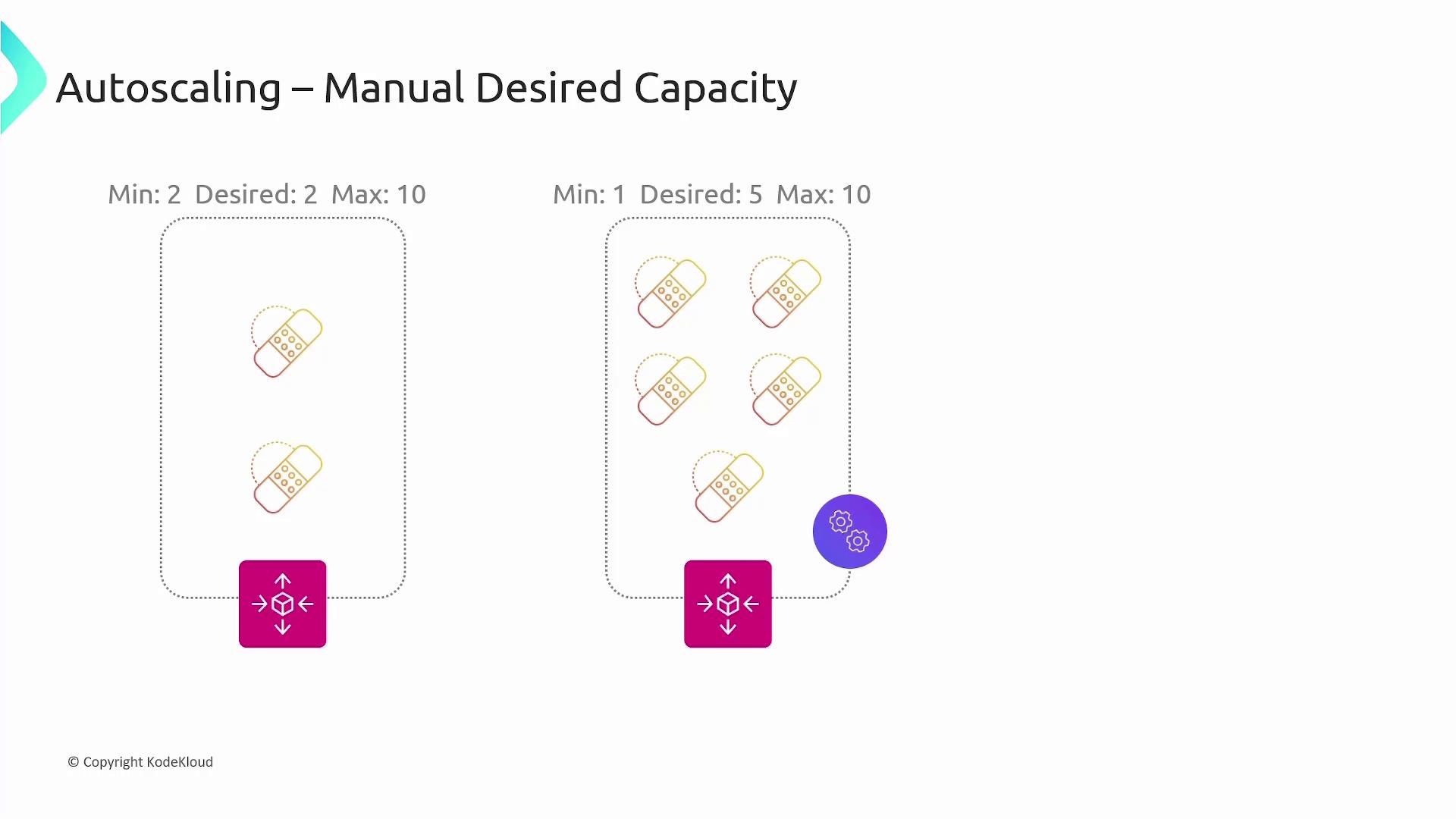
For example, if you set the group with a minimum of 2, desired of 2, and maximum of 10, the group will begin with 2 instances. Later, if you change the desired count to 5, the group adjusts to 5 instances. Similarly, decreasing the desired count will scale the group down accordingly.
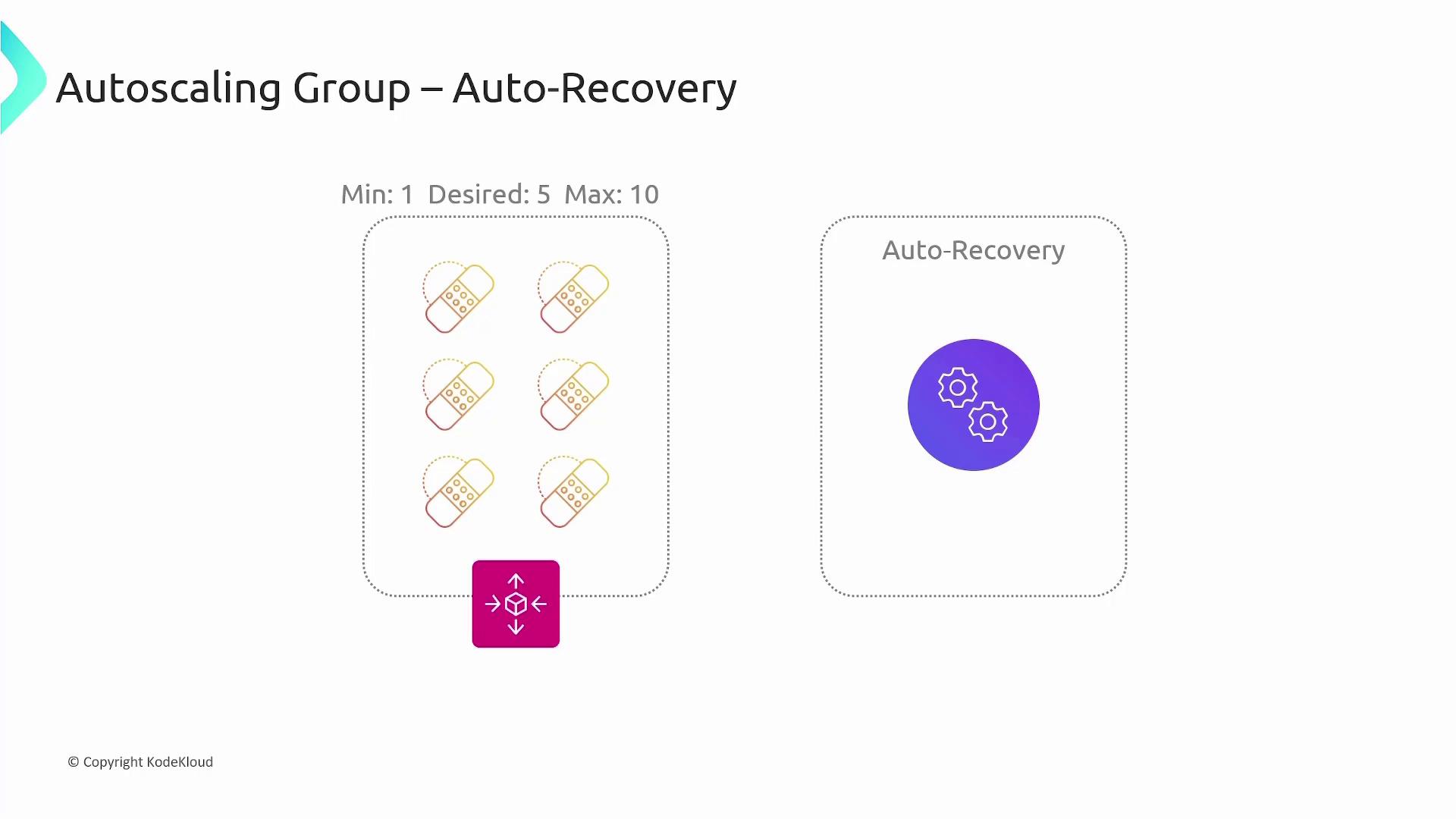
For example, consider an auto recovery scenario: if your group is maintained at 5 instances and one or more become unhealthy, the auto-scaling group will terminate the affected instances and launch new ones, ensuring that the total remains at the desired count.
While manual adjustments to the desired capacity can handle planned scaling needs, it is best to automate scaling based on real-time metrics in production environments.
## Dynamic Scaling Policies
Dynamic scaling policies enable AWS to monitor various metrics and adjust the number of instances automatically. Common metrics include average CPU utilization, network I/O, and Application Load Balancer request counts. When these metrics exceed or fall below designated thresholds, AWS scales the auto-scaling group accordingly.
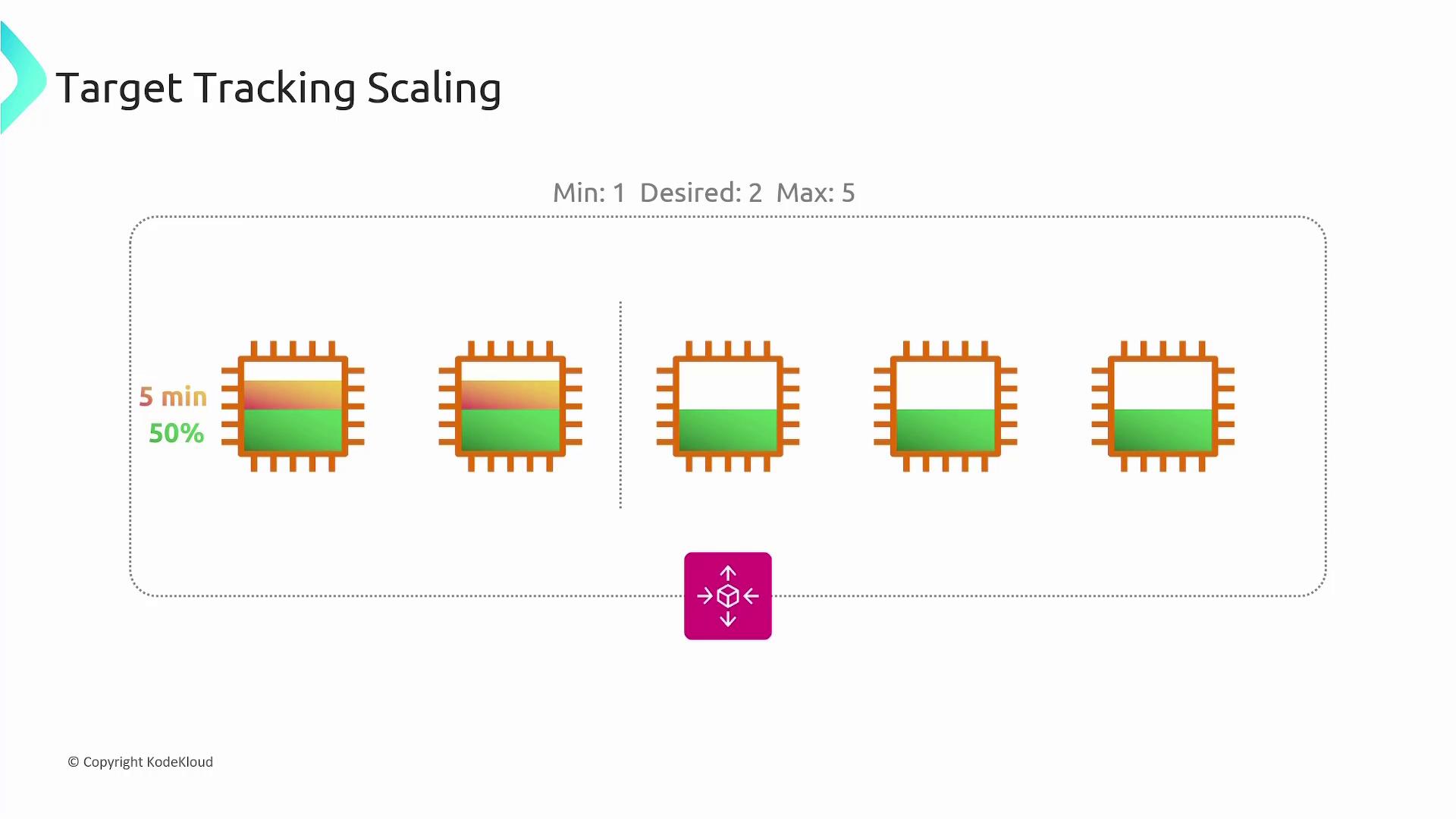
One popular dynamic approach is **target tracking scaling**. For instance, you might configure a group with a minimum of 1 instance, desired capacity of 2, and a maximum of 5 instances, while targeting an average CPU utilization of 50%. If the CPU usage stays above 50% for a defined period (such as 5 minutes), a new EC2 instance is added. The group continues to add or remove instances as needed to maintain the target.
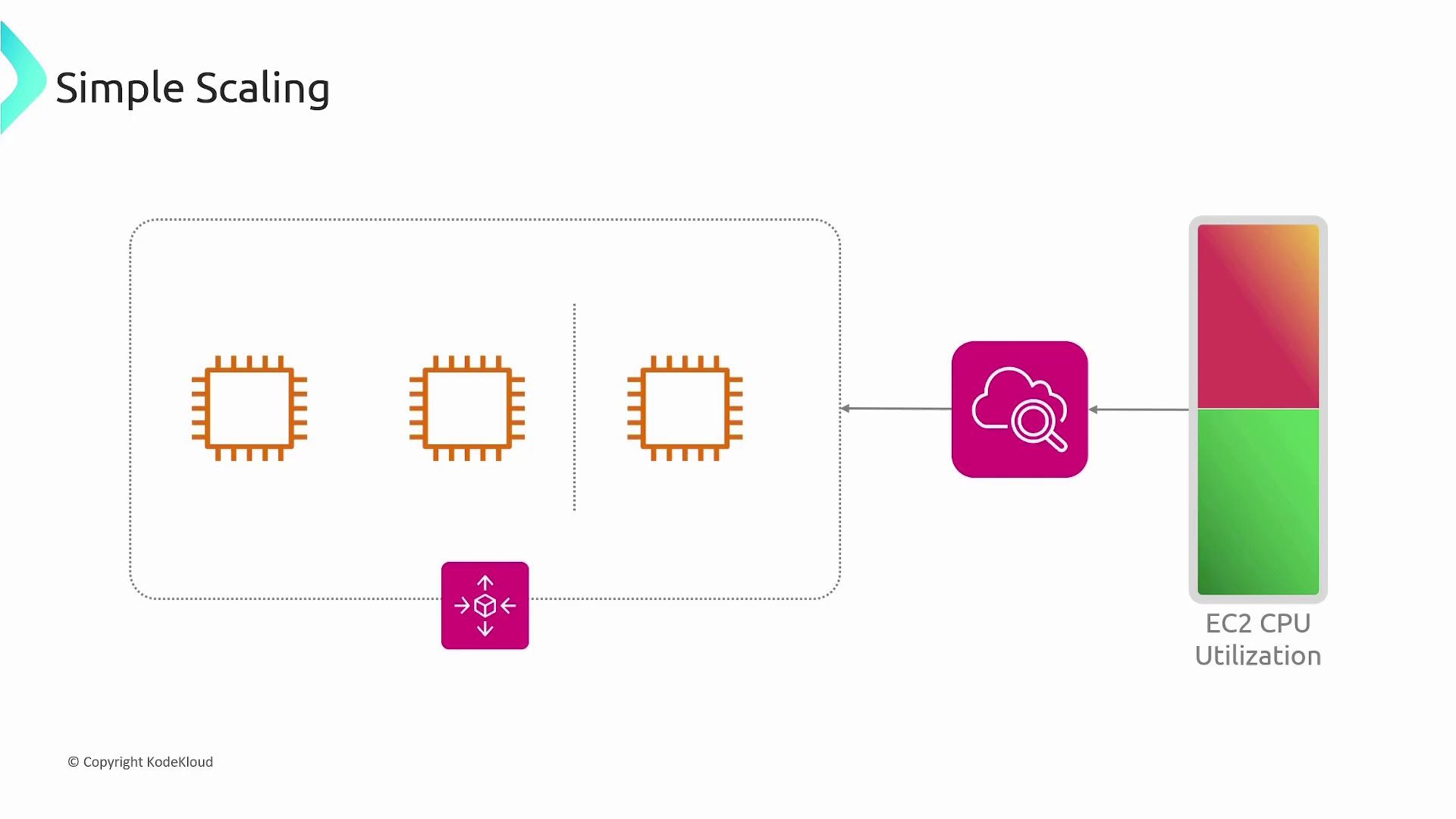
Another strategy is **simple scaling**. With simple scaling, CloudWatch alarms initiate scaling actions based on set conditions. For example, if a scale-up alarm triggers, the policy might add a fixed number of instances (e.g., 2) each time the alarm condition is met. A corresponding alarm can reduce the instance count when conditions improve.
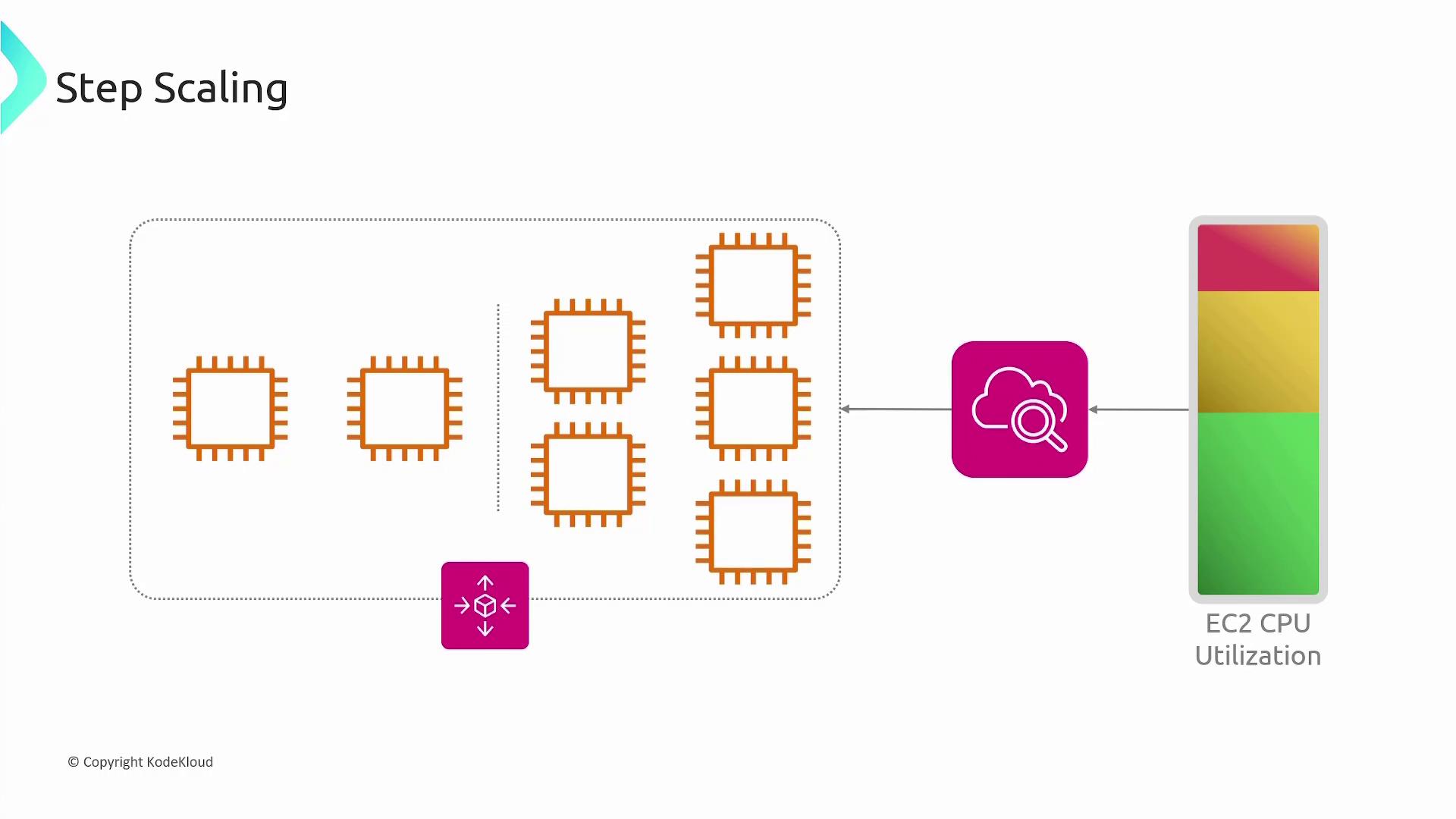
A more granular option is **step scaling**. This method uses CloudWatch alarms with tiered rules. For instance, you can define:
* Add 2 instances if CPU utilization is between 60% and 70%.
* Add 3 instances if utilization rises between 70% and 85%.
* Add 5 instances if it reaches between 85% and 100%.
A similar approach applies when scaling down.
## Scheduled Scaling
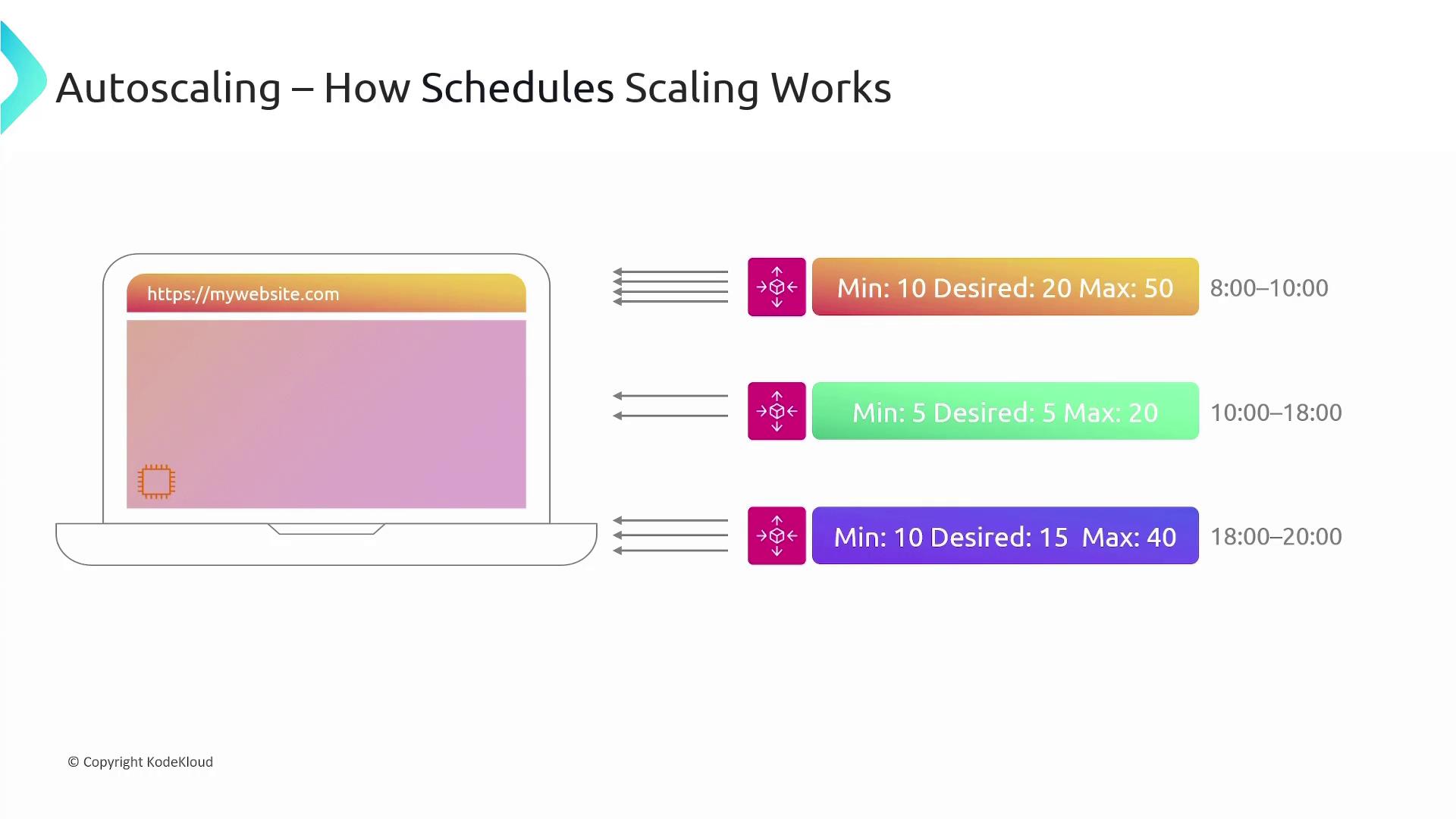
Scheduled scaling is ideal for predictable workloads. For example, a website might experience peak traffic between 8 AM and 10 AM. In such cases, you can schedule the auto-scaling group to increase the desired count during those hours and lower it during off-peak times. Scheduled scaling policies can trigger actions once or on a recurring basis using cron-like schedules.
## Launch Templates
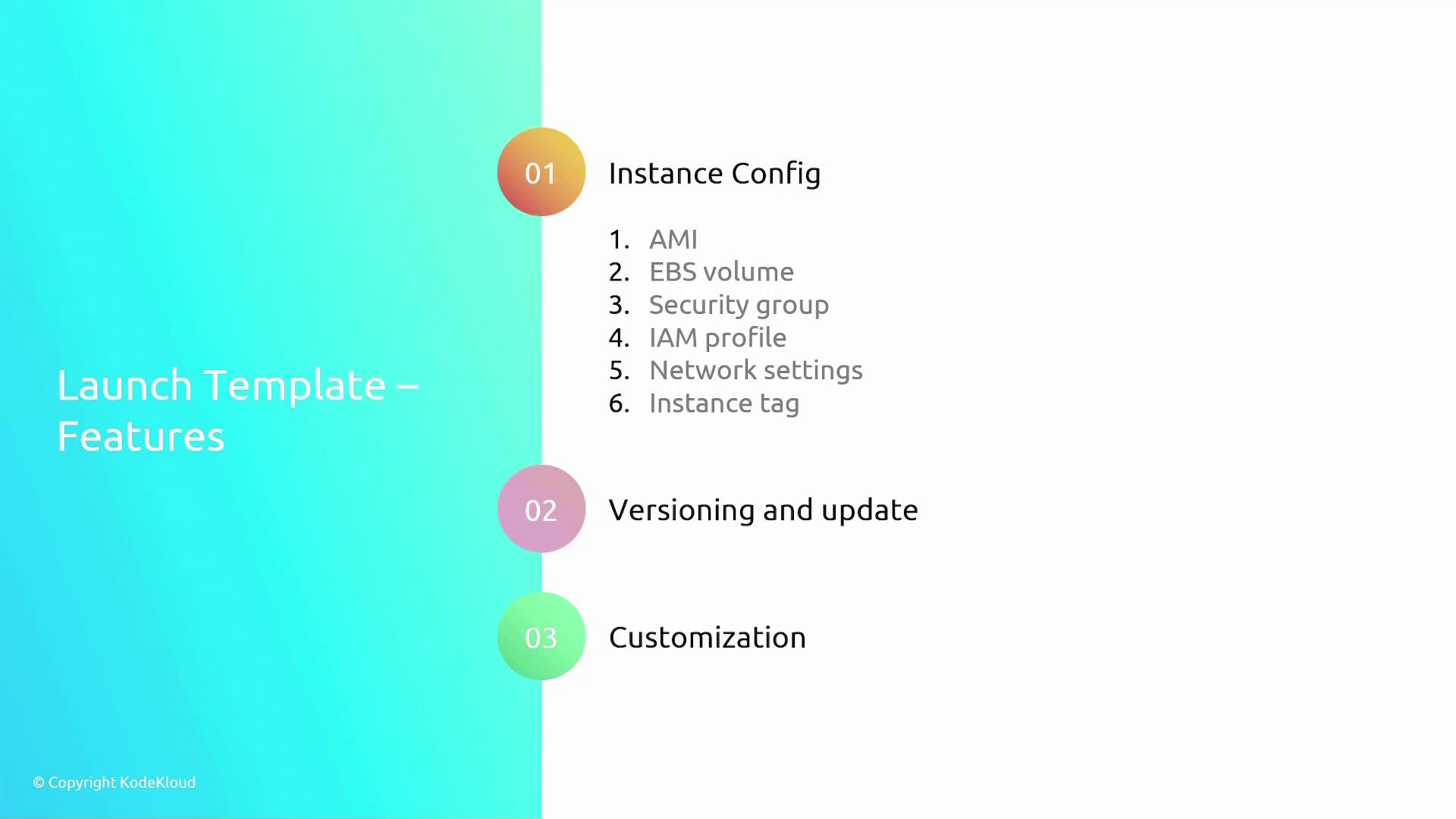
For EC2 auto-scaling groups, a launch template is required to define the specifications for deploying new instances. A launch template contains details such as:
* The Amazon Machine Image (AMI)
* Instance type and size
* Networking configurations (e.g., subnets, security groups)
* IAM roles and instance access keys
Launch templates provide several advantages:
| Advantage | Benefit |
| ---------------------------------- | ---------------------------------------------------------------------- |
| Standardization | Consistent configuration across multiple instance launches |
| Versioning | Easy updates without disrupting existing instances |
| Parameterization | Override specific parameters (e.g., instance type or purchase options) |
| Tagging & Metadata | Simplifies management, billing, and monitoring |
| Integration | Manageable via AWS Management Console, CLI, SDKs, or automation tools |
| Termination Protection & User Data | Enable instance protection and automation scripts on launch |
A launch template ensures you deploy instances consistently without manual setup each time.
## Integration with Other AWS Services
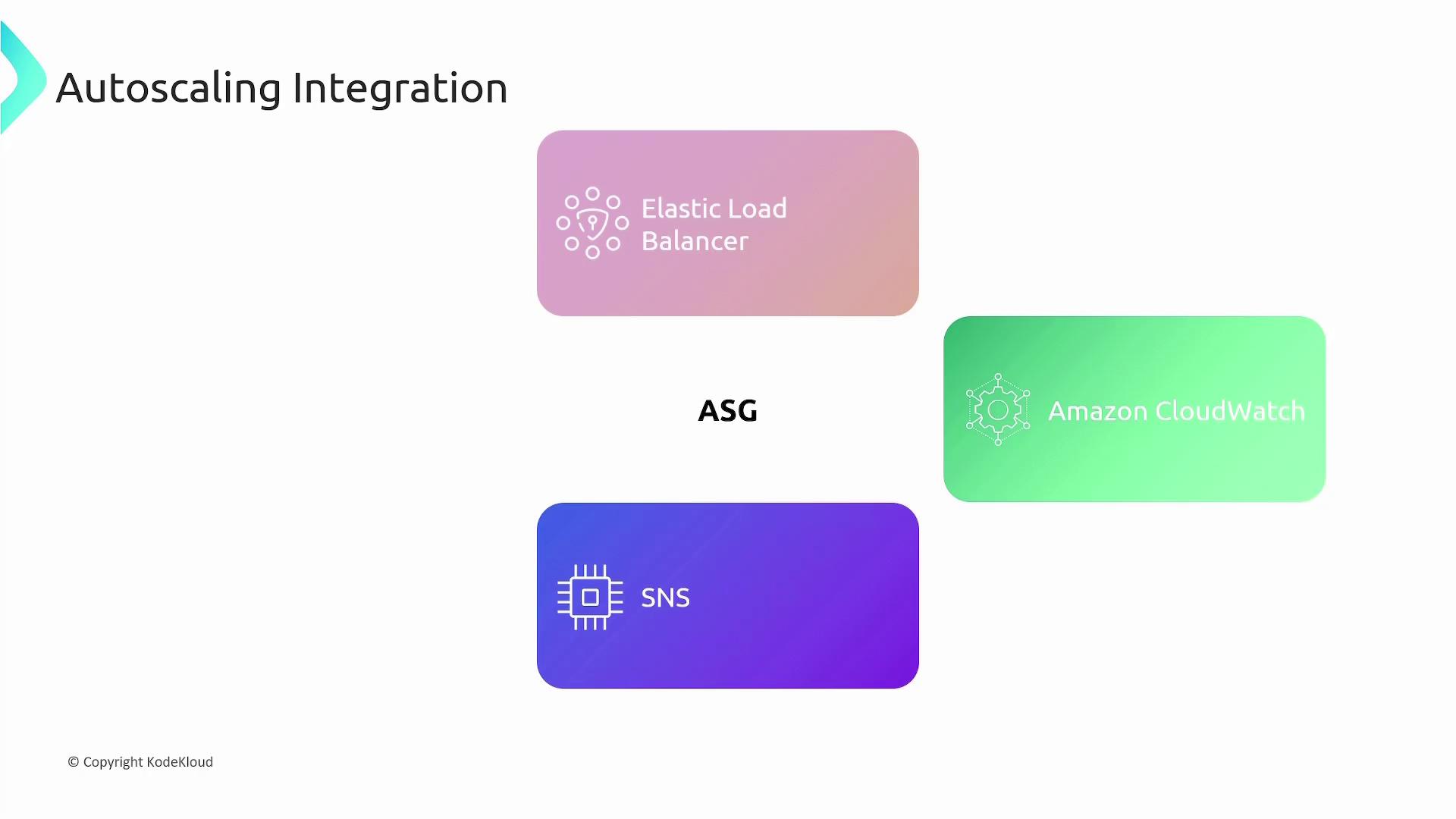
AWS auto-scaling groups integrate seamlessly with a variety of AWS services:
* **Elastic Load Balancer (ELB):** Distributes incoming traffic across multiple EC2 instances.
* **CloudWatch:** Offers monitoring metrics and alarms that drive scaling decisions.
* **Simple Notification Service (SNS):** Sends notifications detailing auto-scaling events, such as scaling actions.
By leveraging these integrations, AWS Auto Scaling ensures your application can gracefully handle fluctuations in traffic while optimizing resource usage and cost.
This guide has covered scaling policies, dynamic and scheduled scaling, launch templates, and AWS service integrations, empowering you to design robust auto-scaling groups that automatically adjust compute resources based on demand.