> ## Documentation Index
> Fetch the complete documentation index at: https://notes.kodekloud.com/llms.txt
> Use this file to discover all available pages before exploring further.
# Step Functions Demo
> Tutorial showing how to build, test, and troubleshoot an AWS Step Functions state machine that invokes Lambdas to detect and handle camera threats.
This lesson demonstrates how to build, test, and troubleshoot a simple AWS Step Functions state machine using the visual console. You'll create a workflow that processes a camera event, invokes a detector Lambda, and branches based on detection results.
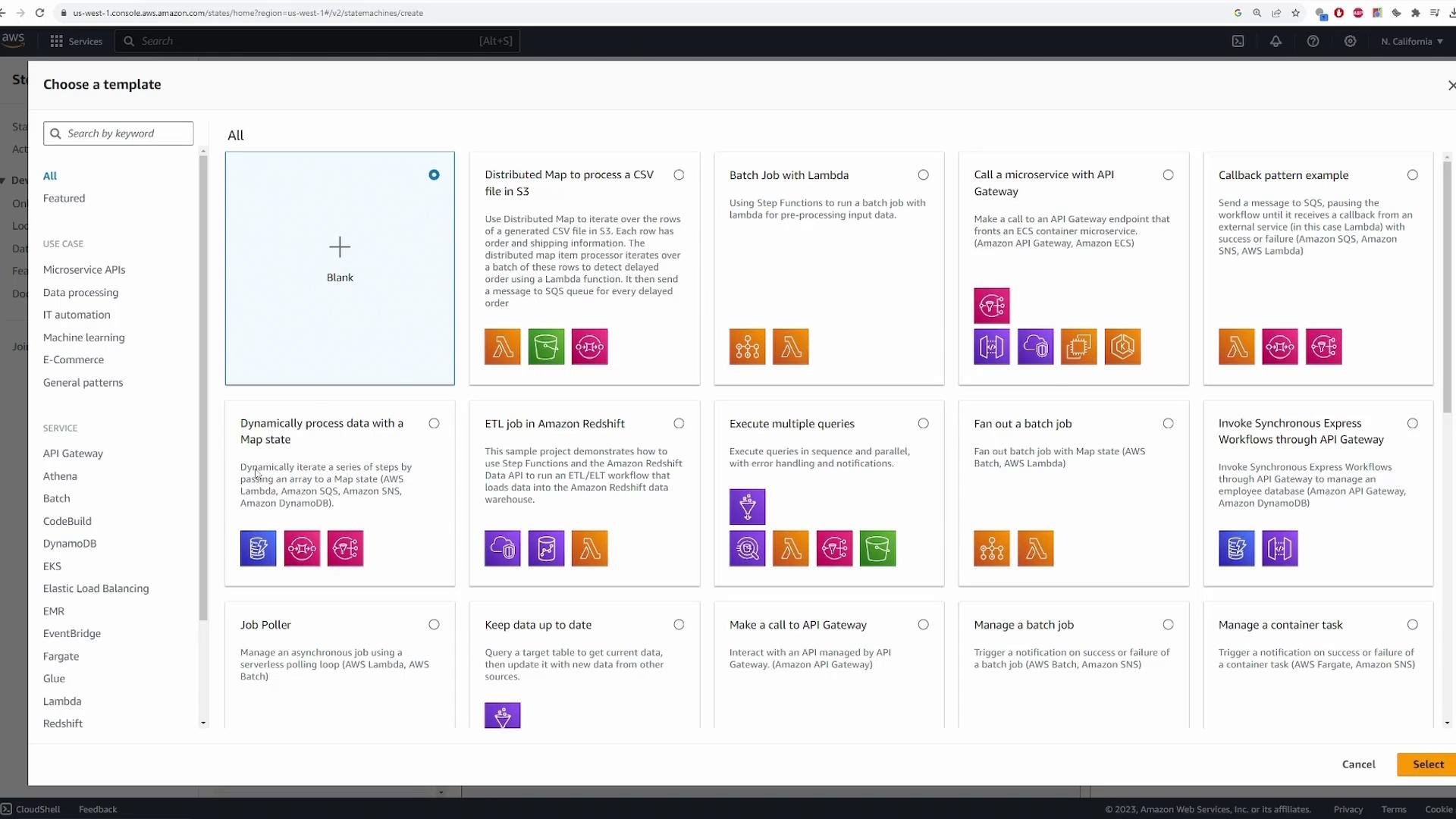
Search for Step Functions in the AWS Console and select Create state machine. A state machine is where you author a workflow — the ordered set of steps and logic your application should perform. For this demo, choose the Blank template so we can build the workflow step-by-step.
 ## Authoring canvas overview
* Center: the visual workflow (Start → states → End). Execution flows top-to-bottom.
* Left pane: pre-built states and integrations you can drag into the canvas (Task for Lambda/SNS/ECS, Flow types for Choice/Parallel/Map, plus Wait, Pass, etc.).
* Right pane: configuration for the selected state (state name, integration type, payload mapping, retry/catch settings, etc.).
For this demo we'll implement a simple "camera event" workflow:
* When a camera detects motion, the state machine invokes a detector Lambda.
* The detector returns `THREAT` or `NO_THREAT`.
* A Choice state routes the execution to either a Threat handling Lambda or a False-Positive handler.
High-level workflow:
1. Start → receive event (camera metadata, S3 object key, etc.)
2. Invoke DetectThreat Lambda (returns `result = "THREAT"` | `"NO_THREAT"`)
3. Choice state: if `result == "THREAT"` → invoke ThreatFound Lambda; if `result == "NO_THREAT"` → invoke FalsePositive Lambda
4. End
## Lambda functions used in the demo
Below are minimal example Lambdas used in the tutorial. Keep these simple for demonstration — you can replace them with real implementations.
| Function | Purpose | Example (Node.js) |
| - | -: | - |
| DetectThreat | Simulates threat detection and returns `result` | `javascript\n// DetectThreat Lambda (Node.js)\nexport const handler = async (event) => {\n // Simulate threat detection (50/50)\n const result = Math.random() < 0.5 ? \"THREAT\" : \"NO_THREAT\";\n return { result };\n};\n` |
| ThreatFound | Path executed when a threat is detected | `javascript\n// ThreatFound Lambda (Node.js)\nexport const handler = async (event) => {\n // TODO: implement real threat handling (notifications, camera lock, etc.)\n return \"threat_found\";\n};\n` |
| FalsePositive | Path executed when detection is a false positive | `javascript\n// FalsePositive Lambda (Node.js)\nexport const handler = async (event) => {\n // TODO: implement false positive handling (logging, training data, etc.)\n return \"false_positive\";\n};\n` |
Use the minimal payload in the Lambda functions while prototyping. You can later expand payload mapping via `Parameters`, `InputPath`, `ResultPath`, and `OutputPath` to pass only the fields you need between states.
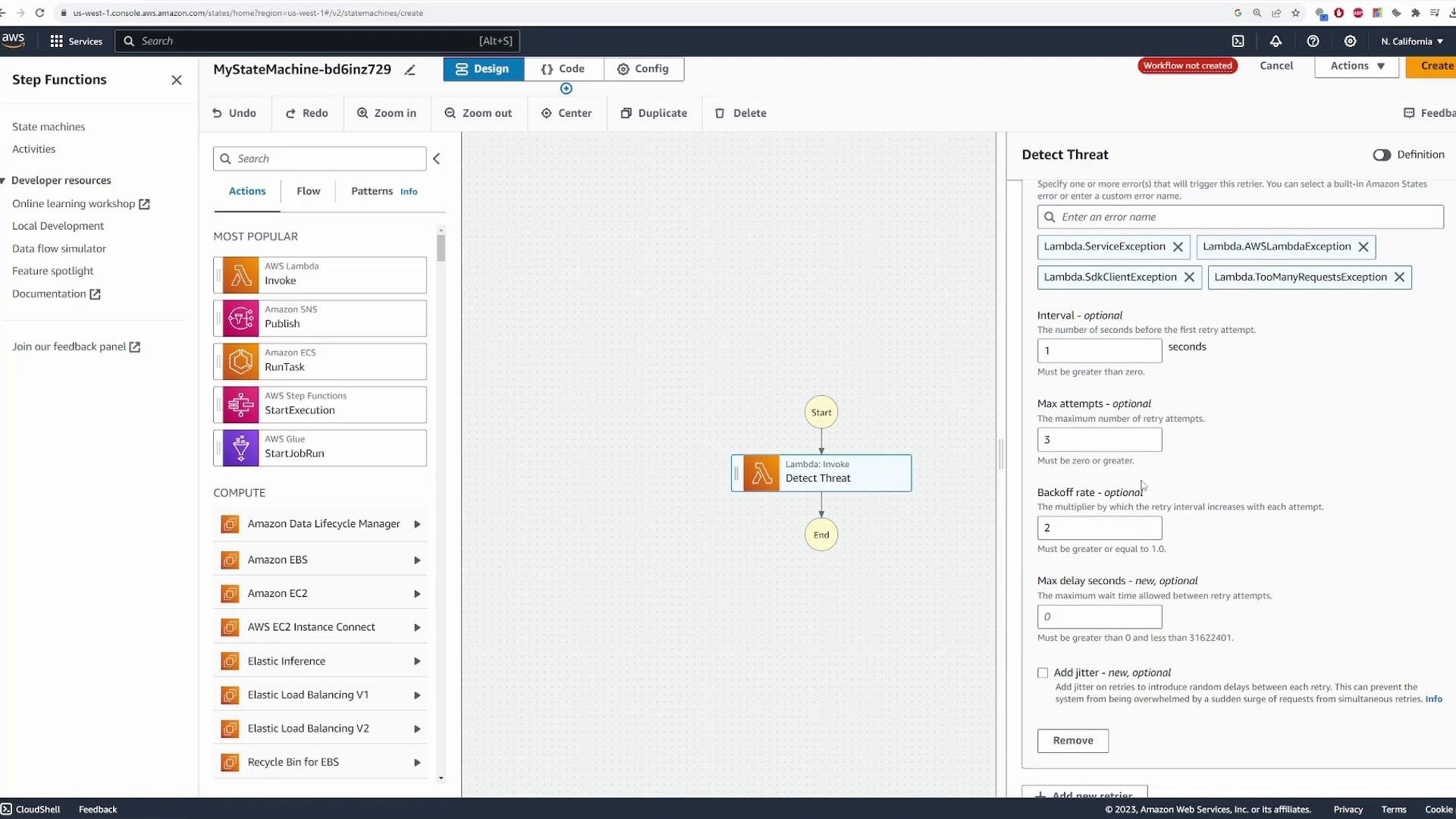
## Add the Detect Threat Task (Lambda invoke)
1. Drag a Lambda Invoke Task onto the canvas and name it "Detect Threat".
2. For Integration type choose **Optimized** (simplified invocation for common Lambda workflows).
3. Select your DetectThreat function from the FunctionName dropdown.
Payload configuration:
* Use `Use the state input as payload` so the initial event that triggered the state machine is passed into DetectThreat.
* Optionally narrow fields using JSON Path filters — for this tutorial we'll pass the full input.
Wait-for-callback:
* Leave "Wait for callback" disabled for this demo.
Retries and catches:
* Configure `Retry` (IntervalSeconds, MaxAttempts, BackoffRate) for transient failures.
* Add `Catch` handlers to redirect failed executions to error-handling states if needed.
Next state:
* After the Detect Threat task completes it will transition to the Choice node you will add next.
## Authoring canvas overview
* Center: the visual workflow (Start → states → End). Execution flows top-to-bottom.
* Left pane: pre-built states and integrations you can drag into the canvas (Task for Lambda/SNS/ECS, Flow types for Choice/Parallel/Map, plus Wait, Pass, etc.).
* Right pane: configuration for the selected state (state name, integration type, payload mapping, retry/catch settings, etc.).
For this demo we'll implement a simple "camera event" workflow:
* When a camera detects motion, the state machine invokes a detector Lambda.
* The detector returns `THREAT` or `NO_THREAT`.
* A Choice state routes the execution to either a Threat handling Lambda or a False-Positive handler.
High-level workflow:
1. Start → receive event (camera metadata, S3 object key, etc.)
2. Invoke DetectThreat Lambda (returns `result = "THREAT"` | `"NO_THREAT"`)
3. Choice state: if `result == "THREAT"` → invoke ThreatFound Lambda; if `result == "NO_THREAT"` → invoke FalsePositive Lambda
4. End
## Lambda functions used in the demo
Below are minimal example Lambdas used in the tutorial. Keep these simple for demonstration — you can replace them with real implementations.
| Function | Purpose | Example (Node.js) |
| - | -: | - |
| DetectThreat | Simulates threat detection and returns `result` | `javascript\n// DetectThreat Lambda (Node.js)\nexport const handler = async (event) => {\n // Simulate threat detection (50/50)\n const result = Math.random() < 0.5 ? \"THREAT\" : \"NO_THREAT\";\n return { result };\n};\n` |
| ThreatFound | Path executed when a threat is detected | `javascript\n// ThreatFound Lambda (Node.js)\nexport const handler = async (event) => {\n // TODO: implement real threat handling (notifications, camera lock, etc.)\n return \"threat_found\";\n};\n` |
| FalsePositive | Path executed when detection is a false positive | `javascript\n// FalsePositive Lambda (Node.js)\nexport const handler = async (event) => {\n // TODO: implement false positive handling (logging, training data, etc.)\n return \"false_positive\";\n};\n` |
Use the minimal payload in the Lambda functions while prototyping. You can later expand payload mapping via `Parameters`, `InputPath`, `ResultPath`, and `OutputPath` to pass only the fields you need between states.
## Add the Detect Threat Task (Lambda invoke)
1. Drag a Lambda Invoke Task onto the canvas and name it "Detect Threat".
2. For Integration type choose **Optimized** (simplified invocation for common Lambda workflows).
3. Select your DetectThreat function from the FunctionName dropdown.
Payload configuration:
* Use `Use the state input as payload` so the initial event that triggered the state machine is passed into DetectThreat.
* Optionally narrow fields using JSON Path filters — for this tutorial we'll pass the full input.
Wait-for-callback:
* Leave "Wait for callback" disabled for this demo.
Retries and catches:
* Configure `Retry` (IntervalSeconds, MaxAttempts, BackoffRate) for transient failures.
* Add `Catch` handlers to redirect failed executions to error-handling states if needed.
Next state:
* After the Detect Threat task completes it will transition to the Choice node you will add next.
 ## Add a Choice state for branching logic
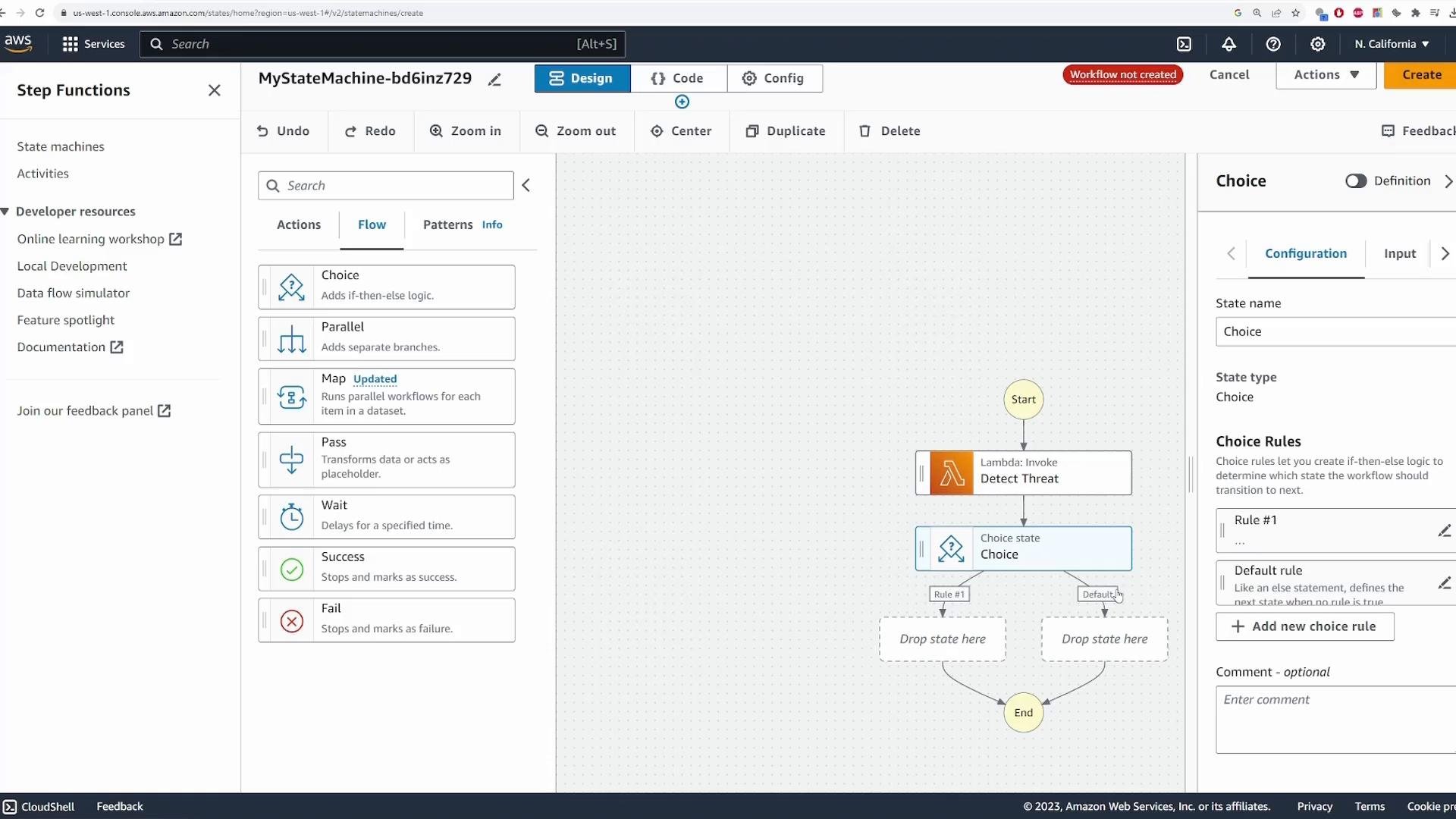
Drag a Choice state (Flow → Choice) after the Detect Threat Task. Choice states express if/then/else logic using JSON Path values from the state input or the previous state's output.
The detector returns `{"result":"THREAT"}` or `{"result":"NO_THREAT"}`. Create two rules:
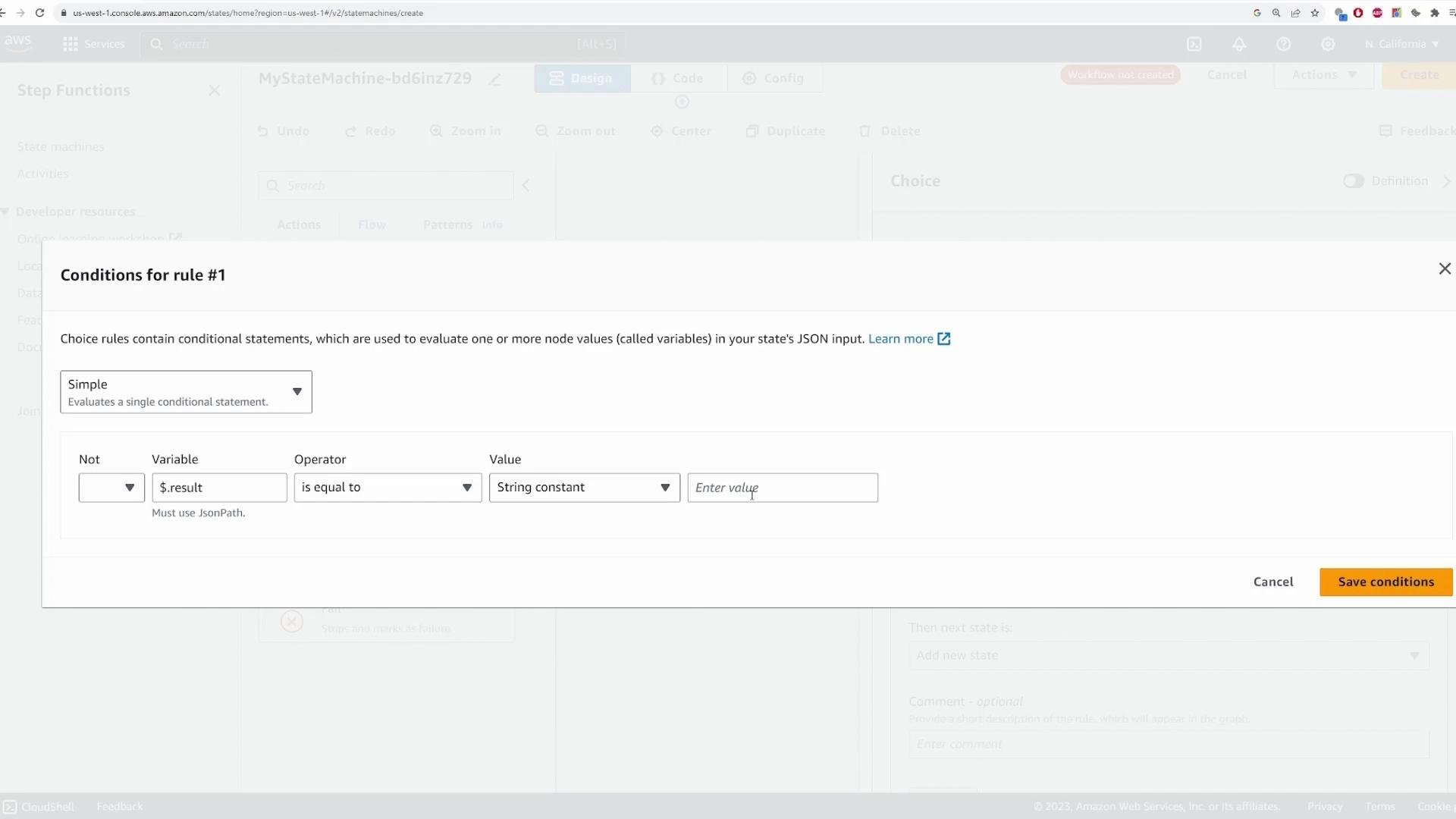
* Rule 1: `Variable = $.result`, operator = `is equal to`, string constant = `THREAT`
* Rule 2: `Variable = $.result`, operator = `is equal to`, string constant = `NO_THREAT`
## Add a Choice state for branching logic
Drag a Choice state (Flow → Choice) after the Detect Threat Task. Choice states express if/then/else logic using JSON Path values from the state input or the previous state's output.
The detector returns `{"result":"THREAT"}` or `{"result":"NO_THREAT"}`. Create two rules:
* Rule 1: `Variable = $.result`, operator = `is equal to`, string constant = `THREAT`
* Rule 2: `Variable = $.result`, operator = `is equal to`, string constant = `NO_THREAT`
 When you add a rule, the condition editor appears. Set the variable to `$.result`, the operator to `is equal to`, and the string constant as appropriate (`THREAT` or `NO_THREAT`).
 Example conceptual rules:
```JSONPath theme={null}
$.result == "THREAT"
$.result == "NO_THREAT"
```
## Attach Lambda tasks to each branch
* For the `THREAT` branch, add a Lambda Invoke Task named **Threat Found** and select the ThreatFound Lambda.
* For the `NO_THREAT` branch, add a Lambda Invoke Task named **No Threat** and select the FalsePositive Lambda.
Each branch can end the execution or continue into additional states (for example, send notifications via SNS for threats or store misclassifications for training data).
After wiring the branches the workflow looks like:
Start → Detect Threat (Task) → Choice → (THREAT → ThreatFound Task) | (NO\_THREAT → FalsePositive Task) → End
## Passing data between states
Step Functions provides several JSON Path–based knobs for data flow:
* `InputPath` — filters the incoming state input to the state
* `Parameters` — builds the payload passed to the resource (Lambda, SDK, etc.)
* `ResultPath` — controls how the state's result is merged with the input
* `OutputPath` — filters the final output emitted by the state
Use these to limit payload size, shape data for downstream services, or persist only the fields you need.
## Testing the state machine
When you click Create, the builder will prompt to confirm or create an execution role that grants Step Functions permission to invoke Lambda (and optionally X-Ray for tracing). The console can create this role automatically — review the permissions before confirming.
Example conceptual rules:
```JSONPath theme={null}
$.result == "THREAT"
$.result == "NO_THREAT"
```
## Attach Lambda tasks to each branch
* For the `THREAT` branch, add a Lambda Invoke Task named **Threat Found** and select the ThreatFound Lambda.
* For the `NO_THREAT` branch, add a Lambda Invoke Task named **No Threat** and select the FalsePositive Lambda.
Each branch can end the execution or continue into additional states (for example, send notifications via SNS for threats or store misclassifications for training data).
After wiring the branches the workflow looks like:
Start → Detect Threat (Task) → Choice → (THREAT → ThreatFound Task) | (NO\_THREAT → FalsePositive Task) → End
## Passing data between states
Step Functions provides several JSON Path–based knobs for data flow:
* `InputPath` — filters the incoming state input to the state
* `Parameters` — builds the payload passed to the resource (Lambda, SDK, etc.)
* `ResultPath` — controls how the state's result is merged with the input
* `OutputPath` — filters the final output emitted by the state
Use these to limit payload size, shape data for downstream services, or persist only the fields you need.
## Testing the state machine
When you click Create, the builder will prompt to confirm or create an execution role that grants Step Functions permission to invoke Lambda (and optionally X-Ray for tracing). The console can create this role automatically — review the permissions before confirming.
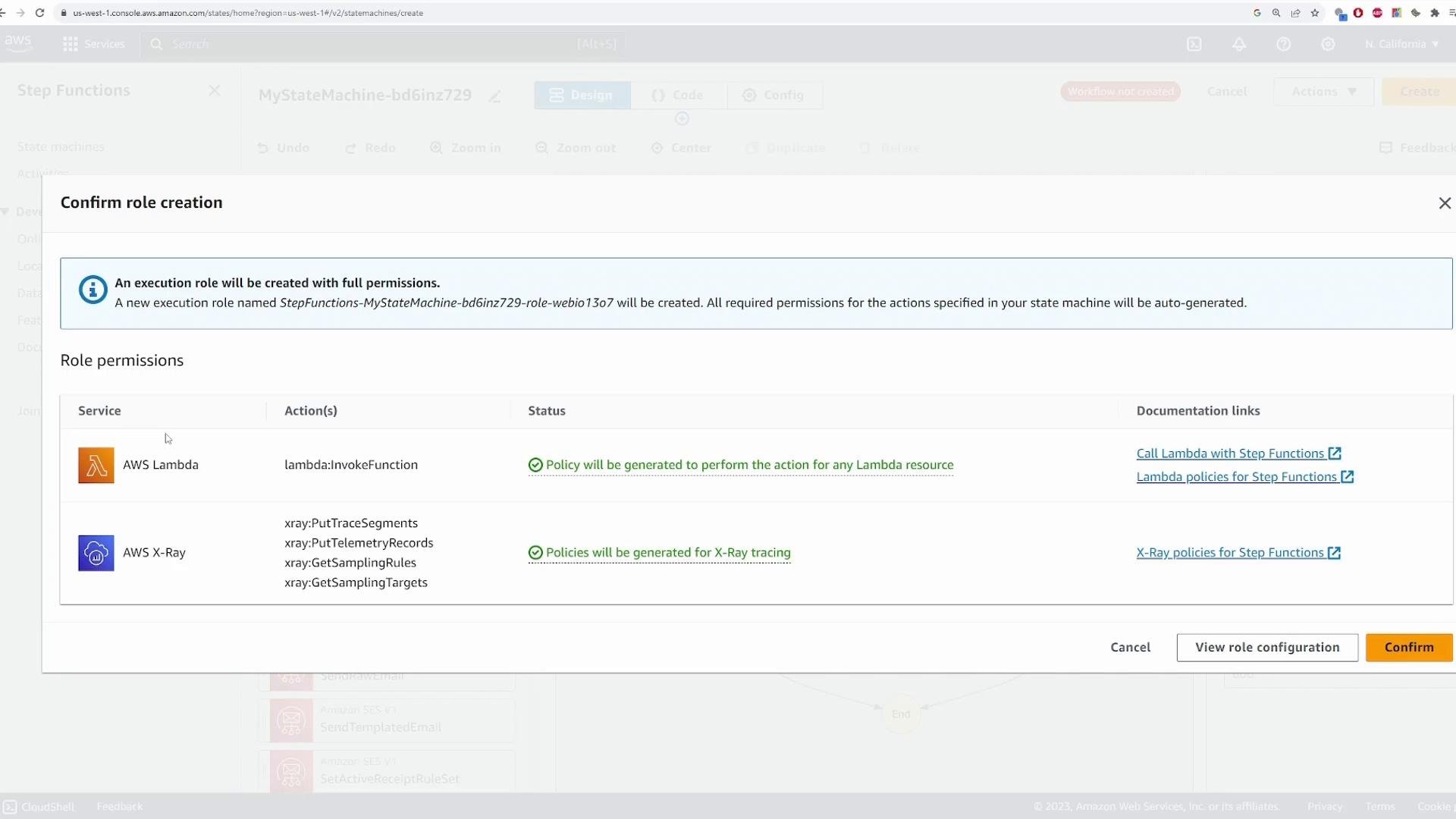 Ensure the execution role grants least privilege. Allow only the Lambda functions and resources your state machine needs to invoke. Overly broad roles increase security risk.
If you misconfigure a catcher or other state property you may see an error. Fix the state configuration before recreating the state machine.
### Start an execution
An execution is a single run of your state machine. Click Start execution and provide the initial input — this simulates the event the camera or upstream system sends.
Example input:
```json theme={null}
{
"camera_id": "ssldfjsikd-234-sdfs",
"object_id": "video1.mp4"
}
```
Start the execution and watch the visual execution flow. The console highlights the path taken and you can click any state to inspect its input, output, and events.
### Example Task state (ASL) produced by the visual editor
Below is the Task state JSON the visual editor generates for invoking Detect Threat (shows common retry settings and how payload mapping works):
```json theme={null}
{
"Type": "Task",
"Resource": "arn:aws:states:::lambda:invoke",
"OutputPath": "$.Payload",
"Parameters": {
"Payload.$": "$",
"FunctionName": "arn:aws:lambda:us-west-1:841860927337:function:detect_threat:$LATEST"
},
"Retry": [
{
"ErrorEquals": [
"Lambda.ServiceException",
"Lambda.AWSLambdaException",
"Lambda.SdkClientException",
"Lambda.TooManyRequestsException"
],
"IntervalSeconds": 1,
"MaxAttempts": 3,
"BackoffRate": 2.0
}
]
}
```
## Inspecting events and logs
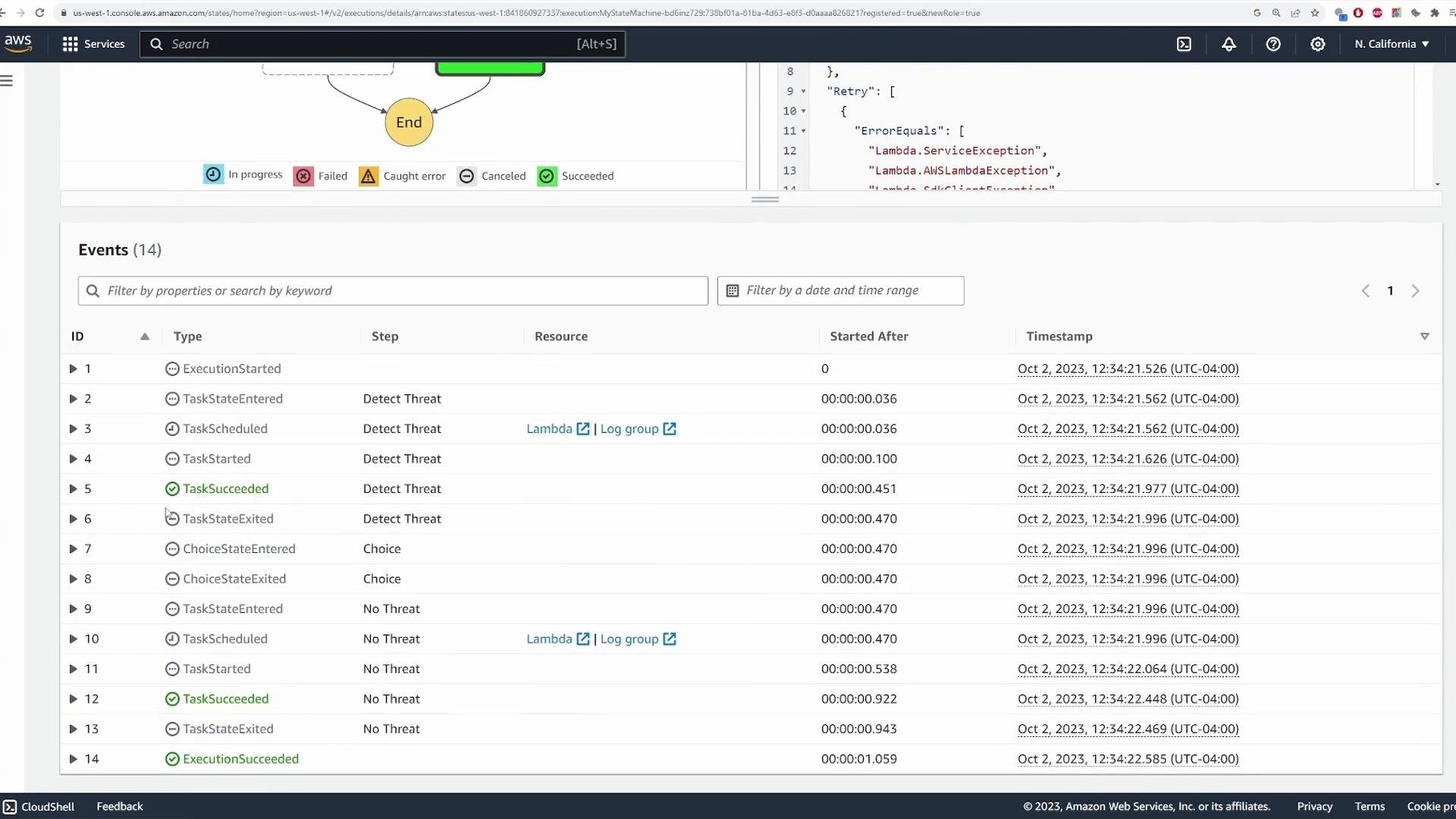
The Events pane lists state transitions and timestamps (TaskStarted, TaskSucceeded, ChoiceEvaluated, ExecutionSucceeded, etc.). Selecting any state displays:
* Input passed into the state (for example, the camera metadata)
* Output produced by the state (for example, `{ "result": "NO_THREAT" }` from DetectThreat)
* Duration and timestamp metadata
* Any Lambda response metadata or error details
You can also view the raw SDK / HTTP objects returned by Lambda:
```json theme={null}
{
"HttpStatusCode": 200,
"SdkResponseMetadata": {
"RequestId": "098b50c8-ef8e-4a17-b2db-13a00cf6e81b"
},
"outputDetails": {
"truncated": false
}
}
```
Ensure the execution role grants least privilege. Allow only the Lambda functions and resources your state machine needs to invoke. Overly broad roles increase security risk.
If you misconfigure a catcher or other state property you may see an error. Fix the state configuration before recreating the state machine.
### Start an execution
An execution is a single run of your state machine. Click Start execution and provide the initial input — this simulates the event the camera or upstream system sends.
Example input:
```json theme={null}
{
"camera_id": "ssldfjsikd-234-sdfs",
"object_id": "video1.mp4"
}
```
Start the execution and watch the visual execution flow. The console highlights the path taken and you can click any state to inspect its input, output, and events.
### Example Task state (ASL) produced by the visual editor
Below is the Task state JSON the visual editor generates for invoking Detect Threat (shows common retry settings and how payload mapping works):
```json theme={null}
{
"Type": "Task",
"Resource": "arn:aws:states:::lambda:invoke",
"OutputPath": "$.Payload",
"Parameters": {
"Payload.$": "$",
"FunctionName": "arn:aws:lambda:us-west-1:841860927337:function:detect_threat:$LATEST"
},
"Retry": [
{
"ErrorEquals": [
"Lambda.ServiceException",
"Lambda.AWSLambdaException",
"Lambda.SdkClientException",
"Lambda.TooManyRequestsException"
],
"IntervalSeconds": 1,
"MaxAttempts": 3,
"BackoffRate": 2.0
}
]
}
```
## Inspecting events and logs
The Events pane lists state transitions and timestamps (TaskStarted, TaskSucceeded, ChoiceEvaluated, ExecutionSucceeded, etc.). Selecting any state displays:
* Input passed into the state (for example, the camera metadata)
* Output produced by the state (for example, `{ "result": "NO_THREAT" }` from DetectThreat)
* Duration and timestamp metadata
* Any Lambda response metadata or error details
You can also view the raw SDK / HTTP objects returned by Lambda:
```json theme={null}
{
"HttpStatusCode": 200,
"SdkResponseMetadata": {
"RequestId": "098b50c8-ef8e-4a17-b2db-13a00cf6e81b"
},
"outputDetails": {
"truncated": false
}
}
```
 ## Re-run executions
Because the DetectThreat Lambda is randomized, repeated executions will sometimes go to ThreatFound and other times to No Threat. Run multiple executions to validate both branches and inspect inputs, outputs, and events for each.
## State machine dashboard and history
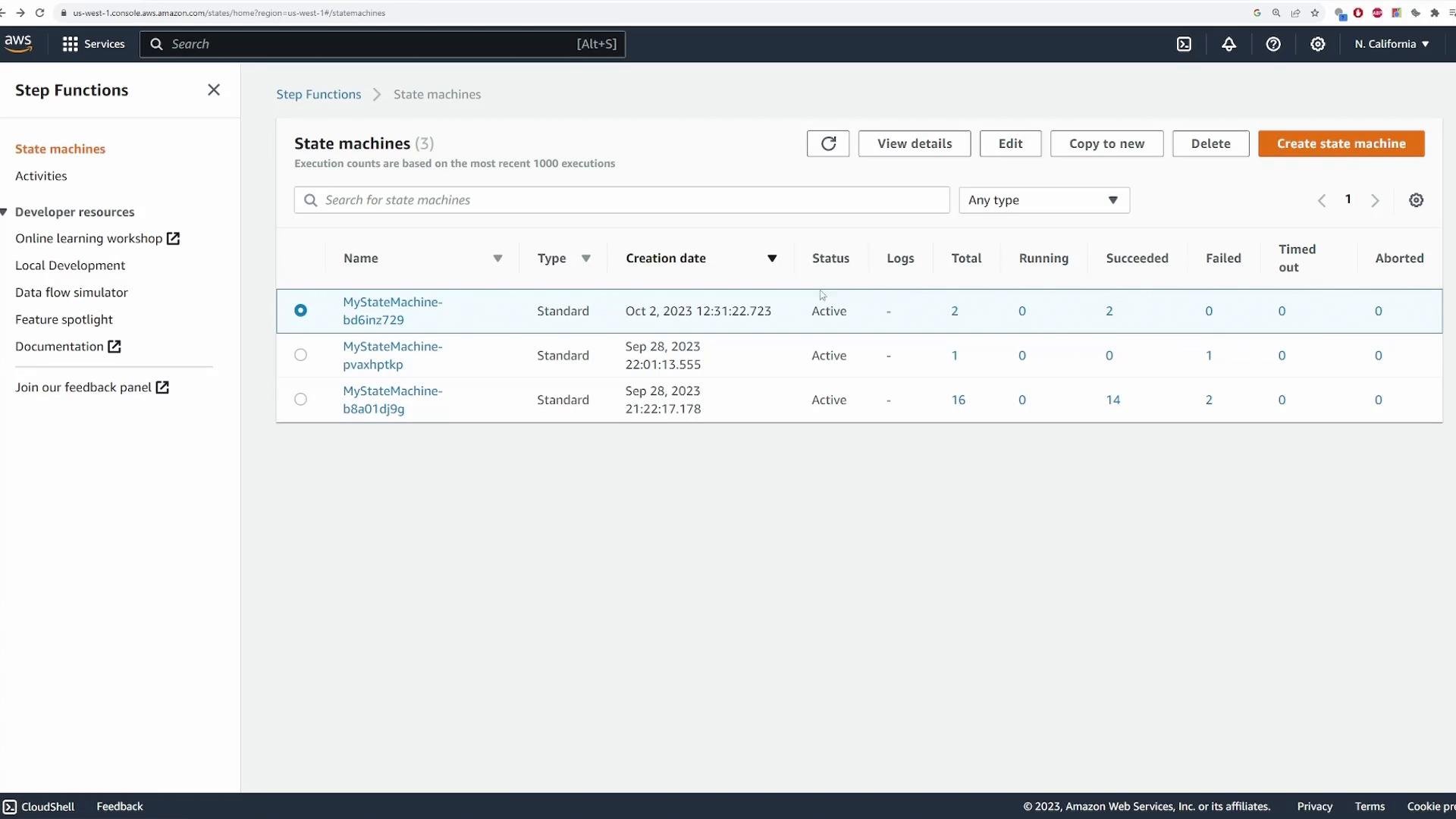
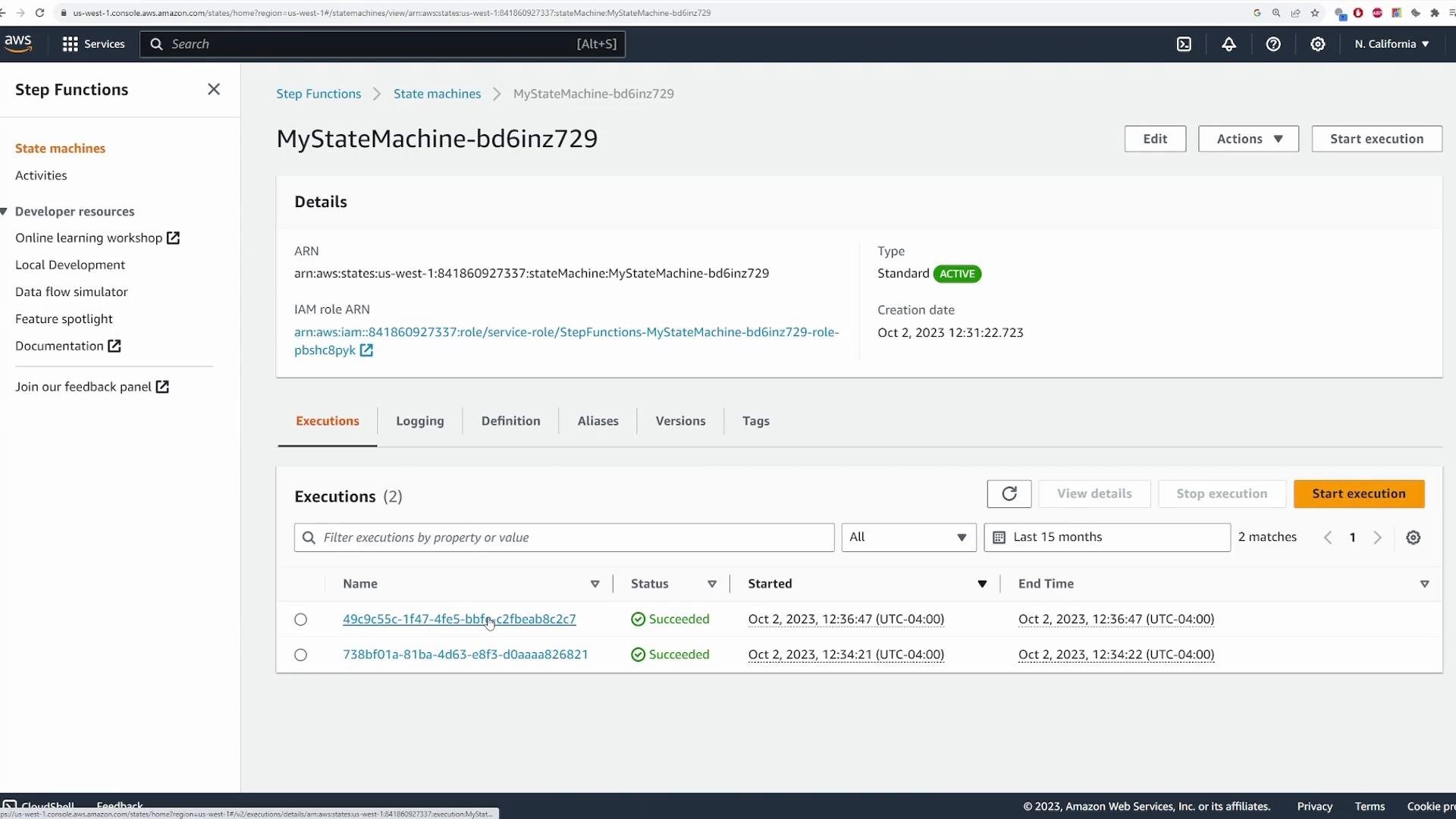
From the State Machines page you can see a summary for each state machine including execution counts and status (Succeeded, Failed, Timed out). Click a state machine to view all executions and drill into historical runs for analysis or troubleshooting.
## Re-run executions
Because the DetectThreat Lambda is randomized, repeated executions will sometimes go to ThreatFound and other times to No Threat. Run multiple executions to validate both branches and inspect inputs, outputs, and events for each.
## State machine dashboard and history
From the State Machines page you can see a summary for each state machine including execution counts and status (Succeeded, Failed, Timed out). Click a state machine to view all executions and drill into historical runs for analysis or troubleshooting.
 ## Summary and best practices
* AWS Step Functions provides a visual and stateful orchestration layer to coordinate AWS services (Lambda, SNS, ECS, SDK integrations) and model complex workflows.
* Use Choice states to branch logic; Retry and Catch to make workflows resilient; InputPath/Parameters/ResultPath/OutputPath to control data flow and keep payloads small.
* Test often: run multiple executions, inspect Events and state inputs/outputs, and adjust retry/catch policies as needed.
* Use least-privilege IAM roles for the state machine execution role.
## Links and references
* [AWS Step Functions Documentation](https://docs.aws.amazon.com/step-functions/latest/dg/welcome.html)
* [AWS Lambda Developer Guide](https://docs.aws.amazon.com/lambda/latest/dg/welcome.html)
* [ASL (Amazon States Language) reference](https://states-language.net/spec.html)
This completes the lesson.
This documentation is built and hosted on [Mintlify](https://mintlify.com), a developer documentation platform.
## Summary and best practices
* AWS Step Functions provides a visual and stateful orchestration layer to coordinate AWS services (Lambda, SNS, ECS, SDK integrations) and model complex workflows.
* Use Choice states to branch logic; Retry and Catch to make workflows resilient; InputPath/Parameters/ResultPath/OutputPath to control data flow and keep payloads small.
* Test often: run multiple executions, inspect Events and state inputs/outputs, and adjust retry/catch policies as needed.
* Use least-privilege IAM roles for the state machine execution role.
## Links and references
* [AWS Step Functions Documentation](https://docs.aws.amazon.com/step-functions/latest/dg/welcome.html)
* [AWS Lambda Developer Guide](https://docs.aws.amazon.com/lambda/latest/dg/welcome.html)
* [ASL (Amazon States Language) reference](https://states-language.net/spec.html)
This completes the lesson.
This documentation is built and hosted on [Mintlify](https://mintlify.com), a developer documentation platform.