> ## Documentation Index
> Fetch the complete documentation index at: https://notes.kodekloud.com/llms.txt
> Use this file to discover all available pages before exploring further.
# ECR Demo
> Learn to work with AWS Elastic Container Registry by creating a repository, pushing a Docker image, and deploying a container from that image.
In this lesson, you'll learn how to work with AWS Elastic Container Registry (ECR) by creating a repository, pushing a Docker image, and deploying a container from that image. This step-by-step guide is optimized for clarity and SEO, ensuring you quickly find the information you need.
***
## 1. Creating an ECR Repository
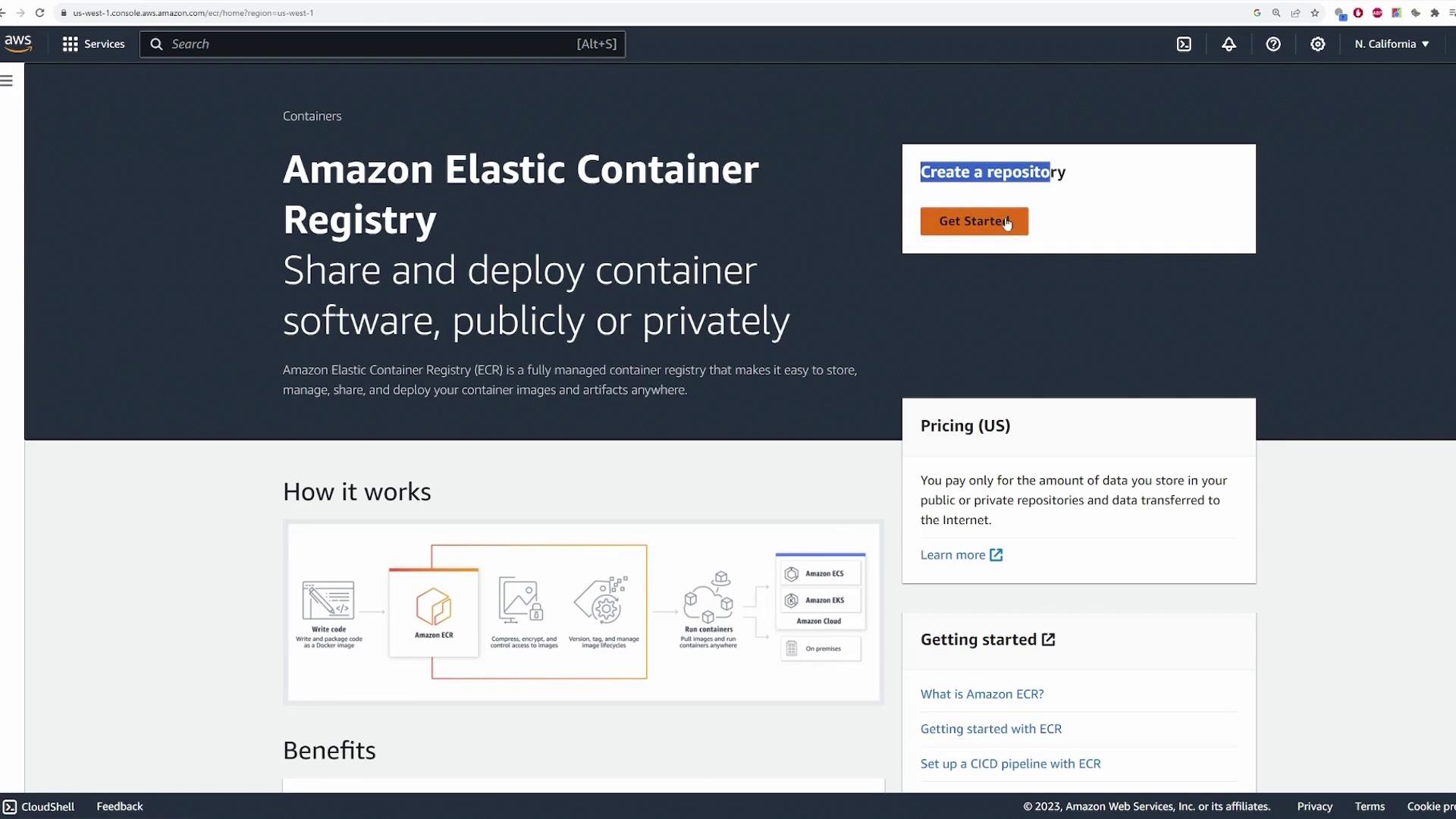
Begin by searching for "ECR" in the AWS console. Select **Create a repository** or navigate to the Repositories section and click **Create repository**.
On the **Create repository** page, review the **General Settings** where you'll find the visibility options:
* **Public Repository:** Anyone can pull the image without authentication (push rights remain restricted).
* **Private Repository:** Authentication is required to pull the image.
Once you create a repository, its visibility setting cannot be changed.
For this demonstration, keep the repository visibility set to **Private**. Provide a repository name, for example, "ECR-demo". This name will be part of your full repository URI (e.g., …/ECR-demo).
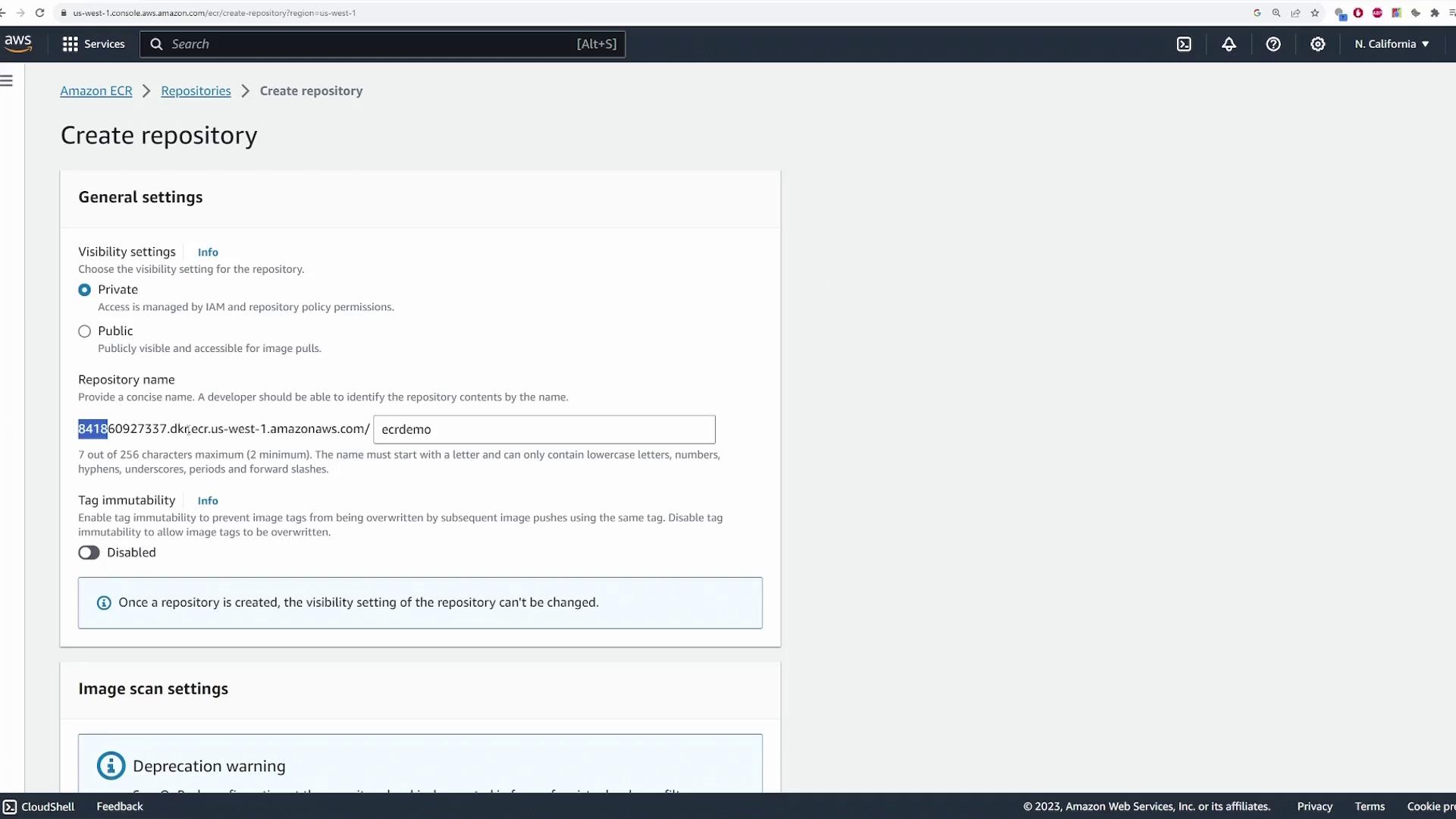
Optionally, you can configure additional settings like tag immutability, scan on push, or encryption. For this demo, these options are left disabled. Click **Create repository** to complete the process. Once created, you'll notice that there are no images in the repository yet.
***
## 2. Authenticating, Building, Tagging, and Pushing an Image
AWS provides commands to push an image to your new ECR repository. Start by authenticating Docker to your AWS account using the AWS CLI command below. This command retrieves an authentication token for Docker:
```bash theme={null}
aws ecr get-login-password --region us-west-1 | docker login --username AWS --password-stdin 841860927337.dkr.ecr.us-west-1.amazonaws.com
```
Ensure that the AWS CLI is installed and configured with your access key and secret key. If you haven't set it up yet, run:
```bash theme={null}
aws configure
```
After successful authentication, build your Docker image, tag it with your repository URI, and push it to ECR:
```bash theme={null}
docker build -t ecrdemo .
docker tag ecrdemo:latest 841860927337.dkr.ecr.us-west-1.amazonaws.com/ecrdemo:latest
docker push 841860927337.dkr.ecr.us-west-1.amazonaws.com/ecrdemo:latest
```
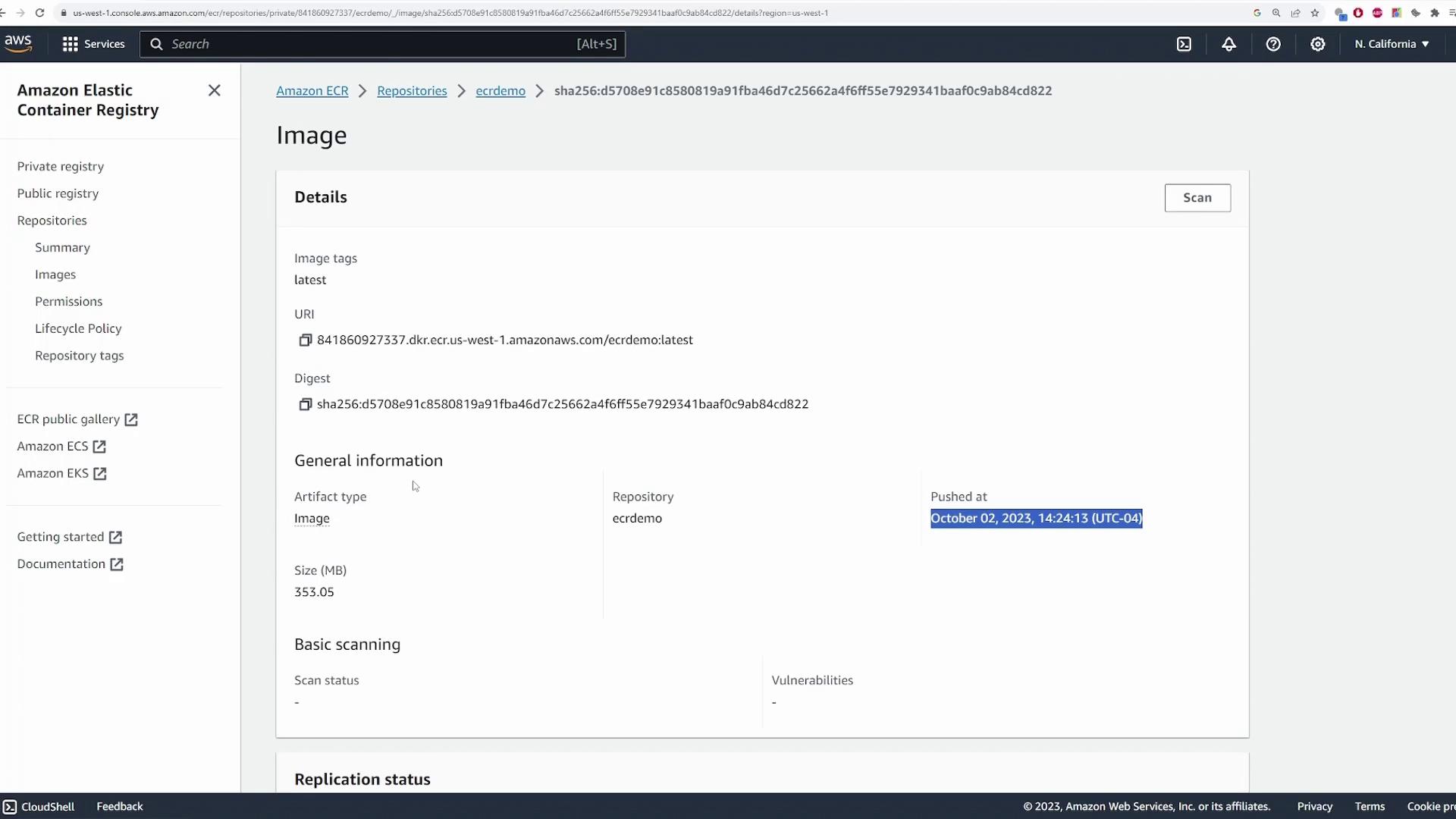
Once the push is complete, refresh the AWS console. Your repository will now display details about the latest image, including its tags, URI, digest, and push date.
***
## 3. Deploying a Container from Your ECR Image
To confirm that the image in your ECR can be pulled and run as a container, start by removing the local image. This step ensures Docker pulls the latest image from the repository during deployment.
List your images and remove the local one:
```bash theme={null}
docker image ls
docker image rm 841860927337.dkr.ecr.us-west-1.amazonaws.com/ecrdemo
```
Now, run a Docker container using the remote image. In this example, the container is named "app" and port 3000 is mapped:
```bash theme={null}
docker run --name app -p 3000:3000 841860927337.dkr.ecr.us-west-1.amazonaws.com/ecrdemo
```
The output should indicate that Docker did not find the image locally, pulled it from ECR, and started the server on port 3000. An example output is shown below:
```bash theme={null}
Unable to find image '841860927337.dkr.ecr.us-west-1.amazonaws.com/ecrdemo:latest' locally
latest: Pulling from ecrdemo
Digest: sha256:d5708e91c8580819a91fba467c25662a4f6ff55e7929341baaf0c9ab84cd822
Status: Downloaded newer image for 841860927337.dkr.ecr.us-west-1.amazonaws.com/ecrdemo:latest
Server is running on port 3000
```
To verify that the container is running, open another terminal and execute:
```bash theme={null}
curl localhost:3000
```
This should return HTML output similar to the example below, confirming that your application is up and running:
```html theme={null}
Document
ECS Project 2
```
***
## 4. Important Naming Conventions and Permissions
When pushing and pulling images from ECR, always use the full repository URI in the following format:
ACCOUNT\_ID.dkr.ecr.REGION.amazonaws.com/REPOSITORY\_NAME
For example, if your account ID is 841860927337, your region is us-west-1, and your repository is named "ecrdemo", then the full image URI is:
841860927337.dkr.ecr.us-west-1.amazonaws.com/ecrdemo:latest
Make sure that any platform (EC2, ECS, Kubernetes, etc.) that uses this image has the proper IAM permissions or roles to pull images from ECR, ensuring a seamless deployment experience.
***
That concludes the lesson on using AWS ECR. You've successfully learned how to create a repository, push a Docker image, and deploy a container. Continue exploring AWS container services for advanced deployment strategies and best practices. Happy coding!