> ## Documentation Index
> Fetch the complete documentation index at: https://notes.kodekloud.com/llms.txt
> Use this file to discover all available pages before exploring further.
# Creating and Managing Azure Queue Storage Queues and Messages by Using NET
> Guide to using Azure Queue Storage with .NET, covering client libraries, sample code, portal setup, and an Azure Function using managed identity to send and manage queue messages
This article explains how to use the Azure Storage Queues client library for .NET to create queues and post messages. It walks through the required libraries, a minimal local example (connection string), how to create a storage account and queue in the Azure portal, and a production-ready Azure Function example that uses Managed Identity (DefaultAzureCredential) to authenticate and post messages to a queue.
Keywords: Azure Queue Storage, .NET, Azure.Storage.Queues, Azure Functions, Managed Identity, DefaultAzureCredential, Storage Queue roles
## Relevant libraries
Use the Azure SDK packages below to interact with Azure Queue Storage from .NET. The table summarizes each library and when to use it.
| Package | Purpose | When to use |
| - | - | - |
| `Azure.Core` | Shared primitives, transport, and helper types used across Azure SDKs | Required implicitly by many Azure SDK packages |
| `Azure.Storage.Common` | Shared infrastructure used by Azure Storage libraries | Provides common types for storage client libraries |
| `Azure.Storage.Queues` | Types for creating, managing, and interacting with queues and messages | Core client library for queue operations (create, send, receive, delete) |
Recommended links:
* [Azure SDK for .NET](https://learn.microsoft.com/dotnet/azure/)
* [Azure Storage Queues client library](https://learn.microsoft.com/azure/storage/queues/storage-queues-introduction)
## Quick example: create a QueueClient using a connection string
This minimal synchronous snippet demonstrates the basic sequence: instantiate a QueueClient using a connection string, create the queue if it doesn't exist, and send a message. For production use prefer async APIs (CreateIfNotExistsAsync, ExistsAsync, SendMessageAsync) and modern configuration patterns.
```csharp theme={null}
using Azure.Storage.Queues;
using System;
using System.Configuration;
string connectionString = ConfigurationManager.AppSettings["StorageConnectionString"];
string queueName = "my-queue";
string message = "Hello, Azure Queue!";
// Instantiate a QueueClient which will be used to create and manipulate the queue
var queueClient = new QueueClient(connectionString, queueName);
// Create the queue if it doesn't already exist
queueClient.CreateIfNotExists();
if (queueClient.Exists())
{
// Send a message to the queue
queueClient.SendMessage(message);
}
else
{
Console.WriteLine("Failed to create or access the queue.");
}
```
Tip: `ConfigurationManager.AppSettings` is common in .NET Framework. In modern .NET (Core, .NET 5/6/7+) prefer `IConfiguration` (appsettings.json) or environment variables (`Environment.GetEnvironmentVariable`) and use the async SDK methods (`CreateIfNotExistsAsync`, `ExistsAsync`, `SendMessageAsync`) for improved scalability.
Now we'll cover creating a storage account and queue in the Azure portal and show a full Azure Function example that uses a managed identity to write messages to a queue.
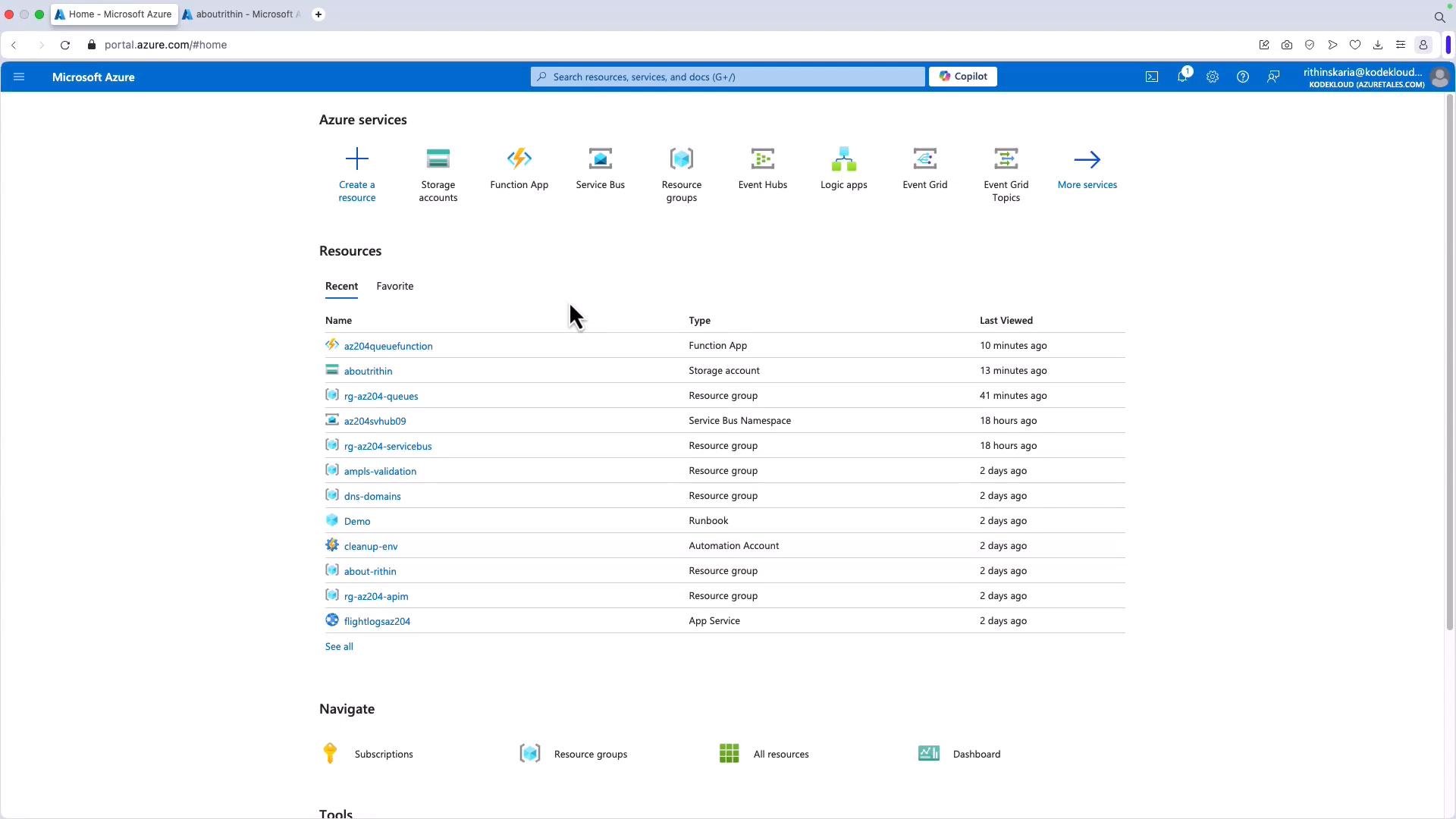
So we are in the Azure portal. You need a storage account to work with Azure Queue Storage.
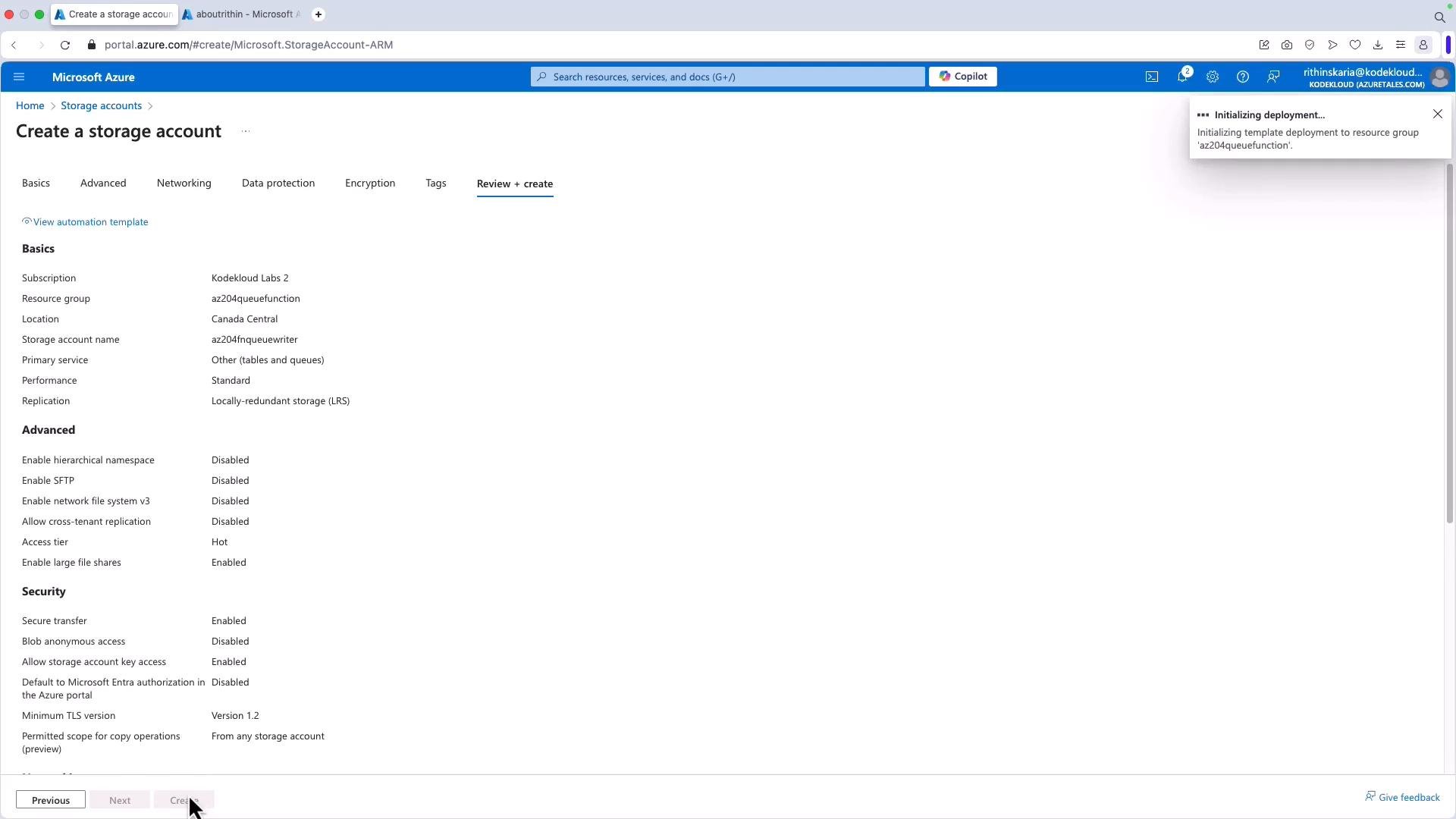
 Create a new storage account (the sample uses `az204fnqueuewriter` in Canada Central with Standard LRS). After the account is created you can add queues from the storage account's Queues blade — the code examples below will also create the queue at runtime if it does not exist.
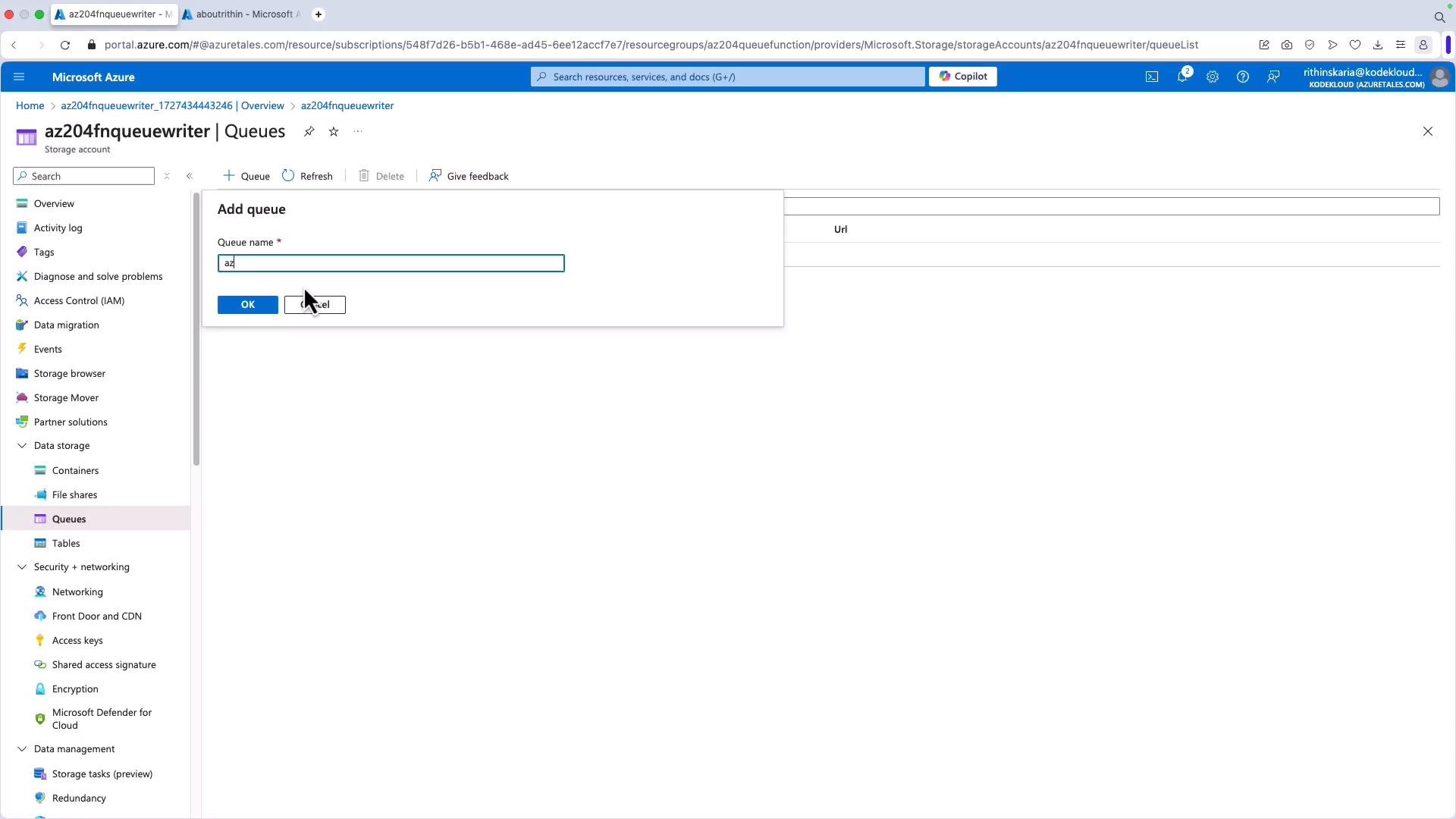
 Open the Queues blade and add a queue (for example, `az204`) if you prefer creating it manually.
 ## Azure Function: post messages to a queue using Managed Identity
This consolidated Azure Function implements a POST endpoint that:
* Reads the POST body as JSON
* Uses `DefaultAzureCredential` to authenticate (function app managed identity)
* Ensures the queue exists
* Sends the request body as a queue message
* Returns appropriate HTTP responses and logs progress
Before deploying, grant the Function App's managed identity one of the Storage Queue role assignments (for example, `Storage Queue Data Contributor` or `Storage Queue Data Message Sender`) on the storage account.
Azure Storage Queue messages have a maximum size of 64 KB. For larger payloads, store content in Blob Storage and send a reference (SAS URL or blob URL) in the queue message instead of the full payload.
Here is the function implementation (async, production-oriented):
```csharp theme={null}
using System;
using System.IO;
using System.Threading.Tasks;
using Azure.Identity;
using Azure.Storage.Queues;
using Microsoft.AspNetCore.Mvc;
using Microsoft.AspNetCore.Http;
using Microsoft.Azure.WebJobs;
using Microsoft.Azure.WebJobs.Extensions.Http;
using Microsoft.Extensions.Logging;
using Newtonsoft.Json;
public static class QueuePost
{
private const string queueName = "az204"; // Replace with your queue name
private const string storageAccount = "az204fnqueuewriter"; // Replace with your storage account name
[FunctionName("QueuePost")]
public static async Task Run(
[HttpTrigger(AuthorizationLevel.Function, "post", Route = null)] HttpRequest req,
ILogger log)
{
log.LogInformation("Processing a POST request to write message to Azure Queue...");
try
{
string requestBody = await new StreamReader(req.Body).ReadToEndAsync();
var data = JsonConvert.DeserializeObject(requestBody);
if (data == null)
{
return new BadRequestObjectResult("Invalid payload");
}
var credential = new DefaultAzureCredential();
var queueUri = new Uri($"https://{storageAccount}.queue.core.windows.net/{queueName}");
var queueClient = new QueueClient(queueUri, credential);
// Create the queue if it doesn't exist
await queueClient.CreateIfNotExistsAsync();
if (await queueClient.ExistsAsync())
{
await queueClient.SendMessageAsync(requestBody);
log.LogInformation($"Message added to the queue: {requestBody}");
}
else
{
log.LogError("Queue does not exist and could not be created.");
return new BadRequestObjectResult("Queue does not exist.");
}
return new OkObjectResult($"Message added to queue: {queueName}");
}
catch (Exception ex)
{
log.LogError($"Error occurred while writing to the queue: {ex.Message}");
return new StatusCodeResult(StatusCodes.Status500InternalServerError);
}
}
}
```
Recommended permissions:
| Role name | Purpose |
| - | - |
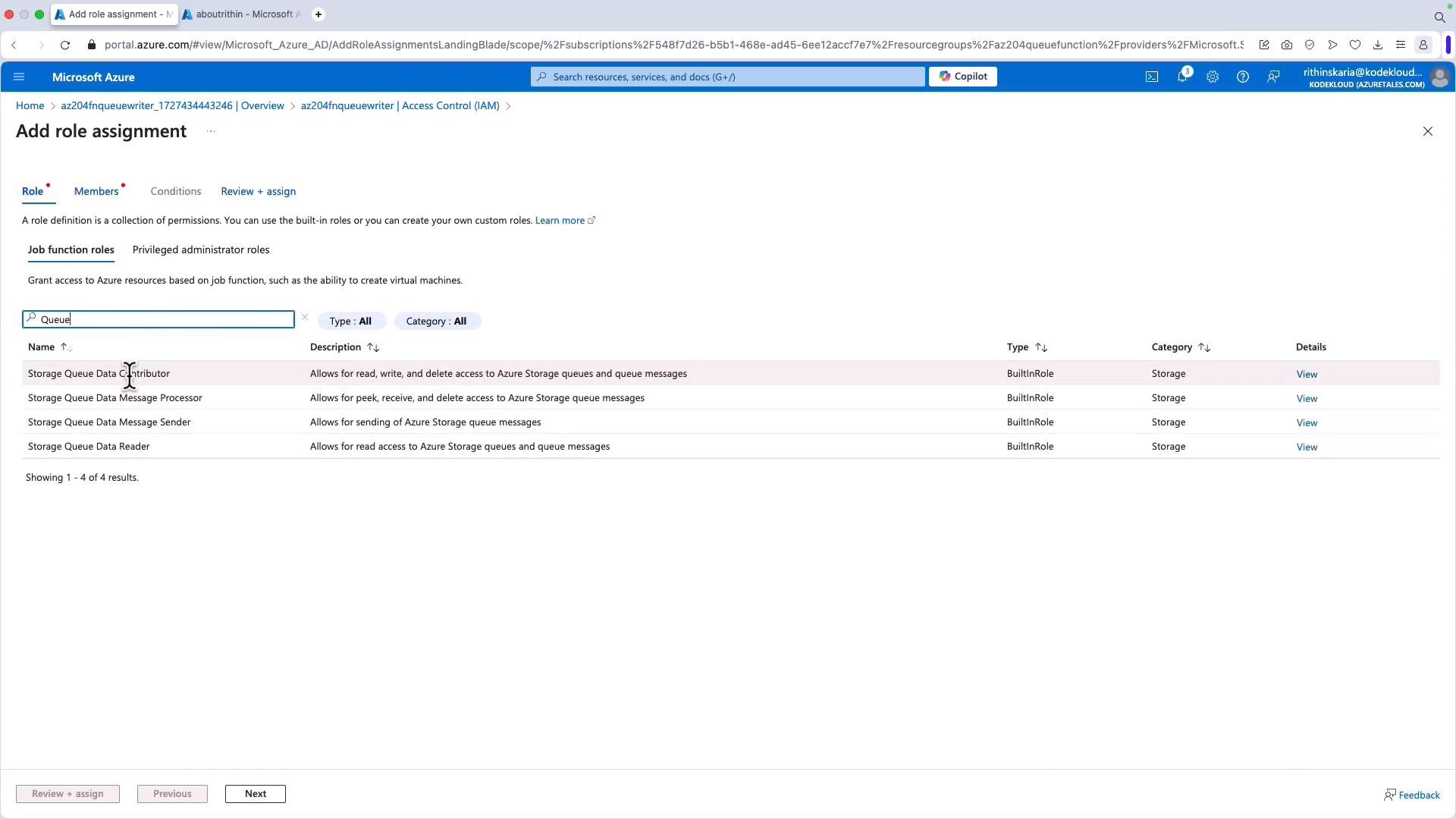
| `Storage Queue Data Contributor` | Full data access (send/receive/delete messages) |
| `Storage Queue Data Message Sender` | Only send messages to queues |
| `Storage Queue Data Reader` | Read-only access to messages/metadata |
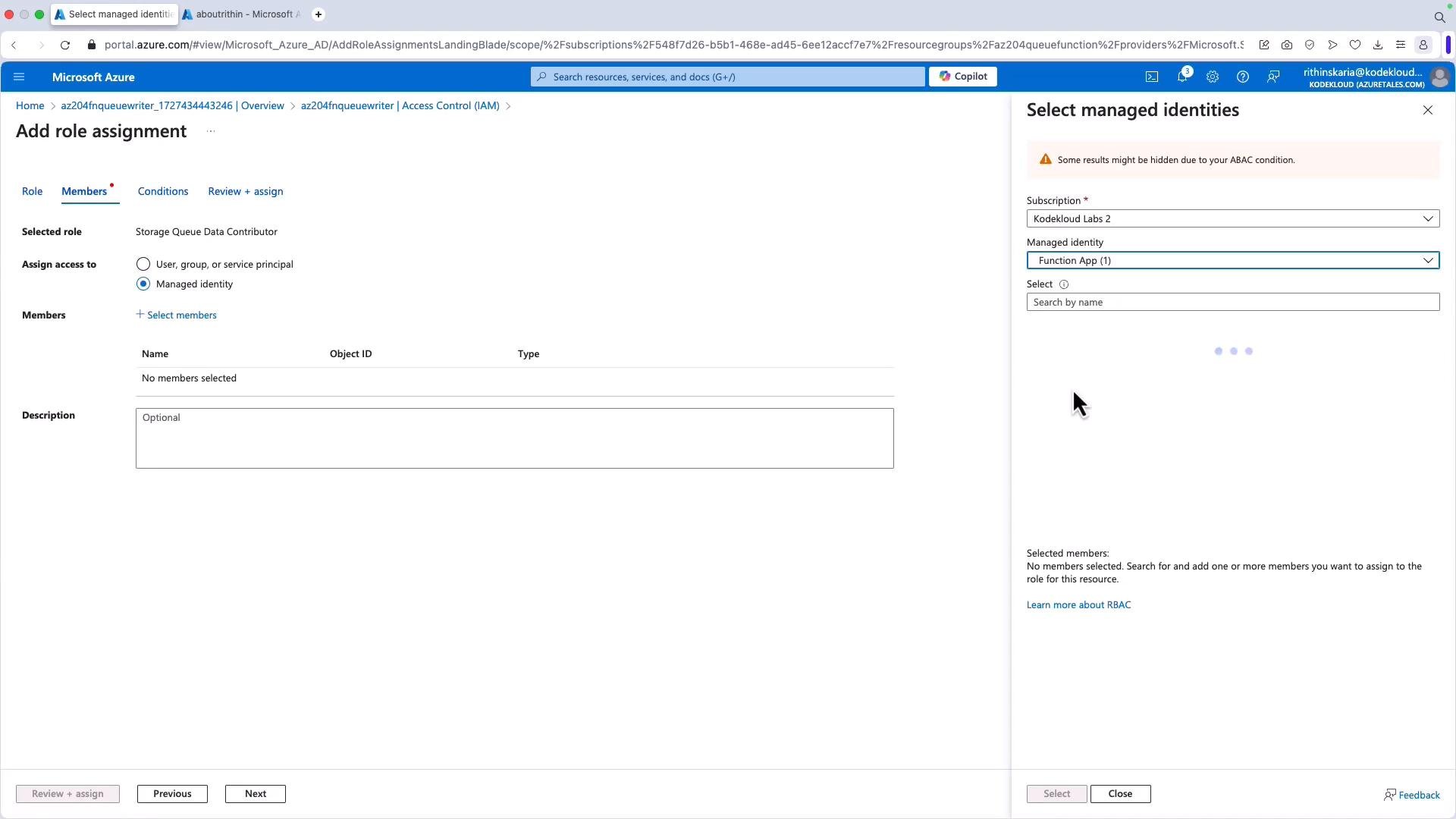
Grant your Function App's managed identity access to the storage account via the Access Control (IAM) blade. The following images show the IAM UI for a storage account and the role assignment flow.
## Azure Function: post messages to a queue using Managed Identity
This consolidated Azure Function implements a POST endpoint that:
* Reads the POST body as JSON
* Uses `DefaultAzureCredential` to authenticate (function app managed identity)
* Ensures the queue exists
* Sends the request body as a queue message
* Returns appropriate HTTP responses and logs progress
Before deploying, grant the Function App's managed identity one of the Storage Queue role assignments (for example, `Storage Queue Data Contributor` or `Storage Queue Data Message Sender`) on the storage account.
Azure Storage Queue messages have a maximum size of 64 KB. For larger payloads, store content in Blob Storage and send a reference (SAS URL or blob URL) in the queue message instead of the full payload.
Here is the function implementation (async, production-oriented):
```csharp theme={null}
using System;
using System.IO;
using System.Threading.Tasks;
using Azure.Identity;
using Azure.Storage.Queues;
using Microsoft.AspNetCore.Mvc;
using Microsoft.AspNetCore.Http;
using Microsoft.Azure.WebJobs;
using Microsoft.Azure.WebJobs.Extensions.Http;
using Microsoft.Extensions.Logging;
using Newtonsoft.Json;
public static class QueuePost
{
private const string queueName = "az204"; // Replace with your queue name
private const string storageAccount = "az204fnqueuewriter"; // Replace with your storage account name
[FunctionName("QueuePost")]
public static async Task Run(
[HttpTrigger(AuthorizationLevel.Function, "post", Route = null)] HttpRequest req,
ILogger log)
{
log.LogInformation("Processing a POST request to write message to Azure Queue...");
try
{
string requestBody = await new StreamReader(req.Body).ReadToEndAsync();
var data = JsonConvert.DeserializeObject(requestBody);
if (data == null)
{
return new BadRequestObjectResult("Invalid payload");
}
var credential = new DefaultAzureCredential();
var queueUri = new Uri($"https://{storageAccount}.queue.core.windows.net/{queueName}");
var queueClient = new QueueClient(queueUri, credential);
// Create the queue if it doesn't exist
await queueClient.CreateIfNotExistsAsync();
if (await queueClient.ExistsAsync())
{
await queueClient.SendMessageAsync(requestBody);
log.LogInformation($"Message added to the queue: {requestBody}");
}
else
{
log.LogError("Queue does not exist and could not be created.");
return new BadRequestObjectResult("Queue does not exist.");
}
return new OkObjectResult($"Message added to queue: {queueName}");
}
catch (Exception ex)
{
log.LogError($"Error occurred while writing to the queue: {ex.Message}");
return new StatusCodeResult(StatusCodes.Status500InternalServerError);
}
}
}
```
Recommended permissions:
| Role name | Purpose |
| - | - |
| `Storage Queue Data Contributor` | Full data access (send/receive/delete messages) |
| `Storage Queue Data Message Sender` | Only send messages to queues |
| `Storage Queue Data Reader` | Read-only access to messages/metadata |
Grant your Function App's managed identity access to the storage account via the Access Control (IAM) blade. The following images show the IAM UI for a storage account and the role assignment flow.
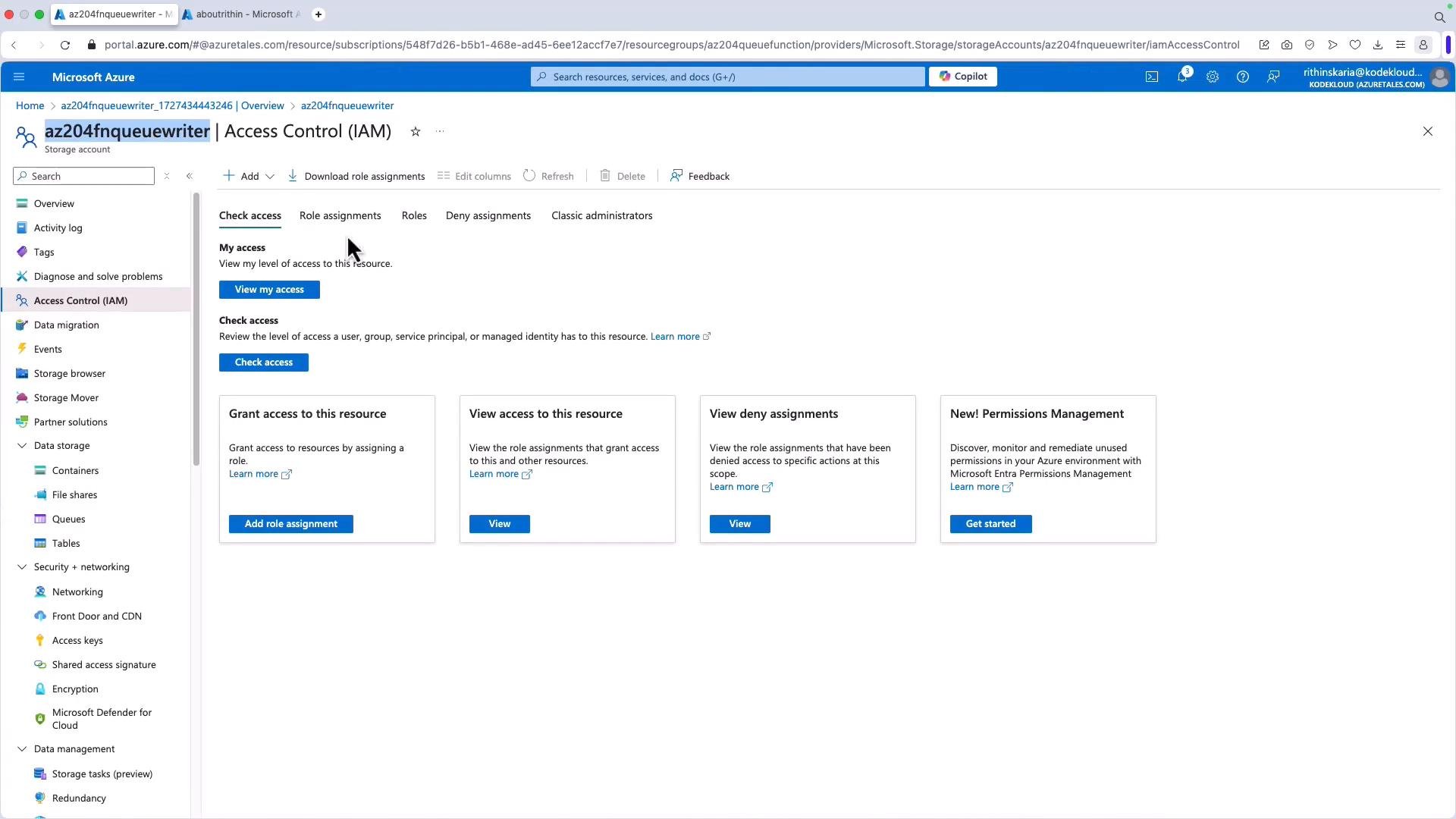 Select a role appropriate for your scenario (for example, Storage Queue Data Contributor or Storage Queue Data Message Sender).
 Assign the role to the Function App's managed identity.
 After assigning the role, deploy the Function App and test it. You can call the function from [Postman](https://www.postman.com/) or from the portal’s Test/Run tab. Ensure you provide the function key in the query string or headers and set `Content-Type: application/json`.
Example auto-generated function.json (for reference):
```json theme={null}
{
"generatedBy": "Microsoft.NET.Sdk.Functions.Generator-4.4.0",
"configurationSource": "attributes",
"bindings": [
{
"type": "httpTrigger",
"methods": [ "post" ],
"authLevel": "function",
"name": "req"
}
],
"disabled": false,
"scriptFile": "../bin/QueueWriter.dll",
"entryPoint": "QueuePost.Run"
}
```
Example POST payload:
```json theme={null}
{
"name": "admin",
"url": "www.abc.com/admin.png"
}
```
Sample function logs when a message is successfully added:
```text theme={null}
2024-09-27T11:05:02Z [Information] Executing 'QueuePost' (Reason='This function was programmatically called via the host APIs...', Id=562bdae3-54fd-4fec-b207-7382829df4d0, ...)
2024-09-27T11:05:02Z [Information] Processing a POST request to write message to Azure Queue...
2024-09-27T11:05:02Z [Information] Message added to the queue: {"name":"admin","url":"www.abc.com/admin.png"}
2024-09-27T11:05:04Z [Information] Executed 'QueuePost' (Succeeded, Id=562bdae3-54fd-4fec-b207-7382829df4d0, Duration=1954ms)
```
## Viewing and verifying messages
To verify messages inserted by the function:
* Open Microsoft Storage Explorer or the portal’s Queues blade for your storage account.
* Refresh the queue view and open the queue (for example, `az204`) to inspect messages.
* Messages can then be processed by another function, written to a database (e.g., Cosmos DB), or consumed by any downstream service.
Useful link:
* [Storage Explorer documentation](https://learn.microsoft.com/azure/storage/common/storage-explorer?view=azure-storage-explorer)
## Summary
You have seen how to:
* Configure and use the Azure Storage Queues client (`Azure.Storage.Queues`) in .NET
* Create queues at runtime or manually in the portal
* Use DefaultAzureCredential / managed identity in an Azure Function to post messages securely
* Assign appropriate Storage Queue role permissions to the function app identity
* Verify messages using Storage Explorer or the portal
This completes coverage for creating and managing Azure Queue Storage queues and messages using .NET. For related messaging patterns (e.g., advanced pub/sub or topic semantics), consider Azure Service Bus depending on your requirements.
## Links and references
* [Azure Storage Queues overview](https://learn.microsoft.com/azure/storage/queues/storage-queues-introduction)
* [Azure Functions authentication and authorization](https://learn.microsoft.com/azure/azure-functions/functions-managed-identity)
* [Azure SDK for .NET documentation](https://learn.microsoft.com/dotnet/azure/)
This documentation is built and hosted on [Mintlify](https://mintlify.com), a developer documentation platform.
After assigning the role, deploy the Function App and test it. You can call the function from [Postman](https://www.postman.com/) or from the portal’s Test/Run tab. Ensure you provide the function key in the query string or headers and set `Content-Type: application/json`.
Example auto-generated function.json (for reference):
```json theme={null}
{
"generatedBy": "Microsoft.NET.Sdk.Functions.Generator-4.4.0",
"configurationSource": "attributes",
"bindings": [
{
"type": "httpTrigger",
"methods": [ "post" ],
"authLevel": "function",
"name": "req"
}
],
"disabled": false,
"scriptFile": "../bin/QueueWriter.dll",
"entryPoint": "QueuePost.Run"
}
```
Example POST payload:
```json theme={null}
{
"name": "admin",
"url": "www.abc.com/admin.png"
}
```
Sample function logs when a message is successfully added:
```text theme={null}
2024-09-27T11:05:02Z [Information] Executing 'QueuePost' (Reason='This function was programmatically called via the host APIs...', Id=562bdae3-54fd-4fec-b207-7382829df4d0, ...)
2024-09-27T11:05:02Z [Information] Processing a POST request to write message to Azure Queue...
2024-09-27T11:05:02Z [Information] Message added to the queue: {"name":"admin","url":"www.abc.com/admin.png"}
2024-09-27T11:05:04Z [Information] Executed 'QueuePost' (Succeeded, Id=562bdae3-54fd-4fec-b207-7382829df4d0, Duration=1954ms)
```
## Viewing and verifying messages
To verify messages inserted by the function:
* Open Microsoft Storage Explorer or the portal’s Queues blade for your storage account.
* Refresh the queue view and open the queue (for example, `az204`) to inspect messages.
* Messages can then be processed by another function, written to a database (e.g., Cosmos DB), or consumed by any downstream service.
Useful link:
* [Storage Explorer documentation](https://learn.microsoft.com/azure/storage/common/storage-explorer?view=azure-storage-explorer)
## Summary
You have seen how to:
* Configure and use the Azure Storage Queues client (`Azure.Storage.Queues`) in .NET
* Create queues at runtime or manually in the portal
* Use DefaultAzureCredential / managed identity in an Azure Function to post messages securely
* Assign appropriate Storage Queue role permissions to the function app identity
* Verify messages using Storage Explorer or the portal
This completes coverage for creating and managing Azure Queue Storage queues and messages using .NET. For related messaging patterns (e.g., advanced pub/sub or topic semantics), consider Azure Service Bus depending on your requirements.
## Links and references
* [Azure Storage Queues overview](https://learn.microsoft.com/azure/storage/queues/storage-queues-introduction)
* [Azure Functions authentication and authorization](https://learn.microsoft.com/azure/azure-functions/functions-managed-identity)
* [Azure SDK for .NET documentation](https://learn.microsoft.com/dotnet/azure/)
This documentation is built and hosted on [Mintlify](https://mintlify.com), a developer documentation platform.