> ## Documentation Index
> Fetch the complete documentation index at: https://notes.kodekloud.com/llms.txt
> Use this file to discover all available pages before exploring further.
# Design for Azure SQL Backup and Recovery
> Guide to Azure SQL backup and recovery covering backup types, retention, restore scenarios including PITR LTR and geo-restore, and how to configure policies and restores in the Azure portal
Database backups are essential: your application state and business data live in the database. This guide focuses on Azure SQL Database and Azure SQL Managed Instance (PaaS). If you run SQL Server on an Azure VM (IaaS), use the Recovery Services vault for backups—open the vault and choose "SQL on Azure VM" to configure those backups. The design and operational principles below apply primarily to Azure SQL PaaS offerings.
Azure SQL backup types, retention windows, and configurable limits vary by service tier and deployment option. Always verify exact limits for your tier in the official Azure docs: [https://learn.microsoft.com/azure/azure-sql/database/automatic-backups-overview](https://learn.microsoft.com/azure/azure-sql/database/automatic-backups-overview). The concepts here (full, differential, and transaction log backups; PITR; LTR; geo-restore) are broadly applicable.
Backup types and frequency
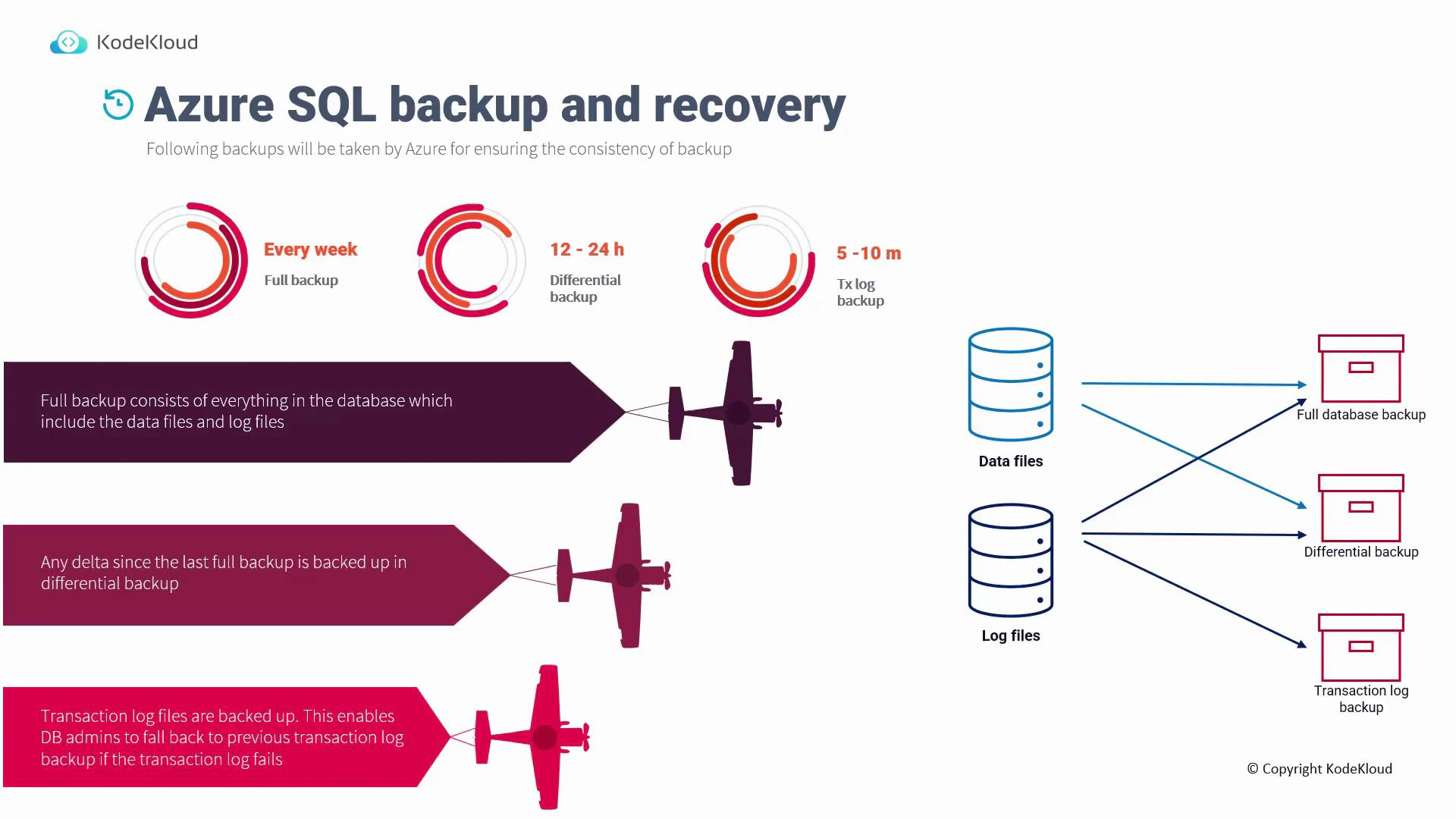
Azure SQL automatically performs three backup types to support point-in-time recovery (PITR) and other restore scenarios:
| Backup type | Typical frequency | Purpose |
| ---------------------- | -----------------: | ------------------------------------------------------------------------------------------- |
| Full backup | Weekly (typical) | Contains data files plus log records needed to make the backup consistent. |
| Differential backup | Every 12–24 hours | Captures page-level data changes since the last full backup (smaller and faster than full). |
| Transaction log backup | Every 5–10 minutes | Captures transaction log records to enable PITR within the configured retention window. |
These backups work together so you can restore a database to a full backup, a more recent differential, or to any point in time within the PITR window by replaying transaction log backups.
 What each backup contains
* Full backup: the database data files plus the transactional log records required to make the backup consistent.
* Differential backup: only data page changes (delta) since the last full backup.
* Transaction log backup: transaction log records only; used to replay transactions and perform PITR within retention.
Backup use cases
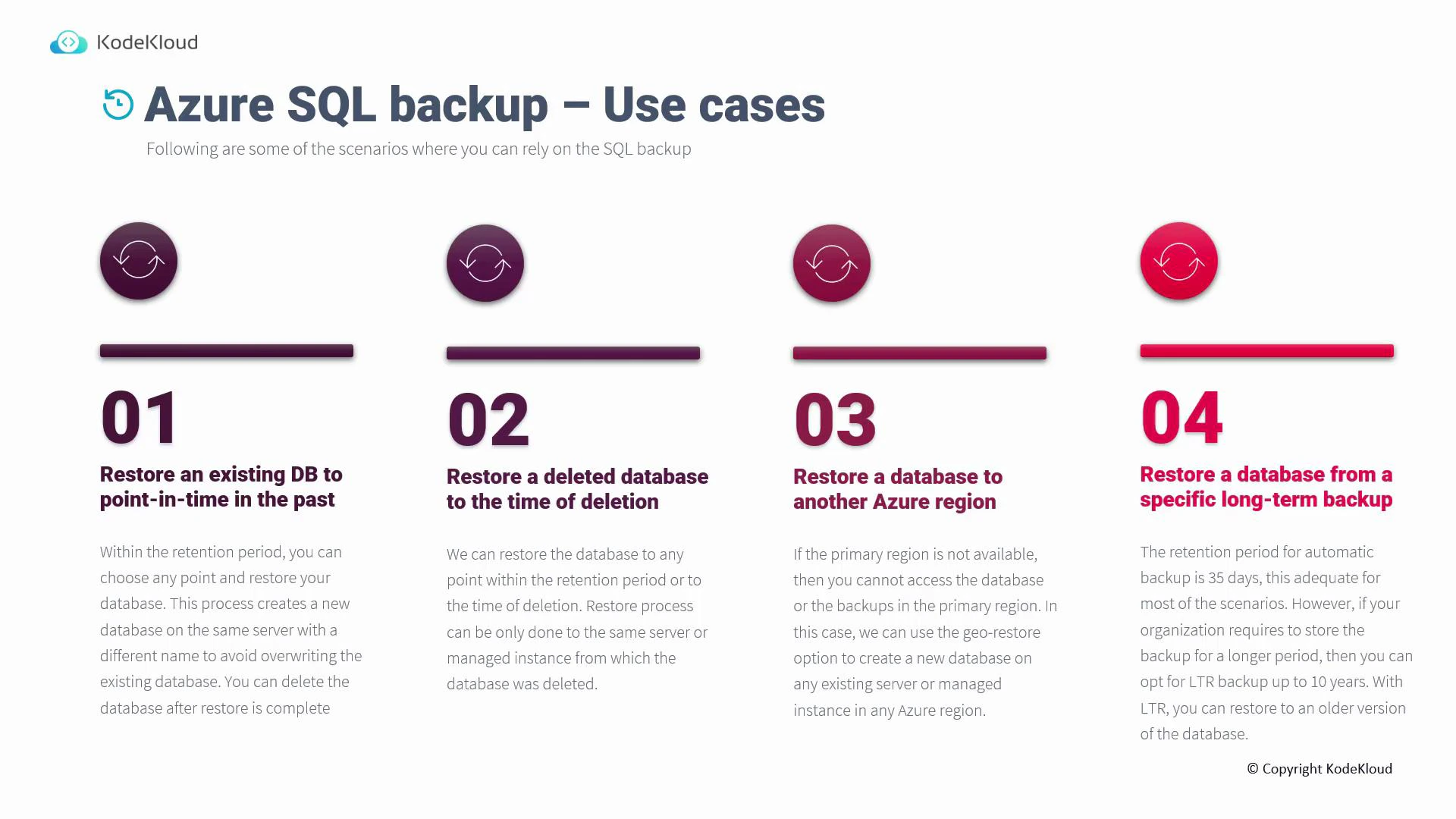
Use cases for Azure SQL backups include routine recovery, deleted-database recovery, cross-region disaster recovery, and long-term archival. The table below summarizes common restore scenarios and when to use them.
| Restore scenario | When to use it | Notes |
| --------------------------------- | ----------------------------------------------- | -------------------------------------------------------------------------------------------------------------------------------------------------------------------------------------------------------------------------------------------------------------------------------------------------- |
| Point-in-time restore (PITR) | Recover recent data or undo recent changes | Restores to any point within the configured PITR retention; creates a new database with a new name on the same server/instance. See: [https://learn.microsoft.com/azure/azure-sql/database/point-in-time-restore](https://learn.microsoft.com/azure/azure-sql/database/point-in-time-restore) |
| Restore deleted database | Recover a dropped database | You can restore to any point within retention, including the time of deletion. Must restore to the same server or managed instance. |
| Geo-restore | Primary region unavailable or disaster recovery | Uses geo-replicated backups to create a new database on any existing server/instance in another Azure region. See: [https://learn.microsoft.com/azure/azure-sql/database/geo-restore-overview](https://learn.microsoft.com/azure/azure-sql/database/geo-restore-overview) |
| Long-term retention (LTR) restore | Regulatory or archival requirements | Use LTR snapshots retained for weeks, months, or years (up to 10 years) to restore older snapshots beyond PITR limits. See: [https://learn.microsoft.com/azure/azure-sql/database/long-term-retention-overview](https://learn.microsoft.com/azure/azure-sql/database/long-term-retention-overview) |
What each backup contains
* Full backup: the database data files plus the transactional log records required to make the backup consistent.
* Differential backup: only data page changes (delta) since the last full backup.
* Transaction log backup: transaction log records only; used to replay transactions and perform PITR within retention.
Backup use cases
Use cases for Azure SQL backups include routine recovery, deleted-database recovery, cross-region disaster recovery, and long-term archival. The table below summarizes common restore scenarios and when to use them.
| Restore scenario | When to use it | Notes |
| --------------------------------- | ----------------------------------------------- | -------------------------------------------------------------------------------------------------------------------------------------------------------------------------------------------------------------------------------------------------------------------------------------------------- |
| Point-in-time restore (PITR) | Recover recent data or undo recent changes | Restores to any point within the configured PITR retention; creates a new database with a new name on the same server/instance. See: [https://learn.microsoft.com/azure/azure-sql/database/point-in-time-restore](https://learn.microsoft.com/azure/azure-sql/database/point-in-time-restore) |
| Restore deleted database | Recover a dropped database | You can restore to any point within retention, including the time of deletion. Must restore to the same server or managed instance. |
| Geo-restore | Primary region unavailable or disaster recovery | Uses geo-replicated backups to create a new database on any existing server/instance in another Azure region. See: [https://learn.microsoft.com/azure/azure-sql/database/geo-restore-overview](https://learn.microsoft.com/azure/azure-sql/database/geo-restore-overview) |
| Long-term retention (LTR) restore | Regulatory or archival requirements | Use LTR snapshots retained for weeks, months, or years (up to 10 years) to restore older snapshots beyond PITR limits. See: [https://learn.microsoft.com/azure/azure-sql/database/long-term-retention-overview](https://learn.microsoft.com/azure/azure-sql/database/long-term-retention-overview) |
 Configuring backups in the Azure portal
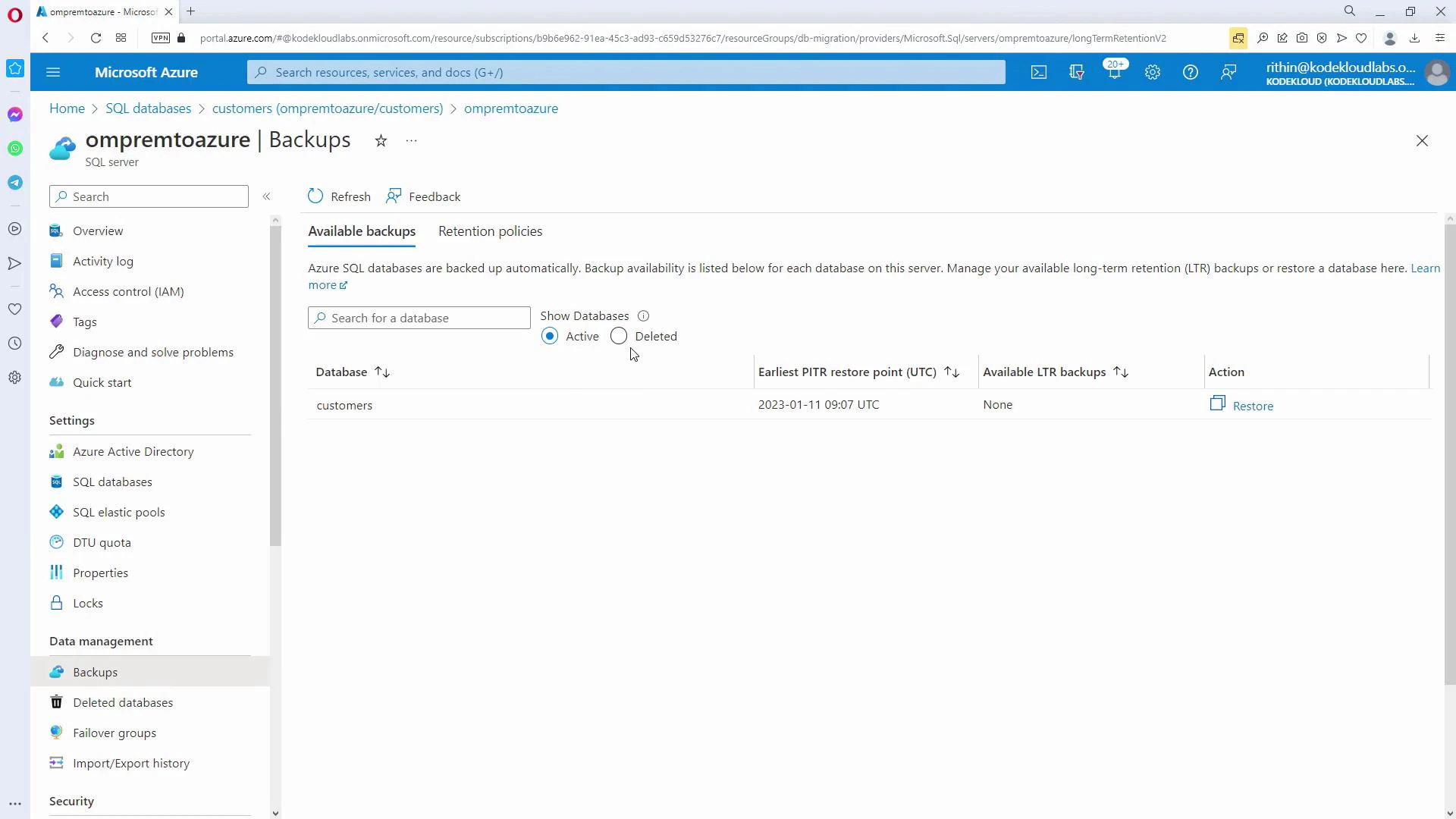
To review backup settings and available restore points:
1. Open the Azure portal and navigate to SQL databases.
2. Select the database to inspect (for example, a migrated database).
3. From the database page, click the server name to open the server overview.
4. On the server overview, choose Backups.
The Backups page lists available restore points (including the earliest PITR restore point), deleted backups that can be recovered, and any available LTR snapshots. Use the Restore action to create a new database from a selected restore point.
Configuring backups in the Azure portal
To review backup settings and available restore points:
1. Open the Azure portal and navigate to SQL databases.
2. Select the database to inspect (for example, a migrated database).
3. From the database page, click the server name to open the server overview.
4. On the server overview, choose Backups.
The Backups page lists available restore points (including the earliest PITR restore point), deleted backups that can be recovered, and any available LTR snapshots. Use the Restore action to create a new database from a selected restore point.
 Retention and policy configuration
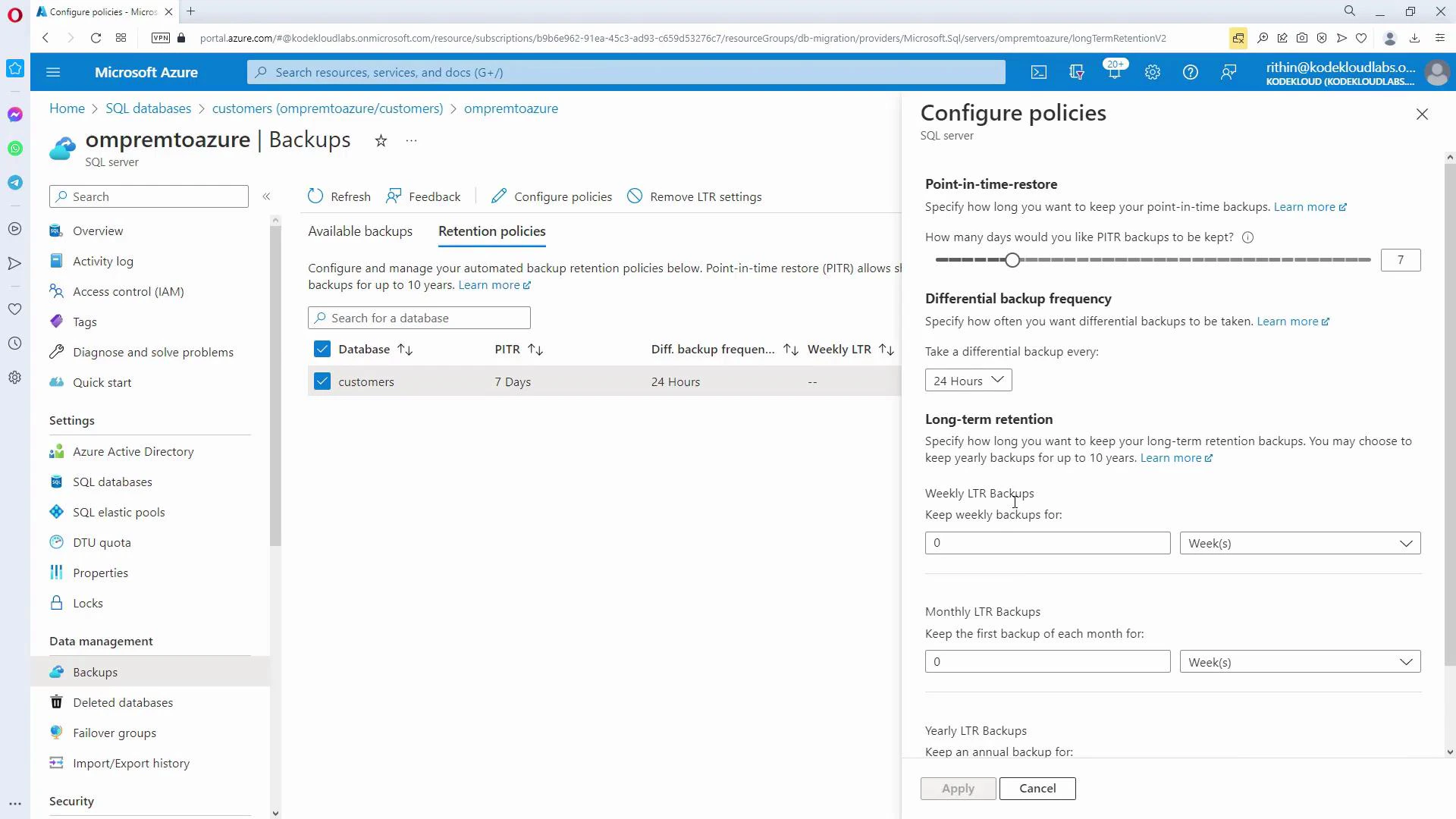
From the Backups page, click Configure policies to manage retention and schedule settings:
* Point-in-time restore (PITR) retention — set how many days of PITR you require (max varies by service tier; many tiers allow up to 35 days).
* Differential backup frequency — tune differential backup frequency (for example, 24 hours) to balance recovery granularity and storage.
* Long-term retention (LTR) — configure weekly, monthly, and yearly LTR snapshots and their retention durations (LTR supports retention up to 10 years).
If you remove an LTR policy, existing LTR snapshots retained beyond the policy must be handled according to your retention rules.
Retention and policy configuration
From the Backups page, click Configure policies to manage retention and schedule settings:
* Point-in-time restore (PITR) retention — set how many days of PITR you require (max varies by service tier; many tiers allow up to 35 days).
* Differential backup frequency — tune differential backup frequency (for example, 24 hours) to balance recovery granularity and storage.
* Long-term retention (LTR) — configure weekly, monthly, and yearly LTR snapshots and their retention durations (LTR supports retention up to 10 years).
If you remove an LTR policy, existing LTR snapshots retained beyond the policy must be handled according to your retention rules.
 When restoring a deleted database, you must restore to the same server or managed instance from which it was deleted. For cross-region recovery when the primary region is inaccessible, use geo-restore instead (this creates a database on a different server/region using geo-replicated backups).
Summary and recommendations
* Azure SQL uses full, differential, and transaction log backups in combination to enable PITR and other restore scenarios.
* Configure PITR retention and differential frequency on the server’s Backups page; enable LTR for long-term archival (up to 10 years).
* For SQL Server on Azure VMs, use the Recovery Services vault and select "SQL on Azure VM" to configure backups: [https://learn.microsoft.com/azure/backup/backup-introduction-to-azure-backup](https://learn.microsoft.com/azure/backup/backup-introduction-to-azure-backup).
* Deleted-database restores must target the original server/managed instance; geo-restore is available for region-level failures.
Further reading and references
* Azure SQL automatic backups overview: [https://learn.microsoft.com/azure/azure-sql/database/automatic-backups-overview](https://learn.microsoft.com/azure/azure-sql/database/automatic-backups-overview)
* Point-in-time restore (PITR): [https://learn.microsoft.com/azure/azure-sql/database/point-in-time-restore](https://learn.microsoft.com/azure/azure-sql/database/point-in-time-restore)
* Geo-restore overview: [https://learn.microsoft.com/azure/azure-sql/database/geo-restore-overview](https://learn.microsoft.com/azure/azure-sql/database/geo-restore-overview)
* Long-term retention (LTR): [https://learn.microsoft.com/azure/azure-sql/database/long-term-retention-overview](https://learn.microsoft.com/azure/azure-sql/database/long-term-retention-overview)
* Azure Backup (Recovery Services vault): [https://learn.microsoft.com/azure/backup/backup-introduction-to-azure-backup](https://learn.microsoft.com/azure/backup/backup-introduction-to-azure-backup)
When restoring a deleted database, you must restore to the same server or managed instance from which it was deleted. For cross-region recovery when the primary region is inaccessible, use geo-restore instead (this creates a database on a different server/region using geo-replicated backups).
Summary and recommendations
* Azure SQL uses full, differential, and transaction log backups in combination to enable PITR and other restore scenarios.
* Configure PITR retention and differential frequency on the server’s Backups page; enable LTR for long-term archival (up to 10 years).
* For SQL Server on Azure VMs, use the Recovery Services vault and select "SQL on Azure VM" to configure backups: [https://learn.microsoft.com/azure/backup/backup-introduction-to-azure-backup](https://learn.microsoft.com/azure/backup/backup-introduction-to-azure-backup).
* Deleted-database restores must target the original server/managed instance; geo-restore is available for region-level failures.
Further reading and references
* Azure SQL automatic backups overview: [https://learn.microsoft.com/azure/azure-sql/database/automatic-backups-overview](https://learn.microsoft.com/azure/azure-sql/database/automatic-backups-overview)
* Point-in-time restore (PITR): [https://learn.microsoft.com/azure/azure-sql/database/point-in-time-restore](https://learn.microsoft.com/azure/azure-sql/database/point-in-time-restore)
* Geo-restore overview: [https://learn.microsoft.com/azure/azure-sql/database/geo-restore-overview](https://learn.microsoft.com/azure/azure-sql/database/geo-restore-overview)
* Long-term retention (LTR): [https://learn.microsoft.com/azure/azure-sql/database/long-term-retention-overview](https://learn.microsoft.com/azure/azure-sql/database/long-term-retention-overview)
* Azure Backup (Recovery Services vault): [https://learn.microsoft.com/azure/backup/backup-introduction-to-azure-backup](https://learn.microsoft.com/azure/backup/backup-introduction-to-azure-backup)