> ## Documentation Index
> Fetch the complete documentation index at: https://notes.kodekloud.com/llms.txt
> Use this file to discover all available pages before exploring further.
# Generating a Change Log
> Learn to automate changelog generation with Git and Azure Pipelines, and publish it directly to your Azure DevOps Wiki.
Maintaining a clear, up-to-date changelog is essential for tracking project history and communicating updates. In this guide, you’ll learn how to automate changelog generation with Git and Azure Pipelines, then publish it directly to your Azure DevOps Wiki.
## 1. Quick Git Log Examples
Start by extracting commit history in chronological order:
```bash theme={null}
git log --pretty=format:"%s" -s --reverse
```
Example output:
```text theme={null}
- Initial Commit
- Adding Wiki
- Set up CI with Azure Pipelines
- Update azure-pipelines.yml for Azure Pipelines
- adding push
- trying git push
- testing build
- changing yml
- changing a few things
- will it work
- Update release notes in wiki folder
```
To include author and relative date, adjust the format string:
```bash theme={null}
git log --pretty=format:"%s - %an, %ar" --reverse
```
Sample entries:
```text theme={null}
Initial Commit - Alice, 2 years ago
Adding Wiki - Bob, 2 years ago
Set up CI with Azure Pipelines - Carol, 1 year ago
...
```
### Git Log Format Options
| Placeholder | Description |
| ----------- | ----------------------------------------- |
| %h | Abbreviated commit hash |
| %s | Commit subject (message) |
| %an | Author name |
| %ar | Author date, relative (e.g. “2 days ago”) |
For a full list of placeholders, see the [Git log documentation](https://git-scm.com/docs/git-log#_pretty_formats).
## 2. Integrating with Azure Pipelines
### 2.1 Generating Release Notes
If you’re already using the **Generate Release Notes** task in your `azure-pipelines.yml`, it might look like this:
```yaml theme={null}
# azure-pipelines.yml (excerpt)
- task: XplatGenerateReleaseNotes@4
inputs:
checkForManuallyLinkedWI: False
wiqlFromFile: 'WorkItems'
- task: CopyReleaseNotes@2
displayName: 'Copy Release Notes to Wiki Folder'
inputs:
SourceFolder: '$(Build.Repository.LocalPath)'
Contents: 'releasenotes_$(Build.BuildId).md'
TargetFolder: '$(Build.Repository.LocalPath)/wiki'
CleanTargetFolder: true
OverWrite: true
- script: |
del "$(Build.Repository.LocalPath)\releasenotes_$(Build.BuildId).md"
displayName: 'Delete Original Release Notes File'
- task: CmdLine@2
displayName: 'Commit Release Notes to Wiki Folder'
inputs:
script: |
git checkout master
git pull
git config --global user.email "jeremy@kodekloud.com"
git config --global user.name "Jeremy Morgan"
git remote add origin https://jeremy0665@dev.azure.com/jeremy0665/TestWeb/_git/TestWeb
git add wiki/releasenotes_$(Build.BuildId).md
git commit -m "[skip ci] Update release notes for $(Build.BuildId) in wiki folder"
git push origin HEAD:master
```
### 2.2 Adding an Automated Changelog Task
Append a PowerShell step to generate `CHANGELOG.md` via `git log`, then copy and commit it:
```yaml theme={null}
# azure-pipelines.yml (extended excerpt)
- task: PowerShell@2
displayName: 'Generate CHANGELOG.md via Git'
inputs:
targetType: 'inline'
script: |
# Generate changelog with hash, subject, author, and relative date
git log --pretty=format:"%h - %s (%an, %ar)" --reverse |
ForEach-Object { Add-Content -Path CHANGELOG.md -Value $_ }
- task: CopyFiles@2
displayName: 'Copy Changelog to Wiki Folder'
inputs:
SourceFolder: '$(Build.Repository.LocalPath)'
Contents: 'CHANGELOG.md'
TargetFolder: '$(Build.Repository.LocalPath)/wiki'
CleanTargetFolder: true
OverWrite: true
- task: CmdLine@2
displayName: 'Commit Changelog to Wiki'
inputs:
script: |
git checkout master
git pull
git config --global user.email "jeremy@kodekloud.com"
git config --global user.name "Jeremy Morgan"
git add wiki/CHANGELOG.md
git commit -m "[skip ci] Update CHANGELOG.md for $(Build.BuildId)"
git push origin HEAD:master
```
## 3. Running the Pipeline
During execution, tasks run in sequence: job initialization, code checkout, dependency restore, build, release note generation, changelog creation, and file copying.
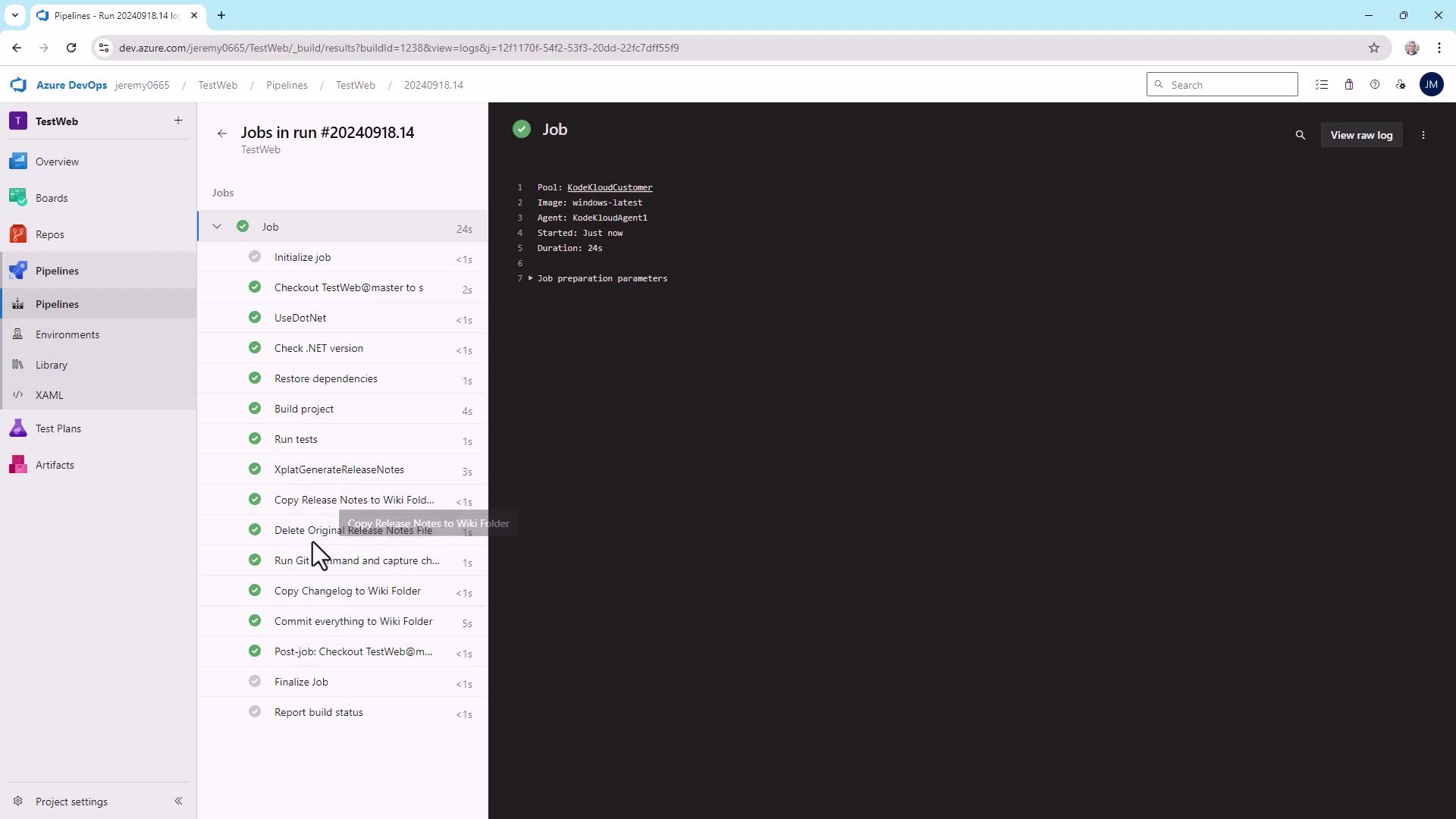
After the “Copy Changelog to Wiki Folder” step, the logs will confirm file operations:
```text theme={null}
Starting: Copy Changelog to Wiki Folder
=====================================================
Task : Copy files
Description : Copy files from a source folder to a target folder using patterns matching file paths (not folder paths)
Version : 2.238.0
Author : Microsoft Corporation
Help : https://docs.microsoft.com/azure/devops/pipelines/tasks/utility/copy-files
=====================================================
found 1 files
Cleaning target folder: C:\agent\_work\5\wiki
Copying C:\agent\_work\5\CHANGELOG.md to C:\agent\_work\5\wiki\CHANGELOG.md
Finishing: Copy Changelog to Wiki Folder
```
## 4. Viewing the Changelog in the Wiki
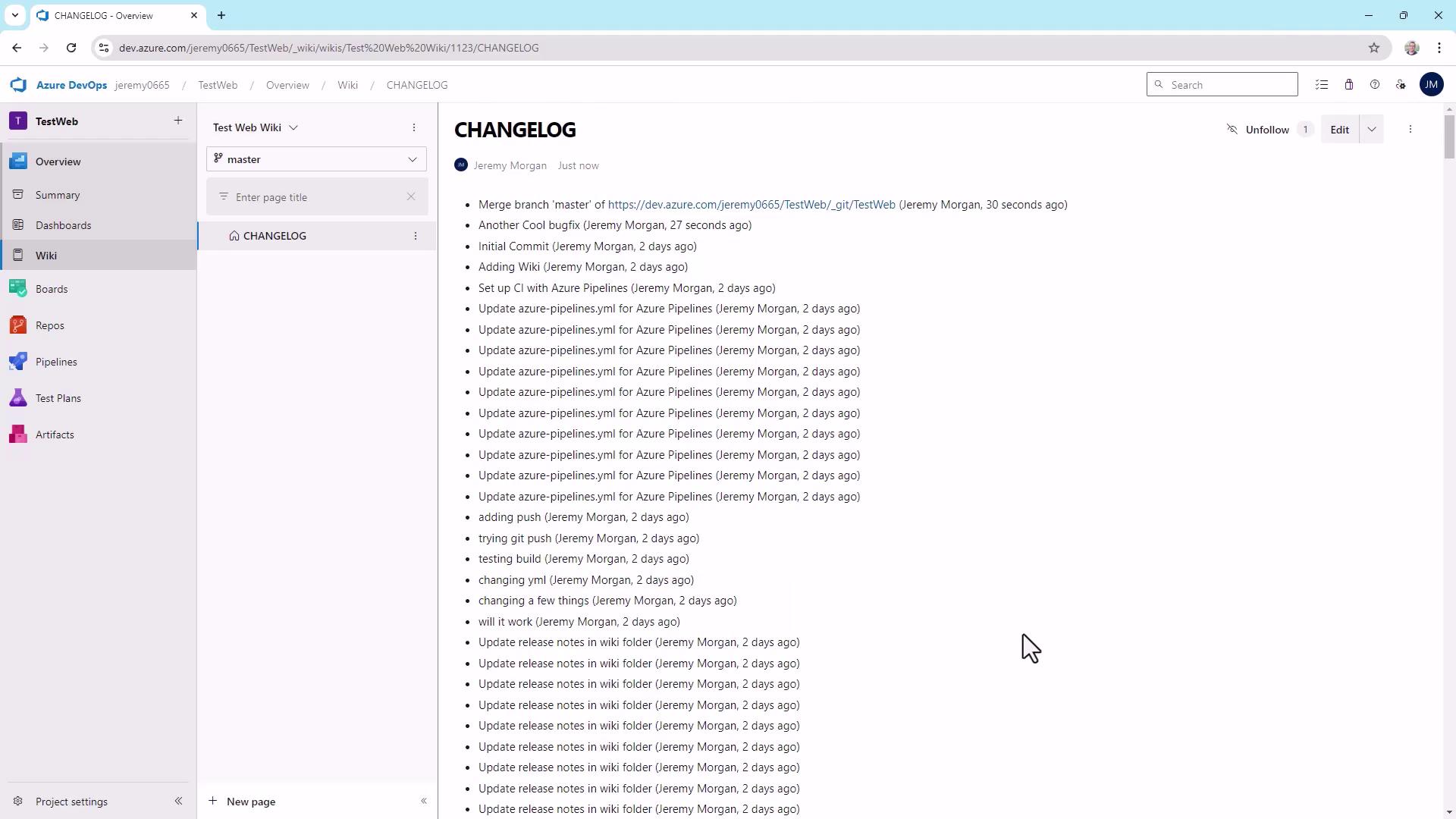
After pipeline completion, navigate to your Azure DevOps Wiki to see the updated `CHANGELOG.md` listing all recent commits automatically.
## 5. Further Customization
You can enrich your automated changelog by:
* Including build numbers or branch names in each entry
* Linking Pull Requests or work items (`%B`, `%D` placeholders in `git log`)
* Appending test results or code coverage summaries
Experiment with `--pretty=format` to tailor the output for your team’s workflow and documentation standards. Happy changelogging!
## References
* [Git Log Pretty Formats](https://git-scm.com/docs/git-log#_pretty_formats)
* [Azure Pipelines Copy Files Task](https://docs.microsoft.com/azure/devops/pipelines/tasks/utility/copy-files)
* [Azure Pipelines PowerShell Task](https://docs.microsoft.com/azure/devops/pipelines/tasks/utility/powershell)