> ## Documentation Index
> Fetch the complete documentation index at: https://notes.kodekloud.com/llms.txt
> Use this file to discover all available pages before exploring further.
# Demo Generating Release Notes
> This guide explains how to automate Markdown release notes generation and publishing to an Azure DevOps Wiki for a .NET Web API application.
In this guide, you’ll learn how to automatically generate Markdown-based release notes for your .NET Web API application and publish them to an Azure DevOps Wiki. By integrating the **Generate Release Notes (Crossplatform)** extension into your CI pipeline, you can maintain an up-to-date, code-based wiki—no manual steps required.
We’ll use a sample project called **TestWeb** and demonstrate:
* Installing the release-notes extension
* Creating and configuring an Azure Pipelines YAML
* Generating, copying, and committing the release notes

***
## 1. Install the “Generate Release Notes (Crossplatform)” Extension
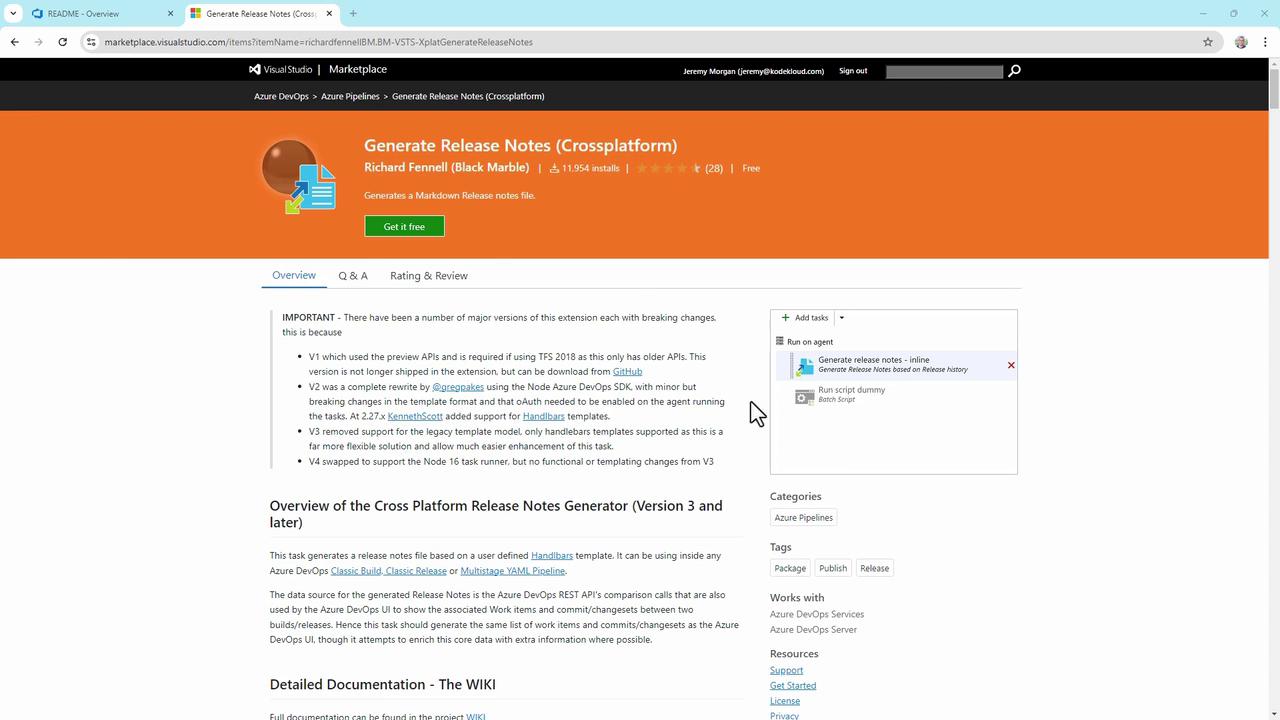
1. Go to the [Visual Studio Marketplace](https://marketplace.visualstudio.com).
2. Search for **Generate Release Notes (Crossplatform)** by Richard Fennell.
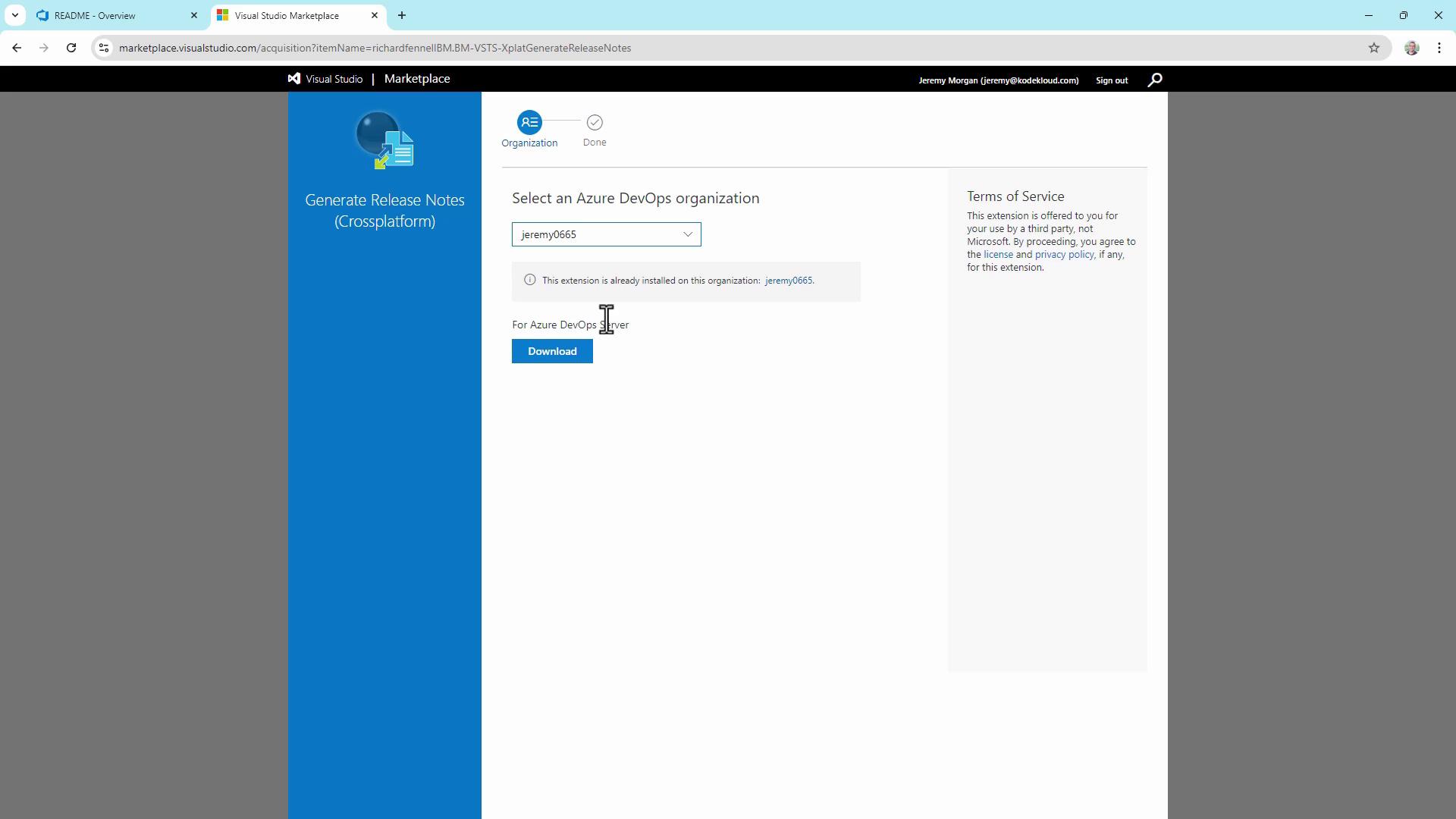
3. Click **Get it Free** and select your Azure DevOps organization.
If you’re running Azure DevOps Server (on-prem), download the extension package directly from its Marketplace page and upload it to your server.
***
## 2. Create a Starter Pipeline
1. In Azure DevOps, navigate to **Pipelines** → **Create Pipeline**.
2. Choose **Azure Repos** → your **TestWeb** repository.
3. Select **Starter pipeline** to scaffold a basic `azure-pipelines.yml`.
```yaml theme={null}
# azure-pipelines.yml (Starter)
trigger:
- master
pool:
vmImage: 'windows-latest'
steps:
- script: echo Hello, world!
displayName: 'Run a one-line script'
```
Replace the sample scripts with .NET build and test steps:
```yaml theme={null}
# azure-pipelines.yml (Build + Test)
trigger:
- master
pool:
vmImage: 'windows-latest'
steps:
- task: UseDotNet@2
inputs:
packageType: 'sdk'
version: '1.0.x'
installationPath: '$(Agent.ToolsDirectory)/dotnet'
- script: dotnet --version
displayName: 'Check .NET Version'
- script: dotnet restore
displayName: 'Restore dependencies'
- script: dotnet build --configuration Release --no-restore
displayName: 'Build project'
- script: dotnet test --no-build --verbosity normal
displayName: 'Run tests'
```
Save and run the pipeline. After it succeeds, you’ll see a successful build run:

***
## 3. Add the Generate Release Notes Task
Extend your YAML to generate and publish release notes in four steps:
```yaml theme={null}
# azure-pipelines.yml (Generate & Publish Release Notes)
trigger:
- master
pool:
vmImage: 'windows-latest'
steps:
# Build and Test (from previous section)
- task: UseDotNet@2
inputs:
packageType: 'sdk'
version: '1.0.x'
installationPath: '$(Agent.ToolsDirectory)/dotnet'
- script: dotnet restore; dotnet build --configuration Release --no-restore; dotnet test --no-build
displayName: 'Restore, Build, and Test'
# 1. Generate release notes in repo root
- task: XplatGenerateReleaseNotes@4
inputs:
outputFile: '$(Build.Repository.LocalPath)\releasenotes_$(Build.BuildId).md'
templateLocation: 'Inline'
inlineTemplate: |
## Build {{buildDetails.buildNumber}}
**Branch:** {{buildDetails.sourceBranch}}
**Author:** {{buildDetails.requestedFor.displayName}}
**Commit:** {{buildDetails.sourceVersion}}
dumpPayloadToConsole: false
replaceFile: true
# 2. Copy to wiki folder
- task: CopyFiles@2
displayName: 'Copy Release Notes to Wiki Folder'
inputs:
SourceFolder: '$(Build.Repository.LocalPath)'
Contents: 'releasenotes_$(Build.BuildId).md'
TargetFolder: '$(Build.Repository.LocalPath)/wiki'
CleanTargetFolder: true
OverWrite: true
# 3. Clean up temporary file
- script: del "$(Build.Repository.LocalPath)\releasenotes_$(Build.BuildId).md"
displayName: 'Delete Temporary Release Notes File'
# 4. Commit back to wiki (skip CI)
- task: CmdLine@2
displayName: 'Commit Release Notes to Wiki'
inputs:
script: |
git checkout master
git pull
git config --global user.email "you@example.com"
git config --global user.name "Your Name"
git add wiki/releasenotes_$(Build.BuildId).md
git commit -m "[skip ci] Update release notes for build $(Build.BuildId)"
git push origin HEAD:master
```
Run the updated pipeline and inspect the release-notes generation logs:

***
## 4. Edit and View in Visual Studio Code
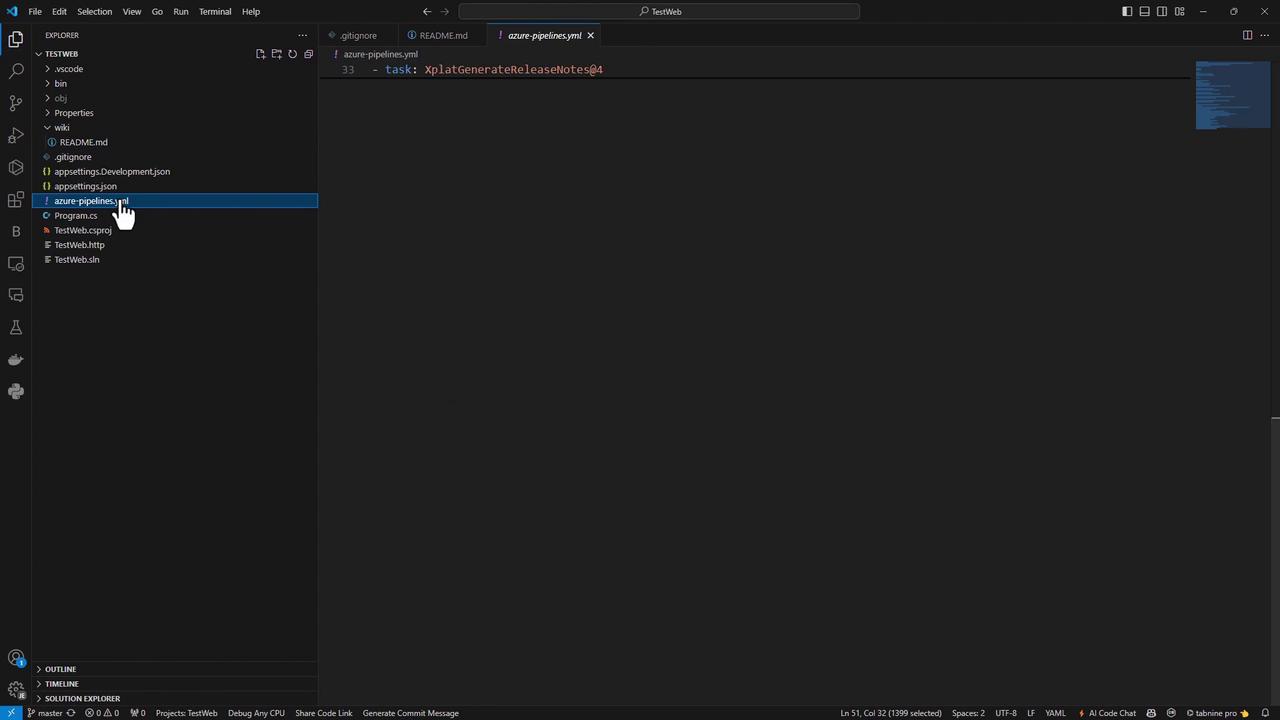
For easier editing, clone the repo locally and open **azure-pipelines.yml** in VS Code. You’ll find all tasks, including the release-notes steps, in one file.
***
## 5. Review Logs and Verify the Wiki
After another run, confirm the copy step output:
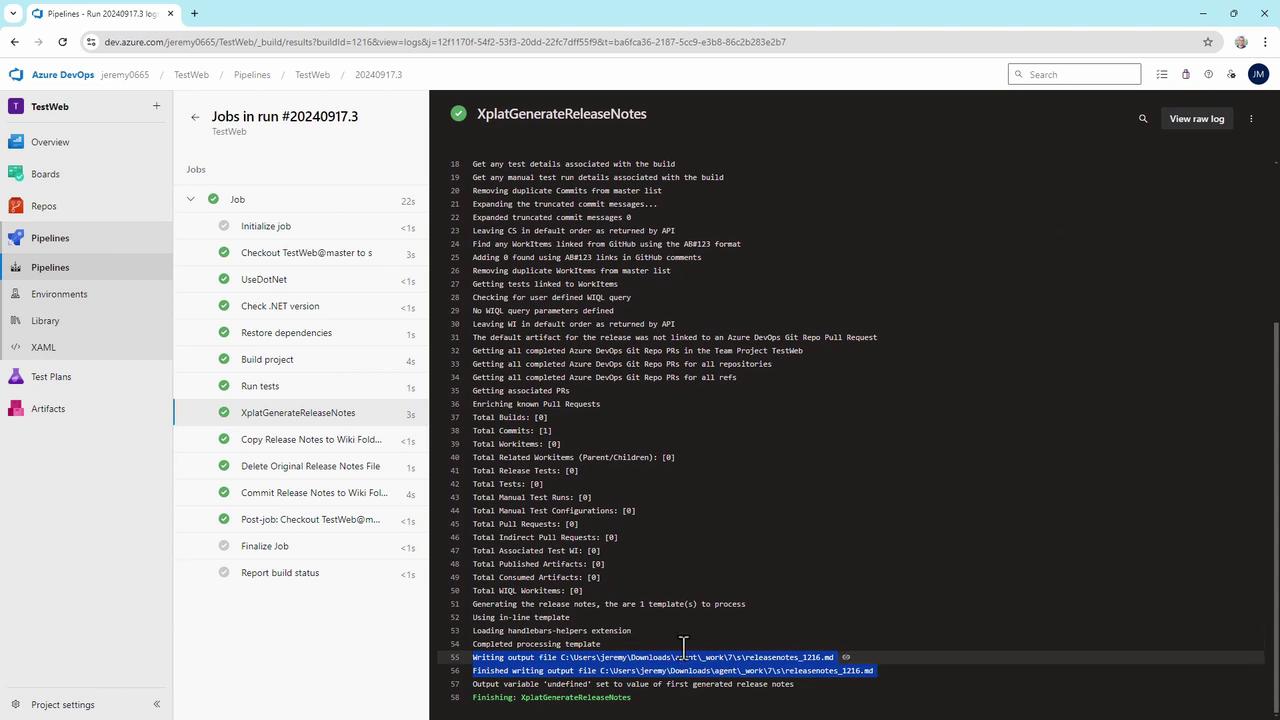
Cleaning target folder: C:\agent\_work\7\s\wiki
Copying C:\agent\_work\7\releasenotes\_1216.md to C:\agent\_work\7\s\wiki\releasenotes\_1216.md
Finally, navigate to your Azure DevOps Wiki—each build now publishes a new `releasenotes_.md` page:

This template shows build number, branch, author, and commit. Extend the Handlebars template to include work items, pull requests, changelogs, or custom fields from Azure Boards.
***
With this setup, every commit to `master` triggers a pipeline that generates and publishes release notes to your Azure DevOps Wiki—fully automated, CI-safe, and effortless to maintain.
## Links and References
* [Generate Release Notes Extension (MarketPlace)](https://marketplace.visualstudio.com/items?itemName=richardfennellBM.BM-VSTS-GenerateReleaseNotes)
* [Azure Pipelines YAML Reference](https://docs.microsoft.com/azure/devops/pipelines/yaml-schema)
* [Azure DevOps Wiki Documentation](https://docs.microsoft.com/azure/devops/project/wiki/wiki-overview)