> ## Documentation Index
> Fetch the complete documentation index at: https://notes.kodekloud.com/llms.txt
> Use this file to discover all available pages before exploring further.
# Demo Notifications from Webhooks
> This tutorial explains how to create webhook subscriptions in Azure DevOps for automatic build notifications to any HTTP endpoint.
In this tutorial, you’ll learn how to create webhook subscriptions in Azure DevOps to automatically send build notifications to any HTTP endpoint. By the end, you’ll be able to trigger external workflows—such as custom dashboards, chat bots, or monitoring tools—whenever your pipeline completes.
## What Is a Webhook?
A webhook is an HTTP callback that enables one application to push real‐time event data to another service. Unlike polling, where you repeatedly check for updates, webhooks deliver payloads instantly when an event occurs.
| Feature | Polling | Webhook |
| -------------- | ----------------------------- | -------------------------------- |
| Delivery | Client-initiated fetch | Server pushes data on events |
| Latency | Dependent on polling interval | Near real-time |
| Resource usage | Higher network load | Efficient, event-driven |
| Configuration | Requires scheduling logic | Simple subscription in UI or API |
## Scenario
Our project **TestWeb** hosts an ASP.NET Web API pipeline also named **TestWeb**. Whenever the pipeline succeeds, we want Azure DevOps to POST a JSON payload to a custom endpoint for further processing.
***
### 1. Open Service Hooks
1. In the lower-left, select **Project Settings**.
2. Click **Service Hooks**.
3. Choose **+ Create subscription**.
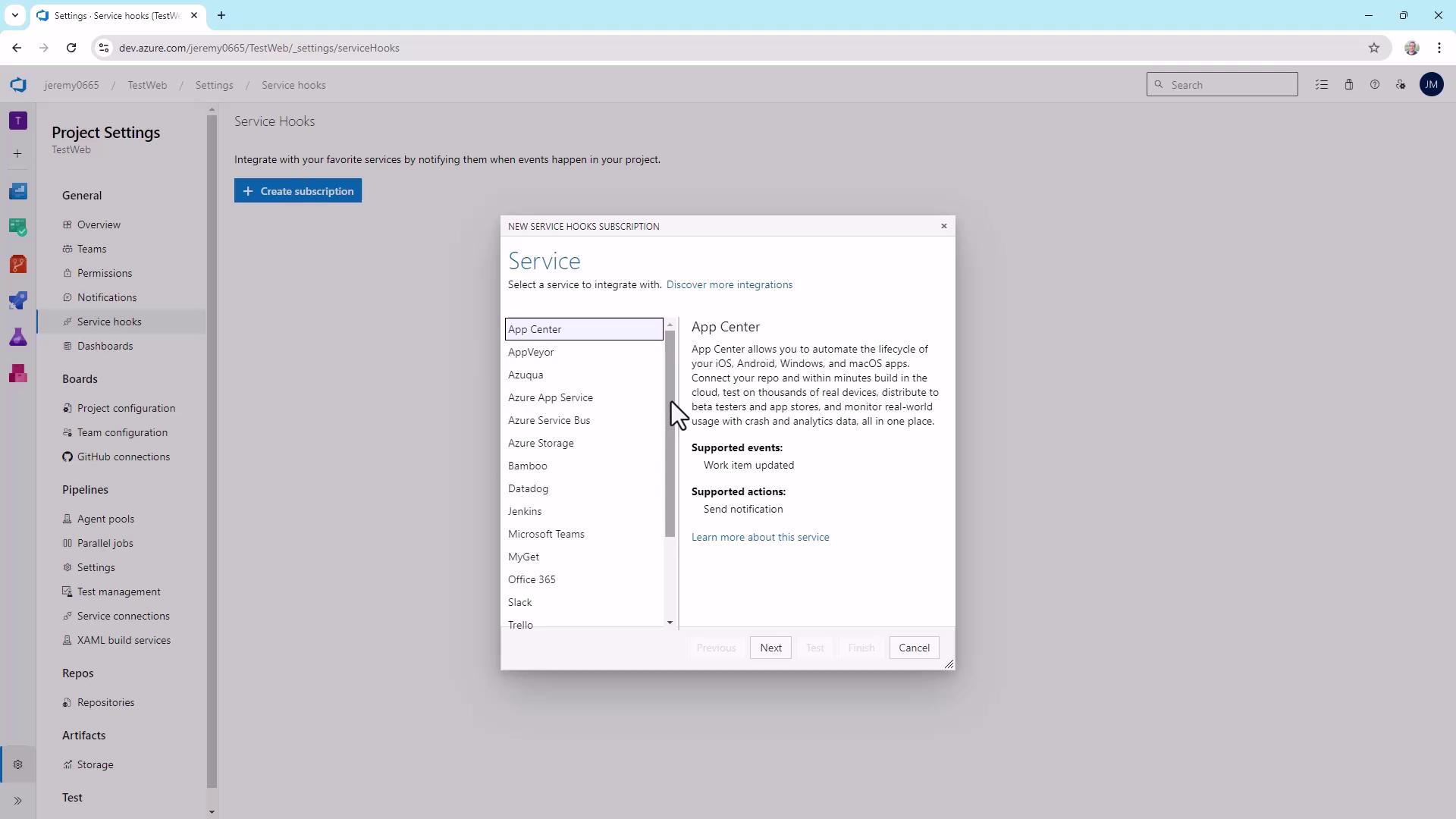
### 2. Choose the Webhooks Service
1. Scroll through the service list and select **Webhooks**.
2. Click **Next**.
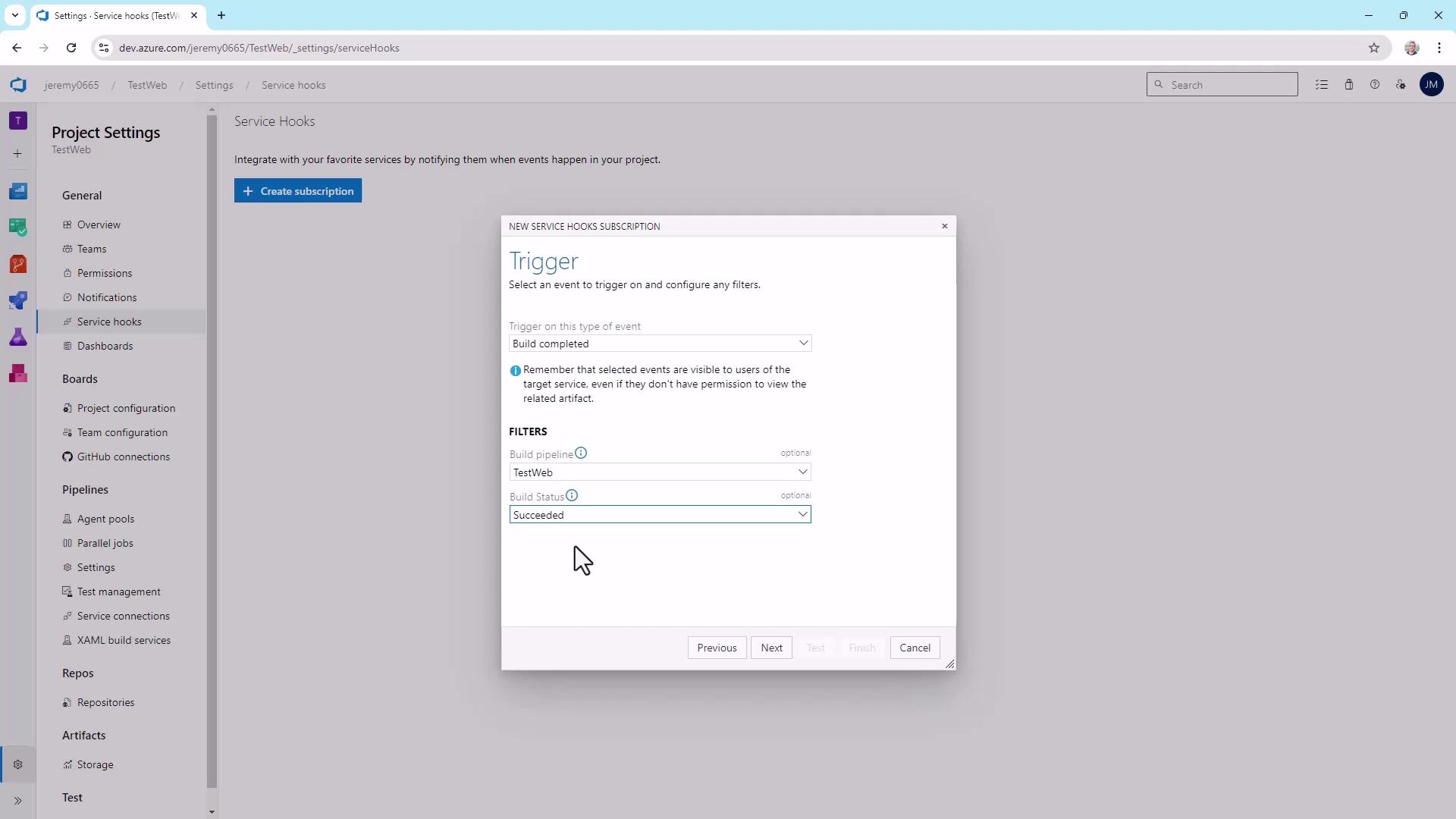
### 3. Configure the Trigger
1. Under **Trigger on this type of event**, pick **Build completed**.
2. For **Project**, select **TestWeb**.
3. Restrict **Build status** to **Succeeded**.
4. Click **Next**.
### 4. Define the Webhook Endpoint
You can deliver to any HTTP(S) URL—public or private. For this demo, we’ll use [RequestBin](https://requestbin.com/) to capture and inspect the payload.
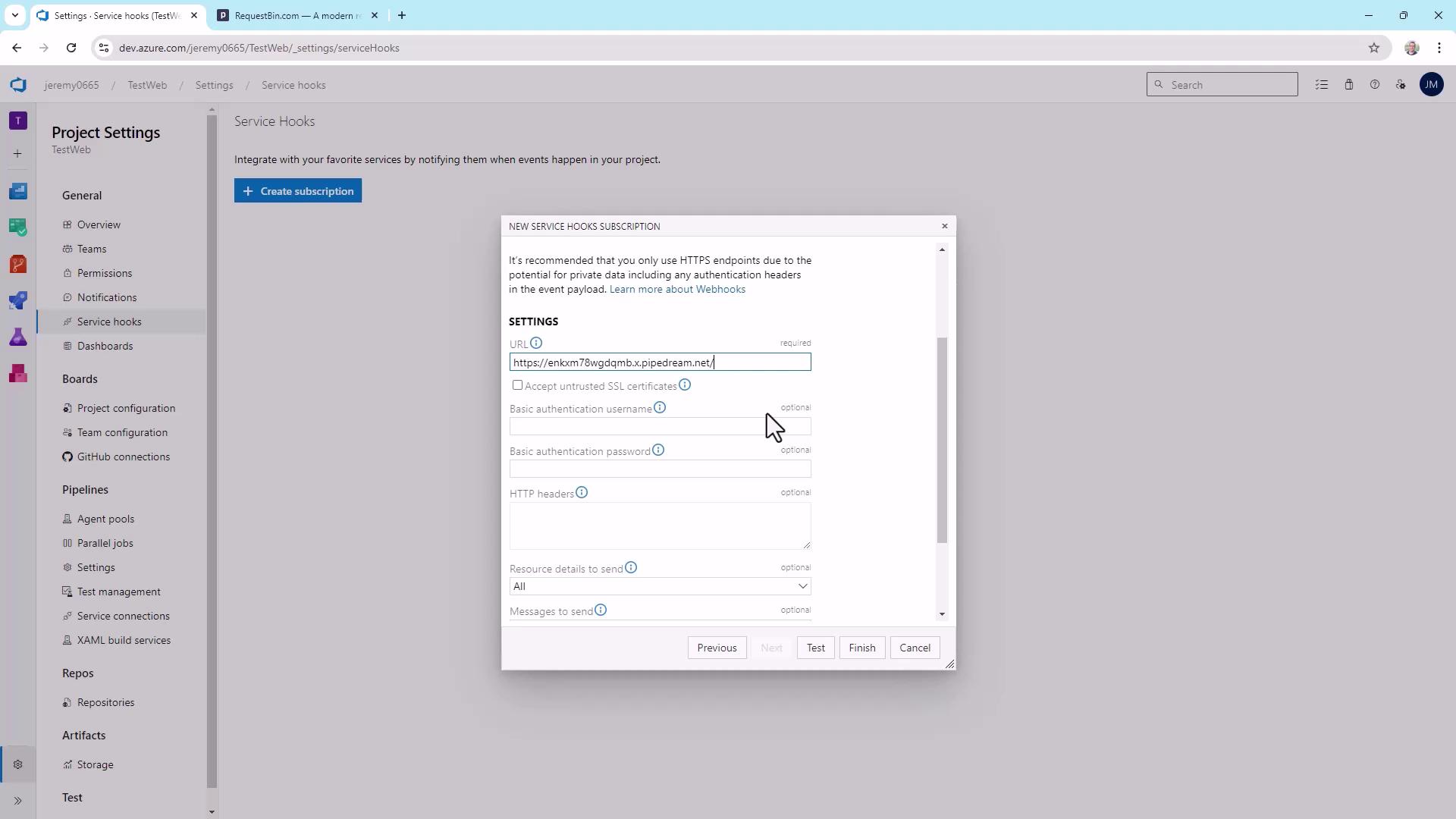
| Option | Description |
| --------------------------------- | ------------------------------------------------------------ |
| URL | Endpoint to receive POST requests |
| Accept untrusted SSL certificates | Allow self-signed or on-prem certificates (use with caution) |
| Authentication | Basic auth credentials (visible to project users) |
| HTTP Headers | Custom headers (e.g., `X-My-Header: value`) |
| Resource details | Level of data: None, Minimal, All |
| Message formats | Payload formats: Text, HTML, Markdown |
Enabling **Accept untrusted SSL certificates** is not recommended for public endpoints.
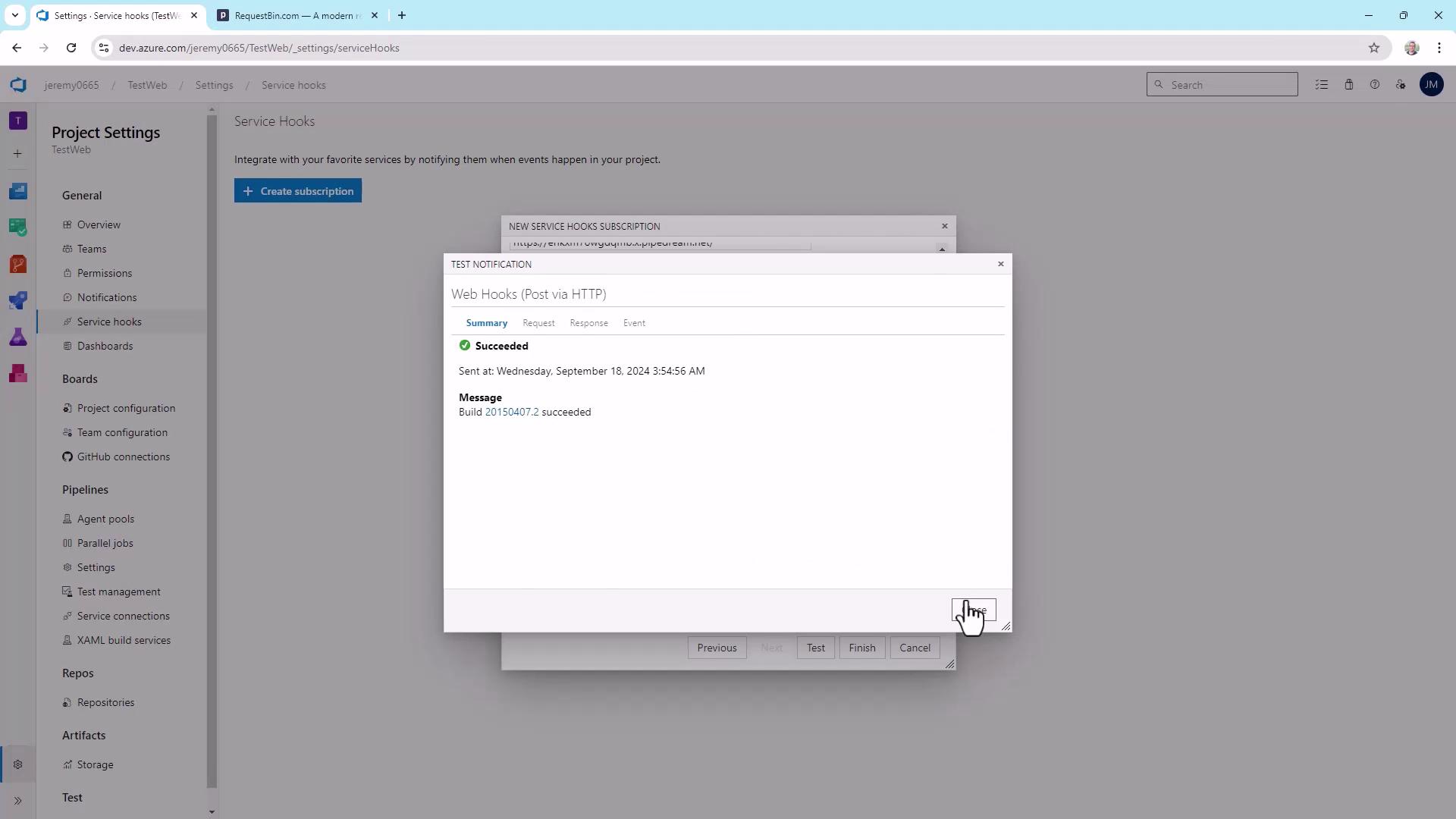
Once you enter your RequestBin URL and settings, click **Test**.
```bash theme={null}
curl -d '{ "name": "Yoda" }' \
-H "Content-Type: application/json" \
https://enkmx78wgdqmb.x.pipedream.net/
```
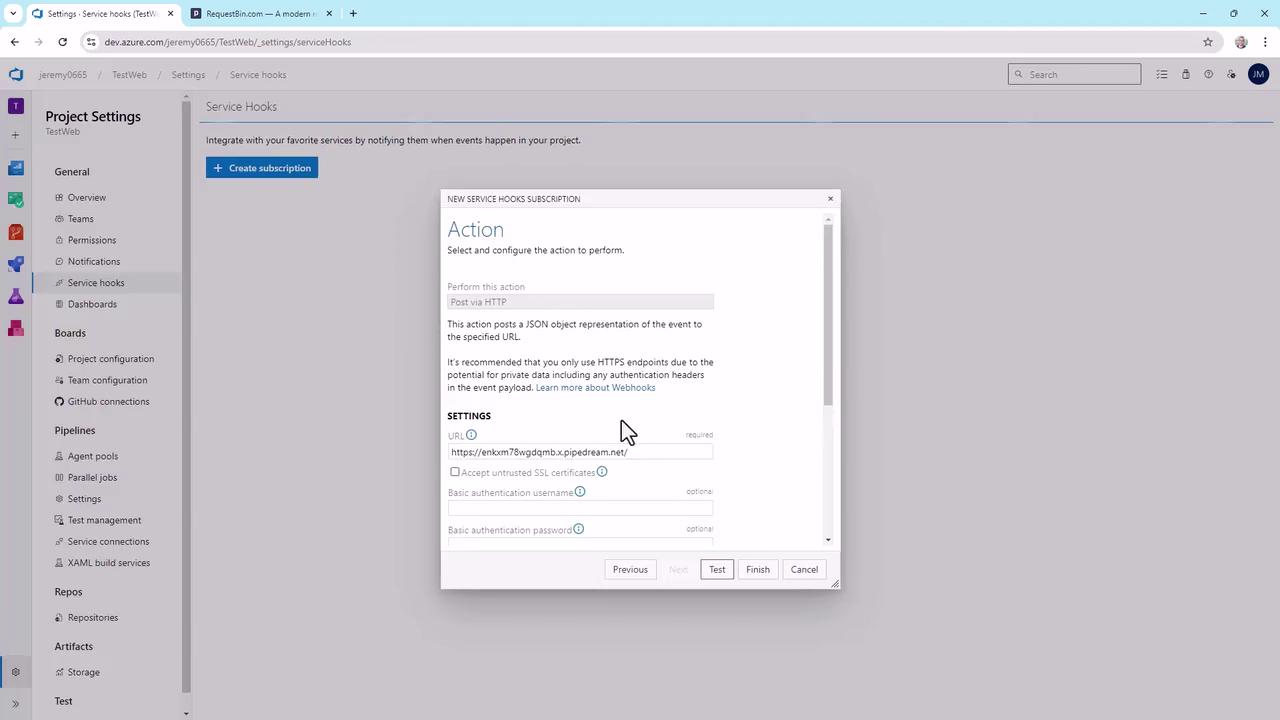
A successful test displays a green checkmark:
***
### 5. Inspect the Sample Payload
Choose **All** for resource details and message formats to see everything Azure DevOps sends:
```json theme={null}
{
"root": {
"subscriptionId": "00000000-0000-0000-0000-000000000000",
"notificationId": 7,
"eventType": "build.complete",
"message": {
"text": "Build 20150407.2 succeeded",
"html": "Build 20150407.2",
"markdown": "Build [20150407.2](https://fabrikam-fiber-inc.visualstudio.com/...)"
},
"resource": {
"id": 1,
"buildNumber": "20150407.2",
"status": "completed",
"result": "succeeded",
"definition": {
"id": 1,
"name": "CustomerAddressModule"
}
}
}
}
```
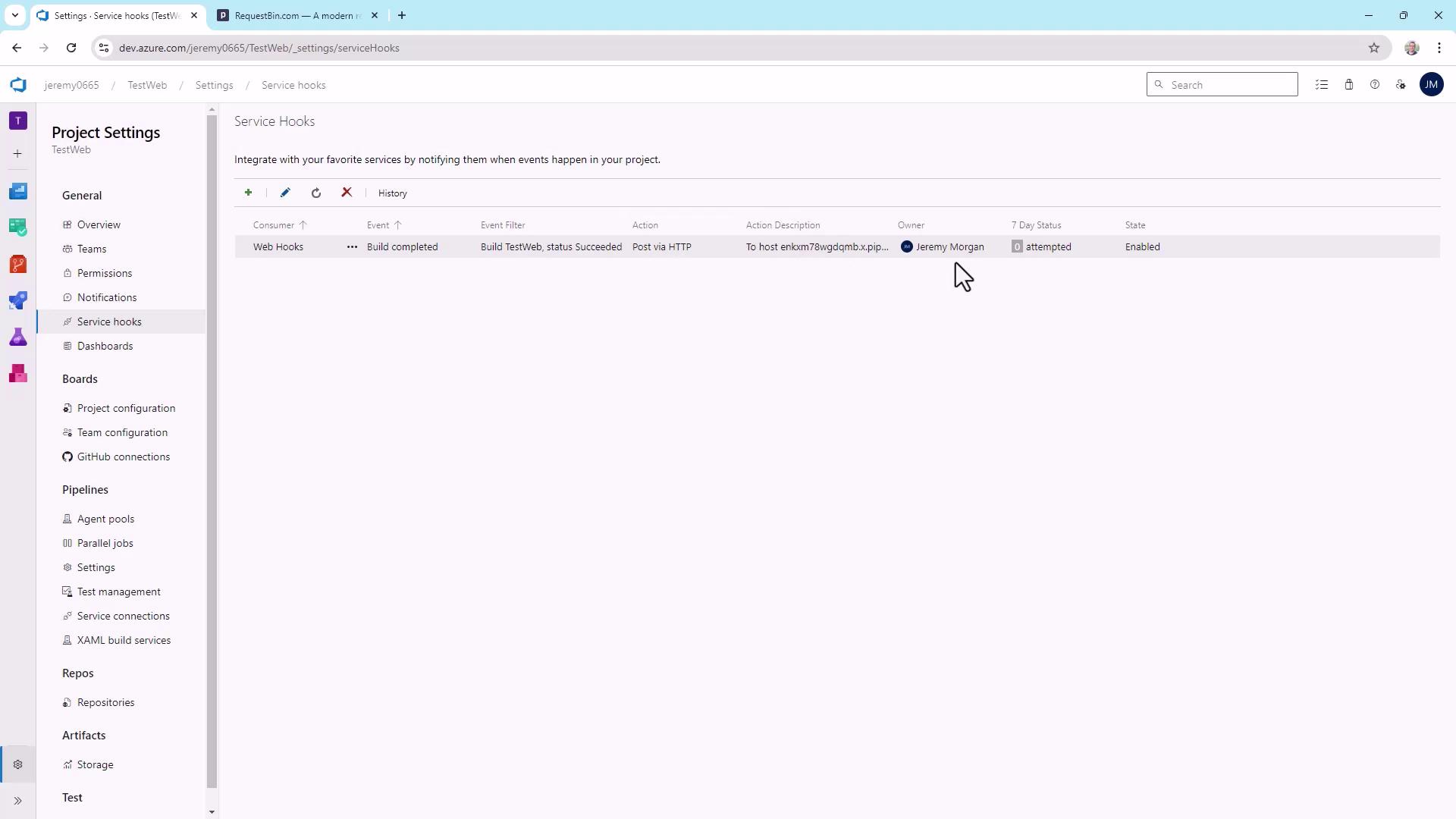
Click **Finish** to save your subscription.
## Testing the Webhook in Real Time
1. Go to **Pipelines** > **TestWeb**.
2. Click **Run pipeline** (or **Queue**).
3. After it succeeds, refresh your RequestBin URL to view the new POST payload.
Example of a real‐time payload:
```json theme={null}
{
"root": {
"notificationId": 7,
"eventType": "build_complete",
"message": {
"text": "Build 20150407.2 succeeded"
},
"resource": {
"id": 1,
"status": "completed",
"result": "succeeded"
}
}
}
```
In your pipeline logs, you’ll see:
```plaintext theme={null}
Job
Pool: KodeKloudCustomer
Image: windows-latest
Agent: KodeKloudAgent1
Started: Just now
Duration: 22s
```
## Editing or Creating Additional Subscriptions
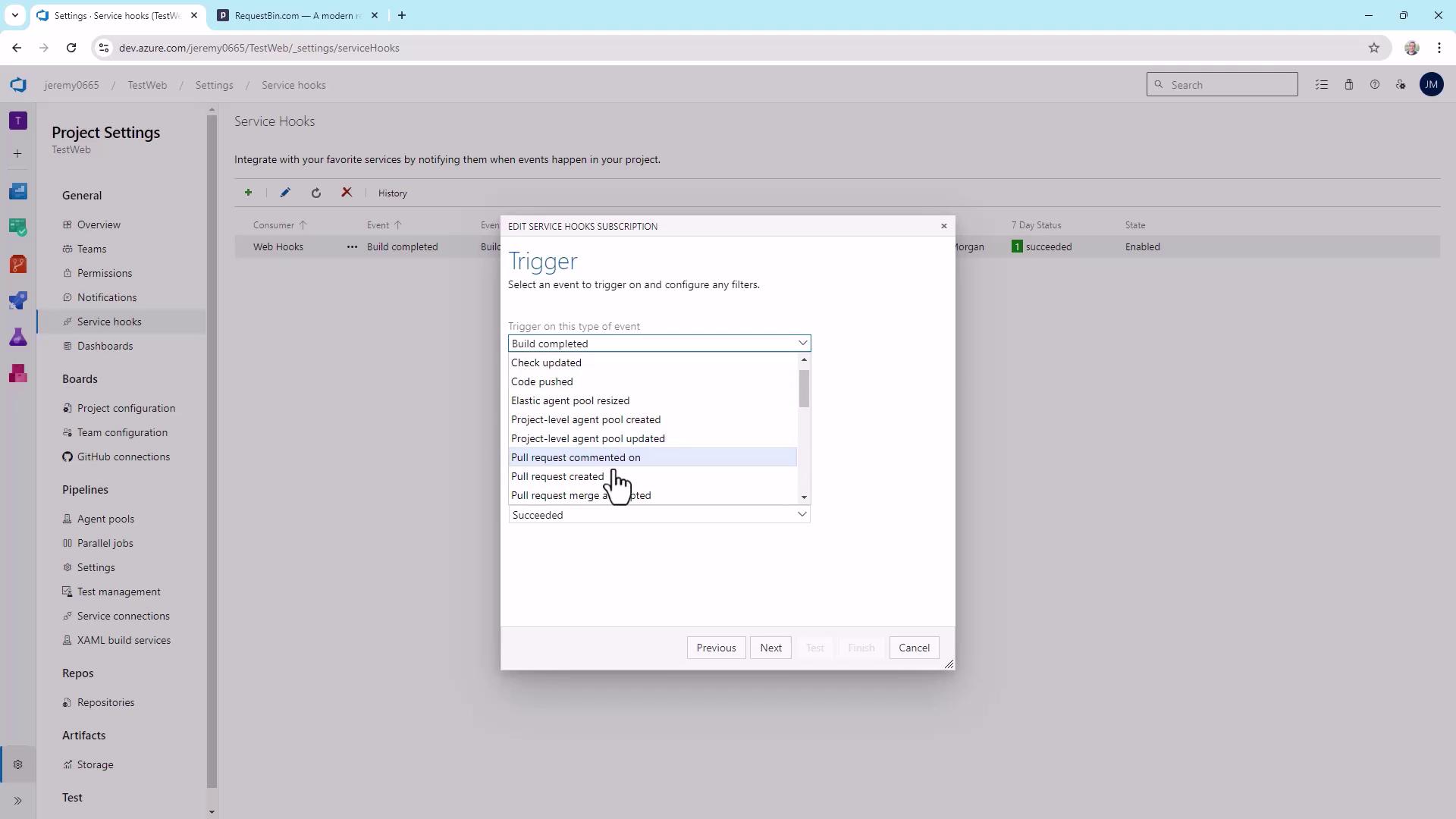
Return to **Project Settings** > **Service Hooks** at any time to:
* Modify existing webhooks (e.g., trigger on pull requests).
* Add integrations for [Microsoft Teams](https://teams.microsoft.com), [Slack](https://slack.com), [Trello](https://trello.com), and more.
* Build multiple subscriptions for custom apps.
Webhooks in Azure DevOps unlock powerful automation scenarios—experiment with different event types and endpoints to streamline your CI/CD workflows.
## Links and References
* [Azure DevOps Service Hooks](https://docs.microsoft.com/azure/devops/service-hooks/overview)
* [RequestBin](https://requestbin.com/)
* [Webhook Documentation](https://developer.mozilla.org/docs/Webhooks)