> ## Documentation Index
> Fetch the complete documentation index at: https://notes.kodekloud.com/llms.txt
> Use this file to discover all available pages before exploring further.
# Working with large repositories
> This guide explores strategies and tools to optimize workflow in large Git repositories, addressing challenges like slow operations and managing large files.
As projects evolve, repositories often accumulate extensive commit histories and hefty binary assets. These factors can slow down everyday Git operations like `clone`, `fetch`, and `checkout`. This guide explores strategies and tools to keep your workflow snappy—even in very large repositories.
## Challenges in Large Repositories
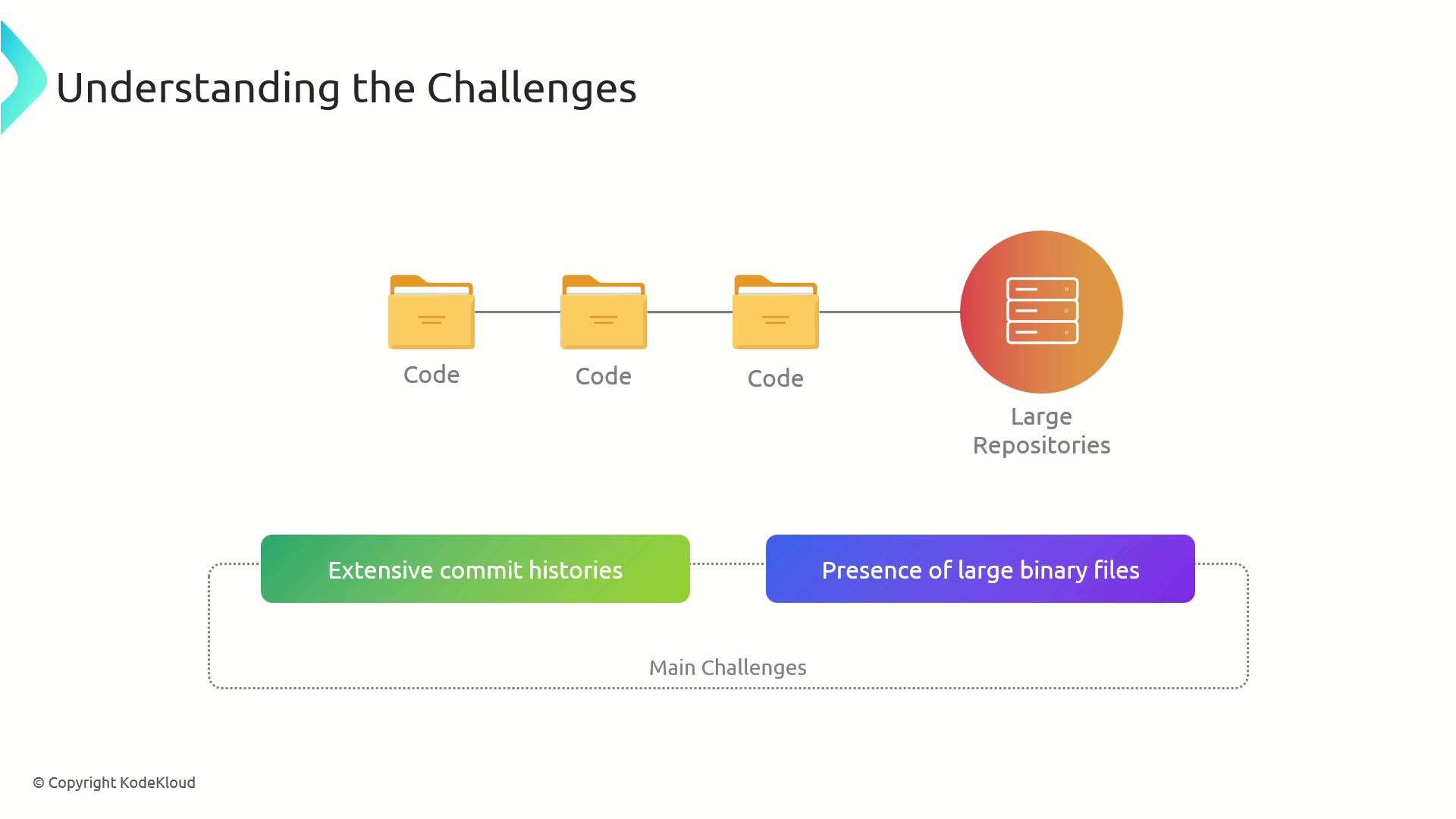
Long histories, numerous branches, and large binaries contribute to degraded performance. Cloning or fetching a repo with hundreds of megabytes (or gigabytes) of data can take minutes or even hours.
## Optimize Clone Time with a Shallow Clone
A *shallow clone* downloads only the most recent commits and omits deep history:
```bash theme={null}
git clone --depth
```
Replace `` with how many commits you need (e.g., `1` for just the latest). This approach can reduce clone time and disk usage dramatically.
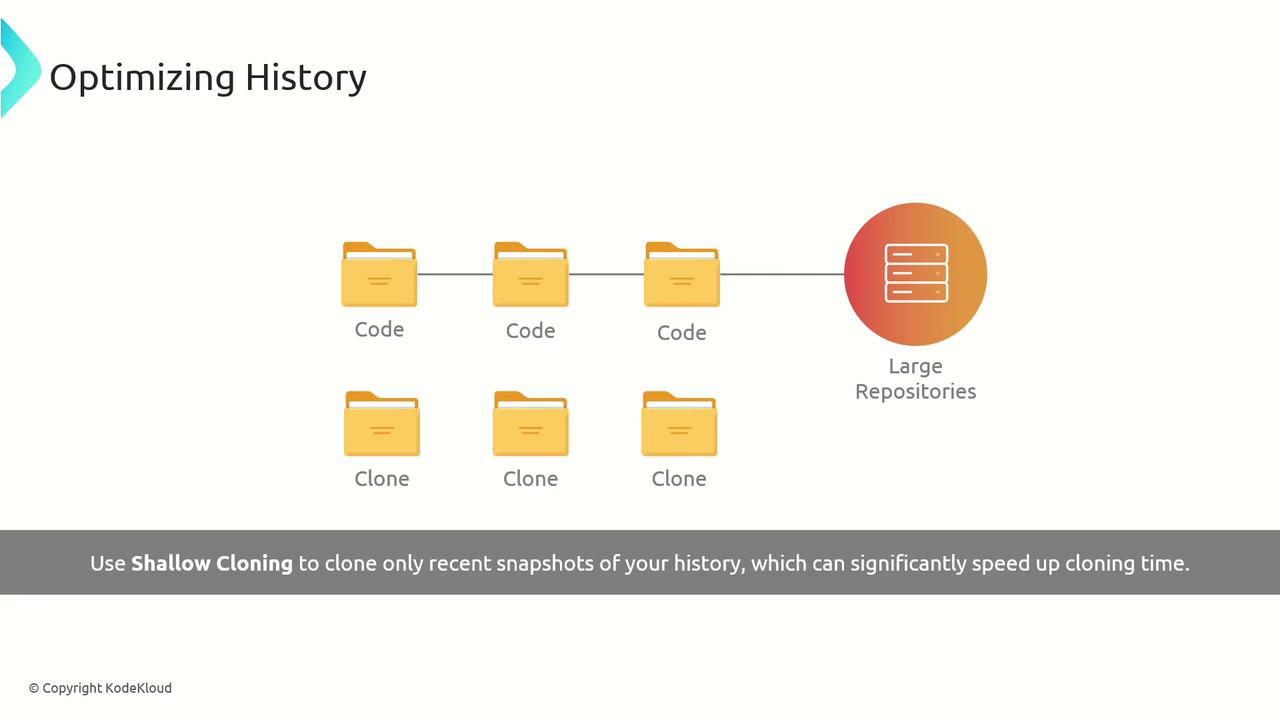
Shallow clones are ideal for read-only CI jobs or quick code reviews, but avoid them if you need full history for debugging or releases.
## Managing Large Files
Storing large binaries in Git can bloat your `.git` directory. Two popular tools help:
### Git Large File Storage (LFS)
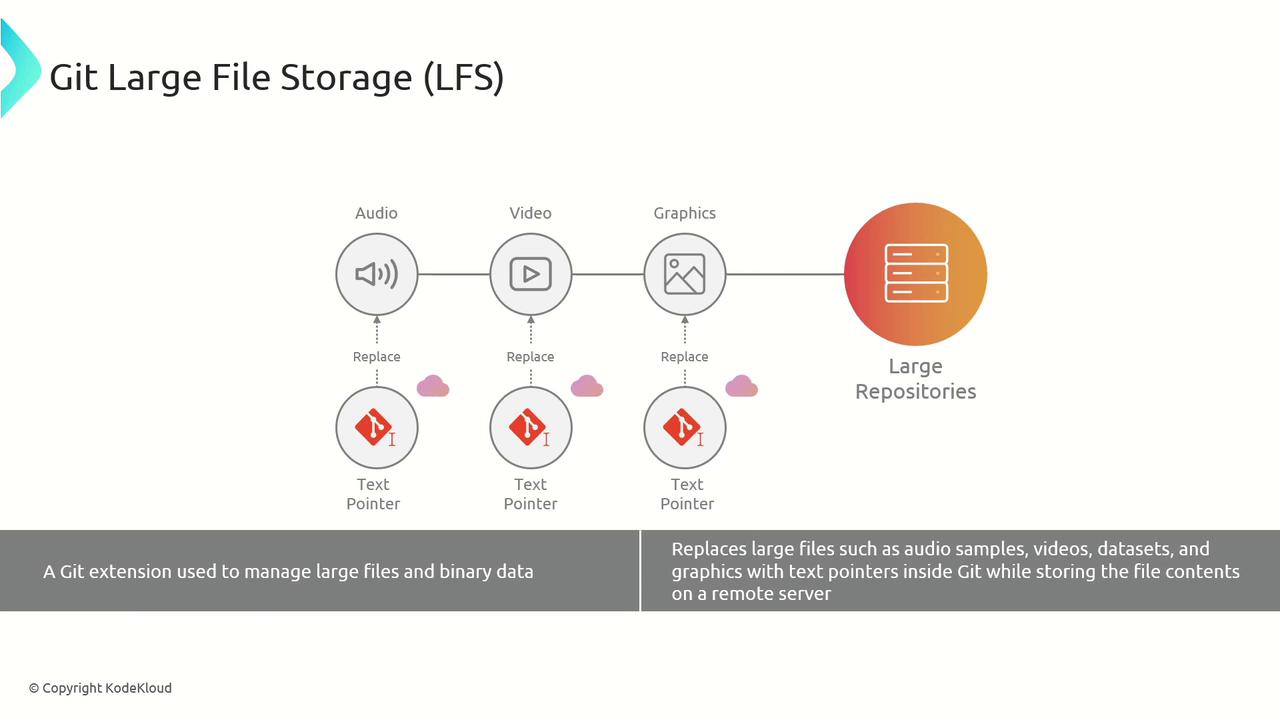
Git LFS moves big assets—audio, video, datasets—to a separate server while keeping lightweight pointers in your repo:
```bash theme={null}
git lfs install
```
Then track files by pattern:
```bash theme={null}
git lfs track "*.psd"
git add .gitattributes
```
### Git-Fat
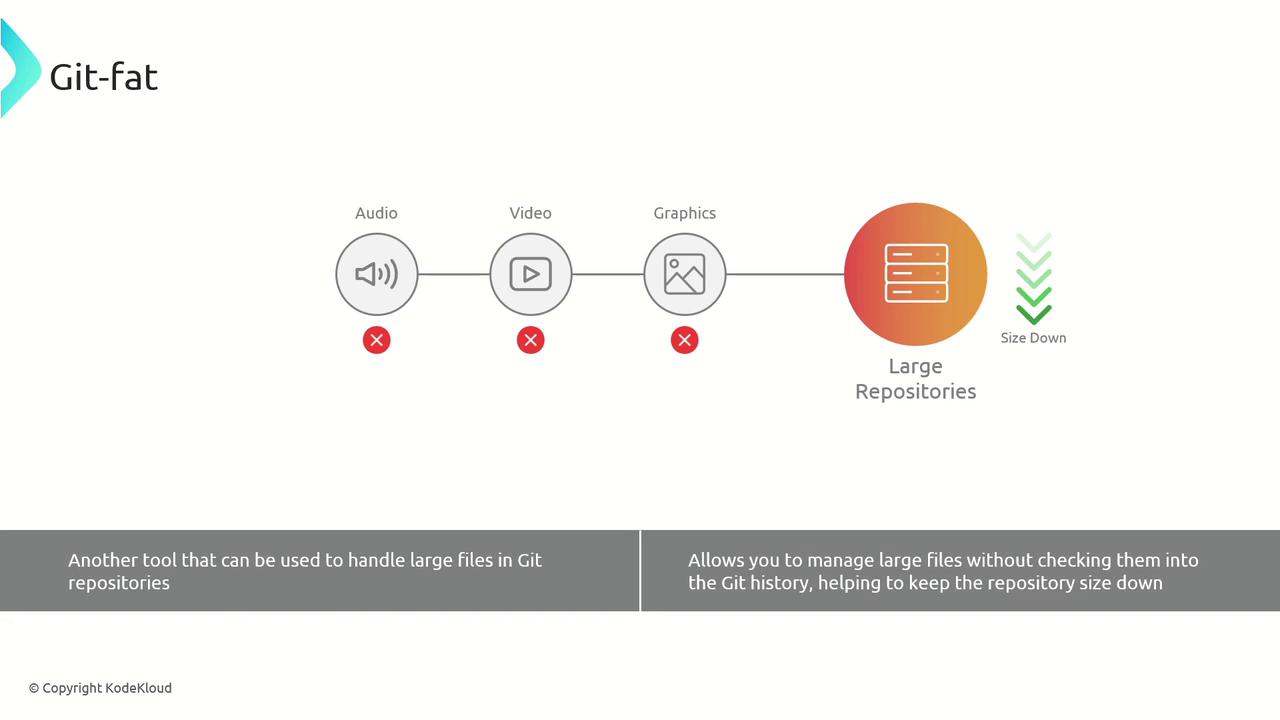
An alternative is **Git-Fat**, which also offloads large blobs and keeps pointer files in your Git history:
```bash theme={null}
git fat init
git fat track "*.zip"
```
## Cross-Repository Sharing
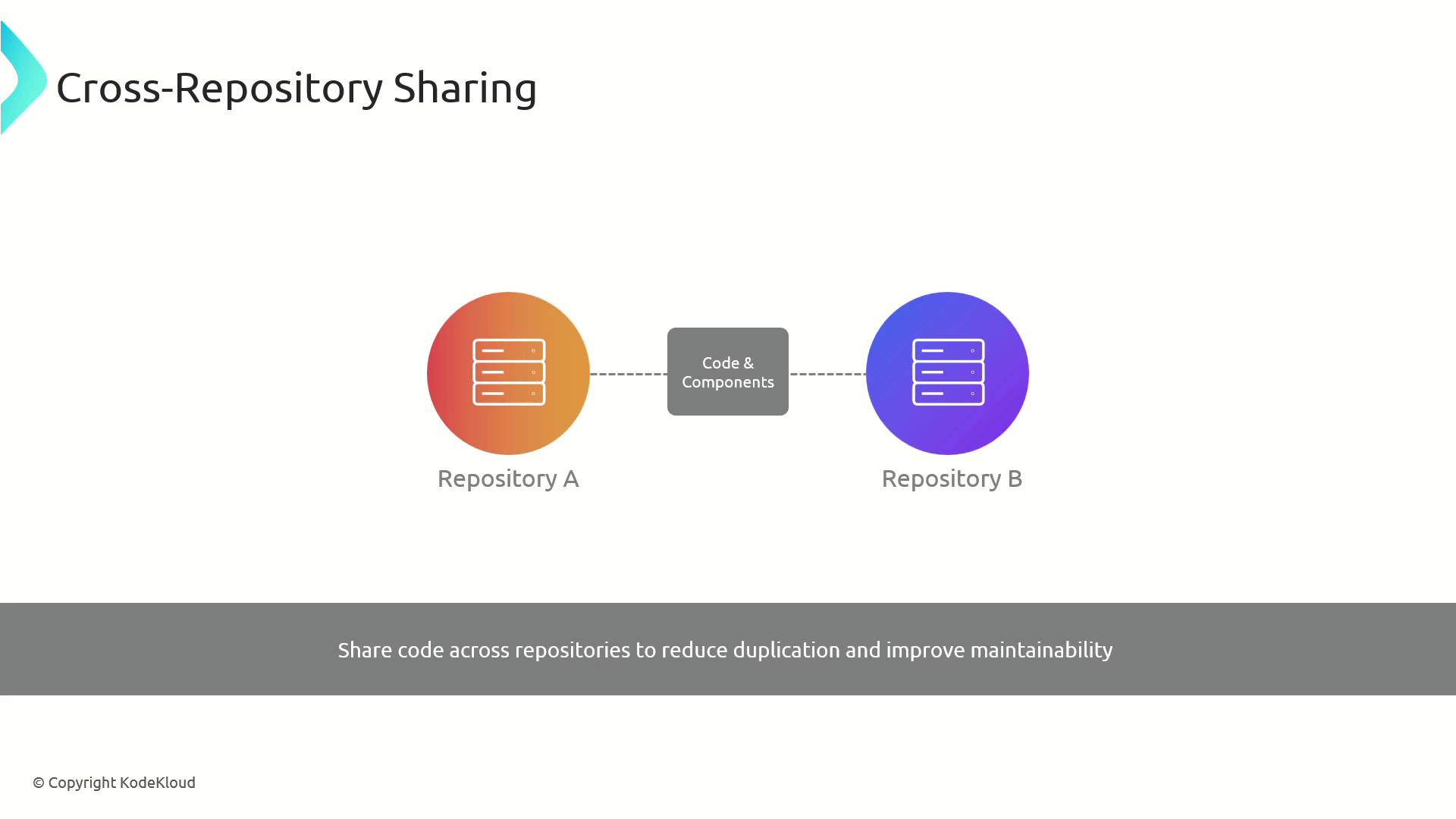
To avoid duplicate code, share common libraries or components across projects. You can use Git submodules, subtrees, or a package manager.
| Method | Description | Example Command |
| --------- | -------------------------------------------- | ------------------------------------------------- |
| Submodule | Embed another repo at a fixed path | `git submodule add path/to/module` |
| Subtree | Merge external repo into a subdirectory | `git subtree add --prefix=lib/my-lib main` |
| Package | Publish and consume via npm, Maven, or NuGet | `npm install @myorg/my-lib` |
## Sparse Checkout for Partial Working Copies
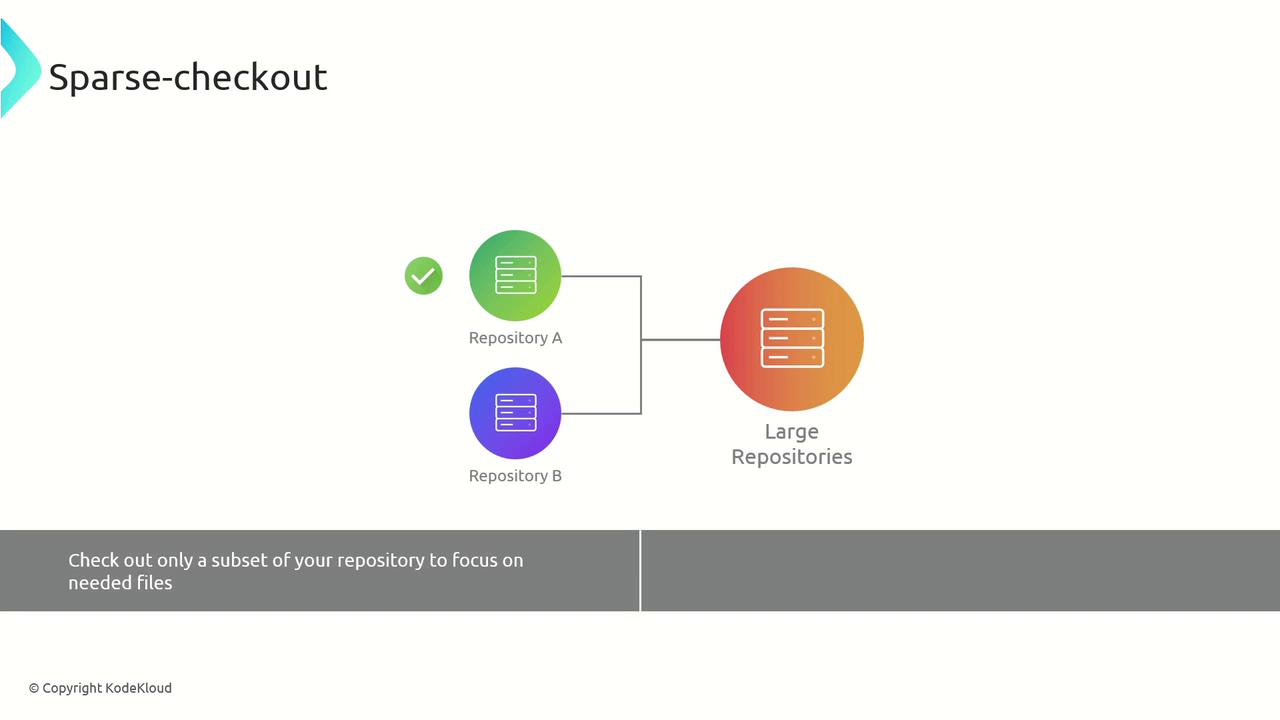
If you only need a subset of files, *sparse checkout* lets you clone the full Git history but only check out selected paths:
```bash theme={null}
git clone
cd
git sparse-checkout init --cone
git sparse-checkout set path/to/folder another/path
```
This keeps your working tree lean by populating only the directories you specify.
## Partial Clone to Defer Large Object Downloads
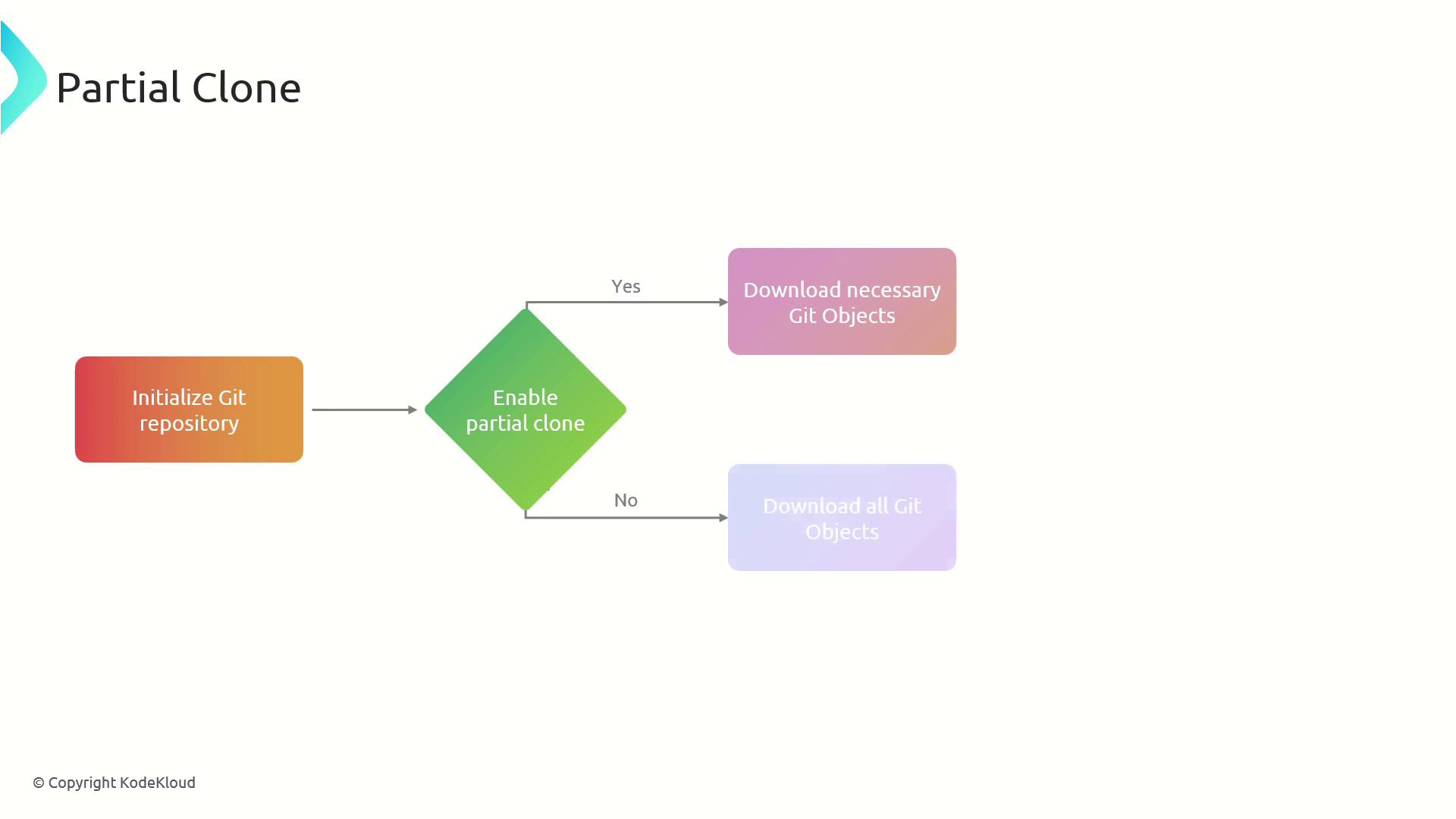
A *partial clone* avoids downloading all blobs up front and fetches objects on demand:
```bash theme={null}
git clone --filter=blob:none
cd
git sparse-checkout init --cone # optional, to combine with sparse checkout
```
Git will automatically retrieve missing objects the first time you access them.
## Background Prefetch to Keep Objects Up to Date
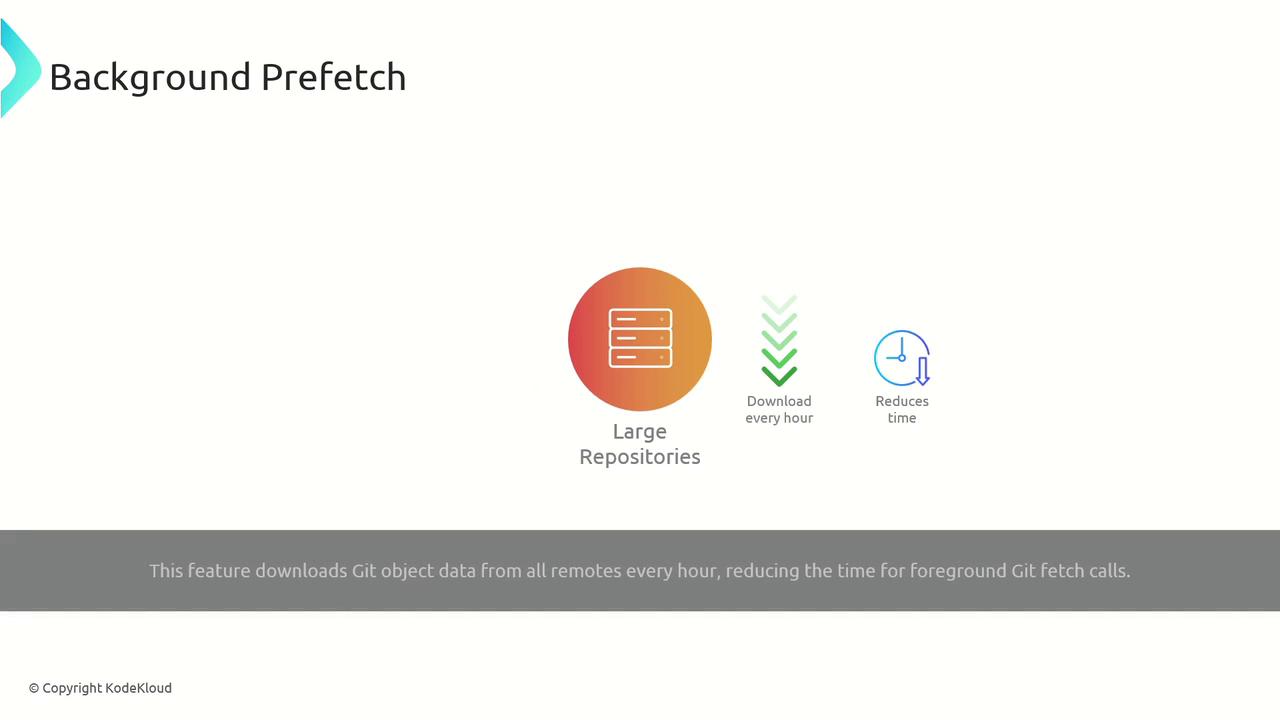
Enable background prefetching so Git periodically pulls object data from remotes—reducing wait times during normal fetch operations:
```bash theme={null}
git config --global fetch.writeCommitGraph true
git config --global fetch.showForcedUpdates true
git config --global remote.origin.promisor true
git config --global core.commitGraph true
```
With these settings, Git maintains an up-to-date local object database that accelerates subsequent fetches.
## Links and References
* [Git Documentation: Caching and cloning](https://git-scm.com/docs/git-clone)
* [Git LFS Official Site](https://git-lfs.github.com/)
* [Managing Submodules](https://git-scm.com/book/en/v2/Git-Tools-Submodules)