> ## Documentation Index
> Fetch the complete documentation index at: https://notes.kodekloud.com/llms.txt
> Use this file to discover all available pages before exploring further.
# Design and implement permissions and roles in GitHub
> Managing permissions and roles in GitHub to secure codebases and enable collaboration through team structure, collaborator management, and security features.
Managing permissions and roles in GitHub is essential for securing your codebase and enabling smooth collaboration. In this guide, you’ll learn how to structure your teams, invite collaborators, enforce branch policies, and leverage GitHub’s security features to protect your repositories.
***
## 1. Define your team structure
Start by mapping out which team members need access and the level of control they require. Common permission levels in GitHub include:
| Role | Permission Level | Description |
| -------- | ---------------- | ---------------------------------------------- |
| Read | read | View code, issues, and pull requests |
| Triage | triage | Manage issues and pull requests |
| Write | write | Push to non-protected branches |
| Maintain | maintain | Manage repository settings, branches, and keys |
| Admin | admin | Full control over the repository and settings |
Use this table to decide who should be in each role, balancing security with productivity.
***
## 2. Add collaborators
To grant someone access to your repository:
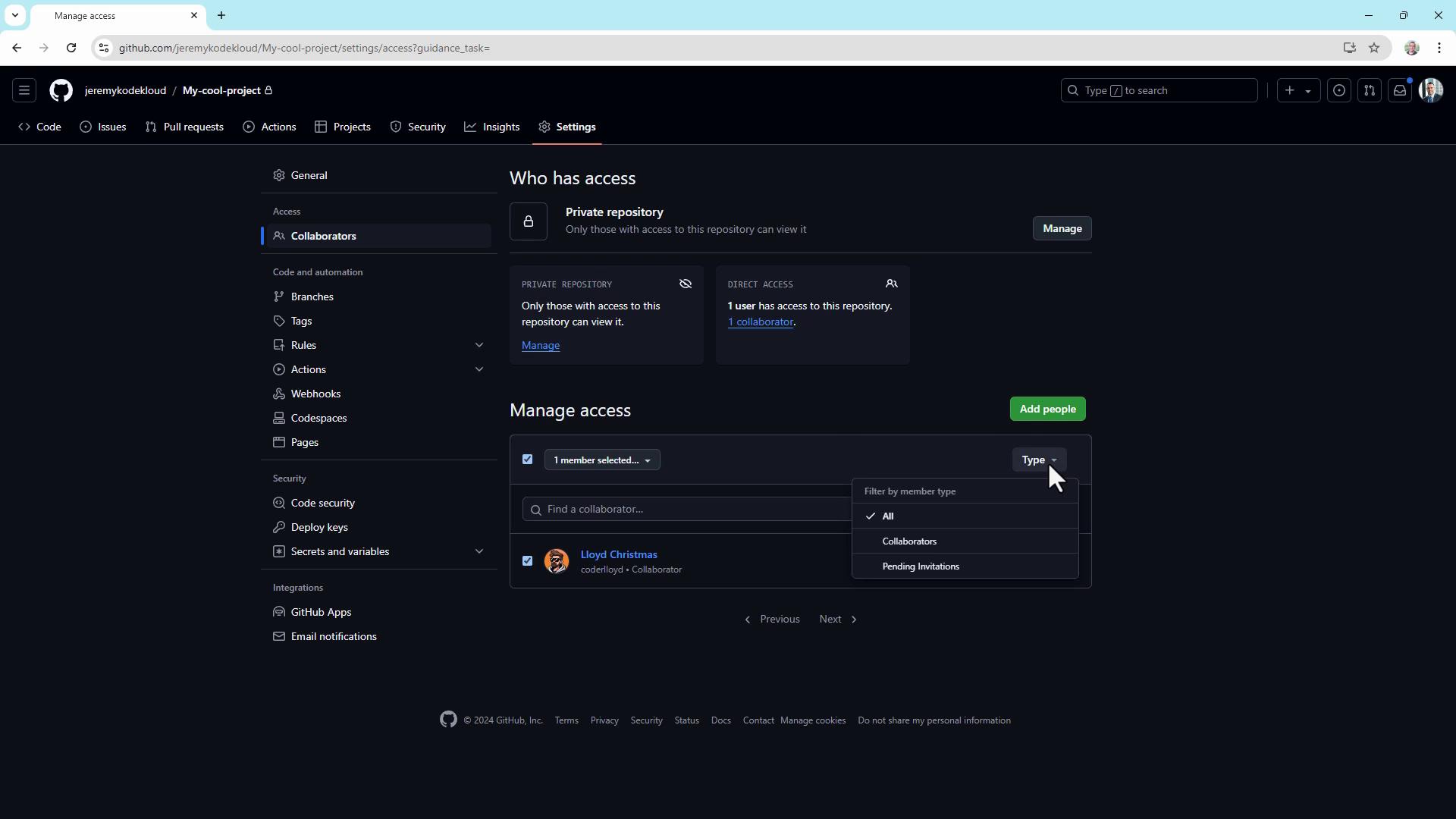
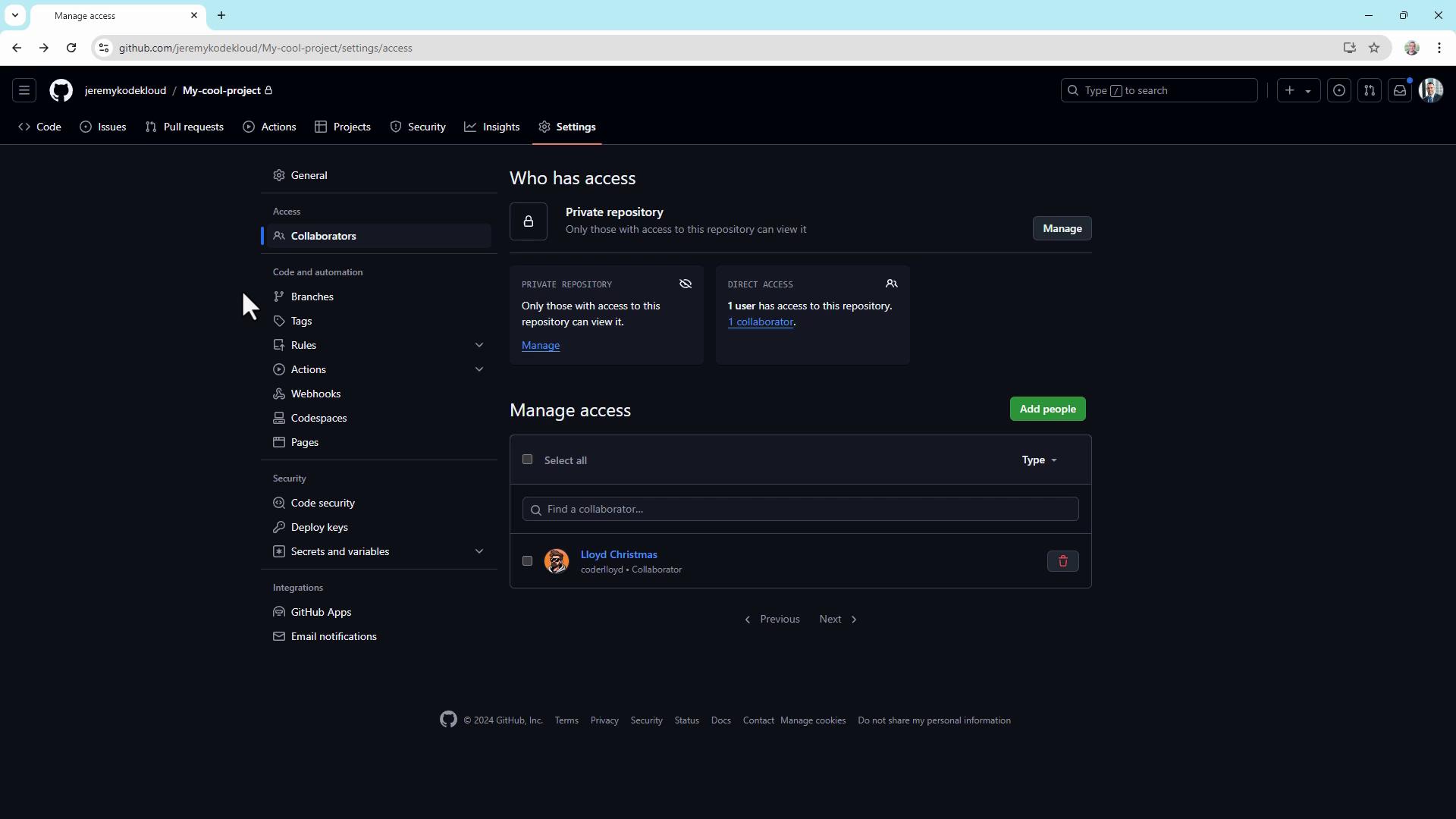
1. Go to **Settings** (click the gear icon).
2. Select **Collaborators** under “Access”.
3. Click **Add people**, enter the GitHub username, and send the invitation.
They’ll receive a notification and must accept the invite to gain access.

Once accepted, the new collaborator appears under **Manage access**.
***
## 3. Configure repository settings
Under **Settings > Options**, customize repository behavior:
* **Require sign-off on web commits**\
Enforce contributor attestations for commits made via the web editor.
* **Wikis**\
Enable or disable wikis for collaborative documentation.
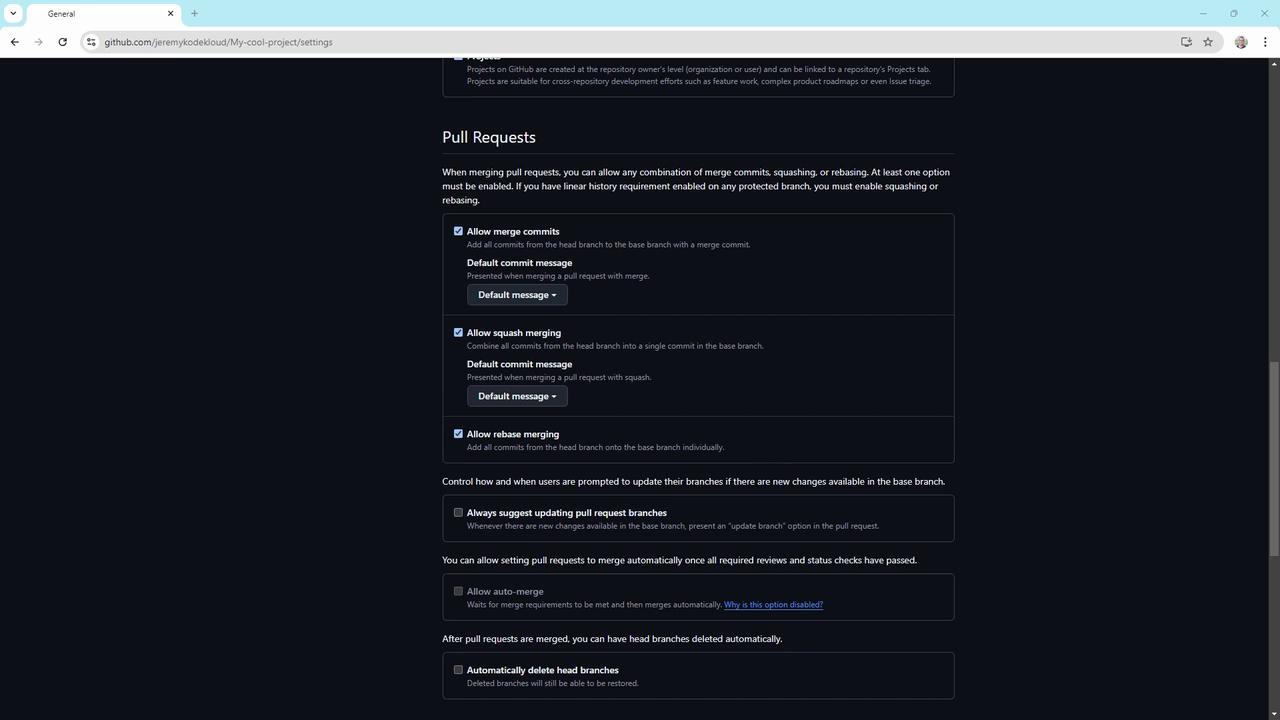
* **Merge options**\
Under **Settings > Pull requests**, choose to allow or block:
* Merge commits
* Squash merging
* Rebase merging
***
## 4. Create branch protection rules
Branch protection rules help enforce workflow policies. To set up:
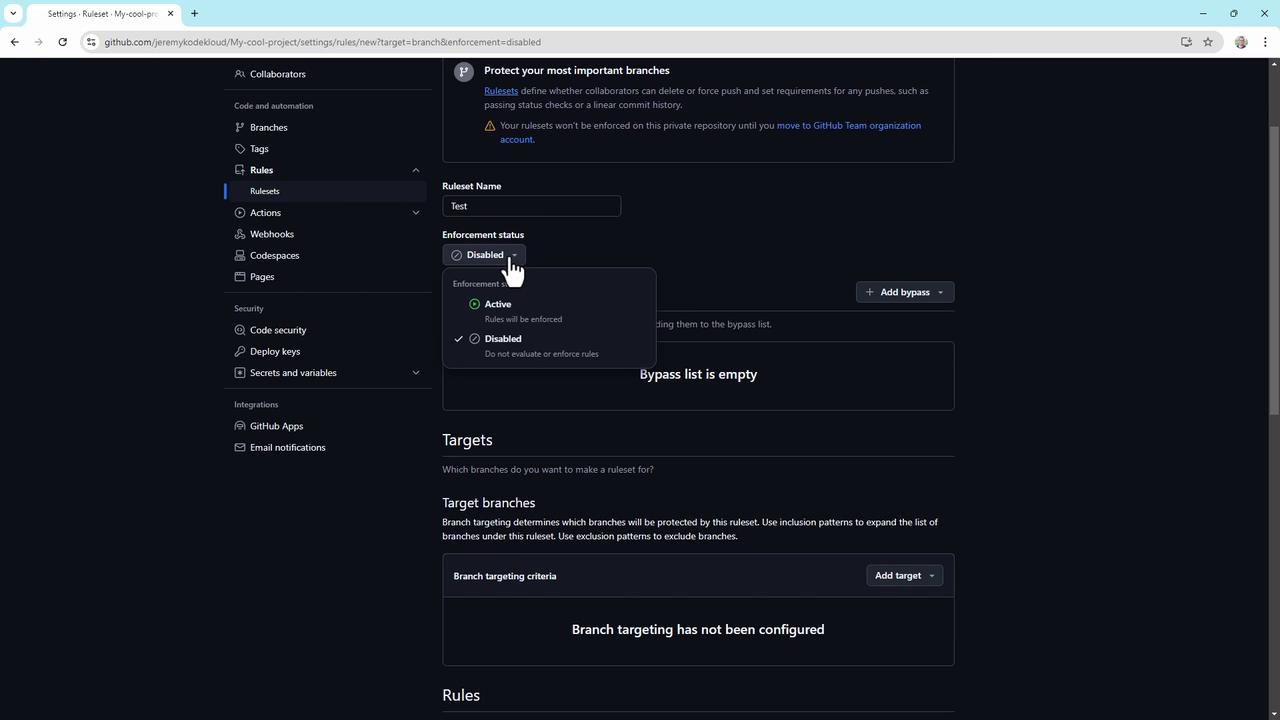
1. Navigate to **Settings > Branch rulesets**.
2. Click **New branch rule set**, name it (e.g., `ReleaseProtection`).
3. Set **Enforcement status** to Enabled.
4. Define a **Bypass list** for organization or repository admins, if needed.
5. Specify target branches by name or pattern (e.g., `main`, `release/*`).
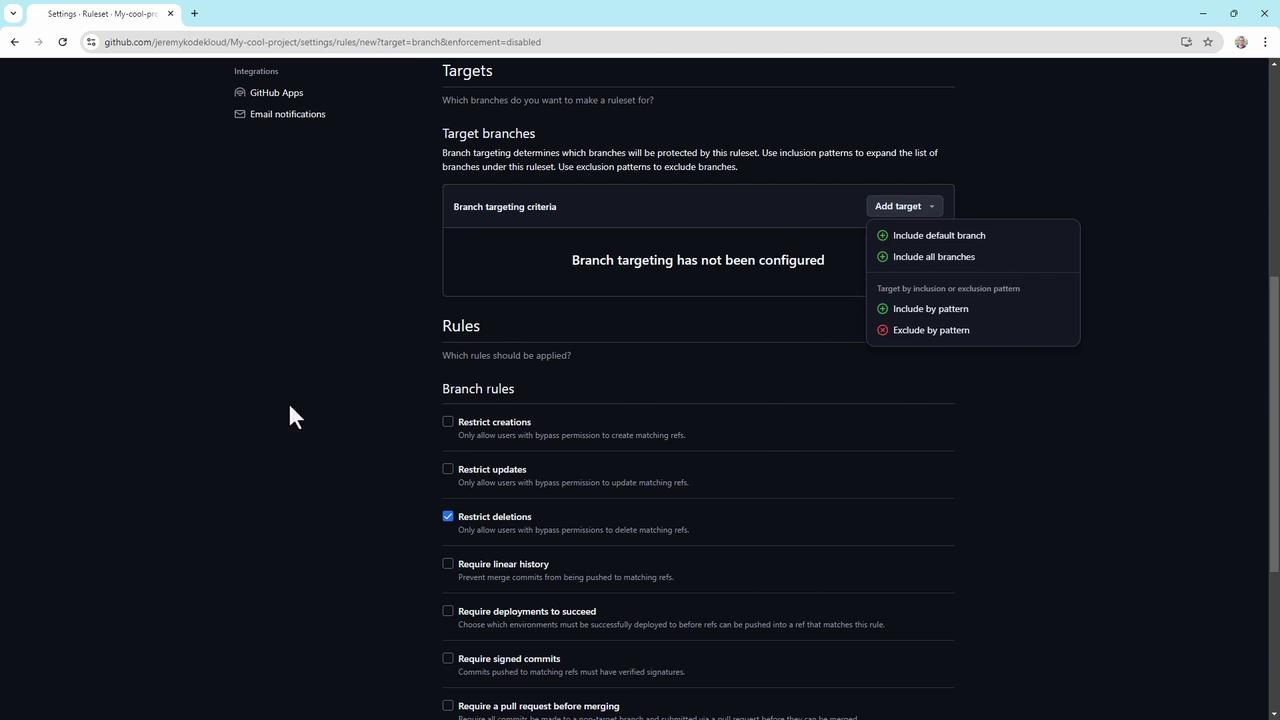
Within your rule set, enforce one or more of the following:
* Restrict branch creation, updates, and deletions
* Require a linear commit history
* Enforce successful CI builds or staging deployments
* Require signed commits
* Enforce pull request reviews (up to 10 required approvals)
* Require conversation resolution before merging
* Block force pushes
* Require status checks (e.g., code scanning results)
Organization and repository administrators can always bypass branch protection rules unless explicitly restricted by policy.
***
## 5. Enable code security features
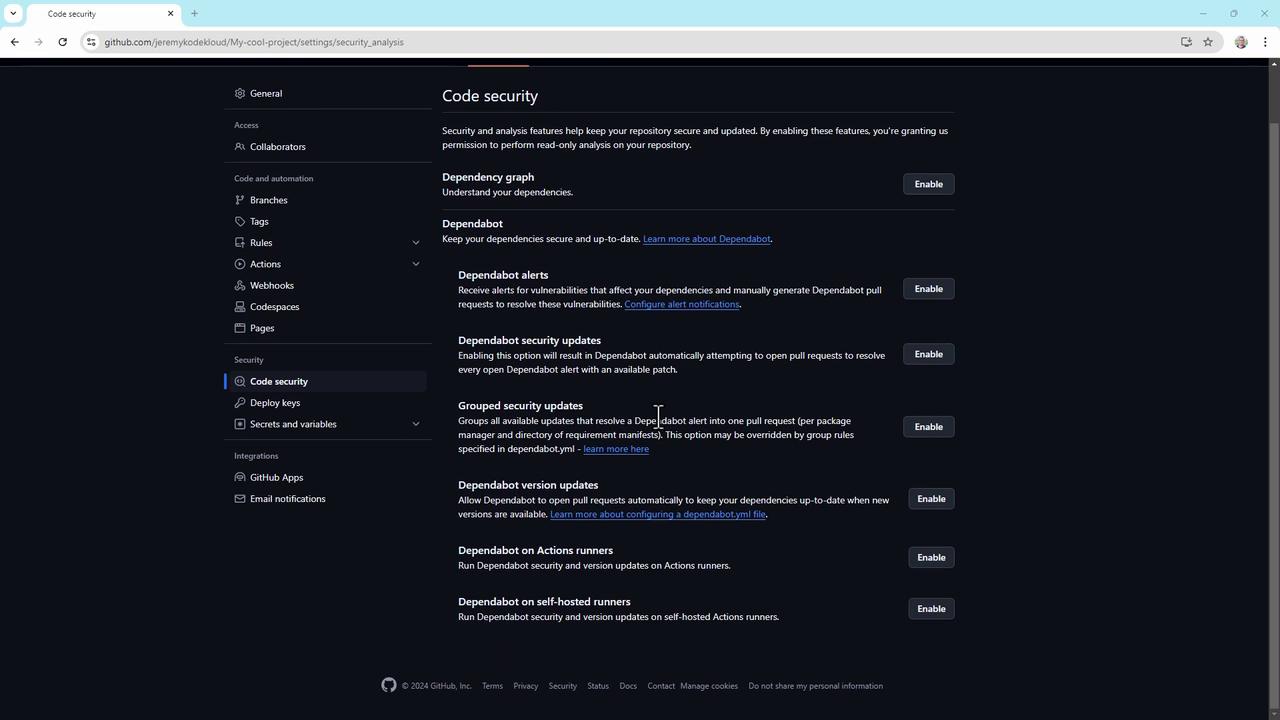
GitHub’s built-in security tools let you detect and fix vulnerabilities early. In **Settings > Code security**, toggle on:
* Dependabot alerts
* Dependabot security updates
* Group security updates
***
## 6. Set up a security policy and Dependabot alerts
1. Under **Security > Security policy**, click **Start setup** to create a `SECURITY.md` file.
* **Supported versions**: List the versions you actively maintain.
* **Reporting guidelines**: Explain how to disclose vulnerabilities, expected response times, and required information.
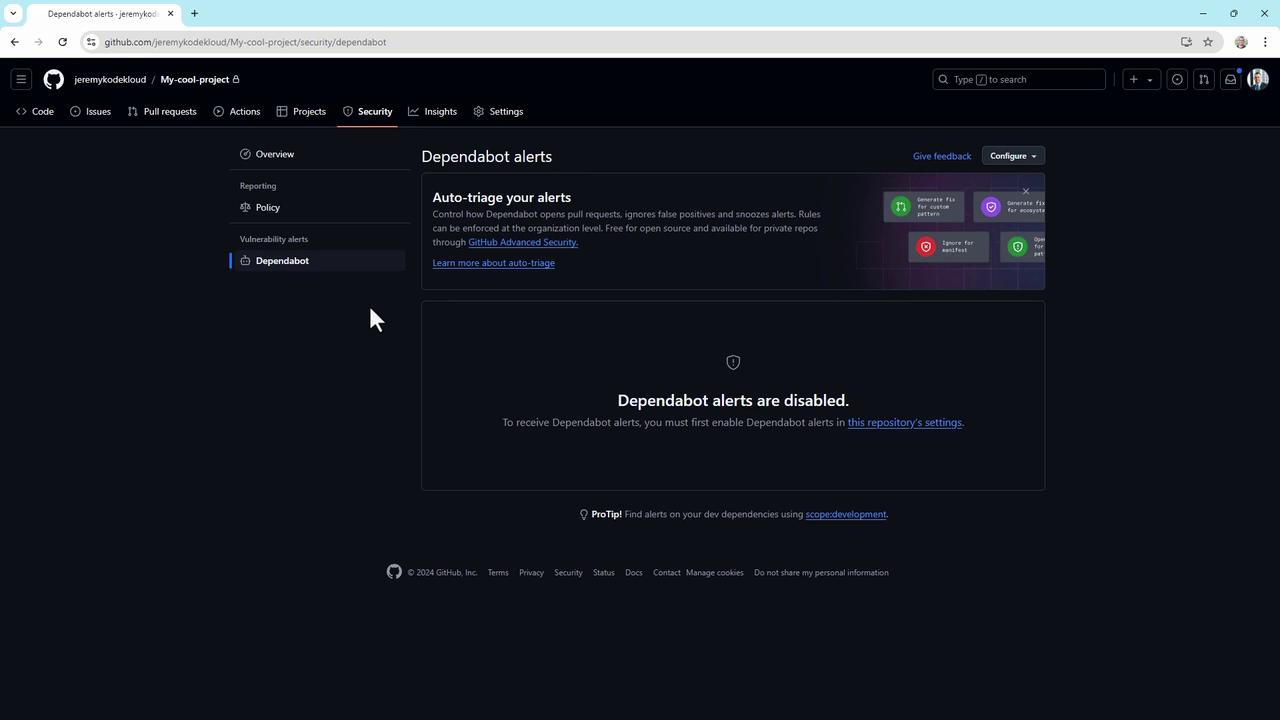
2. Go to **Security > Dependabot alerts** and enable alerts to get real-time notifications.
***
## 7. The Danger Zone
At the bottom of **Settings > Collaborators**, you’ll find critical operations under the **Danger Zone**:
* Change repository visibility (private ↔ public)
* Disable branch protection rules
* Transfer repository ownership
* Archive or delete the repository
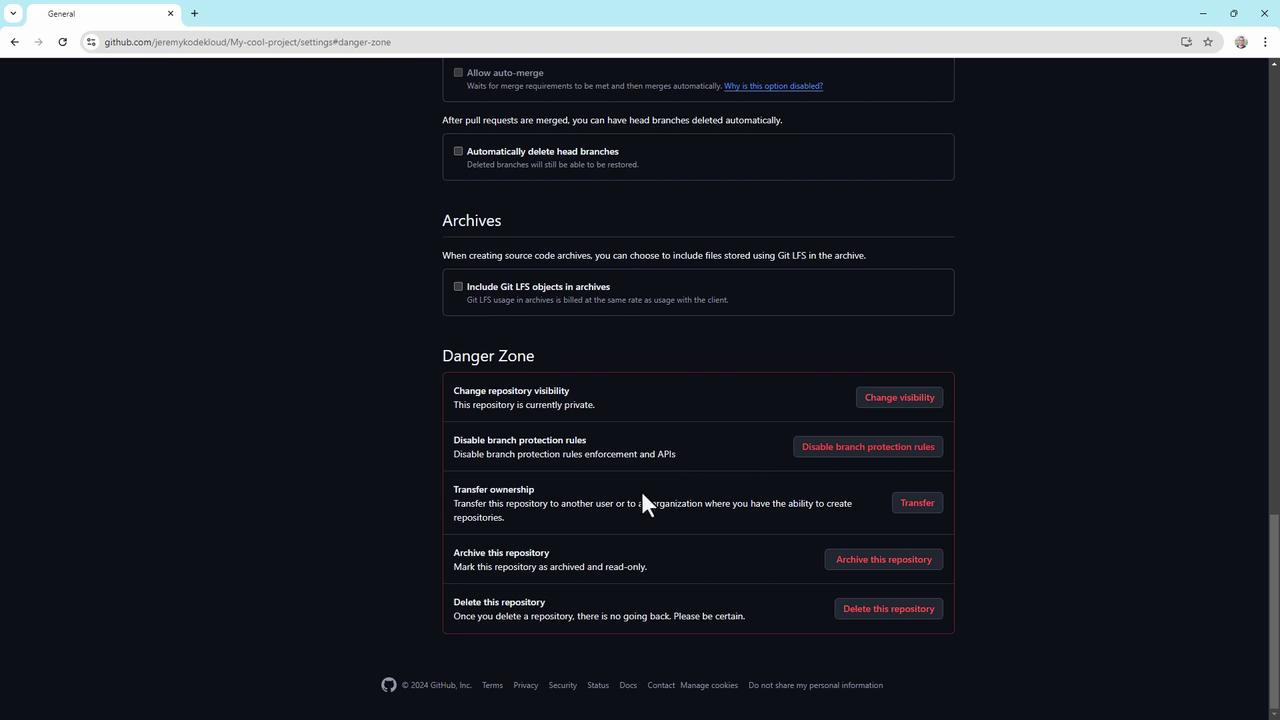
Actions in the Danger Zone are irreversible. Double-check permissions and backups before proceeding.
***
## Conclusion
These best practices apply to standard GitHub repositories, though [GitHub Enterprise Cloud](https://docs.github.com/en/enterprise-cloud) offers advanced controls. For deeper dives, visit [GitHub’s official documentation](https://docs.github.com).
***
## Links and References
* [GitHub Permissions and Access](https://docs.github.com/en/repositories/managing-your-repositorys-settings-and-features/managing-repository-settings/managing-access-to-your-repository)
* [Branch Protection Rules](https://docs.github.com/en/repositories/configuring-branches-and-merges-in-your-repository/configuring-protected-branches)
* [Dependabot Documentation](https://docs.github.com/en/code-security/supply-chain-security/keeping-your-dependencies-updated-automatically)
* [Security Policy Guidance](https://docs.github.com/en/code-security/security-advisories/security-policy-guidelines)