> ## Documentation Index
> Fetch the complete documentation index at: https://notes.kodekloud.com/llms.txt
> Use this file to discover all available pages before exploring further.
# Design and implement permissions and security groups in Azure DevOps
> Learn to configure permissions and manage security groups in Azure DevOps for a least-privilege Role-Based Access Control model.
In this lesson, you’ll learn how to configure permissions and manage security groups in Azure DevOps to enforce a least-privilege Role-Based Access Control (RBAC) model. This knowledge is essential for the [AZ-400 exam](https://learn.microsoft.com/en-us/certifications/exams/az-400/).
We’ll cover:
1. Managing organization-level users
2. Configuring projects and teams
3. Reviewing built-in security groups
4. Creating custom security groups
5. Securing repositories and pipelines
6. Auditing permissions regularly
***
## 1. Manage Organization Users
1. Go to **Organization Settings** (lower-left) → **Users**.
2. View existing members (e.g., [Jeremy@KodeKloud.com](mailto:Jeremy@KodeKloud.com), Jeremy [Morgan@gmail.com](mailto:Morgan@gmail.com), [BreakTheBuild@outlook.com](mailto:BreakTheBuild@outlook.com)).
3. Click **Add Users**, enter the email or service principal, choose an Access Level (Basic, Stakeholder, Visual Studio Subscriber), and assign projects.
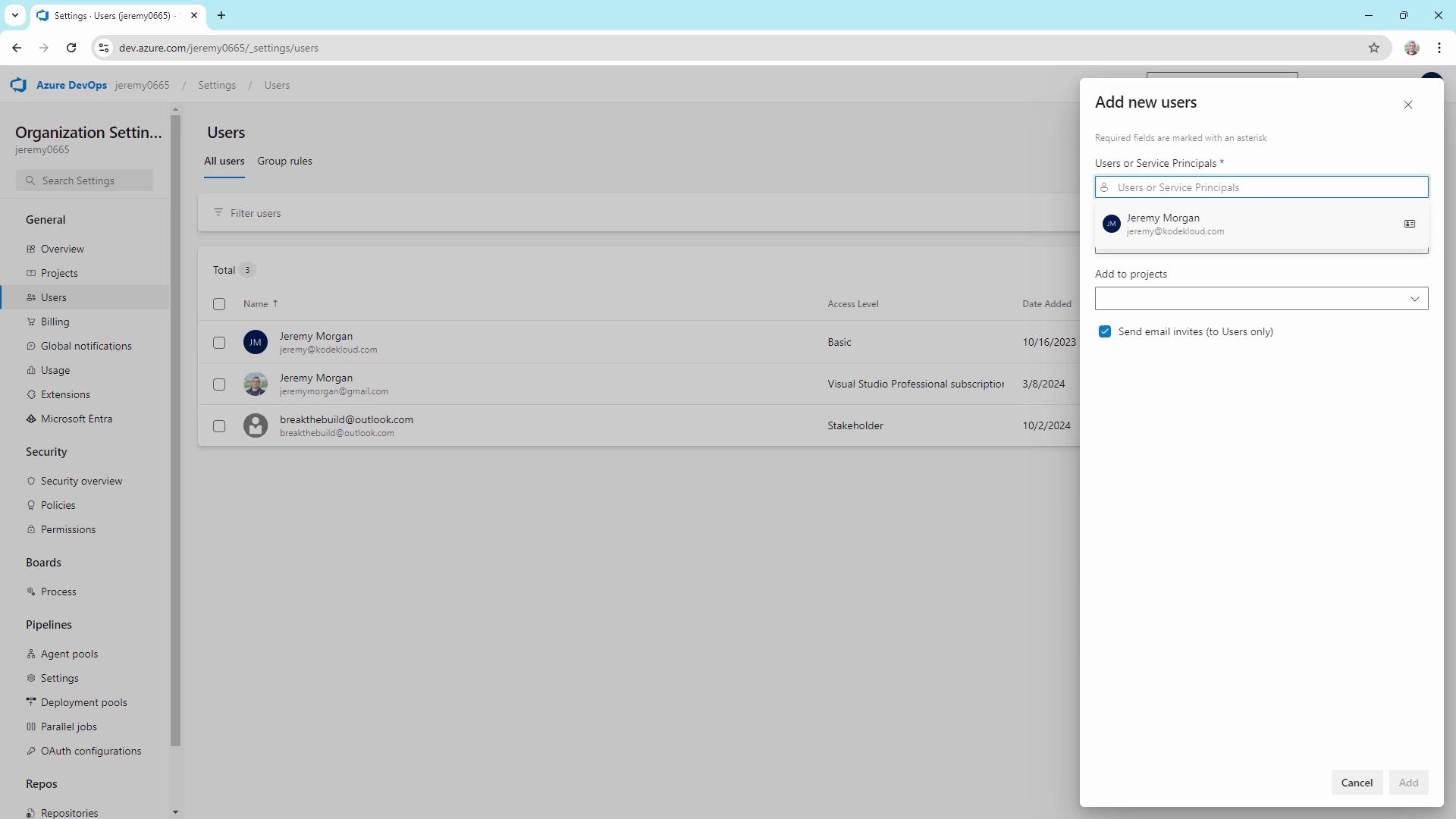
Invitation emails are only sent to user accounts—not service principals. Recipients must accept the invitation to join the organization.
***
## 2. Configure Project Settings and Teams
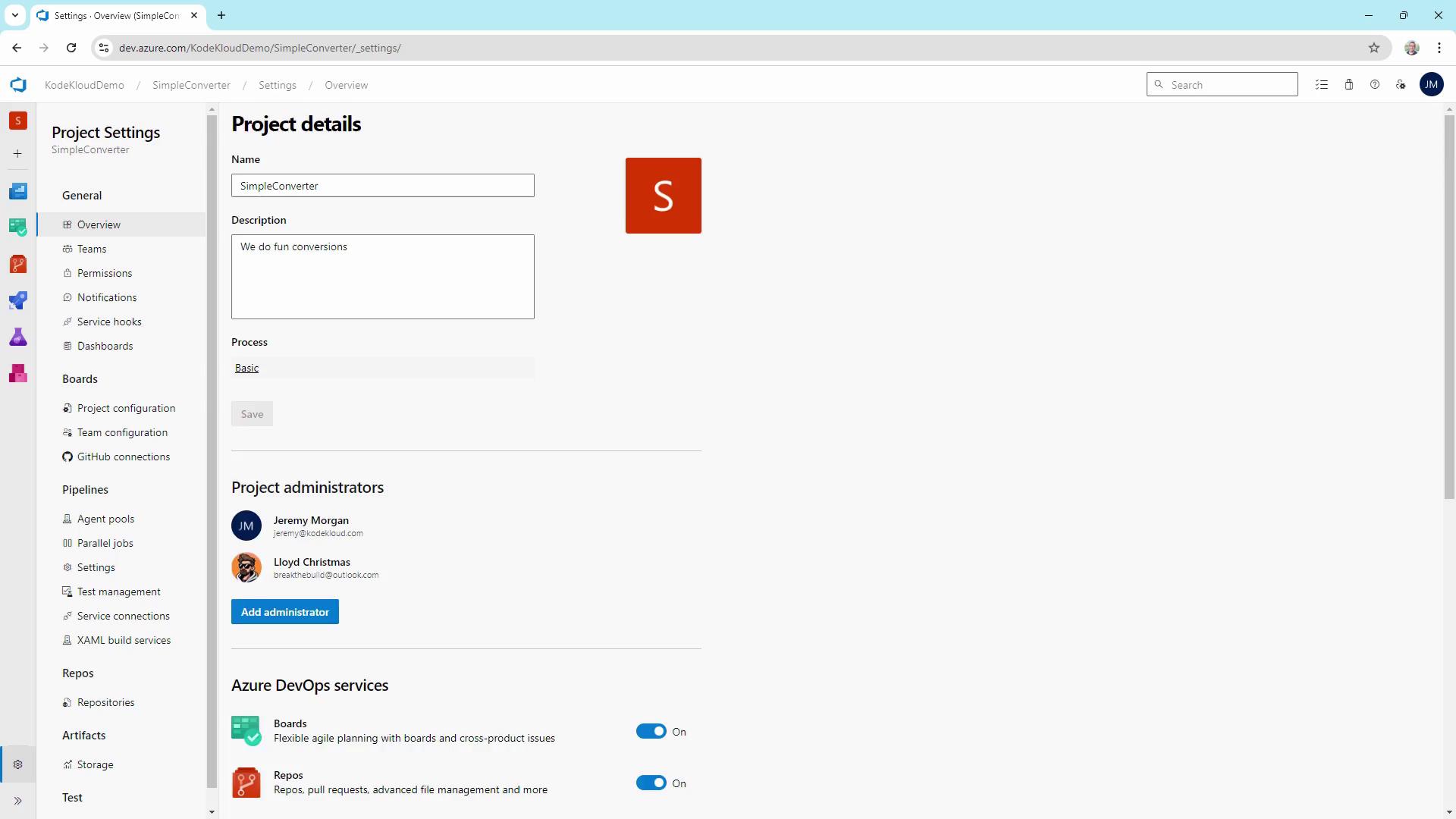
1. Select your organization (e.g., **KodeKloud demo**) and open the **Simple Converter** project.
2. Navigate to **Project Settings** (lower-left) → **Overview** to see Project Administrators.
### Default Team
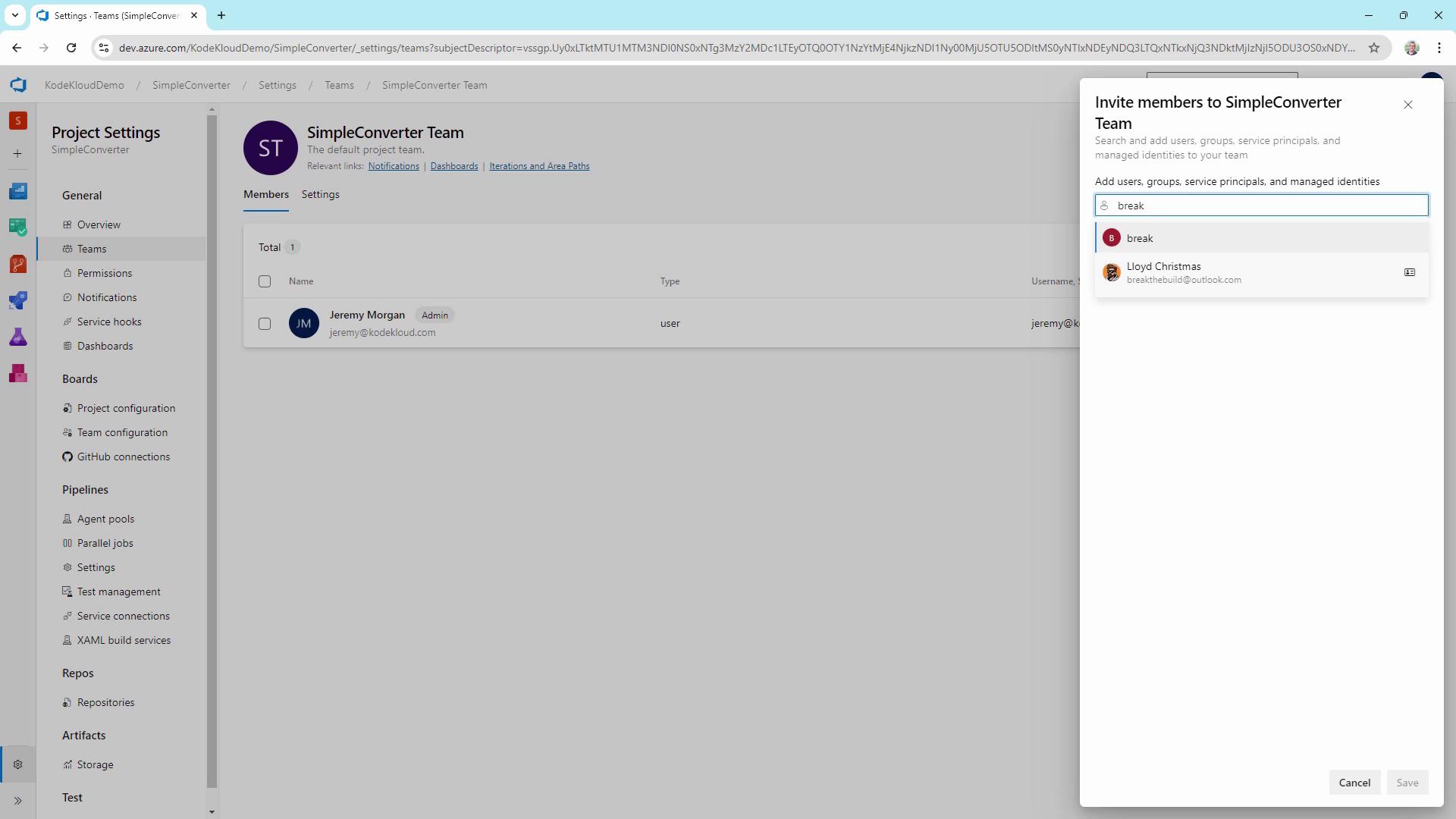
1. Under **Teams**, click **Simple Converter**.
2. Invite members explicitly—even project admins must be added here to inherit team permissions.
***
## 3. Review Built-in Security Groups
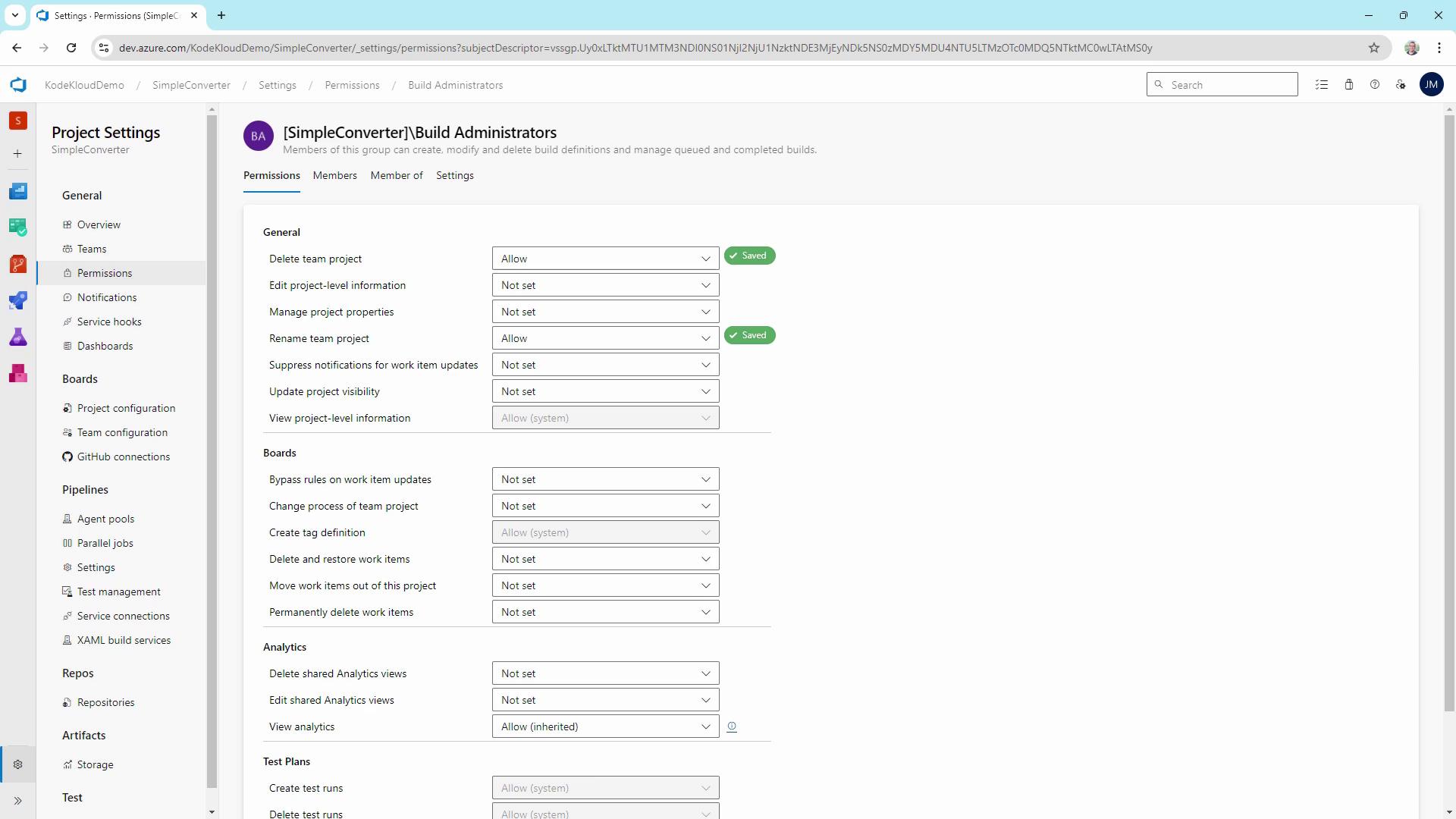
1. In **Project Settings** → **Security** → **Permissions**, select a built-in group (e.g., **Build Administrators**).
2. Inspect granular permissions:
* View analytics: Allow
* View project-level information: Allow
* Create tag definitions: Allow
* Create/Delete test runs: Allow
* Manage test configurations/environments: Allow
* View test runs: Allow
### Best Practices
* Grant only necessary permissions (least-privilege).
* Use explicit **Deny** to override undesired inherited **Allow**.
* For temporary tasks, add users to privileged groups, then remove them immediately.
***
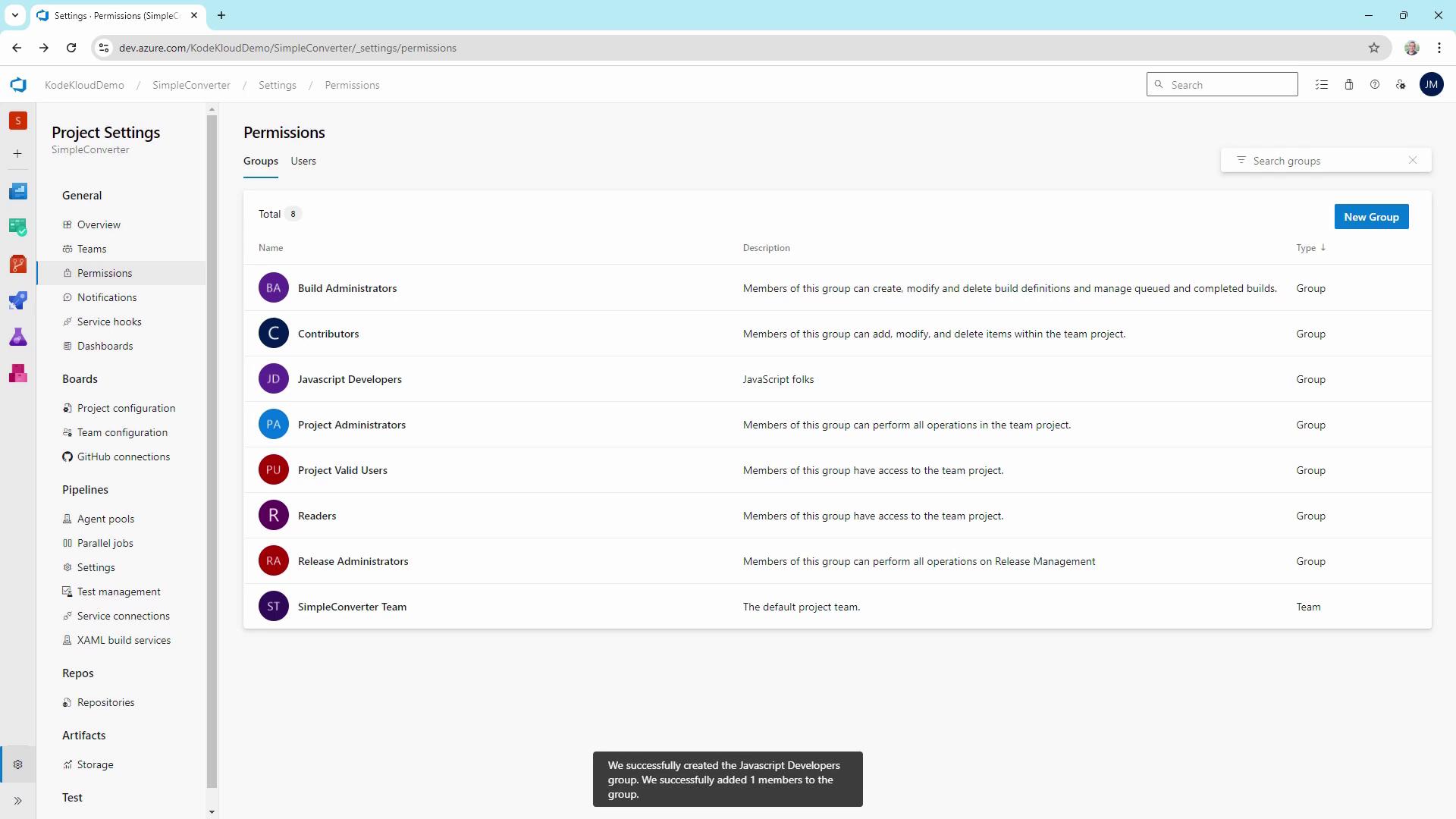
## 4. Create Custom Security Groups
1. Navigate to **Security** → **New Group**.
2. Name it `JavaScript Developers` and add members (e.g., Lloyd).
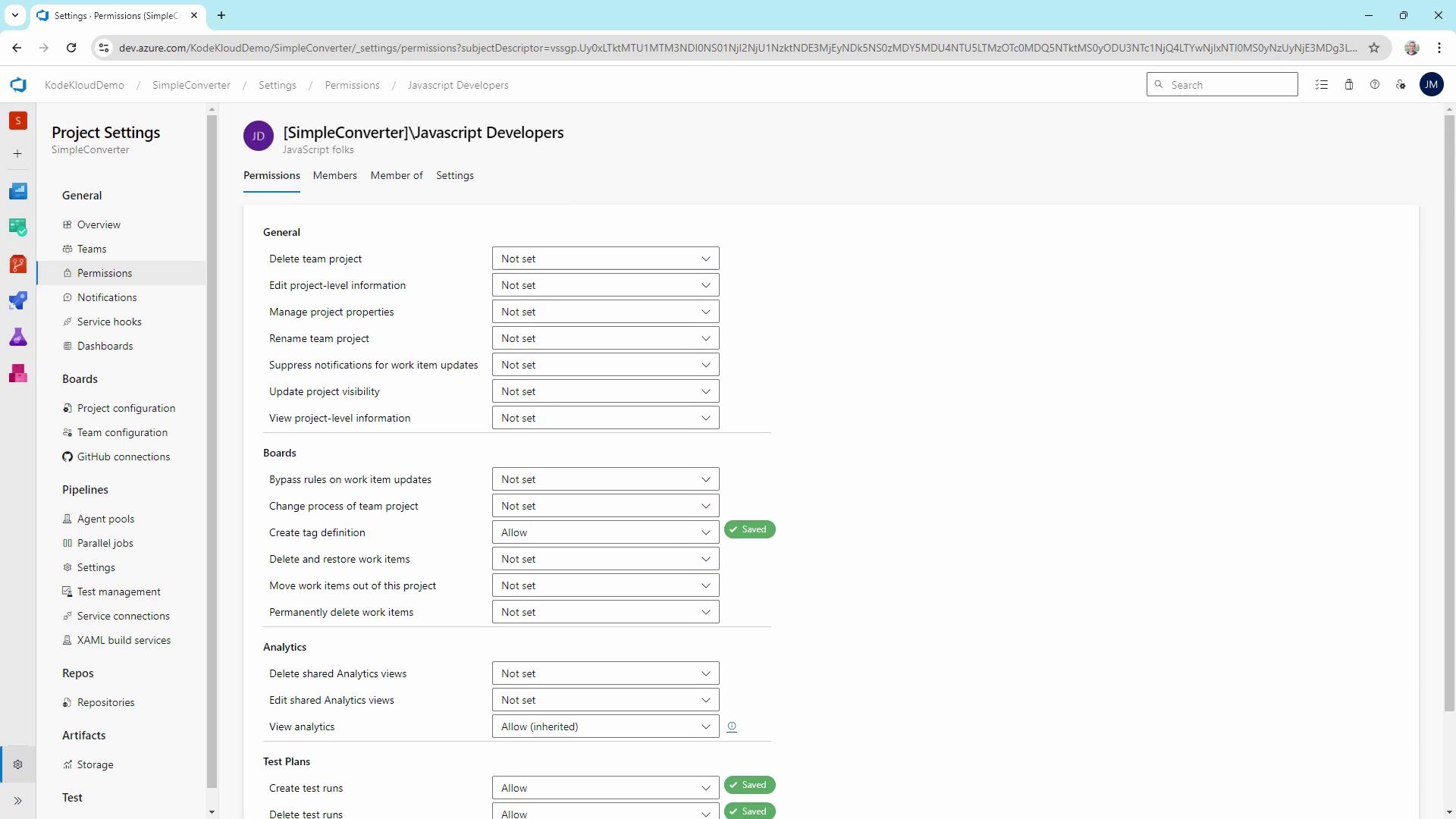
3. By default, it inherits permissions from **Project Valid Users**.
Grant additional rights:
* Create tag definitions: Allow
* Create/Delete test runs: Allow
### Team-Level Customization
Under **Teams** → **Simple Converter** → **Settings**, you can:
* Create sub-teams (e.g., `Test Group`).
* Assign only required permissions (e.g., **View project-level information**).
***
## 5. Secure Repositories and Pipelines
Use Azure DevOps security settings to fine-tune code and CI/CD access:
| Resource | Role | Actions Allowed |
| --------- | ----------- | --------------------------------------------------- |
| Repos | Reader | Clone, fetch, view code |
| Repos | Contributor | Push commits, create branches, manage pull requests |
| Pipelines | Reader | View pipeline definitions and run history |
| Pipelines | Contributor | Create, edit, queue builds |
1. Go to **Repos** or **Pipelines** → **Security**.
2. Adjust permissions per role.
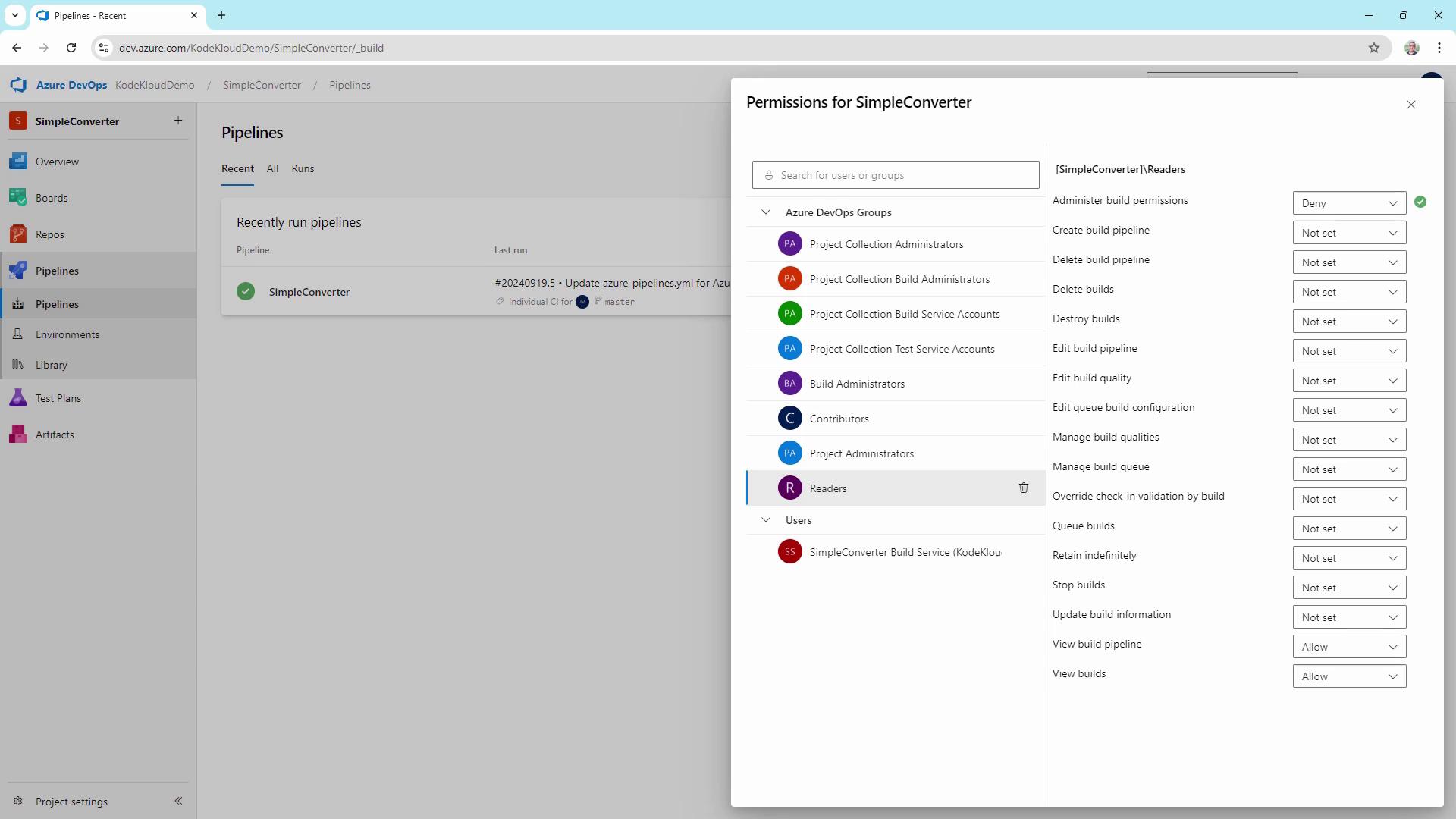
Avoid granting `Destroy builds` or other destructive permissions unless absolutely necessary.
***
## 6. Regular Review and Audit
* Periodically review all security groups and permissions.
* Remove or deny obsolete accounts.
* Track changes via **Audit Logs** to maintain compliance.
Schedule quarterly permission reviews to ensure your RBAC model remains secure and current.
***
## Links and References
* [AZ-400 Exam (Microsoft Learn)](https://learn.microsoft.com/en-us/certifications/exams/az-400/)
* [Azure DevOps REST API Security](https://learn.microsoft.com/en-us/rest/api/azure/devops/security/)
* [Role-Based Access Control (RBAC) in Azure](https://learn.microsoft.com/azure/role-based-access-control/)