> ## Documentation Index
> Fetch the complete documentation index at: https://notes.kodekloud.com/llms.txt
> Use this file to discover all available pages before exploring further.
# Azure Automation State Configuration
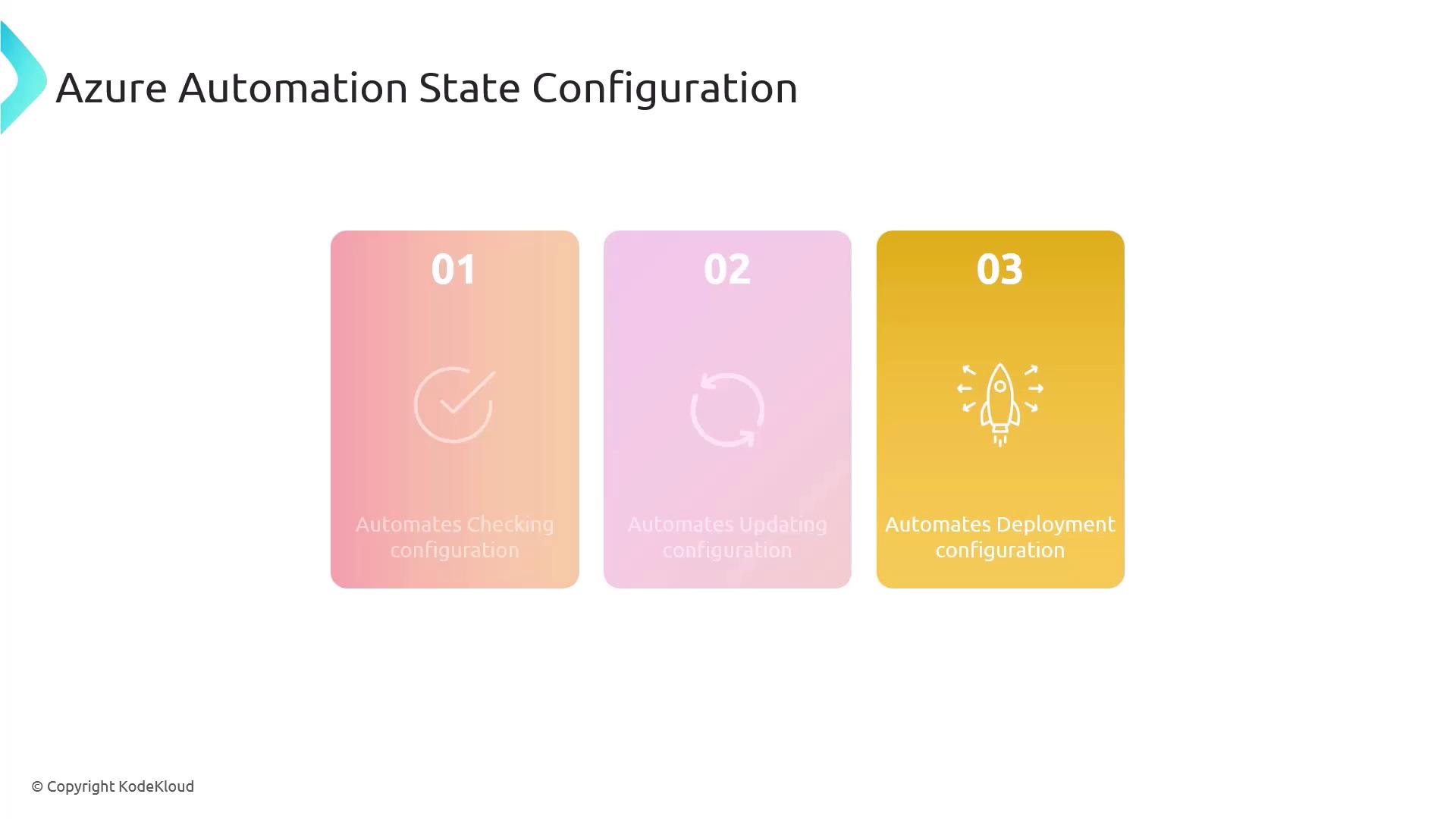
> Azure Automation Desired State Configuration (DSC) automates system configurations, ensuring consistency and drift correction across Azure and on-premises environments.
Azure Automation Desired State Configuration (DSC) is a powerful service for defining, deploying, and enforcing system configurations at scale. By authoring PowerShell-based DSC scripts, you can automate consistency checks and drift correction across Azure and on-premises environments—eliminating manual errors and saving operational time.
## Key Benefits
| Benefit | Description |
| ----------------------------- | ----------------------------------------------------------------------------------- |
| Centralized Management | Single pane of glass to manage DSC configurations across subscriptions and regions. |
| Automatic Drift Correction | Continuous monitoring with automatic remediation of configuration drift. |
| Detailed Compliance Reporting | Out-of-the-box dashboards and logs to track node compliance over time. |
***
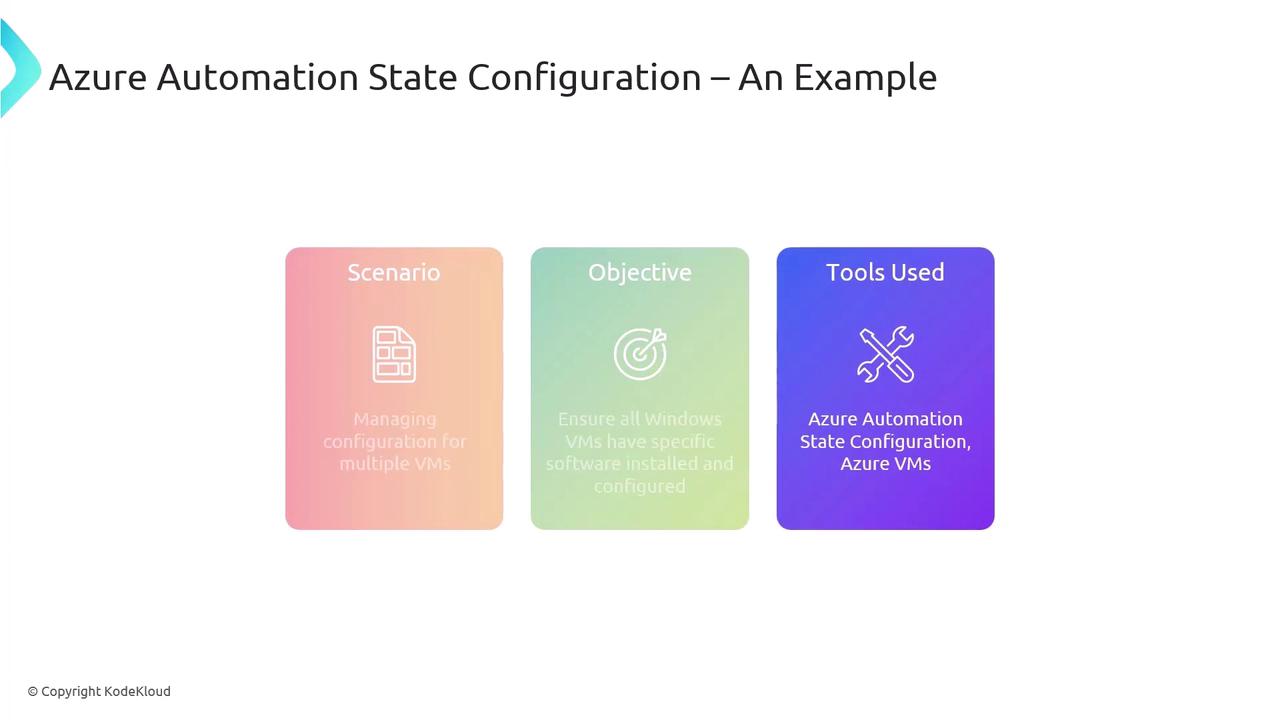
## Scenario: Enforce Software on Multiple Windows VMs
In this walkthrough, we'll ensure a scheduled PowerShell task is installed and maintained on several Azure Windows VMs using Azure Automation DSC.
### Prerequisites
* Azure subscription with contributor or automation operator role
* Azure VM Agent installed on each target VM
* [Az.Automation PowerShell module](https://www.powershellgallery.com/packages/Az.Automation) installed locally
Before registering VMs for DSC, ensure the Azure VM Agent is up to date. Without it, DSC cannot communicate with the Automation account.
***
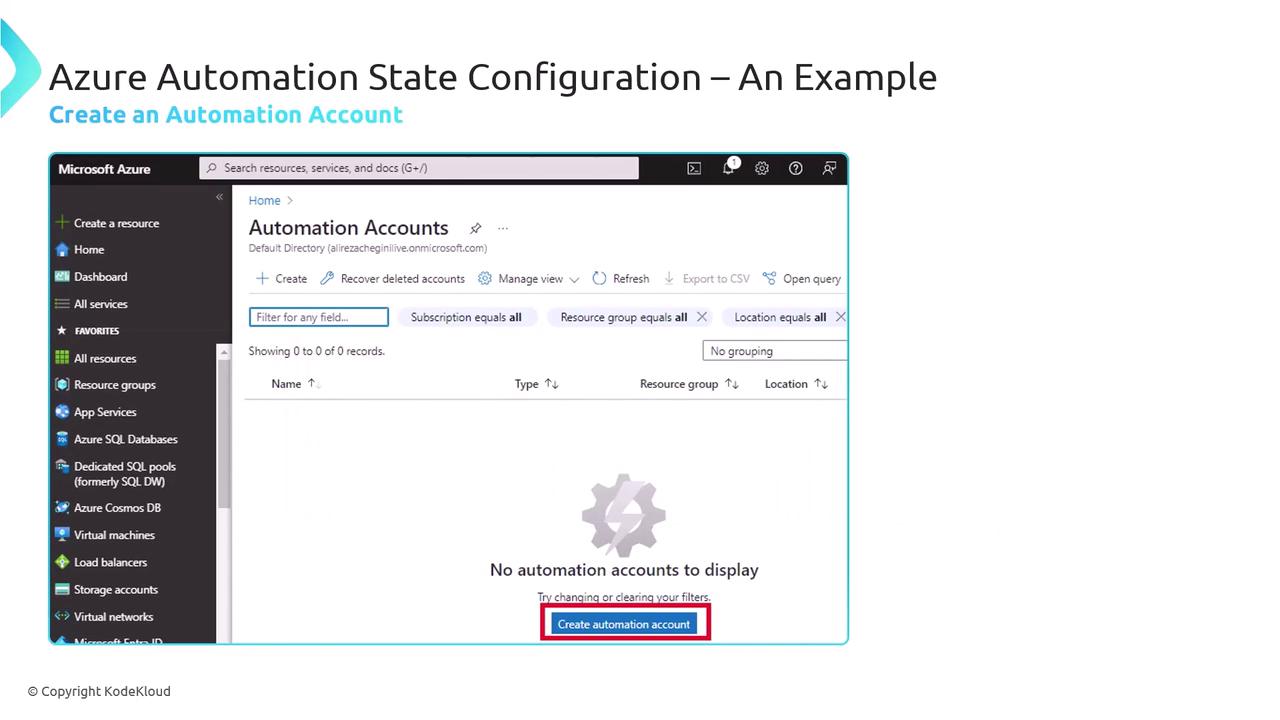
## Step 1: Create an Automation Account
Your Automation Account is the central hub for DSC configurations, runbooks, and assets.
1. In the Azure portal, search for **Automation Accounts**.
2. Click **+ Create**, fill in the name, resource group, and region.
3. Review and **Create**.
***
## Step 2: Register Your VM as a DSC Node
Once the Automation Account is active, add your Windows VM as a DSC node.
1. Navigate to **State Configuration (DSC)** > **Nodes**.
2. Click **Add** > **Azure VM**.
3. Select your subscription, resource group, and VM.
4. Configure:
* **Refresh Frequency**: Interval for DSC pull (e.g., 30 minutes)
* **Configuration Mode**: `ApplyAndAutoCorrect` or `ApplyAndMonitor`
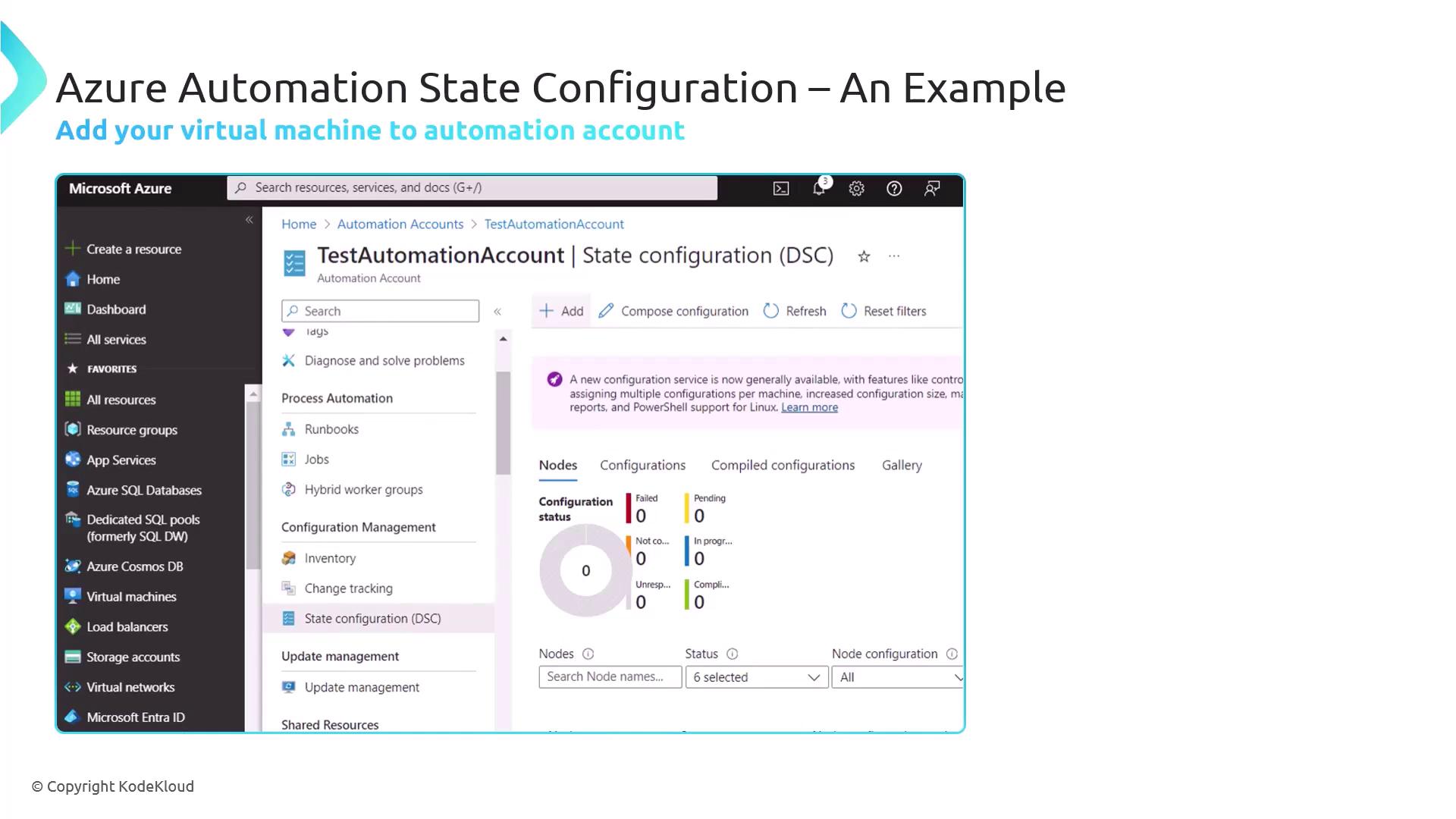
On the registration settings page, enter the **Registration Key**, **Node Configuration Name**, and **Refresh Interval**.
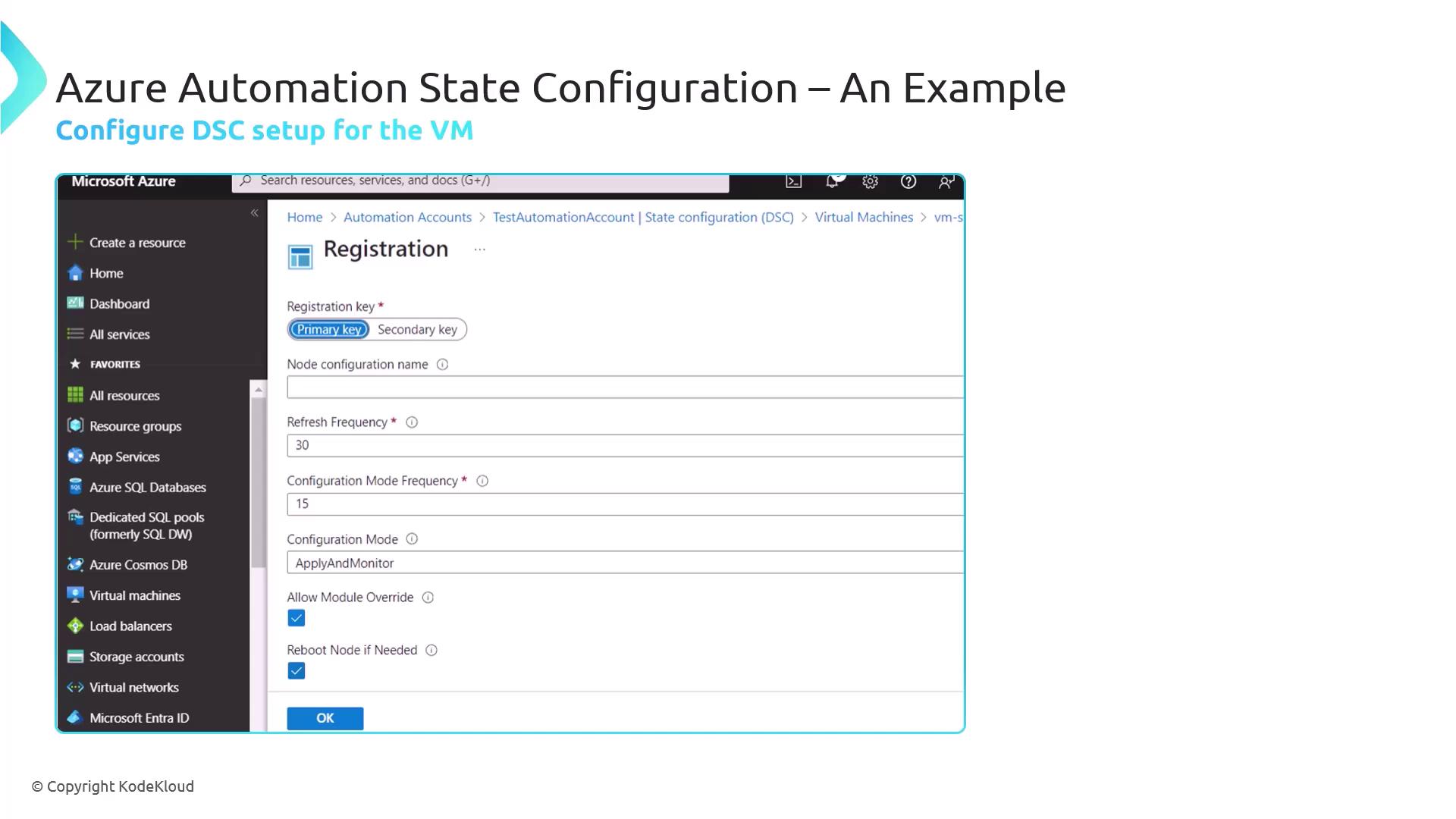
After registration, the VM appears in the DSC **Nodes** view marked **Compliant** (no custom configurations yet).
***
## Step 3: Author and Import Your DSC Configuration
Define a DSC configuration that schedules a PowerShell task to run daily at midnight and repeat every 15 minutes for 8 hours.
```powershell theme={null}
Configuration ScheduledTaskDaily {
Node 'localhost' {
ScheduledTask ScheduledTaskDailyAdd {
TaskName = 'Test task Daily'
TaskPath = 'MyTasks'
ActionExecutable = 'C:\Windows\System32\WindowsPowerShell\v1.0\powershell.exe'
ScheduleType = 'Daily'
DaysInterval = 1
RepeatInterval = '00:15:00'
StartBoundary = '2023-10-01T00:00:00'
RepeatDuration = '08:00:00'
}
}
}
# Compile the configuration to a local folder
ScheduledTaskDaily -OutputPath "$env:Temp\DSC"
```
Ensure you include `StartBoundary` and `RepeatDuration` when you need the schedule to span a specific time window.
1. In the portal, go to **State Configuration (DSC)** > **Configurations**.
2. Click **Add**, upload the compiled `.mof` file from `"$env:Temp\DSC"`.
3. Confirm and **Save**.
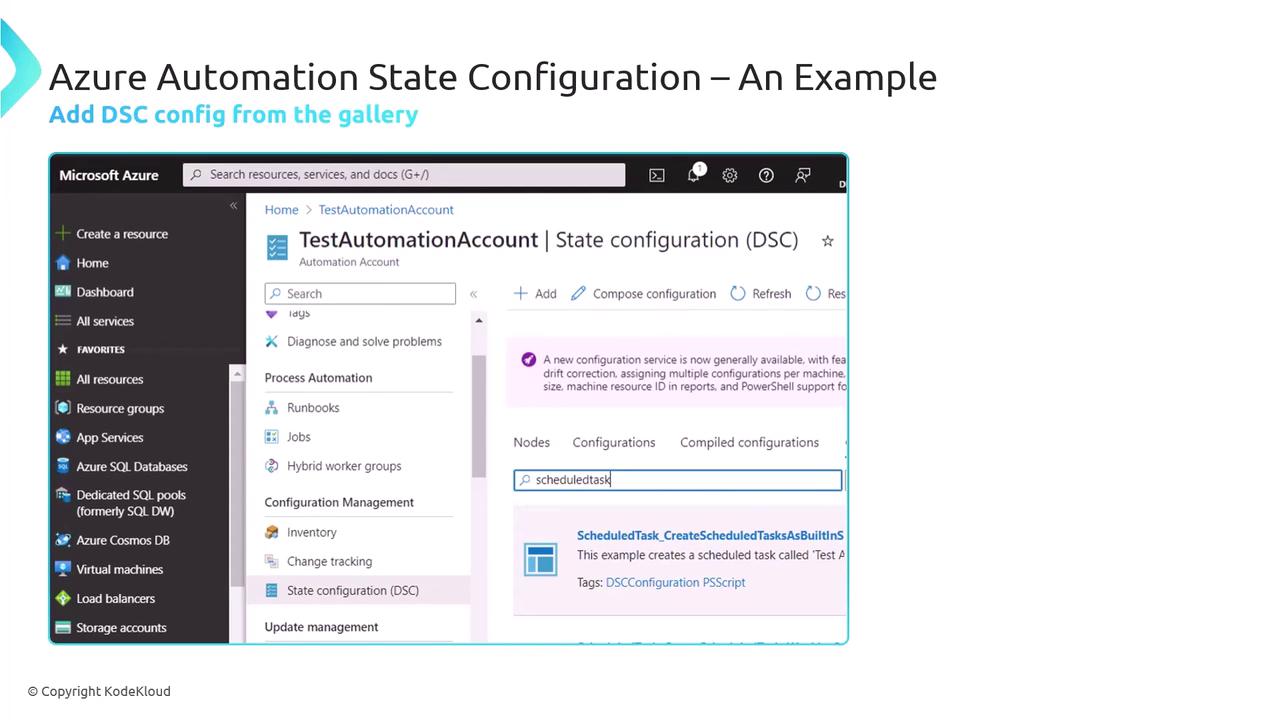
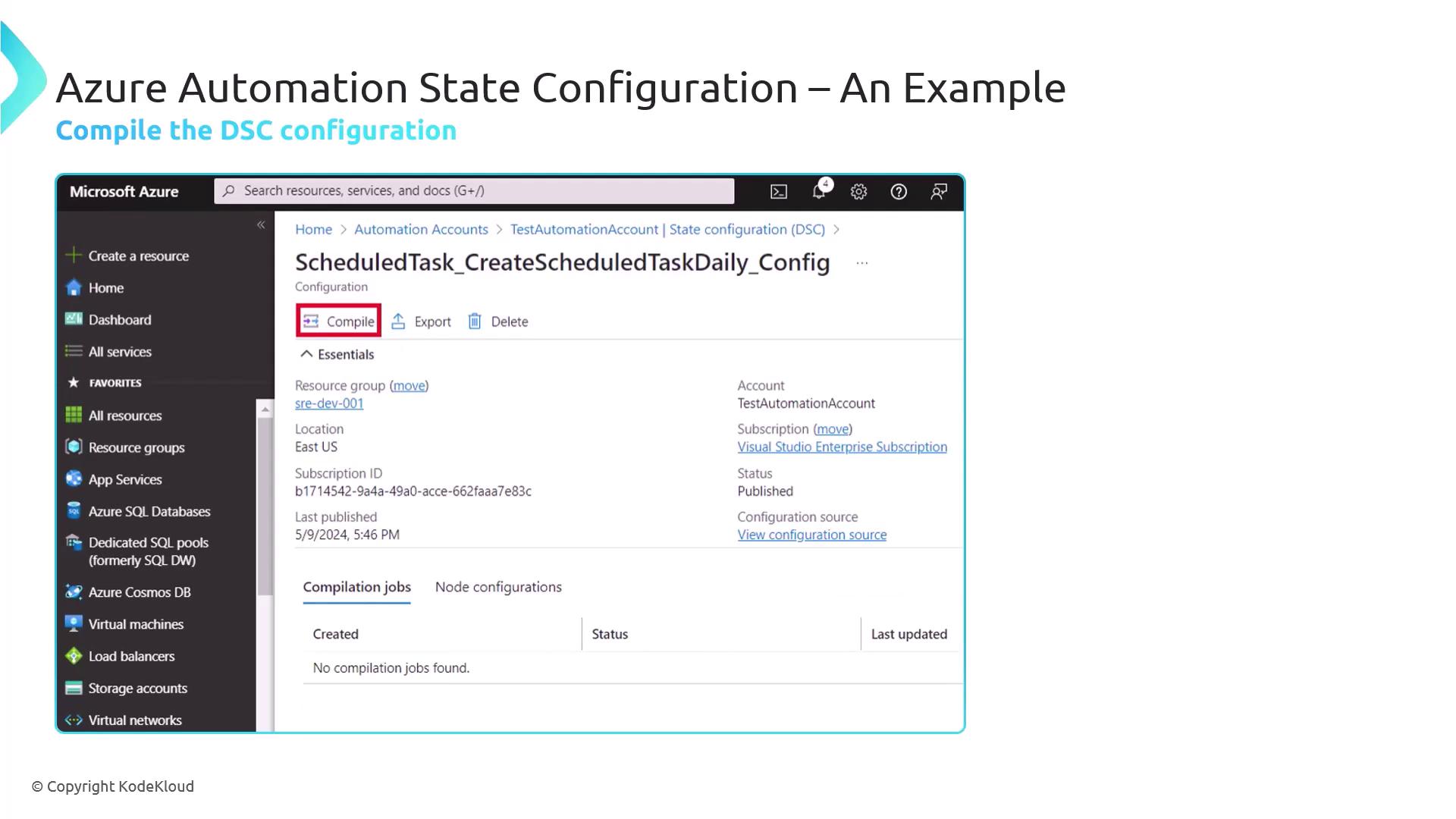
Compile status will appear in **Configuration Versions**.
***
## Step 4: Assign the Configuration to the VM
Apply the new DSC configuration to your node:
1. Under **State Configuration (DSC)** > **Nodes**, select your VM.
2. Click **Assign Node Configuration**.
3. Choose the `ScheduledTaskDaily` configuration version and **OK**.
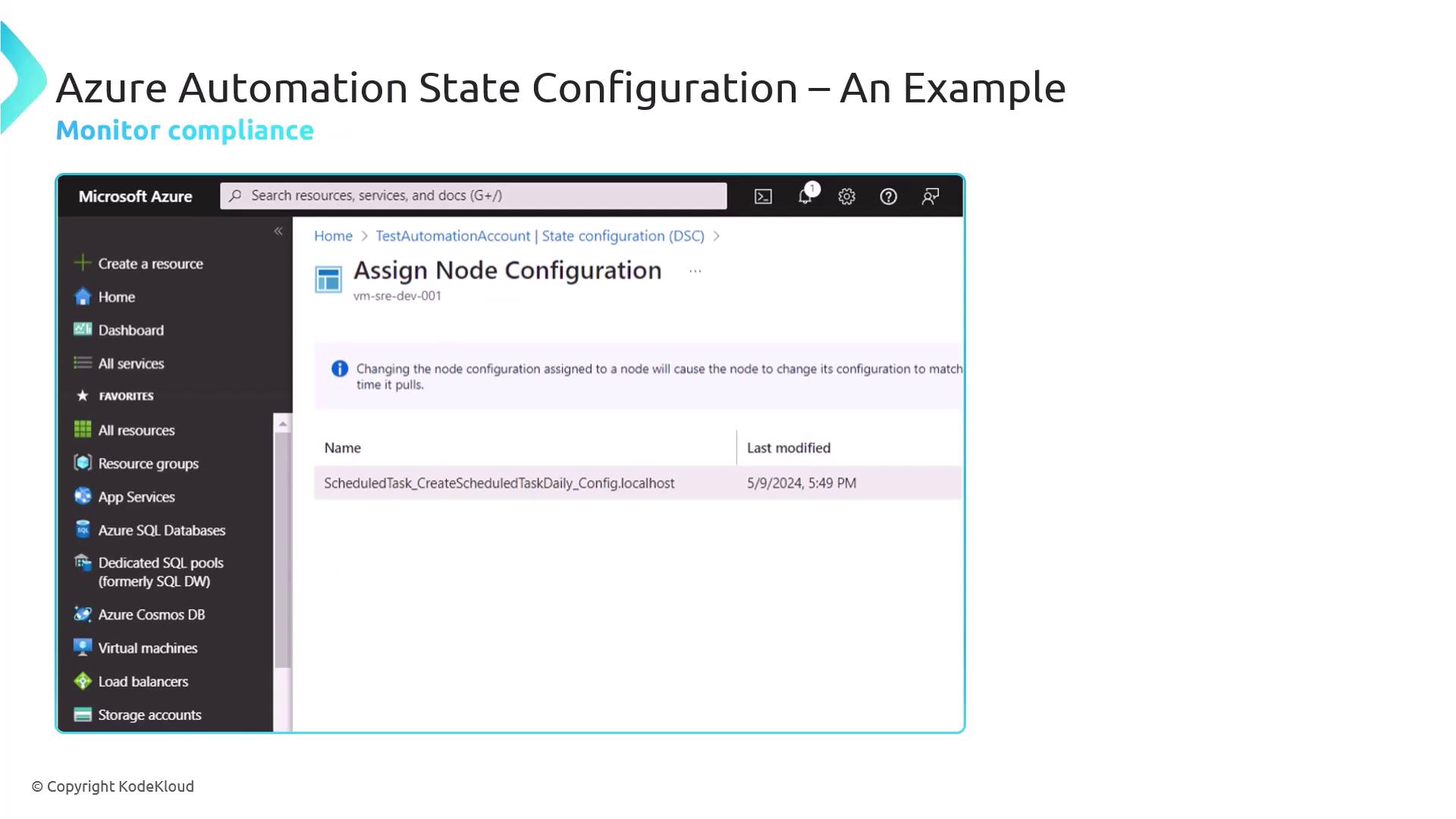
* The node will show **Noncompliant** until DSC applies your settings.
* After successful application, it returns to **Compliant**, indicating the scheduled task is in place.
***
## Links and References
* [Azure Automation DSC Overview](https://docs.microsoft.com/azure/automation/automation-dsc-overview)
* [PowerShell ScheduledTask DSC Resource](https://docs.microsoft.com/powershell/module/psdesiredstateconfiguration/scheduledtask)
* [Az.Automation PowerShell Module](https://www.powershellgallery.com/packages/Az.Automation)
* [Azure Virtual Machine Agent](https://docs.microsoft.com/azure/virtual-machines/extensions/agent-windows)