> ## Documentation Index
> Fetch the complete documentation index at: https://notes.kodekloud.com/llms.txt
> Use this file to discover all available pages before exploring further.
# Design and implement desired state configuration for environments
> This article explains Desired State Configuration (DSC) for managing infrastructure consistency and automating configuration drift remediation using Azure tools.
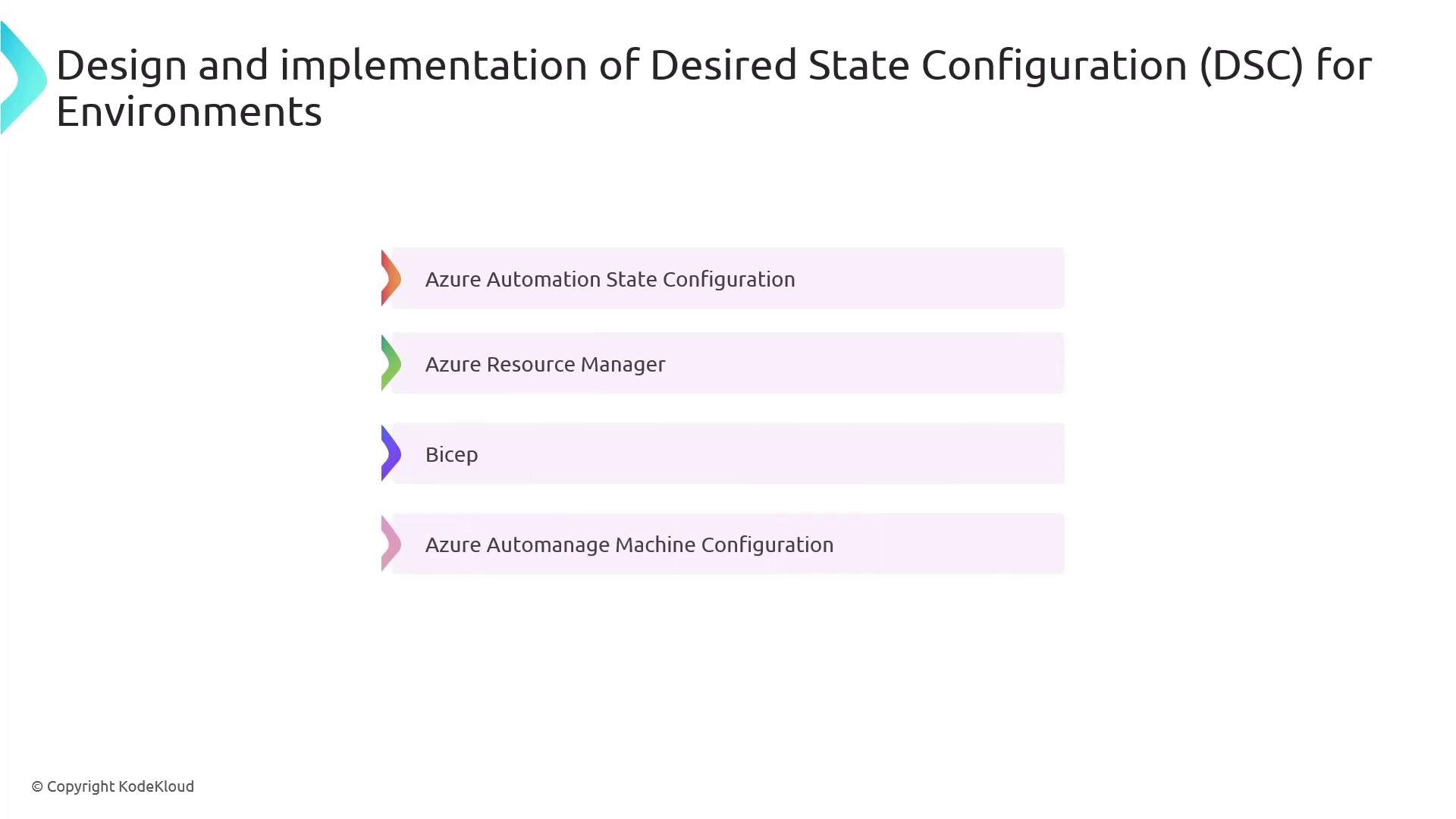
In this lesson, we’ll dive into **Desired State Configuration (DSC)**—a declarative framework that enforces and maintains your infrastructure’s configuration. Azure offers several DSC tools to help you achieve a consistent, drift-free environment, including:
* Azure Automation State Configuration
* Azure Resource Manager
* Bicep
* Azure Automanage Machine Configuration
***
## What Is Desired State Configuration?
Desired State Configuration (DSC) is a Windows PowerShell management platform designed to:
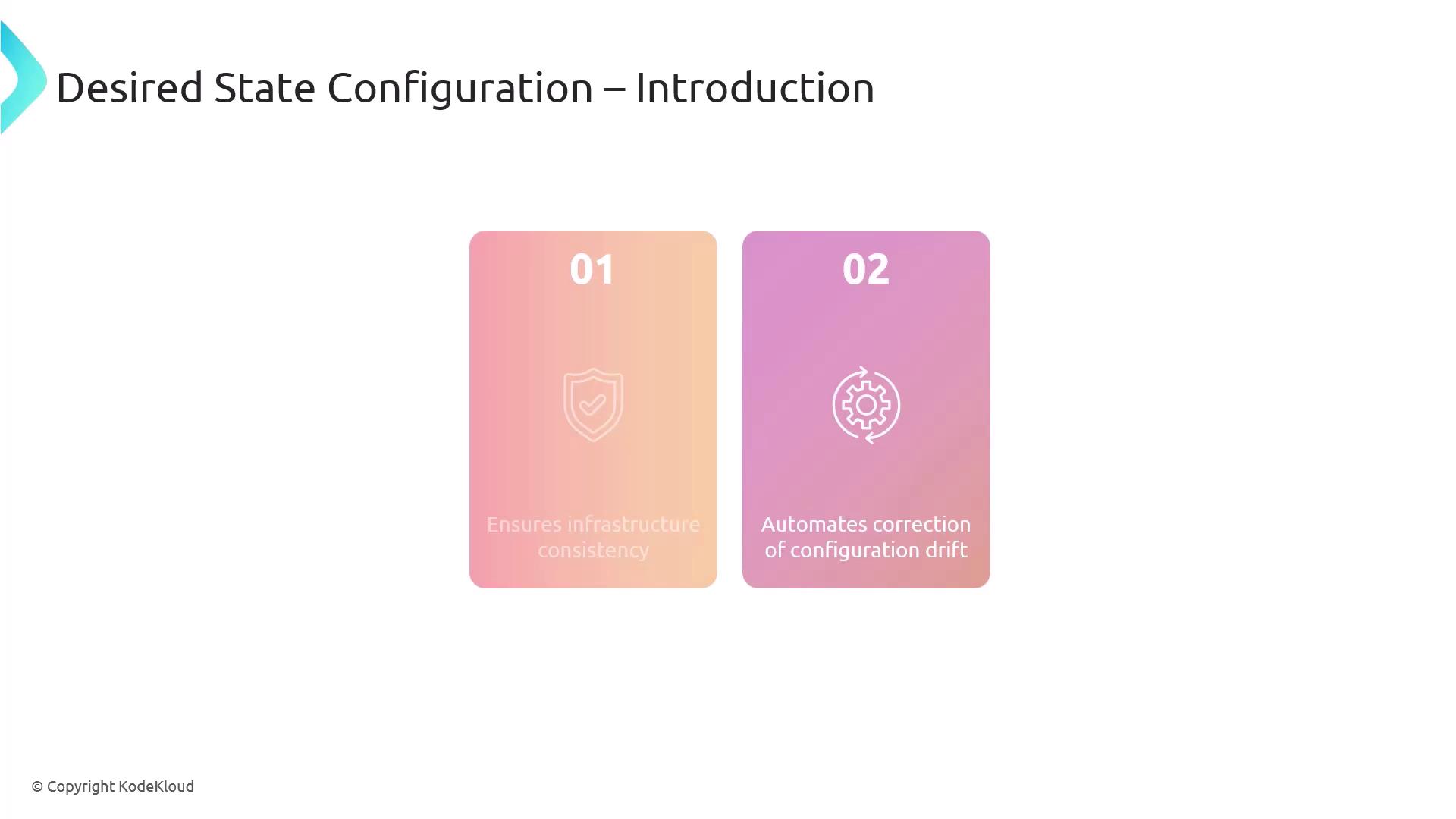
* Ensure infrastructure consistency by applying identical configurations across all nodes
* Automatically detect and remediate configuration drift to keep systems in the defined “blueprint”
***
## Example: PowerShell DSC for a Windows Web Server
Below is a step-by-step demonstration on how to deploy IIS and configure the Default Web Site in a stopped state using PowerShell DSC.
### Step 1: Define the DSC Configuration
```powershell theme={null}
Configuration WebServerSetup {
# Import the built-in DSC resource for Windows features and the IIS module
Import-DscResource -ModuleName PSDesiredStateConfiguration, xWebAdministration
Node "localhost" {
# Install the IIS (Web-Server) role
WindowsFeature IIS {
Ensure = "Present"
Name = "Web-Server"
}
# Create or update Default Web Site and ensure it is stopped
xWebsite DefaultSite {
Ensure = "Present"
Name = "Default Web Site"
State = "Stopped"
PhysicalPath = "C:\inetpub\wwwroot"
DependsOn = "[WindowsFeature]IIS"
}
}
}
```
You need **administrator privileges** to install roles/features and apply DSC configurations on Windows Server.
### Step 2: Compile the Configuration
Run the configuration script to generate a Managed Object Format (MOF) file:
```powershell theme={null}
# Generates WebServerSetup\localhost.mof
WebServerSetup
```
### Step 3: Apply the Configuration
Push the MOF to the Local Configuration Manager (LCM) on the target node:
```powershell theme={null}
Start-DscConfiguration -Path .\WebServerSetup -Wait -Verbose -Force
```
* `-Path` points to the folder containing the `.mof` file.
* `-Wait` pauses execution until the LCM completes the operation.
* `-Verbose` shows detailed progress.
* `-Force` re-applies the configuration even if it’s already in place.
***
## How DSC Works
The Local Configuration Manager (LCM) is the DSC engine on each target node. It:
1. Reads the `.mof` file and understands the desired state.
2. Applies any missing or incorrect settings to match that state.
3. Periodically checks for drift and re-applies the configuration if changes are detected.
***
## Key DSC Resources
| Resource | Purpose | Example Usage |
| -------------- | ------------------------------------------------- | ----------------------------------------------------------------------- |
| WindowsFeature | Installs or removes Windows Server roles/features | `WindowsFeature IIS { Ensure = "Present"; Name = "Web-Server" }` |
| xWebsite | Creates, removes, or configures IIS websites | `xWebsite DefaultSite { State = "Stopped"; Name = "Default Web Site" }` |
Use [Azure Automation State Configuration](https://learn.microsoft.com/azure/automation/automation-dsc-overview) to scale DSC at enterprise level—target hundreds of machines, view compliance reports, and integrate with Azure Monitor.
***
## Links and References
* [Desired State Configuration Overview](https://learn.microsoft.com/powershell/dsc/overview)
* [Azure Automation State Configuration](https://learn.microsoft.com/azure/automation/automation-dsc-overview)
* [xWebAdministration Module on PowerShell Gallery](https://www.powershellgallery.com/packages/xWebAdministration)
* [Bicep Documentation](https://learn.microsoft.com/azure/azure-resource-manager/bicep/overview)