> ## Documentation Index
> Fetch the complete documentation index at: https://notes.kodekloud.com/llms.txt
> Use this file to discover all available pages before exploring further.
# Designing an Agent Infrastructure
> This article explores designing and configuring build agent infrastructure in Azure DevOps, covering hosted vs. self-hosted agents and best practices for scaling and customization.
In this article, we’ll explore how to design and configure build agent infrastructure in [Azure DevOps][azure-devops]. You’ll learn the differences between hosted and self-hosted agents, see how to launch agents on Windows, Linux, Docker, and macOS, and review best practices for scaling and customization.
## Hosted vs. Self-Hosted Agents
Build agents in Azure Pipelines fall into two categories:
| Feature | Hosted Agents | Self-Hosted Agents |
| ------------------- | --------------------------------- | ---------------------------------------- |
| Management | Microsoft-maintained | You manage VMs, servers or containers |
| Supported platforms | Windows, Linux, macOS | Any OS you provision |
| Customization | Preinstalled tools, limited tweak | Full control over tool versions & images |
| Scaling & cost | Auto-scaled, pay-per-minute | Optimize infrastructure & licensing |
Host agents are turnkey and zero-maintenance, while self-hosted agents give you full control over the software stack and cost structure.
## Viewing Agent Pools
Navigate in Azure DevOps to **Organization settings** → **Agent pools** to see all your pools and agents:
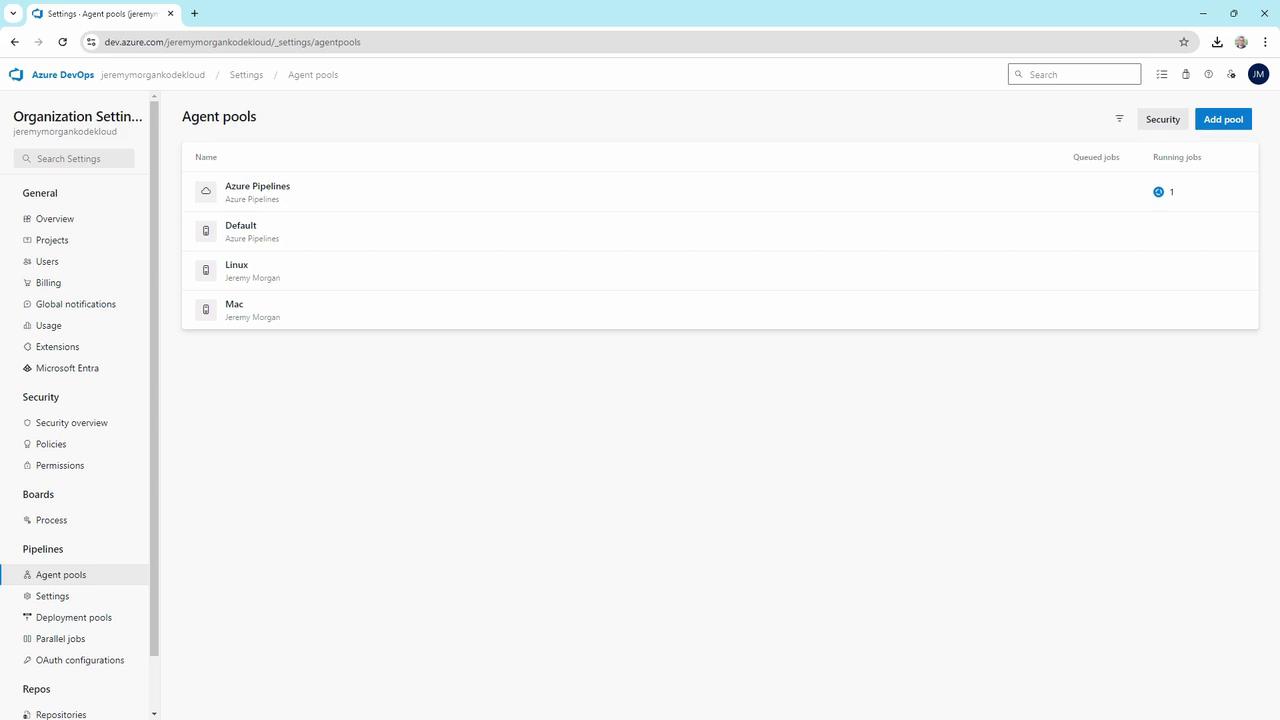
Here you’ll find pools like **Azure Pipelines** (hosted), **Default**, **Linux**, and **Mac**.
### Hosted Agents
The **Azure Pipelines** pool contains Microsoft-hosted agents:
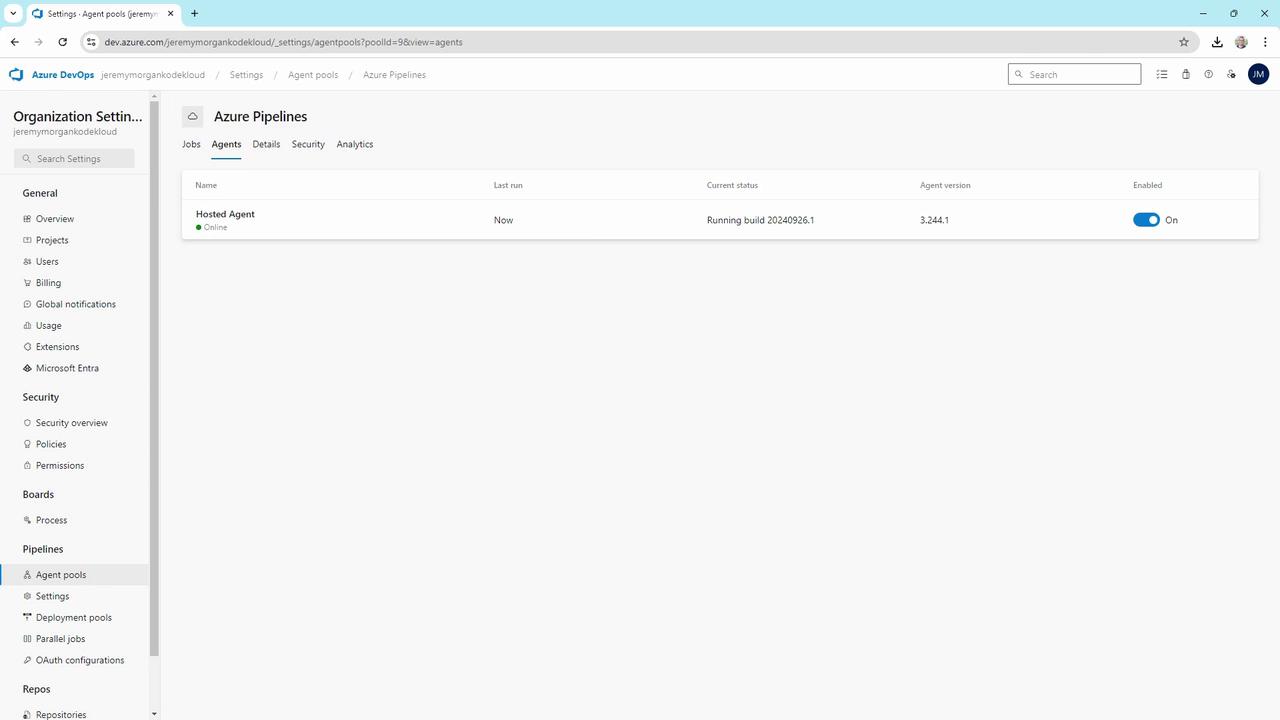
* Always online and listening
* Supports Windows, Linux, and macOS jobs
* No infrastructure maintenance required
## Setting Up Self-Hosted Agents
Self-hosted agents run on machines you control—physical servers, cloud VMs, or containers. Below are step-by-step examples for Windows, Docker, Linux (WSL & standalone), and macOS.
### 1. Windows Self-Hosted Agent
In the **Default** pool, you might see two offline Windows agents:
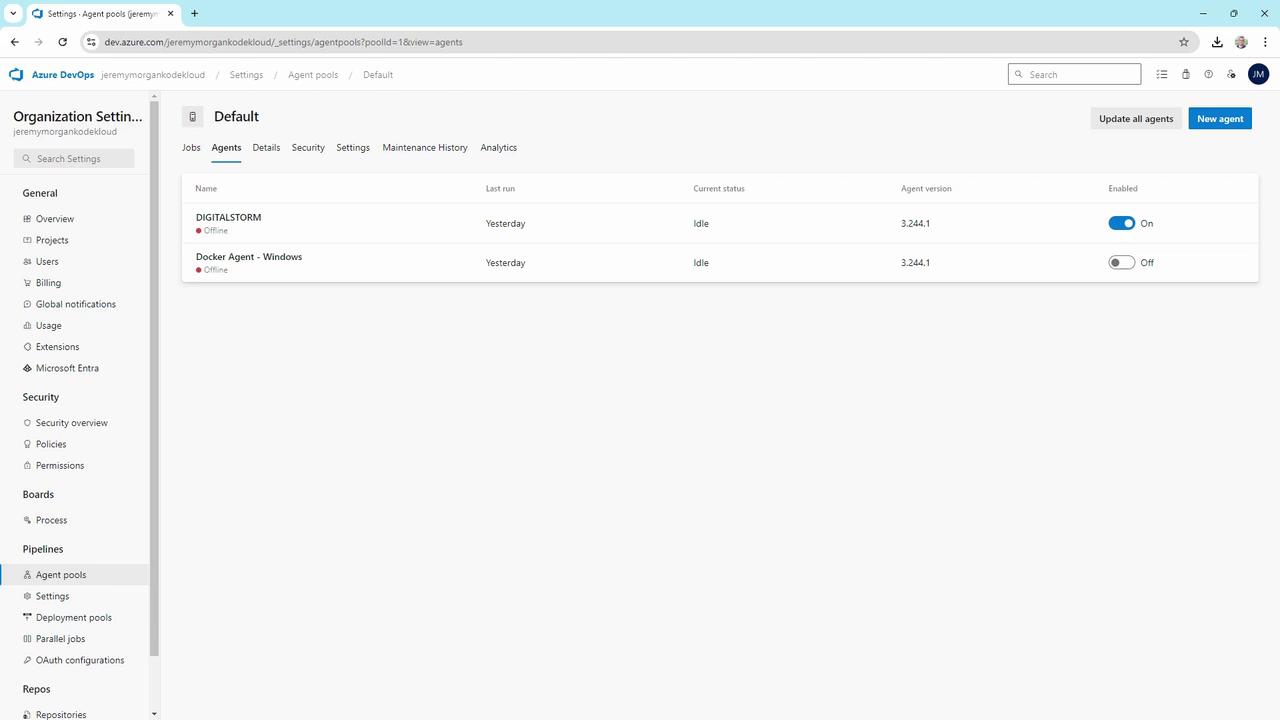
To bring one online:
```powershell theme={null}
# Change into your agent folder
cd C:\agent
# Run the agent service
.\run.cmd
```
Sample output:
```text theme={null}
Scanning for tool capabilities.
Connecting to the server.
2024-09-26 17:57:45Z: Listening for Jobs
```
The agent is now online and ready to accept jobs.
Keep your `AZP_TOKEN` secure. Never commit it to source control or share publicly.
### 2. Docker-Based Agent
Containerize your agent for easier scaling and reproducibility:
```bat theme={null}
REM File: start.bat in your project’s azpbuild folder
docker run `
-e AZP_URL="%AZP_URL%" `
-e AZP_TOKEN="%AZP_TOKEN%" `
-e AZP_POOL="Default" `
-e AZP_AGENT_NAME="Docker Agent - Windows" `
--name azp-agent-windows `
azp:agent
```
Run it:
```bat theme={null}
cd C:\Projects\agents\azpbuild
start.bat
```
Now both your native Windows agent and the containerized agent will appear online.
### 3. Linux Agents
In the **Linux** pool you may have agents for WSL or standalone servers:
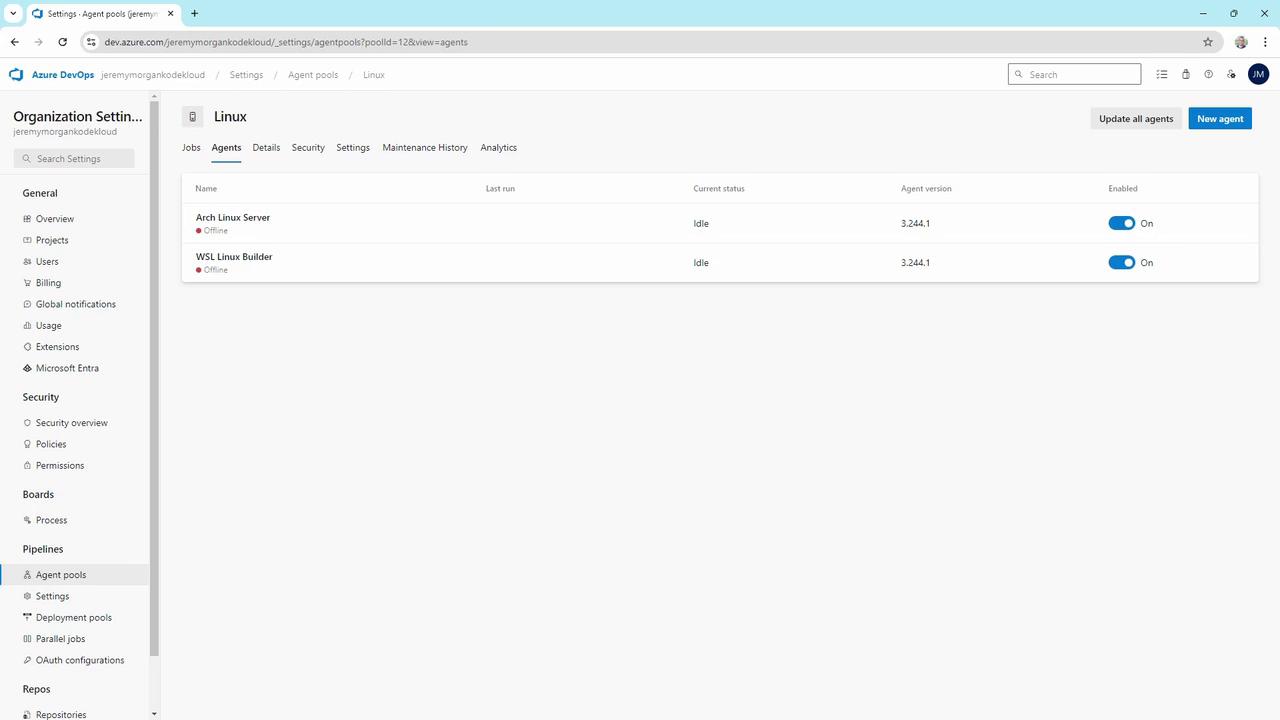
#### WSL Agent
On Windows with WSL installed:
```bash theme={null}
cd ~/myagent
./run.sh
```
You’ll see:
```text theme={null}
Scanning for tool capabilities.
Connecting to the server.
2024-09-26 17:57:45Z: Listening for Jobs
```
#### Standalone Linux Server
On a dedicated Linux VM (e.g., Arch, Ubuntu):
```bash theme={null}
cd ~/myagent
./run.sh
```
Output is identical—just toggle the agent on or off as needed.
### 4. macOS Agent
SSH into your Mac build host and start the agent:
```bash theme={null}
ssh jeremy@Jeremys-Mac-Studio
cd ~/myagent
./run.sh
```
```text theme={null}
Scanning for tool capabilities.
Connecting to the server.
2024-09-26 17:57:45Z: Listening for Jobs
```
The macOS agent will show up under the **Mac** pool.
Containerized agents simplify upgrades and scaling. Consider using Kubernetes to auto-scale your Docker-based agents.
## Choosing the Right Infrastructure
When architecting your agent setup, evaluate:
* **Target OS**: Windows, Linux, macOS
* **Management overhead**: Hosted zero-touch vs. self-hosted control
* **Customization needs**: Specific SDKs, Docker images, hardware
* **Scaling strategy**: Manual scaling, Kubernetes, or VM auto-scaling
Containerized, self-hosted agents strike a strong balance for most teams—offering full customization with industry-standard orchestration tools like [Kubernetes][kubernetes].
***
## Links and References
* [Azure DevOps Services][azure-devops]
* [Azure Pipelines][azure-pipelines]
* [Docker Official Site][docker]
* [Kubernetes Documentation][kubernetes]
[azure-devops]: https://azure.microsoft.com/services/devops/
[azure-pipelines]: https://azure.microsoft.com/services/devops/pipelines/
[docker]: https://www.docker.com/
[kubernetes]: https://kubernetes.io/