> ## Documentation Index
> Fetch the complete documentation index at: https://notes.kodekloud.com/llms.txt
> Use this file to discover all available pages before exploring further.
# Exploring Azure Pipelines Secrets with Azure Key Vault
> This article guides on integrating Azure Key Vault with Azure Pipelines for secure secret management in CI/CD strategies.
Secure secret management is a cornerstone of any CI/CD strategy in Azure DevOps. By integrating Azure Key Vault with Azure Pipelines, you keep credentials out of code, streamline compliance, and prepare for certification exams like AZ-400. In this guide, we’ll walk through:
* Creating an Azure Key Vault
* Adding secrets
* Configuring an Azure DevOps service connection
* Building and running a pipeline that fetches Key Vault secrets
## 1. Creating an Azure Key Vault
1. In the Azure Portal, search for **Key Vaults** and click **+ Create**.
2. Select your subscription and resource group.
3. Enter a globally unique vault name (e.g., `KodeKloudKeyVault123`).
4. Choose **East US** as the region and **Standard** pricing tier.
5. Leave **Soft delete** enabled (90-day retention) and configure **Purge protection** as needed.
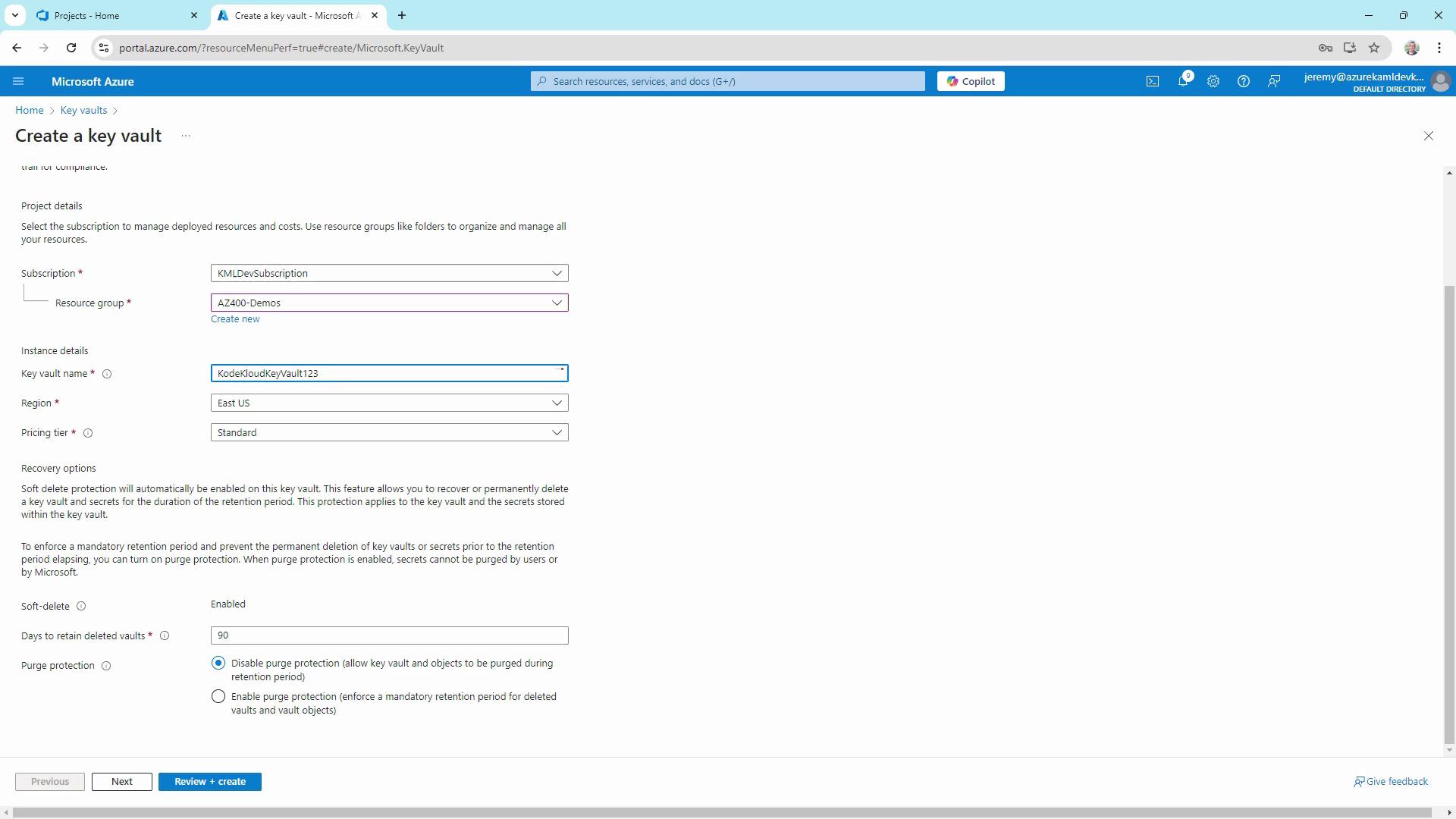
Soft delete is enabled by default to prevent accidental data loss. If you need stricter protection, enable **Purge protection**.
6. Click **Next** until you reach **Access policy**, choose the **Vault access policy** model for granular permissions, and grant yourself **Get**, **List**, **Create**, and **Delete** rights.
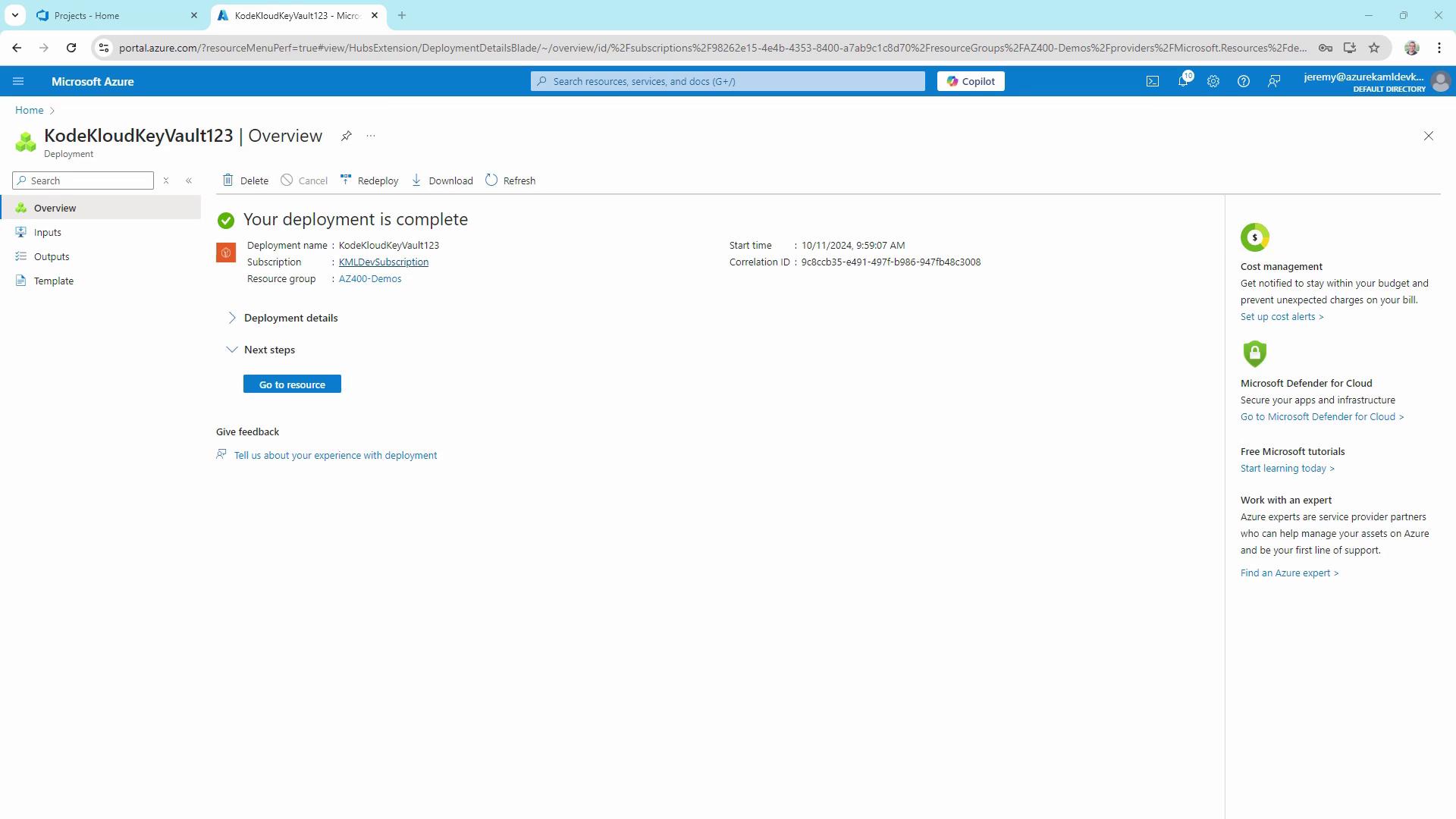
7. Review and select **Create**. After deployment, click **Go to resource**.
## 2. Adding a Secret
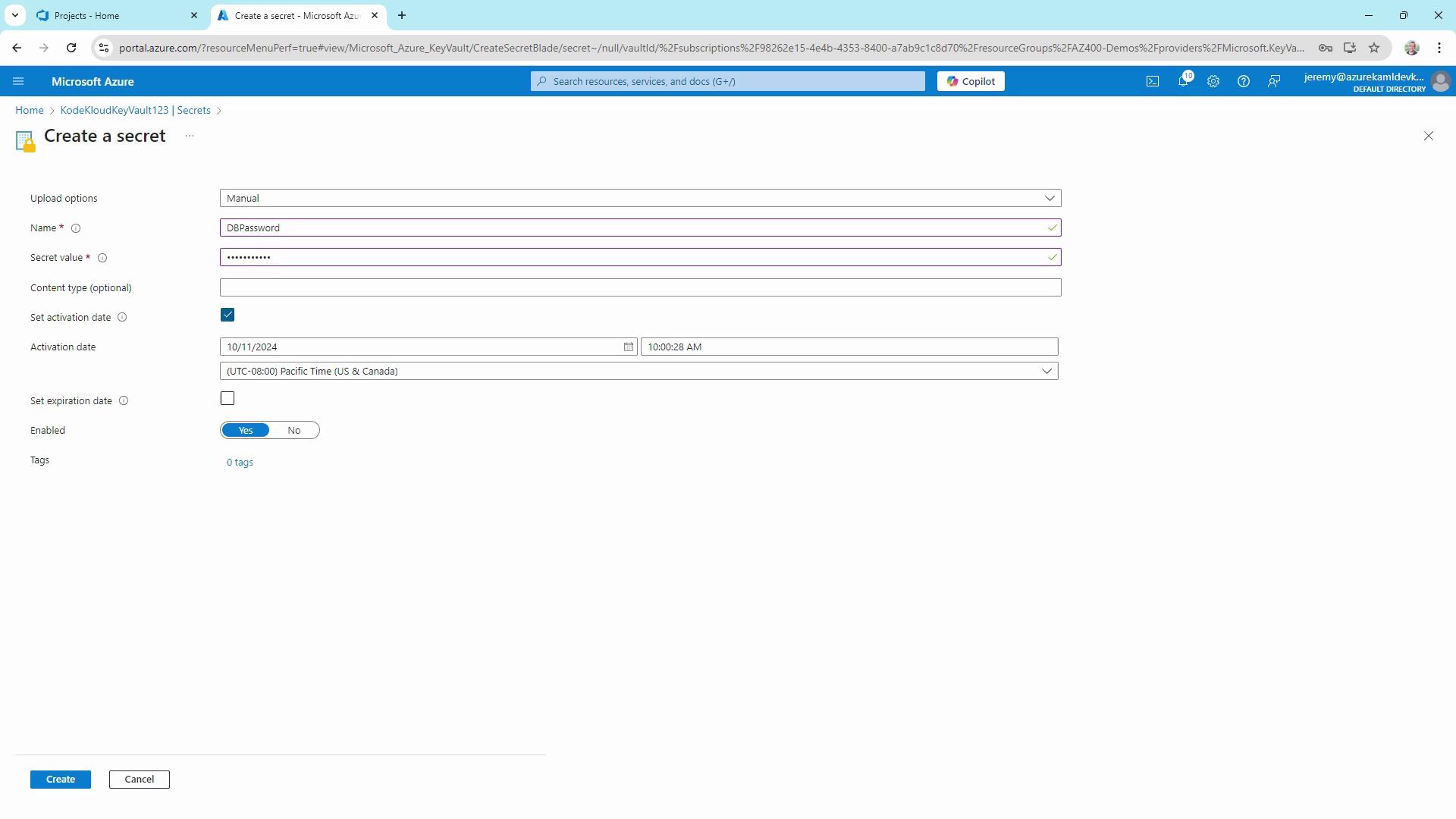
1. In your vault’s blade, select **Secrets** → **+ Generate/Import**.
2. Name the secret `DBPassword`, enter a value (e.g., `Password123`), and optionally set activation/expiration dates.
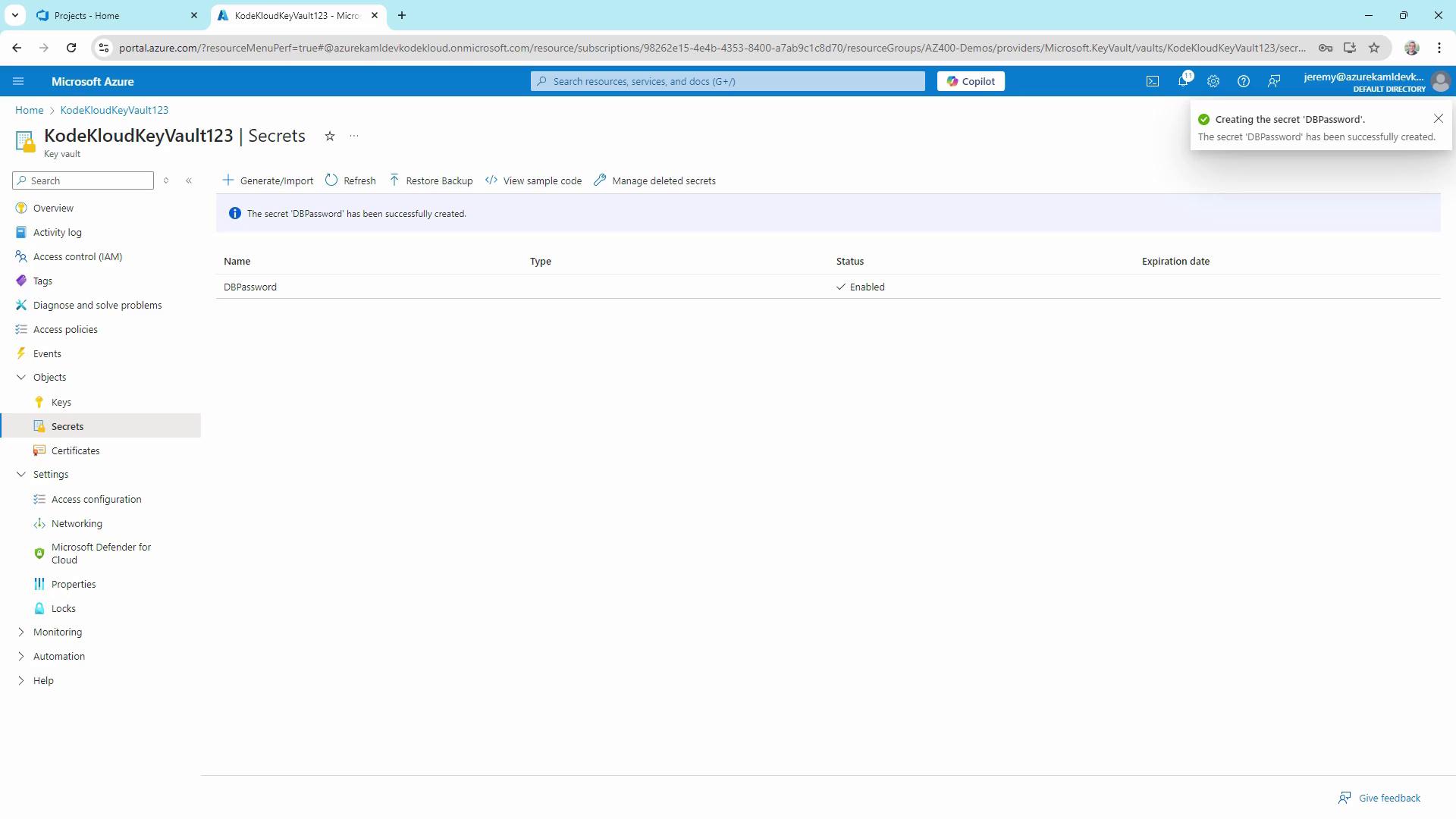
3. Click **Create** and confirm the secret appears enabled in the list.
## 3. Setting Up a Service Connection
1. In your Azure DevOps project, go to **Project Settings** → **Pipelines** → **Service Connections**.
2. Click **New service connection** → **Azure Resource Manager**.
3. Select **Service Principal (automatic)**, choose your subscription and resource group (e.g., `AZ-400-DevOps`), then name it `KodeKloud Key Vault Connection`.
4. Enable **Grant access permission to all pipelines** and save.
Make sure this service principal has **Get** and **List** permissions on your Key Vault. Otherwise, Azure Pipelines won’t be able to fetch secrets.
## 4. Creating a Starter Pipeline
Under **Pipelines**, click **New pipeline** and use a starter template. Set the trigger to `none` for manual execution, then run it to verify the build agent.
```yaml theme={null}
# Starter pipeline
trigger:
- none
pool:
vmImage: 'ubuntu-latest'
steps:
- script: echo Hello, world!
displayName: 'One-line script'
- script: |
echo Add build, test, and deploy tasks here.
echo See https://aka.ms/yaml
displayName: 'Multi-line script'
```
## 5. Linking Key Vault Secrets in a Variable Group
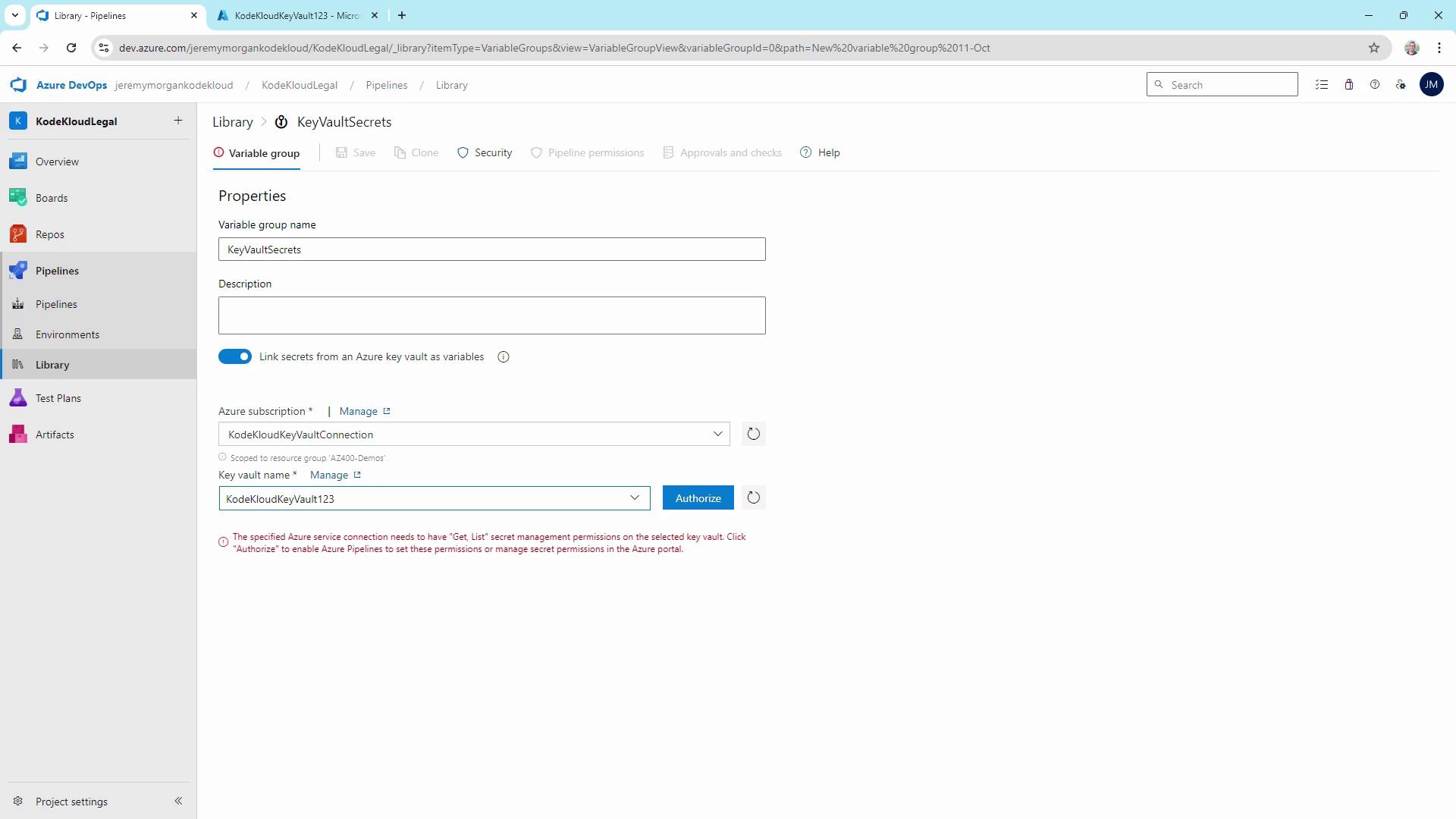
1. In Azure DevOps, navigate to **Pipelines** → **Library** → **+ Variable group**.
2. Name it `KeyVaultSecrets`.
3. Toggle on **Link secrets from an Azure key vault as variables**.
4. Select your `KodeKloud Key Vault Connection` and choose the vault `KodeKloudKeyVault123`.
5. Add the secret **DBPassword** and click **Save**.
## 6. Retrieving and Using the Secret in a Pipeline
Extend your YAML to reference the variable group and add the Azure Key Vault task:
```yaml theme={null}
pool:
vmImage: 'ubuntu-latest'
variables:
- group: KeyVaultSecrets
steps:
- script: echo Hello, world!
displayName: 'One-line script'
- task: AzureKeyVault@2
inputs:
azureSubscription: 'KodeKloud Key Vault Connection'
KeyVaultName: 'KodeKloudKeyVault123'
SecretsFilter: 'DBPassword'
RunAsPreJob: false
- script: echo "Using database password: $(DBPassword)"
displayName: 'Use the secret'
```
Run the pipeline and, when prompted, grant permission for the service connection to read Key Vault secrets.
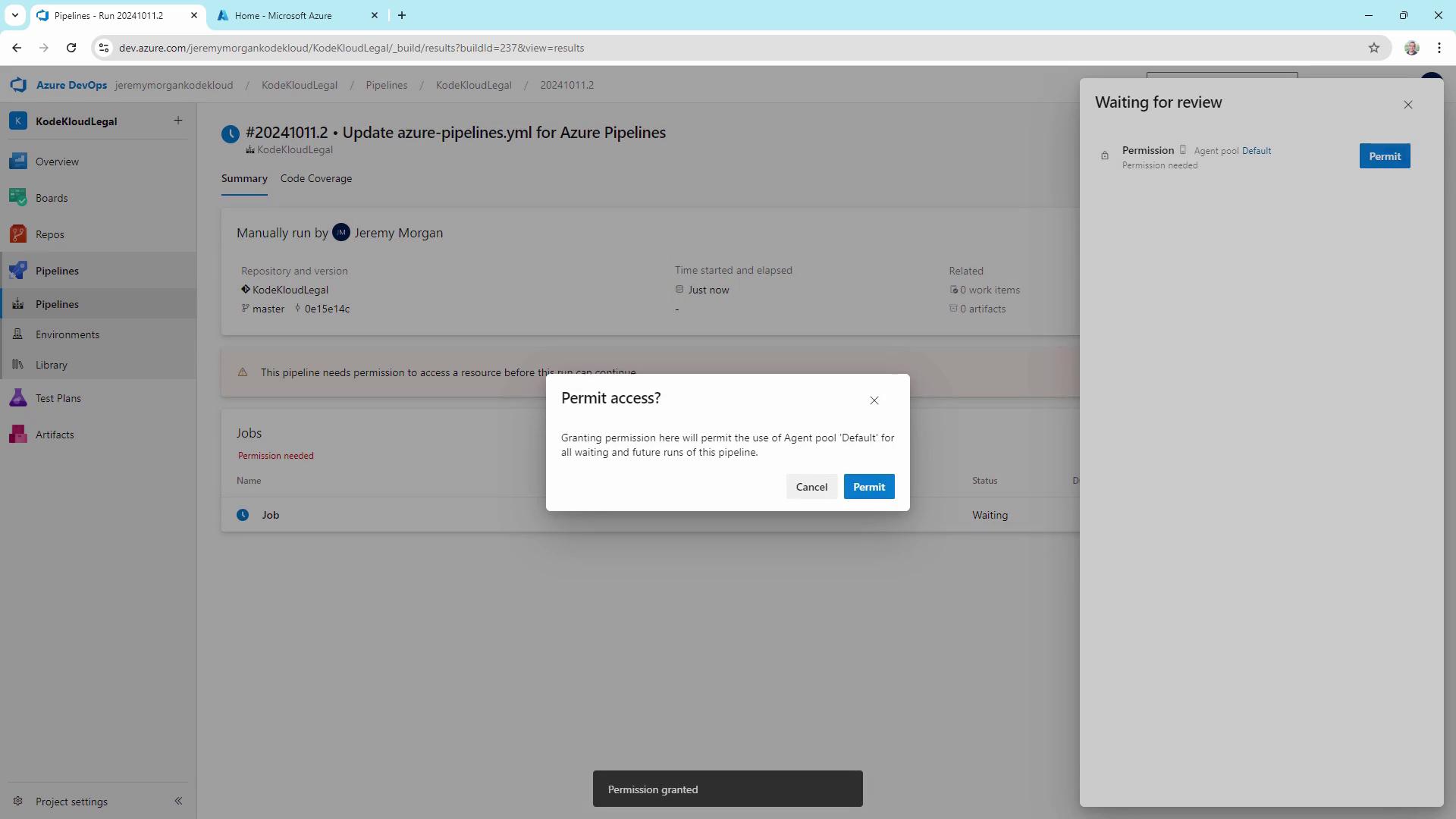
Upon successful execution, you’ll see the retrieval step complete with the password masked in the logs:
```bash theme={null}
echo "Using database password: ***"
```
## Additional Examples
Below are common scenarios for using Key Vault in pipelines.
| Scenario | Task |
| ------------------------------- | --------------------------------------------------- |
| .NET Core build | Fetch `DatabasePassword` then run `DotNetCoreCLI@2` |
| Web App deployment with API key | Fetch `ApiKey` then run `AzureWebApp@1` |
```yaml theme={null}
# .NET Core build using Key Vault secret
steps:
- task: AzureKeyVault@2
inputs:
azureSubscription: 'MyKeyVaultConnection'
KeyVaultName: 'MyDemoKeyVault'
SecretsFilter: 'DatabasePassword'
- task: DotNetCoreCLI@2
inputs:
command: 'build'
projects: '**/*.csproj'
env:
ConnectionString: "Server=myserver;Database=mydb;User Id=admin;Password=$(DatabasePassword)"
```
```yaml theme={null}
# Deploy to Azure Web App with Key Vault API Key
steps:
- task: AzureKeyVault@2
inputs:
azureSubscription: 'MyKeyVaultConnection'
KeyVaultName: 'MyDemoKeyVault'
SecretsFilter: 'ApiKey'
- task: AzureWebApp@1
inputs:
azureSubscription: 'MyAzureSubscription'
appName: 'MyWebApp'
deployToSlotOrASE: true
resourceGroupName: 'MyResourceGroup'
slotName: 'production'
appSettings: '-ApiKey $(ApiKey)'
```
## Best Practices
* Never store secrets in source code or text files.
* Enforce the principle of least privilege on Key Vault access policies.
* Rotate and expire secrets routinely.
* Prefer Managed Identities over service principals when possible.
* Implement logging and auditing for all Key Vault operations.
* Maintain separate vaults for development, testing, and production.
## Links and References
* [Azure Key Vault Documentation](https://docs.microsoft.com/azure/key-vault/)
* [Azure Pipelines YAML Schema](https://docs.microsoft.com/azure/devops/pipelines/yaml-schema)
* [Azure DevOps Service Connections](https://docs.microsoft.com/azure/devops/pipelines/library/service-endpoints)
* [Managing Secrets with Azure Key Vault](https://docs.microsoft.com/azure/devops/pipelines/tasks/deploy/azure-key-vault)