> ## Documentation Index
> Fetch the complete documentation index at: https://notes.kodekloud.com/llms.txt
> Use this file to discover all available pages before exploring further.
# YAML Templates
> This article explores YAML essentials for Azure DevOps pipelines, providing examples and guidance on creating reusable CI/CD components.
Azure DevOps pipelines use YAML to define build and release workflows in a human- and machine-readable format. In this guide, we'll explore YAML essentials, step through an ASP.NET pipeline example, and demonstrate how to leverage templates for reusable CI/CD components.
YAML is both concise and clear, making it ideal for version-controlled CI/CD definitions. Learn more at the [YAML Official Site](https://yaml.org/).
## Example: ASP.NET CI/CD Pipeline
Use the following ASP.NET pipeline to build, test, and package your web application. For full task details, see the [Azure DevOps ASP.NET docs](https://docs.microsoft.com/azure/devops/pipelines/apps/aspnet/build-aspnet-4).
```yaml theme={null}
trigger:
- master
pool:
vmImage: 'windows-latest'
name: 'Default'
variables:
solution: '**/*.sln'
buildPlatform: 'Any CPU'
buildConfiguration: 'Release'
steps:
- task: NuGetToolInstaller@1
- task: NuGetCommand@2
inputs:
restoreSolution: '$(solution)'
- task: VSBuild@1
inputs:
solution: '$(solution)'
msbuildArgs: >-
/p:DeployOnBuild=true
/p:WebPublishMethod=Package
/p:PackageAsSingleFile=true
/p:SkipInvalidConfigurations=true
/p:PackageLocation="$(build.artifactStagingDirectory)\$(Build.BuildId).zip"
platform: '$(buildPlatform)'
configuration: '$(buildConfiguration)'
- task: VSTest@2
inputs:
platform: '$(buildPlatform)'
configuration: '$(buildConfiguration)'
```
***
## Starter Pipeline
Begin with a minimal YAML pipeline and customize it for your project:
```yaml theme={null}
trigger:
- master
pool:
vmImage: 'ubuntu-latest'
name: 'Default'
steps:
- script: echo Hello, world!
displayName: 'Run a one-line script'
- script: |
echo Add other tasks to build, test, and deploy your project.
echo See https://aka.ms/yaml
displayName: 'Run a multi-line script'
```
Key elements:
* **trigger**: Events that kick off the pipeline.
* **pool**: Agent selection (e.g., `ubuntu-latest`).
* **steps**: Tasks or scripts to execute in sequence.
***
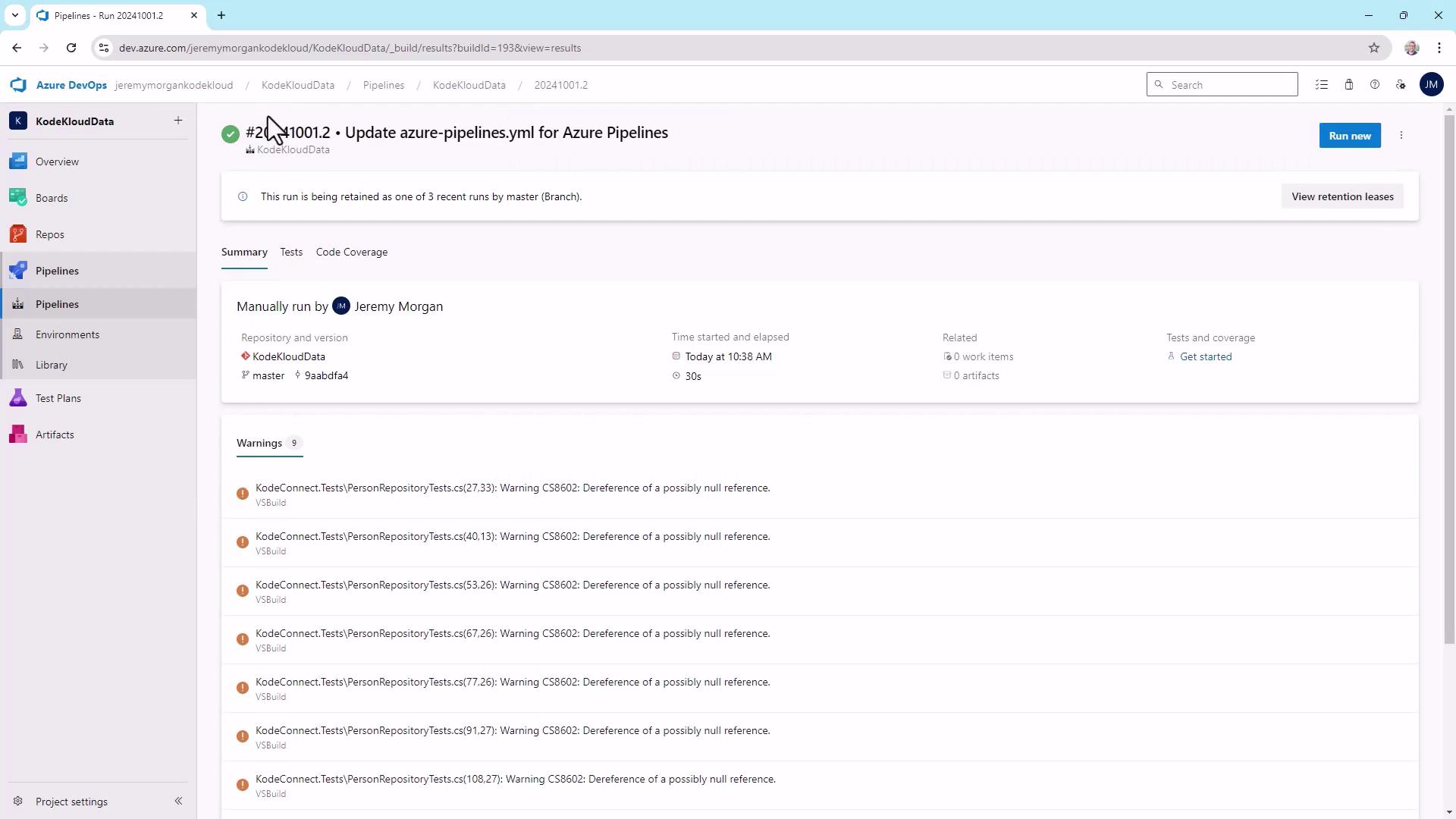
## Viewing a Pipeline Run
A typical Azure DevOps pipeline run reveals build warnings, repository info, branch, and elapsed time:
***
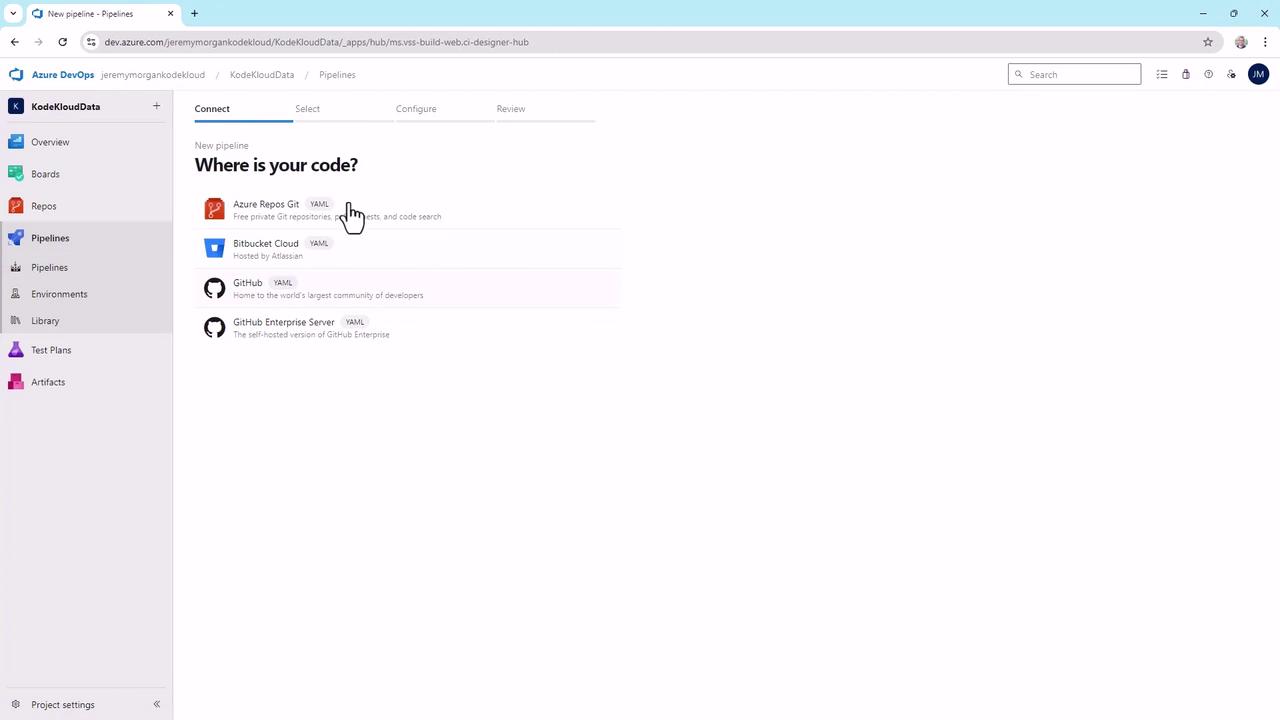
## Creating a New Pipeline
When you create a pipeline, select your source—Azure Repos Git, Bitbucket Cloud, GitHub, or GitHub Enterprise—and choose the Starter Pipeline for IntelliSense support:
The default YAML appears:
```yaml theme={null}
trigger:
- master
pool:
vmImage: 'ubuntu-latest'
name: 'Default'
steps:
- script: echo Hello, world!
displayName: 'Run a one-line script'
- script: |
echo Add other tasks to build, test, and deploy your project.
echo See https://aka.ms/yaml
displayName: 'Run a multi-line script'
```
Validate and run to see output:
```bash theme={null}
Starting: Run a one-line script
> echo Hello, world!
Hello, world!
```
***
## YAML Structure Basics
YAML relies on three core constructs: key–value pairs, lists, and nested mappings. Use indentation for hierarchy and avoid tabs.
| Syntax Type | Description | Example |
| -------------- | ---------------------------------- | -------------------------------------------------- |
| Key–value pair | Maps a key to a single value | `trigger: [master]` |
| List | Defines an ordered sequence | `fruits: [Apple, Banana, Cherry]` |
| Nested mapping | Embeds mappings under a parent key | `pool:\n vmImage: ubuntu-latest\n name: Default` |
Examples:
Key–value pair:
```yaml theme={null}
trigger:
- master
```
List:
```yaml theme={null}
fruits:
- Apple
- Banana
- Cherry
```
Nested mapping:
```yaml theme={null}
pool:
vmImage: ubuntu-latest
name: Default
```
***
## Variables and Overrides
Define pipeline variables at the top and allow runtime overrides:
```yaml theme={null}
variables:
solution: '**/*.sln'
buildPlatform: 'Any CPU'
buildConfiguration: 'Release'
pipelineRunnerName: 'DefaultUser'
pipelineRunnerAge: 30
steps:
- script: echo Hello, $(pipelineRunnerName)!
displayName: 'Greet runner'
- script: echo Runner age is $(pipelineRunnerAge)
displayName: 'Show runner age'
```
Users can override `pipelineRunnerName` and `pipelineRunnerAge` on the Run Pipeline screen. Ensure correct defaults to avoid unexpected behavior.
***
## Best Practices
* Leverage comments to clarify intent.
* Keep pipelines DRY by defining reusable variables and templates.
* Organize common logic into separate files.
***
## Applying Templates
Break out common steps into parameterized or extendable templates.
Example templates:
**`nuget.yml`**
```yaml theme={null}
steps:
- task: NuGetToolInstaller@1
- task: NuGetCommand@2
inputs:
command: 'restore'
restoreSolution: '$(solution)'
```
**`build.yml`**
```yaml theme={null}
steps:
- task: VSBuild@1
inputs:
solution: '$(solution)'
msbuildArgs: >-
/p:DeployOnBuild=true
/p:WebPublishMethod=Package
/p:PackageAsSingleFile=true
/p:SkipInvalidConfigurations=true
/p:PackageLocation="$(build.artifactStagingDirectory)"
platform: '$(buildPlatform)'
configuration: '$(buildConfiguration)'
```
**`test.yml`**
```yaml theme={null}
steps:
- task: VSTest@2
inputs:
platform: '$(buildPlatform)'
configuration: '$(buildConfiguration)'
```
Reference templates in your main pipeline (`azure-pipelines.yml`):
```yaml theme={null}
trigger:
- master
pool:
vmImage: 'ubuntu-latest'
name: 'Default'
variables:
solution: '**/*.sln'
buildPlatform: 'Any CPU'
buildConfiguration: 'Release'
pipelineRunnerName: 'DefaultUser'
pipelineRunnerAge: 30
steps:
- script: echo Hello, $(pipelineRunnerName)!
displayName: 'Greet runner'
- template: 'nuget.yml'
- template: 'build.yml'
- template: 'test.yml'
```
***
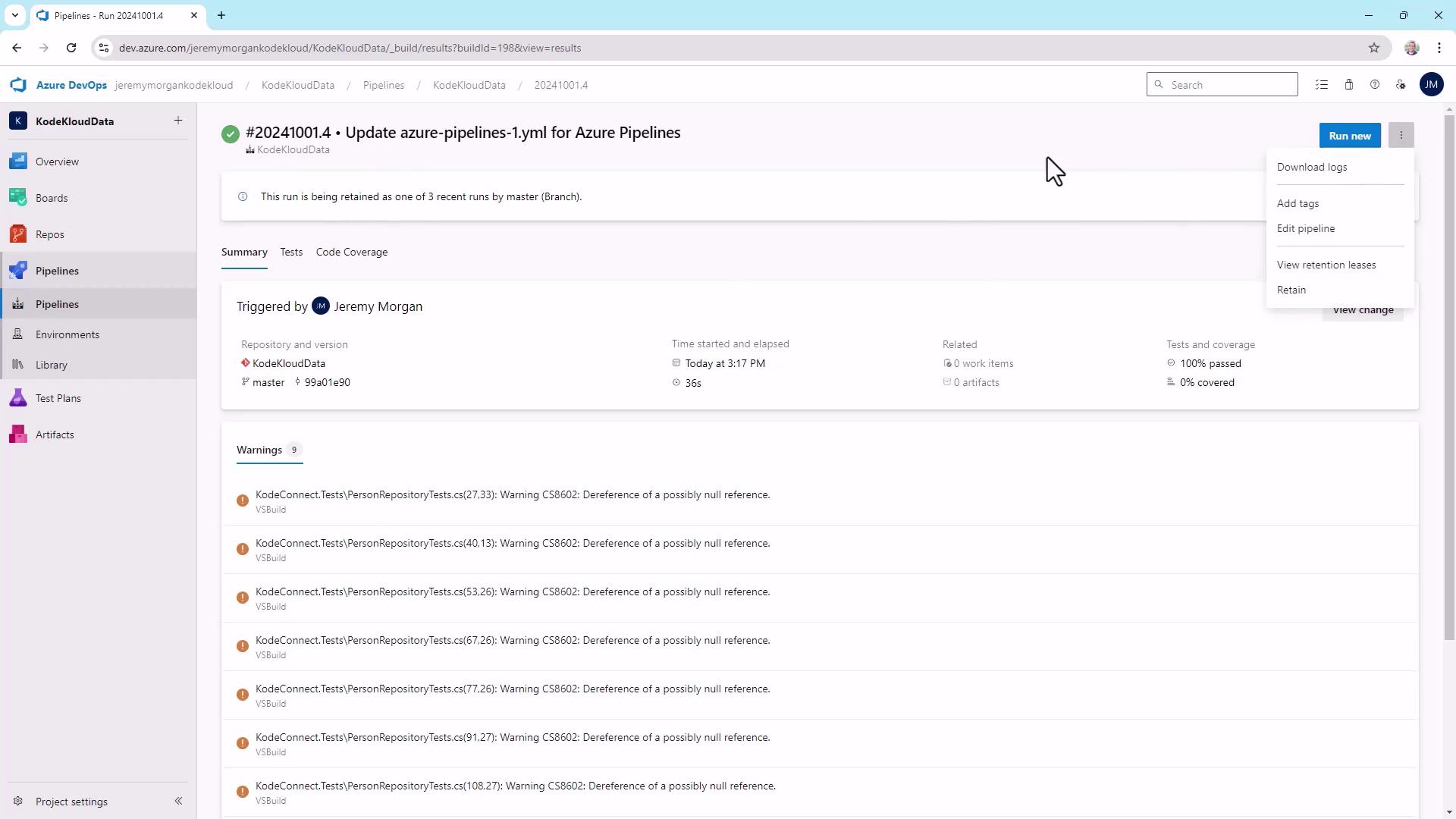
## Build and Test Summaries
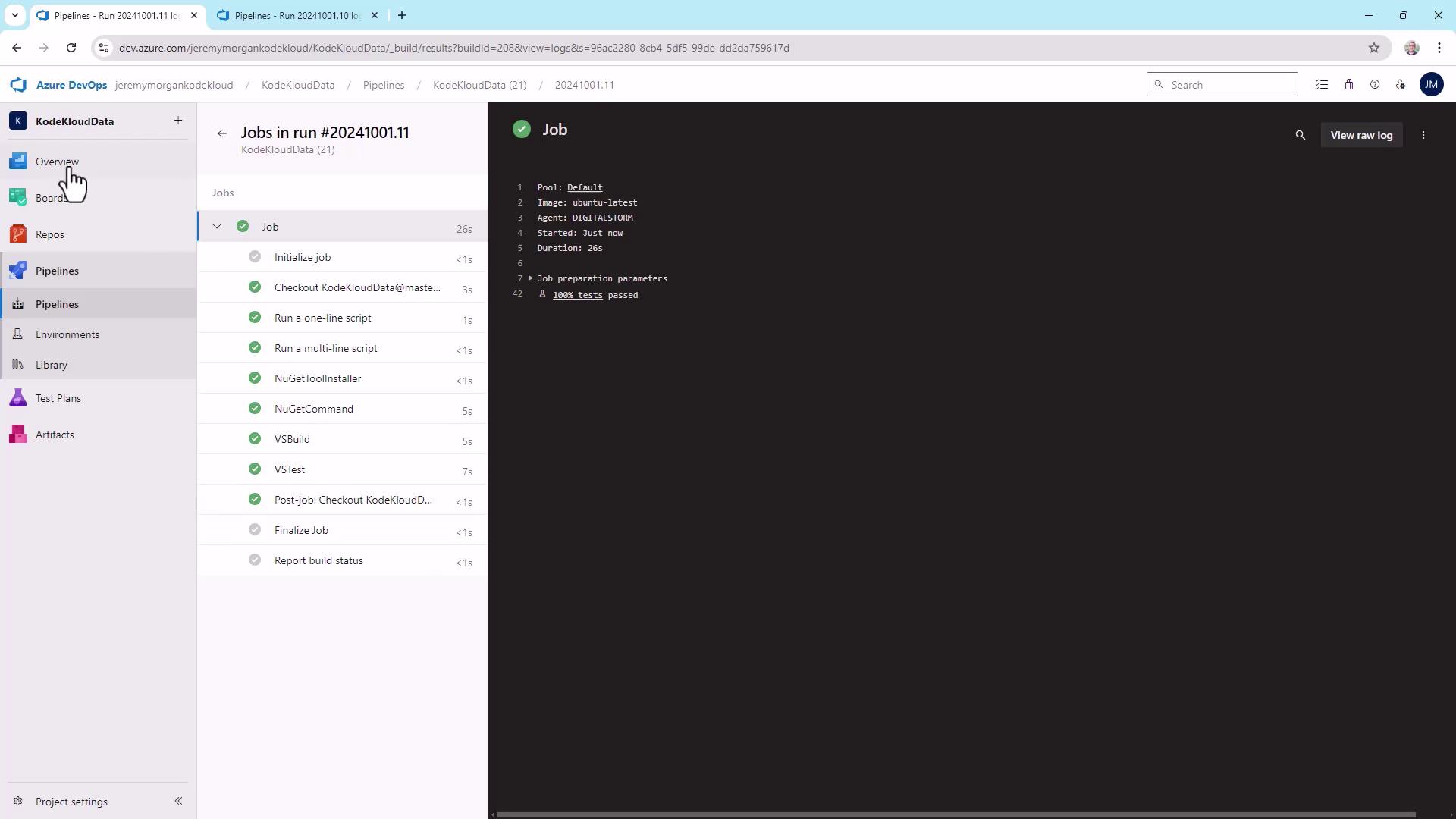
After applying templates, review your build results in the pipeline summary:
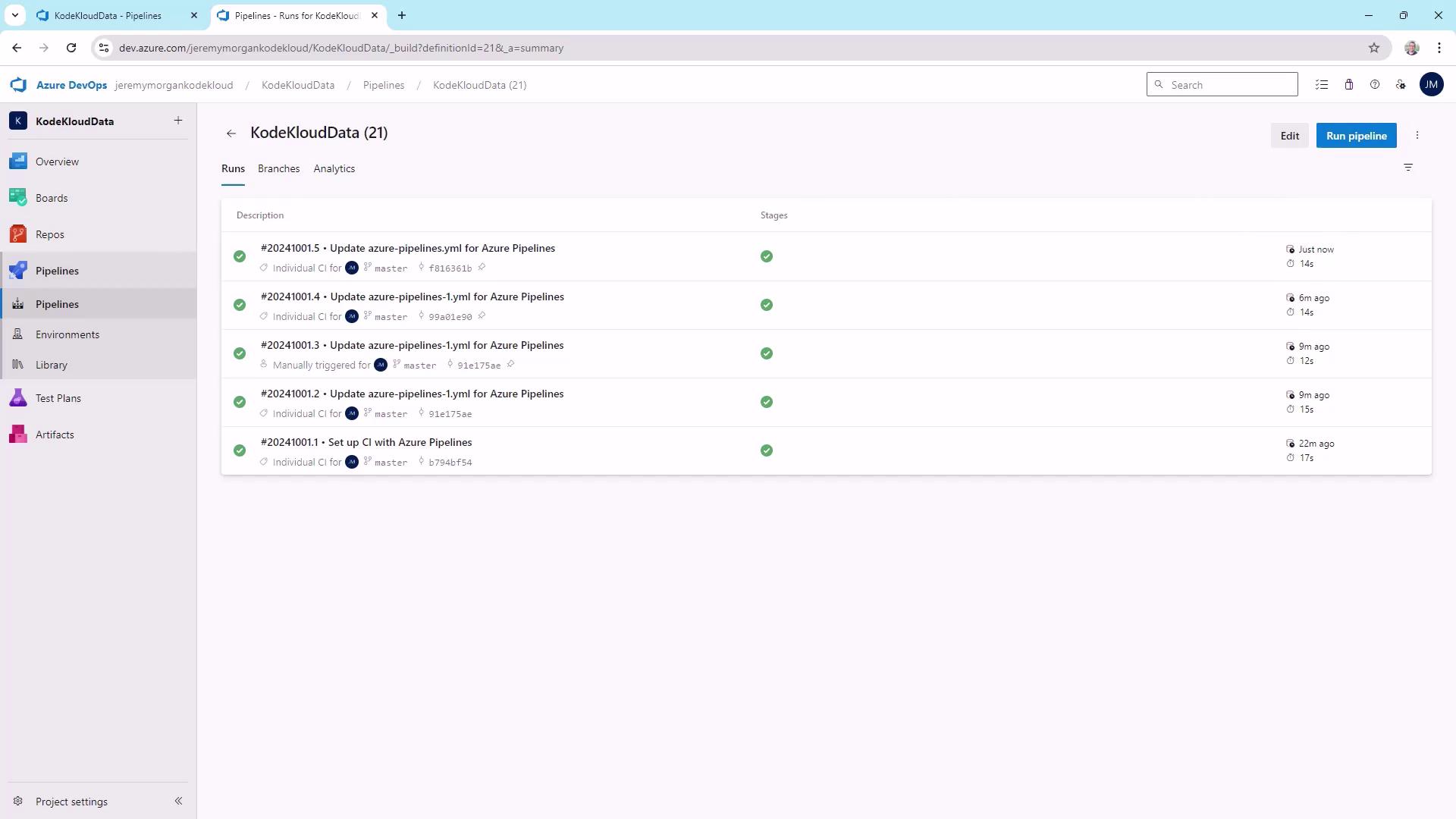
Monitor recent runs and their status:
Check detailed logs to confirm test success:
***
## Conclusion
Azure DevOps YAML templates enable modular, maintainable CI/CD pipelines. You’ve learned:
* Core YAML syntax and structure
* Defining variables and overrides
* Extracting and reusing templates
* Reviewing build and test outcomes
Experiment with these patterns to streamline your Azure DevOps workflows.
## Links and References
* [Azure DevOps Pipelines](https://docs.microsoft.com/azure/devops/pipelines/)
* [YAML Official Site](https://yaml.org/)
* [Azure DevOps ASP.NET Pipeline Docs](https://docs.microsoft.com/azure/devops/pipelines/apps/aspnet/build-aspnet-4)
* [Azure Pipelines YAML Schema](https://aka.ms/yaml)