> ## Documentation Index
> Fetch the complete documentation index at: https://notes.kodekloud.com/llms.txt
> Use this file to discover all available pages before exploring further.
# Creating repository in Azure Repos
> This guide explains how to create an Azure DevOps project and integrate it with GitHub for source control and CI/CD.
In this guide, you will:
1. Create an Azure DevOps project
2. Initialize and push a GitHub repo
3. Connect GitHub to Azure Boards
4. Configure an Azure Pipeline
***
## 1. Create an Azure DevOps Project
First, sign in to Azure DevOps and [create a new project](https://docs.microsoft.com/azure/devops/organizations/projects/create-project?view=azure-devops) named **CoolWebsite**. We’ll use GitHub as the primary source control.
If you prefer to host code in Azure Repos, add it as a remote:
```bash theme={null}
git remote add origin https://@dev.azure.com//CoolWebsite/_git/CoolWebsite
```
***
## 2. Initialize and Push to GitHub
### a. Create the repository on GitHub
* In GitHub, click **New repository**.
* Name: `CoolWebsite`
* Visibility: **Private**
* Default branch: `main`
Ensure you have [Git](https://git-scm.com/) installed and authenticated with your GitHub account before proceeding.
### b. Clone, add application code, and push
Clone the new repo locally:
```bash theme={null}
git clone https://github.com/jeremykodekloud/CoolWebsite.git
```
Copy your application files into the `CoolWebsite` folder, then run:
| Action | Command |
| -------------- | -------------------------------- |
| Stage changes | `git add .` |
| Commit changes | `git commit -m "Initial commit"` |
| Push to remote | `git push -u origin main` |
Refresh the GitHub page to see your files.
***
## 3. Connect GitHub to Azure Boards
1. In Azure DevOps, navigate to **Project Settings** → **GitHub Connections** → **Connect to your GitHub account**.
2. Choose your organization (e.g., `KodeKloud`) and click **Save**.
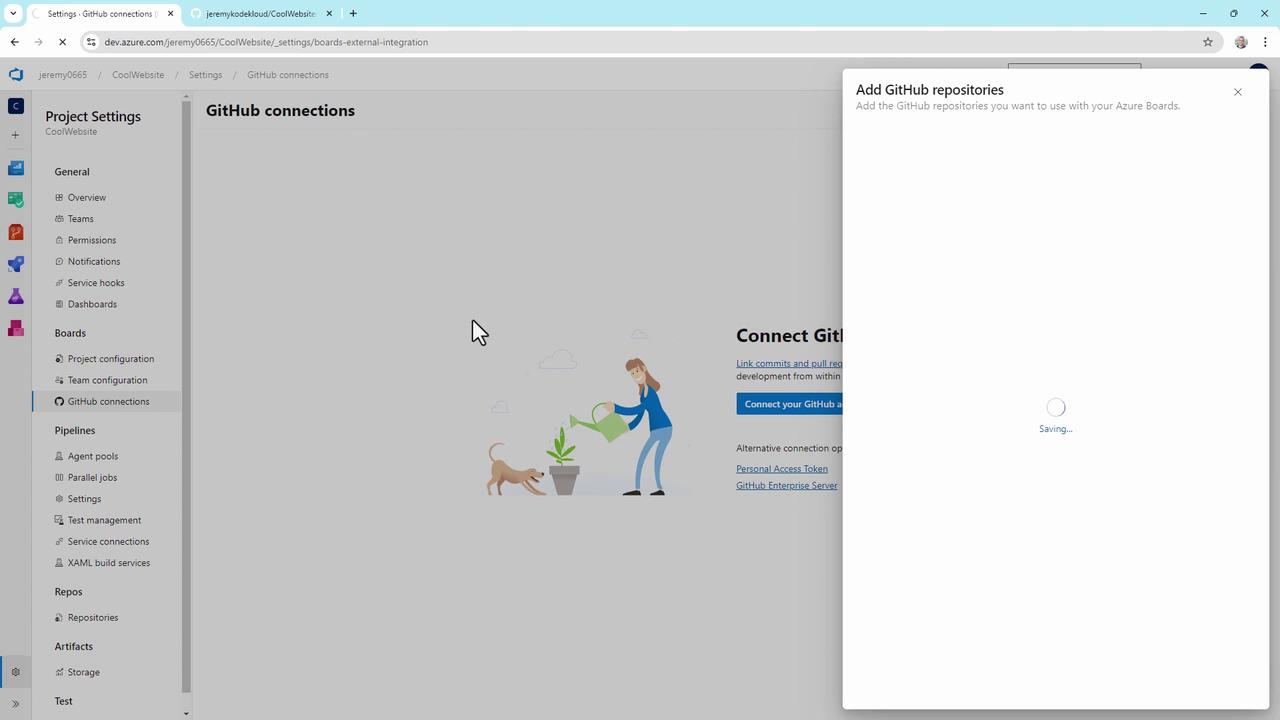
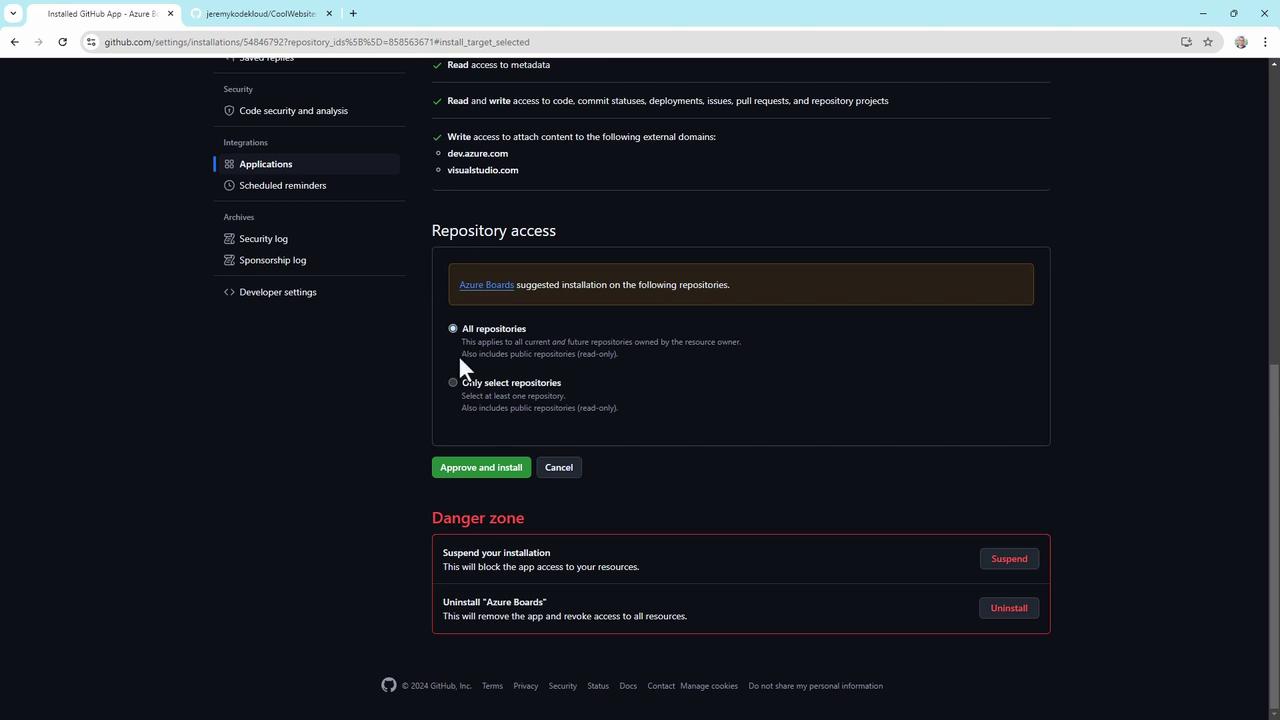
3. You’ll be redirected to GitHub to install the Azure Boards app. Grant access only to the repositories you need:
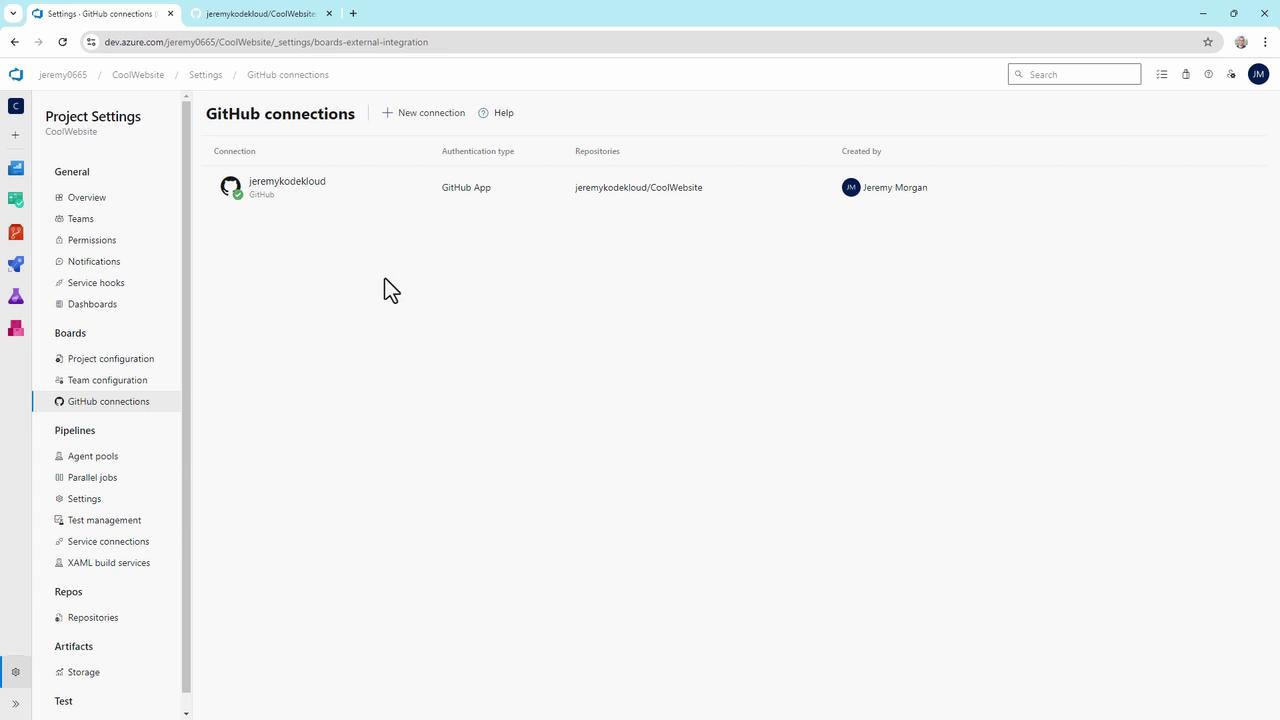
4. Back in Azure DevOps, confirm the connection under **GitHub Connections**:
***
## 4. Set Up an Azure Pipeline
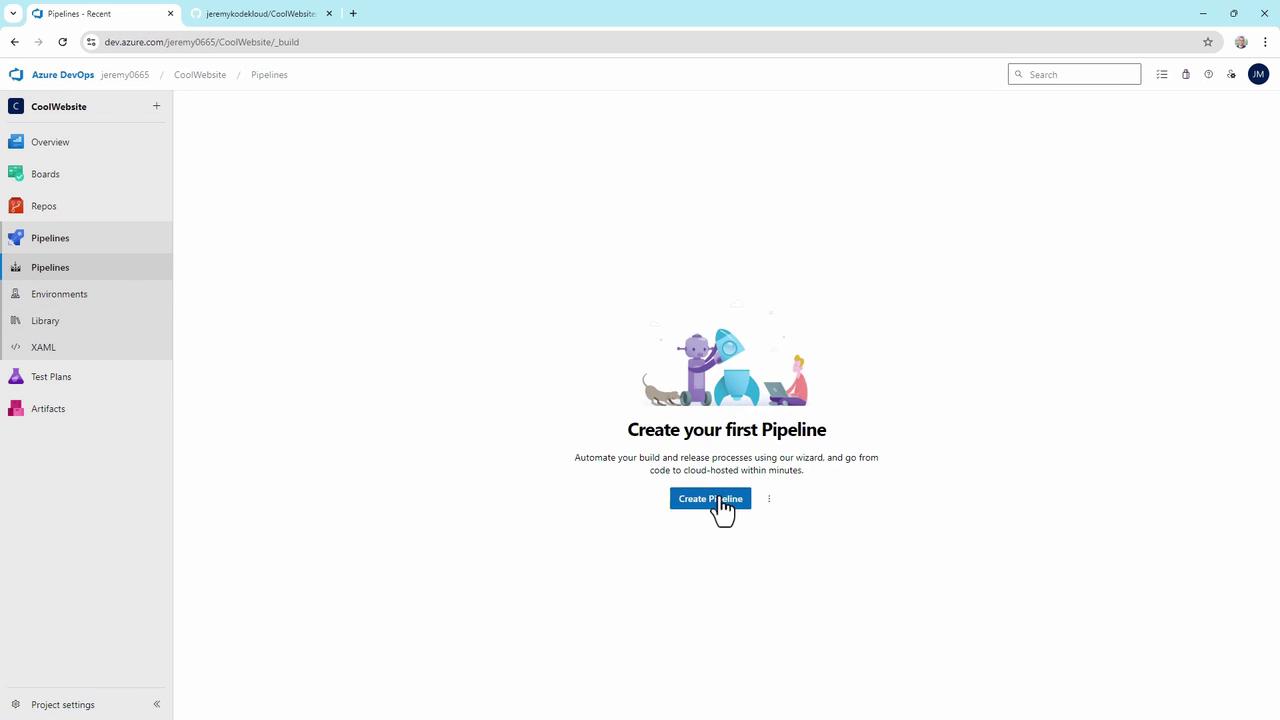
1. Go to **Pipelines** and click **Create Pipeline**.
2. Select **GitHub**, pick the `CoolWebsite` repo, and authorize the Azure Pipelines app.
3. Choose the appropriate template (e.g., **ASP.NET**).
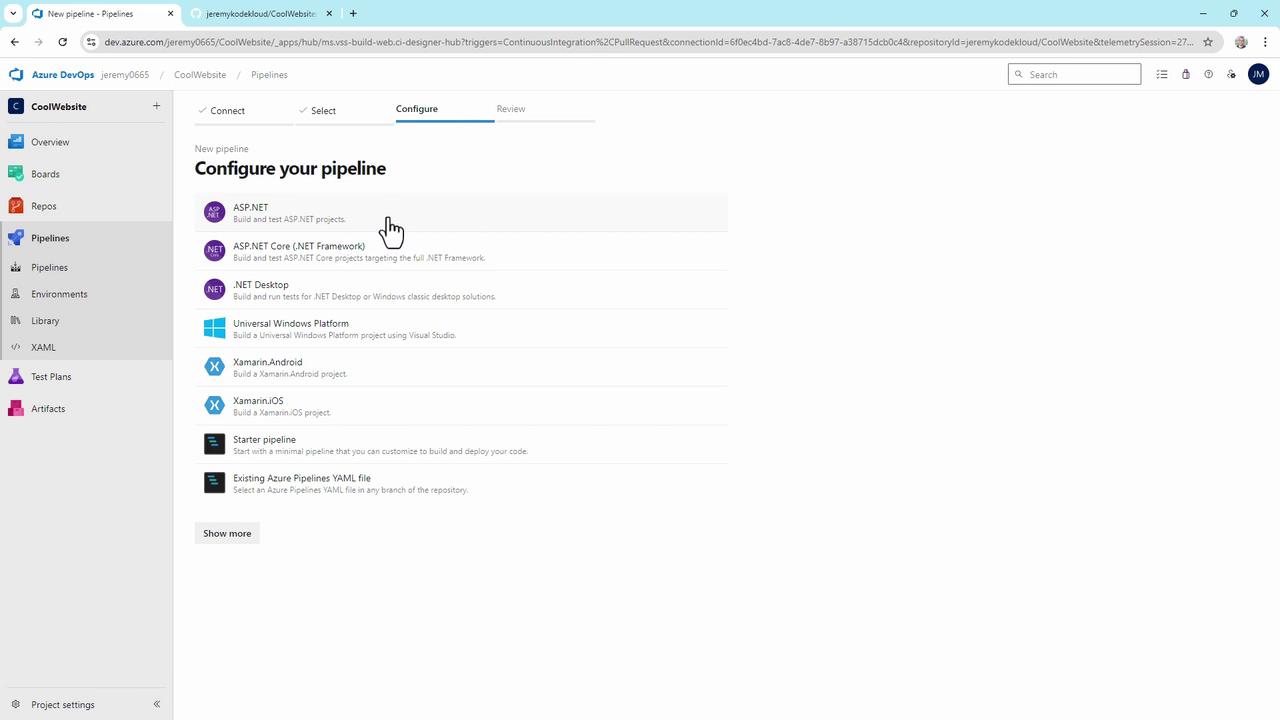
4. Replace the auto-generated YAML with this `azure-pipelines.yml` in your repo root:
```yaml theme={null}
trigger:
- main
pool:
vmImage: 'windows-latest'
name: 'KodeKloudCustomer'
variables:
solution: '**/*.sln'
buildPlatform: 'Any CPU'
buildConfiguration: 'Release'
steps:
- task: NuGetToolInstaller@1
- task: NuGetCommand@2
inputs:
restoreSolution: '$(solution)'
- task: VSBuild@1
inputs:
solution: '$(solution)'
msbuildArgs: '/p:DeployOnBuild=true /p:WebPublishMethod=Package /p:PackageAsSingleFile=true /p:SkipInvalidConfigurations=true /p:PackageLocation="$(build.artifactStagingDirectory)"'
platform: '$(buildPlatform)'
configuration: '$(buildConfiguration)'
- task: VSTest@2
inputs:
platform: '$(buildPlatform)'
configuration: '$(buildConfiguration)'
```
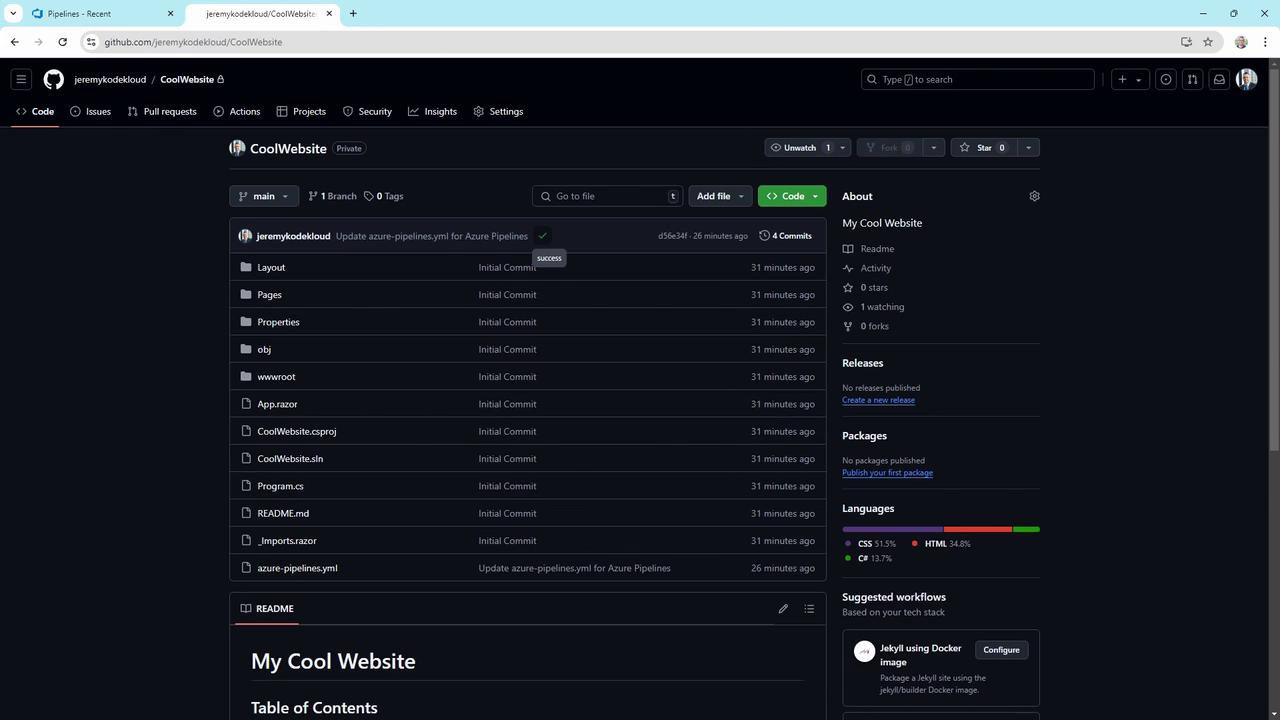
5. Commit and push. Each push to `main` triggers a new build. Verify your YAML and commit history:
***
You’ve successfully set up your **CoolWebsite** repository with Azure Boards and Pipelines. Explore [Azure Boards](https://docs.microsoft.com/azure/devops/boards/?view=azure-devops) and [Azure Pipelines](https://docs.microsoft.com/azure/devops/pipelines/?view=azure-devops) for more integrations.
***
## Links and References
* [Azure DevOps Documentation](https://docs.microsoft.com/azure/devops/?view=azure-devops)
* [GitHub Docs](https://docs.github.com/)
* [Azure Boards Overview](https://docs.microsoft.com/azure/devops/boards/?view=azure-devops)
* [Azure Pipelines Overview](https://docs.microsoft.com/azure/devops/pipelines/?view=azure-devops)