> ## Documentation Index
> Fetch the complete documentation index at: https://notes.kodekloud.com/llms.txt
> Use this file to discover all available pages before exploring further.
# Working with Git locally
> This guide covers core Git workflows for local development, including repository management, staging, committing, branching, merging, and using graphical tools.
In this guide, you’ll master the core Git workflows for local development: initializing repositories, configuring identity, staging and committing changes, branching and merging, and cloning from remote hosts like [GitHub](https://github.com) and [Azure Repos](https://learn.microsoft.com/en-us/azure/devops/repos/?view=azure-devops). We’ll also explore graphical tools in [Visual Studio Code](https://code.visualstudio.com/), [Visual Studio](https://visualstudio.microsoft.com/), and [GitHub Desktop](https://desktop.github.com/).
***
## 1. Configure Your Identity
Before you make any commits, set up your name and email. These values appear in each commit’s metadata.
```bash theme={null}
git config --global user.name "Jeremy Morgan"
git config --global user.email "jeremy@kodekloud.com"
```
Use `--global` to apply settings across all repositories on your machine. To override identity per-repo, omit `--global` and run the commands inside the repository directory.
***
## 2. Initialize a Git Repository
1. Create and enter a new project folder:
```powershell theme={null}
PS C:\Users\jeremy\Projects> mkdir my-project
PS C:\Users\jeremy\Projects> cd my-project
```
2. Initialize Git:
```bash theme={null}
git init
```
Output:
```bash theme={null}
Initialized empty Git repository in C:/Users/jeremy/Projects/my-project/.git/
```
3. Create a file and check status:
```bash theme={null}
echo "Hello Git!" > hello.txt
git status
```
You should see `hello.txt` listed as an untracked file.
4. Stage and commit:
```bash theme={null}
git add hello.txt
git commit -m "Initial commit: add hello.txt"
```
5. Review your commit history:
```bash theme={null}
git log --oneline --decorate
```
Example output:
```text theme={null}
395883b (HEAD -> master) Initial commit: add hello.txt
```
### Common Git Commands
| Command | Description |
| ------------------------- | ------------------------------------------ |
| git init | Create a new local repository |
| git status | Show untracked, staged, and modified files |
| git add \ | Stage changes for the next commit |
| git commit -m "message" | Save staged changes with a commit message |
| git log --oneline --graph | View a condensed, graphical commit history |
***
## 3. Branching and Feature Workflows
1. Create and switch to a new branch:
```bash theme={null}
git branch feature/1900
git checkout feature/1900
```
Output:
```git theme={null}
Switched to branch 'feature/1900'
```
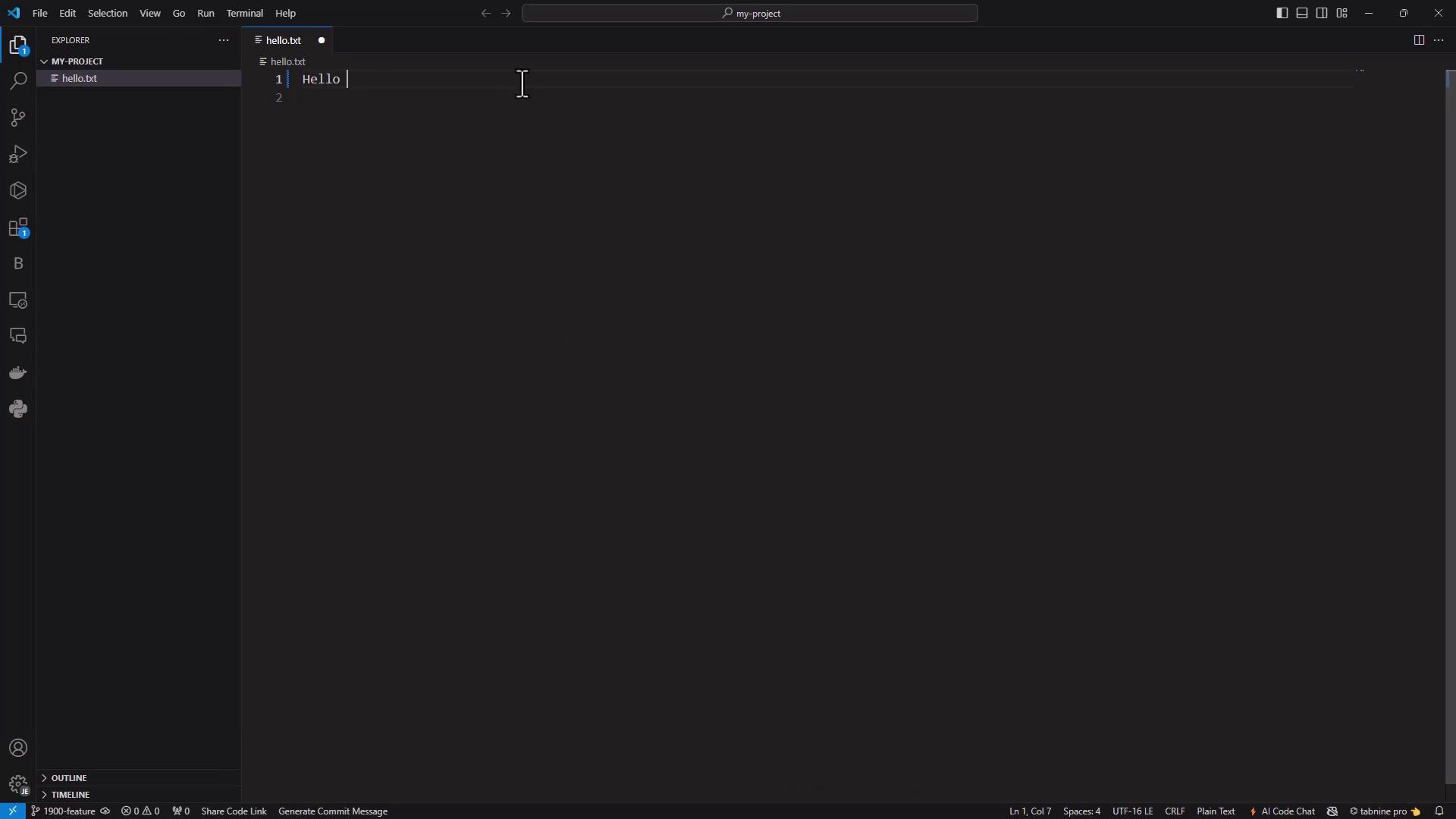
2. Update `hello.txt` to:
```text theme={null}
Hello Azure Repos!
```
3. Stage and commit your change:
```bash theme={null}
git status
git add hello.txt
git commit -m "Update greeting for Azure Repos"
```
4. Visualize the branch history:
```bash theme={null}
git log --oneline --graph --decorate --all
```
Output:
```text theme={null}
* 7c4495d (HEAD -> feature/1900) Update greeting for Azure Repos
| * 395883b (master) Initial commit: add hello.txt
|/
```
***
## 4. Merging Changes Back into Master
Switch to `master` and merge:
```bash theme={null}
git checkout master
git merge feature/1900
```
You’ll typically see a fast-forward merge:
```git theme={null}
Updating 395883b..7c4495d
Fast-forward
hello.txt | 1 +
```
Verify the merged content:
```bash theme={null}
Get-Content .\hello.txt
# Output: Hello Azure Repos!
```
***
## 5. Cloning a Remote Repository
### 5.1 From GitHub
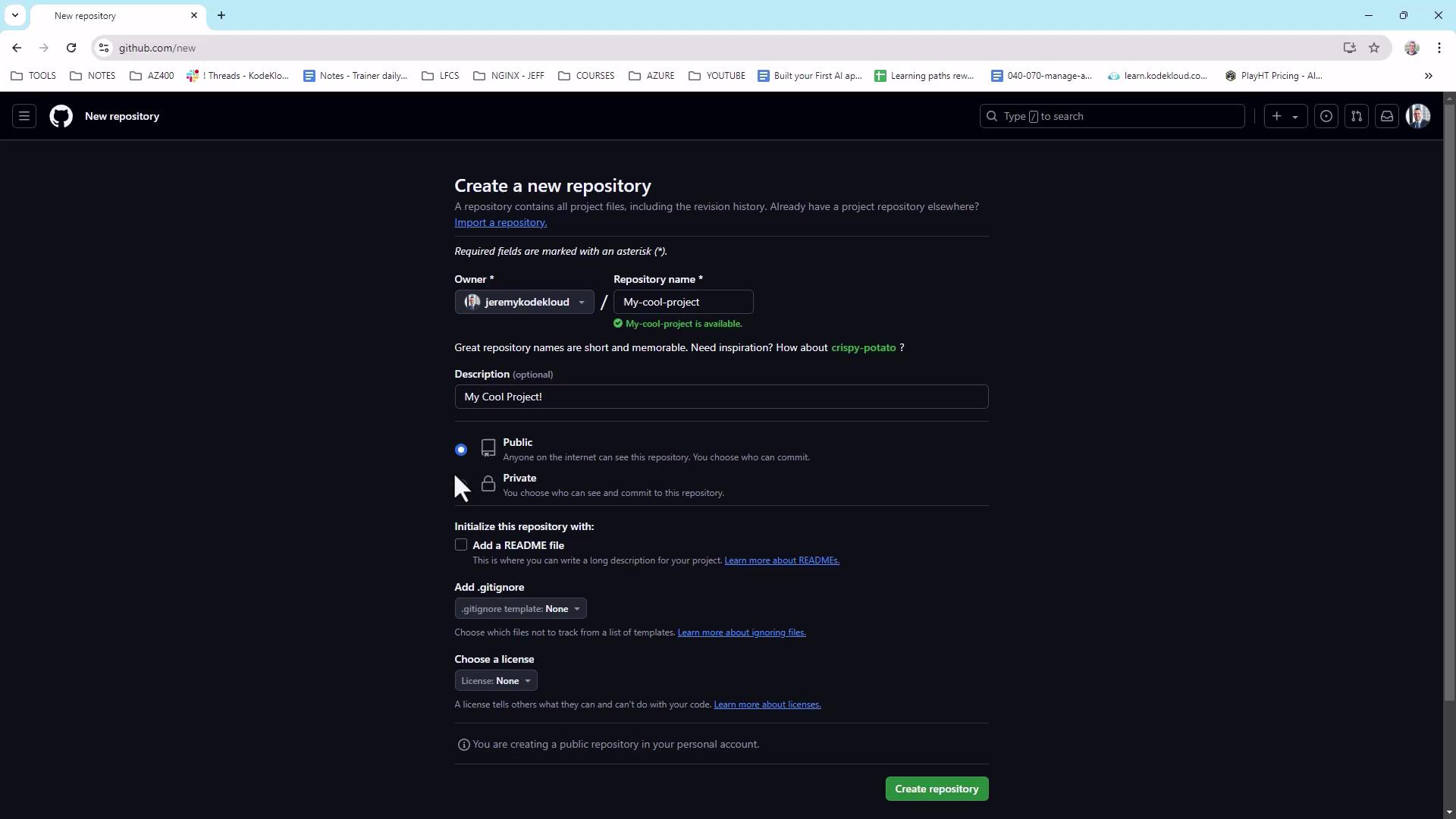
1. On [GitHub New Repository](https://github.com/new), create **my-cool-project** (private), initialize with a README.
2. Clone via HTTPS:
```bash theme={null}
git clone https://github.com/YourUser/my-cool-project.git
```
3. Add, commit, and push a file:
```bash theme={null}
cd my-cool-project
echo "Hello world" > hello.txt
git add hello.txt
git commit -m "Add hello.txt"
git push origin main
```
You’ll now see `hello.txt` in your GitHub repo.
### 5.2 Using Visual Studio Code
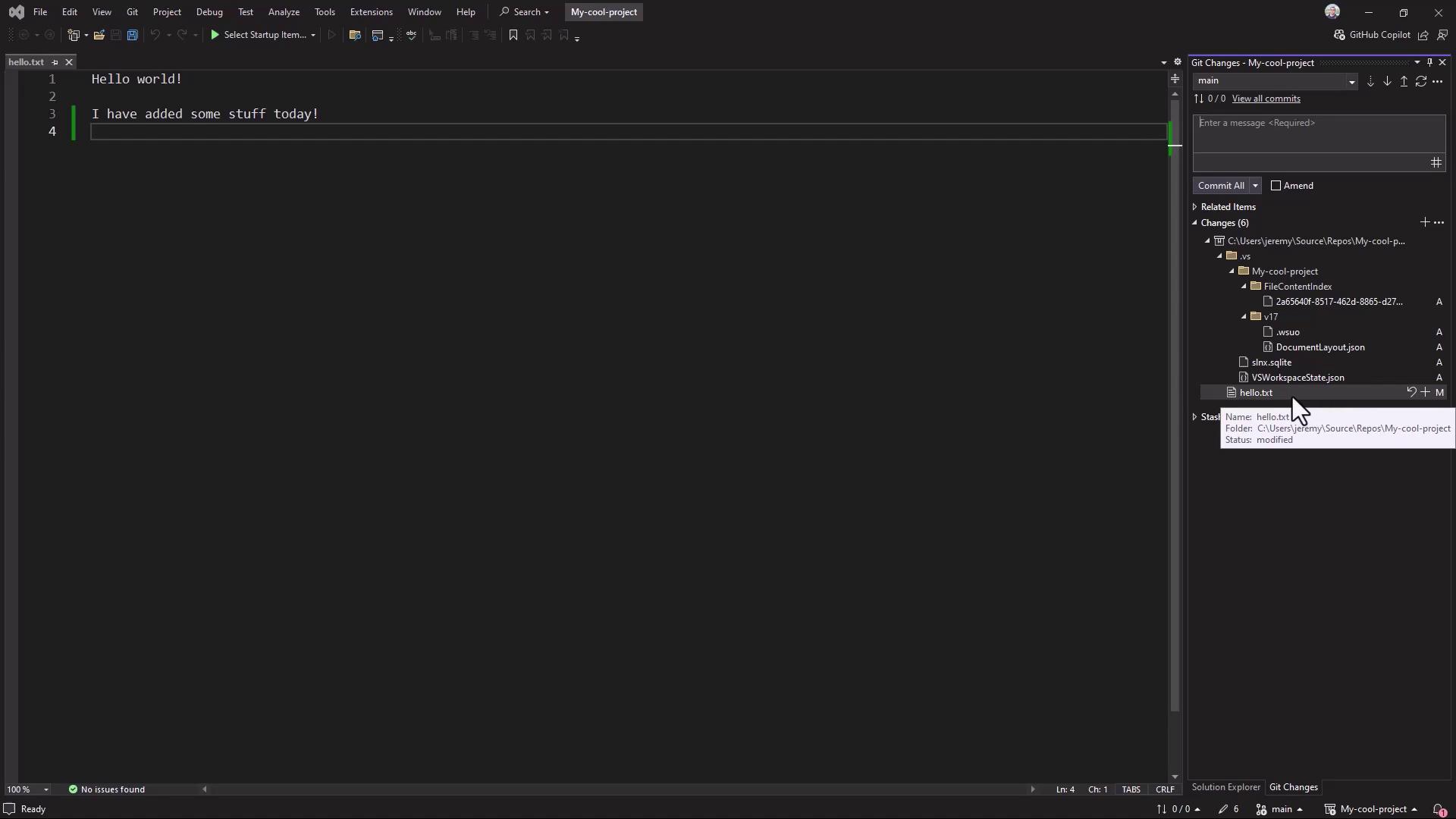
Open the cloned folder in VS Code. The **Source Control** view shows your changes:
### 5.3 Inside Visual Studio
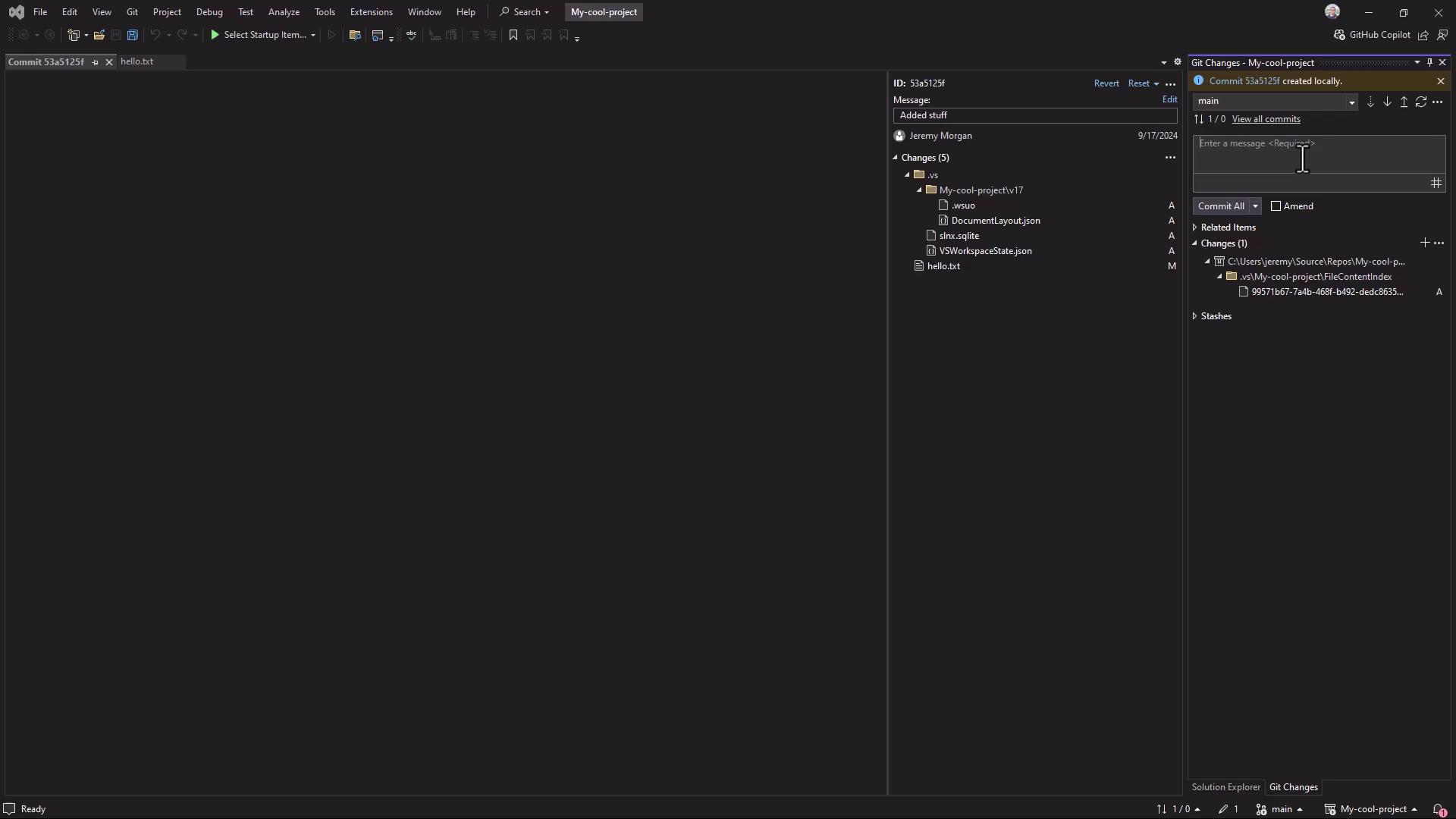
In [Visual Studio](https://visualstudio.microsoft.com/), use the **Git Changes** window to stage, commit, and push:
### 5.4 Cloning from Azure Repos
```powershell theme={null}
PS C:\Users\jeremy\Projects> mkdir azure-test
PS C:\Users\jeremy\Projects> cd azure-test
PS C:\Users\jeremy\Projects\azure-test> git clone https://KodeKloudDemo@dev.azure.com/KodeKloudDemo/KodeKloud%20Hotel/_git/SmartHotel360
```
***
## 6. GUI Client: GitHub Desktop
GitHub Desktop provides an intuitive interface for cloning, committing, and pushing. After installing and signing in, configure your identity:
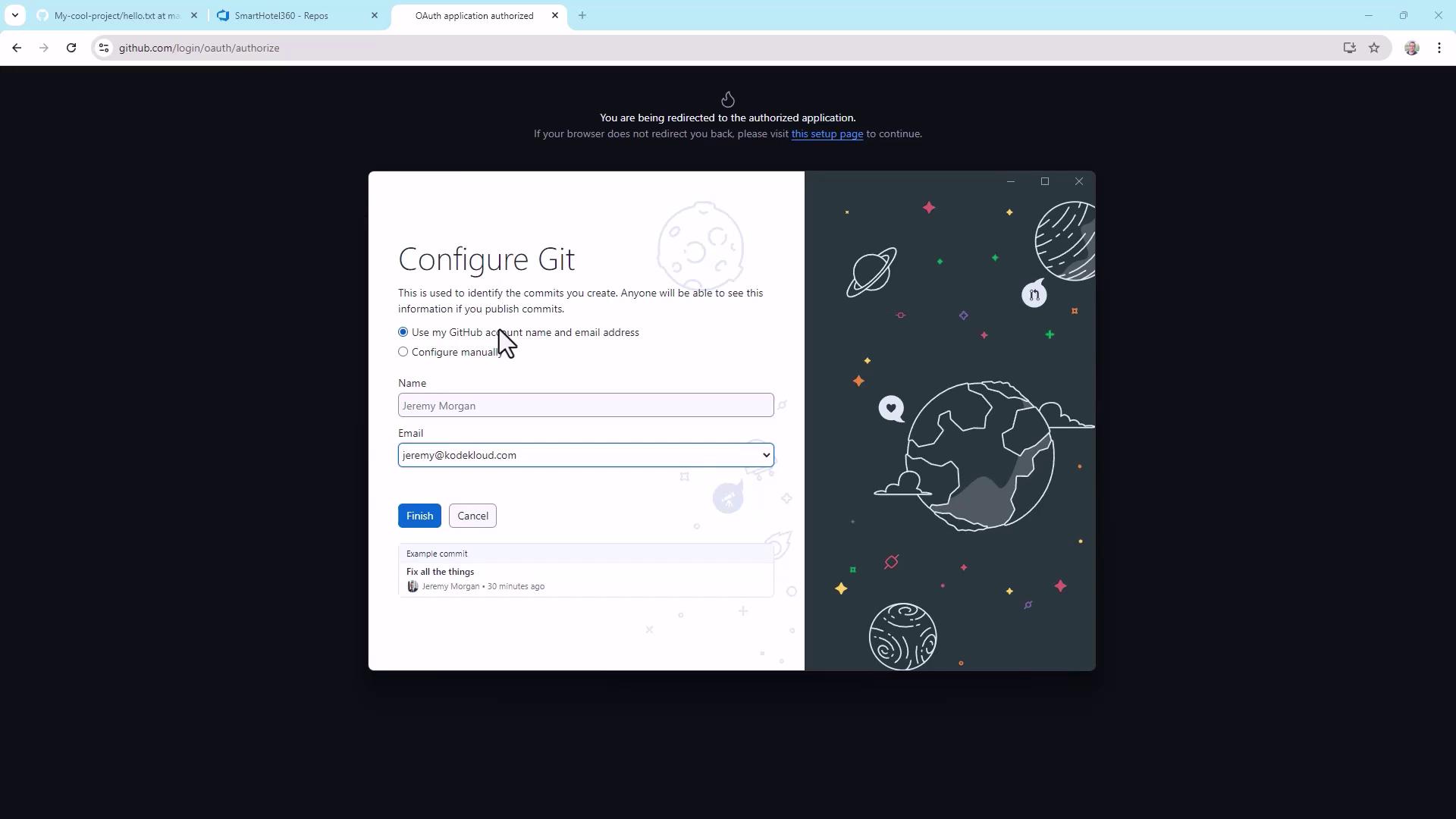
Clone your repo and open it in VS Code. When prompted:
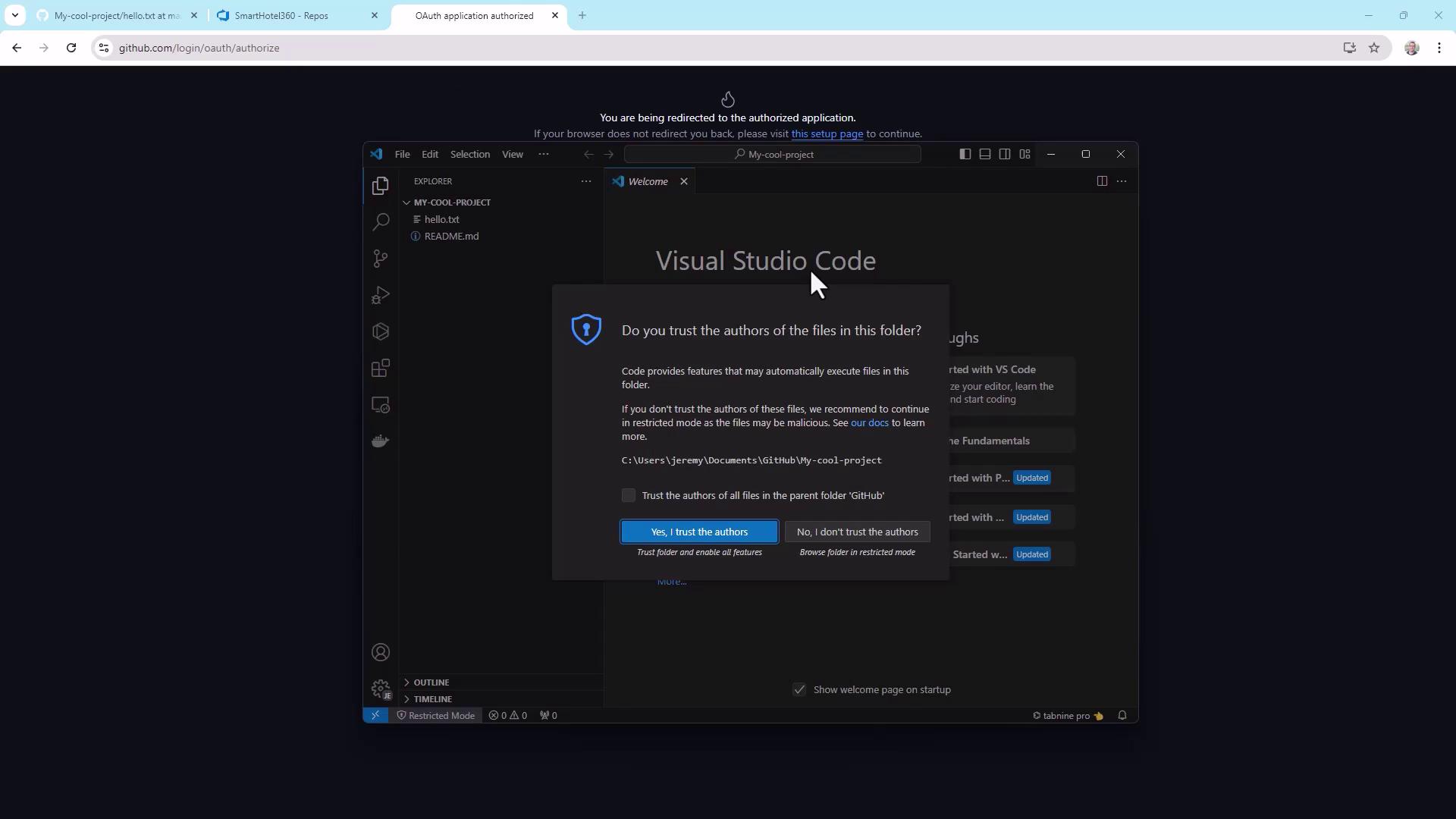
Only trust workspaces you recognize. Untrusted code can run arbitrary scripts on your machine.
***
## Summary
You now know how to:
* Configure Git identity
* Initialize, stage, and commit a repository
* Create, switch, and merge branches
* Clone and contribute to remote repositories
* Use GUI tools like VS Code, Visual Studio, and GitHub Desktop
With these skills, you’re ready to collaborate efficiently across any Git-based project.
***
## References
* [Git Documentation](https://git-scm.com/docs)
* [GitHub Docs](https://docs.github.com/)
* [Azure Repos](https://learn.microsoft.com/en-us/azure/devops/repos/?view=azure-devops)
* [Visual Studio Code Docs](https://code.visualstudio.com/docs)