> ## Documentation Index
> Fetch the complete documentation index at: https://notes.kodekloud.com/llms.txt
> Use this file to discover all available pages before exploring further.
# Creating NSG rules
> Guide to creating and managing Azure Network Security Group rules, covering rule components, service tags, portal walkthroughs, subnet versus NIC evaluation, and outbound rule examples.
In this lesson we'll learn how to create Network Security Group (NSG) rules in Azure, how each component of a rule works, and how rules from multiple NSGs are evaluated together. This guide keeps the original step sequence and diagrams while improving clarity and SEO for quick reference.
Key concepts covered:
* What to specify when creating NSG rules
* Service tags and why to use them
* Portal walkthrough: create NSG, add inbound/outbound rules
* Subnet vs NIC NSGs and Effective security rules
* Practical outbound example using service tags
## NSG rule components (at a glance)
| Component | Purpose | Example / Notes |
| -------------------- | ----------------------------------------------------------------------------------------------------------- | ------------------------------------- |
| Service | Pick a well-known service to auto-populate ports (RDP, SSH, HTTPS, etc.) or choose `Custom` to enter a port | `SSH` → TCP `22` |
| Port ranges | Single ports, ranges, or multiple non-contiguous values separated by commas | `22`, `80-90`, `22-30,45,55` |
| Priority | Numeric value evaluated in ascending order; lower number = higher precedence | `100` (higher precedence than `200`) |
| Source / Destination | IP ranges, Service Tags, Application Security Groups, or `Any` | `10.1.0.0/24`, `Service Tag: Storage` |
| Action | Whether to `Allow` or `Deny` the matched traffic | `Allow` or `Deny` |
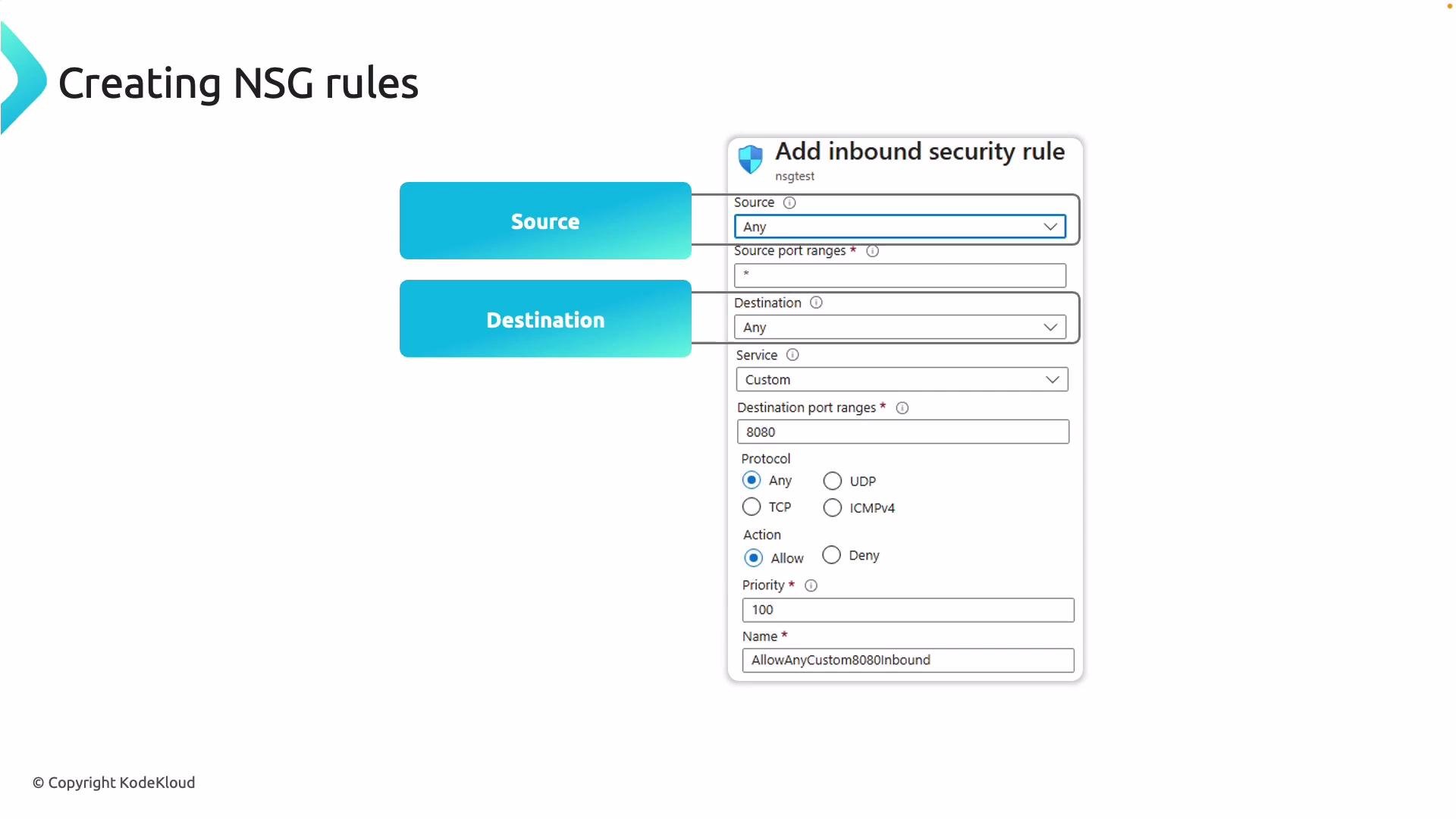 Lower numeric priority means higher precedence — the rule with the smallest numeric priority is evaluated first.
## Service tags — simplify rule maintenance
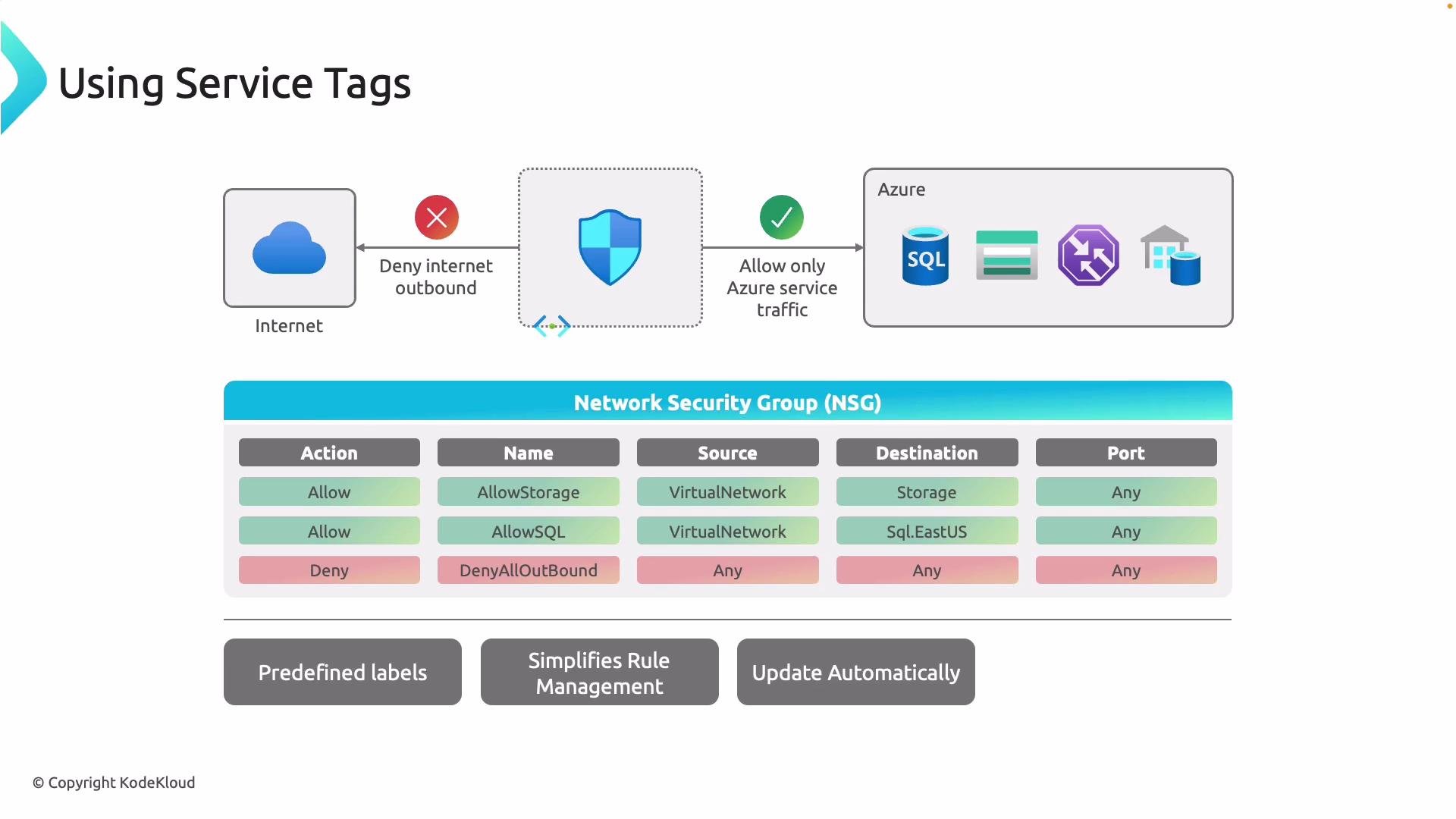
Managing IP ranges for cloud services is error-prone. Azure service tags are predefined labels that represent groups of IP address ranges used by Azure services (for example: `VirtualNetwork`, `Storage`, `Internet`, `LoadBalancer`). Use service tags in your source/destination fields to avoid maintaining large IP lists — Azure updates these tags automatically.
Lower numeric priority means higher precedence — the rule with the smallest numeric priority is evaluated first.
## Service tags — simplify rule maintenance
Managing IP ranges for cloud services is error-prone. Azure service tags are predefined labels that represent groups of IP address ranges used by Azure services (for example: `VirtualNetwork`, `Storage`, `Internet`, `LoadBalancer`). Use service tags in your source/destination fields to avoid maintaining large IP lists — Azure updates these tags automatically.
 ## Hands-on: Azure portal walkthrough
This example uses a set of VMs in a VNet where NSGs have not yet allowed inbound SSH. By default, inbound SSH from the Internet will be blocked until you create an appropriate NSG rule.
## Hands-on: Azure portal walkthrough
This example uses a set of VMs in a VNet where NSGs have not yet allowed inbound SSH. By default, inbound SSH from the Internet will be blocked until you create an appropriate NSG rule.
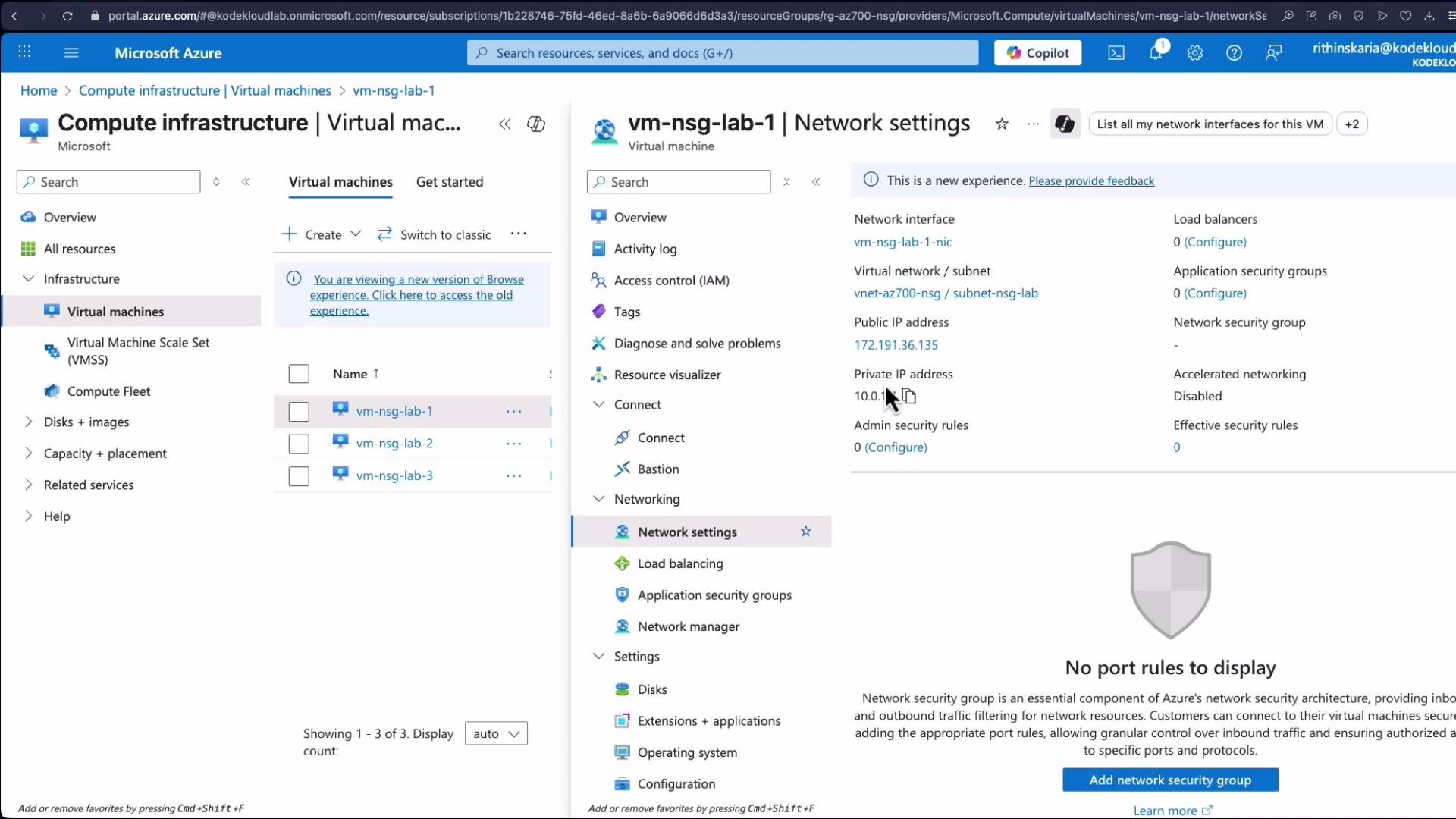 Attempting to SSH directly to a VM without an NSG allowing SSH will fail:
```bash theme={null}
ssh kodeloud@172.191.36.135
# No response or connection refused because inbound SSH is not allowed by default
```
### Create an NSG
1. In the Azure portal, go to **Network Security Groups** → **Create**.
2. Provide a name (for example, `NSGLab01`) and the target region (e.g., `East US`), then click **Review + create** and complete creation.
3. Open the NSG resource to inspect default rules.
Default inbound rules include (examples):
| Default Rule | Priority | Purpose |
| ------------------------------- | -------- | --------------------------------------------------- |
| `AllowVNetInbound` | 65000 | Allows traffic within the virtual network |
| `AllowAzureLoadBalancerInbound` | 65001 | Allows load balancer health probes |
| `DenyAllInbound` | 65500 | Denies other inbound traffic not explicitly allowed |
Default outbound rules typically include:
* `AllowVNetOutbound`
* `AllowInternetOutbound`
* `DenyAllOutbound` (catch-all)
These defaults explain why VMs inside the same VNet can communicate, but inbound Internet traffic is blocked unless explicitly allowed.
### Associate the NSG
* Associate your new NSG to the target subnet (or to a NIC for per-VM interface control). In this walkthrough, the NSG is associated with the subnet containing the VMs.
### Add an inbound rule for SSH
1. Go to the NSG → **Inbound security rules** → **Add**.
2. Configure:
* Source: `Any` (or restrict to a specific IP, `My IP`, a service tag, or an Application Security Group)
* Source port ranges: `*` (or specify if needed)
* Destination: `Any`
* Service: `SSH` (auto-populates TCP port `22`)
* Action: `Allow`
* Priority: `100` (lower number = higher precedence)
* Name: `AllowAny_SSH_Inbound`
* Optional: add a description
3. Click **Add**.
Opening SSH (port 22) to `Any` exposes the VM to the Internet. Restrict the Source to known IPs or use Just-in-Time VM access where possible.
A caution symbol may appear in the portal indicating the rule is open to the Internet — use that as a reminder to minimize attack surface.
Attempting to SSH directly to a VM without an NSG allowing SSH will fail:
```bash theme={null}
ssh kodeloud@172.191.36.135
# No response or connection refused because inbound SSH is not allowed by default
```
### Create an NSG
1. In the Azure portal, go to **Network Security Groups** → **Create**.
2. Provide a name (for example, `NSGLab01`) and the target region (e.g., `East US`), then click **Review + create** and complete creation.
3. Open the NSG resource to inspect default rules.
Default inbound rules include (examples):
| Default Rule | Priority | Purpose |
| ------------------------------- | -------- | --------------------------------------------------- |
| `AllowVNetInbound` | 65000 | Allows traffic within the virtual network |
| `AllowAzureLoadBalancerInbound` | 65001 | Allows load balancer health probes |
| `DenyAllInbound` | 65500 | Denies other inbound traffic not explicitly allowed |
Default outbound rules typically include:
* `AllowVNetOutbound`
* `AllowInternetOutbound`
* `DenyAllOutbound` (catch-all)
These defaults explain why VMs inside the same VNet can communicate, but inbound Internet traffic is blocked unless explicitly allowed.
### Associate the NSG
* Associate your new NSG to the target subnet (or to a NIC for per-VM interface control). In this walkthrough, the NSG is associated with the subnet containing the VMs.
### Add an inbound rule for SSH
1. Go to the NSG → **Inbound security rules** → **Add**.
2. Configure:
* Source: `Any` (or restrict to a specific IP, `My IP`, a service tag, or an Application Security Group)
* Source port ranges: `*` (or specify if needed)
* Destination: `Any`
* Service: `SSH` (auto-populates TCP port `22`)
* Action: `Allow`
* Priority: `100` (lower number = higher precedence)
* Name: `AllowAny_SSH_Inbound`
* Optional: add a description
3. Click **Add**.
Opening SSH (port 22) to `Any` exposes the VM to the Internet. Restrict the Source to known IPs or use Just-in-Time VM access where possible.
A caution symbol may appear in the portal indicating the rule is open to the Internet — use that as a reminder to minimize attack surface.
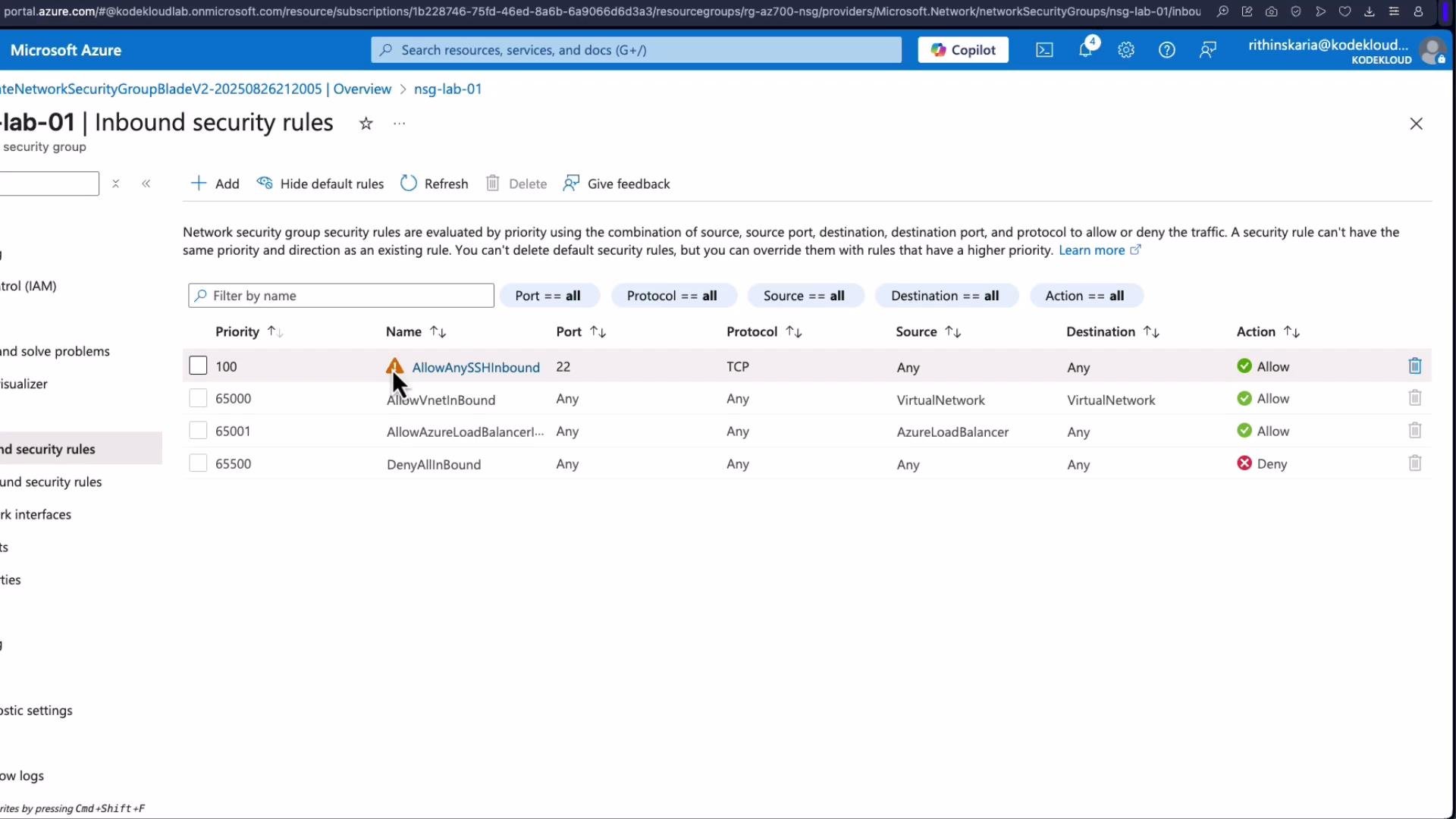 After adding the rule, you should be able to SSH to the VMs in that subnet:
```bash theme={null}
ssh kodeloud@172.191.36.135
# SSH server fingerprint prompt:
# The authenticity of host '172.191.36.135 (172.191.36.135)' can't be established.
# ED25519 key fingerprint is SHA256:vdKNh1gNzy8gUjET7o7oJz+sVIl/TQxmTtrRV6kwBQ.
# Are you sure you want to continue connecting (yes/no/[fingerprint])? yes
# kodeloud@vm-nsg-lab-1's password:
# Last login: Sun Aug 24 19:08:57 on pts/0
```
Because the rule was applied at the subnet level, all VMs in that subnet inherit the SSH access.
## Effective security rules and NIC-level NSGs
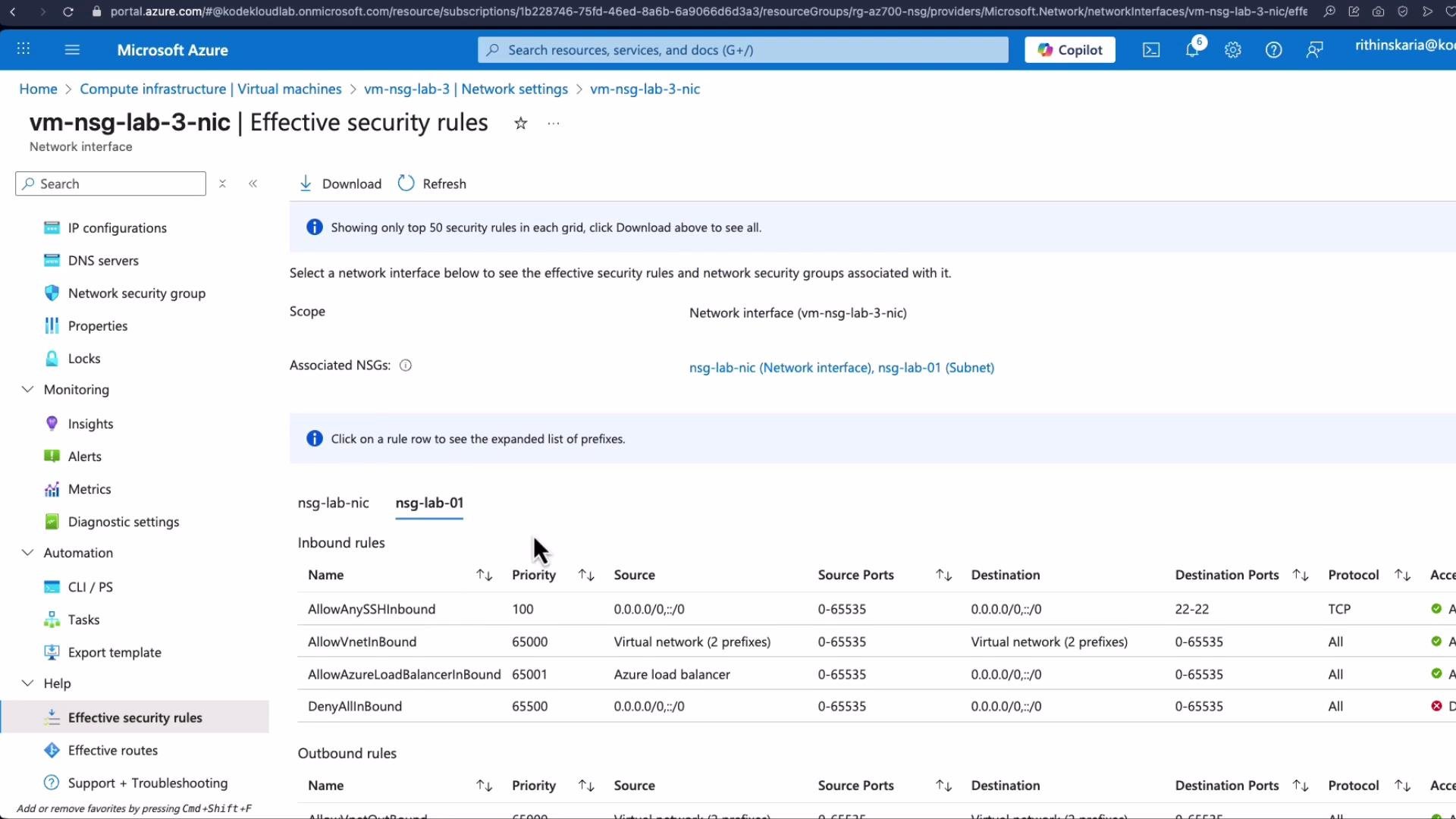
You can apply NSGs at both the subnet and network interface (NIC) levels. Traffic must be allowed by every applicable NSG for the flow to succeed; a `Deny` at either level blocks traffic.
* Example workflow:
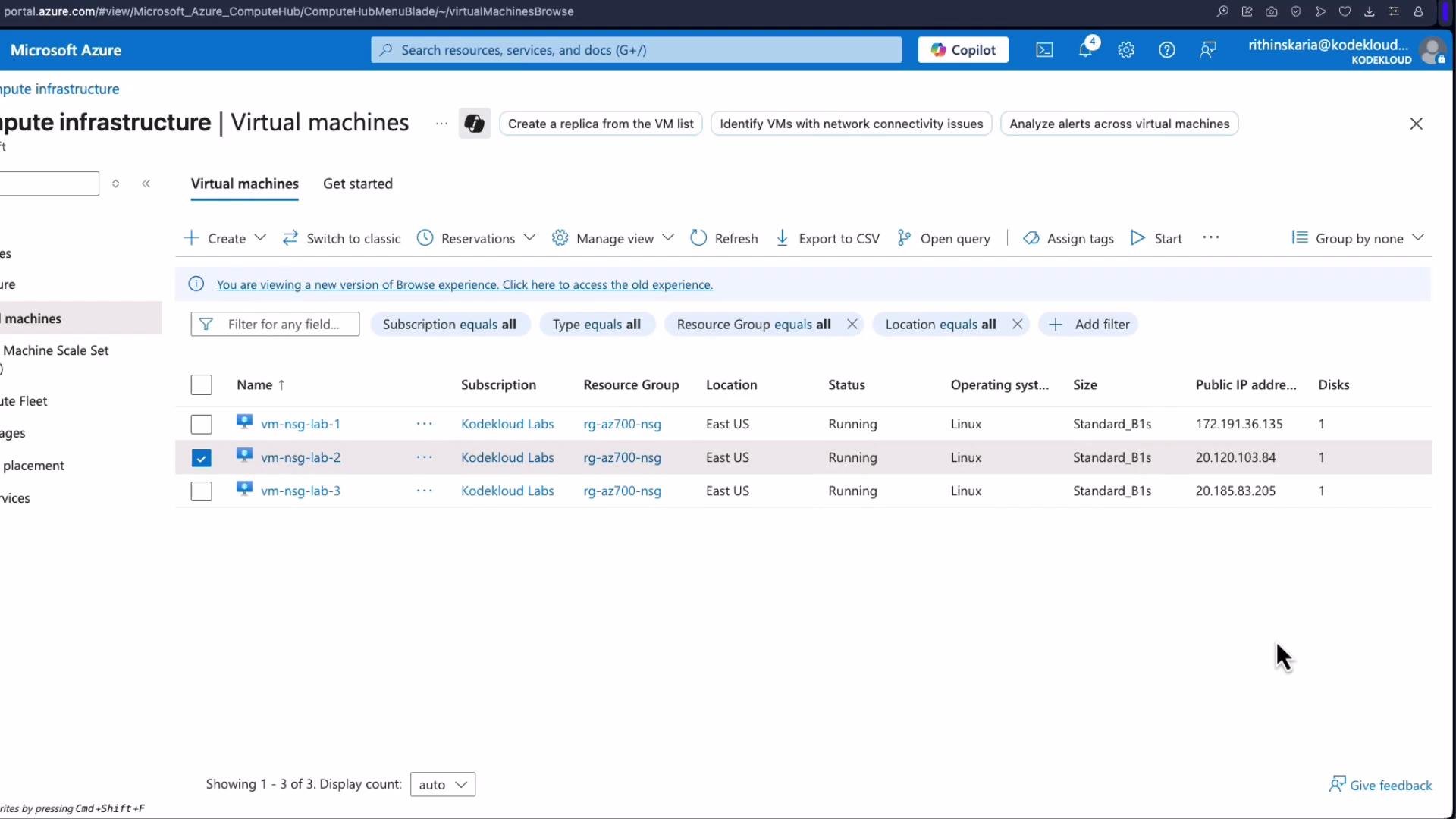
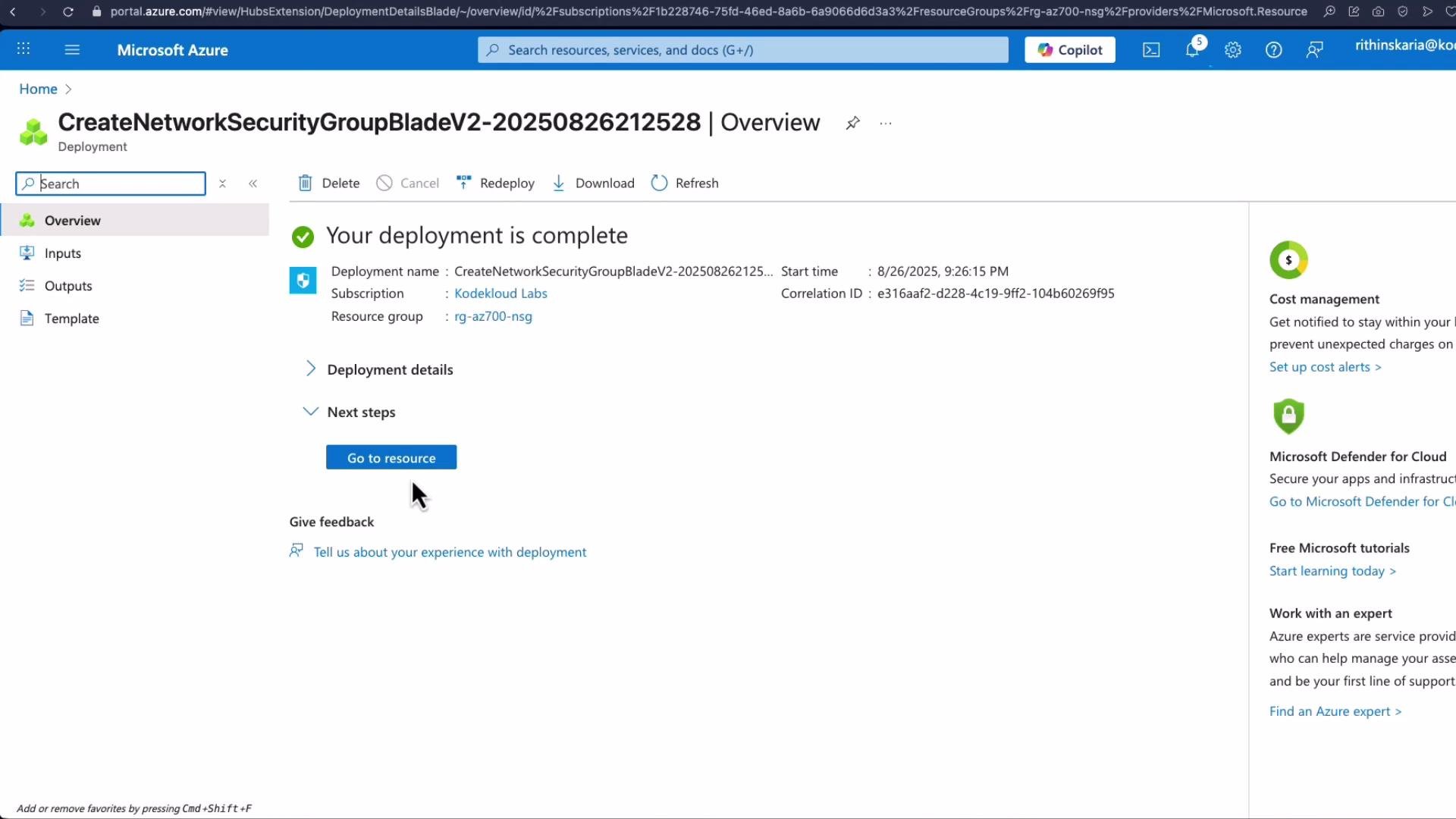
1. Create a second NSG and assign it to the NIC of `VM3`.
2. If SSH is allowed at the subnet level but denied at the NIC NSG, SSH to that VM will fail.
To inspect the combined effect of subnet + NIC NSGs:
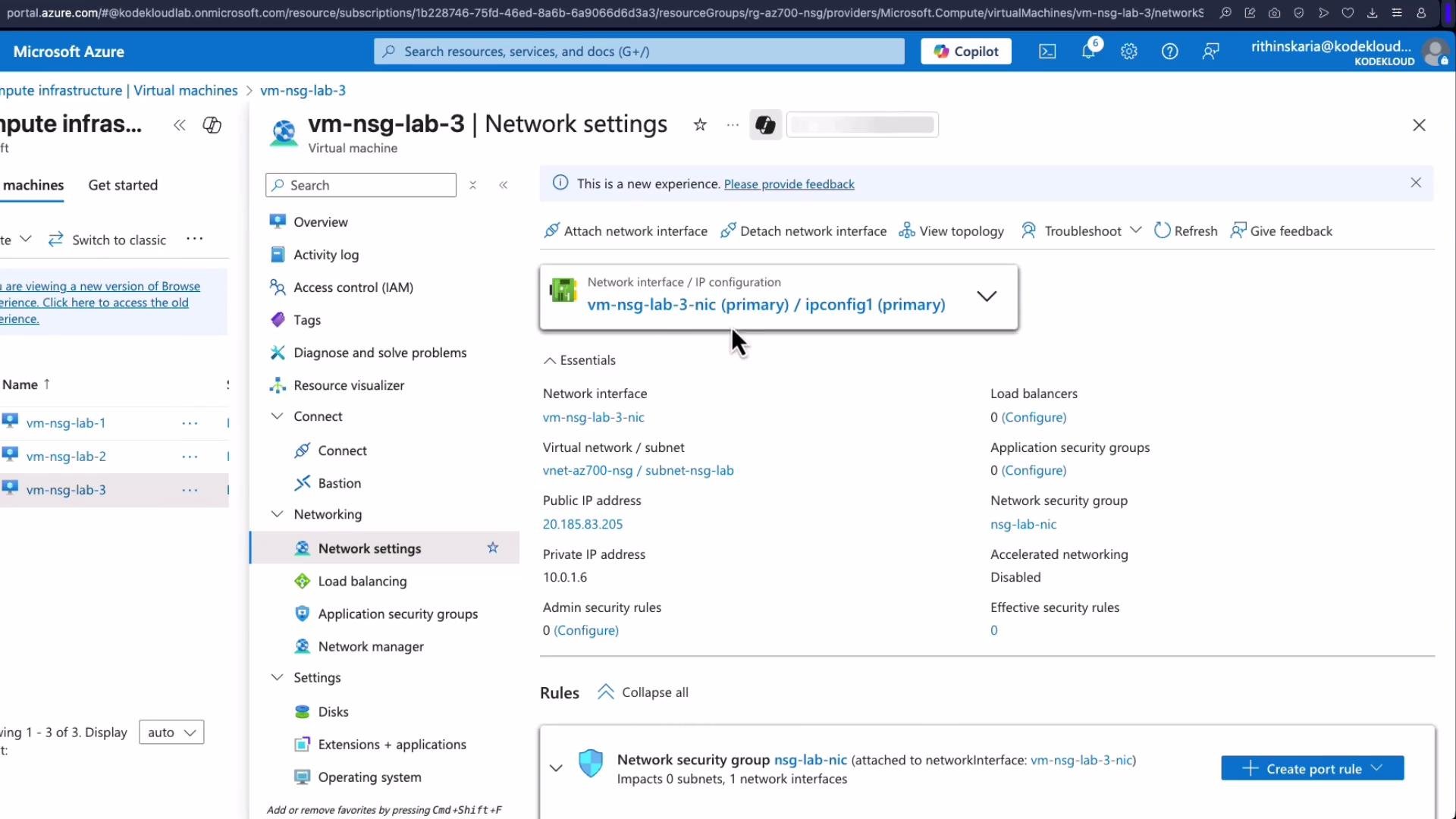
* Go to the VM → **Networking** → select the NIC → **Effective security rules**. This displays aggregated inbound/outbound rules and which rule ultimately allows or denies traffic.
After adding the rule, you should be able to SSH to the VMs in that subnet:
```bash theme={null}
ssh kodeloud@172.191.36.135
# SSH server fingerprint prompt:
# The authenticity of host '172.191.36.135 (172.191.36.135)' can't be established.
# ED25519 key fingerprint is SHA256:vdKNh1gNzy8gUjET7o7oJz+sVIl/TQxmTtrRV6kwBQ.
# Are you sure you want to continue connecting (yes/no/[fingerprint])? yes
# kodeloud@vm-nsg-lab-1's password:
# Last login: Sun Aug 24 19:08:57 on pts/0
```
Because the rule was applied at the subnet level, all VMs in that subnet inherit the SSH access.
## Effective security rules and NIC-level NSGs
You can apply NSGs at both the subnet and network interface (NIC) levels. Traffic must be allowed by every applicable NSG for the flow to succeed; a `Deny` at either level blocks traffic.
* Example workflow:
1. Create a second NSG and assign it to the NIC of `VM3`.
2. If SSH is allowed at the subnet level but denied at the NIC NSG, SSH to that VM will fail.
To inspect the combined effect of subnet + NIC NSGs:
* Go to the VM → **Networking** → select the NIC → **Effective security rules**. This displays aggregated inbound/outbound rules and which rule ultimately allows or denies traffic.
 ## Outbound example using service tags (deny Internet, allow Storage)
This example demonstrates how to block general Internet outbound access while allowing Azure Storage access by using service tags.
From the VM, a curl to a blob returns binary content (use `--output` or `-o` to save instead of printing binary to terminal):
```bash theme={null}
# On the VM:
curl https://cskodekloudaz01.blob.core.windows.net/vision/note.jpeg
# Warning: Binary output can mess up your terminal. Use "--output -" to tell
# Warning: to save to a file.
```
To block Internet outbound but allow Storage:
1. In the NSG attached to the VM/subnet, add an outbound Deny rule:
* Source: `Any`
* Destination: `Service Tag` → `Internet`
* Destination port ranges: `*`
* Action: `Deny`
* Priority: `200`
* Name: `Deny_Internet`
2. This will override the default `AllowInternetOutbound` (priority 65001) because `200` is a smaller number and thus has higher precedence.
## Outbound example using service tags (deny Internet, allow Storage)
This example demonstrates how to block general Internet outbound access while allowing Azure Storage access by using service tags.
From the VM, a curl to a blob returns binary content (use `--output` or `-o` to save instead of printing binary to terminal):
```bash theme={null}
# On the VM:
curl https://cskodekloudaz01.blob.core.windows.net/vision/note.jpeg
# Warning: Binary output can mess up your terminal. Use "--output -" to tell
# Warning: to save to a file.
```
To block Internet outbound but allow Storage:
1. In the NSG attached to the VM/subnet, add an outbound Deny rule:
* Source: `Any`
* Destination: `Service Tag` → `Internet`
* Destination port ranges: `*`
* Action: `Deny`
* Priority: `200`
* Name: `Deny_Internet`
2. This will override the default `AllowInternetOutbound` (priority 65001) because `200` is a smaller number and thus has higher precedence.
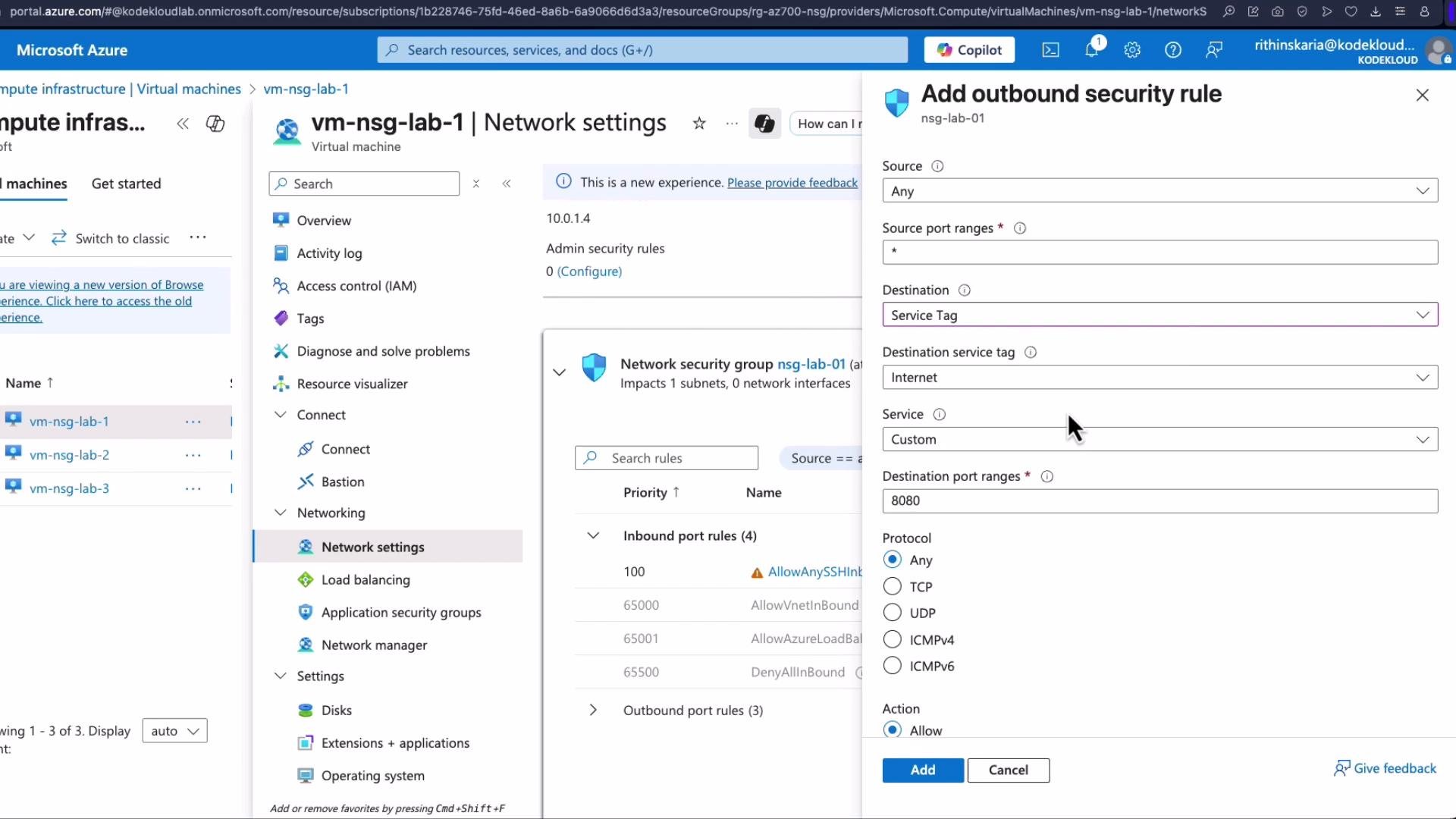 After adding the deny rule, outbound Internet access from the VM is blocked:
```bash theme={null}
# On the VM:
curl https://www.microsoft.com
# curl: (7) Failed to connect to www.microsoft.com port 443: Connection refused
```
To permit Storage access while Internet is denied:
1. Add an outbound Allow rule:
* Source: `Any`
* Destination: `Service Tag` → `Storage`
* Destination port ranges: `443,80` (or the ports you need)
* Action: `Allow`
* Priority: `100` (higher precedence than `Deny_Internet`)
* Name: `Allow_Storage`
You may specify multiple ports or CIDR ranges separated by commas (for example, `10.1.1.0/24,10.1.2.0/24`) if you prefer IP-based rules.
After adding the Allow Storage rule:
```bash theme={null}
# On the VM:
curl --output note.jpeg https://cskodekloudaz01.blob.core.windows.net/vision/note.jpeg
# (File downloads to note.jpeg)
curl https://www.microsoft.com
# curl: (7) Failed to connect to www.microsoft.com port 443: Connection refused
```
Service tags make this simpler because `Storage` includes all necessary Azure storage IP ranges; you don't need to keep a manual list of IPs.
## Summary
* Use predefined Services for common ports or `Custom` for custom ports. You can specify single ports, ranges, and comma-separated lists for complex needs.
* Priority numbers are evaluated ascending; lower numeric values take precedence.
* NSGs may be applied at both Subnet and NIC levels. Traffic must be allowed by all applicable NSGs—any deny blocks the flow.
* Prefer Service Tags to reference Azure services (Storage, Internet, VirtualNetwork, etc.) to reduce administrative overhead and rely on Azure-managed IP updates.
* Always minimize exposure when allowing management ports (SSH/RDP). Restrict sources or use Just-in-Time access where possible.
## Links and References
* [Azure Network Security Groups documentation](https://learn.microsoft.com/azure/virtual-network/network-security-groups-overview)
* [Azure service tags documentation](https://learn.microsoft.com/azure/virtual-network/service-tags-overview)
* [Just-in-Time VM access (Azure Security Center)](https://learn.microsoft.com/azure/security-center/security-center-just-in-time)
After adding the deny rule, outbound Internet access from the VM is blocked:
```bash theme={null}
# On the VM:
curl https://www.microsoft.com
# curl: (7) Failed to connect to www.microsoft.com port 443: Connection refused
```
To permit Storage access while Internet is denied:
1. Add an outbound Allow rule:
* Source: `Any`
* Destination: `Service Tag` → `Storage`
* Destination port ranges: `443,80` (or the ports you need)
* Action: `Allow`
* Priority: `100` (higher precedence than `Deny_Internet`)
* Name: `Allow_Storage`
You may specify multiple ports or CIDR ranges separated by commas (for example, `10.1.1.0/24,10.1.2.0/24`) if you prefer IP-based rules.
After adding the Allow Storage rule:
```bash theme={null}
# On the VM:
curl --output note.jpeg https://cskodekloudaz01.blob.core.windows.net/vision/note.jpeg
# (File downloads to note.jpeg)
curl https://www.microsoft.com
# curl: (7) Failed to connect to www.microsoft.com port 443: Connection refused
```
Service tags make this simpler because `Storage` includes all necessary Azure storage IP ranges; you don't need to keep a manual list of IPs.
## Summary
* Use predefined Services for common ports or `Custom` for custom ports. You can specify single ports, ranges, and comma-separated lists for complex needs.
* Priority numbers are evaluated ascending; lower numeric values take precedence.
* NSGs may be applied at both Subnet and NIC levels. Traffic must be allowed by all applicable NSGs—any deny blocks the flow.
* Prefer Service Tags to reference Azure services (Storage, Internet, VirtualNetwork, etc.) to reduce administrative overhead and rely on Azure-managed IP updates.
* Always minimize exposure when allowing management ports (SSH/RDP). Restrict sources or use Just-in-Time access where possible.
## Links and References
* [Azure Network Security Groups documentation](https://learn.microsoft.com/azure/virtual-network/network-security-groups-overview)
* [Azure service tags documentation](https://learn.microsoft.com/azure/virtual-network/service-tags-overview)
* [Just-in-Time VM access (Azure Security Center)](https://learn.microsoft.com/azure/security-center/security-center-just-in-time)